2020 CHEVROLET IMPALA turn
[x] Cancel search: turnPage 5 of 97

Chevrolet Impala Infotainment Manual (2.6) (GMNA-Localizing-U.S./Canada-
14402255) - 2020 - CRC - 6/5/19
4 Introduction
Infotainment System
The infotainment system is controlled by using the infotainment display,
controls on the center stack, steering wheel controls, and voice recognition.
1.O(Power)
. Press to turn the
power on.
. Press and hold to turn
the power off. .
Press to mute/unmute
the system when on.
When the power is on
and the system is not
muted, a quick status pane will display when
Ois pressed. PressingOwill mute the system
and trigger this pane to
show a long press is
required to power down
the system.
. Turn to decrease or
increase the volume.
2. MEDIA
.Press to change the
media source to USB,
Bluetooth, or AUX.
3. RADIO
.Press to change the
audio source to AM, FM
or SXM (if equipped).
4.gord(Previous/Next)
. Radio: Press
gand
release to go to the
previous station or
channel. Press and hold
to fast seek the next
strongest previous
station or channel. See
AM-FM Radio 010.
Page 6 of 97

Chevrolet Impala Infotainment Manual (2.6) (GMNA-Localizing-U.S./Canada-
14402255) - 2020 - CRC - 6/5/19
Introduction 5
.USB/Bluetooth:
Press
gto seek to the
beginning of the current
or previous track. Press
and hold to quickly
reverse through a track.
Release to return to
playing speed. See USB
Port 019 or
Bluetooth Audio 023.
. Radio: Press
dand
release to go to the next
station or channel.
Press and hold to fast
seek the next strongest
station or channel.
. USB/Bluetooth:
Press
dto seek the
next track. Press and
hold to fast forward
through a track.
Release to return to
playing speed. See USB
Port 019 or
Bluetooth Audio 023.
5.P(Screen)
. Press
Pto open.
Press
Pagain to
close. Keep the storage
area closed when not in
use. See the owner ’s
manual.
6.{(Home Page)
. Press to go to the Home
Page. See “Home Page”
later in this section.
7.oBACK
. Press to return to the
previous display in
a menu.
8. CD Slot
9. MENU
.Turn to highlight a
feature. Press to
activate the highlighted
feature.
10.Y(Eject)
. Press to eject the audio
disc from the CD player. Home Page
The Home Page is where vehicle
application icons are accessed.
Some applications are disabled
when the vehicle is moving.
The Home Page can be set up to
have up to five pages with eight
icons per page.
Touch
horkto access the pages of
icons.
h: Touch to go to the previous
Home Page.
k: Touch to go to the next
Home Page.
l: Touch this interaction selector
to display the favorites list.
Touch a preset in the favorites to
begin the process of saving a
favorite application.
Touch and hold the application icon
to store as a favorite. The name of
the application will show in favorites.
Page 10 of 97
Chevrolet Impala Infotainment Manual (2.6) (GMNA-Localizing-U.S./Canada-
14402255) - 2020 - CRC - 6/5/19
Introduction 9
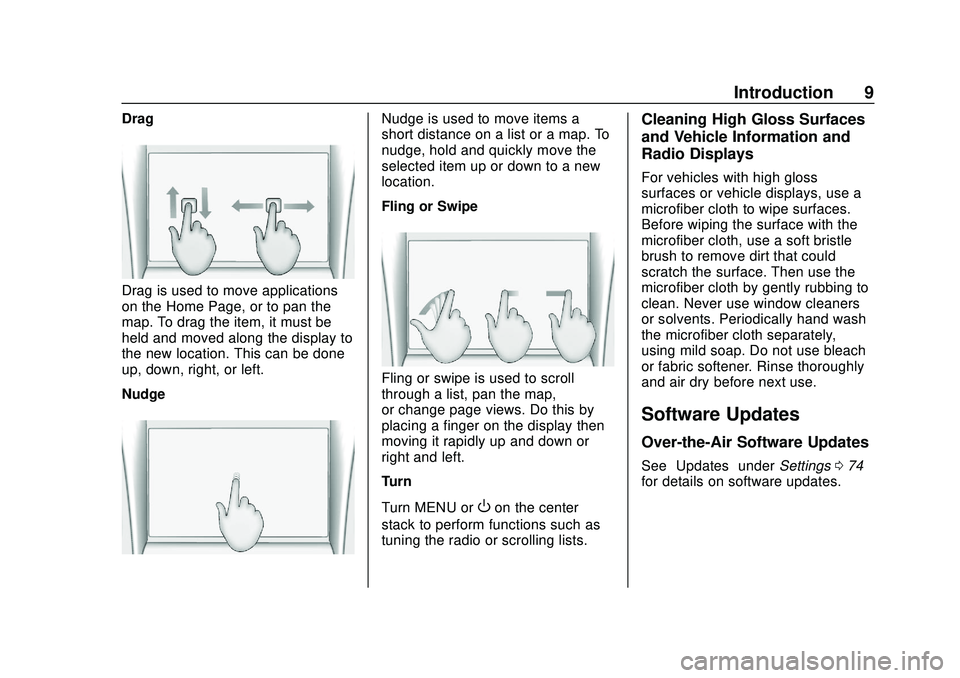
Drag
Drag is used to move applications
on the Home Page, or to pan the
map. To drag the item, it must be
held and moved along the display to
the new location. This can be done
up, down, right, or left.
Nudge
Nudge is used to move items a
short distance on a list or a map. To
nudge, hold and quickly move the
selected item up or down to a new
location.
Fling or Swipe
Fling or swipe is used to scroll
through a list, pan the map,
or change page views. Do this by
placing a finger on the display then
moving it rapidly up and down or
right and left.
Turn
Turn MENU or
Oon the center
stack to perform functions such as
tuning the radio or scrolling lists.
Cleaning High Gloss Surfaces
and Vehicle Information and
Radio Displays
For vehicles with high gloss
surfaces or vehicle displays, use a
microfiber cloth to wipe surfaces.
Before wiping the surface with the
microfiber cloth, use a soft bristle
brush to remove dirt that could
scratch the surface. Then use the
microfiber cloth by gently rubbing to
clean. Never use window cleaners
or solvents. Periodically hand wash
the microfiber cloth separately,
using mild soap. Do not use bleach
or fabric softener. Rinse thoroughly
and air dry before next use.
Software Updates
Over-the-Air Software Updates
See “Updates” underSettings 074
for details on software updates.
Page 11 of 97

Chevrolet Impala Infotainment Manual (2.6) (GMNA-Localizing-U.S./Canada-
14402255) - 2020 - CRC - 6/5/19
10 Radio
Radio
AM-FM Radio
Playing the Radio
While on the Audio main page the
available sources are: AM, FM,
SXM (if equipped), CD (if equipped),
MyMedia, USB, Bluetooth, and AUX
Input.
.Press RADIO on the center
stack or touch the Audio icon on
the Home Page to scroll through
AM, FM, or SXM (if equipped).
. Press MEDIA on the center
stack or touch the Audio icon on
the Home Page to access Media
and scroll through CD (if
equipped), MyMedia, USB,
Bluetooth, and AUX Input.
Infotainment System Settings
Press RADIO on the center stack to
access broadcast sources. Touch the Menu icon on the
infotainment display to display the
following menus:
Tone Settings:
.
Bass, Midrange, Treble,
Surround (if equipped): Touch +
or–to adjust. Surround adjusts
the headrest speaker
volume only.
. Balance: Touch
SorTfor more
sound from the left or right
speakers. The middle position
balances the sound between the
left and right speakers.
. Fade: Touch
yorzfor more
sound from the front or rear
speakers. The middle position
balances the sound between the
front and rear speakers.
DSP Modes (If Equipped):
. Bose Centerpoint surround
sound system has four DSP
modes:
‐Normal: Adjusts the audio to
provide the best sound for all
seating positions. ‐
Driver: Adjusts the audio to
provide the best sound for the
driver.
‐ Rear: Adjusts the audio to
provide the best sound for the
rear seat occupants.
‐ Centerpoint: Turns on Bose
Centerpoint surround
technology. This setting
creates a surround sound from
nearly any audio source:
existing stereo, CD collection,
and MP3 players. For more
information on Bose
Centerpoint surround
technology, see
www.boseautomotive.com.
Categories : Touch Categories
under the Audio menu to access the
categories list for AM, FM, or SXM
(if equipped). The list contains
names associated with the AM, FM,
and SXM, if equipped, stations or
channels. Touch a category name to
display a list of stations or channels
for that category. Touching a station
or channel from the list tunes the
radio to that station or channel and
returns the display to Now Playing.
Page 12 of 97

Chevrolet Impala Infotainment Manual (2.6) (GMNA-Localizing-U.S./Canada-
14402255) - 2020 - CRC - 6/5/19
Radio 11
EQ :If equipped with a Bose sound
system, the Equalizer settings are
selected through the tone settings
menu. Touch the left or right arrows
to cycle through the EQ options.
The available choices are Manual
and Talk.
Auto Volume (If Equipped) : This
feature adjusts the volume based on
vehicle speed. The options are Off,
Low, Medium - Low, Medium,
Medium - High, or High. Touch the
Back icon on the infotainment
display to go to the previous menu.
Bose AudioPilot Noise
Compensation Technology (If
Equipped) : When turned on,
AudioPilot technology detects noise
and vehicle speed to continuously
adjust the audio signal so that music
will sound the same at a set volume
level. This feature is most effective
at lower radio volume settings
where background noise can affect
how well the music is being played.
See www.boseautomotive.com. This
feature can be turned on or off. Touch the Back icon on the
infotainment display to go back to
the previous menu.
HD Radio (If Equipped) :
For AM,
FM, and SXM (if equipped) only,
touch to turn HD Radio (if equipped)
reception on or off. Touch the Back
icon on the infotainment display to
go back to the previous menu.
Update Station List : For AM, FM,
and SXM (if equipped), touch to
update the station or channel list.
Touch the Back icon on the
infotainment display to go back to
the previous menu.
Finding a Station
Seeking a Station
Press
gordon the center stack
to search for the previous or next
strongest station.
Tuning a Station
Touch TUNE on the infotainment
display to access Direct Tune. Direct Tune
Access Direct Tune by touching the
TUNE option to bring up the
keypad. Navigate up and down
through all frequencies or directly
enter a station using the keypad.
When a new station is entered, the
information about that station
displays on the right side. This
information will update with each
new valid frequency.
The keypad will gray out entries that
do not contribute to a valid
frequency and will automatically
place a decimal point within the
frequency number.
A valid station will automatically
tune to the new frequency but not
close the Direct Tune window.
Page 14 of 97

Chevrolet Impala Infotainment Manual (2.6) (GMNA-Localizing-U.S./Canada-
14402255) - 2020 - CRC - 6/5/19
Radio 13
To scroll through the favorites:
.Drag up on the top border of the
favorites bar to view the
favorites. To close the favorites,
drag them down.
. Slide a finger to the right or left
to scroll through each page of
favorites.
Tone Settings : Touch and hold in
the favorites area to save the
current tone settings as a favorite in
the tone settings display. Drag up to
display the favorites. Touch a saved
favorite to recall a favorite tone
setting.
The number of favorites displayed is
automatically adjusted by default,
but can be manually adjusted in the
Settings menu under Radio and
then Number of Favorites Shown.
HD Radio Technology
If equipped, HD Radio Technology
is a free service with features such
as digital quality sound, more
stations available on a single frequency such as HD2 and HD3,
and display information such as
artist and song title.
From the AM or FM display, touch
Menu then HD Switching OFF to
turn HD Radio reception off. To turn
it on, touch Menu then HD
Switching ON.
Station Access
To access HD Radio stations:
1. Tune the radio to the station. If the HD Radio reception is
turned on and the station is
broadcasting with HD Radio
technology, the radio will
display the HD2/HD3 channels
available and will automatically
switch to digital audio indicated
with the HD logo.
2. Touch
@or9on the
infotainment display to tune to
the previous or next HD Radio
station.
There may be a delay before the
station starts playing.
The HD Radio station number is
indicated next to the HD logo. HD Radio stations can be saved as
favorites.
For a list of all stations, see
www.hdradio.com.
HD Radio Troubleshooting
Digital Audio Delay :
Wait for the
signal to process. This can take
several seconds.
Volume Change, Audio Skip,
Echo, Digital Audio Lost : Station
signal strength may be weak, the
station is out of range, or the station
may be out of alignment. Verify
proper reception on another station.
If the HD Radio signal loses
reception while listening to HD1, the
radio will go back to the analog
version of the radio station.
If the HD Radio signal loses
reception while listening to stations
HD2 to HD8, the radio mutes until
the signal can be recovered or until
the station is changed.
HD Radio reception can be disabled
if driving in a weak signal area.
Touch HD Radio On/Off to toggle
HD Radio reception on and off.
Page 15 of 97

Chevrolet Impala Infotainment Manual (2.6) (GMNA-Localizing-U.S./Canada-
14402255) - 2020 - CRC - 6/5/19
14 Radio
Radio Data System (RDS)
If equipped, RDS features are
available for use only on FM
stations that broadcast RDS
information. With RDS, the
radio can:
.Seek stations broadcasting the
selected type of programming.
. Receive announcements
concerning local and national
emergencies.
. Display messages from radio
stations.
This system relies on receiving
specific information from these
stations and only works when the
information is available. It is
possible that a radio station could
broadcast incorrect information that
causes the radio features to work
improperly. If this happens, contact
the radio station.
When information is broadcast from
the current FM station, the station
name or call letters display on the
audio screen. RDS can provide a program type (PTY) for current
programming and the name of the
program being broadcasted.
Satellite Radio
SiriusXM Satellite Radio
Service
If equipped, vehicles with a valid
SiriusXM satellite radio subscription
can receive SiriusXM programming.
SiriusXM satellite radio has a wide
variety of programming and
commercial-free music, coast to
coast, and in digital-quality sound.
In the U.S., see www.siriusxm.com
or call 1-888-601-6296. In Canada,
see www.siriusxm.ca or call
1-877-438-9677.When SiriusXM is active, the station
name, number, category name,
song title, and artist display.
SiriusXM Menu
SiriusXM has a menu to adjust
different features.
Touching the Menu icon on the
infotainment display may show the
following:
Tone Settings :
Touch + or–to
adjust the tone settings. See AM-FM
Radio 010.
TuneSelect : For SiriusXM only, this
feature allows for an alert to be set
for artists or songs that are played
on any channel. Touch Manage
TuneSelect to turn the alerts On and
Off or manage the saved selection
of Artists or Songs. To turn off an
alert, touch the Song or Artist and
uncheck the box. To delete an alert,
touch –. Touch the Back icon on the
infotainment display to go back to
the previous menu.
Page 16 of 97

Chevrolet Impala Infotainment Manual (2.6) (GMNA-Localizing-U.S./Canada-
14402255) - 2020 - CRC - 6/5/19
Radio 15
Auto Volume (If Equipped) :This
feature adjusts the volume based on
the vehicle speed. See AM-FM
Radio 010.
Bose AudioPilot Noise
Compensation Technology (If
Equipped) : This feature adjusts
the volume based on the noise in
the vehicle and speed. See AM-FM
Radio 010.
Radio Reception
Unplug electronic devices from the
accessory power outlets if there is
interference or static in the radio.
FM
FM signals only reach about 16 to
65 km (10 to 40 mi). Although the
radio has a built-in electronic circuit
that automatically works to reduce
interference, some static can occur,
especially around tall buildings or
hills, causing the sound to fade in
and out.
AM
The range for most AM stations is
greater than for FM, especially at
night. The longer range can cause
station frequencies to interfere with
each other. Static can also occur
when things like storms and power
lines interfere with radio reception.
When this happens, try reducing the
treble on the radio.
SiriusXM Satellite Radio
Service
If equipped, SiriusXM Satellite
Radio Service provides digital radio
reception. Tall buildings or hills can
interfere with satellite radio signals,
causing the sound to fade in and
out. In addition, traveling or standing
under heavy foliage, bridges,
garages, or tunnels may cause loss
of the SiriusXM signal for a period
of time.
Mobile Device Usage
Mobile device usage, such as
making or receiving calls, charging,
or just having the mobile device on
may cause static interference in the
radio. Unplug the mobile device or
turn it off if this happens.
Multi-Band Antenna
The roof antenna is for OnStar,
SXM, and GPS (Global Positioning
System). Keep clear of obstructions
for clear reception. If the vehicle has
a sunroof, and it is open, reception
can also be affected.