2020 CHEVROLET IMPALA radio
[x] Cancel search: radioPage 25 of 97

Chevrolet Impala Infotainment Manual (2.6) (GMNA-Localizing-U.S./Canada-
14402255) - 2020 - CRC - 6/5/19
24 Audio Players
Manage Bluetooth Devices :
Touch to go to the Bluetooth page to
add or delete devices.
When using the Bluetooth audio
source, the radio may not be able to
launch specific applications on your
device. Use the device to start audio
playback when it is safe to do so.
All devices launch audio differently.
When selecting Bluetooth audio as
a source, the radio may show as
paused on the display. Touch play
on the device or touch
rto begin
playback.
Some phones support sending
Bluetooth music information to
display on the radio. When the radio
receives this information, it will
check to see if any is available and
display it. For more information
about supported Bluetooth features,
see www.gm.com/bluetooth.
Page 30 of 97
Chevrolet Impala Infotainment Manual (2.6) (GMNA-Localizing-U.S./Canada-
14402255) - 2020 - CRC - 6/5/19
Navigation 29
turns the traffic avoidance feature
On and performs the desired
selection.
The two options, Ask Me Before
Avoiding and Automatically Avoid
Traffic will adjust the system as
follows:
.If the Automatically Avoid Traffic
list item is touched, the system
will automatically adjust the
route based on traffic without
notifying the driver.
. If the Ask Me Before Avoiding
list item is touched, the system
will always use Alerts to show
when there is an incident and
allow it to be avoided by
touching Avoid.
If the Traffic list item is touched from
the Map Menu and Traffic is not
available because the SiriusXM
subscription is not valid, a pop-up
will display with information on how
to reactivate the subscription along
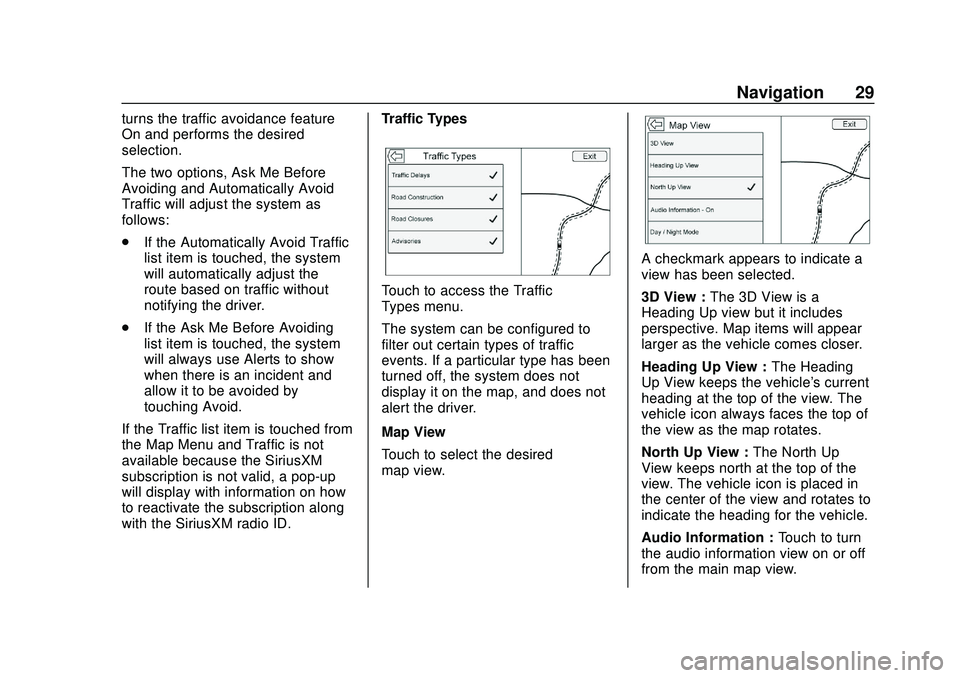
with the SiriusXM radio ID. Traffic Types
Touch to access the Traffic
Types menu.
The system can be configured to
filter out certain types of traffic
events. If a particular type has been
turned off, the system does not
display it on the map, and does not
alert the driver.
Map View
Touch to select the desired
map view.
A checkmark appears to indicate a
view has been selected.
3D View :
The 3D View is a
Heading Up view but it includes
perspective. Map items will appear
larger as the vehicle comes closer.
Heading Up View : The Heading
Up View keeps the vehicle's current
heading at the top of the view. The
vehicle icon always faces the top of
the view as the map rotates.
North Up View : The North Up
View keeps north at the top of the
view. The vehicle icon is placed in
the center of the view and rotates to
indicate the heading for the vehicle.
Audio Information : Touch to turn
the audio information view on or off
from the main map view.
Page 53 of 97
Chevrolet Impala Infotainment Manual (2.6) (GMNA-Localizing-U.S./Canada-
14402255) - 2020 - CRC - 6/5/19
52 Navigation
SiriusXM NavTraffic
If equipped, the infotainment system
may have SiriusXM NavTraffic. It is
a subscription service provided
through SiriusXM Satellite Radio.
A service fee is required to receive
the SiriusXM NavTraffic service.
Detailed traffic information is
delivered to the vehicle’s navigation
system by the SiriusXM Radio
satellites. SiriusXM NavTraffic
provides continuously updated
traffic information.
The service may be available in
more cities in the future. See
www.siriusxm.com/navtraffic/
marketcoverage for more details on
local coverage.
To access the traffic features, touch
Traffic on the Map Menu.
If traffic is not available because
there is no valid SiriusXM
subscription, a pop-up displays
information on how to reactivate the
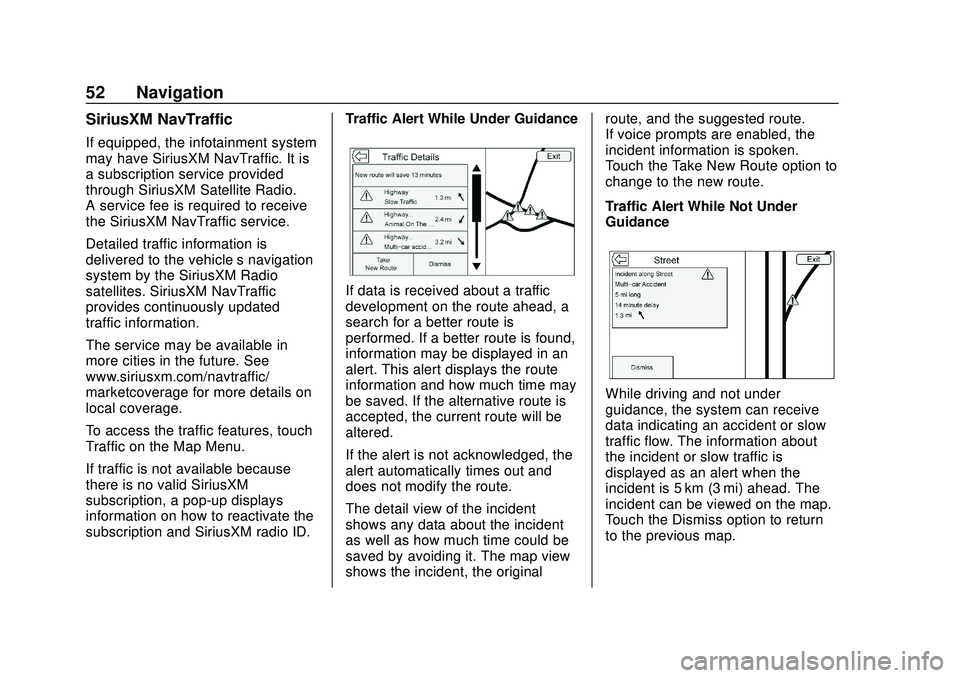
subscription and SiriusXM radio ID.Traffic Alert While Under Guidance
If data is received about a traffic
development on the route ahead, a
search for a better route is
performed. If a better route is found,
information may be displayed in an
alert. This alert displays the route
information and how much time may
be saved. If the alternative route is
accepted, the current route will be
altered.
If the alert is not acknowledged, the
alert automatically times out and
does not modify the route.
The detail view of the incident
shows any data about the incident
as well as how much time could be
saved by avoiding it. The map view
shows the incident, the originalroute, and the suggested route.
If voice prompts are enabled, the
incident information is spoken.
Touch the Take New Route option to
change to the new route.
Traffic Alert While Not Under
Guidance
While driving and not under
guidance, the system can receive
data indicating an accident or slow
traffic flow. The information about
the incident or slow traffic is
displayed as an alert when the
incident is 5 km (3 mi) ahead. The
incident can be viewed on the map.
Touch the Dismiss option to return
to the previous map.
Page 60 of 97

Chevrolet Impala Infotainment Manual (2.6) (GMNA-Localizing-U.S./Canada-
14402255) - 2020 - CRC - 6/5/19
Voice Recognition 59
.A voice recognition system
prompt can be interrupted while
it is playing by touching
g.
For example, if the prompt
seems to be taking too long to
finish, to speak the command
without waiting for the prompt to
complete, touch
g.
. Speak the command naturally,
not too fast, not too slow. Use
direct commands without a lot of
extra words.
. Usually Phone and Audio
commands can be spoken in a
single command.
For example say, “Call
at work,” “Play” followed by the
artist or song name, or “Tune”
followed by the radio station
number.
. Navigation destinations are too
complex for a single command.
First, say a command that
explains the type of destination
needed, such as I want
directions to an “Address,”
“Navigate to an Intersection,” “I need to find a Place of Interest
or POI,”
or“Directions to a
Contact.” The system responds
by requesting more details. After
saying “Place of Interest,” only
major chains are available by
name. Chains are businesses
with at least 20 locations. For
other POIs, say the name of a
category like “Restaurants,”
“Shopping Malls,” or“Hospitals.”
Most languages do not support
natural language commands in
sentence form. For those
languages, use direct commands
like the examples shown on the
display.
There is no need to memorize
specific command words. Direct
commands might be more clearly
understood by the system. An
example of a direct command would
be “Call
these direct commands are
displayed on most of the screens
while a voice session is active.
If “Phone” or“Phone Commands,” is
stated, the system understands that a phone call is requested and will
respond with questions until enough
details are gathered.
If the phone number has been
saved with a name and a place, the
direct command should include
both, for example
“Call
at work.”
Using Voice Recognition for
List Options
When a list is displayed, a voice
prompt will ask to confirm or select
an option from that list. A selection
can be made by manually selecting
the item, or by speaking the line
number for the item to select.
When a display contains a list, there
may be options that are available
but not displayed. The list on a
voice recognition screen functions
the same as a list on other screens.
Scrolling or flinging can be used to
help display other entries from
the list.
Manually scrolling or paging the list
on a screen during a voice
recognition session suspends the
current voice recognition event and
Page 61 of 97
Chevrolet Impala Infotainment Manual (2.6) (GMNA-Localizing-U.S./Canada-
14402255) - 2020 - CRC - 6/5/19
60 Voice Recognition
plays the prompt“Make your
selection from the list using the
manual controls or press
oBACK
to try again.”
If manual selection takes more than
15 seconds, the session terminates
and prompts that it has timed out.
The display returns back to where
voice recognition was initiated.
The Back Command
Say “Back” or press
oBACK to go
to the previous menu.
If in voice recognition, and “Back”is
stated all the way through to the
initial display, then “Back”is stated
one more time, the voice recognition
session will cancel.
Help
Say “Help” on any voice recognition
display and the help prompt for the
display is played. Additionally, a
pop-up displays a text version of the
help prompt. Depending on how
voice recognition was initiated, the
Help pop-up will either display on the instrument cluster or the
infotainment display. Touch Dismiss
to make the pop-up go away.
Pressing
gwhile the help prompt is
playing will terminate the prompt
and a beep will be heard. Doing this
will stop the help prompt so that a
voice command can be used.
Voice Recognition for the
Radio
Some audio displays have a voice
recognition icon (
g) to launch audio
voice recognition. If the voice icon is
touched in a radio display, the voice
commands for radio and media
features are available.
“Switch to AM” :Switch bands to
AM and tune to the last AM radio
station.
“Switch to FM” :Switch bands to
FM and tune to the last FM radio
station.
“Switch to SXM” :Switch bands to
SiriusXM and tune to the last SXM
channel. “Tune to
:
Tune to the radio station whose
frequency is identified in the
command (like “nine fifty”).
“Tune to
Tune to the radio station whose
frequency is identified in the
command (like “one o one
point one”).
If equipped, “Tune to
HD Radio station whose frequency
is identified in the command.
If equipped, “Tune to
HD Radio station whose frequency
is identified in the command.
If equipped, “Tune to
station whose frequency and HD
channel is identified in the
command.
“Tune to SXM
radio station whose channel number
is identified in the command.
Page 62 of 97

Chevrolet Impala Infotainment Manual (2.6) (GMNA-Localizing-U.S./Canada-
14402255) - 2020 - CRC - 6/5/19
Voice Recognition 61
“Tune to SXM
radio station whose channel name
is identified in the command.
Voice Recognition for Audio
MyMedia
If browsing MyMedia when the voice
icon is selected, the voice
recognition commands for MyMedia
features are available.
“Play Artist” :Begin a dialog to
enter a specific artist name.
“Play Artist
Begin playback of the media
selection identified in the command.
“Play Album” :Begin a dialog to
enter a specific album name.
“Play Album
Begin playback of the identified
album name in the command.
“Play Song” :Begin a dialog to
enter a specific song name.
“Play Song
playback of the identified song
name in the command. “Play Genre”
:Begin a dialog to
enter a specific genre.
“Play Genre
Begin playback of the media
selection identified in the command.
“Play Playlist” :Begin a dialog to
enter a specific playlist name.
“Play Playlist
Begin playback of the identified
playlist in the command.
“Play
music from a specific device
identified by name. The device
name is the name shown on the
display when the device is first
selected as an audio source.
“Play Chapter” :Begin a dialog to
enter a specific name.
“Play Chapter
Begin playback of the media
selection identified in the command.
“Play Audiobook” :Begin a dialog
to enter a specific name.
“Play Audiobook
media selection identified in the
command. “Play CD Track
:Begin playback of the
CD at the track identified in the
command.
“Play Episode” :Begin a dialog to
enter a specific name.
“Play Episode
media selection identified in the
command.
“Play Podcast” :Begin a dialog to
enter a specific name.
“Play Podcast
media selection identified in the
command.
“Play Video” :Begin a dialog to
enter a specific name.
“Play Video
Page 64 of 97

Chevrolet Impala Infotainment Manual (2.6) (GMNA-Localizing-U.S./Canada-
14402255) - 2020 - CRC - 6/5/19
Voice Recognition 63
“Destination Place of Interest”:
Begin a dialog to enter a destination
Place of Interest category or major
brand name (if equipped).
Not all brand names of businesses
are available for voice entry. Most
major chains, such as chains with
more than 20 locations, should be
available to search for by name, but
the name must be precisely spoken.
Nicknames or short names for the
businesses will not likely be found.
Lesser known businesses might
have to be located by category,
such as fast food, hotels, or banks.
“Destination Contact” :Begin a
dialog to enter a specific destination
contact name.
“Cancel Route” :End route
guidance.
Voice Recognition for the
Phone
“Call
call to an entered contact. The
command may include location if
the contact has location numbers
stored. “Call
“At Work,” “On Mobile,”
or“On
Other” :Initiate a call to an entered
contact and location at home, at
work, on mobile device, or on
another phone.
“Call
call to a standard phone number or
emergency number.
If the call is being initiated outside of
North America, say “Call
reads back the number, repeat the
“Call” command to initiate the call.
If the number is not correct, “Delete”
will delete the number and allow it to
be entered again. If the number is
not complete, speak the remaining
digits.
“Pair Phone” :Begin the Bluetooth
pairing process. Follow instructions
on the radio display.
“Switch Phone” :Select a different
phone for outgoing calls. “Voice Keypad”
:Begins a dialog
to enter special numbers like
international numbers. The numbers
can be entered in groups of digits
with each group of digits being
repeated back by the system. If the
group of digits is not correct, the
command “Delete”will remove the
last group of digits and allow them
to be re-entered. Once the entire
number has been entered, the
command “Call”will start dialing the
number.
“Voice Mail” :Initiate a call to voice
mail numbers.
Voice Pass-Thru
Voice pass-thru allows access to the
voice recognition commands on the
cell phone, for example, Siri or
Voice Command. See the cell
phone manufacturer's user guide to
see if the cell phone supports this
feature. To activate the phone voice
recognition system, press and hold
gon the steering wheel for a few
seconds.
Page 75 of 97

Chevrolet Impala Infotainment Manual (2.6) (GMNA-Localizing-U.S./Canada-
14402255) - 2020 - CRC - 6/5/19
74 Settings
Settings
The Settings menu allows
adjustment of different vehicle and
radio features. The menu may
contain the following:
Time and Date
Touchlorgto increase or
decrease hours, minutes, and AM or
PM. Press 12Hr or 24Hr for 12 or
24 hour clock. Touch
lorgto
increase or decrease month, day,
or year. See “Clock”in the owner ’s
manual.
Language
This will set the display language in
the radio, instrument panel, and
voice recognition. Press Language
and select the appropriate
language. Touch the Back icon on
the infotainment display to go back
to the previous menu.
Valet Mode
If equipped, this will lock the
infotainment system and steering
wheel controls. It may also limit top
speed, power, and access to vehicle
storage locations (if equipped).
To enable valet mode:
1. Enter a four-digit code on the keypad.
2. Touch Enter to go to the confirmation screen.
3. Re-enter the four-digit code.
Touch Lock or Unlock to lock or
unlock the system. Touch the Back
icon on the infotainment display to
go back to the previous menu.
Radio
Touch to display the Radio menu
and the following may display:
. Manage Favorites: Touch to
highlight a favorite to edit. Touch
Rename to rename the favorite
or Delete to delete it. Touch and
hold the station to drag it to a
new location. Touch Done to go
back to the previous menu. .
Number of Favorites Shown:
Touch to set the number of
favorites to display. Select Auto,
5, 10, 15, 20, 25, 30, 35, 40, 45,
50, 55, or 60. Auto will adjust the
number of favorite locations that
can be seen. Touch the Back
icon on the infotainment display
to go back to the previous menu.
. Tone Settings: Touch + or –to
adjust Bass, Midrange, Treble,
or Surround. See AM-FM Radio
0 10.
. Auto Volume (If Equipped): This
feature adjusts the volume
based on the vehicle speed. See
AM-FM Radio 010.
. Bose AudioPilot Noise
Compensation Technology (If
Equipped): This feature adjusts
the volume based on the noise
in the vehicle and speed. See
AM-FM Radio 010.
. Maximum Startup Volume: This
feature sets the maximum
startup volume. If the vehicle is
started and the volume is
greater than this level, the