2020 BUICK ENVISION brakes
[x] Cancel search: brakesPage 196 of 363

Buick Envision Owner Manual (GMNA-Localizing-U.S./Canada/Mexico-
13555857) - 2020 - CRC - 2/25/19
Driving and Operating 195The ACC indicator displays in the
instrument cluster and Head-Up
Display (HUD), if equipped. When
the ACC is active, the indicator
turns green.
ACC can also be set while the
vehicle is stopped if ACC is on and
the brake pedal is applied.
Be mindful of speed limits,
surrounding traffic speeds, and
weather conditions when selecting
the set speed.
Resuming a Set Speed
If the ACC is set at a desired speed
and then the brakes are applied, the
ACC is disengaged without erasing
the set speed from memory.
To begin using ACC again, press
RES+ up briefly.
.
If the vehicle is moving, it returns
to the previous set speed.
Increasing Speed While ACC is at
a Set Speed
If ACC is already activated, do one
of the following: .
Use the accelerator to get to the
higher speed. Press SET – down.
Release the control and the
accelerator pedal. The vehicle
will now cruise at the higher
speed.
When the accelerator pedal is
pressed, ACC will not brake
because it is overridden. The
ACC indicator will turn blue on
the instrument cluster and HUD,
if equipped.
.
Press and hold RES+ up until
the desired set speed appears
on the display, then release it.
.
To increase vehicle speed in
small increments, press RES+
up briefly. For each press, the
vehicle goes 1 km/h (1 mph)
faster.
When it is determined that there is
no vehicle ahead inside the selected
following gap, then the vehicle
speed will increase to the set speed.
The set speed can also be set while
the vehicle is stopped. .
If stopped with the brake
applied, press RES+ until the
desired set speed is displayed.
.
Pressing RES+ when there is no
longer a vehicle ahead or the
vehicle is pulling away and the
brake is not applied will cause
the ACC to resume.
Reducing Speed While ACC is at a
Set Speed
If ACC is already activated, do one
of the following:
.
Use the brake to get to the
desired lower speed. Release
the brake and press SET – . The
vehicle will now cruise at the
lower speed.
.
Press and hold SET – down until
the desired lower speed is
reached, then release it.
.
To decrease the vehicle speed in
smaller increments, press SET −
down briefly. For each press, the
vehicle goes about 1 km/h
(1 mph) slower.
Page 198 of 363

Buick Envision Owner Manual (GMNA-Localizing-U.S./Canada/Mexico-
13555857) - 2020 - CRC - 2/25/19
Driving and Operating 197Approaching and Following a
Vehicle
The vehicle ahead indicator is in the
instrument cluster and HUD,
if equipped.
The vehicle ahead indicator only
displays when a vehicle is detected
in your vehicle ’ s path moving in the
same direction.
If this symbol is not displaying, ACC
will not respond to or brake for
vehicles ahead.
ACC automatically slows the vehicle
down and adjusts vehicle speed to
follow the vehicle in front at the
selected follow gap. The vehicle
speed increases or decreases to
follow the vehicle in front of you, but
will not exceed the set speed. It may
apply limited braking, if necessary.
When braking is active, the brake lamps will come on. The automatic
braking may feel or sound different
than if the brakes were applied
manually. This is normal.
Stationary or Very Slow-Moving
Objects
{ WarningACC may not detect and react to
stopped or slow-moving vehicles
ahead of you. For example, the
system may not brake for a
vehicle it has never detected
moving. This can occur in
stop-and-go traffic or when a
vehicle suddenly appears due to
a vehicle ahead changing lanes.
Your vehicle may not stop and
could cause a crash. Use caution
when using ACC. Your complete
attention is always required while
driving and you should be ready
to take action and apply the
brakes. ACC Automatically Disengages
ACC may automatically disengage
and the driver will need to manually
apply the brakes to slow the
vehicle if:
.
The sensors are blocked.
.
The Traction Control System
(TCS) or StabiliTrak/ESC system
has activated or been disabled.
.
There is a fault in the system.
.
The radar falsely reports a
blockage when driving in a
desert or remote area with no
other vehicles or roadside
objects. A DIC message may
display to indicate that ACC is
temporarily unavailable.
A message will appear on the DIC
indicating that ACC is disengaging.
The ACC active indicator will turn
white when ACC is no longer active.
Notification to Resume ACC
ACC will maintain a follow gap
behind a detected vehicle and slow
your vehicle to a stop behind that
vehicle.
Page 199 of 363

Buick Envision Owner Manual (GMNA-Localizing-U.S./Canada/Mexico-
13555857) - 2020 - CRC - 2/25/19
198 Driving and Operating If the stopped vehicle ahead has
driven away and ACC has not
resumed, the vehicle ahead
indicator will flash as a reminder to
check traffic before proceeding. In
addition, three beeps will sound.
See “ Adaptive Cruise Go Notifier ” in
“ Collision/Detection Systems ” under
Vehicle Personalization 0 133 .
When the vehicle ahead drives
away, press RES+ or the
accelerator pedal to resume ACC.
If stopped for more than
two minutes or if the driver door is
opened and the driver seat belt is
unbuckled, the ACC automatically
applies the Electric Parking Brake
(EPB) to hold the vehicle. The EPB
status light will turn on. See Electric
Parking Brake 0 186 . To release the
EPB, press the accelerator pedal.
A DIC warning message may
display indicating to shift to P (Park)
before exiting the vehicle. { WarningIf ACC has stopped the vehicle,
and if ACC is disengaged, turned
off, or canceled, the vehicle will
no longer be held at a stop. The
vehicle can move. When ACC is
holding the vehicle at a stop,
always be prepared to manually
apply the brakes.
{ WarningLeaving the vehicle without
placing it in P (Park) can be
dangerous. Do not leave the
vehicle while it is being held at a
stop by ACC. Always place the
vehicle in P (Park) and turn off
the ignition before leaving the
vehicle.
ACC Override
If using the accelerator pedal while
ACC is active, automatic braking will
not occur. The ACC indicator will turn blue on the instrument cluster
and HUD, if equipped. ACC will
resume operation when the
accelerator pedal is not being
pressed.
{ WarningThe ACC will not automatically
apply the brakes if your foot is
resting on the accelerator pedal.
You could crash into a vehicle
ahead of you.
Curves in the Road
{ Warning
On curves, ACC may not detect a
vehicle ahead in your lane. You
could be startled if the vehicle
accelerates up to the set speed,
especially when following a
vehicle exiting or entering exit
ramps. You could lose control of
the vehicle or crash. Do not use
(Continued)
Page 200 of 363

Buick Envision Owner Manual (GMNA-Localizing-U.S./Canada/Mexico-
13555857) - 2020 - CRC - 2/25/19
Driving and Operating 199Warning (Continued)ACC while driving on an entrance
or exit ramp. Always be ready to
use the brakes if necessary.
{ WarningOn curves, ACC may respond to
a vehicle in another lane, or may
not have time to react to a vehicle
in your lane. You could crash into
a vehicle ahead of you, or lose
control of your vehicle. Give extra
attention in curves and be ready
to use the brakes if necessary.
Select an appropriate speed while
driving in curves.
ACC may operate differently in a
sharp curve. It may reduce the
vehicle speed if the curve is too
sharp. When following a vehicle and
entering a curve, ACC may not
detect the vehicle ahead and
accelerate to the set speed. When
this happens the vehicle ahead
indicator will not appear.
ACC may detect a vehicle that is
not in your lane and apply the
brakes. ACC may occasionally provide an
alert and/or braking that is
considered unnecessary. It could
respond to vehicles in different
lanes, signs, guardrails, and other
stationary objects when entering or
exiting a curve. This is normal
operation. The vehicle does not
need service.
Other Vehicle Lane Changes
ACC will not detect a vehicle ahead
until it is completely in the lane. The
brake may need to be manually
applied.
Page 201 of 363

Buick Envision Owner Manual (GMNA-Localizing-U.S./Canada/Mexico-
13555857) - 2020 - CRC - 2/25/19
200 Driving and Operating Do Not Use ACC on Hills and
When Towing a Trailer
Do not use ACC when driving on
steep hills or when towing a trailer.
ACC will not detect a vehicle in the
lane while driving on steep hills. The
driver will often need to take over
acceleration and braking on steep
hills, especially when towing a
trailer. If the brakes are applied, the
ACC disengages.
Ending ACC
There are three ways to
disengage ACC:
.
Step lightly on the brake pedal.
.
Press
* .
.
Press
] . Erasing Speed Memory
The cruise control set speed is
erased from memory if
] is
pressed or if the ignition is
turned off.
Cleaning the Sensing System
The camera sensor on the
windshield ahead of the rearview
mirror and the radar sensors on the
front of the vehicle can become
blocked by snow, ice, dirt, or mud.
These areas need to be cleaned for
ACC to operate properly.
For cleaning instructions, see
“ Washing the Vehicle ” under
Exterior Care 0 300 .
System operation may also be
limited under snow, heavy rain,
or road spray conditions. Driver Assistance
Systems This vehicle may have features that
work together to help avoid crashes
or reduce crash damage while
driving, backing, and parking. Read
this entire section before using
these systems.
{ WarningDo not rely on the Driver
Assistance Systems. These
systems do not replace the need
for paying attention and driving
safely. You may not hear or feel
alerts or warnings provided by
these systems. Failure to use
proper care when driving may
result in injury, death, or vehicle
damage. See Defensive Driving
0 163 .
Under many conditions, these
systems will not:
(Continued)
Page 202 of 363

Buick Envision Owner Manual (GMNA-Localizing-U.S./Canada/Mexico-
13555857) - 2020 - CRC - 2/25/19
Driving and Operating 201Warning (Continued).
Detect children,
pedestrians, bicyclists,
or animals.
.
Detect vehicles or objects
outside the area monitored
by the system.
.
Work at all driving speeds.
.
Warn you or provide you
with enough time to avoid a
crash.
.
Work under poor visibility or
bad weather conditions.
.
Work if the detection sensor
is not cleaned or is covered
by ice, snow, mud, or dirt.
.
Work if the detection sensor
is covered up, such as with
a sticker, magnet, or metal
plate.
.
Work if the area surrounding
the detection sensor is
damaged or not properly
repaired.
(Continued) Warning (Continued) Complete attention is always
required while driving, and you
should be ready to take action
and apply the brakes and/or steer
the vehicle to avoid crashes.
Audible or Safety Alert Seat
Some driver assistance features
alert the driver of obstacles by
beeping. To change the volume of
the warning chime, see “ Comfort
and Convenience ” under Vehicle
Personalization 0 133 .
If equipped with the Safety Alert
Seat, the driver seat cushion may
provide a vibrating pulse alert
instead of beeping. To change this,
see “ Collision/Detection Systems ”
under Vehicle Personalization
0 133 .
Cleaning
Depending on vehicle options, keep
these areas of the vehicle clean to
ensure the best driver assistance
feature performance. Driver Information Center (DIC) messages
may display when the systems are
unavailable or blocked.
Page 206 of 363

Buick Envision Owner Manual (GMNA-Localizing-U.S./Canada/Mexico-
13555857) - 2020 - CRC - 2/25/19
Driving and Operating 205location, or both sides of the Safety
Alert Seat will pulse five times.
Beeps for FPA are higher pitched
than for RPA.
Rear Cross Traffic Alert (RCTA)
If equipped, when the vehicle is
shifted into R (Reverse), RCTA
displays a red warning triangle with
a left or right pointing arrow on the
infotainment display to warn of
traffic coming from the left or right.
This system detects objects coming
from up to 20 m (65 ft) from the left
or right side of the vehicle. When an
object is detected, either three
beeps sound from the left or right,
or three Safety Alert Seat pulses
occur on the left or right side,
depending on the direction of the
detected vehicle.
Turning the Features On or Off
Press
X on the center stack to
turn on or off the Front and Rear
Park Assist and the Rear Cross
Traffic Alert (RCTA). The indicator
light in the button comes on when the features are on and turns off
when the features have been
disabled.
RCTA can also be turned off
through vehicle personalization. See
“ Collision/Detection Systems ” under
Vehicle Personalization 0 133 .
To turn the RPA symbols or
guidance lines on or off, select the
guidance lines button on the
infotainment display, or on some
models, see “ Rear Camera ” under
Vehicle Personalization 0 133 .
Automatic Parking
Assist (APA) If equipped, APA searches for and
steers the vehicle into parallel and
perpendicular parking spots. When
using APA, you must still shift gears,
and control the brakes and
accelerator. A display and audible
beeps help to guide parking
maneuvers. { WarningAPA does not apply the brakes.
APA may not detect objects in the
parking space, objects that are
soft or narrow, objects high off the
ground such as flatbed trucks,
or objects below ground level
such as large potholes. Always
verify that the parking space is
appropriate for parking a vehicle.
APA does not respond to changes
in the parking space, such as
movement of an adjacent vehicle,
or a person or object entering the
parking space. APA does not
detect or avoid traffic that is
behind or alongside of the
vehicle. Always be prepared to
stop the vehicle during the
parking maneuver.
Press
O on the center stack to
enable the system to search for a
parking space that is large enough
and within 1.5 m (5 ft) of the vehicle.
Page 207 of 363
Buick Envision Owner Manual (GMNA-Localizing-U.S./Canada/Mexico-
13555857) - 2020 - CRC - 2/25/19
206 Driving and Operating The vehicle speed must be below
30 km/h (18 mph). The system
cannot:
.
Detect whether it is a legal
parking space.
.
Park exactly lined up with the
vehicle next to it if the spot is
approached at an angle or if the
parking space is angled.
.
Park exactly centered in a spot
that is marked too large.
.
Always detect short curbs.
If the vehicle is equipped with
perpendicular parking mode, press
and hold
O during the search
process to switch the APA parking
mode between perpendicular and
parallel parking.
APA searches for parking spaces to
the right of the vehicle. To search for
a parking space to the left, turn on
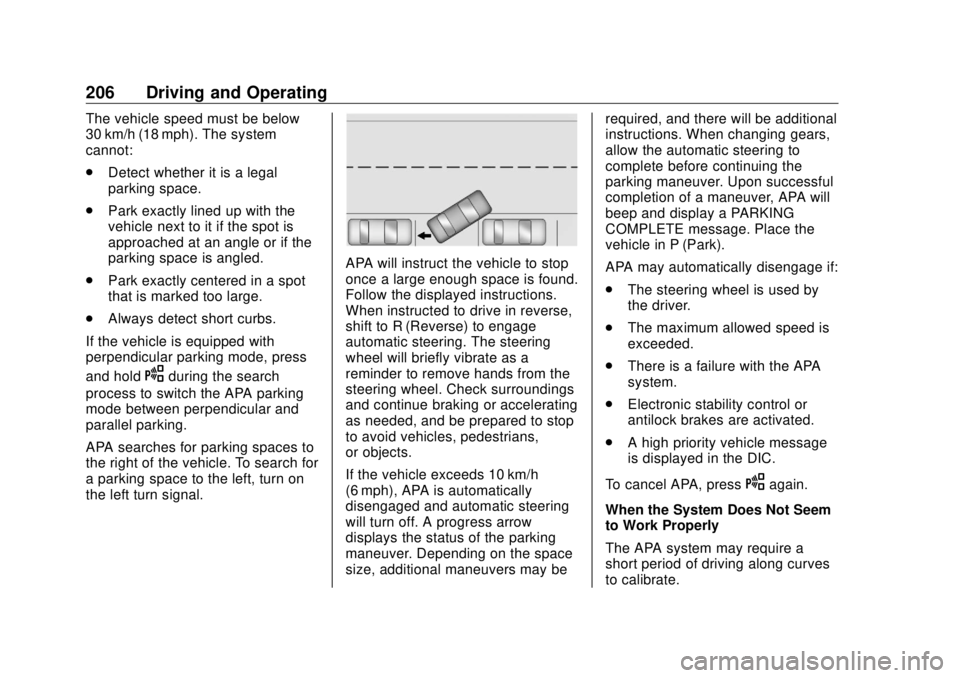
the left turn signal. APA will instruct the vehicle to stop
once a large enough space is found.
Follow the displayed instructions.
When instructed to drive in reverse,
shift to R (Reverse) to engage
automatic steering. The steering
wheel will briefly vibrate as a
reminder to remove hands from the
steering wheel. Check surroundings
and continue braking or accelerating
as needed, and be prepared to stop
to avoid vehicles, pedestrians,
or objects.
If the vehicle exceeds 10 km/h
(6 mph), APA is automatically
disengaged and automatic steering
will turn off. A progress arrow
displays the status of the parking
maneuver. Depending on the space
size, additional maneuvers may be required, and there will be additional
instructions. When changing gears,
allow the automatic steering to
complete before continuing the
parking maneuver. Upon successful
completion of a maneuver, APA will
beep and display a PARKING
COMPLETE message. Place the
vehicle in P (Park).
APA may automatically disengage if:
.
The steering wheel is used by
the driver.
.
The maximum allowed speed is
exceeded.
.
There is a failure with the APA
system.
.
Electronic stability control or
antilock brakes are activated.
.
A high priority vehicle message
is displayed in the DIC.
To cancel APA, press
O again.
When the System Does Not Seem
to Work Properly
The APA system may require a
short period of driving along curves
to calibrate.