2020 AUDI TT COUPE navigation system
[x] Cancel search: navigation systemPage 124 of 280

Voice recognition system
GLOEYAL COMMI/ANN
+ Telephone + Favorites
+ Audi connect * Call (XY)
* Navigation * Enter number
* Directory * Redial
* Radio * Read new text message
+ Media + Navigate to (XY)
+ Sound + Enter address/destination
* Help + Online destinations
+ Help Speech dialog system * Cancel route guidance
* Help Telephone * Map
* Help Audi connect * Line (XY)
* Help Navigation * Next page / previous page
* Help Map * Cancel
* Help Radio * No, I meant (XY)
* Help Media * Correction
TELEPHONE al
+ Enter number Call list
+ Delete number / correction Redial
+ Directory Call mailbox
* Call (XY) Enter PIN / delete PIN
«business / private / land line / mobile Telephone favorites
NAVIGATION i
+ Navigate to (XY) + Exclude next route section / Exclude
*Business address / Private address next street
+ Start / cancel route guidance * Route list
+ Directory * Calculate alternative routes
+ Last destinations * Online destinations
+ Navigation favorites * Special destination
+ Drive home
+» Enter address
+ Enter country / town / street / state
+ Exclude route / Exclude route for (XY) km /m
* Map
* Day map / Night map
* 2D driving position map / 2D north position map / 3D map / Destination map / Overview map
AUDI CONNECT
* Audi connect Flight information / Train information
* Travel information / Parking information * City events
* Fuel prices * Online news
* Weather + Twitter
RADIO)
+ Radio presets * Jukebox 6}
+ Last stations + CD/DVD aay e
*FM + SDcard1/SDcard2
*FM/AM/ SIRIUS XM « Audi music interface / iPod / USB / Bluetooth /
+ Station (XY) / Frequency (XY) Wi-Fi / Medium (XY)
* Traffic announcement on / off * Media favorites / Artists / Albums / Genres /
Tracks / Playlists / Videos
* Folder up
* Random playback on / off
RAH-8462|
Fig. 130 Command overview
122
Page 126 of 280

Voice recognition system
Command overview Sequences of commands used to perform an ac-
agn information tion are identified with a “>”, for example say:
: : . , Enter address > (then) Enter country/state.
Applies to: vehicles with voice recognition system
The majority shown are main commands. This
system also recognizes synonyms in certain cas-
es. For a business address, you can also say busi-
ness, work, office or at the office.
The following overviews describe the commands
that can be used to operate the MMI using the
voice recognition system.
Alternative commands are separated using a “/”,
for example say: Telephone / (or) Navigation /
(or) Radio.
Commands
elt ele
Applies to: vehicles with voice recognition system
You can always use the global commands, re-
gardless of the menu selected.
Function Say:
Opening a menu Telephone / Directory / Navigation / Radio / Media / Audi con-
nect* / Vehicle / Sound
Having the possible commands Help / Help speech dialog system / Help Telephone / Help Navi-
read aloud gation / Help Map / Help Radio / Help Media / Help Audi con-
nect*
Telephone functions Call (XY), for example Call "John Smith" /
Enter number / Redial / Directory / Read out text message
Navigation functions Navigate to (XY), for example Navigate to "John Smith" /
Enter address / Cancel route guidance / Map / Online destina-
tions* / Online destination (XY)*
Accessing favorites Favorites > follow the system prompts
Selecting an entry from a list Line (XY)
Scrolling through a list Next page / Previous page
Correcting the command given Correction
Switching the voice recognition sys- | Cancel
tem off
Telephone
Applies to: vehicles with voice recognition system and telephone
Requirement: a cell phone must be connected to Depending on the vehicle equipment and the se-
the MMI > page 129 and the Telephone menu lected menu item, you can say the following com-
must be open > table on page 124. mands:
124
Page 128 of 280

Voice recognition system
Applies to: vehicles with voice recognition system and navigation system
Requirement: the Navigation menu must be
open > table on page 124.
Depending on the vehicle equipment and the se-
lected menu item, you can say the following com-
mands to enter a destination:
Function Say:
Opening the list of previous naviga-
tion destinations
Last destinations
Accessing favorites Navigation favorites
Selecting the home address Home address or Drive home
Entering an address with guidance
from the system
Enter address > follow the system prompts
Individual commands for entering a
destination
Enter country / Enter state / Enter city / Enter ZIP code / Enter
street / Enter house number
Making a correction while entering
a destination
Correction
Navigating to a contact Drive me to (XY) or Navigate to (XY), for example Drive me to
"John Smith"
Navigating to a specific address for
a contact
Navigate to (XY) business / private,
for example, “Navigate to John Smith”
Navigating to favorites Navigation favorites > Line (XY) / line contents > start route
guidance when prompted
Starting route guidance with an ad-
dress card open
Navigate / Navigate to private address / Navigate to business
address
Entering a new destination/stop-
over when route guidance is active
Enter destination > enter the desired address when prompted >
confirm the new destination/stopover if prompted
Starting route guidance after enter-
ing a destination
Start route guidance
Canceling current route guidance Cancel route guidance
Calculating alternative routes Calculate alternative routes
Entering a point of interest by se-
lecting a search area with guidance
from the system
Point of interest > Change search area > category or subcatego-
ry when prompted, for example “restaurant”
Destination input categories Audi Service / Train station / Airport / Hotel / Hospital / Park-
ing area / Rest area / Restaurant / Gas station etc.
Search areas for entering points of
interest
Nearby / Along the route / Near destination / Near stopover /
In a new city / In a new state/country
Entering an online destination* Online destination (XY), for example “Online destination
"Lakeview Hotel"”
Correcting data input No I meant (XY)
Closing the full-screen command
list
Close
126
Page 129 of 280

8S1012721BB
Voice recognition system
Requirement: you must be in the Navigation or Depending on the vehicle equipment and the se-
Map menu. lected menu item, you can say the following com-
mands for additional settings in navigation:
Function Say:
General map options Map / Day map / Night map / Automatically change map color
Map type 2D heading-up map / 2D north-up map / 3D map / Destina-
tion map / Overview map / Standard map / Traffic map / Satel-
lite map*?)
Showing the route list Route list
Showing the remaining distance/ Destination information
time when route guidance is active
Speed limit prompt How fast can I drive here
Setting voice guidance for active Voice guidance on / Voice guidance off / Voice guidance short-
route guidance ened / Voice guidance complete / Voice guidance traffic
Blocking a certain section on the Block route for (XY) meters/kilometers/yards/miles / Block
route next route / Avoid next section of route
a) AUDI AG provides access to services from third party providers. Permanent availability cannot be guaranteed, because that
depends on the third party provider.
® Note are located and which menu language you
have selected.
Read the information about Audi connect, and
be sure to note the connectivity costs section
=@ in General information on page 142.
G) Tips
Destinations may have to be spelled when en-
tered, depending on the country where you
Applies to: vehicles with voice recognition system
Requirement: the Radio must already be open. Depending on the vehicle equipment and the se-
lected frequency band, you can say the following
commands:
Function Say:
Selecting the frequency band FM / SiriusXM* / AM
Selecting a station from the station | Channel (XY) / Frequency (XY) / Last stations
list
Selecting a station from the presets | Radio presets > Line (XY)
Setting the frequency Frequency (XY)
Setting the frequency Frequency (XY) / Frequency (XY) HD 1
Correcting data input No I meant (XY)
Closing the full-screen command Close
list
127
Page 151 of 280
8S1012721BB
Navigation
Navigation
Opening navigation
Applies to: vehicles with navigation system
a
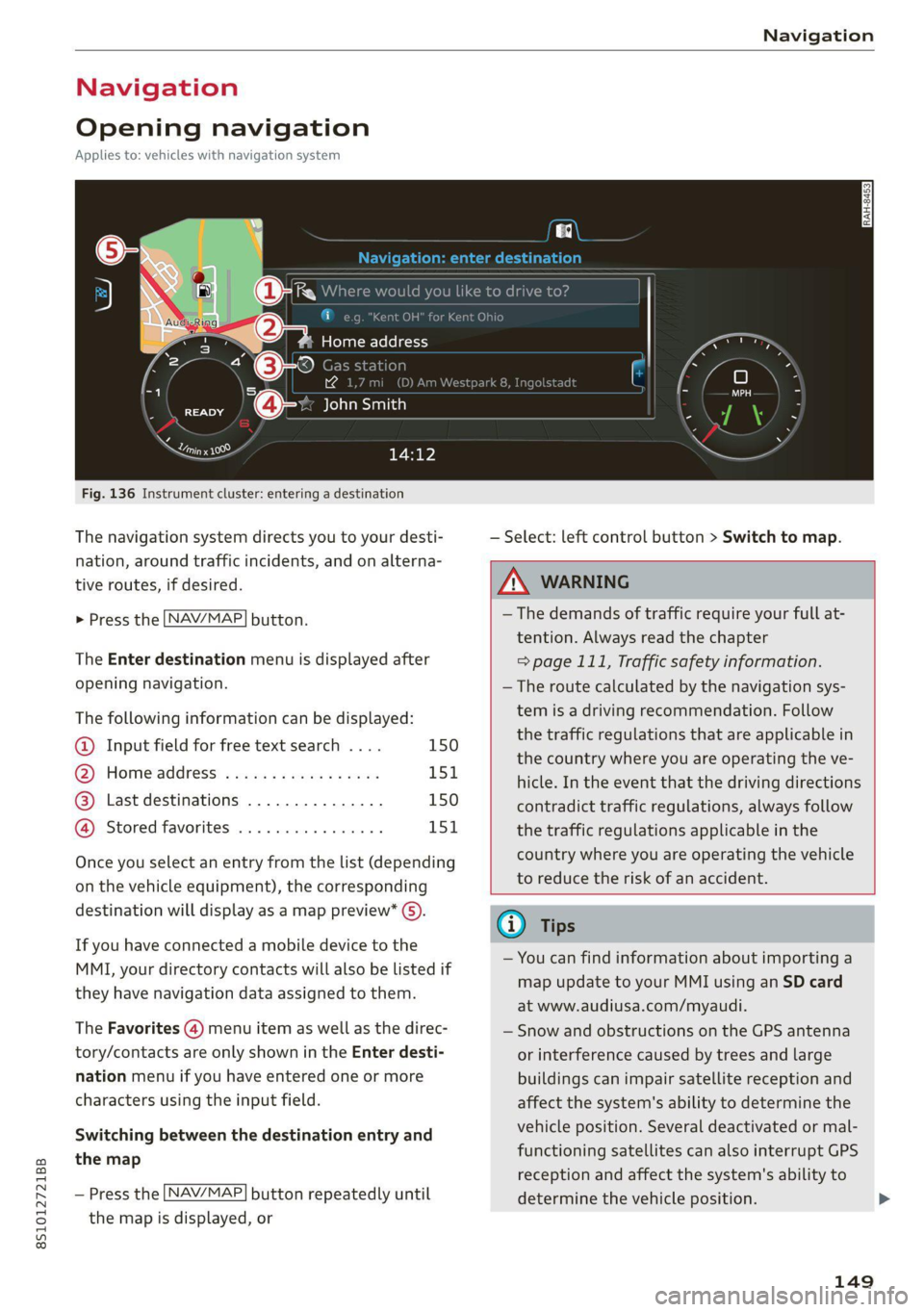
Fig. 136 Instrument cluster: entering a destination
The navigation system directs you to your desti-
nation, around traffic incidents, and on alterna-
tive routes, if desired.
> Press the [NAV/MAP| button.
The Enter destination menu is displayed after
opening navigation.
The following information can be displayed:
@ Input field for free text search .... 150
@ Home address ................. 151
@® Last destinations ............... 150
@ Stored favorites ................ 151
Once you select an entry from the list (depending
on the vehicle equipment), the corresponding
destination will display as a map preview* ().
If you have connected a mobile device to the
MMI, your directory contacts will also be listed if
they have navigation data assigned to them.
The Favorites (4) menu item as well as the direc-
tory/contacts are only shown in the Enter desti-
nation menu if you have entered one or more
characters using the input field.
Switching between the destination entry and
the map
— Press the [NAV/MAP] button repeatedly until
the map is displayed, or
— Select: left control button > Switch to map.
Z\ WARNING
— The demands of traffic require your full at-
tention. Always read the chapter
=> page 111, Traffic safety information.
—The route calculated by the navigation sys-
tem is a driving recommendation. Follow
the traffic regulations that are applicable in
the country where you are operating the ve-
hicle. In the event that the driving directions
contradict traffic regulations, always follow
the traffic regulations applicable in the
country where you are operating the vehicle
to reduce the risk of an accident.
(i) Tips
— You can find information about importing a
map update to your MMI using an SD card
at www.audiusa.com/myaudi.
— Snow and obstructions on the GPS antenna
or interference caused by trees and large
buildings can impair satellite reception and
affect the system's ability to determine the
vehicle position. Several deactivated or mal-
functioning satellites can also interrupt GPS
reception and affect the system's ability to
determine the vehicle position.
149
Page 152 of 280
Navigation
— Because street names sometimes change,
the names stored in the MMI may in rare
cases differ from the actual street name.
Entering a destination
aia eees media e lary
Applies to: vehicles with navigation system
Using the MMI touch control pad, you can enter
the data for a navigation destination all at once
in any order (for example, Los Angeles,
20 Main St.). Likewise, you can search for points
of interest, contacts, previous destinations or fa-
vorites to navigate to the desired address.
Free text search
> Press the LNAV/MAP] button repeatedly until
the Enter destination menu is displayed
=> page 149, fig. 136.
> Keep turning the control knob to the left until
the input field appears.
> Enter one or more search terms into the input
field.
> If available, confirm the input suggestion* to
complete the entry or a word suggestion*
=> page 117, Letter/number speller.
> Turn the control knob to the right to change the
results list.
>» Select and confirm a destination from the re-
sults list.
The route displays as an overview in the map.
Route guidance is already active.
Narrowing the search area
All countries/states are selected at the factory
for the free text search.
» Select the right control button > Country/state
selection in the input field @ > page 149,
fig. 136.
> Select the country or state (@) that should be
searched using the free text search in order to
narrow the number of results and increase the
search speed. The selected entry in the coun-
try/state selection is stored, or:
> Select All countries/states.
150
G) Tips
— The MMI input suggestions depend on the
last navigated destinations.
— Up to 50 entries can be stored in the last
destinations list.
— Additional information on free text searches
can be found under > page 119.
Loading previous destinations
Applies to: vehicles with navigation system
Your last destinations are automatically stored
and can be loaded directly as a destination.
Opening a menu
Requirement: a destination was already navigat-
ed to.
> Press the LNAV/MAP] button repeatedly until
the Enter destination menu is displayed
=> page 149, fig. 136.
Your last destinations will be listed directly in the
Enter destination menu and are marked with the
symbol 3) > page 149, fig. 136.
> Select and confirm one of the last destinations
from the list.
Deleting previous destinations
> Select one of the last destinations from the list.
> Select: right control button > Delete destina-
tion > Delete this last destination or Delete all
last destinations.
The selected destination or all last destinations
is/are deleted and no longer displayed in the En-
ter destination menu.
Entering an address
Applies to: vehicles with navigation system
As an alternative to free text search, you can also
enter an address in stages.
> Press the [NAV/MAP] button repeatedly until
the Enter destination menu is displayed
=> page 149, fig. 136.
> Select: left control button > Enter address.
>
Page 153 of 280

8S1012721BB
Navigation
> Select and confirm a line (such as Street, House
number or Country/state) and enter the de-
sired information.
> Select and confirm Start route guidance.
Setting a destination from the map
Applies to: vehicles with navigation system
A point on the map can be used as the destina-
tion.
Opening the map
> Press the [NAV/MAP] button repeatedly until
the map is displayed.
Adjusting the scale
> Turn the control knob to the left or to the right.
Activating the crosshairs
> Press the control knob. The crosshairs are
shown on the map.
Moving the crosshairs
> Move the crosshairs to the destination using
the MMI touch control pad > page 115.
Selecting the destination
> Press the control knob when the crosshairs are
shown.
> Select and confirm Start route guidance.
Hiding the crosshairs
> Press the [BACK] button.
Additional information about the location of
the crosshairs: if you select map content with
crosshairs, the available information is displayed
(such as the name of the city or points of inter-
est) © > page 158, fig. 141.
Setting a home address/favorite as
Cdr ace)
Applies to: vehicles with navigation system
You can quickly and easily start route guidance to
your home address using the home address func-
tion. Favorites allow easier access to frequently
used destinations.
Opening a menu
> Press the [NAV/MAP] button repeatedly until
the Enter destination menu is displayed
=> page 149, fig. 136.
Setting a home address as the destination
Requirement: a home address must be stored
=>page 155.
> Select: Home address.
Setting a favorite as the destination
Requirement: a favorite must be stored as a des-
tination > page 155.
> Enter one or more letters into the free text
search input field. The favorites that are found
are shown in the Infotainment system display
and marked with the symbol @) > page 149,
fig. 136.
> Select and confirm the desired entry.
@ Tips
— Additional settings for the home address
can be found under > page 155.
— Additional settings for the favorites can be
found under > page 155.
sferring a destination
rectory
Applies to: vehicles with navigation system
Options — Show contact details
John Smith
a
Audi Beverly Hills
Hawthorn Ave, Los Angeles, CA
UUM =i hee etl 0 Van CoO
a PY WO ea ad Sa eT
Fig. 137 Infotainment system: contact info
You can navigate directly to destinations in the
directory.
Requirement: an address with navigation data or
a navigation destination must already be as-
signed to a contact > page 155.
151
Page 154 of 280
![AUDI TT COUPE 2020 Owners Manual Navigation
> Press the LNAV/MAP] button repeatedly until
the Enter destination menu is displayed
=> page 149, fig. 136.
> Select: left control button > Directory > a con-
tact.
The](/manual-img/6/57658/w960_57658-153.png "AUDI TT COUPE 2020 Owners Manual Navigation
> Press the LNAV/MAP] button repeatedly until
the Enter destination menu is displayed
=> page 149, fig. 136.
> Select: left control button > Directory > a con-
tact.
The")
Navigation
> Press the LNAV/MAP] button repeatedly until
the Enter destination menu is displayed
=> page 149, fig. 136.
> Select: left control button > Directory > a con-
tact.
The directory/contacts are shown in alphabetical
order and are marked with symbols to indicate
the storage location:
@ Business address
@ Private address
@® Business destination
@ Private destination
— Select and confirm an address or a destination.
When you have selected a destination, the
route guidance can be started directly.
— Check the address input again when selecting
an address.
— Then select and confirm Start route guidance.
Additional directory functions in the navigation
system can be found under > page 155.
@) Tips
— Addresses that have been imported from
your mobile device into the MMI can also be
used as a destination.
— If a contact is grayed out in the directory,
this contact does not have a destination or
an address assigned to it.
el elm eas -T- La)
Applies to: vehicles with navigation system
Opening the POI search
> Press the LNAV/MAP] button repeatedly until
the Enter destination menu is displayed
=> page 149, fig. 136.
> Select: left control button > Points of interest.
Change search area
> Select and confirm: Search area > a search area
from the list.
The following search categories are available:
Nearby: points of interest can be selected from
different categories. The points of interest are
listed starting from the immediate vicinity of the
152
vehicle up to a radius of approximately 124 miles
(200 km).
Along the route: points of interest along the
route can only be selected during active route
guidance. The points of interest are located di-
rectly along or in the immediate vicinity of the
calculated route.
Near destination/Near stopover: points of inter-
est near a destination or a stopover can only be
selected during active route guidance. The points
of interest can likewise be selected from various
categories. For example, you can search for a ho-
tel or parking lot at the destination.
In new city: enter the name of the desired city.
Points of interest can be selected from various
categories. This function allows you to search for
points of interest in any city regardless of the ac-
tive route guidance or the vehicle position.
Searching for the name of a point of interest
in the selected search area
> Select: Find entry > Enter point of interest.
> Enter the name of the point of interest.
Searching for a point of interest in a specific
category
> Select Select category.
> Select and confirm a category, such as Restau-
rants.
G) Tips
— Distances to points of interest are displayed
as a straight-line distance from your current
location. The actual distance from your cur-
rent location to the point of interest is up-
dated automatically. The list of points of in-
terest that were found is not resorted when
this happens.
— There may be entries in the list that cannot
be displayed completely due to their length.
Select the corresponding entry from the list.
Select: right control button > Show destina-
tion details. Detailed information for the se-
lected entry in the list is then displayed.