2020 AUDI E-TRON ad blue
[x] Cancel search: ad bluePage 226 of 316

Media
— The supported media functions (such as
shuffle, list view, categories, search, op-
tions) depend on the Bluetooth device being
used.
— Note the volume setting on your Bluetooth
device. AUDI AG recommends setting your
mobile device to the maximum volume
when using it as a Bluetooth audio player.
—Aselection of supported Bluetooth devices
can be found in the database for tested mo-
bile devices at www.audi.com/bluetooth.
Online media
Applies to: vehicles with Audi connect Infotainment and on-
line media
You can play and operate various online media
services, such as music streaming services, using
the MMI.
Requirement: a supported online media service
must be available in the country where the vehi-
cle is being operated.
Connect online media
> Connect the MMI to the Internet > page 187.
> Switch on the Wi-Fi hotspot in the MMI
=> page 192.
> Applies to: MMI: Select on the home screen:
MEDIA > Source > Connect online media.
> Switch the Wi-Fi function on in your mobile de-
vice and connect it to the MMI Wi-Fi hotspot
=> page 188.
> Install and start the myAudi app on your mo-
bile device.
> Log in to your myAudi account in the myAudi
app and select your vehicle.
Your mobile device must be connected to the
MMI and must be highlighted. When you press
the highlighted device, it will be disconnected.
Starting online media
> Applies to: MMI: Select on the home screen:
MEDIA > Source. All online media services sup-
ported in your country will be displayed.
>» Press on the desired online media service and
follow the system instructions.
224
ZA WARNING
—To reduce the risk of an accident, only use
Audi connect services and the Wi-Fi hotspot
only if the traffic situation permits it. Read
and follow the guidelines provided in
=> page 17, Traffic safety information.
— It is only safe to use tablets, laptops, mobile
devices and other similar devices when the
vehicle is stationary because, like all loose
objects, they could be thrown around the in-
side of the vehicle in a crash and cause seri-
ous injuries. Store these types of devices se-
curely while driving. Also read the warnings
in the chapter > page 65.
@) Note
— Read the information about Audi connect,
and be sure to note the connectivity costs
section >@ in General information on
page 187.
— There generally are additional costs when
using an online media service account, espe-
cially when it is used internationally.
(i) Tips
— Depending on the Internet connection and
network traffic, the connection may discon-
nected when online media sources are play-
ing.
— Online media usage depends on the service
availability of the third party provider.
— Audi AG simply makes the access to online
media services possible through the MMI
and does not take any responsibility for the
contents of the online media services.
— Depending on the mobile device being used,
there may be interruptions during media
playback and when using the myAudi app.
To avoid interruptions, do not lock the
screen on your mobile device and keep the
myAudi app in the foreground.
Page 228 of 316

— Pull the cable out of the Audi music inter-
face carefully so that the USB ports are not
damaged.
— Use a USB extension cable to connect devi-
ces that have an integrated USB connector
(such as a USB stick) to reduce the risk of
damage to your USB device and the Audi
music interface.
— Extremely high or low temperatures that
can occur inside vehicles can damage mobile
devices and/or impair their performance.
Never leave mobile devices in the vehicle in
extremely high or low temperatures.
@ Tips
— Always follow the information found in
=> page 75.
— When you switch the ignition off, the USB
ports are still supplied with power until the
energy management intervenes.
— Do not use an additional adapter or USB ex-
tension cable to connect mobile devices to
the Audi music interface that already have a
cable or that must be connected with a USB
adapter > page 225, fig. 152. Using an ad-
ditional adapter or US extension cable may
impair functionality.
— Functionality is not guaranteed for mobile
devices that do not conform to the USB 2.0
specification.
— USB hubs are not supported.
— Video playback through the Audi music in-
terface is not supported on Apple and MTP
devices (such as smartphones).
— iPod or iPhone malfunctions also affect the
operation of the MMI. Reset your mobile de-
vice in these situations.
— Audi recommends updating the iPod or
iPhone software to the latest version. Refer
to your mobile device owner's manual for
more information.
— The USB adapter on the Audi music inter-
face will support iPod touch or iPhone devi-
ces from the 5th generation or newer with
the lightning connector.
226
—Aselection of supported devices can be
found in the database for tested mobile de-
vices at www.audi.com/mp3.
Playing media
The following sources can be selected depending
on the vehicle equipment:
— Amazon Alexa > page 225.
-—SD card > page 222.
— USB > page 225.
— DVD drive > page 223.
— Connect external device: you can connect ex-
ternal devices via Bluetooth and use the Blue-
tooth audio player > page 223, or you can con-
nect
an external device directly to the Audi mu-
sic interface > page 225.
— Connect online media > page 224.
PN matte)
Playing media files using the MMI
> Applies to: MMI: Select on the home screen:
MEDIA > Source > a source. Depending on the
connected device or online media service*, the
symbol for a source may change. The device
name may be displayed (for example: my-
Phone).
> Select a track from the categories in the media
center > page 227.
Playing media files using the multifunction
steering wheel
Requirement: a media drive must contain media
files > page 226.
> Select the Radio/Media tab using the multi-
function steering wheel.
> Turn the left thumbwheel to display the play-
list.
> To switch to a different source, press the
button.
> To select a media file or a source, turn and
press the left thumbwheel.
> To switch between radio and media, select:
button > Switch to radio/Switch to media. >
Page 235 of 316

4KE012721BE
Media
@) Tips
— The media sources do not support the Win-
dows Media Audio 9 Voice format.
— For compressing MP3 files, AUDI AG recom-
mends a bit rate of at least 160 kbit/s. The
display showing the remaining play time
may differ for audio files with variable bit
rate.
— Special characters (such as those in ID3 tag
information) may display differently or may
Troubleshooting
The information that follows lists some trouble-
shooting options. They depend on the equip-
not always display, depending on the sys-
tem language.
—The manufacturer of the storage device can
provide information about its “USB Device
Subclass”.
— Some MTP player functions are not support-
ed, such as rating music tracks and video
playback.
ment.
Problem Solution
Audi music interface/Bluetooth
audio player: the mobile device is
not supported.
Read the instructions in the chapter > page 225, Multimedia
connections/> page 223, Bluetooth audio player.
Audi music interface: the mobile
device is not recognized as a
source.
For many mobile phones or mobile devices, playback is not possi-
ble when the battery level is too low (less than 5% charge level).
The mobile device will only be recognized as a media source in
the MMI after connecting if the battery charge level is sufficient.
Audi music interface: malfunc-
tions during audio playback
through an iPod/iPhone.
The Bluetooth audio player function is switched on. Switch this
function off > page 237 when you are not using the Bluetooth
audio player.
Audi music interface: audio play-
back through the connected mo-
bile device is not possible.
Make sure the USB mode M7P is selected in the settings on your
mobile device.
Bluetooth audio player: interfer-
ence with track display and audio
playback.
Playback interference can occur when using the Bluetooth audio
player if a music player app from a third party provider is open.
AUDI AG recommends using the integrated media player on your
Bluetooth device (such as a smartphone).
Online media: connection failed
between the MMI and the myAudi
app.
To establish a connection to the MMI, the MMI connection switch
must be switched on in the myAudi app status screen.
Online media: no playback of on-
line media.
Check if a suitable data plan has been purchased.
Wi-Fi hotspot: your Wi-Fi device is
disconnected from the Wi-Fi hot-
spot.
Make sure the network optimization functions are switched off in
the Wi-Fi settings or in the network settings for your Wi-Fi de-
vice. For additional information, refer to the user guide for your
Wi-Fi device.
233
Page 236 of 316

Audi smartphone interface
Audi smartphone
interface
Setup
Applies to: vehicles with Audi smartphone interface
You can connect your smartphone to the MMI
with a cable or wirelessly* using the Audi smart-
phone interface. Certain content on your smart-
phone is adapted in the MMI while driving and
can be operated through the MMI.
Requirement: the vehicle must be stationary and
the ignition must be switched on. iPhone genera-
tion 5 or higher with Lightning connector and iOS
7.1.2 operating system or higher, or smartphone
with Android Auto app and Android 5.0 Lollipop
operating system or higher.
> Applies to: MMI: Select on the home screen:
SETTINGS > Connected devices > Audi smart-
phone interface > New connection.
> Connect your smartphone to the Audi music in-
terface > page 225 using a USB adapter
=> page 225, fig. 152, or
> To connect your iPhone wireless*, switch on the
Bluetooth function and Wi-Fi on your iPhone.
Open the CarPlay settings in your iPhone. In the
MMI, press on your iPhone in the list of dis-
played devices.
> To update the list, press O.
> Follow the system instructions.
> Pay attention to any additional system prompts
on your smartphone, if applicable.
> Applies to: MMI: If you declined usage of Apple
CarPlay or Android Auto the first time you con-
nected your smartphone, select in the home
screen: SETTINGS > Connected devices > Audi
smartphone interface > a smartphone.
> Follow the system instructions.
Z\ WARNING
Driving requires your complete and undivided
attention. As the driver, you have complete re-
sponsibility for safety in traffic. Never operate
mobile devices while driving, because this in-
creases the risk of an accident.
234
@) Note
Read the information about Audi connect, and
be sure to note the connectivity costs section
=> page 187.
@) Tips
— The functions that can be used depend on
the following factors, among others:
— The brand of your smartphone
— The version of the operating system in
your smartphone
— The software version of the app used
— The USB adapter cable and correct connec-
tion
— Your cell phone service provider
— The customized settings on your smart-
phone
— One of the factors above or a combination
of any of them could cause your smart-
phone to be incompatible with the Audi
smartphone interface. Compatibility cannot
be guaranteed for all types of smartphones.
For more information and assistance, refer
to the user guide and the manufacturer of
your smartphone.
— Please note that you can only connect your
smartphone via the front Audi music inter-
face in order to use the Audi smartphone in-
terface.
— Wireless CarPlay* is not available in all
countries.
— Wireless CarPlay* is only possible in vehicles
without a navigation system if the following
requirement is met: the embedded SIM card
for the vehicle must be logged into the mo-
bile phone network > page 187. Make sure
the function > page 183, Turn on car phone
or data module is switched on.
— If the connected smartphone has voice con-
trol, you can operate your smartphone using
the external voice recognition system
=> page 25.
— The menu language shown in the MMI is
based on the settings in your smartphone.
— Some MMI functions are not available when
there is an active Audi smartphone interface
connection.
Page 237 of 316
4KE012721BE
Audi smartphone interface
— You cannot connect any mobile devices via
Bluetooth when an Audi smartphone inter-
face connection is active.
— Usage of the Audi smartphone interface de-
pends on the availability of services through
third party providers.
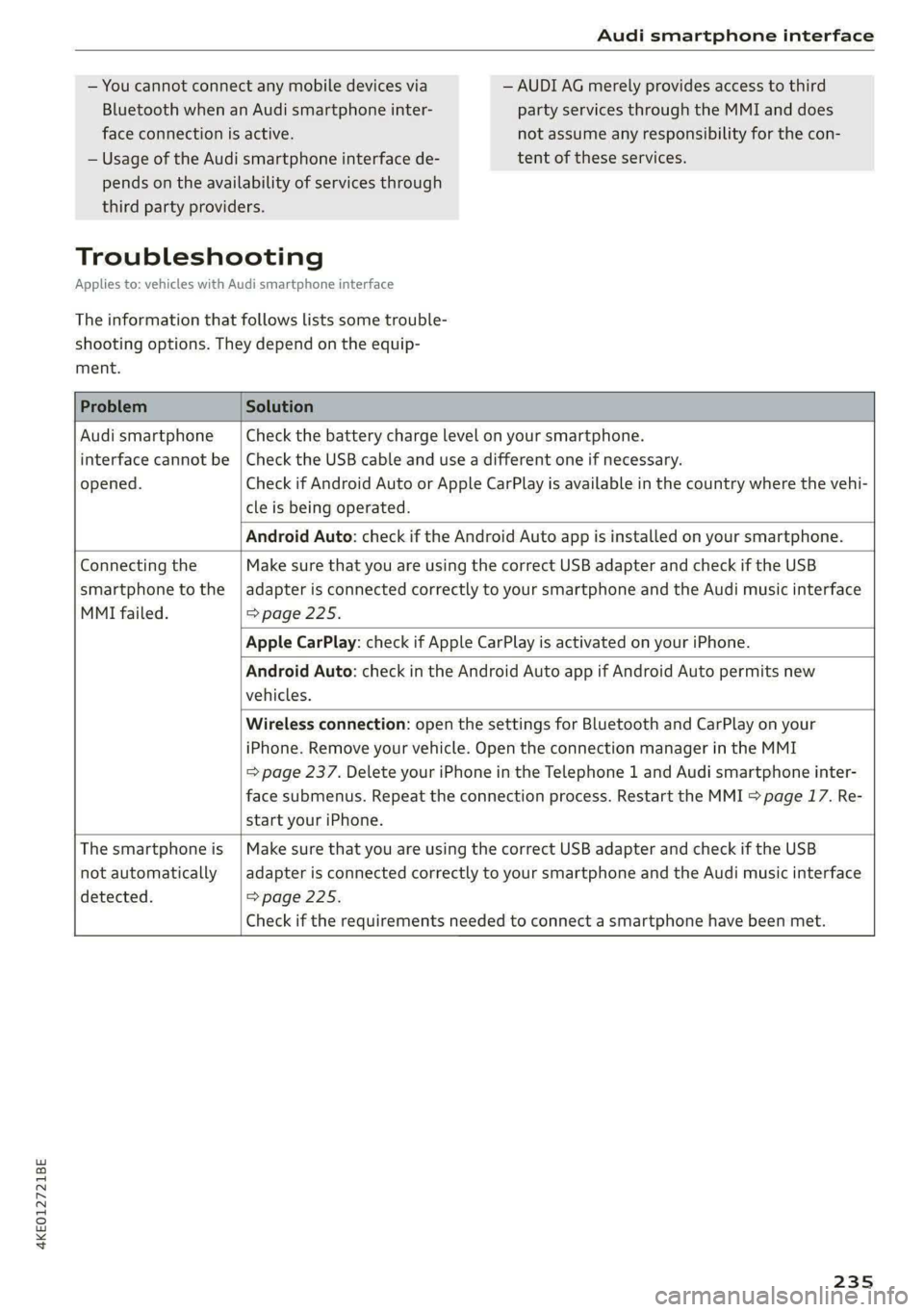
Troubleshooting
Applies to: vehicles with Audi smartphone interface
The information that follows lists some trouble-
shooting options. They depend on the equip-
ment.
— AUDI AG merely provides access to third
party services through the MMI and does
not assume any responsibility for the con-
tent of these services.
Problem Solution
Audi smartphone
opened.
cle is being operated.
Check the battery charge level on your smartphone.
interface cannot be | Check the USB cable and use a different one if necessary.
Check if Android Auto or Apple CarPlay is available in the country where the vehi-
Android Auto: check if the Android Auto app is installed on your smartphone.
Connecting the
MMI failed. =>page 225.
Make sure that you are using the correct USB adapter and check if the USB
smartphone to the | adapter is connected correctly to your smartphone and the Audi music interface
Apple CarPlay: check if Apple CarPlay is activated on your iPhone.
vehicles.
Android Auto: check in the Android Auto app if Android Auto permits new
start your iPhone.
Wireless connection: open the settings for Bluetooth and CarPlay on your
iPhone. Remove your vehicle. Open the connection manager in the MMI
=> page 237. Delete your iPhone in the Telephone 1 and Audi smartphone inter-
face submenus. Repeat the connection process. Restart the MMI > page 17. Re-
The smartphone is
not automatically
detected. >page 225.
Make sure that you are using the correct USB adapter and check if the USB
adapter is connected correctly to your smartphone and the Audi music interface
Check if the requirements needed to connect a smartphone have been met.
235
Page 239 of 316

4KE012721BE
Additional settings
Bluetooth
> Applies to: MMI: Select on the home screen:
SETTINGS > Connection settings > Bluetooth.
Bluetooth
You can select a setting for visibility of the MMI
to other Bluetooth devices. To connect a new
Bluetooth device, the Visible setting must be se-
lected. If Invisible is selected, a Bluetooth con-
nection will only be possible with paired devices.
If Off is selected, no Bluetooth device can be con-
nected.
Bluetooth audio player
When this function is switched on, the profile
will load automatically when your Bluetooth au-
dio player is within range.
Bluetooth name
The MMI’s Bluetooth name is displayed and can
be changed.
Toy aaU eM oer ha)
> Applies to: MMI: Select on the home screen:
SETTINGS > System maintenance > Software
update.
> If necessary, insert a storage medium with the
update data into the corresponding drive
=> page 232.
> Press Search for updates.
> Press on the desired update.
> Press Next.
> Follow the system instructions.
ZA\ WARNING
— Perform the installation only when the vehi-
cle is stationary. Otherwise, this increases
the risk of an accident
— If the installation fails, contact an author-
ized Audi dealer or authorized Audi Service
Facility immediately to have the malfunction
corrected.
©) Note
The connection costs for the software update
are included in the Audi connect pricing.
@) Tips
The length of the process depends on the size
of the update.
Tale arclinee adie}
> Applies to: MMI: Select on the home screen:
SETTINGS > System maintenance > Restore
factory settings.
>» Select the desired functions individually, or
> Select the option Select all.
> Press Apply. The settings will be reset. The key
user will remain stored.
> To also delete the key user, press Remove key
user.
> To completely delete a smartphone that is
paired with the Audi smartphone interface, re-
set Audi smartphone interface and Bluetooth.
G) Tips
— Make sure that not only the settings were
deleted but also the stored data, if necessa-
ry.
— The system may restart when the settings
are reset. This may take a few minutes.
Connected devices
(eee eels (is
Requirement: the vehicle must be stationary and
the ignition must be switched on.
> Applies to: MMI: Select on the home screen:
SETTINGS > Connected devices.
Possible menu items:
— Telephone 1
— Telephone 2
— Audio player
— Wi-Fi hotspot
— Headset
myAudi app
This function is available if the myAudi app is in-
stalled on your mobile device and started, and if
the mobile device is connected with the vehicle’s
Wi-Fi hotspot.
237
>
Page 240 of 316

Additional settings
Audi smartphone interface
You can connect your smartphone to the MMI
=> page 234.
@) Note
Read the information about Audi connect, and
be sure to note the connectivity costs section
=> page 187.
Connection options
Requirement: the connected devices menu must
be displayed > page 237.
Connecting a device
Requirement: Bluetooth visibility must be acti-
vated in the MMI & page 237 and mobile device.
> Press ona menu item, such as Telephone 1.
> To search for and connect your mobile device,
press New connection > page 173.
Selecting a connected device
> Press on a menu item, such as Telephone 1.
> Press on the desired mobile device in the list of
displayed devices. The connection will be made.
Disconnecting a connected device
> Press ona menu item, such as Telephone 1.
> Press on the connected mobile device. The se-
lected device will be disconnected from the
MMI.
Deleting a device
> Press ona menu item, such as Telephone 1.
> Press and hold an element until the Options
menu is displayed.
> Press Delete.
If a device is listed multiple times, it will be de-
leted
from all menu items.
PXe felt Cola] Mey Leela
Depending on the selected function, additional
options
may be available.
Requirement: the connected devices menu must
be displayed > page 237.
238
> Press on a menu item, such as Telephone 1.
> Press and hold an element until the Options
menu is displayed.
Bluetooth profiles
You can switch desired profiles on or off sepa-
rately in the MMI.
Favorite
To set a paired mobile device as the default
phone, activate this function in the MMI.
When the mobile device is in range and the Blue-
tooth function on the mobile device and in the
MMI is switched on, the default phone will be
given priority over the other Bluetooth devices
and will be connected directly to the MMI.
Legal information
General information
Information on the software licenses can be
found online at www.audi.com/softwareinfo.
Multi Media Interface
» Applies to: MMI: Select on the home screen:
SETTINGS > General.
License subscription
Version information
Legal information
Possible options:
— Software information
— About Audi connect
ONT eae lat aed M Ul Tal e)
Applies to: vehicles with Audi smartphone interface
Requirement: a smartphone must be connected
to the MMI > page 234.
» Applies to: MMI: Select on the home screen:
SETTINGS > Connected devices > Audi smart-
phone interface.
> Press and hold an element until the Options
menu is displayed.
> Press Legal notes.
Page 286 of 316

Fuses and bulbs
Fuses and bulbs
Fuses
oer mie
Fig. 178 Right side of motor compartment: fuse panel cov-
Fig. 179 Front passenger footwell: cover and clip @, left
side of the luggage compartment: cover 3)
A fuse that has blown will have metal strips that
have burned through.
The fuses are located on the right side of the mo-
tor compartment (@) in the front passenger foot-
well (2), and under the left side of the luggage
compartment @).
> Switch the ignition and all electrical equipment
off.
> Check the table that follows to see which fuse
belongs to the equipment.
284
» Remove the screwdriver from the vehicle tool
kit > page 274.
>» Remove the appropriate cover.
> Remove the colored plastic clip from the fuse
panel, if necessary.
> Remove the clip from the fuse panel in the
front passenger’s footwell @).
> Remove the fuse using the clip.
> Replace the blown fuse only with a fuse that
has the same amp rating.
> Reinstall the plastic bracket.
> Install the cover.
Fuse color identification
Color Current rating
in amps
Black 1
Gray 2
Purple 3
Pink 4
Light brown 5
Brown 7.5
Red 10
Light blue 15
Yellow 20
White or transparent [25
Light green 30
Teal 35
Orange 40
ZA WARNING
Do not repair fuses and never replace a blown
fuse with one that has a higher amp rating.
This can cause damage to the electrical sys-
tem and increases the risk of fire.
@) Note
If a new fuse burns out again shortly after you
have installed it, have the electrical system
checked as soon as possible by an authorized
Audi dealer or authorized Audi Service Facili-
ty.