2020 AUDI A6 recommendation
[x] Cancel search: recommendationPage 127 of 316

4K0012721BD
Driving information
Traffic light information
Applies to: vehicles with traffic light information
Fig. 97 Instrument cluster: traffic light information dis-
play
The traffic light information gives you a speed
recommendation in order to reach the next traffic
light when it is green @, or it informs you of the
wait time at the next red light 2). Once traffic
light
data is received, the traffic light information
will be displayed in the instrument cluster and in
the head-up display*. If the vehicle is in an area
with traffic light information but cannot receive a
traffic light signal, then a gray traffic light sym-
bol will be displayed @).
General information
The traffic light information is subject to system
limitations and may be unavailable or only parti-
ally available in the following situations:
—If the permitted speed limit is exceeded
— If driving below a certain speed limit
— If the next traffic light is less than approxi-
mately 100 feet (30 m) away
— If the estimated wait time at a red light is less
than four seconds
— If there is no traffic light data available
— If emergency response vehicles or public transit
systems are active
— If traffic lights are in construction zones or be-
ing serviced
— If there are warnings from the camera-based
traffic sign recognition*
— If the camera-based traffic sign recognition* is
malfunctioning or not available
—If the data connection has been interrupted
— If data transmission is deactivated in the priva-
cy settings
— If the subscription has expired
If this is the case, the menu item will be grayed-
out or it will not be possible to select it.
ZA\ WARNING
— When traffic light information is shown, al-
so always pay attention to the traffic situa-
tion, the distance to other vehicles, and the
area around the vehicle. The driver is always
responsible for assessing the traffic situa-
tion.
— Always adapt your speed to the current
weather, road and traffic conditions. The dis-
played information must never cause you to
ignore legal traffic regulations and pose a
safety risk.
— Regardless of the traffic light information,
you should always monitor your speed using
the speedometer and make sure you are ad-
hering to the legal speed limit.
— The traffic light information does not adjust
your vehicle's speed to the speed recom-
mendation shown in the display.
— Follow the safety precautions and note the
limits of the assist systems, sensors, and
cameras > page 118.
(i) Tips
— Traffic light information was only available
in select cities at the time this manual was
printed.
— Traffic light information is not available na-
tionwide.
— The functions depend on the navigation da-
ta* being up-to-date and correct identifica-
tion by the traffic sign recognition*.
— Incorrect values from the camera-based
traffic sign recognition* or outdated naviga-
tion system* map data can result in missing
or incorrect display images.
— Certain traffic lights can automatically ad-
just to the current traffic situation. If this
occurs, the display of traffic light informa-
tion can change suddenly.
125
Page 142 of 316

Driver assistance
Meaning
The time between is approximately 1
second. This setting corresponds to a
distance of approximately 92 feet (28
m) when traveling at 62 mph (100
km/h).
The time between is approximately 1.3
seconds. This setting corresponds toa
distance of approximately 118 feet (36
m) when traveling at 62 mph (100
km/h).
My
The time between is approximately 1.8
seconds. This setting meets the general
recommendation of “half the speed
shown on the speedometer”. This cor-
responds to a distance of approximate-
ly 164 feet (SO m) when traveling at
62 mph (100 km/h).
The time between is approximately 2.4
seconds. This setting corresponds to a
distance of approximately 219 feet
(67 m) when traveling at 62 mph (100
km/h).
iN)
The time between is approximately 3.6
seconds. This setting corresponds to a
distance of approximately 328 feet
(100 m) when traveling at 62 mph (100
km/h).
D
ZA\ WARNING
Follow the safety precautions and note the
limits of the assist systems, sensors, and
cameras > page 118.
G) Tips
— When setting the distance, the driver is re-
sponsible for adhering to any applicable le-
gal regulations.
— Depending on the selected driving program
and distance, driving behavior when acceler-
ating may vary from moderate to sporty
= page 142, Adjusting the adaptive cruise
assist.
— The distances provided are specified values.
Depending on the driving situation and how
the vehicle ahead is driving, the actual dis-
140
tance may be more or less than these target
distances.
Overriding control
Applies to: vehicles with adaptive cruise assist
[RAZ-0096|
Fig. 109 Lever: overriding the control
Requirement: the adaptive cruise assist must be
switched on.
Overriding control
You can completely override the control, for ex-
ample when passing or if you would like to accel-
erate more quickly.
> To accelerate manually, pull the lever toward
you in the direction of the arrow and hold it
there, or press the accelerator pedal.
> To resume the usual cruise control, release the
lever or remove your foot from the accelerator
pedal.
When you are in the Driver assistance display,
the message Overridden will appear.
ZA\ WARNING
— Follow the safety precautions and note the
limits of the assist systems, sensors, and
cameras > page 118.
— Resting your foot on the accelerator pedal
could override the cruise control. Braking in-
terventions and corrective actions by the
system may not occur.
Page 187 of 316
4K0012721BD
Navigation
Navigation
Opening navigation
Applies to: vehicles with navigation system
The navigation system directs you to your desti-
nation, around traffic incidents, and on alterna-
tive routes, if desired.
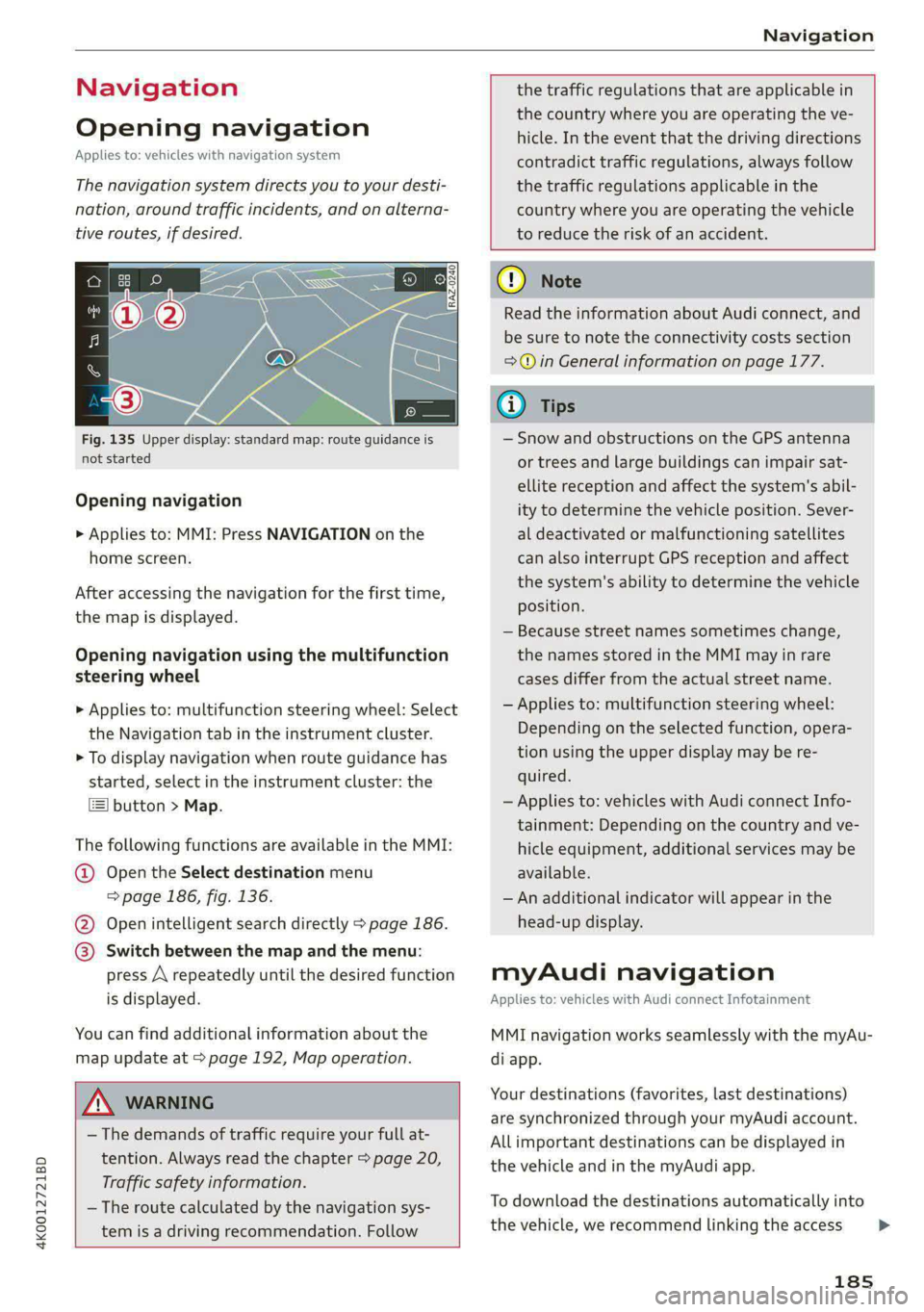
Fig. 135 Upper display: standard map: route guidance is
not started
Opening navigation
> Applies to: MMI: Press NAVIGATION on the
home screen.
After accessing the navigation for the first time,
the map is displayed.
Opening navigation using the multifunction
steering wheel
> Applies to: multifunction steering wheel: Select
the Navigation tab in the instrument cluster.
> To display navigation when route guidance has
started, select in the instrument cluster: the
button > Map.
The following functions are available in the MMI:
@ Open the Select destination menu
=> page 186, fig. 136.
@ Open intelligent search directly > page 186.
@ Switch between the map and the menu:
press A repeatedly until the desired function
is displayed.
You can find additional information about the
map update at > page 192, Map operation.
the traffic regulations that are applicable in
the country where you are operating the ve-
hicle. In the event that the driving directions
contradict traffic regulations, always follow
the traffic regulations applicable in the
country where you are operating the vehicle
to reduce the risk of an accident.
ZX WARNING
— The demands of traffic require your full at-
tention. Always read the chapter > page 20,
Traffic safety information.
— The route calculated by the navigation sys-
tem is a driving recommendation. Follow
@) Note
Read the information about Audi connect, and
be sure to note the connectivity costs section
=> in General information on page 177.
iG) Tips
— Snow and obstructions on the GPS antenna
or trees and large buildings can impair sat-
ellite reception and affect the system's abil-
ity to determine the vehicle position. Sever-
al deactivated or malfunctioning satellites
can also interrupt GPS reception and affect
the system's ability to determine the vehicle
position.
— Because street names sometimes change,
the names stored in the MMI may in rare
cases differ from the actual street name.
— Applies to: multifunction steering wheel:
Depending on the selected function, opera-
tion using the upper display may be re-
quired.
— Applies to: vehicles with Audi connect Info-
tainment: Depending on the country and ve-
hicle equipment, additional services may be
available.
— An additional indicator will appear in the
head-up display.
myAudi navigation
Applies to: vehicles with Audi connect Infotainment
MMI navigation works seamlessly with the myAu-
di app.
Your destinations (favorites, last destinations)
are synchronized through your myAudi account.
All important destinations can be displayed in
the vehicle and in the myAudi app.
To download the destinations automatically into
the vehicle, we recommend linking the access
185
>
Page 194 of 316

Navigation
Traffic information display on the map or
map preview
Color-coded markings along the route indicate
the traffic flow:
Green: traffic is flowing freely.
Orange: stop-and-go traffic
Red: traffic jam or traffic obstructions.
Shaded markings indicate the length of the area
with congestion.
Traffic information
— Colored warning symbols: traffic incidents
ahead that are on your route.
— Grayed out warning symbols: traffic incidents
that are not on your route.
— All traffic incidents will display in color when
route guidance is inactive.
— Warning symbols with arrow: traffic incident
that you have been routed around, for example
@.
You can adjust the display of colored markings
for traffic information on the maps > page 198.
Map operation
Applies to: vehicles with navigation system
You can operate the map > page 191, fig. 138
with the movements described in the following
information.
Moving the map
> Drag your finger across the map in the desired
direction.
Moving the map quickly
> Swipe your finger across the map in the desired
direction and lift your finger off the map.
Zooming in on the map
> Place two fingers on the map and pull your fin-
gers apart. Or: double tap on the map with one
finger.
Zooming out on the map
>» Place two fingers on the map and pull your fin-
gers together. Or: double tap on the map with
two fingers.
192
Rotating the map
> Rotate the map using two fingers.
Tilting
the map
> Drag upward or downward with two fingers.
Gi) Tips
Certain gestures may not be available on all
touch displays or in every menu.
e guidance
Applies to: vehicles with navigation system and Audi virtual
cockpit
Fig. 140 Instrument cluster: default view: turning maneu-
ver when route guidance has started
Requirement: route guidance must be on
=> page 186.
The following information will be displayed in the
driver information system, if available:
@ Current vehicle position
@A bar graph appears when there is an upcom-
ing turn. The fewer the bars that are shown, the
shorter the distance is until the turn. If there is
no upcoming turn immediately ahead, the dis-
tance to the destination or stopover, the calculat-
ed arrival time, and a direction arrow for the up-
coming maneuver will be displayed in the right
speedometer. If there is no upcoming maneuver,
the distance to the next maneuver will be dis-
played.
@® Lane recommendation
Page 253 of 316

4K0012721BD
Wheels
maximum permissible road
speeds. See also > A in General
information on page 245.
Tire pressure monitoring
system
means a system that detects
when one or more of a vehicle's
tires are underinflated and illumi-
nates a low tire pressure warning
telltale.
Tread
means that portion of a tire that
comes into contact with the road.
Tread separation
means pulling away of the tread
from the tire carcass.
Treadwear indicators (TWI)
means the projections within the
principal grooves designed to give
a visual indication of the degrees
of wear of the tread. See
= page 254, Treadwear indicator
for more information on measur-
ing tire wear.
Uniform Tire Quality Grading
is a tire information system devel-
oped by the United States Nation-
al Highway Traffic Safety Adminis-
tration (NHTSA) that is designed
to help buyers make relative com-
parisons among tires. The UTQG is
not a safety rating and not a guar-
antee that a tire will last for a
prescribed number of miles (kilo-
meters) or perform in a certain
way. It simply gives tire buyers
additional information to com-
bine with other considerations,
such as price, brand loyalty and
dealer recommendations. Under
UTQG, tires are graded by the tire
manufacturers in three areas:
treadwear, traction, and tempera-
ture resistance. The UTQG infor-
mation on the tires, molded into
the sidewalls.
U.S. DOT Tire Identification
Number (TIN)
This is the tire’s “serial number”.
It begins with the letters “DOT”
and indicates that the tire meets
all federal standards. The next
two numbers or letters indicate
the plant where it was manufac-
tured, and the last four numbers
represent the week and year of
manufacture. For example,
DOT... 2219...
means that the tire was produced
in the 22nd week of 2019. The
other numbers are marketing co-
des that may or may not be used >
251