2020 AUDI A6 change time
[x] Cancel search: change timePage 167 of 316

4K0012721BD
Telephone
After connecting successfully
Information about the connected profiles will ap-
pear. You can also change the profiles later
=> page 225.
The cell phone contacts are automatically loaded
in the MMI. This process can take several mi-
nutes, depending on the number of contacts.
Depending on your cell phone and the connection
type, you can use the following functions:
Handsfree
Requirement: your cell phone must be connected
to the MMI via a Bluetooth Hands Free Profile
(Bluetooth HFP).
You can use the hands-free system. You can make
calls using the antenna on your mobile device.
Sending and receiving messages
See > page 171.
() Note
Read the information about Audi connect, and
be sure to note the connectivity costs section
=> page 177.
@) Tips
— You can apply additional settings to con-
nected mobile devices under Connected de-
vices > page 224.
— You can also search for the MMI on your mo-
bile device using the Bluetooth device
search.
— You only have to pair your device one time.
Bluetooth devices that are already paired
automatically connect to the MMI when the
Bluetooth function is switched on, when
they are within range, and when the ignition
is switched on. The last connected mobile
device is given first priority.
— Pay attention to any system prompts dis-
played on your mobile device or the MMI,
for example if the system should connect
automatically in the future. Depending on
D_ SIM card installed in the vehicle at the factory.
2) Not available in all countries.
the mobile device, you may also need to
download contacts and confirm access to
your messages separately.
— When leaving the vehicle, the Bluetooth
connection to the mobile device will auto-
matically disconnect. Depending on your
mobile device, phone calls in progress may
be automatically redirected from the MMI
to your mobile device so that you can con-
tinue the call on your phone.
— When the car phone or data module func-
tion* is switched on, Audi connect Infotain-
ment* is available through the embedded
SIM card})2).
Using two telephones
Applies to: vehicles with telephone, and Audi phone box
You can connect two mobile devices to the MMI,
for example your business and your personal mo-
bile device. You can use both mobile devices to
make calls in the vehicle.
Connecting another mobile device
Requirement: a mobile device must be connected
to the MMI.
> Applies to: MMI: Select on the home screen:
PHONE > [?. Follow the system instructions, or
> Applies to: MMI: Select on the home screen:
SETTINGS > Connected devices > Telephone 1
or Telephone 2 > New connection.
See > page 164, Connecting a cell phone via
Bluetooth.
Switching between two mobile devices
Requirement: phone 1 and phone 2 must be con-
nected to the MMI.
> Applies to: MMI: Select on the home screen:
PHONE > J.
165
Page 176 of 316

Telephone
Deleting e-mails
Select: a mailbox > Z > one or more e-mails >
Delete > (Done).
@) Note
Read the information about Audi connect, and
be sure to note the connectivity costs section
=> page 177.
Settings
Phone settings
Applies to: vehicles with telephone
> Applies to: MMI: Select on the home screen:
PHONE > ©}.
Switching between two mobile devices
Requirement: phone 1 and phone 2 must be con-
nected to the MMI.
Switch telephones: the device name of the avail-
able mobile device is displayed. You can switch
the phone by pressing the button.
Declining a call with a text message*
When this function is switched on, you can de-
cline an incoming call with a text message.
Call options*
The following options may be available depend-
ing on the mobile device:
— Call forwarding: you can switch the forwarding
of incoming calls to your voicemail or to anoth-
er phone number on and off. You can check if
the function is activated or deactivated with
Status.
— Call waiting: you will be alerted to an incoming
call during a phone call when the function is
switched on. You can check if the function is ac-
tivated or deactivated with Status.
— Send own number: sending your phone num-
ber with an outgoing call can be switched on
and off. With the Net.-depen. setting, the set-
ting listed in the contract with the cell phone
service provider is used. The settings only apply
to the PHONE menu in the MMI. Please note
that the settings on your mobile device will ap-
ply after disconnecting the Bluetooth connec-
174
tion. You can determine which setting is active
with Status.
Ringtone and volume settings
— Ringtone and message volume: you can adjust
the volume of the selected ringtone and the no-
tification volume when a message is received by
moving the position of the slider.
— Ringtone”: available ringtones are played using
the Ringtone function. Press on an entry in the
list.
— Microphone input level: you can adjust the mi-
crophone input level using the slider.
Turn on car phone or data module
Applies to: vehicles with car phone/data module
When this function is switched on, you can use
the car phone or data module.
As long as the car phone was not turned off sepa-
rately the last time it was used, it will turn on au-
tomatically when the ignition is switched on.
Edit voicemail number
You can change your voicemail number.
Enable VoLTE
When this function is switched on, Voice over
LTE* will be supported.
Network settings
— Login to mobile phone network: select to log
into your cell phone service provider network
automatically or manually.
— Network selection: Requirement: the data
module must be switched on and Login to mo-
bile phone network must be set to Manual. Se-
lect a network manually from the list of availa-
ble networks at the present location.
Car phone serial number (IMEI):
Applies to: vehicles with car phone
The serial number (IMEI) of your car phone is dis-
played.
G) Tips
— Several mobile devices can be paired with
the MMI, but only two* mobile devices can
be actively connected.
Page 187 of 316
4K0012721BD
Navigation
Navigation
Opening navigation
Applies to: vehicles with navigation system
The navigation system directs you to your desti-
nation, around traffic incidents, and on alterna-
tive routes, if desired.
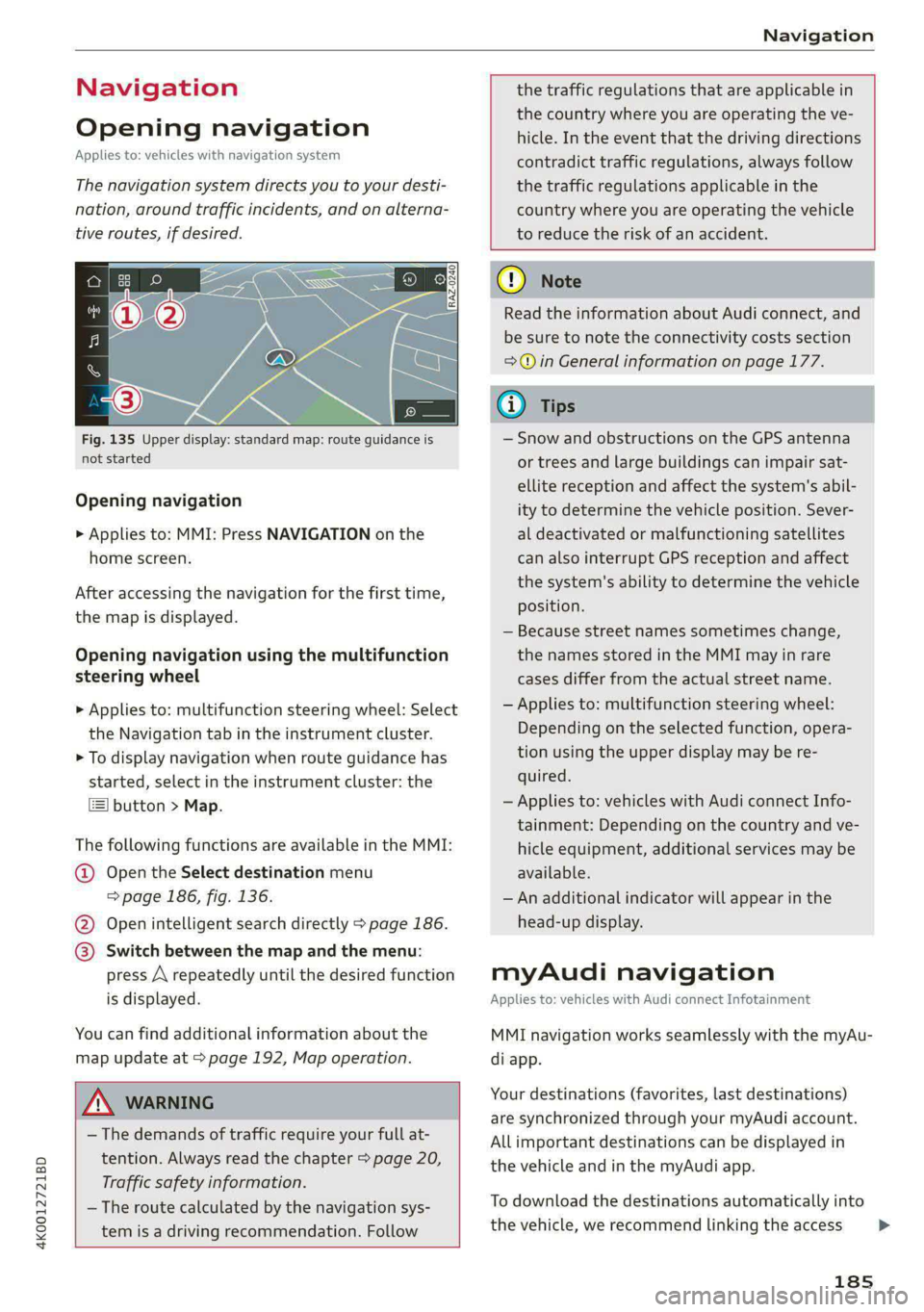
Fig. 135 Upper display: standard map: route guidance is
not started
Opening navigation
> Applies to: MMI: Press NAVIGATION on the
home screen.
After accessing the navigation for the first time,
the map is displayed.
Opening navigation using the multifunction
steering wheel
> Applies to: multifunction steering wheel: Select
the Navigation tab in the instrument cluster.
> To display navigation when route guidance has
started, select in the instrument cluster: the
button > Map.
The following functions are available in the MMI:
@ Open the Select destination menu
=> page 186, fig. 136.
@ Open intelligent search directly > page 186.
@ Switch between the map and the menu:
press A repeatedly until the desired function
is displayed.
You can find additional information about the
map update at > page 192, Map operation.
the traffic regulations that are applicable in
the country where you are operating the ve-
hicle. In the event that the driving directions
contradict traffic regulations, always follow
the traffic regulations applicable in the
country where you are operating the vehicle
to reduce the risk of an accident.
ZX WARNING
— The demands of traffic require your full at-
tention. Always read the chapter > page 20,
Traffic safety information.
— The route calculated by the navigation sys-
tem is a driving recommendation. Follow
@) Note
Read the information about Audi connect, and
be sure to note the connectivity costs section
=> in General information on page 177.
iG) Tips
— Snow and obstructions on the GPS antenna
or trees and large buildings can impair sat-
ellite reception and affect the system's abil-
ity to determine the vehicle position. Sever-
al deactivated or malfunctioning satellites
can also interrupt GPS reception and affect
the system's ability to determine the vehicle
position.
— Because street names sometimes change,
the names stored in the MMI may in rare
cases differ from the actual street name.
— Applies to: multifunction steering wheel:
Depending on the selected function, opera-
tion using the upper display may be re-
quired.
— Applies to: vehicles with Audi connect Info-
tainment: Depending on the country and ve-
hicle equipment, additional services may be
available.
— An additional indicator will appear in the
head-up display.
myAudi navigation
Applies to: vehicles with Audi connect Infotainment
MMI navigation works seamlessly with the myAu-
di app.
Your destinations (favorites, last destinations)
are synchronized through your myAudi account.
All important destinations can be displayed in
the vehicle and in the myAudi app.
To download the destinations automatically into
the vehicle, we recommend linking the access
185
>
Page 196 of 316

Navigation
@ Current route
The distance to the destination and the calculat-
ed arrival time will be displayed for the current
route.
@ Alternative route
As long as traffic information is available, the
congestion along the route including the time de-
lay will be displayed. The distance to the destina-
tion and the calculated arrival time will be dis-
played for the alternative route.
Select route
> Press on the information window for the appli-
cable alternative route (for example @)
> fig. 141).
Additional functions
Neola asy
Applies to: vehicles with navigation system
You can access frequent destinations in the fa-
vorites. You can quickly and easily start route
guidance using the home address or business ad-
dress function.
Accessing favorites
> Applies to: MMI: Select on the home screen:
NAVIGATION > (8) > Favorites.
If you use myAudi navigation, your favorites will
be synchronized with your myAudi account
=> page 185.
Storing favorites
> Press yy in the Details menu > page 189,
fig. 137. Or: press Store as favorite in the op-
tions > page 198.
Storing a home address or business address
> Press Home address or Business address.
When accessed for the first time, you will be
prompted to set the address.
> Select: Create now > enter a destination > OK.
Editing a home address or business address
Requirement: the favorites list must be dis-
played. Your home address or business address
must be stored.
194
> Press Home address or Business address until
the Options menu is displayed.
> Select: Change address > enter a destination >
(Set as destination) or (Add to address) > OK.
Editing a favorite
Requirement: the favorites list must be dis-
played. At least one favorite must be stored.
>» Setting a favorite as a destination: press ona
favorite.
> Rename favorite: press ona favorite until the
Options menu is displayed. Select: Change
name > select ad name > OK.
> Deleting a favorite: press W in the Details
menu > page 1839, fig. 137. Or: select: 2 > one
or more entries or Select all > Delete > (Done).
> Moving a favorite: press Z. Touch the $ sym-
bol and move the entry to the desired position.
Press Done.
Gi) Tips
— After deleting the home address or business
address, only the address is deleted and the
entry will still be displayed in the favorites.
— Please note when moving favorites that
items 1 and 2 are reserved for the home ad-
dress and business address.
(eye Meer lat me(idl ately
Applies to: vehicles with navigation system
Two addresses (private/business) can be added
as destinations for each contact. Addresses for
contacts on your mobile device are displayed as a
mailing address.
Accessing contacts
> Applies to: MMI: Select on the home screen:
NAVIGATION > (Ga) > Contacts.
Adding a destination to a contact
Requirement: a mobile device must be connected
to the MMI > page 164. Or: you must have im-
ported contacts > page 175, Importing and ex-
porting contacts. The Hide grayed-out contacts
option must be switched off > page 195. There
must be no business address or private address
stored for the desired contact.
Page 200 of 316

Navigation
Online traffic information
Applies to: vehicles with navigation system and online traffic
information
The MMI can receive real-time online traffic in-
formation about congestion, accidents, road
construction, and other incidents.
Requirement: the MMI must be connected to the
Internet > page 177, Audi connect. Traffic infor-
mation must be switched on in the MMI
=> page 198.
Traffic information will be displayed on the
standard map > page 191, fig. 138.
Online traffic information is also displayed on the
standard map > page 195.
() Note
Read the information about Audi connect, and
be sure to note the connectivity costs section
=@ in General information on page 177.
@) Tips
— Having the online traffic information func-
tion switched on provides the most accurate
reports of traffic situations and traffic fore-
casting. Your vehicle transmits and process-
es its anonymous, encrypted position infor-
mation at regular intervals to the traffic da-
ta provider. You can switch off data transfer
at any time > page 290.
— The online traffic information network is
not available in all countries, and the cover-
age is not nationwide.
Options and settings
Applies to: vehicles with navigation system
Context-specific functions and settings may be
available depending on the vehicle equipment.
> Press More, or
> Open a list with navigation destinations (such
as recent destinations) and press and hold an
item until the Options menu is displayed.
198
Storing a favorite
See > page 194.
Edit address
You can edit an address for the next destination
entry and navigate to the destination. Select: Ed-
it address > enter a street > Use address > Start.
If the address is permanently stored (for exam-
ple, in the favorites), the stored entry will not be
changed.
Change address
See > page 194, Favorites.
Entering an address
See > page 194, Contacts as navigation destina-
tions.
Change name
See > page 194, Favorites.
Weather
See > page 179, Services.
Save as a shortcut
See > page 23, Shortcuts.
Applies to: vehicles with navigation system
You can adjust the navigation system settings in
the instrument cluster and in the MMI display
separately. The settings depend on the country
and vehicle equipment.
Accessing settings
> Applies to: MMI: Select on the home screen:
NAVIGATION > ©}.
Accessing settings using the multifunction
steering wheel
> Applies to: multifunction steering wheel: Select
in the instrument cluster: Navigation tab >
button.
Please note that a setting applied to the multi-
function steering wheel is only valid for the in-
strument cluster map.
Page 225 of 316
4K0012721BD
Additional settings
Additional settings
System settings
Introduction
General settings are described in this chapter.
You can find specific settings in the chapters
about
those settings. The available settings de-
pend on the vehicle equipment.
Date and time
> Applies to: MMI: Select on the home screen:
SETTINGS > General > Date & time.
Possible settings:
— Set date and time automatically
— Date format
— Use 24h time format
— Automatic time zone
— Time zone
— Automatic daylight saving time
— Manual daylight saving time
CERT Taal lat ae ay
> Applies to: MMI: Select on the home screen:
SETTINGS > General > Measurement units.
Possible settings:
— Speed
— Distance
— Temperature
— Pressure
— Consumption (engine)
— Volume
Language and keyboard
> Applies to MMI: Select on the home screen:
SETTINGS > Language & keyboard.
Language
You can change the languages for the display,
navigation announcements, and the voice recog-
nition system.
Keyboard
See > page 24.
Requirement: an audio source must be active.
> Applies to MMI: Select on the home screen:
SETTINGS > Sound.
Possible settings:
— Treble
— Bass
— Balance/fader
— Speed-dependent volume control
— Subwoofer
— Surround Level
Focus
You can optimize the sound distribution for vari-
ous locations in the vehicle.
3D effect
You can adjust the intensity of the 3D effect.
With the Medium setting, you will hear an opti-
mal 3D effect for all sources.
Announcements and tones
> Applies to: MMI: Select on the home screen:
SETTINGS > Announcements & tone.
Possible settings:
— Volume of announcements
— Welcome sound
ZA\ WARNING
Adjust the volume of the audio system so that
signals from outside the vehicle, such as po-
lice and fire sirens, can be heard easily at all
times.
G@) Tips
The volume is automatically adjusted to a pre-
set level when the MMI is switched on.
223
Page 229 of 316

4K0012721BD
Checking and Filling
Checking and Filling
Fuel
Types of gasoline
The correct gasoline grade is stated on the inside
of the fuel filler door.
The vehicle is equipped with a catalytic converter
and must only be driven with unleaded gasoline.
Audi recommends using TOP TIER Detergent Gas-
oline. For additional information on TOP TIER De-
tergent Gasoline, visit www.toptiergas.com.
The individual gasoline grades are differentiated
by octane ratings. This value is given with (R
+M)/2 equating to AKI or in RON.
The headings below match the sticker in the fuel
filler door (examples):
UNLEADED FUEL ONLY MIN. (R+M)/2 87
Regular / MIN. RON 91 Regular
Use regular gasoline with minimum 87 AKI /
91 RON > ©.
Audi recommends using premium gasoline with
minimum 91 AKI / 95 RON to achieve the rated
horsepower and torque.
UNLEADED FUEL ONLY PREMIUM MIN. (R
+M)/2 91 / SUPER MIN. RON 95
Using premium gasoline with minimum 91 AKI /
95 RON is recommended.
If premium gasoline is not available, you can also
use regular gasoline 87 AKI / 91 RON. However
this does reduce the engine power slightly.
() Note
— Filling the tank just one time with leaded
fuel or other metallic additives will cause
permanent deterioration to the catalytic
converter function.
— When gasoline with an octane rating that is
too low is used, high speeds or heavy engine
load can lead to engine damage.
@) Tips
The vehicle may be filled with fuel that has a
higher octane rating than what is required by
the engine.
Gasoline mixture
Gasoline with alcohol or MTBE (Methyl-Tert-
Butyl-Ether)
You can use unleaded gasoline mixed with alco-
hol or MTBE (generally labeled as oxygenated
compounds) as long as the fuel meets the follow-
ing conditions:
Gasoline with methanol content (methyl alco-
hol
or methanol)
— Anti-Knock Index is at least 87 AKI
—No more than 3% methanol
— More than 2% solvent
Gasoline with ethanol content (ethyl alcohol or
ethanol)
— Anti-Knock Index is at least 87 AKI
—No more than 15% ethanol
Gasoline with MTBE content
— Anti-Knock Index is at least 87 AKI
—No more than 15% MTBE
Gasoline adapted to the season
Many gasoline fuels are adapted to the seasons.
When the season changes, we recommend refu-
eling at high-traffic gas stations. It is more likely
that the gasoline will be suitable for the season
there.
() Note
— Gasoline with methanol content that does
not meet the specified conditions may cause
corrosion damage and damage to plastic or
rubber components in the fuel system.
— Do not use gasoline that does not meet the
specifications.
— If you are unable to find out if a specific gas-
oline mixture meets the specifications, ask
the gas station operator or their fuel suppli-
er.
227
>
Page 236 of 316

Checking and Filling
Engine compartment overview
The most important check points.
Fig. 156 Typical location of the reservoir and the engine oil filler opening (example)
Follow the safety precautions > page 231.
@ Washer fluid reservoir (>) > page 243
@ Jump start point (+) under a cover, (-) with
hex head screw > page 243, Charging the 12
Volt vehicle battery, > page 279, Jump start-
ing
Coolant expansion tank (=) under a cover
=> page 239
Engine oil filler opening (827) > page 236
Brake fluid reservoir (OC) under a cover
=> page 240
Sticker* for engine oil specifications
=> page 234
©
©®
©
The coolant expansion tank and the engine oil
filling opening may be located in different places
within
the engine compartment, depending on
the engine version.
234
Engine oil
If the engine oil level is too low
If you need to add engine oil, use an oil that is
listed on the sticker. The sticker is located at the
front of the engine compartment > page 234,
fig. 156.
If the recommended engine oil is not available, in
an emergency you may add a maximum of 1
quart (1 liter) of ACEA C3 or API SN engine oil
one time until the next oil change.
For more information on the correct engine oil
for your vehicle, contact an authorized Audi deal-
er or authorized Audi Service Facility. Have the oil
changed by an authorized Audi dealer or author-
ized Service Facility.