2020 AUDI A6 change wheel
[x] Cancel search: change wheelPage 120 of 316

Assist systems
Assist systems
General information
Safety precautions
ZA WARNING
— As the driver, you are always completely re-
sponsible for all driving tasks. The assist
systems cannot replace the driver's atten-
tion. Give your full attention to driving the
vehicle, and be ready to intervene in the
traffic situation at all times.
— Activate the assist systems only if the sur-
rounding conditions permit it. Always adapt
your driving style to the current visual,
weather, road, and traffic conditions.
— Loose objects can be thrown around the ve-
hicle interior during sudden driving or brak-
ing maneuvers, which increases the risk of
an accident. Store objects securely while
driving.
— For the assist systems to be able to react
correctly, the function of the sensors and
cameras must not be restricted. Note the in-
formation on sensors and cameras
=>page 119.
@ Tips
— Pay attention to applicable local regulations
relating to driving tasks, leaving space for
emergency vehicles, vehicle distance, speed,
parking location, wheel placement, etc. The
driver is always responsible for following
the laws that are applicable in the location
where the vehicle is being operated.
— You can cancel a steering or braking inter-
vention by the system, by braking or accel-
erating noticeably, steering, or deactivating
the respective assist system.
— Always check the assist systems settings be-
fore driving. The settings could have been
changed, for example, by other drivers or if
another personal profile was used.
118
System limitations
ZA\ WARNING
— The use of an assist system cannot over-
come the natural laws of physics. A collision
cannot be prevented in certain circumstan-
ces.
— Warnings, messages, or indicator lights may
not be displayed or initiated on time or cor-
rectly, for example, if vehicles are approach-
ing very fast.
— Corrective interventions by the assist sys-
tems, such as steering or braking interven-
tions, may not be sufficient or they may not
occur. Always be ready to intervene.
G) Tips
— Due to the system limitations when detect-
ing the surrounding area, the systems may
warn or intervene unexpectedly or too late
in certain situations. The assist systems may
also interpret a driving maneuver incorrectly
and then warn the driver unexpectedly.
— The systems may not function as expected
in unusual driving situations, such as driving
offroad, on unpaved roads, on loose ground,
on inclines, or on grooves in the road.
— The systems may not function correctly in
unclear traffic situations, such as turning
lanes, exit ramps, construction zones, rises
or dips that obstruct visibility, intersections,
toll stations, or city traffic.
— The detection of the surrounding area can
be limited, for example by vehicles driving
ahead or by rain, snow, heavy spray, or light
shining into the camera.
— If accessories have been mounted on the
steering wheel, the ability for the steering
systems to react may be limited.
Page 137 of 316

4K0012721BD
Driver assistance
system. On open roads with no traffic, it func-
tions like a cruise control system. The stored
speed is maintained. When approaching a vehicle
driving ahead, the adaptive speed assist auto-
matically brakes to match that vehicle's speed
and then maintains the set distance as much as
possible. Once the system does not detect a vehi-
cle driving ahead, adaptive speed assist will ac-
celerate up to the set speed.
The additional lane guidance assists the driver
with corrective steering in order to stay in the
lane. You can adjust if the adaptive cruise assist
will provide support with lane guidance
= page 138, Switching lane guidance on and off.
In stop-and-go traffic and in traffic jams, the ve-
hicle may brake to a full stop and then may also
start driving again automatically under certain
conditions.
Applies to: vehicles with efficiency assist: Predic-
tive control can adjust the speed based on traffic
and road conditions > page 133, Predictive con-
trol.
Follow the safety precautions and note the
limits of the assist systems, sensors, and
cameras > page 118.
For an explanation on conformity with the
FCC regulations in the United States and the
Industry Canada regulations, see > page 296.
Applies to: vehicles with adaptive cruise assist
B8V-0630
Fig. 101 Example: vehicle changing lanes and stationary
vehicle
Fig. 102 Example: driving into a curve
In some situations, the adaptive cruise assist
function is limited and you must assume control
of the vehicle when necessary, for example by ap-
plying the brakes.
— Ifa vehicle that was already detected @ turns
or changes lanes, the adaptive cruise assist will
react to the vehicle ahead of it @).
— When driving into a curve > fig. 102 and out of
a curve, the adaptive cruise assist may react to
a vehicle in the adjacent lane and apply the
brakes. You can override the system by pressing
the accelerator pedal briefly.
— The adaptive cruise assist works with the vari-
ous sensors and cameras in the vehicle.
Vehicles can only be detected once they are
within the area and range covered by the sen-
sors > page 119, fig. 91.
— When driving around tight curves, a vehicle
driving ahead that was previously detected may
no longer be detected, and the adaptive cruise
assist may accelerate unexpectedly.
— The adaptive cruise assist does not react toa
stationary vehicle in the same lane if the sys-
tem expects that you can easily drive around
the stationary vehicle by turning the steering
wheel.
— The adaptive cruise assist may not react to sta-
tionary obstacles, such as the end of a traffic
jam, especially at high speeds.
— The adaptive cruise assist has a limited ability
to detect vehicles that are a short distance
ahead, off to the side of your vehicle, or moving
into your lane.
— Objects that are difficult to detect, such as mo-
torcycles, vehicles with high ground clearance,
or vehicles with an overhanging load, may be
detected late or not detected at all.
135
Page 141 of 316

4K0012721BD
Driver assistance
— The driver's hands are not on the steering
wheel
— Visibility is obstructed by a rise or dip.
Steering intervention request
If no steering activity is detected or the steering
power from the system is not sufficient, the driv-
er steering intervention request will alert the
driver using audio and visual signals. Take over
the steering and keep your hands on the steering
wheel so that you will be ready to steer at any
time. The system will become inactive after a
short time and will only be active again later.
If the driver does not take over steering, adaptive
cruise assist will be canceled. If the vehicle is
equipped with emergency assist and it is ready to
function, it will be activated if possible
=> page 154.
ZA\ WARNING
Follow the safety precautions and note the
limits of the assist systems, sensors, and
cameras > page 118.
G) Tips
— Always keep your hands on the steering
wheel so you can be ready to steer at any
time. The driver is always responsible for
adhering to the regulations applicable in
the country where the vehicle is being oper-
ated.
— It is recommended to only switch on lane
guidance on well-constructed roads.
— Certain settings are stored automatically in
the active personal profile.
—The & fig. 107 button switches lane guid-
ance availability and the lane departure
warning on or off simultaneously, if lane
guidance is preset in the adaptive cruise as-
sist settings.
Setting the distance
Applies to: vehicles with adaptive cruise assist
B4M-0234
Fig. 108 Operating lever: setting the distance
If you adjust the speed, you must also change the
time gap to the vehicle driving ahead. The higher
the speed, the greater the distance that is need-
ed.
> Tap the rocker switch to display the distance
that is currently set.
> To increase or decrease the distance in incre-
ments, tap the switch again toward G) or ().
The newly-set distance will be shown briefly, for
example with the indicator light. In the Driv-
er assistance display, a graphic display is shown
instead of the indicator lights > page 136,
fig. 104. The display matches the functions of
the indicator lights.
When approaching a vehicle driving ahead, the
adaptive cruise assist brakes to the set speed and
then maintains the set distance. If the vehicle
driving ahead accelerates, then the adaptive
cruise assist will also accelerate up to the speed
that you have set.
The following distances can be set:
139
Page 147 of 316
4K0012721BD
Driver assistance
If the indicator light turns on, the lane depar-
ture warning is not ready to provide warnings.
This may be due to the following reasons:
— The necessary lane marker lines have not been
detected (for example, in a construction zone
or because the lines are obstructed by snow,
dirt, water, or lighting)
— The speed is below the activation speed
— The lane is too narrow or too wide
— The curve is too narrow
— The driver's hands are not on the steering
wheel
— Visibility is obstructed by a rise or dip.
Steering intervention request
If no steering activity is detected or the steering
power from the system is not sufficient, the driv-
er steering intervention request will alert the
driver using audio and visual signals. Take over
the steering and keep your hands on the steering
wheel so that you will be ready to steer at any
time. The system will become inactive after a
short time and will only be active again later.
If the driver does not take over steering, the lane
departure warning will no longer be ready to pro-
vide warnings. If the vehicle is equipped with
emergency assist and it is ready to function, it
will be activated > page 154.
Behavior when a turn signal is active
Applies to: vehicles with side assist: Even if the
system is ready to provide warnings, it will not
warn you if you activate a turn signal before
crossing the lane marker line. In this case, it as-
sumes that you are changing lanes intentionally.
Applies to: vehicles with side assist: If the turn
signal is activated, the lane departure warning is
ready, and a lane change has been classified as
critical by the lane departure warning due to
vehicles traveling beside you or due to approach-
ing vehicles, then a noticeable corrective steering
movement will occur shortly before exiting the
lane. This will attempt to keep your vehicle in the
lane.
ZA WARNING
— Follow the safety precautions and note the
limits of the assist systems, sensors, and
cameras > page 118.
— The system warns the driver that the vehicle
is leaving the lane using corrective steering.
The
driver is always responsible for keeping
the vehicle within the lane.
— Corrective steering may not occur at all in
certain situations, such as during heavy
braking. Always be ready to intervene.
(i) Tips
— Always keep your hands on the steering
wheel so you can be ready to steer at any
time. The driver is always responsible for
adhering to the regulations applicable in
the country where the vehicle is being oper-
ated.
— The system does not provide any corrective
steering or steering wheel vibrations if it de-
tects that you are passing another vehicle.
ONC mam Ks) Clea}
Applies to: vehicles with lane departure warning
You can switch the optional steering wheel vibra-
tion warning for the lane departure warning on
and off. The settings depend on the vehicle
equipment.
— Applies to: MMI: Select on the home screen:
VEHICLE > Driver assistance > (<3) > Lane de-
parture warning > Vibration warning.
G) Tips
Certain settings are stored automatically in
the active personal profile.
tLe [4
Applies to: vehicles with lane departure warning
ray or {is displayed when there is a malfunc-
tion, the lane departure warning and lane guid-
ance functions of the adaptive cruise functions
may be unavailable or limited.
A message that indicates the cause and possible
solution may appear with some displays. The
145
>
Page 164 of 316

Parking and maneuvering
Symbol/Descrip-
Description
tion P
Rear tires
This view helps you to detect the distance between the rear wheels and
the curb when parking.
In these views, you can see the areas surrounding the vehicle in 3D when
® 3D surroundings | parking. The vehicle surrounding views are created from the camera im-
ages and sensor data. The vehicle image is shown by the system > A\.
ZX WARNING
— Follow the safety precautions and note the
limits of the assist systems, sensors, and
cameras > page 118.
— The Surroundings and 3D surroundings are
created from the individual camera images.
The vehicle image is shown by the system.
Objects and obstacles above the camera are
not displayed.
@) Note
Only use the images provided by the camera
on the rear of the vehicle when the luggage
compartment lid is completely closed. Make
sure any objects you may have mounted on
the luggage compartment lid do not block the
rearview camera.
@) Tips
— Depending on the selected gear, it will auto-
matically switch between the Front and
Rear views. If you switch the view manually,
the automatic front/rear camera change will
be temporarily deactivated.
— When first activated while a forward gear is
engaged, the Front corner is displayed.
162
Rear cross-traffic assist
Applies to: vehicles with rear cross-traffic assist
Fig. 128 Upper display: rear cross-traffic assist display
General information
The rear cross-traffic assist monitors the area be-
hind and next to the vehicle using radar sensors
at the rear corners of the vehicle. The system can
detect moving objects that are approaching, such
as vehicles > fig. 127. A display in the MMI and
various warnings provide assistance when exiting
a parking space.
Requirements for using the rear cross-traffic
assist:
— Reverse gear must be engaged and the speed
while driving in reverse must not be higher than
6 mph (10 km/h).
Page 187 of 316
4K0012721BD
Navigation
Navigation
Opening navigation
Applies to: vehicles with navigation system
The navigation system directs you to your desti-
nation, around traffic incidents, and on alterna-
tive routes, if desired.
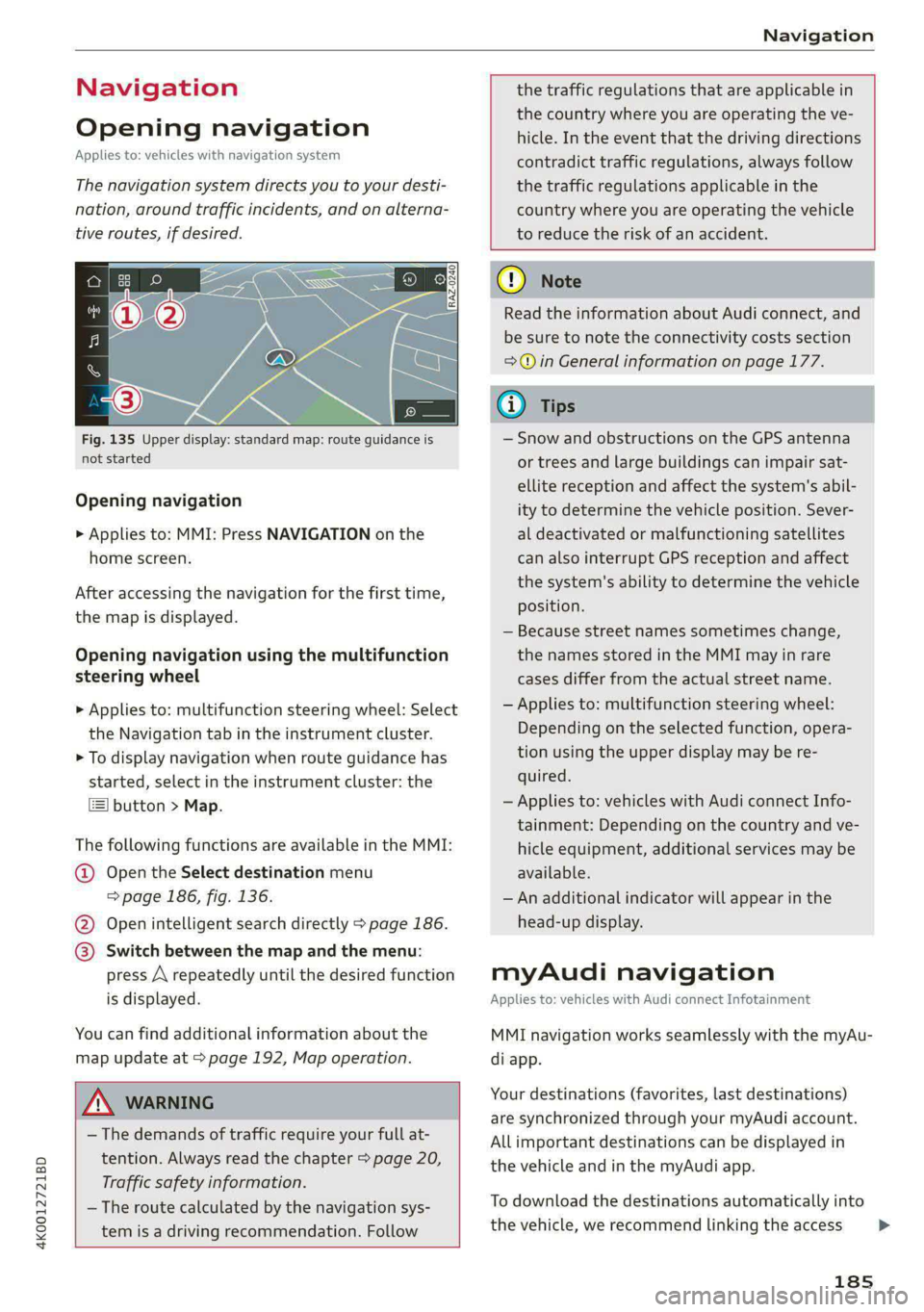
Fig. 135 Upper display: standard map: route guidance is
not started
Opening navigation
> Applies to: MMI: Press NAVIGATION on the
home screen.
After accessing the navigation for the first time,
the map is displayed.
Opening navigation using the multifunction
steering wheel
> Applies to: multifunction steering wheel: Select
the Navigation tab in the instrument cluster.
> To display navigation when route guidance has
started, select in the instrument cluster: the
button > Map.
The following functions are available in the MMI:
@ Open the Select destination menu
=> page 186, fig. 136.
@ Open intelligent search directly > page 186.
@ Switch between the map and the menu:
press A repeatedly until the desired function
is displayed.
You can find additional information about the
map update at > page 192, Map operation.
the traffic regulations that are applicable in
the country where you are operating the ve-
hicle. In the event that the driving directions
contradict traffic regulations, always follow
the traffic regulations applicable in the
country where you are operating the vehicle
to reduce the risk of an accident.
ZX WARNING
— The demands of traffic require your full at-
tention. Always read the chapter > page 20,
Traffic safety information.
— The route calculated by the navigation sys-
tem is a driving recommendation. Follow
@) Note
Read the information about Audi connect, and
be sure to note the connectivity costs section
=> in General information on page 177.
iG) Tips
— Snow and obstructions on the GPS antenna
or trees and large buildings can impair sat-
ellite reception and affect the system's abil-
ity to determine the vehicle position. Sever-
al deactivated or malfunctioning satellites
can also interrupt GPS reception and affect
the system's ability to determine the vehicle
position.
— Because street names sometimes change,
the names stored in the MMI may in rare
cases differ from the actual street name.
— Applies to: multifunction steering wheel:
Depending on the selected function, opera-
tion using the upper display may be re-
quired.
— Applies to: vehicles with Audi connect Info-
tainment: Depending on the country and ve-
hicle equipment, additional services may be
available.
— An additional indicator will appear in the
head-up display.
myAudi navigation
Applies to: vehicles with Audi connect Infotainment
MMI navigation works seamlessly with the myAu-
di app.
Your destinations (favorites, last destinations)
are synchronized through your myAudi account.
All important destinations can be displayed in
the vehicle and in the myAudi app.
To download the destinations automatically into
the vehicle, we recommend linking the access
185
>
Page 189 of 316

4K0012721BD
Navigation
Requirement: the MMI must be connected to the
Internet > page 177, Audi connect.
> Applies to: MMI: Select on the home screen:
NAVIGATION > © > G.
> Enter one or more search terms into the input
field.
> The search engine provider shows suggestions
to narrow down the search.
> Press on suggestions until the desired destina-
tion appears in the results list. If necessary, use
one finger to swipe upward or downward until
the suggestions © or destinations appear.
> Press on the desired destination 9. The Details
menu will be displayed.
> Press Start.
Route guidance will be activated and the map will
be displayed. > page 191, fig. 138
() Note
Read the information about Audi connect, and
be sure to note the connectivity costs section
=>@ in General information on page 177.
@) Tips
— The MMI input suggestions depend on the
last navigated destinations.
— The navigation system always searches for
the fastest route. You can have alternative
routes displayed if necessary > page 193.
— If the destination cannot be found, it may
not be stored in the navigation database.
Check
the spelling of the term that was
searched or check the search area
> page 186.
Entering an address
Applies to: vehicles with navigation system
As an alternative to the intelligent search, you
can also enter an address in stages.
Opening a menu
> Applies to: MMI: Select on the home screen:
NAVIGATION > (G5) > Enter address.
Enter a destination using an address
> Press on the respective input field and enter an
address.
> Press Apply. The Details menu will be dis-
played.
> Press Start.
Route guidance will be activated and the map will
be displayed > page 191, fig. 138.
Destination entry for a street intersection
> Select: Intersection > enter a street > Start.
Loading previous destinations
Applies to: vehicles with navigation system
Your last destinations and routes can be loaded
directly as a navigation destination.
As soon as you start route guidance, the destina-
tion is automatically saved in the last destina-
tions. Your previous destinations are marked with
the © symbol.
If you use myAudi navigation, your previous des-
tinations will be synchronized with your myAudi
account > page 185.
Accessing previous destinations
> Applies to: MMI: Select on the home screen:
NAVIGATION > (8) > Last destinations > select
a desired destination > Start.
> Applies to: multifunction steering wheel: Select
in the instrument cluster: Navigation tab >
button > Last destinations > desired destina-
tion.
Changing and loading a previous destination
> Applies to: MMI: Select on the home screen:
NAVIGATION > (Ge) > Last destinations > Z >
Z > change the address > Use address > Start.
Restore last tour
Requirement: a route with at least two stopovers
must have already been canceled.
Your last route is labeled with the © symbol.
187
>
Page 200 of 316

Navigation
Online traffic information
Applies to: vehicles with navigation system and online traffic
information
The MMI can receive real-time online traffic in-
formation about congestion, accidents, road
construction, and other incidents.
Requirement: the MMI must be connected to the
Internet > page 177, Audi connect. Traffic infor-
mation must be switched on in the MMI
=> page 198.
Traffic information will be displayed on the
standard map > page 191, fig. 138.
Online traffic information is also displayed on the
standard map > page 195.
() Note
Read the information about Audi connect, and
be sure to note the connectivity costs section
=@ in General information on page 177.
@) Tips
— Having the online traffic information func-
tion switched on provides the most accurate
reports of traffic situations and traffic fore-
casting. Your vehicle transmits and process-
es its anonymous, encrypted position infor-
mation at regular intervals to the traffic da-
ta provider. You can switch off data transfer
at any time > page 290.
— The online traffic information network is
not available in all countries, and the cover-
age is not nationwide.
Options and settings
Applies to: vehicles with navigation system
Context-specific functions and settings may be
available depending on the vehicle equipment.
> Press More, or
> Open a list with navigation destinations (such
as recent destinations) and press and hold an
item until the Options menu is displayed.
198
Storing a favorite
See > page 194.
Edit address
You can edit an address for the next destination
entry and navigate to the destination. Select: Ed-
it address > enter a street > Use address > Start.
If the address is permanently stored (for exam-
ple, in the favorites), the stored entry will not be
changed.
Change address
See > page 194, Favorites.
Entering an address
See > page 194, Contacts as navigation destina-
tions.
Change name
See > page 194, Favorites.
Weather
See > page 179, Services.
Save as a shortcut
See > page 23, Shortcuts.
Applies to: vehicles with navigation system
You can adjust the navigation system settings in
the instrument cluster and in the MMI display
separately. The settings depend on the country
and vehicle equipment.
Accessing settings
> Applies to: MMI: Select on the home screen:
NAVIGATION > ©}.
Accessing settings using the multifunction
steering wheel
> Applies to: multifunction steering wheel: Select
in the instrument cluster: Navigation tab >
button.
Please note that a setting applied to the multi-
function steering wheel is only valid for the in-
strument cluster map.