2019 VOLVO XC90 TWIN ENGINE wheel
[x] Cancel search: wheelPage 505 of 697

AUDIO, MEDIA AND INTERNET
}}
503
Searching for a radio station
The radio automatically compiles a list of the
radio stations that are sending out the strongest
signals in the vehicle's current location. Searching is performed in different ways depend-
ing on the waveband selected:
FM, stations, genres and frequency.
1. Tap Library.
2. Tap .
>
Search view will displayed and the key-
board will open.
3. Enter a search word/phrase. > The search will start and change as char-acters are entered. Search results will be
displayed by category.
Searching for a station manually Searching manually makes it possible to find and
tune to stations that are not on the automatically
compiled list of the strongest stations in the area.
–
Tap
Manual tuning, drag the control or tap or . Press and hold to skip to the
next available station in the frequency band.
You can also use the right-side steering
wheel keypad.
Related information
Radio (p. 501)
Starting the radio (p. 501)
Changing waveband and radio station
(p. 502)
Voice control for radio and media (p. 148)
Radio settings (p. 504) Storing radio favorites
It is possible to add a radio a radio station in the Radio favorites app and in the list of favorites
for the waveband (e.g. FM). Instructions for add-
ing and removing favorites are provided below.
Radio favoritesRadio favorites shows saved
favorites from all wavebands. 1.
Open the Radio favorites app from App
view.
2.
Tap the desired station in the list to listen.
Adding and deleting radio favorites
– Tap to add/remove a radio channel from
the waveband's list of favorites or Radio
favorites.
If a favorite station is deleted here, it will also be
deleted from that waveband's list of favorites.
Related information
Radio (p. 501)
Starting the radio (p. 501)
Searching for a radio station (p. 503)
Changing waveband and radio station
(p. 502)
Page 506 of 697

AUDIO, MEDIA AND INTERNET
* Option/accessory.
504
Voice control for radio and media (p. 148)
Radio settings (p. 504)
App menu in instrument panel (p. 103) Radio settings
There are a number of different radio functions
that can be activated and deactivated.
Canceling a traffic messageA current broadcast (e.g. a traffic message) can
be temporarily interrupted by pressing in the
right-side steering wheel keypad or tapping
Cancel in the center display.
Activating and deactivating radio
functions
Pull down Top view and select Settings Media and the desired waveband to see available
functions.
FM Radio
HD Radio FM: HD Radio
™
Technology:
makes it possible to achieve a sound quality
comparable with a CD.
Show Broadcast Information: shows
information on program content, artists, etc.
Freeze Program Name: select to stop the
program service name from scrolling continu-
ously. Instead it freezes after 20 seconds.
SiriusXM ®
Satellite radio*
Pull down Top view and select Settings Media SiriusXM
to show a list of available
options.
Related information
Radio (p. 501)
Settings for SiriusXM ®
Satellite radio*
(p. 511)
Symbols in the center display status bar
(p. 124)
Page 509 of 697
AUDIO, MEDIA AND INTERNET
507
HD Radio™ limitations (p. 508)
Opening contextual setting in the center dis-
play (p. 133) HD Radio
™ sub-channels
In many cases, a main HD Radio station (FM
wavebands only) will also have sub-channels
offering additional types of programming or
music.
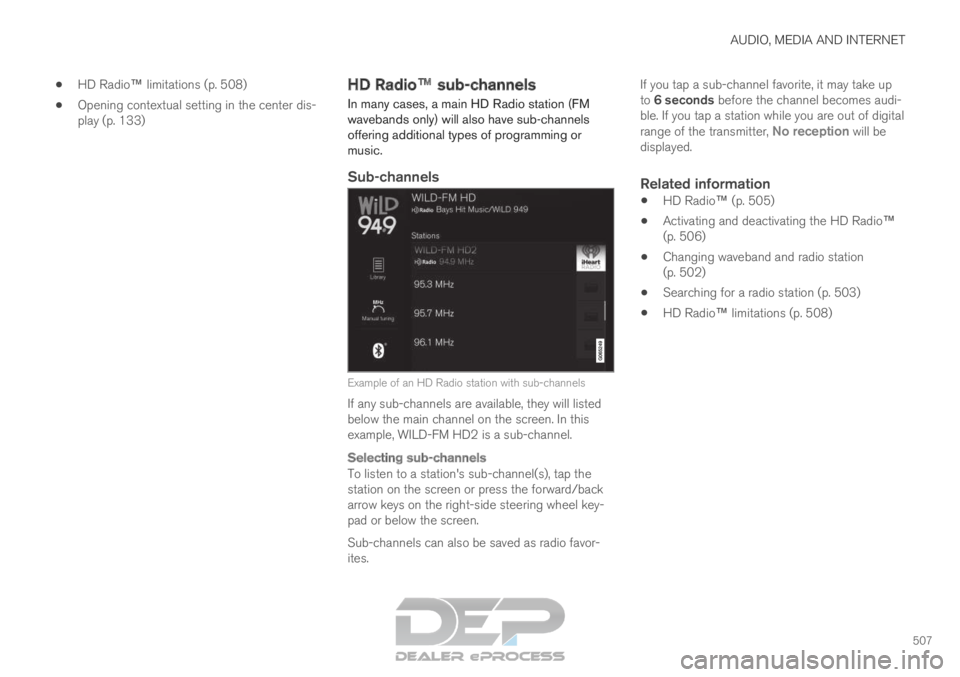
Sub-channels Example of an HD Radio station with sub-channels
If any sub-channels are available, they will listed
below the main channel on the screen. In this
example, WILD-FM HD2 is a sub-channel.
Selecting sub-channels
To listen to a station's sub-channel(s), tap the
station on the screen or press the forward/back
arrow keys on the right-side steering wheel key-
pad or below the screen.
Sub-channels can also be saved as radio favor-
ites. If you tap a sub-channel favorite, it may take up
to 6 seconds before the channel becomes audi-
ble. If you tap a station while you are out of digital
range of the transmitter, No reception will be
displayed.
Related information
HD Radio™ (p. 505)
Activating and deactivating the HD Radio™
(p. 506)
Changing waveband and radio station
(p. 502)
Searching for a radio station (p. 503)
HD Radio
™
limitations (p. 508)
Page 520 of 697

AUDIO, MEDIA AND INTERNET
* Option/accessory.
518 Media player
The media player can play audio from the CD
player* and from external audio sources con-
nected via USB port or Bluetooth. It can also
play video format via the USB port.
When the vehicle is connected to the Internet, it
is also possible to listen to web radio, audio
books and to access music services via apps. The media player is controlled
from the center display. Several
functions can also be con-
trolled using voice commands
or the right-side steering wheel
keypad.
The radio, which is also handled by the media
player, is described in a separate section.
Related information
Playing media (p. 518)
Controlling and changing media (p. 520)
Media searches (p. 521)
Apps (p. 498)
Radio (p. 501)
CD player* (p. 522)
Video (p. 522)
Streaming media via Bluetooth ®
(p. 524)
Playing media via the USB port (p. 524)
Internet-connected vehicle* (p. 541) Playing media
The media player is controlled from the center
display. Several other functions can also be con-
trolled using the right-side steering wheel key-
pad or by using voice commands.
The radio can also be controlled in the media
player. See the section describing the radio.
Starting a media source
App view. (Generic illustration; basic apps vary depend-
ing on market and model).
Page 522 of 697

AUDIO, MEDIA AND INTERNET
520Controlling and changing media
Media playback can be controlled using voice
commands, the steering wheel keypad or the
center display.
The media player can be con-
trolled using voice commands,
the right-side steering wheel
keypad or the center display.Volume - turn the knob under the center display
or tap
on the right-side steering wheel
keypad to raise or lower the volume.
Play/pause - tap the image for the track you
would like to play, or press the button below the
center display or on the right-side steering
wheel keypad. Changing track/song - tap the desired track in
the center display, or press or below
the center display or on the right-side steering
wheel keypad.
Rewinding/fast-forwarding - tap the time axis in
the center display and drag it sideways, or press
and hold or below the center display or
on the right-side steering wheel keypad.
Changing media source - select from among pre-
vious sources in the app, tap the desired app in
App view or use the right-side steering wheel
keypad to select the app in the app menu .
Library - tap the button to play
from the library. Shuffle - tap the button to play
tracks in a random order. Similar - tap the button to use
Gracenote to search for similar
music on the USB device and
create a playlist from the music
found. The playlist can contain
up to 50 tracks. Change device - tap the but-
ton to toggle between USB
devices when more than one is
connected.
Related information
Media player (p. 518)
Media searches (p. 521)
Sound settings (p. 496)
Apps (p. 498)
Gracenote ®
(p. 521)
Voice control for radio and media (p. 148)
Page 529 of 697

AUDIO, MEDIA AND INTERNET
}}
* Option/accessory. 527
Apple
®
CarPlay ®
*
With CarPlay, you can listen to music, make
phone calls, get driving instructions, send/
receive messages and use Siri, all while remain-
ing focused on driving.
CarPlay works with select
Apple devices. If the car does
not already support CarPlay,
this can be retrofitted. Contact
a Volvo retailer to install
CarPlay.Information about supported apps and compati-
ble phones is available on the Apple website:
www.apple.com/ios/carplay/. Using apps that are
not compatible with CarPlay could cause the con-
nection between iPhone and the vehicle to be
lost. Please note that Volvo is not responsible for
the content of CarPlay.
When using map navigation via CarPlay, guidance
will only be shown on the center display and not
in the instrument panel or head-up display.
CarPlay apps can be controlled from the center
display, a phone or with the right-side steering
wheel keypad (for certain functions). The apps
can also be voice-controlled using Siri. Press and
hold the
button on the steering wheel to
start voice control with Siri. Press briefly to acti-
vate the vehicle's own voice control system. If Siri cuts off too soon, press and hold the 6
but-
ton on the steering wheel.
By using Apple CarPlay you acknowledge
the following: Apple CarPlay is a service
provided by Apple Inc. under its terms and
conditions. Volvo Cars is thus not
responsible for Apple CarPlay or its
features/applications. When using Apple
CarPlay, certain information from your car
(including its position) is transferred to your
iPhone. In relation to Volvo Cars, you are
fully responsible for your and any others
person
Page 532 of 697

AUDIO, MEDIA AND INTERNET
* Option/accessory.
530 Android Auto*
Android Auto lets you listen to music, make calls,
get driving directions and use apps customized
for your vehicle from an Android device.
Android Auto can be used with selected Android
devices. For information on supported apps and compati-
ble devices, please go to www.android.com/
auto/. For third-party apps, see Google Play.
Please note that Volvo is not responsible for the
content of Android Auto.
Android Auto is started from App view. After
Android Auto has been initially started, the app
will start automatically the next time the device is
connected. The automatic start setting can be
deactivated in Settings.
NOTE When a phone is connected to Android Auto,
it is possible to steam to another media player
via Bluetooth. Bluetooth is active while
Android Auto is in use.
When using navigation guidance provided by
Android Auto, navigation will only be shown on
the center display and not in the instrument
panel or head-up display.
Android Auto can be controlled from the center
display, with the right-side steering wheel keypad
or by using voice commands. Press and hold the
button to activate voice control and tap the
same button to deactivate.
By using Android Auto, you acknowledge
the following: Android Auto is a service
provided by Google Inc. under its terms and
conditions. Volvo Cars is not responsible for
Android Auto or its features or applications.
When you use Android Auto, your car
transfers certain information (including its
location) to your connected Android phone.
You are fully responsible for your and any
other person
Page 534 of 697

AUDIO, MEDIA AND INTERNET
* Option/accessory.
532 Tips for using Android Auto*
Here are some useful tips for when you use
Android Auto.
Ensure that your apps are updated.
When starting the car, wait until the center
display has started, connect the phone and
then open Android Auto from the app view.
In the event of problems with Android Auto,
disconnect your Android phone from the
USB port and then reconnect via USB. Oth-
erwise, try closing the app on the phone and
then restarting the app.
When a phone is connected to Android Auto
it is still possible to playback media via
Bluetooth to another media player. The
Bluetooth function is on when Android Auto
is used.
Related information
Android Auto* (p. 530) Phone
A phone equipped with Bluetooth can be wire-
lessly connected to the vehicle's integrated
hands-free system.
The audio and media system offers hands-free
functionality for remotely controlling a number of
the phone's features. The phone's integrated
controls can also be used, even when it is con-
nected to the vehicle.
When the phone has been paired and connected
to the vehicle, it can be used as an Internet con-
nection or to make or receive calls, send or
receive text messages or wirelessly play music.
The phone is controlled from the center display,
and the App menu (accessed using the right-side
steering wheel keypad) and voice commands can
also be used to control certain functions.
Overview Microphone.
Phone.
Phone handling in the center display.
Keypad for controlling phone functions
shown in the center display and voice com-
mands.
Instrument panel.
Related information
Handling phone calls (p. 537)
Managing the phone book (p. 539)
Handling text messages (p. 538)
Connecting a phone to the car via Bluetooth
for the first time (p. 533)