2019 VOLVO S60 TWIN ENGINE ad blue
[x] Cancel search: ad bluePage 496 of 645
AUDIO, MEDIA AND INTERNET
* Option/accessory.494
Internet-connected vehicle*
When the vehicle is connected to the Internet, itis possible to use web radio and music servicesvia apps, download software and contact retail-ers from the vehicle.
The vehicle can be connected to the Internetusing Bluetooth, Wi-Fi or the vehicle's integratedmodem (SIM card).
When the vehicle is connected to the Internet, itis possible to share the vehicle's Internet connec-tion (Wi-Fi hotspot) so that other devices, e.g.
tablets, can access the Internet12.
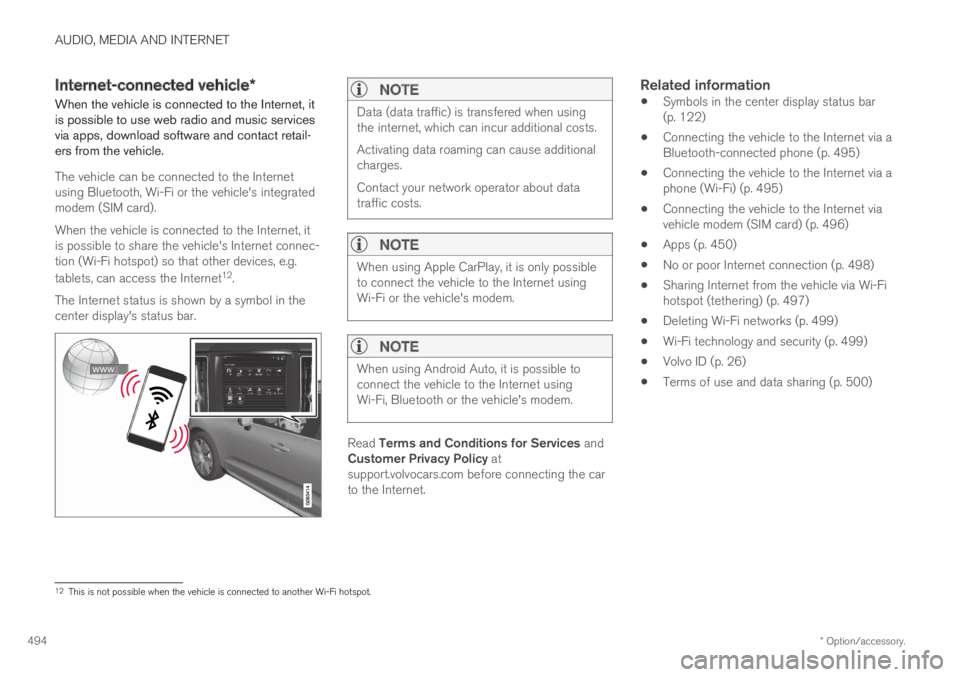
The Internet status is shown by a symbol in thecenter display's status bar.
NOTE
Data (data traffic) is transfered when usingthe internet, which can incur additional costs.
Activating data roaming can cause additionalcharges.
Contact your network operator about datatraffic costs.
NOTE
When using Apple CarPlay, it is only possibleto connect the vehicle to the Internet usingWi-Fi or the vehicle's modem.
NOTE
When using Android Auto, it is possible toconnect the vehicle to the Internet usingWi-Fi, Bluetooth or the vehicle's modem.
Read Terms and Conditions for Services andCustomer Privacy Policy atsupport.volvocars.com before connecting the carto the Internet.
Related information
Symbols in the center display status bar(p. 122)
Connecting the vehicle to the Internet via aBluetooth-connected phone (p. 495)
Connecting the vehicle to the Internet via aphone (Wi-Fi) (p. 495)
Connecting the vehicle to the Internet viavehicle modem (SIM card) (p. 496)
Apps (p. 450)
No or poor Internet connection (p. 498)
Sharing Internet from the vehicle via Wi-Fihotspot (tethering) (p. 497)
Deleting Wi-Fi networks (p. 499)
Wi-Fi technology and security (p. 499)
Volvo ID (p. 26)
Terms of use and data sharing (p. 500)
12This is not possible when the vehicle is connected to another Wi-Fi hotspot.
Page 497 of 645

AUDIO, MEDIA AND INTERNET
}}
* Option/accessory.495
Connecting the vehicle to theInternet via a Bluetooth-connectedphone
Establish an Internet connection using Bluetoothand tethering from a phone and get access tomultiple connected services in your vehicle.
1. To connect the vehicle to the Internet via aBluetooth-connected phone, the phone mustfirst be paired with the vehicle via Bluetooth.
2.Make sure that the phone supports Internetsharing (tethering) and that the function isactivated. In an iPhone, the function is called"personal hotspot". In Android phones, thefunction can have different names, but isoften called "hotspot". For iPhone phones,the "personal hotspot" menu page must alsobe open until the Internet connection hasbeen made.
3. If the phone has been connected via Blue-tooth previously, tap Settings in the centerdisplay's Top view.
4.Tap CommunicationBluetoothDevices.
5.Mark the window for Bluetooth Internetconnection under the heading Internetconnection.
6.If a different connection is being used, con-firm the connection change.
> Your vehicle is now connected to theInternet via your Bluetooth-connectedphone.
NOTE
The cellular phone and network operatormust support tethering (sharing of Internetconnection) and the subscription mustinclude data traffic.
NOTE
When using Apple CarPlay, it is only possibleto connect the vehicle to the Internet usingWi-Fi or the vehicle's modem.
Related information
Internet-connected vehicle* (p. 494)
Connecting the vehicle to the Internet viavehicle modem (SIM card) (p. 496)
Connecting a phone to the car via Bluetoothfor the first time (p. 485)
Connecting the vehicle to the Internet via aphone (Wi-Fi) (p. 495)
Apple® CarPlay®* (p. 479)
No or poor Internet connection (p. 498)
Settings for Bluetooth devices (p. 493)
Connecting the vehicle to theInternet via a phone (Wi-Fi)
Establish an Internet connection using Wi-Fithrough Internet sharing (tethering) from a phoneand get access to the connected services inyour vehicle.
1. Make sure that the phone supports Internetsharing (tethering) and that the function isactivated. In an iPhone, the function is called"personal hotspot". In Android phones, thefunction can have different names, but isoften called "hotspot". For iPhone phones,the "personal hotspot" menu page must alsobe open until the Internet connection hasbeen made.
2.Tap Settings in the Top view.
3.Proceed to CommunicationWi-Fi.
4. Activate/deactivate by tapping to check/uncheck the Wi-Fi box.
5. If a different connection is being used, con-firm the connection change.
6. Tap the name of the network you would liketo connect.
7. Enter the network password.
> The vehicle will connect to the network.
Please note that certain cellular phones will disa-ble Internet sharing (tethering) when the connec-tion to the vehicle has been broken, e.g. when the
Page 563 of 645

MAINTENANCE AND SERVICE
}}
* Option/accessory.561
Messages - status messages
Status – checking engine oil level and
AdBlue level4
TPMS - tire inflation pressure check
Appointments - appointment information
and vehicle information3.
Related information
Handling messages saved from the instru-ment panel (p. 105)
Checking and filling engine oil (p. 570)
Tire pressure monitoring system* (p. 521)
Scheduling service and repairs (p. 561)
Sending vehicle information to the workshop(p. 562)
Navigating in the center display's views(p. 113)
Scheduling service and repairs5
This service offers a convenient way to scheduleservice and workshop appoints directly from thevehicle.
When it is time for service, and in certain cases ifthe vehicle requires repairs, a message will bedisplayed in the instrument panel and at the topof the center display. The time for service isdetermined by how much time has elapsed, thenumber of hours the engine has run, or the dis-tance driven since the last service.
To use the service
Create a Volvo ID and register it to the vehi-cle.
To select a Volvo retailer you would like tocontact, go to www.volvocars.com and log in.
To send and receive appointment informa-tion, the vehicle must be connected to the
Internet6.
Book service
Book a service request when desired or when amessage is displayed indicating that service orrepairs are needed.
1.Open the Car Status app from App view inthe center display.
2.Tap Appointments.
3.Tap Request appointment.
4.Check that your Volvo ID is correct.
5.Make sure your preferred Workshop is cor-rect.
6.In the Tap to write information to theworkshop field, you can provide details onwhat you would like performed during thevisit or other important information to yourworkshop.
4AdBlue Diesel models only.3Certain markets only.5Certain markets only.6There may be a charge for transmitting data over the Internet, depending on your service plan.
Page 611 of 645

MAINTENANCE AND SERVICE
* Option/accessory.609
Filling washer fluid
Washer fluid is used to help keep the headlightsand windshield clean. Washer fluid containinganti-freeze should be used in very cold weather(below-freezing temperatures).
Fill washer fluid into the reservoir with the bluecover. The reservoir is used for both the wind-shield washer and the headlight washer*
NOTE
When there is approximately 1 liter (1 qt) ofwasher fluid remaining, the message Washer
fluid Level low, refill and the symbolwill be displayed in the instrument panel.
Recommended grade: Washer fluid recom-mended by Volvo, with frost protection during
cold weather and temperatures below the freez-ing point.
CAUTION
Use Volvo's original washer fluid or an equiva-lent fluid with the recommended pH valuebetween 6 and 8, diluted as recommended,e.g. in a 1:1 solution with pH-neutral water.
CAUTION
Use washer fluid with anti-freeze when tem-peratures are below the freezing point to helpkeep the pump, reservoir and hoses fromfreezing.
Volume:
Vehicles with headlight washing: 5.5 liters(5.8 qts).
Vehicles without headlight washing: 3.5 lit-ers (3.7 qts).
Related information
Using the rain sensor (p. 175)
Using the windshield and headlight washers(p. 177)
Using the rain sensor's memory function(p. 176)
Windshield wipers in the service position(p. 608)
Replacing windshield wiper blades (p. 607)
Using the windshield wipers (p. 175)
Wiper blades and washer fluid (p. 174)
Page 628 of 645

INDEX
626
Automatic transmission 406
kickdown 410
oil 621
Trailer 434
Auxiliary heater 224
B
Backrest
front seat, adjusting180, 181, 184,
185, 186, 187
rear seat, folding189
Battery
Hybrid578
jump-start432
Maintenance574
recycling579
start574
symbols on the battery579
BLIS321
activating/deactivating322
limitations323
Symbols and messages324
Blower
adjusting214
air distribution202
air vents202
Bluetooth
connect476
connecting vehicle to Internet 495
phone484
settings493
Book service and repair 561
Booster cushions 71
Brake assist
after collision 405
Brake energy 397, 410
Brake fluid
grade 621
Brake functions 396
Brake position 406
Brakes 397
anti-lock brakes, ABS 397
automatic when stationary 403
Brake Assist System, BAS 398
brake lights 159
brake system 396
emergency brake lights 159
Maintenance 399
on salted roads 399
on wet roads 399
parking brake 400
brake system
fluid 621
C
Camera sensor
see Camera299
Camera unit299
limitations300
maintenance and cleaning304
Capacity weight540, 617
Cargo compartment551
attachment points553
Car wash 598, 599, 601, 602, 603, 604
Catalytic converter430
recovery438
CD player474
Cell phone, see Phone485
Center console545
Center display
change appearance129
cleaning593
climate controls207
Function view120
keyboard124
messages138, 139
operation110, 113, 117, 122
overview107
settings130, 131
switch off and change volume 129
Page 630 of 645

INDEX
628
Connecting vehicle to Internet
No connection or poor connection 498
via a mobile device (WiFi) 495
via cellular phone (Bluetooth) 495
via vehicle's modem 496
Connect phone 485
Contact information 26
Convertible seats 69
coolant 621
filling 571
Cooling system
overheating 431
Cornering illumination 158
Corner Traction Control 261
Corrosion protection 604
Crash, see Collision 42
Crash event data 33
Cross Traffic Alert 325
activating/deactivating 326
limitations 326
messages 328
Cruise control 266
activating 267
manage speed 293
reactivating 269
temporary deactivation 268
turn off 269
Curb weight617
Customer Privacy Policy35
CZIP (Clean Zone Interior Package) 199
D
Data
recording33
transferring between vehicle and work-
shop558
Data sharing500
Daytime running lights153
Decals
location612
Defrosting212
Detecting obstacles
City Safety309
Dimensions615
Dipstick, electronic570
Direction of rotation514
Display
driver information82
Display lighting162
Distance Alert270
activating/deactivating271
limitations271
Set time interval292
DivX®475
Door mirrors168
compass443, 444
dimming168
outer168
power folding169
resetting169
store position182, 183
Download Center559
use559
Driveline
transmission406
Drive mode412
changing416
driver support293
Driver Alert Control334
activating/deactivating336
limitations336
rest stop guidance336
Driver performance90
settings91
Driver profile134
edit135, 136, 137
select135
Driver support system260
Drive mode293