Page 85 of 253
Instruments and controls83Warning lights, gauges
and indicators
Speedometer
Indicates vehicle speed.
Odometer
The total recorded distance is
displayed in miles.
Trip odometer The recorded distance since the last
reset is displayed on the trip computer
page.
Trip odometer counts up to
9,999 miles and then restarts at 0.
Two trip odometer pages are
selectable for different trips.
Midlevel instrument cluster
Select ; by pressing Menu on the
turn signal lever. Turn adjuster wheel
and select ;1 or ; 2. Each trip
odometer page can be reset
separately by pressing SET/CLR on
the turn signal lever for a few seconds
on the respective menu.
Page 86 of 253
84Instruments and controlsUplevel instrument cluster
Select Info page Q by pressing Menu.
Choose page Trip A or Trip B by
turning adjuster wheel on the turn
signal lever.
Each trip odometer page can be reset separately by pressing SET/CLR on
the turn signal lever for a few seconds
on the respective menu.
Driver Information Centre 3 96.
Tachometer
Displays the engine speed.
Drive in a low engine speed range for each gear as much as possible.
Caution
If the needle is in the red warning
zone, the maximum permitted
engine speed is exceeded. Engine at risk.
Fuel gauge
Displays the level in the fuel or gas
tank depending on the operation mode.
The arrow indicates the vehicle side
where the fuel filler flap is located.
Control indicator Y illuminates if the
level in the tank is low. Refuel
immediately if it flashes.
During liquid gas operation, the
system automatically switches over to
petrol operation when gas tanks are
empty 3 85.
Never run fuel tank dry.
Page 89 of 253

Instruments and controls87
The remaining oil life duration menu
is displayed in the Driver Information
Centre 3 96.
On Midlevel display select the
Option ? Menu by pressing
MENU on the turn signal lever. Turn
the adjuster wheel to select the
Remaining Oil Life page.
On Uplevel display select the Info Q
Menu by pressing MENU on the turn
signal lever. Turn the adjuster wheel
to select Oil Life page.
Remaining oil life duration is indicated
in percentage.
ResetPress SET/CLR on turn signal lever
for several seconds to reset. The
engine oil life page must be active.
The ignition must be switched on but
engine not running.
The system must be reset every time
the engine oil is changed to allow
proper functionality. Seek the
assistance of a workshop.
Next service A message appears in the Driver
Information Centre, when
maintenance of the vehicle is
required. Have maintenance workcarried out by a workshop within one week or 300 miles, whichever occursfirst.
Service information 3 220.
Control indicators
The control indicators described are
not present in all vehicles. The
description applies to all instrument
versions. Depending on the
equipment, the position of the control indicators may vary. When the
ignition is switched on, most control
indicators will illuminate briefly as a
functionality test.
The control indicator colours mean:red:danger, important reminderyellow:warning, information, faultgreen:confirmation of activationblue:confirmation of activationwhite:confirmation of activation
Control indicators in the
instrument cluster
Depending on the version, two
instrument clusters are available:
Page 99 of 253
Instruments and controls97Midlevel display
Selecting menus and functions
The menus and functions can be
selected via the buttons on the turn signal lever.
Press MENU to switch between the
main menus or to return from a
submenu to the next higher menu
level.
Turn the adjuster wheel to select a
submenu of the main menu or to set
a numeric value.
Press SET/CLR to select and confirm
a function.
Vehicle and service messages are
popped up in the Driver Information
Centre if required. Confirm messages
by pressing SET/CLR.
Vehicle messages 3 103.
Main menu
Main menus are:
● Trip / fuel information, displayed by ; , see description below.
● Vehicle information, displayed by ? , see description below.
● Eco information, displayed by @ , see description below.
Some of the displayed functions differ when the vehicle is being driven or at
a standstill and some functions are
only active when the vehicle is being
driven.
Uplevel display
Page 100 of 253
98Instruments and controlsSelecting menus and functions
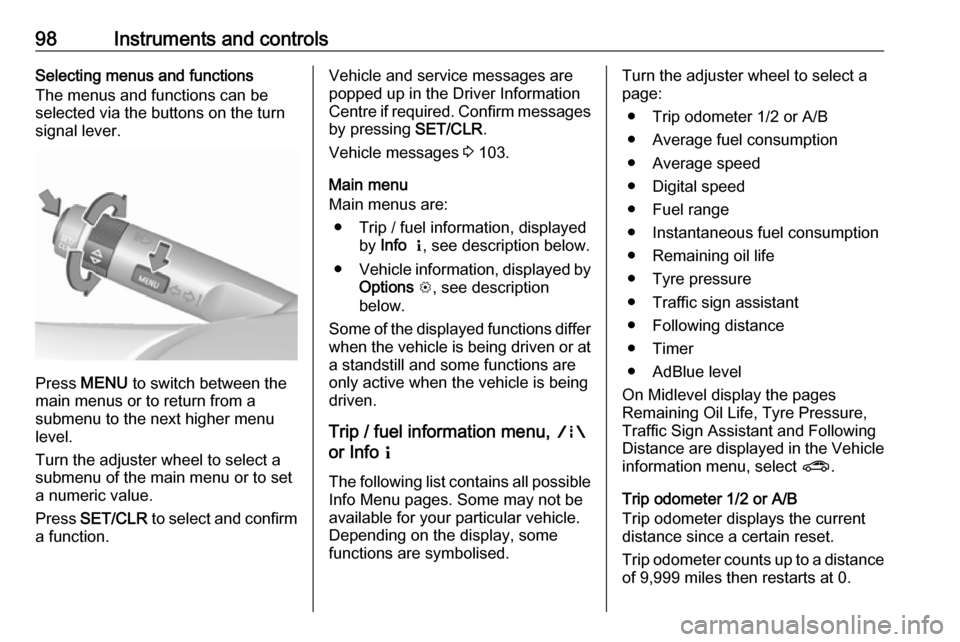
The menus and functions can be
selected via the buttons on the turn signal lever.
Press MENU to switch between the
main menus or to return from a
submenu to the next higher menu
level.
Turn the adjuster wheel to select a
submenu of the main menu or to set
a numeric value.
Press SET/CLR to select and confirm
a function.
Vehicle and service messages are
popped up in the Driver Information
Centre if required. Confirm messages
by pressing SET/CLR.
Vehicle messages 3 103.
Main menu
Main menus are:
● Trip / fuel information, displayed by Info Q , see description below.
● Vehicle information, displayed by
Options L, see description
below.
Some of the displayed functions differ when the vehicle is being driven or at
a standstill and some functions are
only active when the vehicle is being
driven.
Trip / fuel information menu, ;
or Info Q
The following list contains all possible Info Menu pages. Some may not be
available for your particular vehicle.
Depending on the display, some
functions are symbolised.Turn the adjuster wheel to select a
page:
● Trip odometer 1/2 or A/B
● Average fuel consumption
● Average speed
● Digital speed
● Fuel range
● Instantaneous fuel consumption
● Remaining oil life
● Tyre pressure
● Traffic sign assistant
● Following distance
● Timer
● AdBlue level
On Midlevel display the pages
Remaining Oil Life, Tyre Pressure,
Traffic Sign Assistant and Following
Distance are displayed in the Vehicle information menu, select ?.
Trip odometer 1/2 or A/B
Trip odometer displays the current
distance since a certain reset.
Trip odometer counts up to a distance
of 9,999 miles then restarts at 0.
Page 101 of 253

Instruments and controls99To reset press SET/CLR for a few
seconds.
The information of trip odometer page
1/A and 2/B can be reset separately
while the respective display is active.
Average Fuel Consumption
Display of average consumption. The measurement can be reset at any
time and starts with a default value.
To reset press SET/CLR for a few
seconds.
Average speed
Display of average speed. The
measurement can be reset at any
time.
To reset press SET/CLR for a few
seconds.
Digital speed
Digital display of the instantaneous
speed.
Fuel range
Range is calculated from current fuel
level and current consumption. The
display shows average values.After refuelling, the range is updated
automatically after a brief delay.
When the level in the fuel tank is low,
a message appears on the display
and the control indicator Y in the fuel
gauge illuminates.
When the fuel tank must be refuelled
immediately, a warning message
appears and remains on the display.
Additionally, the control indicator Y in
the fuel gauge flashes 3 94.
Instantaneous Fuel Consumption
Display of the instantaneous
consumption.
Remaining Oil Life
Indicates an estimate of the oil's
useful life. The number in percentage means the remainder of current oil life 3 86.
Tyre Pressure
Checks tyre pressure of all wheels
during driving 3 200.
Traffic sign assistant
Displays the detected traffic signs for
the current route section 3 164.Following Distance
Displays the distance in seconds to a
preceding moving vehicle 3 159.
Timer
To start and stop follow the
instructions on the display. To reset,
press SET/CLR .
AdBlue
Displays the AdBlue level.
Additionally the AdBlue range can be displayed.
Eco information menu, @
● Top consumers
● Economy trend
● Eco index
On Uplevel display the pages Top
Consumers, Economy Trend and Eco
index, are displayed in the Trip/fuel
information menu, select Info.
Top Consumers
List of top comfort consumers
currently switched on is displayed in
descending order. Fuel saving
potential is indicated.
Page 102 of 253
100Instruments and controlsDuring sporadic driving conditions,
the engine will activate the heated
rear window automatically to increase
the engine load. In this event, the
heated rear window is indicated as
one of the top consumers, without
activation by the driver.
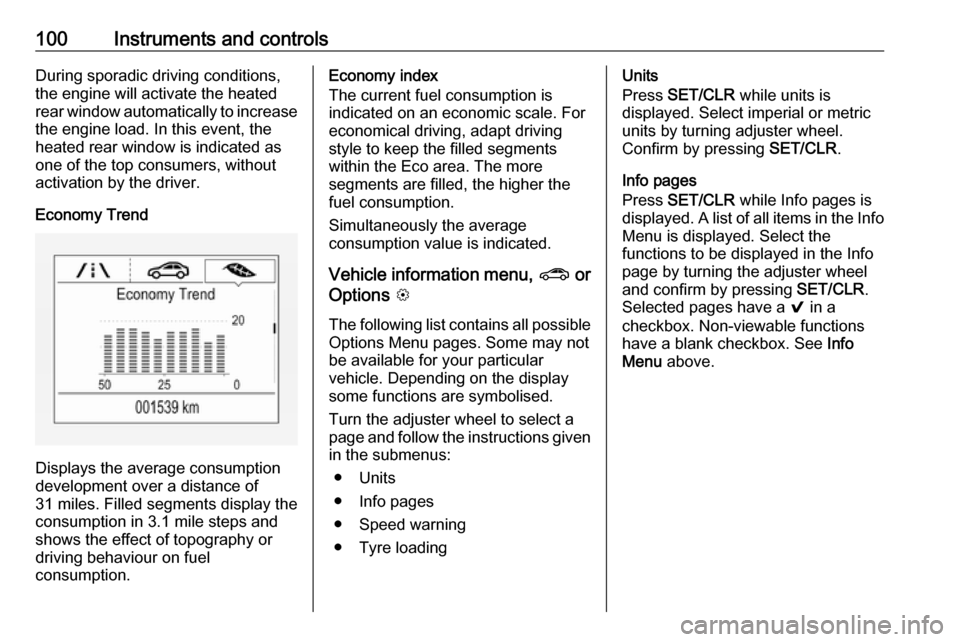
Economy Trend
Displays the average consumption
development over a distance of
31 miles. Filled segments display the
consumption in 3.1 mile steps and
shows the effect of topography or
driving behaviour on fuel
consumption.
Economy index
The current fuel consumption is
indicated on an economic scale. For
economical driving, adapt driving
style to keep the filled segments
within the Eco area. The more
segments are filled, the higher the
fuel consumption.
Simultaneously the average
consumption value is indicated.
Vehicle information menu, ? or
Options L
The following list contains all possible
Options Menu pages. Some may not
be available for your particular
vehicle. Depending on the display
some functions are symbolised.
Turn the adjuster wheel to select a
page and follow the instructions given in the submenus:
● Units
● Info pages
● Speed warning
● Tyre loadingUnits
Press SET/CLR while units is
displayed. Select imperial or metric units by turning adjuster wheel.
Confirm by pressing SET/CLR.
Info pages
Press SET/CLR while Info pages is
displayed. A list of all items in the Info
Menu is displayed. Select the
functions to be displayed in the Info
page by turning the adjuster wheel
and confirm by pressing SET/CLR.
Selected pages have a 9 in a
checkbox. Non-viewable functions
have a blank checkbox. See Info
Menu above.
Page 104 of 253
102Instruments and controlsPress MENU to select main menu
page.
Turn MENU to select a menu page.
Press MENU to confirm a selection.
Press BACK to exit a menu without
changing a setting.
7'' Colour Info Display
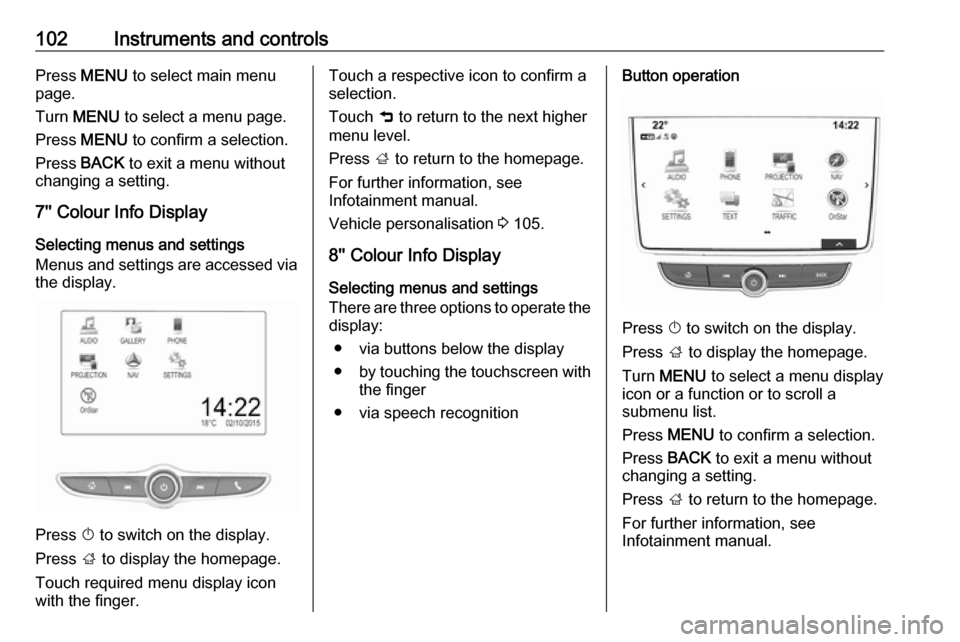
Selecting menus and settings
Menus and settings are accessed via
the display.
Press X to switch on the display.
Press ; to display the homepage.
Touch required menu display icon
with the finger.
Touch a respective icon to confirm a
selection.
Touch 9 to return to the next higher
menu level.
Press ; to return to the homepage.
For further information, see Infotainment manual.
Vehicle personalisation 3 105.
8'' Colour Info Display
Selecting menus and settings
There are three options to operate the
display:
● via buttons below the display
● by touching the touchscreen with
the finger
● via speech recognitionButton operation
Press X to switch on the display.
Press ; to display the homepage.
Turn MENU to select a menu display
icon or a function or to scroll a
submenu list.
Press MENU to confirm a selection.
Press BACK to exit a menu without
changing a setting.
Press ; to return to the homepage.
For further information, see
Infotainment manual.


