Page 491 of 698

SCHEDULED SERVICING
Your vehicle is equipped with an automatic oil change
indicator system. The oil change indicator system will
remind you that it is time to take your vehicle in for
scheduled maintenance.
Based on engine operation conditions, the oil change
indicator message will illuminate. This means that service
is required for your vehicle. Operating conditions such as
frequent short-trips, trailer tow, and extremely hot or cold
ambient temperatures will influence when the “Oil Change
Required” message is displayed. Severe Operating Condi-
tions can cause the change oil message to illuminate as
early as 3,500 miles (5,600 km) since last reset. Have your
vehicle serviced as soon as possible, within the next 500
miles (805 km).
Your authorized dealer will reset the oil change indicator
message after completing the scheduled oil change. If a
scheduled oil change is performed by someone other than
your authorized dealer, the message can be reset by
referring to the steps described under “Instrument Cluster
Display” in “Getting To Know Your Instrument Panel”.NOTE:
Under no circumstances should oil change inter-
vals exceed 10,000 miles (16,000 km), twelve months or 350
hours of engine run time, whichever comes first. The 350
hours of engine run or idle time is generally only a concern
for fleet customers.
Severe Duty All Models
NOTE: Change Engine Oil at 4,000 miles (6,500 km) or 350
hours of engine run time if the vehicle is operated in a
dusty and off road environment or is operated predomi-
nantly at idle, or only very low engine RPM’s. This type of
vehicle use is considered Severe Duty.
Once A Month Or Before A Long Trip:
• Check engine oil level.
• Check windshield washer fluid level.
• Check tire pressure and look for unusual wear or
damage. Rotate tires at the first sign of irregular wear,
even if it occurs before the oil indicator system turns on.
• Check the fluid levels of the coolant reservoir, brake
master cylinder, and fill as needed.
• Check function of all interior and exterior lights.
8
SERVICING AND MAINTENANCE 489
Page 549 of 698
BODYWORK
Protection From Atmospheric Agents
Vehicle body care requirements vary according to geo-
graphic locations and usage. Chemicals that make roads
passable in snow and ice and those that are sprayed on
trees and road surfaces during other seasons are highly
corrosive to the metal in your vehicle. Outside parking,
which exposes your vehicle to airborne contaminants, road
surfaces on which the vehicle is operated, extreme hot or
cold weather and other extreme conditions will have an
adverse effect on paint, metal trim, and underbody protec-
tion.
The following maintenance recommendations will enable
you to obtain maximum benefit from the corrosion resis-
tance built into your vehicle.
What Causes Corrosion?
Corrosion is the result of deterioration or removal of paint
and protective coatings from your vehicle.
The most common causes are:
•Road salt, dirt and moisture accumulation.
• Stone and gravel impact.
• Insects, tree sap and tar. •
Salt in the air near seacoast localities.
• Atmospheric fallout/industrial pollutants.
Body And Underbody Maintenance
Cleaning Headlights
Your vehicle is equipped with plastic headlights and fog
lights that are lighter and less susceptible to stone breakage
than glass headlights.
Plastic is not as scratch resistant as glass and therefore
different lens cleaning procedures must be followed.
To minimize the possibility of scratching the lenses and
reducing light output, avoid wiping with a dry cloth. To
remove road dirt, wash with a mild soap solution followed
by rinsing.
Do not use abrasive cleaning components, solvents, steel
wool or other aggressive material to clean the lenses.
Tri-Fold Soft Tonneau Cover Care
For cleaning and protecting the vinyl Tri-Fold Tonneau
cover, use Mopar Whitewall & Vinyl Top Cleaner and
Mopar Leather and Vinyl Conditioner/Protectant.
8
SERVICING AND MAINTENANCE 547
Page 574 of 698
UCONNECT SETTINGS
The Uconnect system uses a combination of buttons on the
touchscreen and buttons on the faceplate located on the
center of the instrument panel that allows you to access
and change the customer programmable features. Many
features can vary by vehicle.
Uconnect 3 Settings
Push the MORE or SETTINGS button on the faceplate, then
press the “Settings” button on the touchscreen (if
equipped) to display the settings menu screen. In this
mode the Uconnect system allows you to access program-
mable features that may be equipped such as Display,
Units, Voice, Clock, Safety & Driving Assistance, Lights,
Doors & Locks, Auto-On Comfort (if equipped), Engine Off
Options, Suspension, Trailer Brake, Audio, Compass Set-
tings, Phone/Bluetooth, SiriusXM Setup (if equipped),
Restore Settings, Clear Personal Data and System Informa-
tion.
NOTE:Only one category may be selected at a time.
When making a selection, press the button on the touch-
screen to enter the desired mode. Once in the desired
mode, press and release the preferred setting until the
button is highlighted. Once the setting is complete, either
press the back arrow or the “Done” button on the touch-
screen or the Back button on the faceplate to return to the
previous menu. Pressing the Up or Down Arrow buttons
on the touchscreen on the right side of the screen will allow
you to toggle up or down through the list of available
settings.
NOTE: All settings should be changed with the ignition in
the RUN position.
Uconnect 3 With 5–inch Display Buttons On The
Touchscreen And Buttons On The Faceplate
1 — Uconnect Buttons On The Touchscreen
2 — Uconnect Buttons On The Faceplate 572 MULTIMEDIA
Page 580 of 698
Brakes — If Equipped
After pressing the “Brakes” button on the touchscreen the
following setting will be available:
Setting NameSelectable Options
Brake Service Ye sN o
NOTE:
Selecting the “Brake Service” feature will display a pop-up asking whether or you would like to retract the park
brakes to all break system service. Auto Park Brake OnOff
Lights
After pressing the “Lights” button on the touchscreen, the
following settings will be available:
Setting Name Selectable Options
Headlight Off Delay 0 sec30 sec
60 sec 90 sec
Headlight Illumination On Approach 0 sec
30 sec
60 sec 90 sec
578 MULTIMEDIA
Page 581 of 698
Setting NameSelectable Options
NOTE:
When the “Headlight Illumination On Approach” feature is selected, it allows the adjustment of the amount of time
the headlights remain on when the doors are unlocked with the key fob. Headlights With Wipers — If Equipped On
Off
Auto Dim High Beams — If Equipped On
Off
Flash Lights With Lock OnOff
NOTE:
When the “Flash Lights With Lock” feature is selected, the exterior lights flash when the doors are locked or un-
locked with the key fob. This feature may be selected with or without the sound horn on lock feature selected. Steering Directed Lights OnOff
NOTE:
When the “Steering Directed Lights” feature is selected, the headlights turn with the direction of the steering wheel.
10
MULTIMEDIA 579
Page 583 of 698

Setting NameSelectable Options
Sound Horn With Remote Start On
Off
NOTE:
When the “Sound Horn With Remote Start” feature is selected, the horn sounds when the remote start is activated. Memory Linked To Fob — If Equipped On
Off
NOTE:
•The “Memory Linked To Fob” feature provides automatic driver seat positioning to enhance driver mobility when
entering and exiting the vehicle.
•The seat returns to the memorized seat location if “Memory Linked To Fob” is set to (On) when the key fob is
used to unlock the door. Passive Entry — If Equipped On Off
NOTE:
The “Passive Entry” feature allows you to lock and unlock the vehicle’s door(s) without having to push the key fob
lock or unlock buttons. It automatically unlocks the doors when the outside door handle is grabbed. Flash Lights With Lock On Off
NOTE:
When the “Flash Lights With Lock” feature is selected, the exterior lights flash when the doors are locked or un-
locked with the key fob. This feature may be selected with or without the “Sound Horn With Lock” feature selected.
10
MULTIMEDIA 581
Page 585 of 698
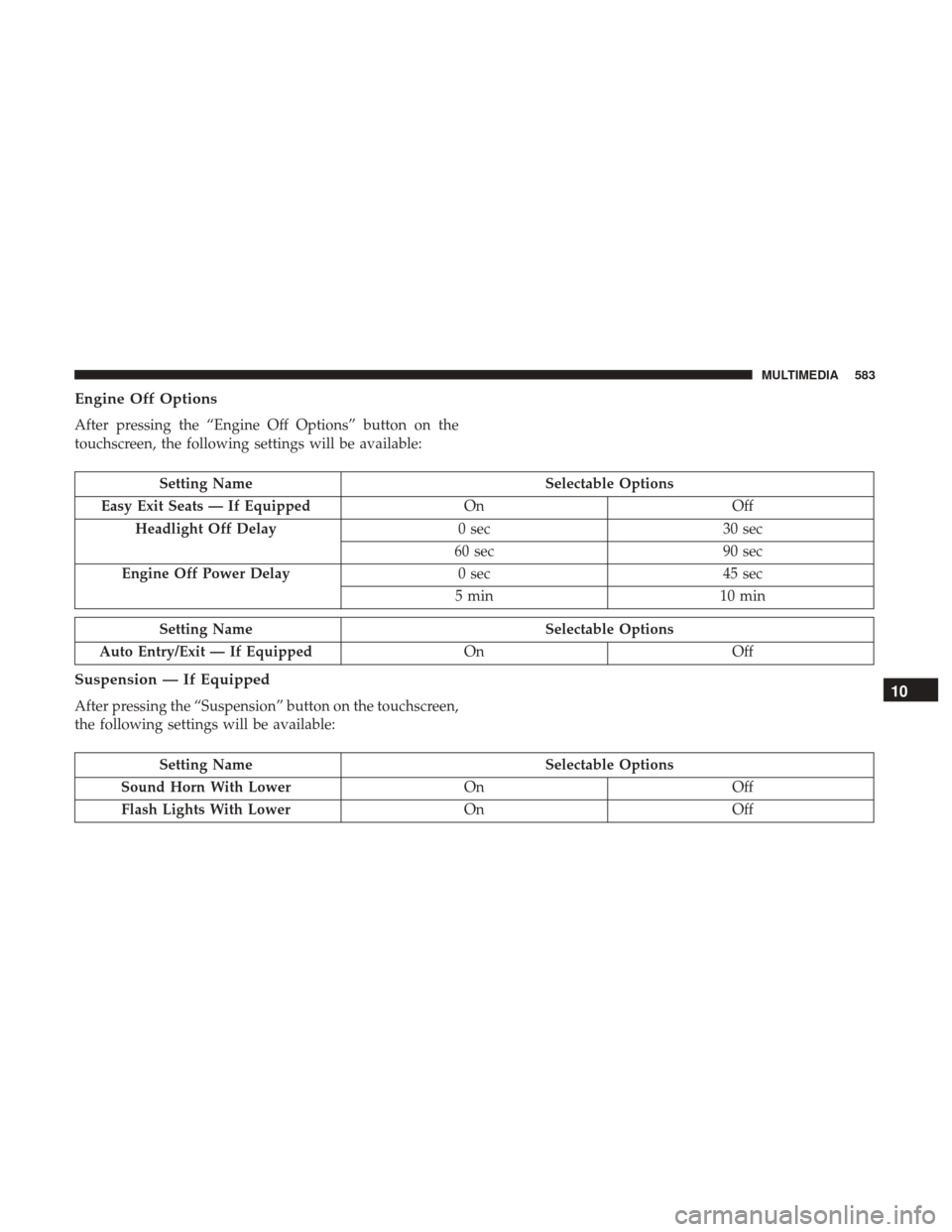
Engine Off Options
After pressing the “Engine Off Options” button on the
touchscreen, the following settings will be available:
Setting NameSelectable Options
Easy Exit Seats — If Equipped OnOff
Headlight Off Delay 0 sec30 sec
60 sec 90 sec
Engine Off Power Delay 0 sec45 sec
5 min 10 min
Setting Name Selectable Options
Auto Entry/Exit — If Equipped OnOff
Suspension — If Equipped
After pressing the “Suspension” button on the touchscreen,
the following settings will be available:
Setting Name Selectable Options
Sound Horn With Lower OnOff
Flash Lights With Lower OnOff
10
MULTIMEDIA 583
Page 595 of 698
Uconnect 4/4C/4C NAV Settings
Press the “Apps” button on the touchscreen then press the
“Settings” button on the touchscreen to display the settings
menu screen. In this mode the Uconnect system allows you
to access programmable features that may be equipped
such as Display, Voice, Clock, Safety & Driving Assistance,
Lights, Doors & Locks, Auto-On Comfort (if equipped),Engine Off Options, Suspension, Trailer Brake, Audio,
Phone/Bluetooth, SiriusXM Setup (if equipped), Restore
Settings, Clear Personal Data and System Information.
NOTE:
Only one category may be selected at a time.
When making a selection, press the button on the touch-
screen to enter the desired mode. Once in the desired
mode, press and release the preferred setting until a
check-mark appears next to the setting, showing that
setting has been selected. Once the setting is complete,
press the back arrow button on the touchscreen to return to
the previous menu or press the “X” button on the touch-
screen to close out of the settings screen. Pressing the Up or
Down Arrow buttons on the touchscreen on the right side
of the screen will allow you to toggle up or down through
the list of available settings.
NOTE: All settings should be changed with the ignition in
the RUN position.
Uconnect 4/4C/4C NAV With 8.4–inch Display Buttons On
The Touchscreen And Buttons On The Faceplate
1 — Uconnect Buttons On The Touchscreen
2 — Uconnect Buttons On The Faceplate
10
MULTIMEDIA 593