Page 595 of 698
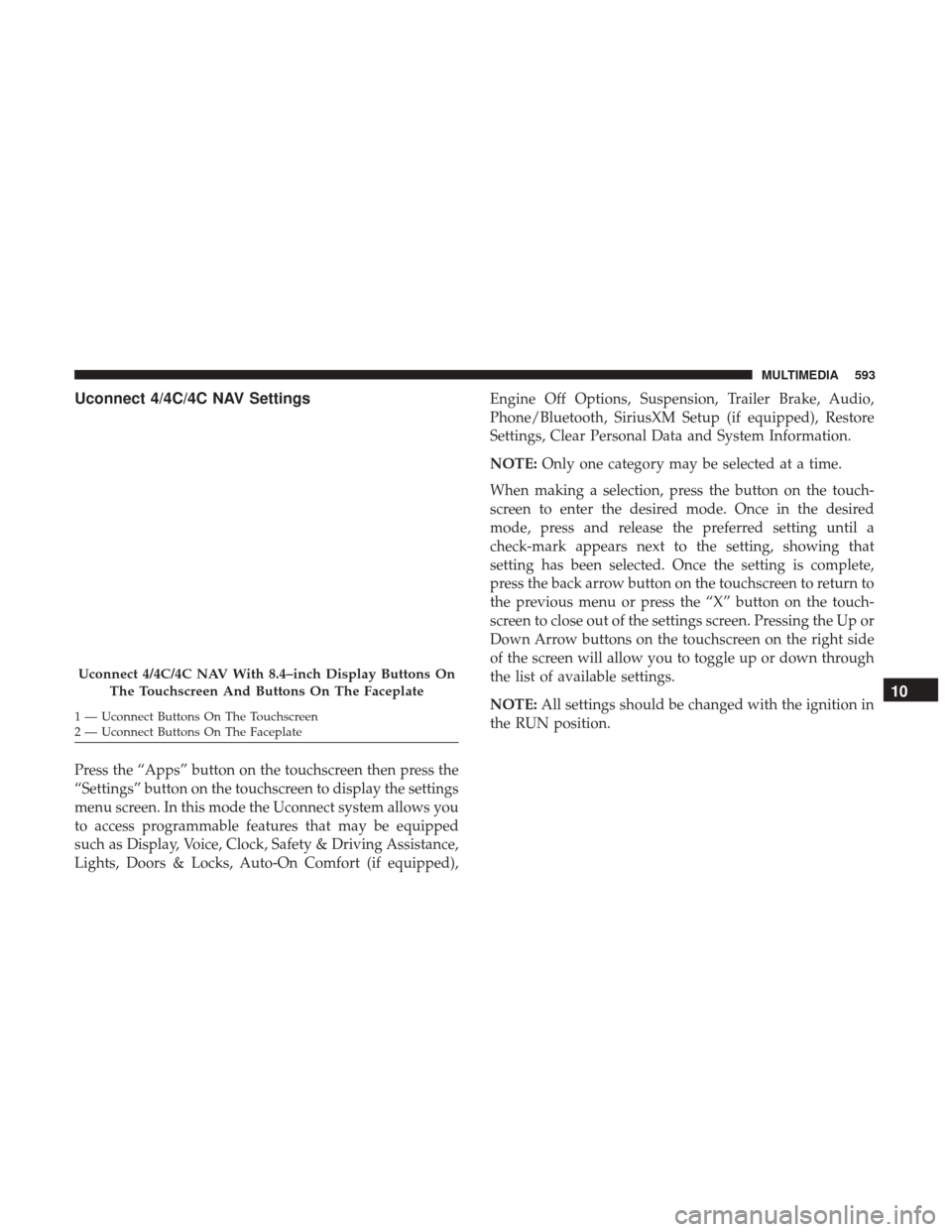
Uconnect 4/4C/4C NAV Settings
Press the “Apps” button on the touchscreen then press the
“Settings” button on the touchscreen to display the settings
menu screen. In this mode the Uconnect system allows you
to access programmable features that may be equipped
such as Display, Voice, Clock, Safety & Driving Assistance,
Lights, Doors & Locks, Auto-On Comfort (if equipped),Engine Off Options, Suspension, Trailer Brake, Audio,
Phone/Bluetooth, SiriusXM Setup (if equipped), Restore
Settings, Clear Personal Data and System Information.
NOTE:
Only one category may be selected at a time.
When making a selection, press the button on the touch-
screen to enter the desired mode. Once in the desired
mode, press and release the preferred setting until a
check-mark appears next to the setting, showing that
setting has been selected. Once the setting is complete,
press the back arrow button on the touchscreen to return to
the previous menu or press the “X” button on the touch-
screen to close out of the settings screen. Pressing the Up or
Down Arrow buttons on the touchscreen on the right side
of the screen will allow you to toggle up or down through
the list of available settings.
NOTE: All settings should be changed with the ignition in
the RUN position.
Uconnect 4/4C/4C NAV With 8.4–inch Display Buttons On
The Touchscreen And Buttons On The Faceplate
1 — Uconnect Buttons On The Touchscreen
2 — Uconnect Buttons On The Faceplate
10
MULTIMEDIA 593
Page 601 of 698
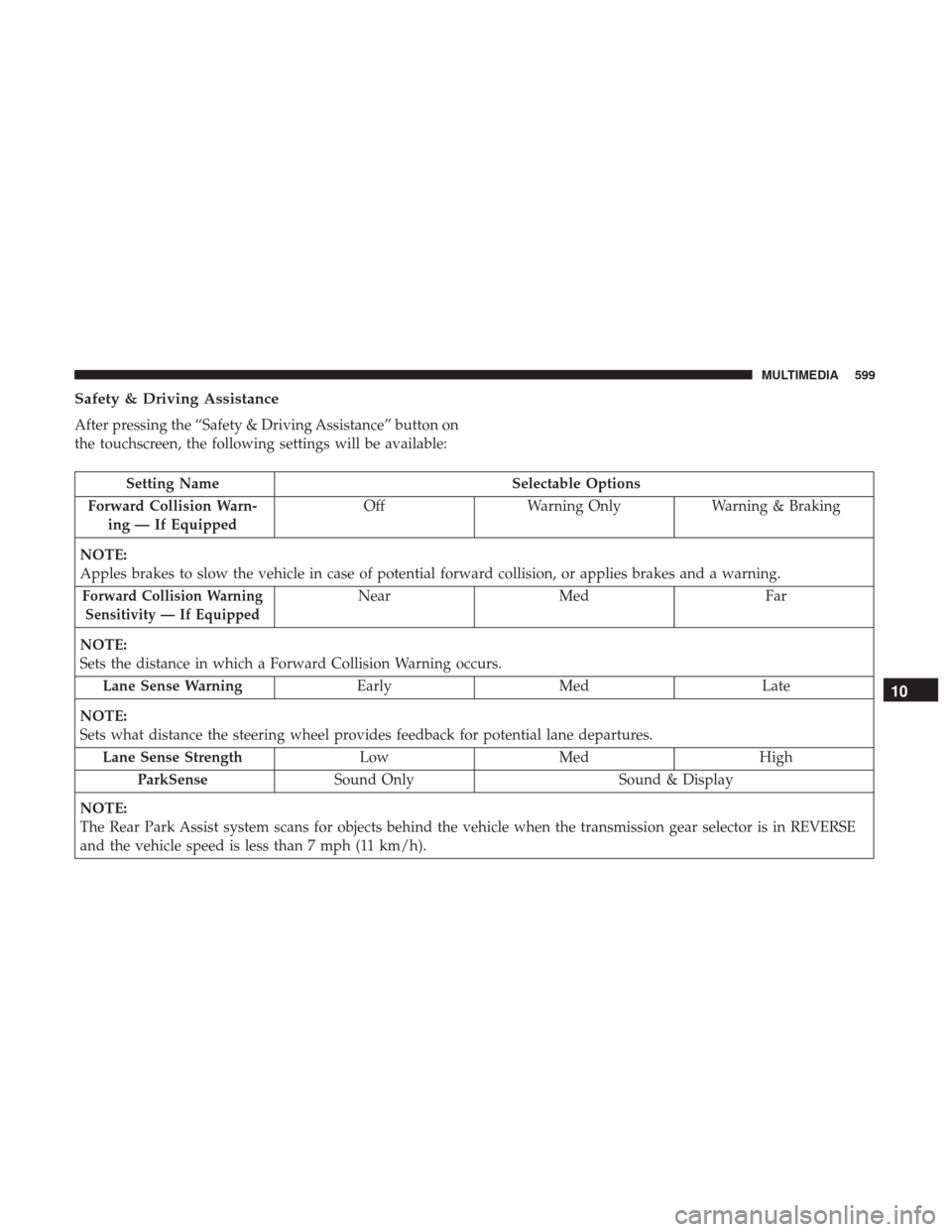
Safety & Driving Assistance
After pressing the “Safety & Driving Assistance” button on
the touchscreen, the following settings will be available:
Setting NameSelectable Options
Forward Collision Warn- ing — If Equipped Off
Warning Only Warning & Braking
NOTE:
Apples brakes to slow the vehicle in case of potential forward collision, or applies brakes and a warning.
Forward Collision Warning Sensitivity — If EquippedNear Med Far
NOTE:
Sets the distance in which a Forward Collision Warning occurs. Lane Sense Warning EarlyMed Late
NOTE:
Sets what distance the steering wheel provides feedback for potential lane departures. Lane Sense Strength LowMed High
ParkSense Sound Only Sound & Display
NOTE:
The Rear Park Assist system scans for objects behind the vehicle when the transmission gear selector is in REVERSE
and the vehicle speed is less than 7 mph (11 km/h).
10
MULTIMEDIA 599
Page 602 of 698
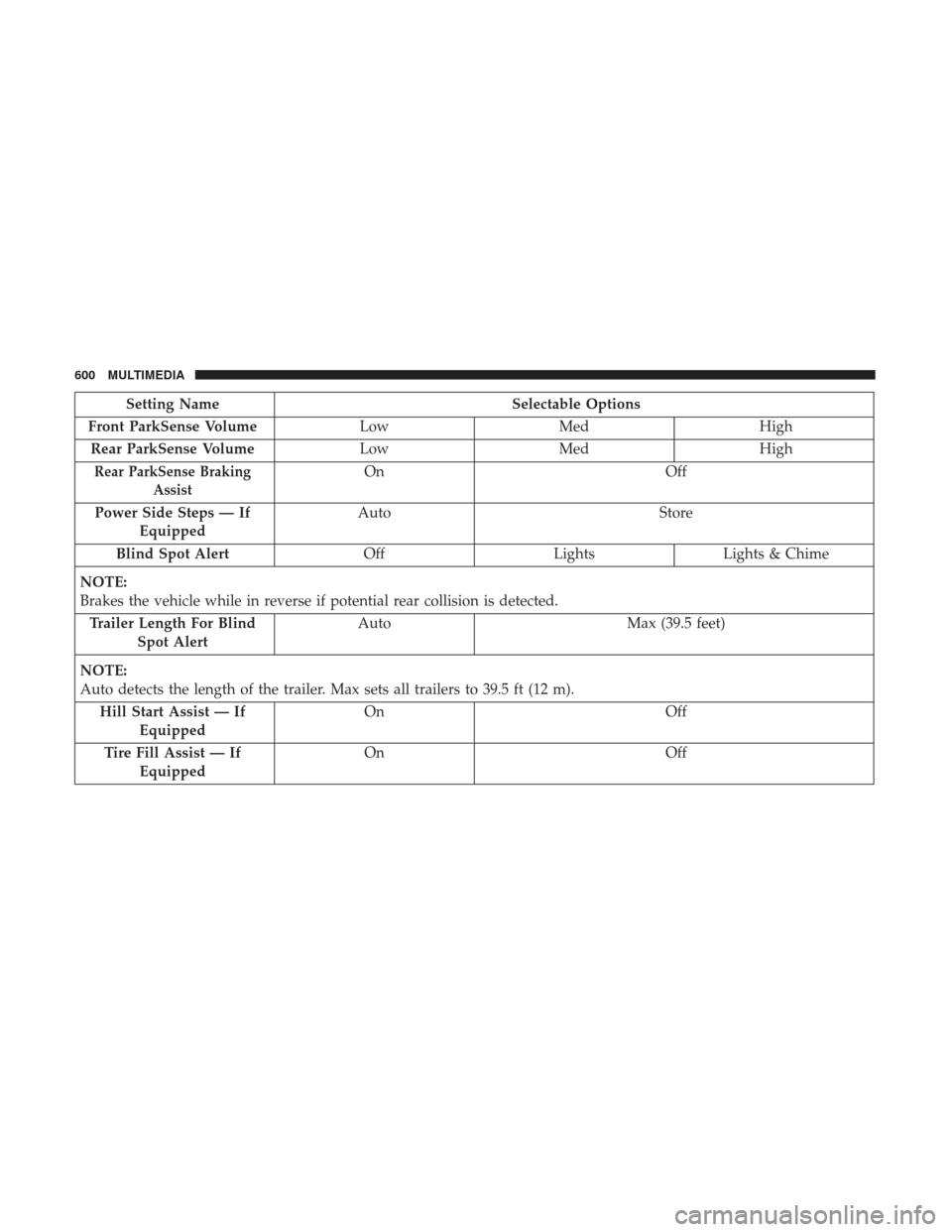
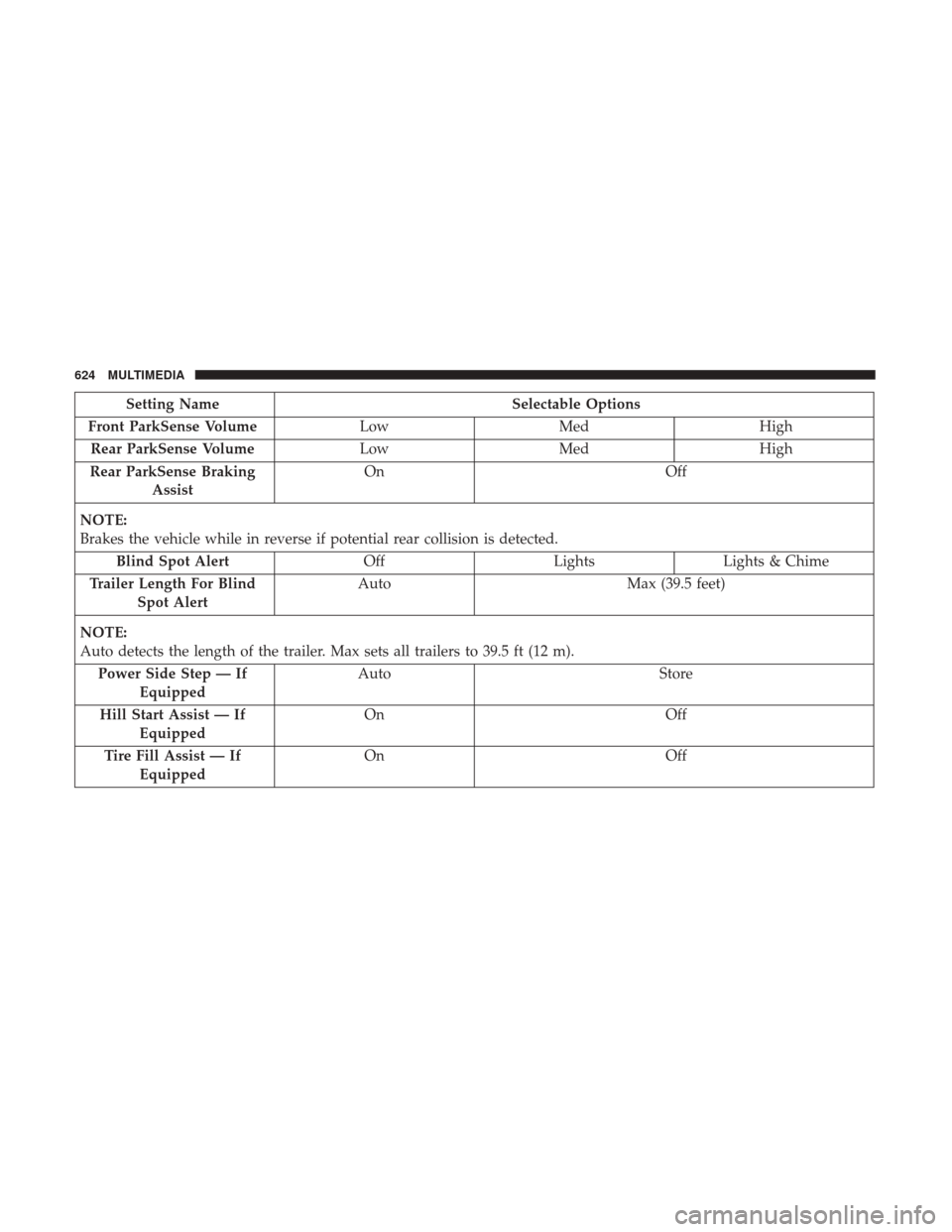
Setting NameSelectable Options
Front ParkSense Volume LowMed High
Rear ParkSense Volume LowMed High
Rear ParkSense Braking
AssistOn Off
Power Side Steps — If Equipped Auto
Store
Blind Spot Alert OffLightsLights & Chime
NOTE:
Brakes the vehicle while in reverse if potential rear collision is detected. Trailer Length For Blind Spot Alert Auto
Max (39.5 feet)
NOTE:
Auto detects the length of the trailer. Max sets all trailers to 39.5 ft (12 m). Hill Start Assist — If Equipped On
Off
Tire Fill Assist — If Equipped On
Off
600 MULTIMEDIA
Page 604 of 698
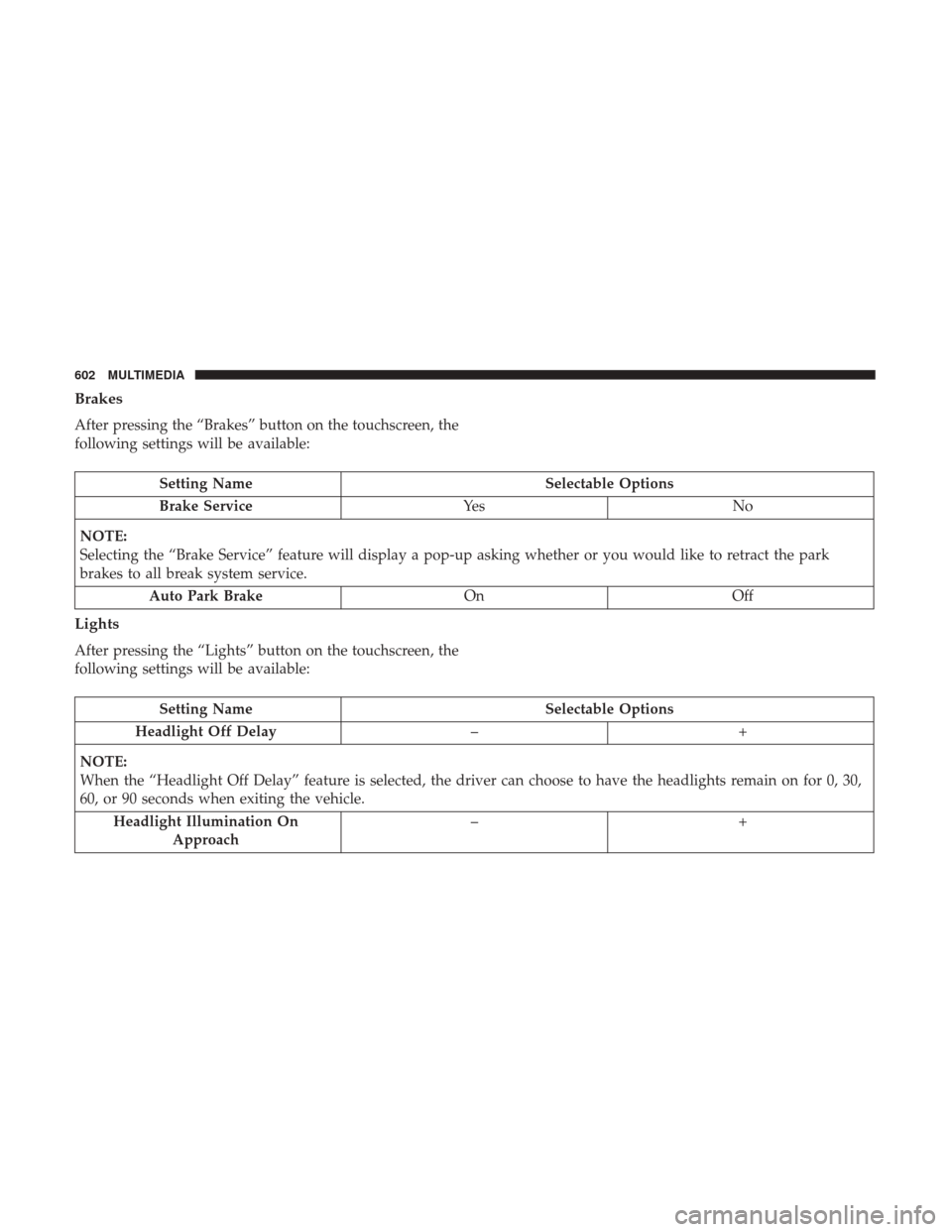
Brakes
After pressing the “Brakes” button on the touchscreen, the
following settings will be available:
Setting NameSelectable Options
Brake Service Ye sN o
NOTE:
Selecting the “Brake Service” feature will display a pop-up asking whether or you would like to retract the park
brakes to all break system service. Auto Park Brake OnOff
Lights
After pressing the “Lights” button on the touchscreen, the
following settings will be available:
Setting Name Selectable Options
Headlight Off Delay –+
NOTE:
When the “Headlight Off Delay” feature is selected, the driver can choose to have the headlights remain on for 0, 30,
60, or 90 seconds when exiting the vehicle. Headlight Illumination On Approach –+
602 MULTIMEDIA
Page 613 of 698
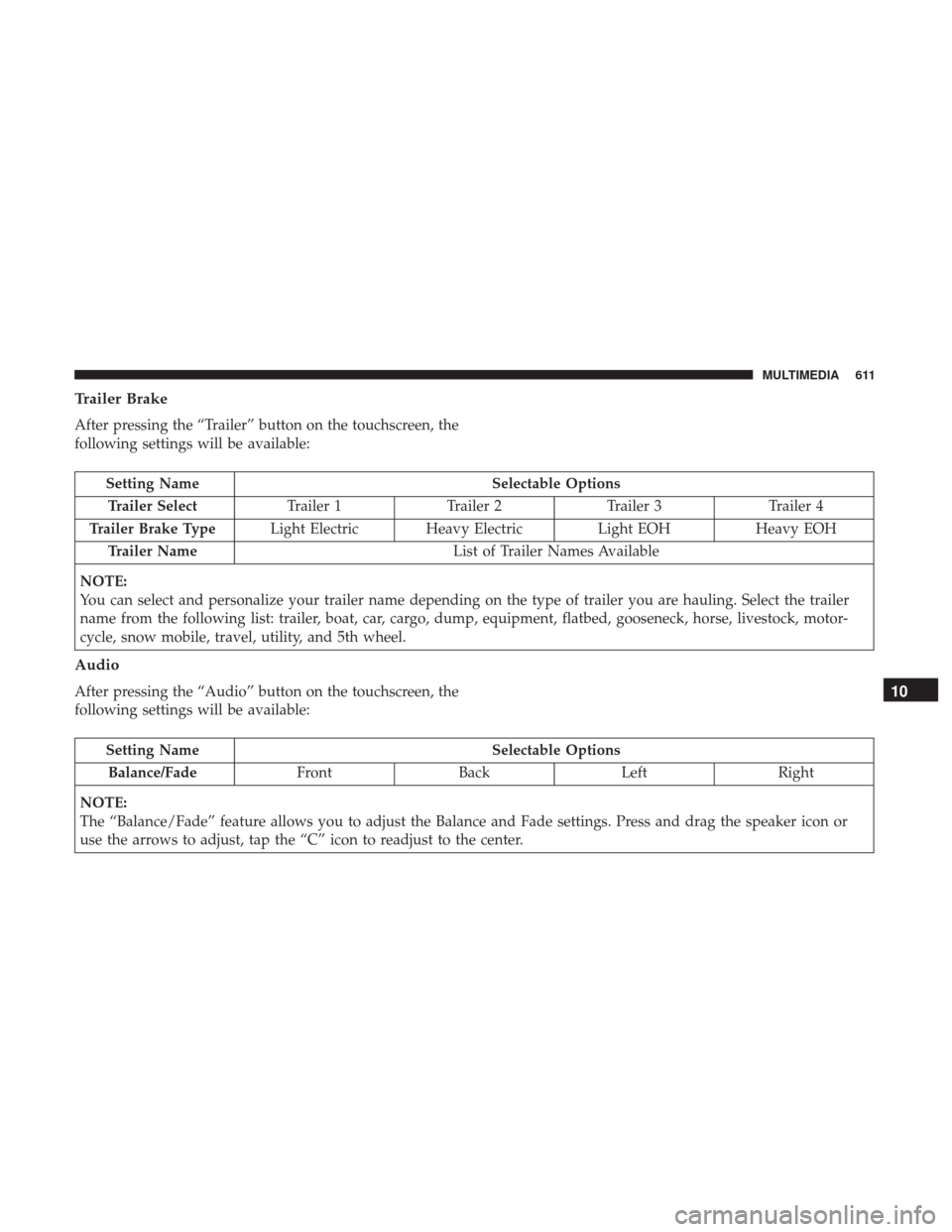
Trailer Brake
After pressing the “Trailer” button on the touchscreen, the
following settings will be available:
Setting NameSelectable Options
Trailer Select Trailer 1Trailer 2Trailer 3 Trailer 4
Trailer Brake Type Light Electric Heavy Electric Light EOHHeavy EOH
Trailer Name List of Trailer Names Available
NOTE:
You can select and personalize your trailer name depending on the type of trailer you are hauling. Select the trailer
name from the following list: trailer, boat, car, cargo, dump, equipment, flatbed, gooseneck, horse, livestock, motor-
cycle, snow mobile, travel, utility, and 5th wheel.
Audio
After pressing the “Audio” button on the touchscreen, the
following settings will be available:
Setting Name Selectable Options
Balance/Fade FrontBack LeftRight
NOTE:
The “Balance/Fade” feature allows you to adjust the Balance and Fade settings. Press and drag the speaker icon or
use the arrows to adjust, tap the “C” icon to readjust to the center.
10
MULTIMEDIA 611
Page 619 of 698

Uconnect 4C NAV With 12–inch Display Settings
Press the “Settings” button on the touchscreen to display
the settings menu screen. In this mode the Uconnect
system allows you to access programmable features that
may be equipped such as Language, Display, Voice Set-
tings, Clock & Date, Camera, Safety & Driving Assistance,
Mirrors and Wipers, Brakes, Lights, Doors & Locks,Auto-On Comfort & Remote Start (if equipped), Engine Off
Options, Suspension, Trailer Brake, Audio Settings,
Bluetooth, SiriusXM Setup (if equipped), and Reset.
NOTE:
Only one category may be selected at a time.
When making a selection, press the button on the touch-
screen to enter the desired mode. Once in the desired
mode, press and release the preferred setting until a
check-mark appears next to the setting, showing that
setting has been selected. Once the setting is complete,
press the back arrow button on the touchscreen to return to
the previous menu or press the “X” button on the touch-
screen to close out of the settings screen. Pressing the Up or
Down Arrow buttons on the touchscreen on the right side
of the screen will allow you to toggle up or down through
the list of available settings.
NOTE: All settings should be changed with the ignition in
the RUN position.
Uconnect 4C NAV With 12–inch Display Buttons On The
Touchscreen And Buttons On The Faceplate
1 — Uconnect Buttons On The Touchscreen
2 — Uconnect Buttons On The Faceplate
10
MULTIMEDIA 617
Page 625 of 698
Safety & Driving Assistance
After pressing the “Safety & Driving Assistance” button on
the touchscreen, the following settings will be available:
Setting NameSelectable Options
Forward Collision Warn- ing — If Equipped Off
Warning Only Warning & Active Braking
NOTE:
Applies brakes to slow the vehicle in case of potential forward collision, or applies brakes and a warning.
Forward Collision Warning Sensitivity — If EquippedNear Med Far
NOTE:
Sets the distance in which a Forward Collision Warning occurs. Lane Sense Warning EarlyMed Late
NOTE:
Sets what distance the steering wheel provides feedback for potential lane departures. Lane Sense Strength LowMed High
ParkSense Sound Only Sound & Display
NOTE:
The Rear Park Assist system scans for objects behind the vehicle when the transmission gear selector is in REVERSE
and the vehicle speed is less than 7 mph (11 km/h).
10
MULTIMEDIA 623
Page 626 of 698
Setting NameSelectable Options
Front ParkSense Volume LowMed High
Rear ParkSense Volume LowMed High
Rear ParkSense Braking Assist On
Off
NOTE:
Brakes the vehicle while in reverse if potential rear collision is detected. Blind Spot Alert OffLightsLights & Chime
Trailer Length For Blind Spot Alert Auto
Max (39.5 feet)
NOTE:
Auto detects the length of the trailer. Max sets all trailers to 39.5 ft (12 m). Power Side Step — If Equipped Auto
Store
Hill Start Assist — If Equipped On
Off
Tire Fill Assist — If Equipped On
Off
624 MULTIMEDIA