2019 Peugeot Partner buttons
[x] Cancel search: buttonsPage 245 of 312

7
Presetting a station
Select a radio station or frequency.Make a short press on the star
outline. If the star is solid, the radio
station is already preset.
Or
Select a radio station or frequency.
Press " Preset".
Make a long press on one of the
buttons to preset the station.
Activating/Deactivating RDS
Press Radio Media to display the
primary page.
Press the " OPTIONS" button to go to the
secondary page.
Activate/Deactivate " RDS".
Press in the grey zone to confirm.
The RDS, if activated, enables you to continue
listening to the same station by automatically
retuning to alternative frequencies. However,
in certain conditions, coverage of this RDS
station may not be assured throughout the
entire country as radio stations do not cover
100% of the territory. This explains the loss of
reception of the station during a journey.
Displaying text information
The "Radio Text" function allows
information transmitted by the radio
station and related to the station or the
song playing to be displayed.
Press Radio Media to display the
primary page.
Press the " OPTIONS" button to go to the
secondary page.
Activate/Deactivate " News".
Press in the grey zone to confirm.
Playing TA messages
The TA (Traffic Announcement) function
gives priority to TA alert messages.
To operate, this function needs good
reception of a radio station that carries
this type of message. While traffic
information is being broadcast, the current
media is automatically interrupted so that
the TA message can be heard. Normal
play of the media previously playing is
resumed at the end of the message.
Press Radio Media to display the
primary page.
Press the " OPTIONS" button to go to the
secondary page.
Activate/Deactivate " TA".
Press in the grey zone to confirm.
Audio settings
Press Radio Media to display the
primary page.
Press the " OPTIONS" button to go to the
secondary page.
.
PEUGEOT Connect Radio
Page 247 of 312
9
Media
USB port
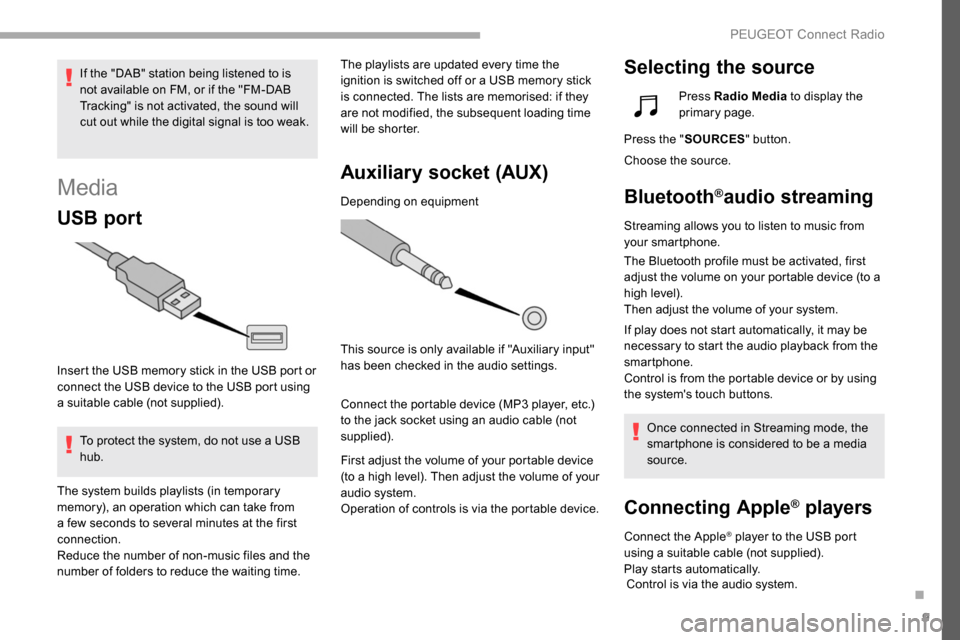
Insert the USB memory stick in the USB port or
connect the USB device to the USB port using
a suitable cable (not supplied).To protect the system, do not use a USB
hub. The playlists are updated every time the
ignition is switched off or a USB memory stick
is connected. The lists are memorised: if they
are not modified, the subsequent loading time
will be shorter.
Auxiliary socket (AUX)
Depending on equipment
This source is only available if "Auxiliary input"
has been checked in the audio settings.
Connect the portable device (MP3 player, etc.)
to the jack socket using an audio cable (not
supplied).
First adjust the volume of your portable device
(to a high level). Then adjust the volume of your
audio system.
Operation of controls is via the portable device.
Selecting the sourceIf the "DAB" station being listened to is
not available on FM, or if the "FM-DAB
Tracking" is not activated, the sound will
cut out while the digital signal is too weak.
The system builds playlists (in temporary
memory), an operation which can take from
a few seconds to several minutes at the first
connection.
Reduce the number of non-music files and the
number of folders to reduce the waiting time. Press Radio Media
to display the
primary page.
Press the " SOURCES " button.
Choose the source.
Bluetooth®audio streaming
Streaming allows you to listen to music from
your smartphone.
The Bluetooth profile must be activated, first
adjust the volume on your portable device (to a
high level).
Then adjust the volume of your system.
If play does not start automatically, it may be
necessary to start the audio playback from the
smartphone.
Control is from the portable device or by using
the system's touch buttons.
Once connected in Streaming mode, the
smartphone is considered to be a media
source.
Connecting Apple® players
Connect the Apple® player to the USB port
using a suitable cable (not supplied).
Play starts automatically. Control is via the audio system.
.
PEUGEOT Connect Radio
Page 249 of 312
11
MirrorLinkTM smartphone
connection
As a safety measure and because it
requires sustained attention by the driver,
using a smartphone when driving is
prohibited.
All operations must be done with the
vehicle stationary .
The synchronisation of a personal
smartphone allows users to display
applications adapted for the smartphone's
MirrorLink
TM technology on the vehicle
sc
reen.
The processes and standards
are constantly changing. For the
communication process between the
smartphone and the system to operate,
it is essential that the smartphone be
unlocked; update the operating system
of the smar tphone as well as the date
and time of the smar tphone and the
system .
For the list of eligible smartphones, go
to the Brand's internet website in your
c o u nt r y. As a safety measure, applications can
only be viewed with the vehicle stationary;
display is interrupted once the vehicle is
moving.
The "MirrorLink
TM" function requires a
compatible smartphone and applications.
Telephone not connected by
Bluetooth®
Connect a USB cable. The
smartphone charges when
connected by a USB cable.
From the system, press
" Telephone " to display the primary
page.
Press " MirrorLink
TM" to start the
application in the system.
Depending on the smartphone, it may be necessary
to activate the " MirrorLink" TM function.
During the procedure, several
screen pages relating to certain
functions are displayed.
Accept to start and complete the
connection. When connecting a smartphone
to the system, it is recommended
that Bluetooth
® be started on the
smartphone
Telephone connected by
Bluetooth®
From the system, press
" Telephone " to display the primary
page.
Press the " PHONE" button to display the
secondary page.
Press "MirrorLink
TM" to start the
application in the system.
Once the connection is established, a page
is displayed with the applications already
downloaded to your smartphone and adapted
to MirrorLink
TM technology.
Access to the different audio sources remains
accessible in the margin of the MirrorLink
TM
display, using touch buttons in the upper bar.
Access to the menus for the system is possible
at any time using the dedicated buttons.
There may be a wait for the availability of
applications, depending on the quality of
your network.
.
PEUGEOT Connect Radio
Page 251 of 312
13
As a safety measure, applications can
only be viewed with the vehicle stationary;
display is interrupted once the vehicle is
moving.
The "Android Auto" function requires the
use of a compatible smartphone and
applications.
Telephone not connected by
Bluetooth®
Connect a USB cable. The
smartphone charges when
connected by a USB cable.
From the system, press
"Telephone " to display the primary
page.
Press " Android Auto " to start the
application in the system.
Depending on the smartphone, it may be necessary
to activate the " Android Auto" function.
During the procedure, several
screen pages relating to certain
functions are displayed.
Accept to start and complete the
connection. When connecting a smartphone
to the system, it is recommended
that Bluetooth
® is started on the
smartphone
Telephone connected by
Bluetooth®
From the system, press
" Telephone " to display the primary
page.
Press the " PHONE" button to display the
secondary page.
Press "Android Auto " to start the
application in the system.
Different audio sources remain accessible in
the margin of the Android Auto display, using
touch buttons in the upper bar.
Access to the menus for the system is possible
at any time using the dedicated buttons.
There may be a wait for the availability of
applications, depending on the quality of
your network.
Pairing a Bluetooth®
telephone
As a safety measure and because it
requires sustained attention by the
driver, the pairing of a Bluetooth mobile
telephone with the Bluetooth hands-free
system of your audio system must be
done with the vehicle stationary and the
ignition on.
Activate the Bluetooth function on the
telephone and ensure that it is "visible to
all" (telephone configuration).
Procedure from the telephone
Select the name of the system in the
list of devices detected.
In the system, accept the connection request
from the telephone. To complete the pairing, whichever
procedure is used (from the telephone or
from the system), ensure that the code
is the same in the system and in the
telephone.
.
PEUGEOT Connect Radio
Page 262 of 312

2
First steps
With the engine running, a press
mutes the sound.
With the ignition off, a press turns
the system on.
Increase or decrease the volume using
the wheel or the "plus" or "minus" buttons
(depending on the equipment).
Use the menu buttons on either side of or
below the touch screen for access to the
menus, then press the virtual buttons in the
touch screen.
Depending on the model, use the "Source"
or "Menu" buttons to access the menus, then
press the virtual buttons in the touch screen.
You can display the menus at any time by
pressing the screen briefly with three fingers.
All of the touch areas of the screen are white.
Press the back arrow to go back a level.
Press "OK" to confirm. The touch screen is of the "capacitive"
type.
To clean the screen, use a soft, non-
abrasive cloth (e.g. spectacles cloth) with
no additional product.
Do not use sharp objects on the screen.
Do not touch the screen with wet hands.
Certain information is displayed permanently
in the side bars or in the upper bar of the touch
screen (depending on equipment):
-
R
epeat of the air conditioning information
(depending on version), and direct access to
the corresponding menu.
-
G
o directly to the selection of the audio
source, to the list of radio stations (or list of
titles depending on the source).
-
G
o to the "Notifications" of messages,
emails, map updates and, depending on the
services, the navigation notifications.
-
G
o to the settings for the touch screen and
the digital instrument panel. Selection of the sound source (depending on
equipment):
-
F
M/DAB/AM radio stations (depending on
equipment).
-
T
elephone connected via Bluetooth and
Bluetooth multimedia broadcast (streaming).
-
U
SB memory stick.
-
M
edia player connected via the auxiliary
socket (depending on equipment).
-
C
D Player (depending on equipment).
-
V
ideo (depending on equipment).
PEUGEOT Connect Nav
Page 263 of 312

3
In the "Settings" menu you can create
a profile for just one person or a group
of people with common points, with the
possibility of entering a multitude of
settings (radio presets, audio settings,
navigation history, contact favourites,
etc.); these settings are taken into account
automatically.
In very hot conditions, the volume may
be limited to protect the system. It may go
into standby (screen and sound off) for at
least 5
minutes.
The return to normal takes place when
the temperature in the passenger
compartment has dropped.
Steering mounted controls
Voice commands :
This control is located on the
steering wheel or at the end of the
lighting control stalk (depending on
equipment).
Short press, system voice
commands.
Long press, smartphone voice
commands via the system.
Increase volume.
Mute/Restore the sound (depending
on equipment).
Or
Mute by pressing the volume
increase and decrease buttons
simultaneously (depending on
equipment).
Restore the sound by pressing one
of the two volume buttons.
Decrease volume.
Media (short press): change the
multimedia source. Telephone
(short press): start
telephone call.
Call in progress (short press):
access telephone menu.
Telephone (long press): reject an
incoming call, end call; when no call
is in progress, access telephone
menu.
Radio (rotate): automatic search for
the previous/next station.
Media (rotate): previous/next track,
move in a list.
Short press : confirm a selection; if
nothing selected, access to presets.
Radio : display the list of stations.
Media : display the list of tracks.
Radio (press and hold): update the
list of stations received.
.
PEUGEOT Connect Nav
Page 273 of 312
13
Select "My destinations ".
Select the " Recent" tab.
Select the address chosen in the list to display
the " Guidance criteria ".
Press " OK" to start navigation.
Select " Position " to visualise the arrival
point geographically.
To "My home" or "My work"
Press Navigation to display the
primary page.
Press the " MENU" button to go to the
secondary page.
Select "My destinations ".
Select the " Preferred" tab.
Select " My home ".
Or Select "My work ".
Or
Select a preset favourite destination.
To a contact
Press Navigation to display the
primary page.
Press the " MENU" button to go to the
secondary page.
Navigation
Choice of a destination
To a new destination
Press Navigation to display the
primary page.
Press the " MENU" button to go to the
secondary page.
Select "Enter address ".
Select the " Country".
Enter the " City", the " Street " and the
" Number " and confirm by pressing
on the suggestions displayed.
Press " OK" to select the " Guidance
criteria ".
And/Or Select "See on map " to select the
" Guidance criteria ".
Press " OK" to start navigation.
Zoom out /zoom in using the touch buttons
or with two fingers on the screen.
In order to be able to use the navigation, it
is necessary to fill in the " City", the " Street "
and the " Number" on the virtual keyboard
or take it from the list in " Contact" or in the
" History " of addresses.
Without confirmation of the street number,
you will be guided to one end of the street.
To a recent destination
Press Navigation to display the
primary page.
Press the " MENU" button to go to the
secondary page.
.
PEUGEOT Connect Nav
Page 280 of 312
20
Connect a USB cable. The
smartphone charges when
connected by a USB cable.
From the system, press
"Applications " to display the
primary page.
Press " Connectivity " to go to the MirrorLink
TM
function.
Press "MirrorLink
TM" to start the
application in the system.
Depending on the smartphone, it may be necessary
to activate the " MirrorLinkTM" function.
During the procedure, several
screen pages relating to certain
functions are displayed.
Accept to start and complete the
connection.
Once the connection is established, a page
is displayed with the applications already
downloaded to your smartphone and adapted
to MirrorLink
TM technology.
Access to the different audio sources remains
accessible in the margin of the MirrorLink
TM
display, using touch buttons in the upper bar.
Access to the menus for the system is possible
at any time using the dedicated buttons. There may be a wait for the availability of
applications, depending on the quality of
your network.
Android Auto smartphone
connection
As a safety measure and because it
requires sustained attention by the driver,
using a smartphone when driving is
prohibited.
All operations must be done with the
vehicle stationary
.
The synchronisation of a personal
smartphone allows users to display
applications adapted for the smartphone's
Android Auto technology on the vehicle
screen.
The processes and standards
are constantly changing. For the
communication process between the
smartphone and the system to operate,
it is essential that the smartphone be
unlocked; update the operating system
of the smar tphone as well as the date
and time of the smar tphone and the
system .
For the list of eligible smartphones, go to
the vehicle brand's internet website in your
c o u nt r y. As a safety measure, applications can
only be viewed with the vehicle stationary;
display is interrupted once the vehicle is
moving.
The "
Android Auto " function requires
the use of a compatible smartphone and
applications.
Connect a USB cable. The
smartphone charges when
connected by a USB cable.
From the system, press
"Applications " to display the
primary page.
Press " Connectivity " to go to the "Android
Auto" function.
Press "Android Auto " to start the
application in the system.
During the procedure, several
screen pages relating to certain
functions are displayed.
Accept to start and complete the
connection.
Different audio sources remain accessible in
the margin of the Android Auto display, using
touch buttons in the upper bar.
PEUGEOT Connect Nav