2019 NISSAN VERSA SEDAN climate settings
[x] Cancel search: climate settingsPage 194 of 372
2. Touch the “Connections” key on thescreen.
3. In the Bluetooth tab, touch the “Add New” key to connect a phone.
4. When a compatible phone is found a message with a PIN appears on the
screen.
5. Verif y the PIN is correct and accept the connection.
Menu Item Result
Bluetooth Allows user to switch Bluetooth® on and off. Bluetooth® must be turned on in order to connect a device.
ON Turns Bluetooth® functionality on. To turn off, touch the “ON” key again. The indicator light will go off.
Favorite (Connection first) Allows user to toggle “Phone” and “Audio” favorite settings on and off.
PIN Allows user to customize the PIN to a four digit number.
4-40Monitor, climate, audio, phone and voice recognition systems
Page 195 of 372
Automatic Connecting Procedure
If no phone is connected to the system,
press and hold the
button on the
steering wheel for less than 1.5 seconds.
Af ter the prompt, speak “Add Phone”, the
system will announce “transferring to the
add phone settings menu”. The system will
start the pairing procedure. When a com-
patible phone is found, a message with a
PIN appears on the screen. Operate the
Bluetooth® phone to complete the con-
nection process. For additional informa-
tion, refer to “Bluetooth® connections
screen” in this section.
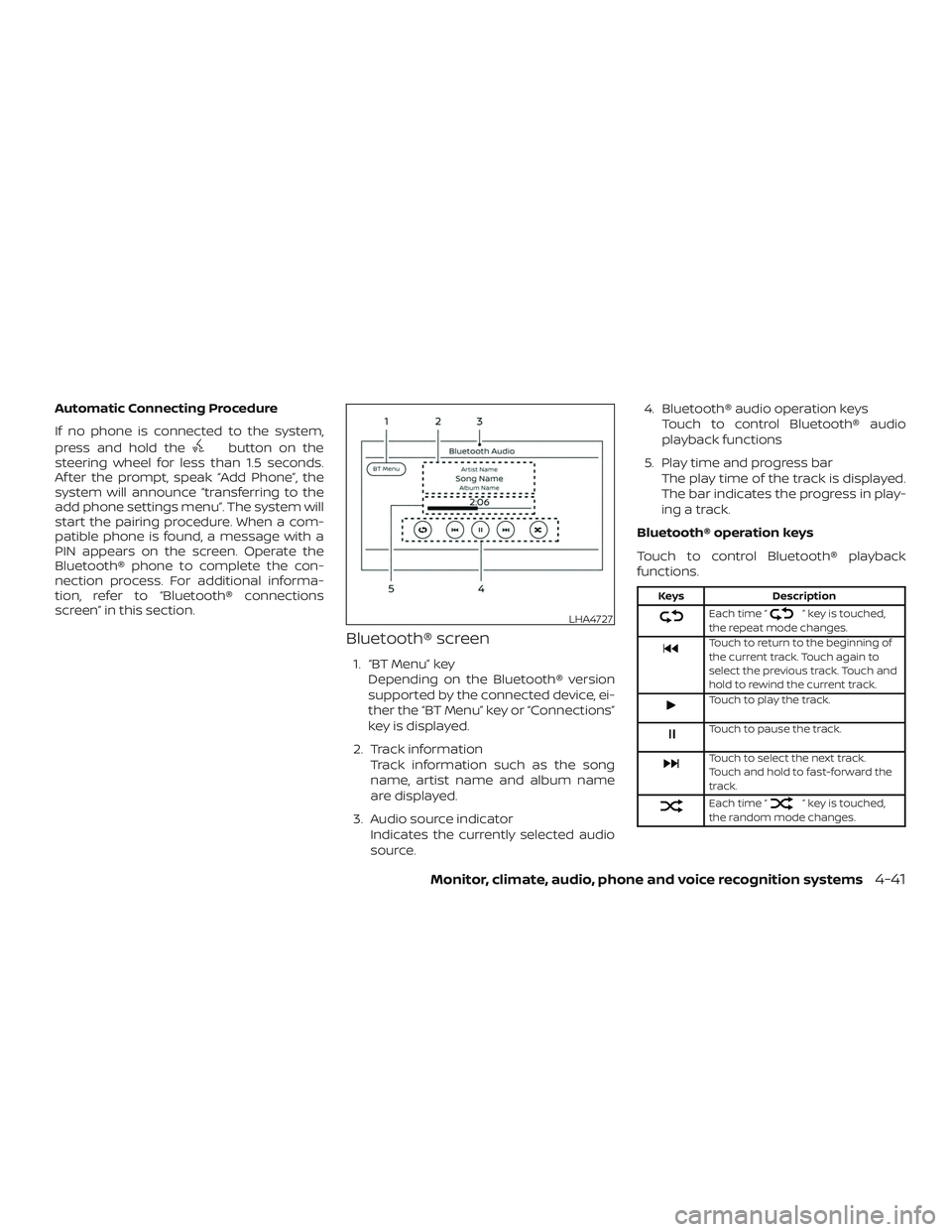
Bluetooth® screen
1. “BT Menu” key
Depending on the Bluetooth® version
supported by the connected device, ei-
ther the “BT Menu” key or “Connections”
key is displayed.
2. Track information Track information such as the song
name, artist name and album name
are displayed.
3. Audio source indicator Indicates the currently selected audio
source. 4. Bluetooth® audio operation keys
Touch to control Bluetooth® audio
playback functions
5. Play time and progress bar The play time of the track is displayed.
The bar indicates the progress in play-
ing a track.
Bluetooth® operation keys
Touch to control Bluetooth® playback
functions.
Keys Description
Each time “” key is touched,
the repeat mode changes.
Touch to return to the beginning of
the current track. Touch again to
select the previous track. Touch and
hold to rewind the current track.
Touch to play the track.
Touch to pause the track.
Touch to select the next track.
Touch and hold to fast-forward the
track.
Each time “” key is touched,
the random mode changes.
LHA4727
Monitor, climate, audio, phone and voice recognition systems4-41
Page 198 of 372
ANTENNA
The antenna cannot be shortened, but can
be removed. When you need to remove the
antenna, turn the antenna rod counter-
clockwise.
To install the antenna rod, turn the antenna
rod clockwise and hand tighten.
CAUTION
∙ Always properly tighten the antennarod during installation or the antenna
rod may break during vehicle
operation.
∙ Be sure that the antenna is removed before the vehicle enters an auto-
matic car wash. Apple Siri® Eyes Free personal assistant
can be accessed from the vehicle. Siri Eyes
Free can be accessed in Siri Eyes Free
mode to reduce user distraction. In this
mode, Siri Eyes Free is available for interac-
tion by voice control. Af ter connecting a
compatible Apple device by using
Bluetooth®, Siri Eyes Free can be activated
from the
button on the steering
wheel.
Siri® is a trademark of Apple Inc., registered
in the U.S. and other countries.
∙ Some Siri Eyes Free functions, such as displaying pictures or opening apps,
may not be available while driving.
∙ For getting best results, always update your device to the latest sof tware ver-
sion.
∙ Keep the interior of the vehicle as quiet as possible. Close the windows to elimi-
nate the surrounding noises (traffic
noises, vibration sounds, etc.), which
may prevent the system from recogniz-
ing the voice commands correctly.
∙ For functions that can be used in Siri Eyes Free, please refer to the Apple
website.
REQUIREMENTS
Siri® is only available on the iPhone® 4S or
later. Devices released before iPhone® 4S
are not supported by the Siri® Eyes Free
system. Visit www.apple.com/ios/siri for
details about device compatibility.
Siri must be enabled on the phone. Please
check phone settings.
If the device has a lock screen, Siri must be
accessible from the lock screen. Please
check phone settings.
For best results, always update your device
to the latest sof tware version.
SIRI® EYES FREE (if so equipped)
4-44Monitor, climate, audio, phone and voice recognition systems
Page 199 of 372
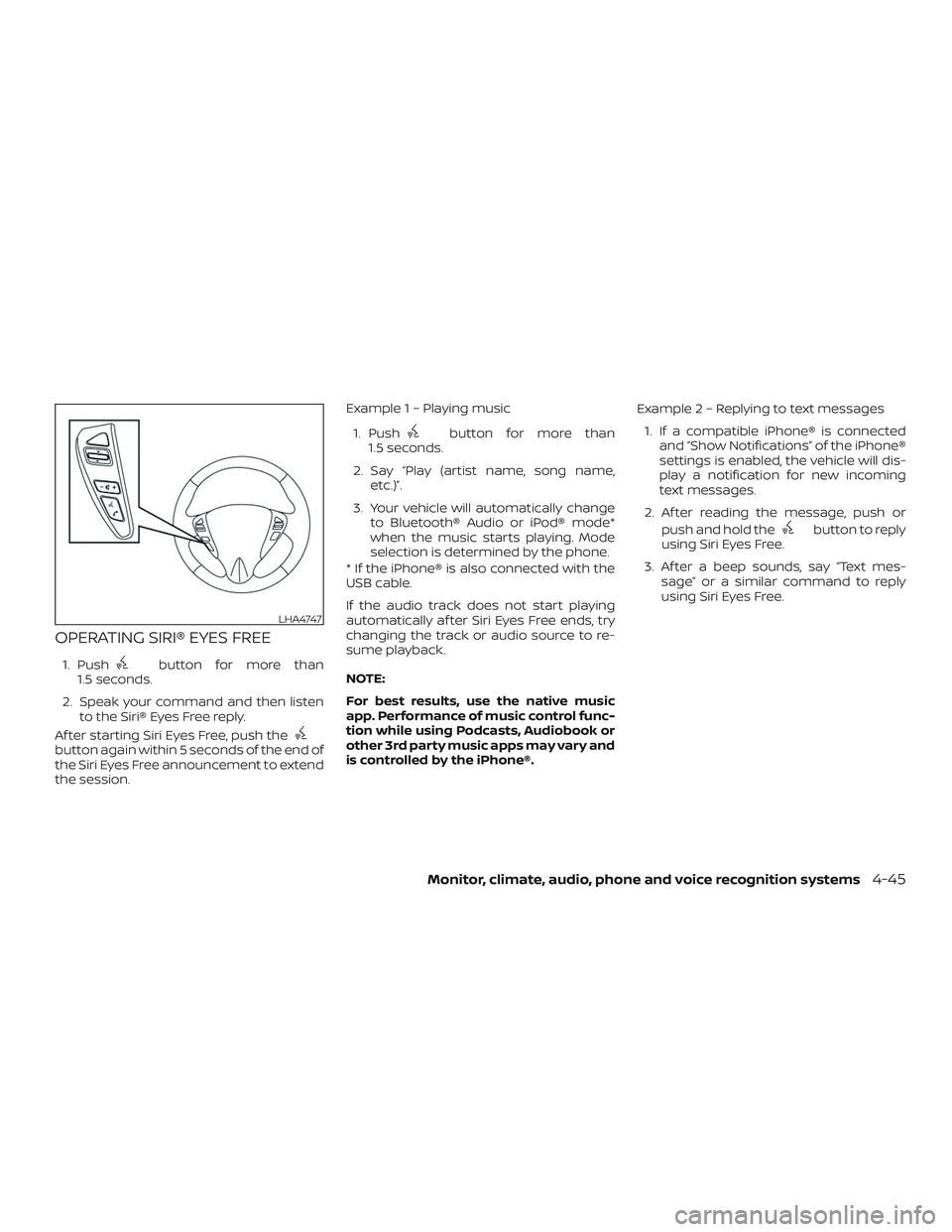
OPERATING SIRI® EYES FREE
1. Pushbutton for more than
1.5 seconds.
2. Speak your command and then listen to the Siri® Eyes Free reply.
Af ter starting Siri Eyes Free, push the
button again within 5 seconds of the end of
the Siri Eyes Free announcement to extend
the session. Example 1 – Playing music
1. Push
button for more than
1.5 seconds.
2. Say “Play (artist name, song name, etc.)”.
3. Your vehicle will automatically change to Bluetooth® Audio or iPod® mode*
when the music starts playing. Mode
selection is determined by the phone.
* If the iPhone® is also connected with the
USB cable.
If the audio track does not start playing
automatically af ter Siri Eyes Free ends, try
changing the track or audio source to re-
sume playback.
NOTE:
For best results, use the native music
app. Performance of music control func-
tion while using Podcasts, Audiobook or
other 3rd party music apps may vary and
is controlled by the iPhone®. Example2–Repl
ying to text messages
1. If a compatible iPhone® is connected and “Show Notifications” of the iPhone®
settings is enabled, the vehicle will dis-
play a notification for new incoming
text messages.
2. Af ter reading the message, push or push and hold the
button to reply
using Siri Eyes Free.
3. Af ter a beep sounds, say “Text mes- sage” or a similar command to reply
using Siri Eyes Free.
LHA4747
Monitor, climate, audio, phone and voice recognition systems4-45
Page 200 of 372
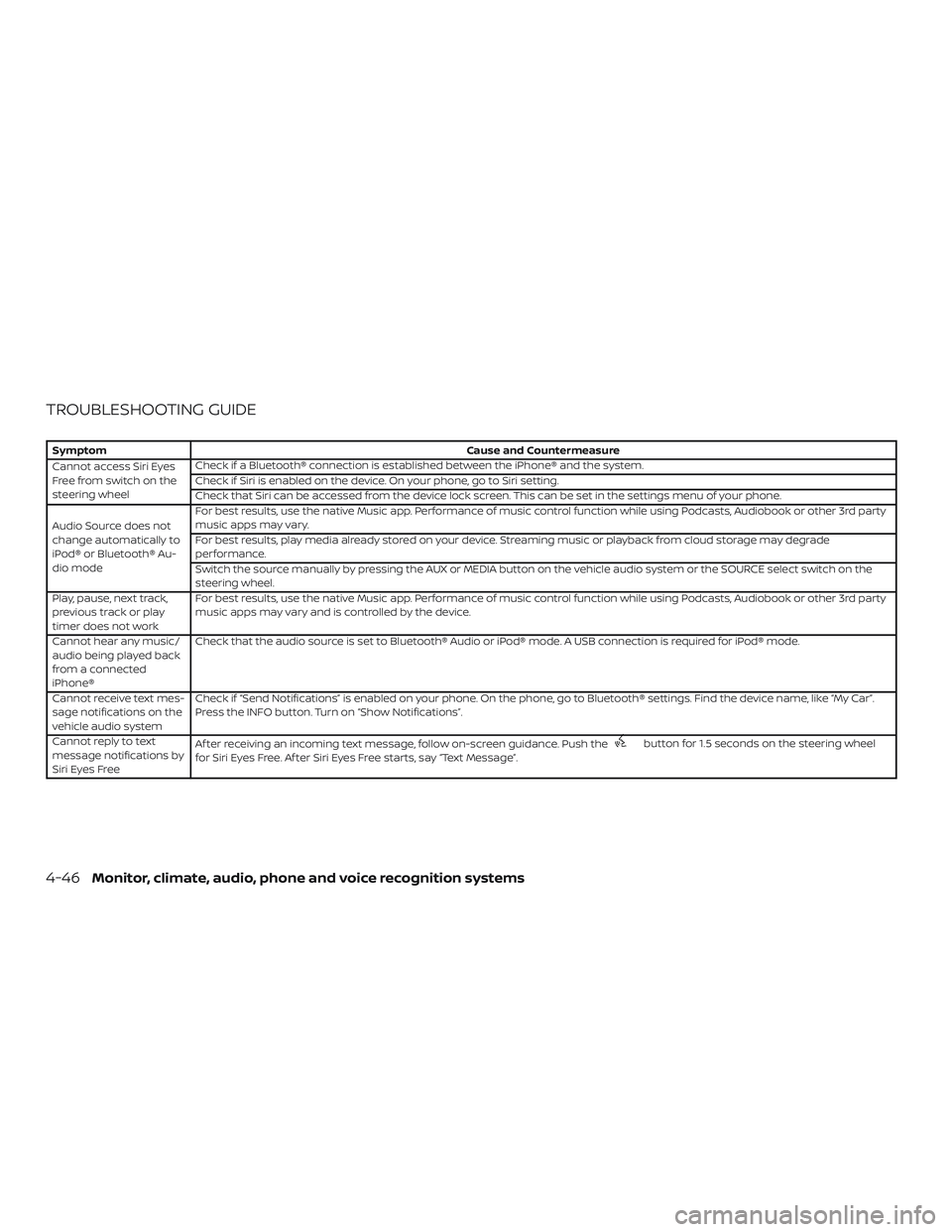
TROUBLESHOOTING GUIDE
SymptomCause and Countermeasure
Cannot access Siri Eyes
Freefromswitchonthe
steering wheel Check if a Bluetooth® connection is established between the iPhone® and the system.
Check if Siri is enabled on the device. On your phone, go to Siri setting.
Check that Siri can be accessed from the device lock screen. This can be set in the settings menu of your phone.
Audio Source does not
change automatically to
iPod® or Bluetooth® Au-
dio mode For best results, use the native Music app. Performance of music control function while using Podcasts, Audiobook or other 3rd party
music apps may vary.
For best results, play media already stored on your device. Streaming music or playback from cloud storage may degrade
performance.
Switch the source manually by pressing the AUX or MEDIA button on the vehicle audio system or the SOURCE select switch on the
steering wheel.
Play, pause, next track,
previous track or play
timer does not work For best results, use the native Music app. Performance of music control function while using Podcasts, Audiobook or other 3rd party
music apps may vary and is controlled by the device.
Cannot hear any music/
audio being played back
from a connected
iPhone® Check that the audio source is set to Bluetooth® Audio or iPod® mode. A USB connection is required for iPod® mode.
Cannot receive text mes-
sage notifications on the
vehicle audio system Check if “Send Notifications” is enabled on your phone. On the phone, go to Bluetooth® settings. Find the device name, like “My Car”.
Press the INFO button. Turn on “Show Notifications”.
Cannot reply to text
message notifications by
Siri Eyes Free Af ter receiving an incoming text message, follow on-screen guidance. Push the
button for 1.5 seconds on the steering wheel
for Siri Eyes Free. Af ter Siri Eyes Free starts, say “Text Message”.
4-46Monitor, climate, audio, phone and voice recognition systems
Page 206 of 372
You can use thebutton to
interrupt the system feedback
and give a command at once.
If an iPhone® is connected, Siri®
can be accessed by pressing
the
button for more than
two seconds. For additional
information, refer to “Siri® Eyes
Free” in this section.
PHONE BUTTON
To answer an incoming call or to
end a call press the
button.
To reject a call press and hold
the
button.
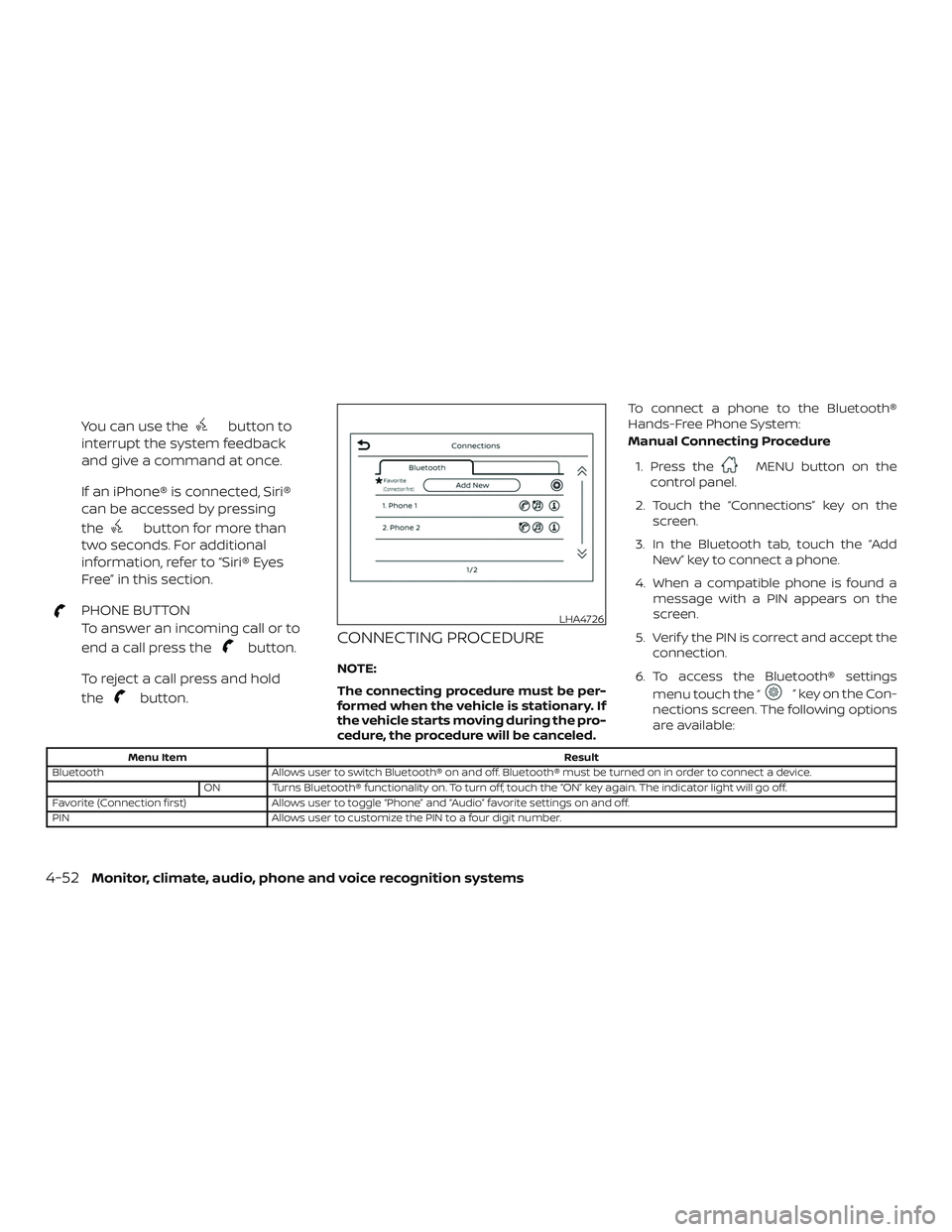
CONNECTING PROCEDURE
NOTE:
The connecting procedure must be per-
formed when the vehicle is stationary. If
the vehicle starts moving during the pro-
cedure, the procedure will be canceled. To connect a phone to the Bluetooth®
Hands-Free Phone System:
Manual Connecting Procedure
1. Press the
MENU button on the
control panel.
2. Touch the “Connections” key on the screen.
3. In the Bluetooth tab, touch the “Add New” key to connect a phone.
4. When a compatible phone is found a message with a PIN appears on the
screen.
5. Verif y the PIN is correct and accept the connection.
6. To access the Bluetooth® settings menu touch the “
” key on the Con-
nections screen. The following options
are available:
Menu Item Result
Bluetooth Allows user to switch Bluetooth® on and off. Bluetooth® must be turned on in order to connect a device.
ON Turns Bluetooth® functionality on. To turn off, touch the “ON” key again. The indicator light will go off.
Favorite (Connection first) Allows user to toggle “Phone” and “Audio” favorite settings on and off.
PIN Allows user to customize the PIN to a four digit number.
LHA4726
4-52Monitor, climate, audio, phone and voice recognition systems
Page 207 of 372
NOTE:
Some cellular phones may require you to
accept certain permissions in order to
enable features on your Bluetooth® sys-
tem. During the Bluetooth® pairing pro-
cess, please check your cellular phone’s
display for a pop-up with the request to
grant phonebook access.
Granting phonebook access permission
will allow your contacts to be down-
loaded to the vehicle’s Bluetooth® sys-
tem. A pop-up may display on your cellu-
lar phone stating that the Bluetooth®
system would like to access your con-
tacts and call history. Please select “Al-
low” or Yes” to grant this permission.
Automatic Connecting Procedure
If no phone is connected to the system,
press and hold the
button on the
steering wheel for less than 1.5 seconds.
Af ter the prompt, speak “Add Phone”, the
system will announce “transferring to the
add phone settings menu”. The system will
start the pairing procedure. When a com-
patible phone is found, a message with a
PIN appears on the screen. Operate the
Bluetooth® phone to complete the con- nection process. For additional informa-
tion, refer to “Bluetooth® connections
screen” in this section.
VOICE COMMANDS
Voice commands can be used to operate
the Bluetooth® Hands-Free Phone System.
Press and hold the
button for less
than 1.5 seconds to bring up the phone
command menu. The commands avail-
able are:
∙ Call
∙ Dial
∙ Recent Calls
∙ Read/Send Text (if so equipped)
∙ Siri® (if so equipped)
∙ Voice Assistant (if so equipped)
∙ Phonebook
∙ Quick Dial
∙ Redial
∙ Select Phone
∙ Add Phone ∙ Call
∙ Call
∙ Call
∙ Call
∙ Call
∙ Settings
“Call
Speak this command to make a call to a
contact that is stored in the phonebook.
Say “Call” followed by a phonebook name to
initiate a call. If the system does not recog-
nize the name it will display a list of similar
names. Af ter the prompt, speak or touch
an item number from the displayed list to
place the call.
“Dial
Speak this command to make a call with a
spoken phone number. Af ter the prompt,
say “Dial” followed by a 7 to 10 digit phone
number. The system will repeat the num-
ber back. Say “Dial” to initiate the call or
“Correction” to re-enter the phone number.
Monitor, climate, audio, phone and voice recognition systems4-53
Page 209 of 372
“Select Phone”
Speak this command to access the Con-
nections menu. For additional information,
refer to “Bluetooth® connections screen” in
this section.
“Add Phone”
Speak this command to access the Con-
nections menu. For additional information,
refer to “Bluetooth® connections screen” in
this section.
“Settings”
Speak this command to access the Sys-
tem Voice settings menu. The system will
exit Voice Recognition mode. Touch one of
the following options on the screen to
change the settings.∙ Beep Only for Opening Prompt By touching the “ON” key, the indicator
light will illuminate, the system voice will
turn off and only a tone will sound when
the Bluetooth® Hands-Free Phone Sys-
tem is activated. To turn the system
voice back on, touch the “ON” key again,
the indicator light will turn off. ∙ Best Match List
When the system doesn’t recognize a
phonebook name or dial number, it will
provide a list of similar sounding results.
To turn this off, touch the “ON” key, the
indicator light will turn off. To turn on,
touch the “ON” key again, the indicator
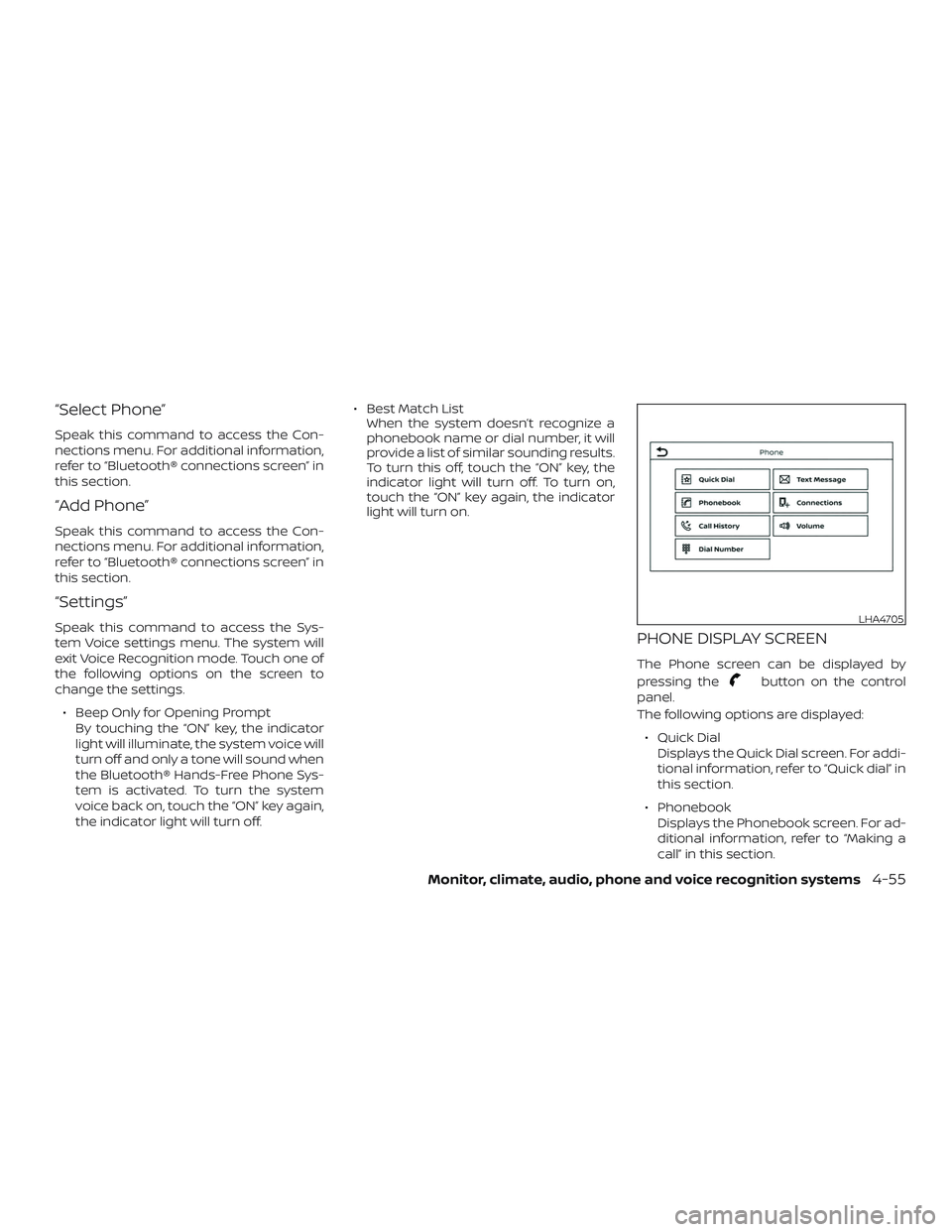
light will turn on.PHONE DISPLAY SCREEN
The Phone screen can be displayed by
pressing the
button on the control
panel.
The following options are displayed:
∙ Quick Dial Displays the Quick Dial screen. For addi-
tional information, refer to “Quick dial” in
this section.
∙ Phonebook Displays the Phonebook screen. For ad-
ditional information, refer to “Making a
call” in this section.
LHA4705
Monitor, climate, audio, phone and voice recognition systems4-55