2019 NISSAN LEAF change time
[x] Cancel search: change timePage 322 of 610

9. Push thebutton to set Climate
Temperature and then push the OK
button.
10. * Push the
button to select
"Days" and then push the OK button.
The current day of the week is dis-
played with an underline.
Push the
button to select the
days of the week you wish to activate
the Climate Control system and then
push the OK button. The indicator light
of the selected button will turn on.
11. * Af ter setting the day of the week, push the Back button and return to the pre-
vious screen.
The set day of the week is lit in white.
12. Af ter the setting is complete, place the power switch in the OFF position, and
then connect the charge connector to
the vehicle.
* models with Navigation System Info:
The Climate Ctrl. Timer does not activate if
the charge connector is not connected to
the vehicle. When the “Battery Operation
OK” is turned on and the charging connec-
tor is not connected to the vehicle, the Cli-
mate Ctrl. Timer will activate for 15 minutes.
When the outside temperature is high, the
interior temperature may not reach the set
temperature within the 15 minutes.
Turn "Battery Operation OK" to OFF when it
is not necessary to operate air condition-
ing timer in order to prevent Li-ion battery
from discharging.
For models without Navigation System, the
Climate Ctrl. Timer operates repeatedly ev-
ery day once it is turned on.
Operating tips for using Climate
Ctrl. Timer
• The Climate Ctrl. Timer will only start when
the power switch is in the LOCK/OFF or
ACC position.
• To turn off the Climate Ctrl. Timer function, turn off the “Climate Ctrl. Timer1” and
"Climate Ctrl. Timer2" setting in the video
information display using the
button on the steering wheel. The start
and stop time settings will not be deleted
even if the Climate Ctrl. Timer function is
turned off.
• While the Climate Ctrl. Timer is operating, the Climate Ctrl. Timer indicator and the
charging status indicator lights flash. If the
Climate Ctrl. Timer is set to activate, the
Climate Ctrl. Timer indicator illuminates.*
• If the Climate Ctrl. Timer starts operating while the vehicle is being charged, the
time required for charging will be longer.
• Operating the Climate Ctrl. Timer or re- mote climate control in an environment
where the temperature is low may de-
crease the rate of battery charge.
• Timer setting can also be changed while Climate Ctrl. Timer is operated. When the
power position is switched to OFF, the air
conditioner starts or enters waiting mode
depending on the new timer settings.
• When the difference in temperature be- tween the air conditioner setting tem-
perature and the temperature outside the
vehicle is large, the temperature inside the
vehicle may not be maintained at the set-
ting temperature.
Monitor, climate, audio, phone and voice recognition systems4-43
Page 323 of 610

• The charging status indicator lights illumi-nate in a specific pattern when the Li-ion
battery warmer operates. The charging
status indicator lights use the same pat-
tern to indicate 12–volt battery charging,
Climate Ctrl. Timer operation or Remote
Climate Control operation. The charging
status indicator lights do not change if the
Li-ion battery warmer operates at the
same time as the above features.
•
The temperature in the passenger com-
partment may not be comfortable if enter-
ing the vehicle too soon before or too long
af ter the scheduled time of departure.
• Air conditioning is limited to the capacity of the electric power when the charge
connector is connected. Therefore, the
temperature may not reach the set tem-
perature due to limitations in air condi-
tioning performance, if ambient tempera-
ture is excessively high or low, or if the
charge connector is connected to a 120–
volt plug outlet.
• The Climate Ctrl. Timer operates the cli- mate control function so that a comfort-
able temperature is provided in the pas-
senger compartment at the scheduled time of departure. The climate control is
set to stop at the scheduled time of
departure.
• Depending on the facilities of charging station, there may be time when it is not
available for charging. Confirm the avail-
ability of the charging facility before set-
ting the Climate Ctrl. Timer. Be sure that
the power switch of the charger is turned
on when setting the Climate Ctrl. Timer.
• When the power switch is turned OFF af- ter changing the setting, the new setting
will be applied.
*models with Navigation SystemRemote climate control
This vehicle incorporates a communica-
tion device that is called a TCU (Telematics
Control Unit). The communication connec-
tion between this unit and Nissan Data
Center allows for various remote function
services.
Even when away from the vehicle, climate
control can be started by accessing the
Web Owner Portal using a cellular phone or
a personal computer. When operation is started, or at the set
start time, the Nissan Data Center ac-
cesses the vehicle. When the vehicle re-
ceives a command for remote operation,
the climate control immediately turns ON
and operates for the specified period of
time. Confirmation of the ON/OFF of the
climate control operation can be checked
by accessing the Web Owner Portal, or by
e-mail.
Completing registration for the
NissanConnect® EV and Services is neces-
sary before using the service. For additional
information, refer to the NissanConnect®
Manual (for Leaf ).WARNING
• Radio waves could adversely affect electric medical equipment. For ad-
ditional information, refer to your
electric medical equipment manu-
facturer for the possible effect on
pacemakers before using the re-
mote climate control.
4-44Monitor, climate, audio, phone and voice recognition systems
Page 338 of 610

1 to 6 station memory operations
Six stations can be set for the AM band.
Twelve stations can be set for the FM band
(6 for FM1, 6 for FM2). Eighteen channels can
be set for the satellite radio (6 for XM1, 6 for
XM2, 6 for XM3).
1. Choose the radio band AM, FM1 orFM2 using the FM·AM select button, or
choose the satellite band XM1, XM2 or
XM3 using the XM button.
2. Tune to the desired station using manual, SEEK or SCAN tuning. Press and
hold any of the desired station memory
buttons (1 – 6) until the preset number is
updated on the display and the sound is
briefly muted.
3. The channel indicator will then come on and the sound will resume. Program-
ming is now complete.
4. Other buttons can be set in the same manner.
If the battery cable is disconnected, or if the
fuse opens, the radio memory will be can-
celed. In that case, reset the desired sta-
tions.Compact Disc (CD) player
operation
Place the power switch in the ACC or ON
position and insert the Compact Disc (CD)
into the slot with the label side facing up.
The CD will be guided automatically into
the slot and start playing.
Af ter loading the CD, the number of tracks
on the CD and the play time will appear on
the display.
If the radio is already operating, it will auto-
matically turn off and the CD will play.
If the system has been turned off while the
CD was playing, pressing the
(power)
button will start the CD.
Do not use 3.1 in (8 cm) discs.
SEEK/CAT buttons
When the FF or REW button is pressed for
more than 1.5 seconds while the CD is be-
ing played, the CD will play while fast for-
warding or rewinding. When the button is
released, the CD will return to normal play
speed. When the FF or REW button is pressed for
less than 1.5 seconds while the CD is being
played, the next track or the beginning of
the current track on the CD will be played.
Repeat (RPT)
When the RPT play button is pressed while
the CD is played, the play pattern can be
changed as follows:
(CD)
Normal↔1 Track Repeat
(CD with compressed audio files)
Normal→1 Folder Repeat→1 Track Repeat-
→Normal
Random (RDM)
When the RDM play button is pressed while
a CD is being played, the play pattern can
be changed as follows:
(CD)
Normal↔1 Disc Random
(CD with compressed audio files)
Normal→1 Disc Random→1 Folder Ran-
dom→Normal
Monitor, climate, audio, phone and voice recognition systems4-59
Page 357 of 610
• Delete Phone or DeviceSelect to delete a phone from the dis-
played list. The system will ask to confirm
before deleting the phone.
• Replace Phone Select to replace a phone from the dis-
played list. When a selection is made, the
system will ask to confirm before pro-
ceeding. The recorded phonebook for
the phone being deleted will be saved as
long as the new phone’s phonebook is
the same as the old phone’s phonebook.
• Select Phone or Device Select to connect to a previously con-
nected phone from the displayed list.
• Phonebook Download Select to turn on or off the automatic
download of a connected phone’s
phonebook.
• Show Incoming Calls Select “Driver Only” to have incoming call
information displayed only in the vehicle
information display. Select “Both” to have
incoming call information displayed in
both the vehicle information display and
the center display screen. • Text Message (if so equipped)
Select to turn text message feature in
vehicle on or off.
• New Text Sound (if so equipped) Select to adjust the volume of the sound
that plays when a new text is received by
a phone connected to the Bluetooth®
Hands-Free Phone System. The setting
all the way to the lef t indicates that the
new text sound will be muted.
• Show Incoming Text (if so equipped) Select “Driver Only” to have incoming
text messages displayed only in the ve-
hicle information display. Select “Both” to
have incoming text messages displayed
in both the vehicle information display
and the center display screen. Select
“None” to have no display of incoming
text messages.
• Auto Reply (if so equipped) Select to turn on or off the Auto Reply
function. When enabled, the vehicle will
automatically send a predefined text
message to the sender when a text
message is received while driving. • Auto Reply Message
Select to choose the message that is
sent when the Auto Reply function is en-
abled.
• Vehicle Signature On/Off Select to choose whether or not the ve-
hicle signature is added to outgoing text
messages from the vehicle. This mes-
sage cannot be changed or customized.
MANUAL CONTROL
While using the Voice Recognition system,
it is possible to select menu options by
using the steering wheel controls instead
of speaking voice commands. This can be
especially helpful if the noise of driving
makes it difficult for Voice Recognition sys-
tem to accurately interpret commands.
The manual control mode does not allow
dialing a phone number by digits. The user
may select an entry from the Phonebook
or Recent Calls lists. To re-activate Voice
Recognition, exit the manual control mode
by pressing and holding the PHONE/END
button. At that time, pressing the
PHONE/SEND
button will start the
Hands Free Phone System.
4-78Monitor, climate, audio, phone and voice recognition systems
Page 368 of 610

1. Remain calm and do not overreact.
2. Maintain a firm grip on the steeringwheel with both hands and try to hold a
straight course.
3. When appropriate, slowly release the ac- celerator pedal to gradually slow the
vehicle.
4. Gradually steer the vehicle to a safe lo- cation off the road and away from traffic
if possible.
5. Lightly apply the brake pedal to gradu- ally stop the vehicle.
6. Turn on the hazard warning flashers and contact a roadside emergency service
to change the tire. For additional infor-
mation, refer to “Flat tire” in the “In case of
emergency” section of this manual.
DRINKING ALCOHOL/DRUGS AND
DRIVING
WARNING
Never drive under the influence of al-
cohol or drugs. Alcohol in the blood-
stream reduces coordination, delays
reaction time and impairs judgement. Driving af ter drinking alcohol in-
creases the likelihood of being in-
volved in an accident injuring yourself
and others. Additionally, if you are in-
jured in an accident, alcohol can in-
crease the severity of the injury.
NISSAN is committed to safe driving. How-
ever, you must choose not to drive under
the influence of alcohol. Every year thou-
sands of people are injured or killed in
alcohol-related accidents. Although the lo-
cal laws vary on what is considered to be
legally intoxicated, the fact is that alcohol
affects all people differently and most
people underestimate the effects of alco-
hol.
Remember, drinking and driving don’t mix!
That is true for drugs, too (over-the-
counter, prescription, and illegal drugs).
Do not drive if your ability to operate your
vehicle is impaired by alcohol, drugs, or
some other physical condition.
WARNING
• Do not operate the power switch while driving the vehicle except in an
emergency. (The EV system shuts
down when the power switch is
pushed three consecutive times or
the power switch is pushed and held
for more than 2 seconds.) If the EV
system stops while the vehicle is be-
ing driven, this could lead to a crash
and serious injury.
• When turning off the power switch, make sure to shif t the shif t lever to
the P (Park) position even if the ve-
hicle is maintaining a stop and hold
using the e-pedal. This will prevent
the vehicle from moving or rolling
unexpectedly, which could result in
serious personal injury or property
damage.
Before operating the power switch, make
sure the vehicle is in the P (Park) position.
PUSH-BUTTON POWER SWITCH
Starting and driving5-9
Page 370 of 610
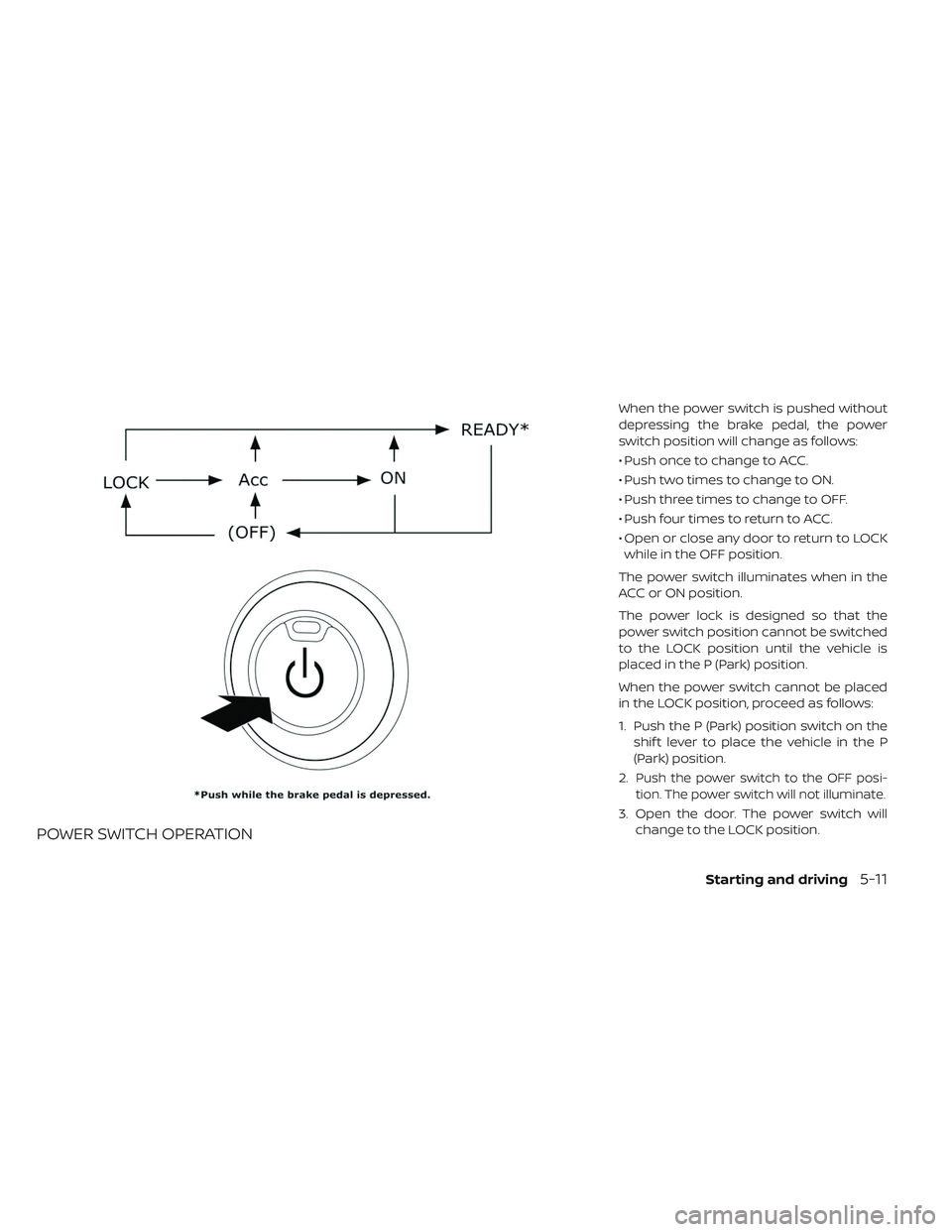
POWER SWITCH OPERATION
When the power switch is pushed without
depressing the brake pedal, the power
switch position will change as follows:
• Push once to change to ACC.
• Push two times to change to ON.
• Push three times to change to OFF.
• Push four times to return to ACC.
• Open or close any door to return to LOCKwhile in the OFF position.
The power switch illuminates when in the
ACC or ON position.
The power lock is designed so that the
power switch position cannot be switched
to the LOCK position until the vehicle is
placed in the P (Park) position.
When the power switch cannot be placed
in the LOCK position, proceed as follows:
1. Push the P (Park) position switch on the shif t lever to place the vehicle in the P
(Park) position.
2.
Push the power switch to the OFF posi-
tion. The power switch will not illuminate.
3. Open the door. The power switch will change to the LOCK position.
Starting and driving5-11
Page 382 of 610
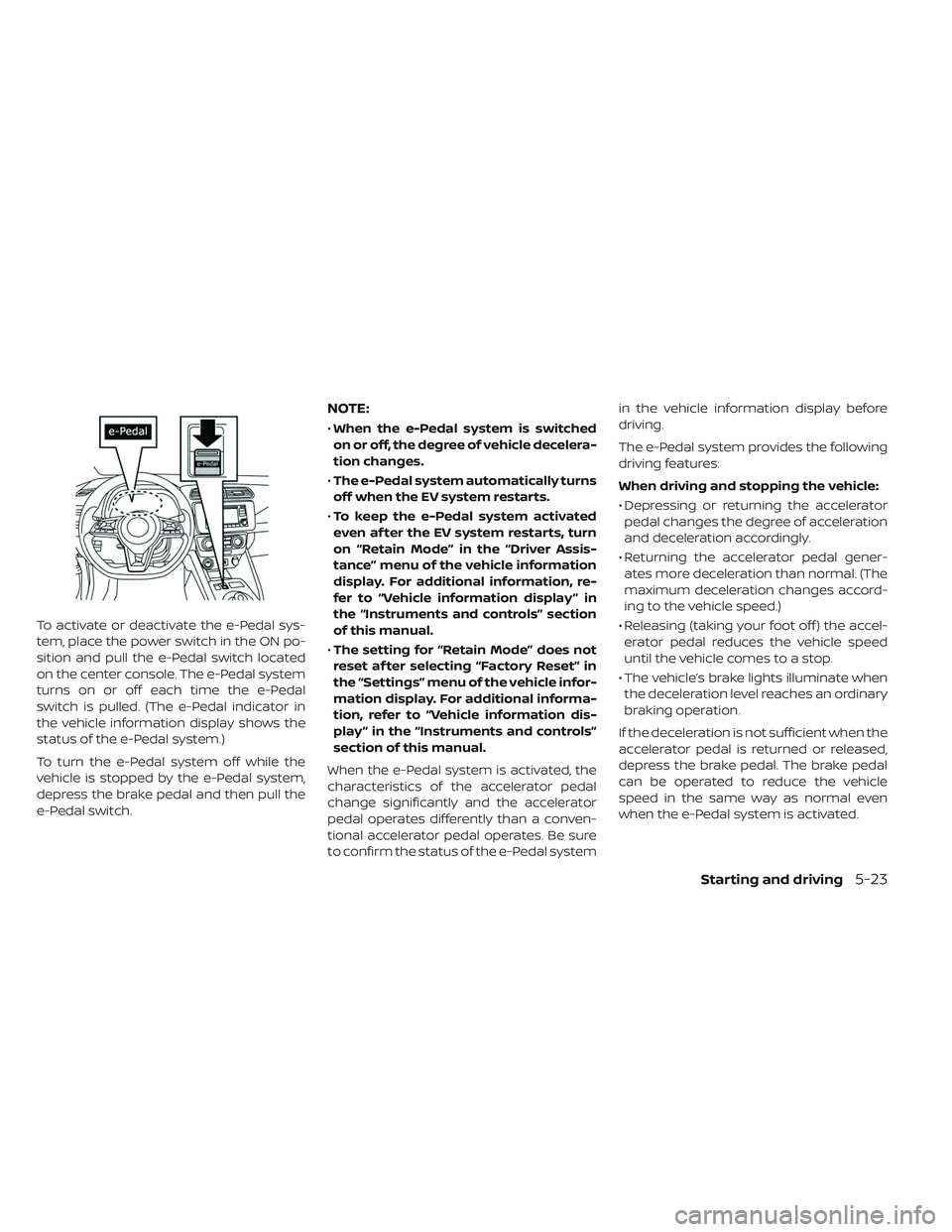
To activate or deactivate the e-Pedal sys-
tem, place the power switch in the ON po-
sition and pull the e-Pedal switch located
on the center console. The e-Pedal system
turns on or off each time the e-Pedal
switch is pulled. (The e-Pedal indicator in
the vehicle information display shows the
status of the e-Pedal system.)
To turn the e-Pedal system off while the
vehicle is stopped by the e-Pedal system,
depress the brake pedal and then pull the
e-Pedal switch.
NOTE:
•When the e-Pedal system is switched
on or off, the degree of vehicle decelera-
tion changes.
• The e-Pedal system automatically turns
off when the EV system restarts.
• To keep the e-Pedal system activated
even af ter the EV system restarts, turn
on “Retain Mode” in the “Driver Assis-
tance” menu of the vehicle information
display. For additional information, re-
fer to “Vehicle information display ” in
the “Instruments and controls” section
of this manual.
• The setting for “Retain Mode” does not
reset af ter selecting “Factory Reset” in
the “Settings” menu of the vehicle infor-
mation display. For additional informa-
tion, refer to “Vehicle information dis-
play ” in the “Instruments and controls”
section of this manual.
When the e-Pedal system is activated, the
characteristics of the accelerator pedal
change significantly and the accelerator
pedal operates differently than a conven-
tional accelerator pedal operates. Be sure
to confirm the status of the e-Pedal system in the vehicle information display before
driving.
The e-Pedal system provides the following
driving features:
When driving and stopping the vehicle:
• Depressing or returning the accelerator
pedal changes the degree of acceleration
and deceleration accordingly.
• Returning the accelerator pedal gener- ates more deceleration than normal. (The
maximum deceleration changes accord-
ing to the vehicle speed.)
• Releasing (taking your foot off ) the accel- erator pedal reduces the vehicle speed
until the vehicle comes to a stop.
• The vehicle’s brake lights illuminate when the deceleration level reaches an ordinary
braking operation.
If the deceleration is not sufficient when the
accelerator pedal is returned or released,
depress the brake pedal. The brake pedal
can be operated to reduce the vehicle
speed in the same way as normal even
when the e-Pedal system is activated.
Starting and driving5-23
Page 393 of 610
I-LI SYSTEM LIMITATIONS
WARNING
Listed below are the system limita-
tions for the I-LI system. Failure to fol-
low the warnings and instructions for
proper use of the I-LI system could re-
sult in serious injury or death.
• The I-LI system may activate if you change lanes without first activat-
ing your turn signal or, for example,
if a construction zone directs traffic
to cross an existing lane marker. If
this occurs you may need to apply
corrective steering to complete your
lane change.
• Because the I-LI may not activate under the road, weather, and lane
marker conditions described in this
section, it may not activate every
time your vehicle begins to leave its
lane and you will need to apply cor-
rective steering.
• When the I-LI system is operating, avoid excessive or sudden steering
maneuvers. Otherwise, you could
lose control of the vehicle. • The I-LI system will not operate at
speeds below approximately
37 mph (60 km/h) or if it cannot de-
tect lane markers.
• Do not use the I-LI system under the following conditions as it may not
function properly:
– During bad weather (rain, fog,snow, etc.).
– When driving on slippery roads, such as on ice or snow.
– When driving on winding or un- even roads.
– When there is a lane closure due to road repairs.
– When driving in a makeshif t or temporary lane.
– When driving on roads where the lane width is too narrow.
– When driving without normal tire conditions (for example, tire wear,
low tire pressure, installation of
spare tire, tire chains, nonstan-
dard wheels).
– When the vehicle is equipped with nonoriginal brake parts or sus-
pension parts.
– When you are towing a trailer or other vehicle. – On roads where there are multiple
parallel lane markers; lane mark-
ers that are faded or not painted
clearly; yellow painted lane mark-
ers; non-standard lane markers;
or lane markers covered with wa-
ter, dirt, snow, etc.
– On roads where discontinued lane markers are still detectable.
– On roads where there are sharp curves.
– On roads where there are sharply contrasting objects, such as shad-
ows, snow, water, wheel ruts,
seams or lines remaining af ter
road repairs. (The I-LI system
could detect these items as lane
markers.)
– On roads where the traveling lane merges or separates.
– When the vehicle’s traveling direc- tion does not align with the lane
marker.
– When traveling close to the ve- hicle in front of you, which ob-
structs the lane camera unit de-
tection range.
– When rain, snow or dirt adheres to the windshield in front of the lane
camera unit.
5-34Starting and driving