2019 MERCEDES-BENZ GLE COUPE wheel
[x] Cancel search: wheelPage 308 of 697
#
Before opening the bonn et, allow the
engine tocool down. #
Intheeve nt of a fire inthe engine com‐
partment, keep the engine bonn et
closed and call thefire service. Ve
hicles with a 48 V on-board electrical sys‐
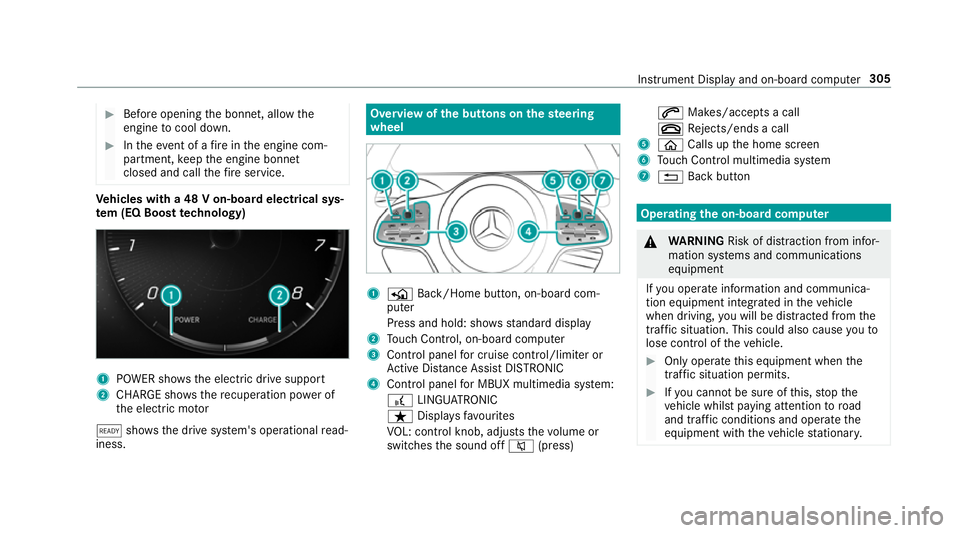
te m (EQ Boo sttech nology) 1
POWER sho wsthe electric drive support
2 CHARGE sho wsthere cuperation po wer of
th e electric mo tor
õ shows th e drive sy stem's operational read‐
iness. Overview of
the but tons on thest eering
wheel 1
P Back/Home button, on-board com‐
puter
Press and hold: sho wsstandard display
2 Touch Control, on-board co mputer
3 Control panel for cruise control/limiter or
Ac tive Dis tance Assi stDISTRONIC
4 Control panel for MBUX multimedia sy stem:
£ LINGU ATRO NIC
ß Displa ysfavo urites
VO L: control knob, adjusts thevo lume or
switches the sound off 8(press) 6
Makes/accepts a call
~ Rejects/ends a call
5 ò Calls up the home screen
6 Touch Control multimedia sy stem
7 % Back button Operating
the on-boa rdcompu ter &
WARNING Risk of di stra ction from infor‐
mation sy stems and communications
equipment
If yo u operate information and communica‐
tion equipment integ rated in theve hicle
when driving, you will be distracted from the
traf fic situation. This could also cause youto
lose control of theve hicle. #
Only operate this equipment when the
traf fic situation permits. #
Ifyo u cannot be sure of this, stop the
ve hicle whilst paying attention toroad
and traf fic conditions and ope rate the
equipment with theve hicle stationar y. Instrument Display and on-board computer
305
Page 319 of 697
#
Press the left-hand Touch Control.
Yo u may accept or reject the call using the6
or ~ button on thesteering wheel. Setting
the head-up display using the on-
board compu terOn-board computer:
4 HEAD-UP DISPLAY
The following head-up display settings can be
selec ted:
R Position
R Brightness
R Displa ys
R Messages
R Assis tance status
R Telephone
R Audio
R LINGU ATRO NIC #
Tochoose a setting: swipetotheright on
th e left-hand Touch Control.
The Settings menu 5is selected. #
Tocall up the Settings menu: pressthe
left-hand Touch Control. #
Toadjust the position: swipe upwards or
down wards on the left-hand Touch Control. #
Toadjust the brightness: swipetothe left
or right on the left-hand Touch Control. #
Toset messages, assistance status, tele‐
phone, audio and LINGU ATRO NIC: press
th e left-hand Touch Control.
The list of setting options will be displ ayed. #
Swipe upwards or down wards on the left-
hand Touch Control and select a setting by
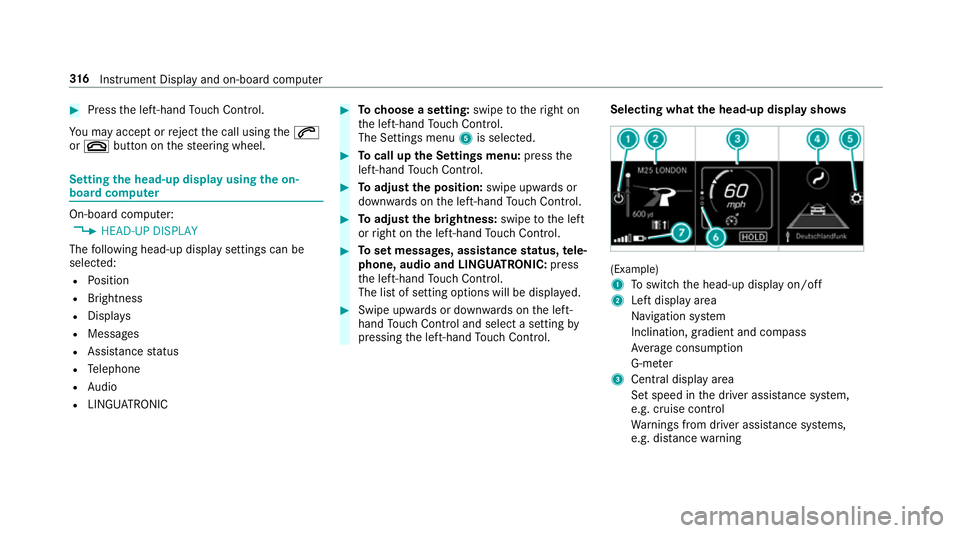
pressing the left-hand Touch Control. Selecting what
the head-up display sho ws (Example)
1
Toswitch the head-up display on/off
2 Left display area
Navigation sy stem
Inclination, gradient and compass
Av erage consum ption
G-me ter
3 Central displ ayarea
Set speed in the driver assis tance sy stem,
e.g. cruise control
Wa rnings from driver assis tance sy stems,
e.g. dis tance warning 316
Instrument Display and on-board computer
Page 323 of 697
R
Ifyo u use thevo ice control sy stem in an
emer gency your voice can change and your
te lephone call, e.g. an emer gency call, can
th ereby be unnecessarily dela yed.
R Familiarise yourself with thevo ice control
sy stem functions before starting the journe y.
R Comply with the loading guidelines
(/ page 122). Operation
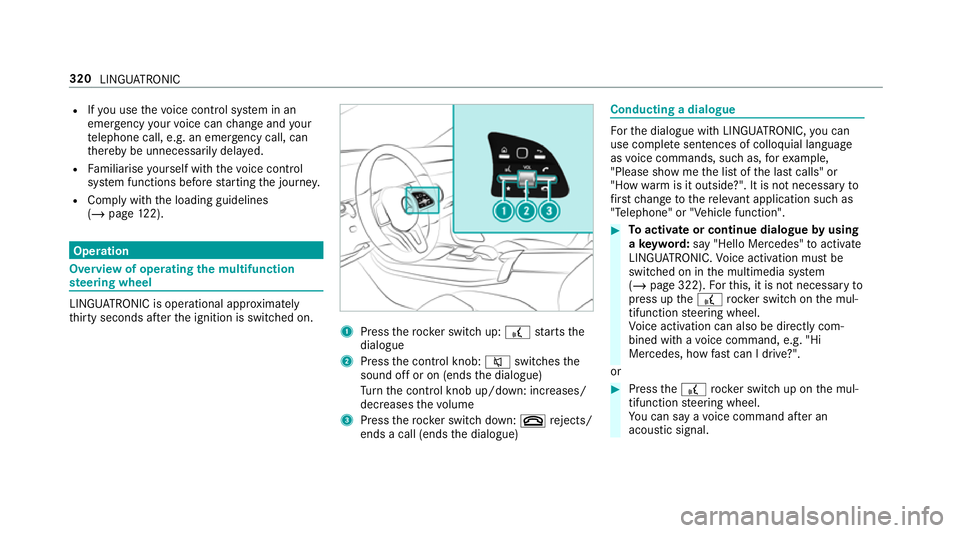
Overview of operating
the multifunction
st eering wheel LINGU
ATRO NIC is operational appr oximately
th irty seconds af terth e ignition is switched on. 1
Press therock er switch up: £starts the
dialogue
2 Press the control knob: 8switches the
sound off or on (ends the dialogue)
Tu rn the control knob up/down: increases/
decreases thevo lume
3 Press therock er switch down: ~rejects/
ends a call (ends the dialogue) Conducting a dialogue
Fo
rth e dialogue with LINGU ATRO NIC, you can
use co mplete sentences of colloquial language
as voice commands, such as, forex ample,
"Please show me the list of the last calls" or
"How warm is it outside?". It is not necessary to
fi rs tch ange tothere leva nt application su chas
"Telephone" or "Vehicle function". #
Toactivate or continue dialogue byusing
a ke yword: say "Hello Mercedes" toactivate
LINGU ATRO NIC. Voice activation must be
switched on in the multimedia sy stem
(/ page 322). Forth is, it is not necessary to
press up the£ rock er switch on the mul‐
tifunction steering wheel.
Vo ice activation can also be directly com‐
bined with a voice command, e.g. "Hi
Mercedes, how fastcan I drive?".
or #
Press the£ rocker switch up on the mul‐
tifunction steering wheel.
Yo u can say a voice command af ter an
acou stic signal. 320
LINGU ATRO NIC
Page 324 of 697
#
Tocor rect an ent ry:say theCorrection
vo ice command. #
Toselect an entry from the selection lis t:
say the line number or the conte nts. #
Tobrows eth e selection lis t:say theNext
or Back voice command. #
Tointer rupt the dialogue: saythePause
vo ice command.
The dialogue can be continued with the
"Hello Mercedes" voice command or by
pressing up the£ rock er switch on the
multifunction steering wheel. #
Tojump tothe preceding dialogue: saythe
Back voice command. #
Tojump back totheto p dialogue le vel:
say theHome voice command. #
Tocancel the dialogue: saytheClose voice
command or press the8 or~ button
on the multifunction steering wheel. #
Tointer rupt avo ice output: speak inthe
middle of a voice dialogue when the sy stem
is still answering.
The voice output is shor tened and the con‐
clusion is reached more quickl y.
% The Voice barge-in option must be switched
on in the multimedia sy stem forth is
(/ page 322). Overview of operable functions in LINGUA‐
TRONIC
Yo
u can use the LINGU ATRO NIC voice control
sy stem tooperate thefo llowing functions
depending on theve hicle equipment:
R Telephone
R Text messa geand e-mail
R Navigation
R Address book
R Radio
R Media
R Vehicle functions
R Weather Fu
ll functionality is only available foryo u with
activation of online voice control (/ page 322). Note
s onthe language setting Yo
u can change the language of LINGU ATRO NIC
via the sy stem language settings. If the set sys‐
te m language is not suppor tedby LINGUA‐
TRONIC, English will be selected.
LINGU ATRO NIC is available in thefo llowing lan‐
guages:
R German
R English
R French
R Italian
R Dutch
R Polish
R Portuguese
R Russian
R Swedish
R Spanish
R Czech LINGU
ATRO NIC 321
Page 325 of 697

R
Turkish Setting LINGU
ATRO NIC (multimedia sy stem) Requ
irements:
R For online voice control: your vehicle is
connected with your Mercedes me user
account (/ page 458).
R There is an In tern et connection
(/ page 466).
R For online use of contacts: onlinevoice
control is activated.
Multimedia sy stem:
4 © 5
Settings 5
System
5 LINGUATRONIC
Switching voice activation of LINGU ATRO NIC
on/o ff #
Select Voice activation "Hi Mercedes".
Depending on the pr evious status, the func‐
tion is activated or deactivated. When
the function is active, the "Hi
Mercedes" voice command can activate the
dialogue.
Switching on voice inter ruption #
Select Voice barge-in.
If th e function is active, a command can be
interjecte d duringvoice output of the sys‐
te m.
Ac tivating/deactivating online voice control #
Activate Online recognition.
% Online voice control is activated at thefa c‐
to ry. #
Select Online recognition subscrip..
Yo u will be connected with the Mercedes me
por tal. #
Activate online voice control in the Mercedes
me por tal.
Ac tivating contacts for online use #
Select Contact upload for online recognition.
When the function is active, conta cts will be
fo und more easily and accurately using voice
input. The quality of the enunciation of con‐ ta
ct names bythe sy stem will also be
impr oved. Using LINGU
ATRO NIC ef fectively LINGU
ATRO NIC audible help functions Using
the cor responding voice commands you
re cei vethefo llowing information and assis tance
in thefo llowing cases:
R For optimal ope ration: saytheVoice con-
trol tutorial voice command or call up the
Digital Owner's Manual wi thCould you go to
the LINGUATRONIC tutorial please? ,for
ex ample. The full extent of the Digital Own‐
er's Manual is available when theve hicle is
st ationar y.Here you can also find explana‐
to ry videos which introduce youto the func‐
tions of LINGU ATRO NIC.
R Cur rent application: onthe multifunction
st eering wheel, press the£ rock er switch
up and say theHelp voice command. You will
re cei vesuggestions and information about
operation of LINGU ATRO NIC forth e cur rent
application. 322
LINGUATRONIC
Page 326 of 697
R
Continued dialogue: saytheHelp voice
command during a voice dialogue. Foreve ry
st ep of the dialogue youre cei vematching
information.
R Speci fic function: saythevo ice command
fo rth e desired function, e.g. with "Hello
Mercedes, I need help with thera dio" or af ter
pressing the£ rock er switch on the multi‐
function steering wheel up, say theHelp for
the telephone voice command, forex ample. Note
s on optimal use of LINGU ATRO NIC No
tes on how toimpr overecognition:
R Activate online voice control (/ page 322).
R Only operate LINGU ATRO NIC from the driv‐
er's seat.
R Say thevo ice commands cohe rently and
clearly, but do not exaggerate thewo rds.
R Avoid loud noises that cause inter fere nce
while making a voice command ent ry, e.g.
th e enter tainment in there ar-passen ger
compa rtment.
R Forte lephone or add ress book entries: -
Only create sensible address book entri es
in the sy stem/mobile phone, e.g. enter
surname and firs t name in the cor rect
fi eld.
- Do not use any abbr eviations, unneces‐
sary spaces or special characters.
R Forra dio or TVprog ramme names: say
th eRead out station list voice command and
say the desired station name in thewa ythe
vo ice output reads aloud to you.
% Toimpr overecognition, depending on the
outside temp erature, either the blo wersfor
ve ntilation or heating are reduced when LIN‐
GU ATRO NIC is star ted. Note
s on online voice control Online
voice control impr oves recognition and
makes additional results available as a result of
ex tern al information, e.g. information about POIs
and about thewe ather. Wetherefore recom‐
mend that you activate online voice control.
Yo u will need a Mercedes me user account for
th is. If you do not yet ha vea user account youha
ve tocrea teone and connect it with your vehi‐
cle (/ page 458).
Then call up your Mercedes me user account.
The Mercedes me services are shown and can
be activated (/ page 458).
In addition, online voice control must be activa‐
te d (/ page 322). Essential
voice commands Note
s onthevo ice commands Aside from
theex act voice commands (see the
"Voice command" column in thefo llowing tables)
to call up specific functions, in most cases LIN‐
GU ATRO NIC also under stands a great ma nypar‐
aphrases from daily usage. Examples of these
are lis ted in the "Colloquial examples" column.
Fo r some languages ho weverth ese examples
are on lyavailable toa limited extent. LING
UATRONIC 323
Page 343 of 697
%
Ifth eve hicle is fitted wi th the MBUX in-car
assis tant, selected functions of the multime‐
dia sy stem can be operated conta ct-free as
we ll as turning there ading light on or off
(/ page 347).
Nu merous application, online services, services
and apps are available foryo u. You can call
th ese up using the home screen or using buttons
5 and 6next totheto uchpad.
Yo u can co nveniently call up and add favo urites
using theß rocker switch on thesteering
wheel or using theß button next tothe
to uchpad. Quic k-access in the home screen and
in the applications ser vetoselect functions
more quickl y.
If yo u use the learn function of the multimedia
sy stem, you will recei vesuggestions during oper‐
ation of the most probable navigation destina‐
tions, media sources, radio stations and con‐
ta cts. The configu ration of the suggestions takes
place in your profile. You can co mpileyour pro‐
fi le from various vehicle settings and settings of
th e multimedia sy stem. You can create themes
fo rva rious driving situations in the home screen as
well as using theß rocker switch or the
ß button.
The Notifications Centre collects incoming notifi‐
cations, e.g. about an available software update.
Depending on the type of notification it of fers
va rious actions. You can call up the Notifications
Centre on the home screen and in the applica‐
tion menus.
Wi th th eglobal sear chintheve hicle you can
sear chon-board across many categories as well
as online in the Internet. You can use theglobal
sear chinthe home screen and in the notifica‐
tions.
Anti-theft pr otection
This device is equipped with tech nical pr ovisions
to protect it against theft. More de tailed informa‐
tion about anti-theft pr otection can be obtained
at a qualified specialist workshop. Note
s onthe media display Obser
vethe no tes on caring forth e interior
(/ page 511). Au
tomatic temperature-cont rolled switch-
off feature: ifth ete mp erature is too high, the
brightness is initially reduced automatically. The
media display may then switch off comple tely for
a while.
% Ifyo u are wearing polarised sun glasses, it
may be dif ficult toread the multimedia sys‐
te m displa y. 340
MBUX multimedia sy stem
Page 356 of 697
#
Touch and hold an application on the
to uchsc reen until symbols appear. #
Tap on = or; and mo vethe applica‐
tion in the menu. #
Tap on ø. Profile
Note
s on profiles &
WARNING Risk of becoming trapped
du ring adjustment of the driver's seat
af te r calling up a driver profile
Selecting a profile may trigger an adju stment
of the driver's seat tothe position sa ved
under the profile. You or other vehicle occu‐
pants could be injured in the process. #
Make sure that when the position of
driver's seat is being adjus ted using the
multimedia sy stem, no people or body
parts are in the seat's range of mo ve‐
ment. If
th ere is a risk of someone becoming trap‐
ped, stop the adjustment process immedi‐
ately: #
a)Tapth ewa rning message on the
media displa y.
or #
b) Press a memory position button or a
seat adjustment switch on the driver's
door.
The adjustment process is stopped. The driver's seat is equipped with an anti-entrap‐
ment feature.
If th e driver's door is open, the driver's seat will
not be set af ter calling up the driver's profile.
Overview of profiles
Using the multimedia sy stem up toseven pro‐
fi les can be created in theve hicle.
Profiles store your personal vehicle settings and
settings forth e multimedia sy stem.
If th eve hicle is used byseveral drivers, the
driver can select their profile before the journe y,
without changing the settings of other drivers. Yo
u can select the profile:
R When entering (/ page 356)
R Using the home screen (/ page 341)
The profile settings are activated as soon as a
profile is selected.
% When you call up your profile, the driver's
seat, steering wheel and outside mir rors can
be set.
If yo u call up your profile when driving then
th e driver's seat position will not be adjus‐
te d.
Yo u can cancel the setting process with the
fo llowing actions:
R Tap on thePositioning seat and steering
wheel. Please tap to cancel. warning on
th e media displa y.
R Press one of the seat operating buttons
in the driver's door. MBUX multimedia sy
stem 353