2019 MERCEDES-BENZ GLC COUPE stop start
[x] Cancel search: stop startPage 203 of 657
in front of, behind or next
totheve hicle (depend‐
ing on theve hicle's equipment).
Depending on theve hicle's equipment, thera dar
sensors are integrated behind the bumpers
and/or behind the Mercedes star. The ultrasonic
sensors are located in the front and rear bump‐
ers. Keep these parts free of dirt, ice and slush
(/ page 475). The se nsors mustnot be cov‐
ered, forex ample bycycle rack s, ove rhanging
loads, sticke rs,fo il or foils toprotect against
st one chipping. Additional license plate brac kets
can li kewise impair the function of the ultrasonic
sensors. In theev ent of damage tothe bumpers
or radiator grille, or following a collision impact‐
ing the bumpers or radiator grille, ha vethe func‐
tion of the sensors checked at a qualified spe‐
cialist workshop. If the sensors are damaged,
some driving sy stems and driving saf ety sy stems
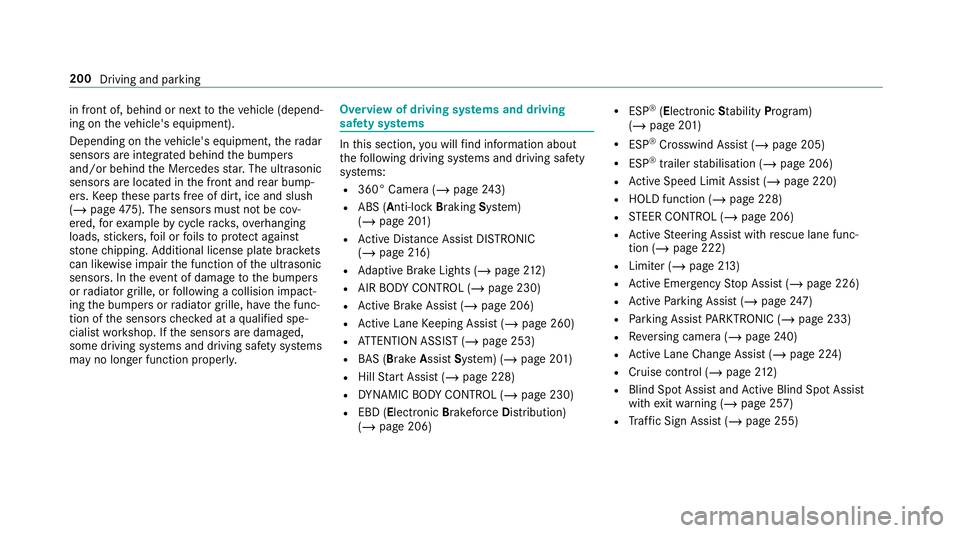
may no longer function proper ly. Overview of driving sy
stems and driving
saf ety sy stems In
this section, you will find information about
th efo llowing driving sy stems and driving saf ety
sy stems:
R 360° Camera (/ page243)
R ABS ( Anti-lo ckBra king System)
(/ page 201)
R Active Dis tance Assi stDISTRONIC
(/ page 216)
R Adaptive Brake Lights (/ page212)
R AIR BODY CONTROL (/ page 230)
R Active Brake Assi st (/ page 206)
R Active Lane Keeping Assist (/ page 260)
R ATTENTION ASSIST (/ page 253)
R BAS (Bra keAssist System) (/ page 201)
R Hill Start Assist (/ page 228)
R DYNA MIC BODY CONTROL (/ page 230)
R EBD ( Electronic Brakeforc eDistribution)
(/ page 206) R
ESP ®
(Elect ronic Stability Program)
(/ page 201)
R ESP ®
Crosswind Assist (/ page 205)
R ESP ®
trailer stabilisation (/ page 206)
R Active Speed Limit Assi st (/ page 220)
R HOLD function (/ page 228)
R STEER CONTROL (/ page 206)
R Active Steering Assist with rescue lane func‐
tion (/ page 222)
R Limiter (/ page213)
R Active Emergency Stop Assist (/ page 226)
R Active Parking Assist (/ page247)
R Parking Assist PARKTRONIC (/ page 233)
R Reversing camera (/ page240)
R Active Lane Change Assi st (/ page 224)
R Cruise control (/ page212)
R Blind Spot Assi stand Active Blind Spot Assi st
with exitwa rning (/ page 257)
R Traf fic Sign Assi st (/ page 255) 200
Driving and parking
Page 228 of 657

R
The driven speed is between 80 km/h and
18 0 km/h.
R Active Lane Change Assi stis switched on in
th e multimedia sy stem.
R Active Steering Assist is switched on and
active. If no
vehicle is de tected in the adjacent lane and
a lane change is permit ted, the lane change
begins af terth e driver has activated the turn sig‐
nal indicator. This is shown tothe driver with a
green ar row 2 next tothesteering wheel sym‐
bol. The Lane change to the left message also
appears, forex ample. If Active Lane Change
Assi sthas been activated with the turn signal indicator but a lane
change is not immediately
possible, a gr eyarrow 1appears next tothe
st eering wheel symbol, which remains green.
When the lane change assis tance starts, the turn
signal indicator is automatically activated along
with the display in the multifunction displa y.
If th e assis tance graphic is shown when chang‐
ing lanes, the lane change display appears with
an additional ar rowpointing towa rdsth e adja‐
cent lane (/ page 226).
If a lane change is not possible, the ar row fades
out af ter a few seconds and a new lane change
must be initiated. An immediate lane change is
on lypossible on mo torw ay sections without
speed limits.
If th e sy stem is impaired, Active Lane Change
Assi stmay be cancelled. If it is cancelled, the
Lane change cancelled message appears inthe
multifunction display and a warning tone sounds. &
WARNING Risk of accident from chang‐
ing lane toan occupied adjacent lane
Lane Chan geAssi stcannot al ways detect
clearly if the adjacent lane is free. The lane
change might be initiated although
th e adjacent lane is not free. #
Before changing lanes, make sure that
th e neighbouring lane is free and there
is no danger to otherroad users. #
Monitor the lane change. &
WARNING Risk of accident if Lane
Change Assi stunexpectedly stops func‐
tioning
If th e sy stem limitations for Lane Change
Assist ha vebeen reached, there is no guar‐
antee that the sy stem will remain active.
Lane Change Assist cannot then assist you
by applying steering torques. #
Alw ays monitor the lane change and
ke ep your hands on thesteering wheel.
Obser vethe tra ffic conditions and steer
and/or brake if necessar y. Driving and pa
rking 225
Page 232 of 657
Ac
tivating/deactivating the HOLD function &
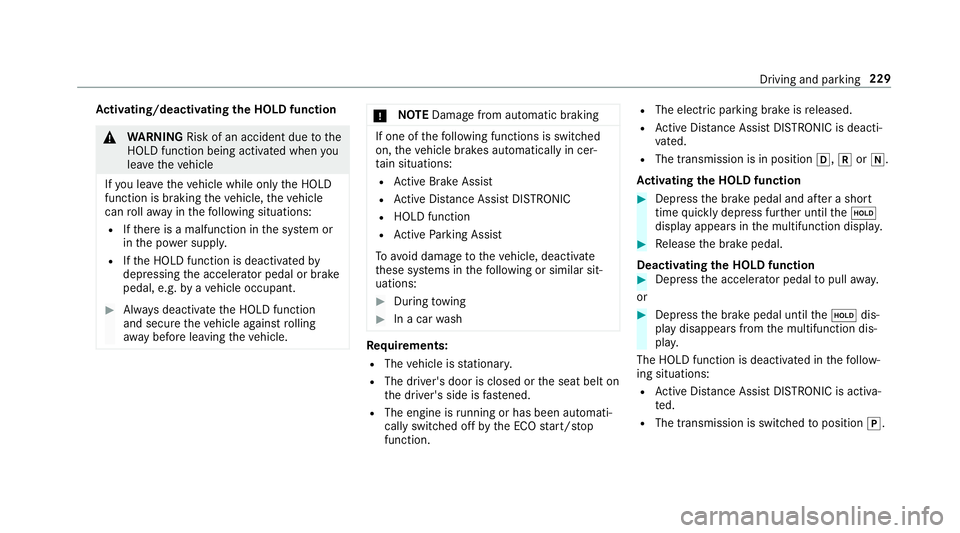
WARNING Risk of an accident due tothe
HOLD function being activated when you
lea vetheve hicle
If yo u lea vetheve hicle while only the HOLD
function is braking theve hicle, theve hicle
can rollaw ay inthefo llowing situations:
R Ifth ere is a malfunction in the sy stem or
in the po wer supp ly.
R Ifth e HOLD function is deactivated by
depressing the accelera tor pedal or brake
pedal, e.g. byave hicle occupant. #
Alw ays deactivate the HOLD function
and secure theve hicle against rolling
aw ay before leaving theve hicle. *
NO
TEDama gefrom auto matic braking If one of
thefo llowing functions is switched
on, theve hicle brakes automatically in cer‐
ta in situations:
R Active Brake Assi st
R Active Dis tance Assi stDISTRONIC
R HOLD function
R Active Parking Assist
To avo id damage totheve hicle, deactivate
th ese sy stems in thefo llowing or similar sit‐
uations: #
During towing #
In a car wash Re
quirements:
R The vehicle is stationar y.
R The driver's door is closed or the seat belt on
th e driver's side is fastened.
R The engine is running or has been au tomati‐
cally switched off bythe ECO start/ stop
function. R
The electric parking brake is released.
R Active Dis tance Assi stDISTRONIC is deacti‐
va ted.
R The transmission is in position h,kori.
Ac tivating the HOLD function #
Dep ress the brake pedal and af ter a short
time quickly depress fur ther until theë
display appears in the multifunction displa y. #
Release the brake pedal.
Deactivating the HOLD function #
Depress the accelerator pedal topull away.
or #
Depress the brake pedal until theë dis‐
play disappears from the multifunction dis‐
pla y.
The HOLD function is deactivated in thefo llow‐
ing situations:
R Active Dis tance Assi stDISTRONIC is acti va‐
te d.
R The transmission is switched toposition j. Driving and parking
229
Page 253 of 657
#
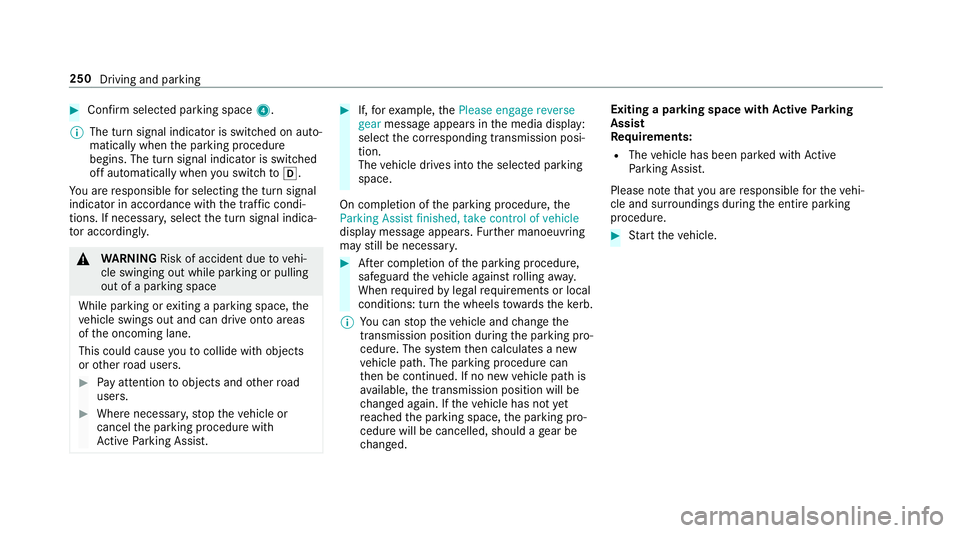
Con firm selected parking space 4.
% The turn signal indicator is switched on auto‐
matically when the parking procedure
begins. The turn signal indicator is switched
off automatically when you swit chtoh .
Yo u are responsible for selecting the turn signal
indicator in accordance with the traf fic condi‐
tions. If necessar y,select the turn signal indica‐
to r according ly. &
WARNING Risk of accident due tovehi‐
cle swinging out while parking or pulling
out of a parking space
While parking or exiting a parking space, the
ve hicle swings out and can drive onto areas
of the oncoming lane.
This could cause youto collide wi thobjects
or other road users. #
Pay attention toobjects and other road
users. #
Where necessar y,stop theve hicle or
cancel the parking procedure with
Ac tive Parking Assist. #
If,forex ample, thePlease engage reverse
gear message appears in the media display:
select the cor responding transmission posi‐
tion.
The vehicle drives into the selected parking
space.
On completion of the parking procedure, the
Parking Assist finished, take control of vehicle
display message appears. Further manoeuvring
may still be necessar y. #
After completion of the parking procedure,
safeguard theve hicle against rolling away.
When requ ired bylegal requirements or local
conditions: turn the wheels towa rdsth eke rb.
% You can stop theve hicle and change the
transmission position du ring the parking pro‐
cedure. The sy stem then calculates a new
ve hicle path. The parking procedure can
th en be continued. If no new vehicle path is
av ailable, the transmission position will be
ch anged again. If theve hicle has not yet
re ached the parking space, the parking pro‐
cedure will be cancelled, should a gear be
ch anged. Exiting a pa
rking space with Active Parking
Assist
Re quirements:
R The vehicle has been par ked with Active
Pa rking Assist.
Please no tethat you are responsible forth eve hi‐
cle and sur roundings during the entire parking
procedure. #
Start theve hicle. 250
Driving and parking
Page 278 of 657
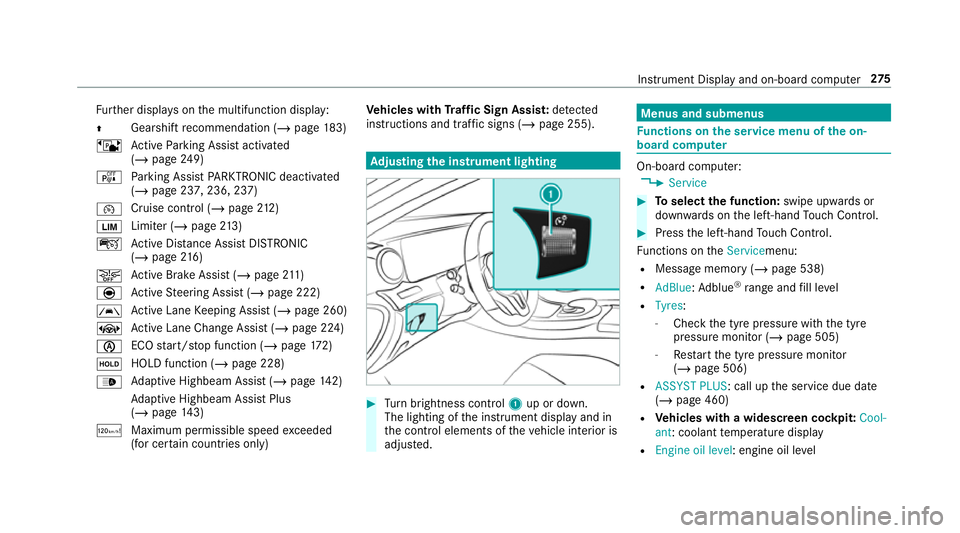
Fu
rther displa yson the multifunction display:
Z Gearshift
recommendation (/ page 183)
ë Active Parking Assist activated
(/ page 249)
é Parking Assist PARKTRONIC deacti vated
( / page 237, 236, 237)
¯ Cruise control (/
page212)
È Limi
ter (/ page213)
ç Active Dis tance Assi stDISTRONIC
(/ page 216)
æ Ac
tive Brake Assi st (/ page 211)
è Active Steering Assist (/ page 222)
à Ac
tive Lane Keeping Assist (/ page 260)
± Active Lane Change Assi st (/ page 224)
è ECO
start/ stop function (/ page172)
ë HOLD fu
nction (/ page 228)
_ Ad
aptive Highbeam Assist (/ page142)
Ad aptive Highbeam Assist Plus
(/ page 143)
ð Maximum pe rmissible speed exceeded
(for cer tain countries only) Ve
hicles with Traf fic Sign Assis t:de tected
instructions and traf fic signs (/ page 255). Ad
justing the in stru ment lighting #
Turn brightness control 1up or down.
The lighting of the instrument display and in
th e control elements of theve hicle interior is
adjus ted. Menus and submenus
Fu
nctions on the service menu of the on-
board compu ter On-board computer:
4 Service #
Toselect the function: swipe upwards or
down wards on the left-hand Touch Control. #
Press the left-hand Touch Control.
Fu nctions on theServicemenu:
R Message memory (/ page 538)
R AdBlue: Adblue ®
ra nge and fill le vel
R Tyres:
- Check the tyre pressure with the tyre
pressure monitor (/ page 505)
- Restart the tyre pressure monitor
(/ page 506)
R ASSYST PLUS: call up the service due date
(/ page 460)
R Vehicles with a widescreen cock pit:Cool-
ant: coolant temp erature display
R Engine oil level: engine oil le vel Instrument Display and on-board computer
275
Page 287 of 657
Note
s on operating saf ety&
WARNING Risk of di stra ction from infor‐
mation sy stems and communications
equipment
If yo u operate information and communica‐
tion equipment integ rated in theve hicle
when driving, you will be distracted from the
traf fic situation. This could also cause youto
lose control of theve hicle. #
Only operate this equipment when the
traf fic situation permits. #
Ifyo u cannot be sure of this, stop the
ve hicle whilst paying attention toroad
and traf fic conditions and ope rate the
equipment with theve hicle stationar y. &
WARNING Risk of an accident from
ope rating mobile communication equip‐
ment while theve hicle is in motion
Mobile communications devices distract the
driver from the traf fic situation. This could also cause
the driver tolose control of the
ve hicle. #
Asthe driver, only operate mobile com‐
munications devices when theve hicle is
st ationar y. #
As a vehicle occupant, only use mobile
communications devices in the areas
intended forth is purpose, e.g. in the
re ar passenger compartment. &
WARNING Risk of inju rydue toobjects
being stowed incor rectly
If objects in theve hicle interior are stowed
incor rectly, they can slide or be thrown
around and hit vehicle occupants. In addi‐
tion, cup holders, open stowage spaces and
mobile phone recep tacles cannot al ways
re tain all objects they contain.
The reis a risk of injur y,particularly in the
ev ent of sudden braking or a sudden change
in direction. #
Alw aysstow objects so that they can‐
not be throw n around in su chsitua‐
tions. #
Alw ays make sure that objects do not
pr otru de from stowage spaces, luggage
nets or stowage nets. #
Close the loc kable stow age spaces
before starting a journe y. #
Alw aysstow and secure heavy, hard,
poin ted, sharp-edged, fragile or bulky
objects in the boot/load compartment. Fo
ryo ur ow n sa fety, al ways obser vethefo llow‐
ing points when operating mobile communica‐
tions equipment and especially your voice con‐
trol sy stem:
R Obser vethe legal requ irements forth e coun‐
try in which you are driving.
R While driving, on ly operate mobile communi‐
cations equipment and your voice control
sy stem when the tra ffic conditions permit it.
Yo u may otherwise be distracted from the
traf fic conditions and cause an accident,
inju ring yourself and others. 284
LINGU ATRO NIC
Page 324 of 657

Themes
Overvi
ewofthemes
Yo u can configure theve hicle settings according
to yo ur preferences and sa veas a theme. A
th eme can be called up any time via the home
screen. There is then no need tomake the
desired settings again.
There are pre-defined themes available, e.g.
Journe y,Efficiency and Lounge.
Example for the use of themes
Fo rre cur ring driving situations, su chas long
drives on the mo torw ay,yo u can sa veyour pre‐
fe rred settings in a theme in theve hicle.
Yo u can sa vethefo llowing settings in a theme,
fo rex ample:
R Displa ys(e.g. navigation map or tach ome ter)
R Prefer redra dio station
R Favo ured drive program
These settings are sa ved under the name you
wish when setting up a theme (/ page 321). On
th e next mo torw ay jou rney yo u can select this
th eme and thereby restore your settings. Content of a
theme
Depending on vehicle equipment thefo llowing
settings can be sa ved in a theme:
R Setting of the Instrument Display
(/ page 270)
R Setting of the Head-up Display (/ page 281)
R Setting of the ambient lighting (/ page146)
R Active audio sou rce, e.g. radio or USB
R Starting sc reen forth e media display
R Visual style (/ page 340)
R DYNA MIC SELECT drive program
(/ page 178)
R Eco start/ stop setting (/ page174)
R Navigation sy stem settings
% Atheme conta insthe cur rently acti veset‐
tings in theve hicle.
Calling up themes
Multimedia sy stem:
4 © #
When the home screen is shown, swipe up
until THEMES appears. #
Select a theme.
Creating new themes
Re quirements:
R The settings which are tobe sa ved in the
th eme are active.
The overview sho wsthe settings which can
be sa ved in a theme (/ page 321).
Multimedia sy stem:
4 © 5
THEMES #
Select WSet theme.
The settings which are sa ved in theth eme
are shown. #
Select Continue r. #
Select additional settings which are tobe
sa ve d in theth eme.
R Select Audio, tosave the active audio set‐
tings in theth eme.
R Select Navigation (Navigation), tosave
th e active navigation settings in the
th eme. #
Select Continue r. MBUX multimedia sy
stem 321
Page 332 of 657
R
Internet
This enables youto sear chforto wns, roads and
to urist att ractions wi th the navigation sy stem,
fo rex ample.
% You can also sear chfor 3 wordaddresses
(/ page 361).
When you en ter a 3 wordaddress in the
gl obal sear ch, separate each of thewo rds
with a space or a full stop.
During the entry process the most likely sugges‐
tions are shown beneath the sear chfield. When
yo u en ter "S", "Stuttgart", "S teak" and "Sandra"
are shown, forex ample. If you select "Stuttgart",
yo ure cei vethe suggestions "S tarbuc ks", "S teak"
and "City railw ay",forex ample.
The sear chresults in the list are shown, sor ted
according tocatego ry. Next tothe category is
th e number of results. You will be shown the
best results from each categor y.Ad ditional
re sults can be found af ter selecting there spec‐
tive categor y.
If yo u confirm an entry with OK, all categories
and the number of results will be shown in a
summar y.After selecting a category you can select
the sear chresults within the categor y.
When you select a sear chresult the de tailed
view opens. In the de tailed view you can choose
whe ther and which actions youwa nttocar ryout
with there spective sear chresult. Forex ample,
yo u can start route guidance or place a call to
somebody. The actions are named cor respond‐
ing ly.
The sear chcan be car ried out with thefo llowing
input me thods:
R Entering characters using the on-screen key‐
pad
R Entering characters with handwriting recog‐
nition
R Dictation function
Using the global sear ch
Multimedia sy stem:
4 © #
Select ªSearch.
or #
Call up the notifications (/ page 327). #
Select Search. #
Ente rth e sear chterm into the sear chfield.
During the entry process theth re e most
likely suggestions are of fere d beneath the
sear chfield.
In the list on theright, theto p two sear ch
re sults are shown for each categor y.
% Use thech aracter input function
Alternativel y,yo u can use thep dictation
function forth e sear ch. #
Toaccept a suggestion: selectthe sugges‐
tion.
The thre e most likely suggestions are
of fere d. #
Continue the sear chor accept a suggestion. #
Toaccept the second sear chresult: select
th e sear chresult.
An action starts or a list is shown. #
Select a sear chresult or an action in the list. #
Toshow all categories: selectOK. #
Toshow sear chresults for a ca tegor y:
select a categor y. #
Toshow details: select a searchresult. MBUX multimedia sy
stem 329