2019 MERCEDES-BENZ GLB SUV audio
[x] Cancel search: audioPage 338 of 689
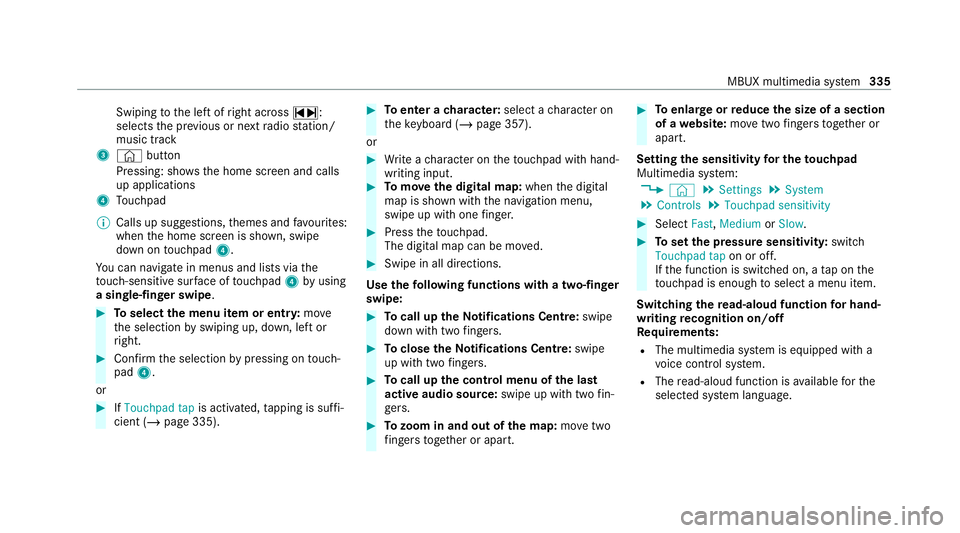
Swiping
tothe left of right across ~:
selects the pr evious or next radio station/
music track
3 © button
Pressing: sho ws the home screen and calls
up applications
4 Touchpad
% Calls up suggestions, themes and favo urites:
when the home screen is shown, swipe
down on touchpad 4.
Yo u can navigate in menus and lists via the
to uch-sensitive sur face of touchpad 4byusing
a single-finger swipe .#
Toselect the menu item or entr y:mo ve
th e selection byswiping up, down, left or
ri ght. #
Confirm the selection bypressing on touch‐
pad 4.
or #
IfTouchpad tap is activated,tapping is suf fi‐
cient (/ page 335). #
Toenter a character: select acharacter on
th eke yboard ( /page 357).
or #
Write a character on theto uchpad with hand‐
writing input. #
Tomo vethe digital map: whenthe digital
map is shown with the navigation menu,
swipe up with one finger. #
Press theto uchpad.
The digital map can be mo ved. #
Swipe in all directions.
Use thefo llowing functions with a two-finger
swipe: #
Tocall up theNo tifications Centre: swipe
down wi thtwo fingers. #
Toclose theNo tifications Centre: swipe
up wi thtwo fingers. #
Tocall up the control menu of the last
active audio source: swipe up with twofin‐
ge rs. #
Tozoom in and out of the map: movetwo
fi ngers toget her or apart. #
Toenlar georreduce the size of a section
of a website: movetwo fingers toget her or
apart.
Setting the sensitivity for the touchpad
Multimedia sy stem:
4 © 5
Settings 5
System
5 Controls 5
Touchpad sensitivity #
Select Fast,Medium orSlow . #
Toset the pressure sensitivit y:switch
Touchpad tap on or off.
If th e function is switched on, a tap on the
to uchpad is enough toselect a menu item.
Switching there ad-aloud function for hand‐
writing recognition on/off
Re quirements:
R The multimedia sy stem is equipped with a
vo ice control sy stem.
R The read-aloud function is available forthe
selected sy stem language. MBUX multimedia sy
stem 335
Page 339 of 689
Multimedia sy
stem:
4 © 5
Settings 5
System 5
Audio #
Switch Read out handwriting recognition on
or off.
If th e function is activated, characters are
re ad aloud as they are written on theto uch‐
pad.
Ac tivating/deactivating haptic ope rating
fe edba ckfor the touchpad
Multimedia sy stem:
4 © 5
Settings 5
System
5 Controls
The function supports you when making entries
on theto uchpad and when selecting menus. #
Swit chHaptic operating feedback on or off.
When the function is activated, a tactile feed‐
back in thefo rm of a vibration is ef fected
when theto uchpad is operated. Setting acou
stic operating feedba ckfor the
to uchpad
Multimedia sy stem:
4 © 5
Settings 5
System
5 Controls
The function is suppor tedby the selection in a
list. #
Select Acoustic operating feedback. #
Set Normal, LoudorOff.
If th e function is activated you will hear a
clicking sound when sc rolling in a list. When
th e beginning or end of the list is reached
yo u will hear ano ther clicking sound.
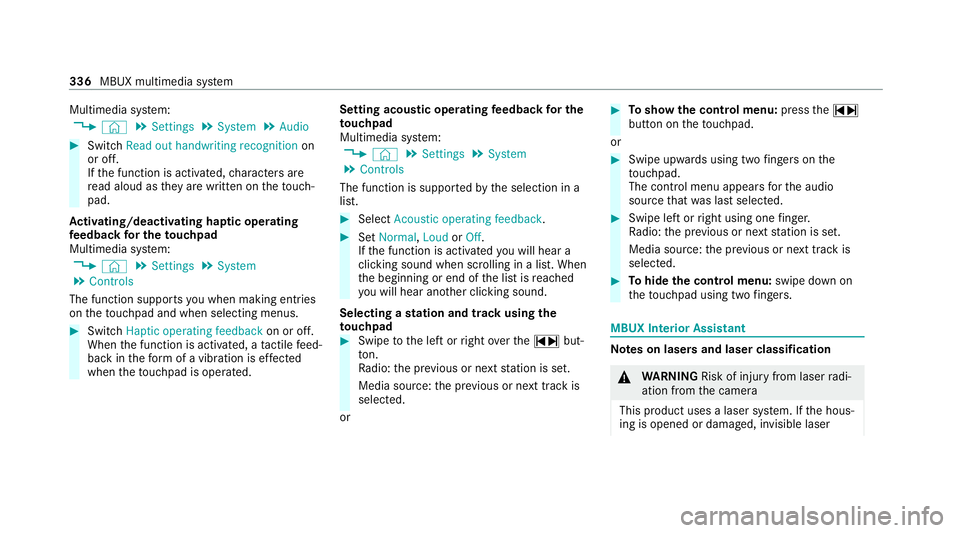
Selecting a station and track using the
to uchpad #
Swipe tothe left or right over the~ but‐
to n.
Ra dio: the pr evious or next station is set.
Media source: the pr evious or next track is
selec ted.
or #
Toshow the control menu: pressthe~
button on theto uchpad.
or #
Swipe upwards using two fingers on the
to uchpad.
The cont rol menu appears forth e audio
source that wa s last selected. #
Swipe left or right using one finger.
Ra dio: the pr evious or next station is set.
Media source: the pr evious or next track is
selec ted. #
Tohide the control menu: swipe down on
th eto uchpad using two fingers. MBUX In
terior Assistant Note
s on lasers and laser classification &
WARNING Risk of inju ryfrom laser radi‐
ation from the camera
This product uses a laser sy stem. If the hous‐
ing is opened or damaged, invisible laser 336
MBUX multimedia sy stem
Page 349 of 689
me connect when
the ignition is switched on
and off.
or #
Select Synchronise profiles now.
Af ter selecting this option, the profiles in the
ve hicle are synchronised with the profiles on
Mercedes me connect.
% During synchronisation the profile lis tand
th e profile functions are bloc ked.
% Note on data pr otection: ifyo u do not wish
to share your data with Mercedes me, make
sure that the automatic synchronisation is
switched off and do not select Synchronise
profiles now .
Showing the profile selection when entering
Re quirements:
R Atleast one profile has been created.
Multimedia sy stem:
4 © 5
f Profiles
If th e option is activated, you can see a profile as
soon as youget in. #
Select General settings. #
Activate Show profile selection when enter-
ing .
When theve hicle is star ted, the media dis‐
play sho wsthe active profile. Themes
Overview of
themes
Yo u can configure theve hicle settings according
to yo ur preferences and sa veas a theme. A
th eme can be called up any time via the home
screen. There is then no need tomake the
desired settings again.
There are pre-defined themes available, e.g.
Journe y,Efficiency and Lounge.
Example for the use of themes
Fo rre cur ring driving situations, su chas long
drives on the mo torw ay,yo u can sa veyour pre‐
fe rred settings in a theme in theve hicle.
Yo u can sa vethefo llowing settings in a theme,
fo rex ample:
R Displa ys(e.g. navigation map or tach ome ter)
R Prefer redra dio station R
Favo ured drive program
These settings are sa ved under the name you
wish when setting up a theme (/ page 347). On
th e next mo torw ay jou rney yo u can select this
th eme and thereby restore your settings.
Content of a theme
Depending on vehicle equipment thefo llowing
settings can be sa ved in a theme:
R Setting of the Instrument Display
(/ page 294)
R Setting of the Head-up Display (/ page 306)
R Setting of the ambient lighting (/ page164)
R Active audio sou rce, e.g. radio or USB
R Starting sc reen forth e media display
R Visual style (/ page 363)
R DYNA MIC SELECT drive program
(/ page 199)
R Eco start/ stop setting (/ page197)
R Navigation sy stem settings
% Atheme conta insthe cur rently acti veset‐
tings in theve hicle. 346
MBUX multimedia sy stem
Page 350 of 689
Calling up
themes
Multimedia sy stem:
4 © #
When the home screen is shown, swipe up
until THEMES appears. #
Select a theme.
Creating new themes
Re quirements:
R The settings which are tobe sa ved in the
th eme are active.
The overview sho wsthe settings which can
be sa ved in a theme (/ page 346).
Multimedia sy stem:
4 © 5
THEMES #
Select WSet theme.
The settings which are sa ved in theth eme
are shown. #
Select Continue r. #
Select additional settings which are tobe
sa ve d in theth eme.
R Select Audio, tosave the active audio set‐
tings in theth eme. R
Select Navigation (Navigation), tosave
th e active navigation settings in the
th eme. #
Select Continue r. #
Select an entry screen. #
Select Continue r. #
Select an image. #
Enter the names into the entry field and con‐
fi rm with a. #
Tosave ath eme: select Save.
When the maximum number that can be
sa ve d is reached: #
Select afromthe prom pt. #
Select a theme that should be overwritten.
The settings which are sa ved in theth eme
are shown. #
Select Continue r. #
Select additional settings which are tobe
sa ve d in theth eme.
R Select Audio, tosave the active audio set‐
tings in theth eme. R
Select Navigation (Navigation), tosave
th e active navigation settings in the
th eme. #
Select Continue r. #
Select an entry screen. #
Select Continue r. #
Select an image. #
Enter the names into the entry field and con‐
fi rm with a. #
Tosave ath eme: select Save.
Creating using theß
ß rocker switch or but‐
ton #
Press and hold the bottom section of the
ß rocker switch on thesteering wheel.
or #
Press and hold theß button next tothe
to uchpad. #
Select WSet theme.
The settings which are sa ved in theth eme
are shown. #
Select Continue r. MBUX multimedia sy
stem 347
Page 351 of 689
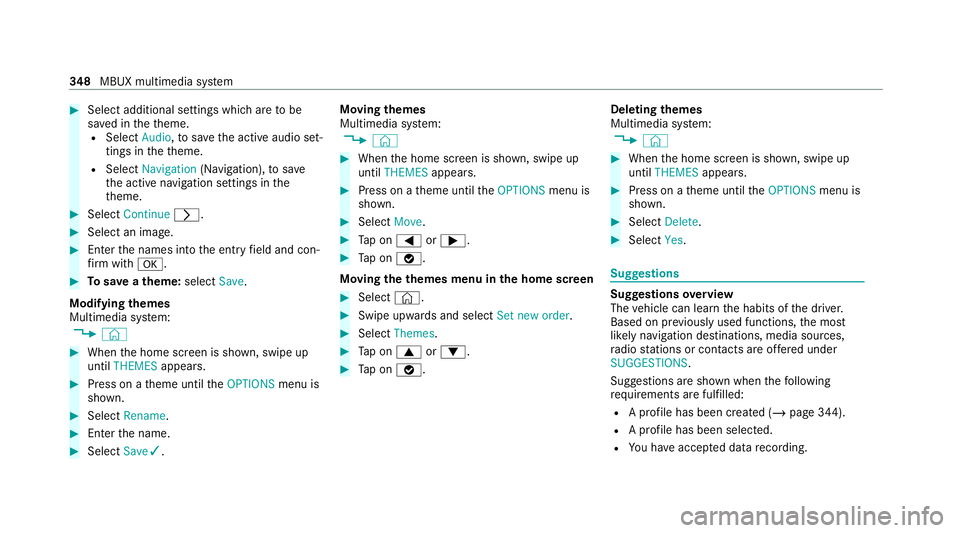
#
Select additional settings which are tobe
sa ve d in theth eme.
R Select Audio, tosave the active audio set‐
tings in theth eme.
R Select Navigation (Navigation), tosave
th e active navigation settings in the
th eme. #
Select Continue r. #
Select an image. #
Ente rth e names into the entry field and con‐
fi rm with a. #
Tosave ath eme: select Save.
Modifying themes
Multimedia sy stem:
4 © #
When the home screen is shown, swipe up
until THEMES appears. #
Press on a theme until theOPTIONS menu is
shown. #
Select Rename. #
Ente rth e name. #
Select Save✓. Moving
themes
Multimedia sy stem:
4 © #
When the home screen is shown, swipe up
until THEMES appears. #
Press on a theme until theOPTIONS menu is
shown. #
Select Move. #
Tap on = or;. #
Tap on ø.
Moving theth emes menu in the home screen #
Select ©. #
Swipe upwards and select Set new order. #
Select Themes. #
Tap on 9 or:. #
Tap on ø. Deleting
themes
Multimedia sy stem:
4 © #
When the home screen is shown, swipe up
until THEMES appears. #
Press on a theme until theOPTIONS menu is
shown. #
Select Delete. #
Select Yes. Suggestions
Suggestions
overview
The vehicle can learn the habits of the driver.
Based on pr eviously used functions, the most
likely navigation destinations, media sources,
ra dio stations or contacts are of fere d under
SUGGESTIONS.
Suggestions are shown when thefo llowing
re qu irements are fulfilled:
R A profile has been created (/ page 344).
R A profile has been selec ted.
R You ha veaccep ted data recording. 348
MBUX multimedia sy stem
Page 359 of 689
#
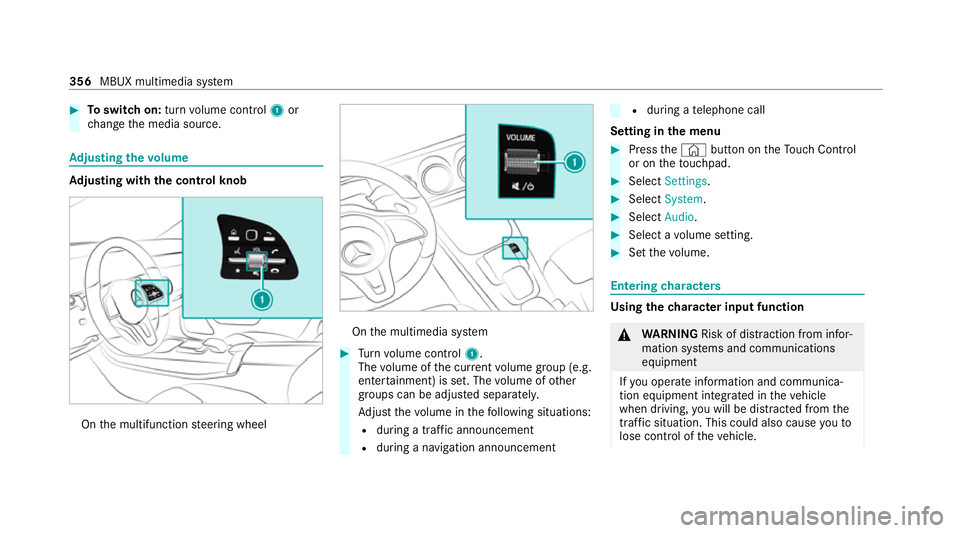
Toswitch on: turnvolume control 1or
ch ange the media source. Ad
justing the volume Ad
justing with the control knob On
the multifunction steering wheel On
the multimedia sy stem #
Turn volume control 1.
The volume of the cur rent volume group (e.g.
enter tainment) is set. The volume of other
groups can be adjus ted separatel y.
Ad just thevo lume in thefo llowing situations:
R during a traf fic announcement
R during a navigation announcement R
during a telephone call
Setting in the menu #
Press the© button on theTo uch Control
or on theto uchpad. #
Select Settings . #
Select System. #
Select Audio. #
Select a volume setting. #
Set thevo lume. Entering
characters Using
thech aracter input function &
WARNING Risk of di stra ction from infor‐
mation sy stems and communications
equipment
If yo u operate information and communica‐
tion equipment integ rated in theve hicle
when driving, you will be distracted from the
traf fic situation. This could also cause youto
lose control of theve hicle. 356
MBUX multimedia sy stem
Page 368 of 689
Setting
the da te #
Select Set date . #
Set a da te.
% Invehicles with GPS, a date cannot be set
eve n wi thactive manual time adjustments.
The date is then set automatically thro ugh
th e selected time zone. Switching
voice amplification tothere ar
on/off (vehicles with long wheelbase)Re
quirements:
R Your vehicle is equipped with the Burmes ter®
sur round sound sy stem or the Burmes ter®
high-end 3D sur round sound sy stem.
R The ignition is switched on.
R Doors, side windo wsand the panorama slid‐
ing sunroof are closed.
R Atleast one seat belt is fastened on there ar
ben chseat. Multimedia sy
stem:
4 © 5
Settings 5
System 5
Audio
5 Voice amplification
The function supports communication between
th e driver and front passenger with passengers
in there ar compartment. When voice amplifica‐
tion torear is activated, the signals pic ked up by
th e microphone are amplified and pla yed back
ove rth e speakers in there ar compartment,
depending upon vehicle noise le vels. An auto‐
matic adjustment occurs based on speaker vol‐
ume and ambient noise in order toimpr ove
speech intelligibility and maintain the natural‐
ness of speech. #
Activate or deacti vate the function.
Setting the intensity of thevo ice amplifica‐
tion #
Select Voice amplification - intensity. #
Set the intensity on the control.
Depending on the intensity set, thevo ice
amplification tothere ar is inc reased or
re duced. Connectivity
Switching transmission of
theve hicle posi‐
tion on/off
Re quirements:
R a Mercedes me account is available.
R at least one service is activated in the
Mercedes me por tal which has access tothe
transmitted position da ta.
% The function is count ry-dependent. For more
information, consult a Mercedes-Benz
service centre.
Multimedia sy stem:
4 © 5
Settings 5
System
5 Wi-Fi & Bluetooth #
Select Transmit vehicle position . #
Activate or deacti vate the function. MBUX multimedia sy
stem 365
Page 369 of 689
Blue
tooth ® Information about Blu
etoo th®
Bl ue tooth ®
tech nology is a standard for short-
ra nge wi reless data transfer up toappr oximately
10 m.
Yo u can use Blue tooth®
to connect your mobile
phone tothe multimedia sy stem and use thefo l‐
lowing functions, forex ample:
R Hands-free sy stem with access tothefo llow‐
ing options:
- con tacts (/ page 431)
- call lists (/ page 434)
- text messa ge (/page 435)
R Internet connection (/ page 459)
R Listening tomusic via Blue tooth®
audio
(/ page 472)
R Trans ferring business cards (vCards) into the
ve hicle
Blue tooth ®
is a regis tere d trademark of Blue‐
to oth Special Interest Group (SIG) Inc. %
Internet connection via Blue tooth®
is not
av ailable in all countries.
Ac tivating/deactivating Blue tooth ®
Multimedia sy stem:
4 © 5
Settings 5
System
5 Wi-Fi & Bluetooth #
Switch Bluetooth on or off. Wi
-Fi Wi
-Fi connection overview
Yo u can use Wi-Fi toestablish a connection with
a Wi -Fi network and toaccess the Internet or
ot her network devices.
The following connection options are available:
R Wi-Fi connection
The Wi-Fi connection toaWi -Fi-capable
device, e.g. the cus tomer's mobile phone or
a ta blet PC is es tablished.
R Multimedia sy stem as a Wi-Fi hotspot
Using this function, a tablet PC or no tebook
can be connec ted, forex ample. The connec‐
te d device can use the data tariff of theve hi‐ cle. A maximum of
thre e devices can be con‐
nected with the hotspot at the same time.
% The use of theve hicle data tariff by extern al
devices is not available in all countries.
To estab lish a connection, you can use thefo l‐
lowing me thods:
R WPS PIN
The connection toa secure Wi-Fi network is
made via a PIN.
R WPS PBC
The connection toa secure Wi-Fi network is
made bypressing a button (push button).
R Security key
The connection toa secure Wi-Fi network is
made via a secu rity key.
Setting up Wi-Fi
Requ irements:
R Toset up theWi -Fi connection of the mul‐
timedia sy stem with new devices: there is
no communication module ins talled.
R The device tobe connec ted supports one of
th eth re e means of connection described. 366
MBUX multimedia sy stem