Page 327 of 629
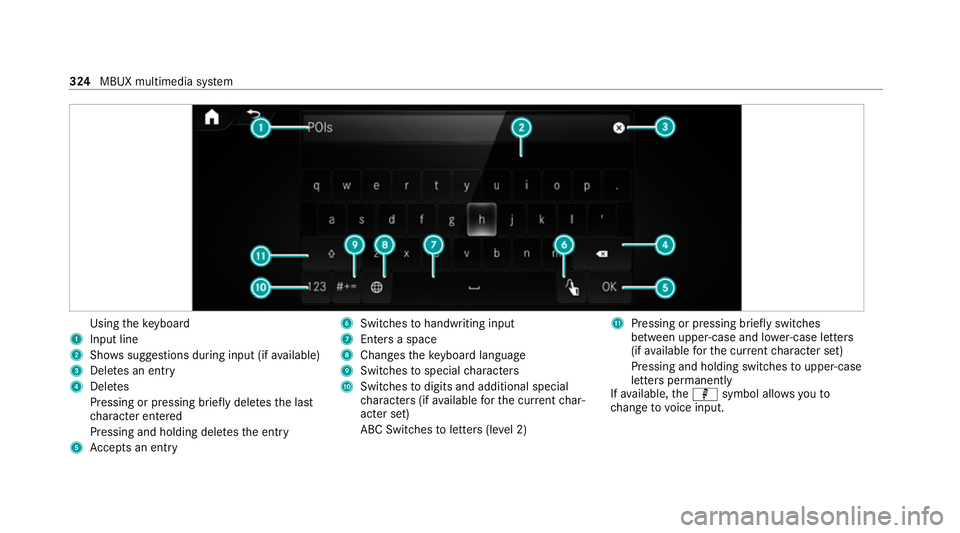
Using
theke yboard
1 Input line
2 Shows suggestions during input (if available)
3 Dele tes an entry
4 Dele tes
Pressing or pressing brief lydele testh e last
ch aracter entered
Pressing and holding dele testh e entry
5 Accepts an entry 6
Switches tohandwriting input
7 Enters a space
8 Changes theke yboard language
9 Switches tospecial characters
A Swit ches todigits and additional special
ch aracters (if available forth e cur rent char‐
acter set)
ABC Swit ches toletters (le vel 2) B
Pressing or pressing brief lyswitches
between upper-case and lo wer-case letters
(if available forth e cur rent character set)
Pressing and holding swit ches toupper-case
letters permanently
If av ailable, thep symbol allo wsyouto
ch ange tovoice input. 324
MBUX multimedia sy stem
Page 328 of 629
%
When Touchpad tap is switched on D,
ta pping is suf ficient toselect a character or
an option (/ page 301). #
Call up thech aracter ent ryto rename a
fa vo urite, forex ample (/ page317). #
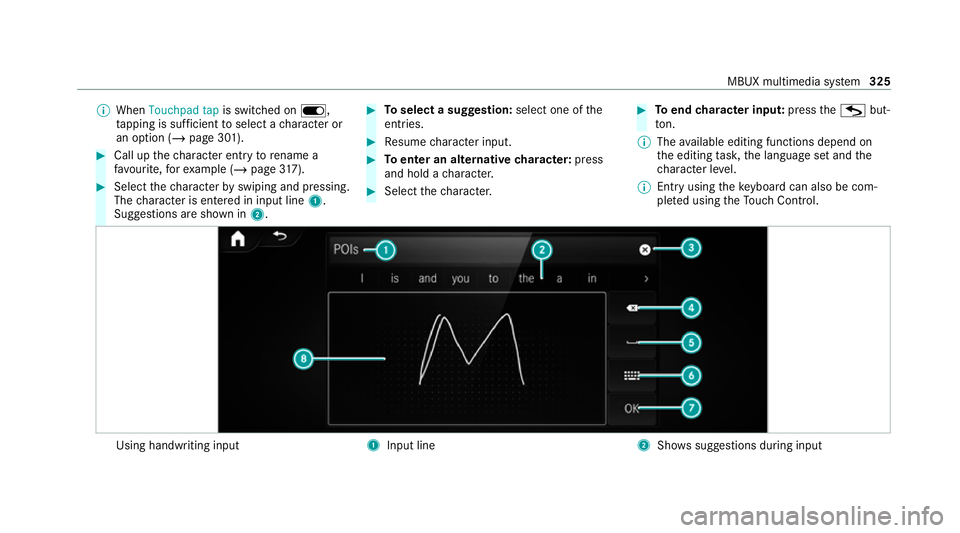
Select thech aracter byswiping and pressing.
The character is entered in input line 1.
Suggestions are shown in 2. #
Toselect a suggestion: select one ofthe
entri es. #
Resume character input. #
Toenter an alternative character: press
and hold a character. #
Select thech aracter. #
Toend character input: presstheG but‐
to n.
% The available editing functions depend on
th e editing task, the language set and the
ch aracter le vel.
% Entry using theke yboard can also be com‐
ple ted using theTo uch Control. Using handwriting input
1
Input line 2
Shows suggestions during input MBUX multimedia sy
stem 325
Page 330 of 629
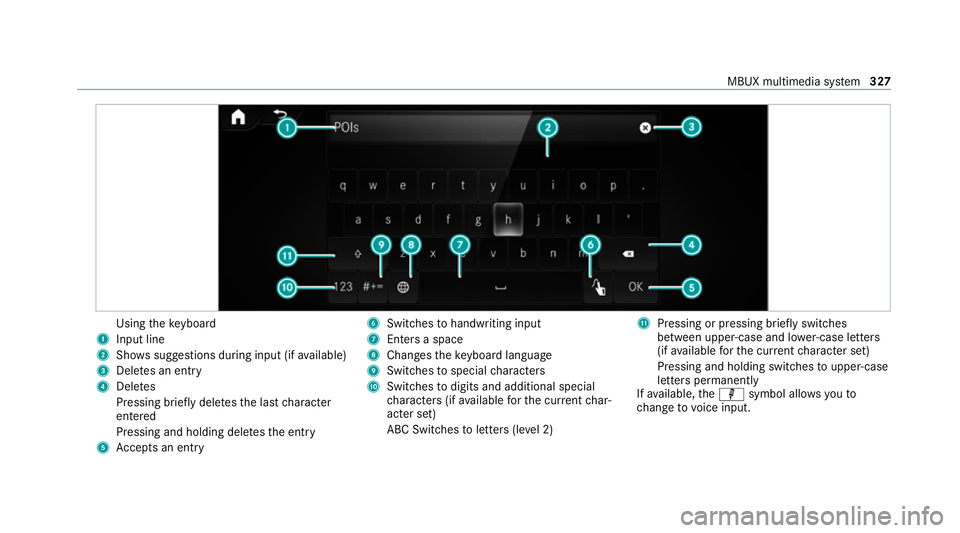
Using
theke yboard
1 Input line
2 Shows suggestions during input (if available)
3 Dele tes an entry
4 Dele tes
Pressing brief lydele testh e last character
entered
Pressing and holding dele testh e entry
5 Accepts an entry 6
Switches tohandwriting input
7 Enters a space
8 Changes theke yboard language
9 Switches tospecial characters
A Swit ches todigits and additional special
ch aracters (if available forth e cur rent char‐
acter set)
ABC Swit ches toletters (le vel 2) B
Pressing or pressing brief lyswitches
between upper-case and lo wer-case letters
(if available forth e cur rent character set)
Pressing and holding swit ches toupper-case
letters permanently
If av ailable, thep symbol allo wsyouto
ch ange tovoice input. MBUX multimedia sy
stem 327
Page 331 of 629
#
Call up thech aracter ent ryto rename a
fa vo urite, forex ample (/ page317).
The keyboard is shown. #
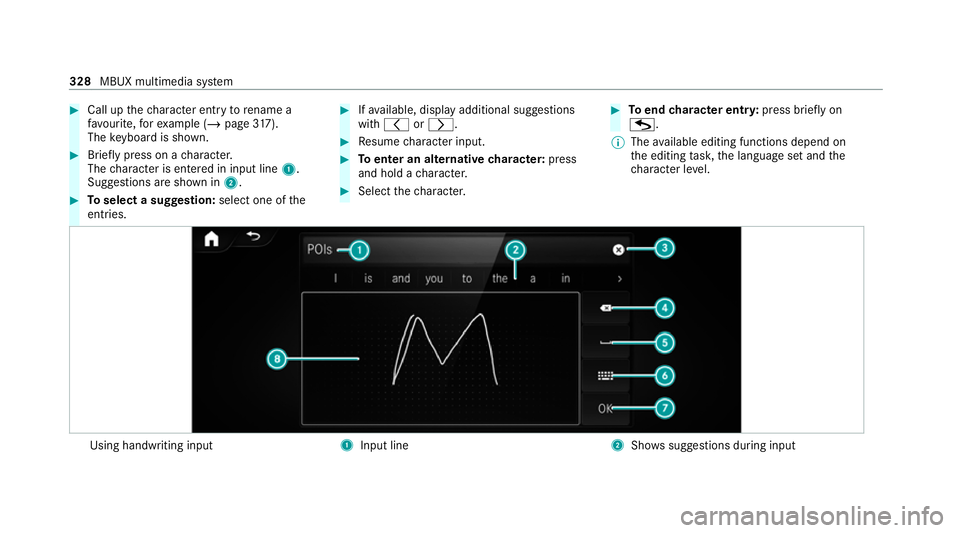
Brief lypress on a character.
The character is entered in input line 1.
Suggestions are shown in 2.#
Toselect a suggestion: select one ofthe
entri es. #
Ifav ailable, display additional suggestions
with q orr. #
Resume character input. #
Toenter an alternative character: press
and hold a character. #
Select thech aracter. #
Toend character entr y:press briefly on
G.
% The available editing functions depend on
th e editing task, the language set and the
ch aracter le vel. Using handwriting input
1
Input line 2
Showssuggestions during input 328
MBUX multimedia sy stem
Page 332 of 629
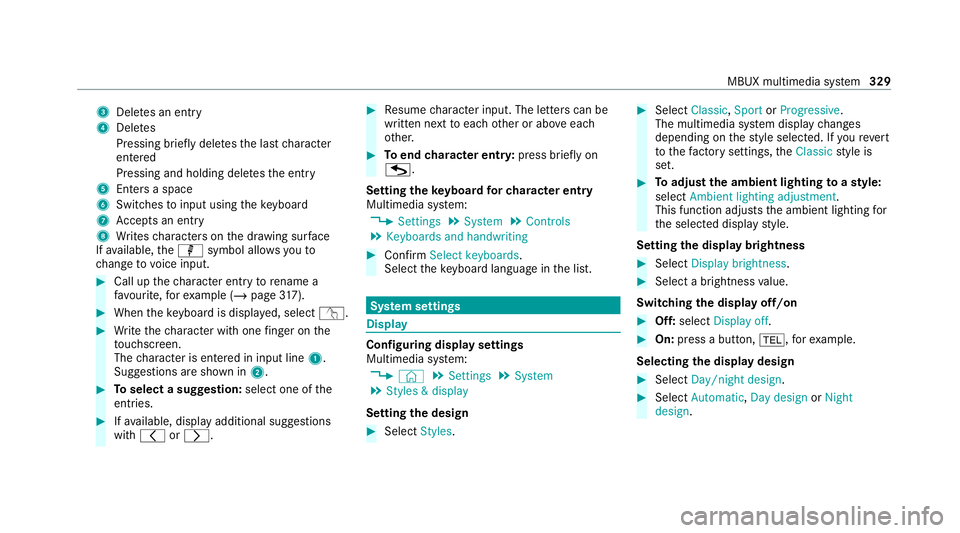
3
Deletes an entry
4 Deletes
Pressing brief lydele testh e last character
entered
Pressing and holding dele testh e entry
5 Enters a space
6 Switches toinput using theke yboard
7 Accepts an entry
8 Writes characters on the dr awing sur face
If av ailable, thep symbol allo wsyouto
ch ange tovoice input. #
Call up thech aracter ent ryto rename a
fa vo urite, forex ample (/ page317). #
When theke yboard is displa yed, select v. #
Write thech aracter with one finger on the
to uchsc reen.
The character is entered in input line 1.
Suggestions are shown in 2.#
Toselect a suggestion: select one ofthe
entri es. #
Ifav ailable, display additional suggestions
with q orr. #
Resume character input. The letters can be
written next toeach other or abo veeach
ot her. #
Toend character entr y:press briefly on
G.
Setting theke yboard forch aracter entry
Multimedia sy stem:
4 Settings 5
System 5
Controls
5 Keyboards and handwriting #
Confirm Select keyboards.
Select theke yboard language in the list. Sy
stem settings Display
Configuring display settings
Multimedia sy
stem:
4 © 5
Settings 5
System
5 Styles & display
Setting the design #
Select Styles. #
Select Classic ,Sport orProgressive .
The multimedia sy stem display changes
depending on thest yle selected. If youre ve rt
to thefa ctory settings, theClassic style is
set. #
Toadjust the ambient lighting toastyl e:
select Ambient lighting adjustment.
This function adjusts the ambient lighting for
th e selected display style.
Setting the display brightness #
Select Display brightness . #
Select a brightness value.
Switching the display off/on #
Off: select Display off . #
On: press a button, %,forex ample.
Selecting the display design #
Select Day/night design . #
Select Automatic, Day design orNight
design . MBUX multimedia sy
stem 329
Page 337 of 629
Connecting using NFC
#
Select Connect via NFC. #
Activate NFC on the mobile device (see the
manufacturer's operating instructions). #
Bring the mobile device into the NFC area of
th eve hicle (/ page 397). #
Select Finished.
The mobile device is now connected tothe
multimedia sy stem hotspot via NFC.
Generating a new security key#
Select Vehicle hotspot. #
Select Generate security key .
A connection will be es tablished with the
newly crea ted security key. #
Tosave a security key:select Save.
When a new security key is sa ved, all existing
Wi -Fi connections are then disconnected. If
th eWi -Fi connections are being re-es tab‐
lished, the new security key must be en tere d. Sy
stem language Note
s onthe sy stem language
This function allo wsyouto determ ine the lan‐
guage forth e menu displa ysand the navigation
announcements. The selected language af fects
th ech aracters available for entr y.The navigation
announcements are not available in all lan‐
guages. If a language is not available, the naviga‐
tion announcements will be in Engl ish.
Setting the sy stem language
Multimedia sy stem:
4 © 5
Settings 5
System
5 Language #
Set the language.
% Ifyo u are using Arabic map data, thete xt
information can also be shown in Arabic on
th e navigation map. Todo so, select �
Page 350 of 629
R
POI categories, e.g. Parking
R Town, POI name
R Telephone number, if this is available for
th e POI
R Contact name
Example of quick address ent ry:
R Ifyo u are sear ching forKö nigsstraße in
St utt gart,fo rex ample, you can en ter
ST UT and KÖN.
R Ifyo u are sear ching for a POI in theUn i‐
te d Kingdom, forex ample, you can en ter
THE SHARD.
If yo uwo uld like totry out bo thexamples,
yo u may also need tochange the count ry. #
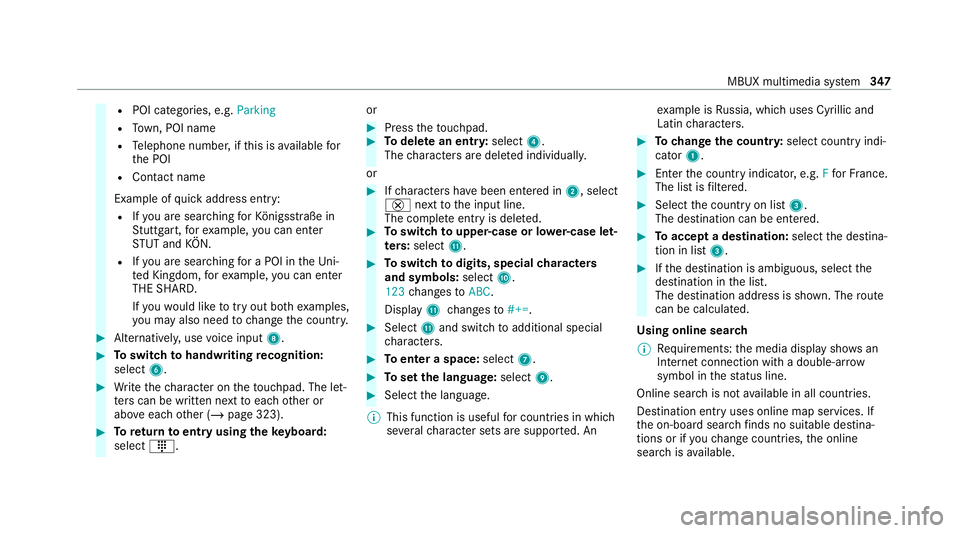
Alternati vely, use voice input 8. #
Toswitch tohandwriting recognition:
select 6. #
Write thech aracter on theto uchpad. The let‐
te rs can be written next toeach other or
abo veeach other (/ page 323). #
Toreturn toentry using theke yboard:
select _. or #
Press theto uchpad. #
Todel ete an entr y:select 4.
The characters are dele ted individually.
or #
Ifch aracters ha vebeen entered in 2, select
£ nexttothe input line.
The comple teentry is dele ted. #
Toswitch toupper-case or lo wer-case let‐
ters :select B. #
Toswitch todigits, special characters
and symbols: selectA.
123 changes toABC.
Displ ayB changes to#+=. #
Select Band switch toadditional special
ch aracters. #
Toenter a space: select7. #
Toset the language: select9. #
Select the language.
% This function is useful for countries in which
se veralch aracter sets are suppo rted. An ex
ample is Russia, which uses Cyrillic and
Latin characters. #
Tochange the count ry:select country indi‐
cator 1. #
Enter the count ryindicator, e.g. Ffo rFr ance.
The list is filtered. #
Select the count ryon list 3.
The destination can be entered. #
Toaccept a destination: selectthe destina‐
tion in list 3. #
Ifth e destination is ambiguous, select the
destination in the list.
The destination address is shown. The route
can be calculated.
Using online sear ch
% Requirements: the media display sho wsan
In te rn et connection wi tha double-ar row
symbol in thest atus line.
Online sear chis not available in all countries.
De stination ent ryuses online map services. If
th e on-board sear chfinds no suitable de stina‐
tions or if youch ange countries, the online
sear chisavailable. MBUX multimedia sy
stem 347
Page 353 of 629
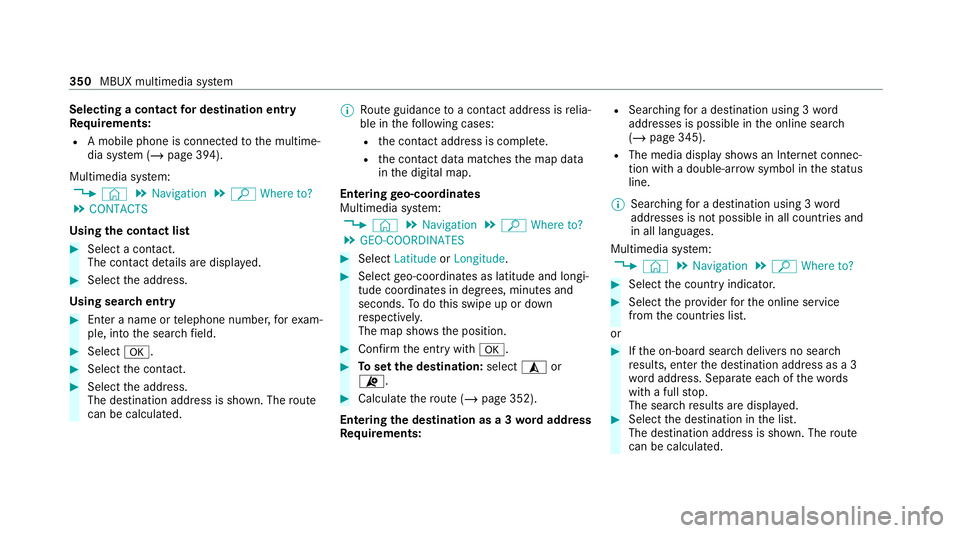
Selecting a contact
for destination entry
Re quirements:
R A mobile phone is connec tedto the multime‐
dia sy stem (/ page 394).
Multimedia sy stem:
4 © 5
Navigation 5
ª Where to?
5 CONTACTS
Using the contact list #
Select a con tact.
The contact de tails are displa yed. #
Select the address.
Using sear chentry #
Enter a name or telephone number, forex am‐
ple, into the sear chfield. #
Select a. #
Select the conta ct. #
Select the address.
The destination address is shown. The route
can be calculated. %
Route guidance toa con tact address is relia‐
ble in thefo llowing cases:
R the conta ct address is compl ete.
R the conta ct datamatches the map data
in the digital map.
Entering geo-coordina tes
Multimedia sy stem:
4 © 5
Navigation 5
ª Where to?
5 GEO-COORDINATES #
Select Latitude orLongitude. #
Select geo-coordinates as latitude and longi‐
tude coordinates in degrees, minutes and
seconds. Todo this swipe up or down
re spectivel y.
The map sho ws the position. #
Confirm the entry witha. #
Toset the destination: select¥or
¦. #
Calculate thero ute (/ page 352).
Entering the destination as a 3 wordaddress
Re quirements: R
Sear ching for a destination using 3 word
addresses is possible in the online sear ch
( / page 345).
R The media display sho wsan In tern et connec‐
tion wi tha double-ar rowsymbol in thest atus
line.
% Sear ching for a destination using 3 word
addresses is not possible in all countries and
in all languages.
Multimedia sy stem:
4 © 5
Navigation 5
ª Where to? #
Select the count ryindicator. #
Select the pr ovider forth e online service
from the count ries list.
or #
Ifth e on-board sear chdelivers no sear ch
re sults, enter the destination address as a 3
wo rdaddress. Separate each of thewo rds
with a full stop.
The sear chresults are displa yed. #
Select the destination in the list.
The destination address is shown. The route
can be calculated. 350
MBUX multimedia sy stem