2019 MASERATI LEVANTE radio controls
[x] Cancel search: radio controlsPage 210 of 436
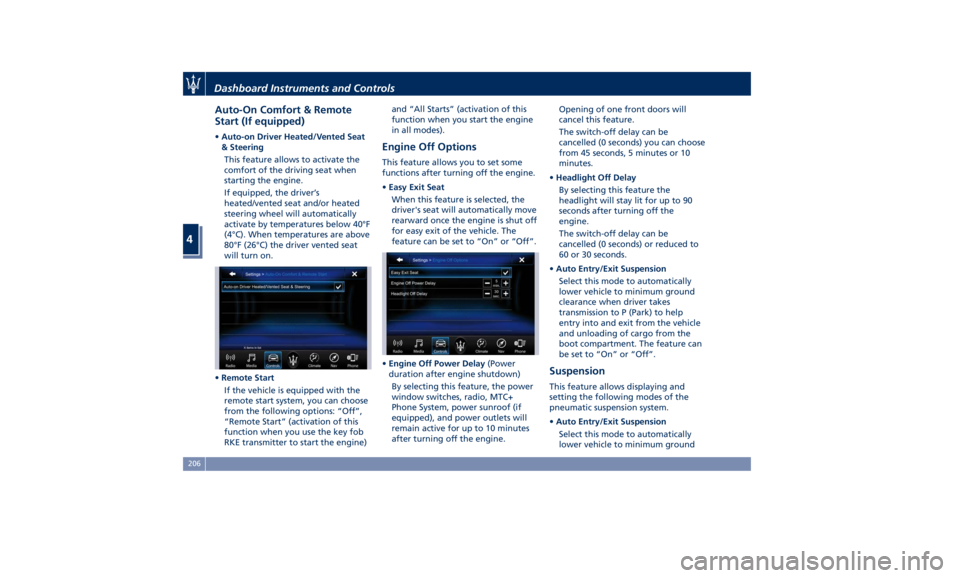
Auto-On Comfort & Remote
Start (If equipped) • Auto-on Driver Heated/Vented Seat
& Steering
This feature allows to activate the
comfort of the driving seat when
starting the engine.
If equipped, the driver’s
heated/vented seat and/or heated
steering wheel will automatically
activate by temperatures below 40°F
(4°C). When temperatures are above
80°F (26°C) the driver vented seat
will turn on.
• Remote Start
If the vehicle is equipped with the
remote start system, you can choose
from the following options: “Off”,
“Remote Start” (activation of this
function when you use the key fob
RKE transmitter to start the engine) and “All Starts” (activation of this
function when you start the engine
in all modes).
Engine Off Options This feature allows you to set some
functions after turning off the engine.
• Easy Exit Seat
When this feature is selected, the
driver's seat will automatically move
rearward once the engine is shut off
for easy exit of the vehicle. The
feature can be set to “On” or “Off”.
• Engine Off Power Delay (Power
duration after engine shutdown)
By selecting this feature, the power
window switches, radio, MTC+
Phone System, power sunroof (if
equipped), and power outlets will
remain active for up to 10 minutes
after turning off the engine. Opening of one front doors will
cancel this feature.
The switch-off delay can be
cancelled (0 seconds) you can choose
from 45 seconds, 5 minutes or 10
minutes.
• Headlight Off Delay
By selecting this feature the
headlight will stay lit for up to 90
seconds after turning off the
engine.
The switch-off delay can be
cancelled (0 seconds) or reduced to
60 or 30 seconds.
• Auto Entry/Exit Suspension
Select this mode to automatically
lower vehicle to minimum ground
clearance when driver takes
transmission to P (Park) to help
entry into and exit from the vehicle
and unloading of cargo from the
boot compartment. The feature can
be set to “On” or “Off”.
Suspension This feature allows displaying and
setting the following modes of the
pneumatic suspension system.
• Auto Entry/Exit Suspension
Select this mode to automatically
lower vehicle to minimum groundDashboard Instruments and Controls
4
206
Page 212 of 436
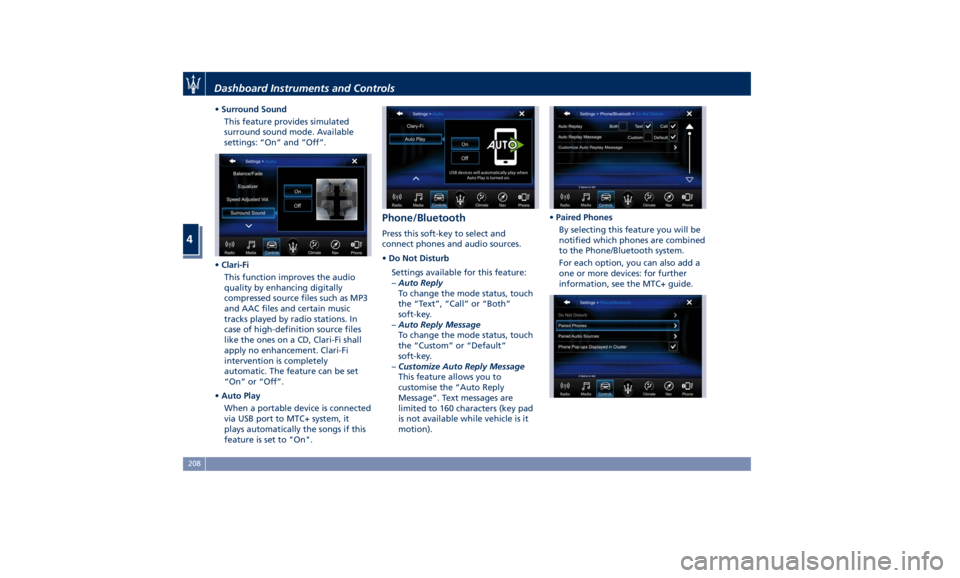
• Surround Sound
This feature provides simulated
surround sound mode. Available
settings: “On” and “Off”.
• Clari-Fi
This function improves the audio
quality by enhancing digitally
compressed source files such as MP3
and AAC files and certain music
tracks played by radio stations. In
case of high-definition source files
like the ones on a CD, Clari-Fi shall
apply no enhancement. Clari-Fi
intervention is completely
automatic. The feature can be set
“On” or “Off”.
• Auto Play
When a portable device is connected
via USB port to MTC+ system, it
plays automatically the songs if this
feature is set to "On". Phone/Bluetooth Press this soft-key to select and
connect phones and audio sources.
• Do Not Disturb
Settings available for this feature:
– Auto Reply
To change the mode status, touch
the “Text”, “Call” or “Both”
soft-key.
– Auto Reply Message
To change the mode status, touch
the “Custom” or “Default”
soft-key.
– Customize Auto Reply Message
This feature allows you to
customise the “Auto Reply
Message”. Text messages are
limited to 160 characters (key pad
is not available while vehicle is it
motion). • Paired Phones
By selecting this feature you will be
notified which phones are combined
to the Phone/Bluetooth system.
For each option, you can also add a
one or more devices: for further
information, see the MTC+ guide.Dashboard Instruments and Controls
4
208
Page 213 of 436
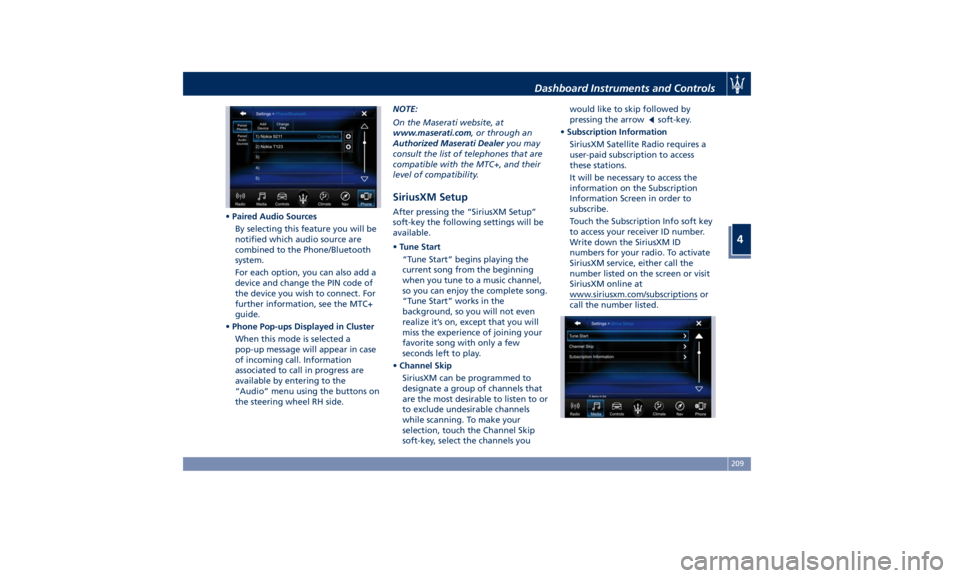
• Paired Audio Sources
By selecting this feature you will be
notified which audio source are
combined to the Phone/Bluetooth
system.
For each option, you can also add a
device and change the PIN code of
the device you wish to connect. For
further information, see the MTC+
guide.
• Phone Pop-ups Displayed in Cluster
When this mode is selected a
pop-up message will appear in case
of incoming call. Information
associated to call in progress are
available by entering to the
“Audio” menu using the buttons on
the steering wheel RH side. NOTE:
On the Maserati website, at
www.maserati.com , or through an
Authorized Maserati Dealer you may
consult the list of telephones that are
compatible with the MTC+, and their
level of compatibility.
SiriusXM Setup After pressing the “SiriusXM Setup”
soft-key the following settings will be
available.
• Tune Start
“Tune Start” begins playing the
current song from the beginning
when you tune to a music channel,
so you can enjoy the complete song.
“Tune Start” works in the
background, so you will not even
realize it’s on, except that you will
miss the experience of joining your
favorite song with only a few
seconds left to play.
• Channel Skip
SiriusXM can be programmed to
designate a group of channels that
are the most desirable to listen to or
to exclude undesirable channels
while scanning. To make your
selection, touch the Channel Skip
soft-key, select the channels you would like to skip followed by
pressing the arrow
soft-key.
• Subscription Information
SiriusXM Satellite Radio requires a
user-paid subscription to access
these stations.
It will be necessary to access the
information on the Subscription
Information Screen in order to
subscribe.
Touch the Subscription Info soft key
to access your receiver ID number.
Write down the SiriusXM ID
numbers for your radio. To activate
SiriusXM service, either call the
number listed on the screen or visit
SiriusXM online at
www.siriusxm.com/subscriptions or
call the number listed.Dashboard Instruments and Controls
4
209
Page 214 of 436
Restore Settings When this feature is selected, it will
reset the “Display”, “Clock”, “Audio”,
and “Radio Settings” to their default
settings.
Run this feature and a pop-up will
appear asking user to confirm default
settings resetting. Select “Yes” to
restore, or “Cancel” to exit. Once the
settings are restored, a pop-up appears
confirming that settings have been
reset to default and then the MTC+
will restart.
Clear Personal Data When this feature is selected, it will
remove personal data concerning
settings and/or options that have been
modified compared to factory settings
and will also remove from system
memory Bluetooth devices and presets.
To remove personal information, select
this feature and a pop-up will appear
asking confirmation to delete all
personal data. Select “OK” to clear, or
“Cancel” to exit. Once the data have
been cleared, a pop up appears
confirming that personal data have
been cleared and then the MTC+ will
restart. Dashboard Compartment There is a glove box compartment on
the passenger side of the dashboard to
store small items or documents.
WARNING!
Do not operate the vehicle with a
glove compartment lid in the open
position. Cellular phones, music
players, and other handheld electronic
devices should be stowed while
driving. Use of these devices while
driving could cause an accident due to
distraction.
CAUTION!
Do not place objects weighing over
22 lb (10 kg) in the glove box
compartment.
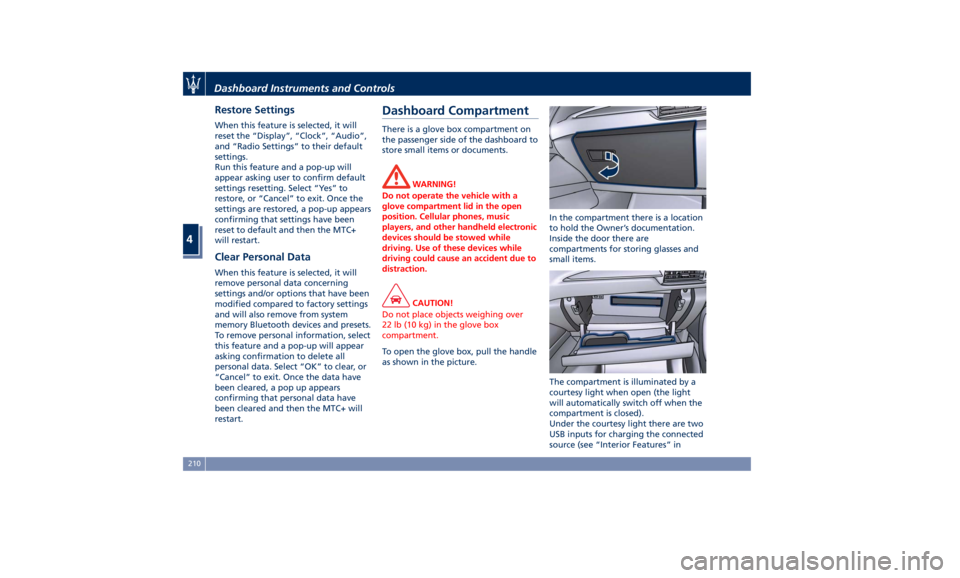
To open the glove box, pull the handle
as
shown in the picture. In the compartment there is a location
to hold the Owner’s documentation.
Inside the door there are
compartments for storing glasses and
small items.
The compartment is illuminated by a
courtesy light when open (the light
will automatically switch off when the
compartment is closed).
Under the courtesy light there are two
USB inputs for charging the connected
source (see “Interior Features” inDashboard Instruments and Controls
4
210
Page 219 of 436
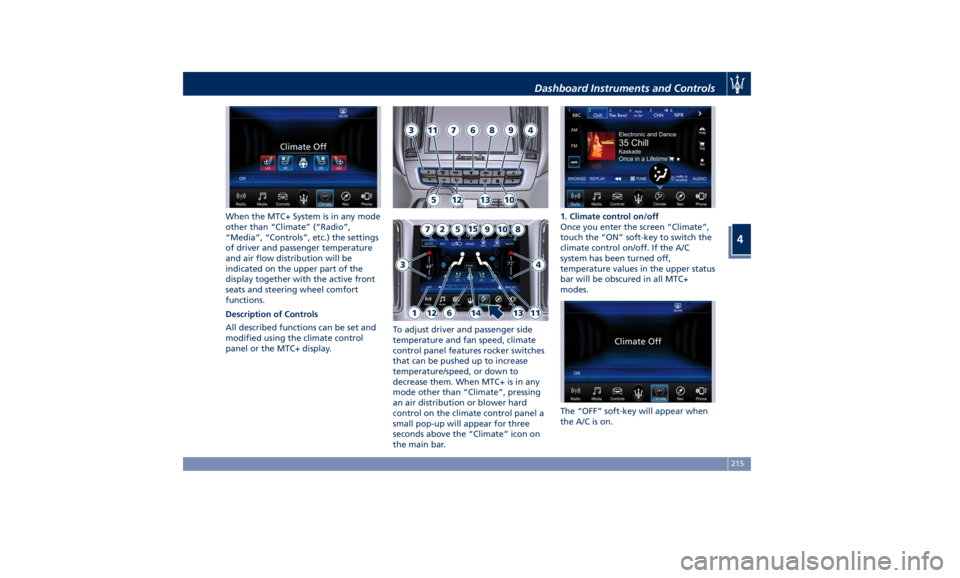
When the MTC+ System is in any mode
other than “Climate” (“Radio”,
“Media”, “Controls”, etc.) the settings
of driver and passenger temperature
and air flow distribution will be
indicated on the upper part of the
display together with the active front
seats and steering wheel comfort
functions.
Description of Controls
All described functions can be set and
modified using the climate control
panel or the MTC+ display. To adjust driver and passenger side
temperature and fan speed, climate
control panel features rocker switches
that can be pushed up to increase
temperature/speed, or down to
decrease them. When MTC+ is in any
mode other than “Climate”, pressing
an air distribution or blower hard
control on the climate control panel a
small pop-up will appear for three
seconds above the “Climate” icon on
the main bar. 1. Climate control on/off
Once you enter the screen “Climate”,
touch the “ON” soft-key to switch the
climate control on/off. If the A/C
system has been turned off,
temperature values in the upper status
bar will be obscured in all MTC+
modes.
The “OFF” soft-key will appear when
the A/C is on.Dashboard Instruments and Controls
4
215
Page 228 of 436
Phone and Voice Controls
on Steering Wheel The commands on the right side of the
steering wheel activate/deactivate the
phone mode (
) and the Voice
Recognition (
) controls functions.
These functions are only available
when one or more Bluetooth ®
compatible mobile phones are paired
with the MTC+ System connection: to
pair a phone and to learn all available
functions refer to the MTC+ guide.
NOTE:
On the Maserati website, at
www.maserati.com , or through an
Authorized Maserati Dealer you may
consult the list of telephones that are
compatible with the MTC+, and their
level of compatibility. The voice command communication
system is fully integrated with the
vehicle's audio system.
The volume can be adjusted from the
upper knob on the central console (see
“Infotainment System” in this section
or from the steering wheel radio
controls (see “Audio Controls” in this
section).
The system will automatically mute the
radio when using the phone mode.
When activating the phone mode
using voice commands with
speakerphone, you should talk quietly
in a normal conversational tone by
keeping the driving position and
turning to the microphone of the voice
command system located inside of the
internal rear-view mirror.
The ability of the system voice control
to recognize the user's voice
commands can be invalidated when
speaking too quickly or too loudly.
WARNING!
Any voice-controlled system should be
used only in safe driving conditions
following all applicable regulations.
Full attention should be kept on
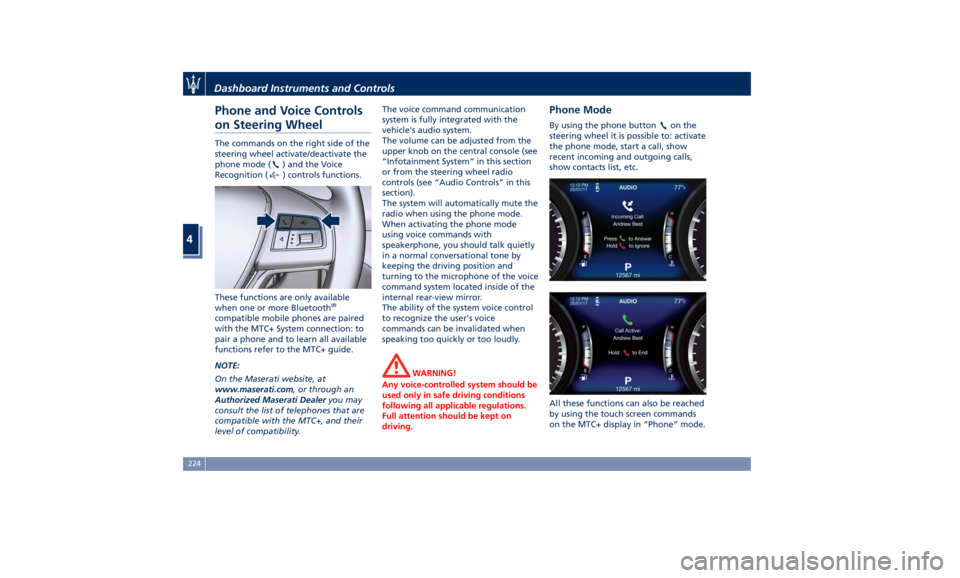
driving. Phone Mode By using the phone button on the
steering wheel it is possible to: activate
the phone mode, start a call, show
recent incoming and outgoing calls,
show contacts list, etc.
All these functions can also be reached
by using the touch screen commands
on the MTC+ display in “Phone” mode.Dashboard Instruments and Controls
4
224
Page 229 of 436
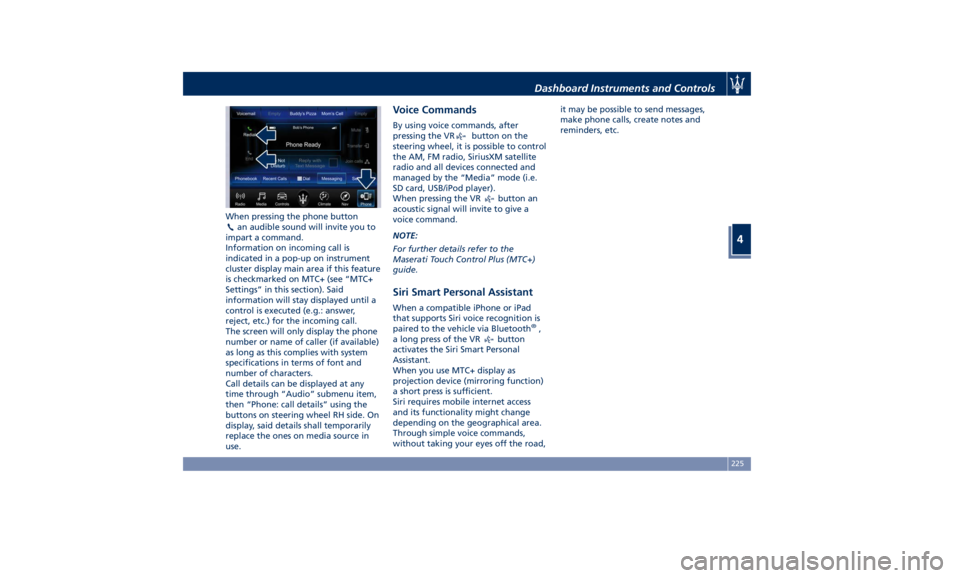
When pressing the phone button
an audible sound will invite you to
impart a command.
Information on incoming call is
indicated in a pop-up on instrument
cluster display main area if this feature
is checkmarked on MTC+ (see “MTC+
Settings” in this section). Said
information will stay displayed until a
control is executed (e.g.: answer,
reject, etc.) for the incoming call.
The screen will only display the phone
number or name of caller (if available)
as long as this complies with system
specifications in terms of font and
number of characters.
Call details can be displayed at any
time through “Audio” submenu item,
then “Phone: call details” using the
buttons on steering wheel RH side. On
display, said details shall temporarily
replace the ones on media source in
use. Voice Commands By using voice commands, after
pressing the VR
button on the
steering wheel, it is possible to control
the AM, FM radio, SiriusXM satellite
radio and all devices connected and
managed by the “Media” mode (i.e.
SD card, USB/iPod player).
When pressing the VR
button an
acoustic signal will invite to give a
voice command.
NOTE:
For further details refer to the
Maserati Touch Control Plus (MTC+)
guide.
Siri Smart Personal Assistant When a compatible iPhone or iPad
that supports Siri voice recognition is
paired to the vehicle via Bluetooth ®
,
a long press of the VR
button
activates the Siri Smart Personal
Assistant.
When you use MTC+ display as
projection device (mirroring function)
a short press is sufficient.
Siri requires mobile internet access
and its functionality might change
depending on the geographical area.
Through simple voice commands,
without taking your eyes off the road, it may be possible to send messages,
make phone calls, create notes and
reminders, etc.
Dashboard Instruments and Controls
4
225
Page 312 of 436

(Continued)
• The BSA system is not designed to
detect pedestrians, cyclists, or
animals.
• Even if your vehicle is equipped with
the BSA system, always check your
vehicle’s outside and rearview
mirrors for any vehicles approaching
from behind or overtaking.
• Use your turn signal before changing
lanes.
RCP - Rear Cross Path The Rear Cross Path (RCP) feature is
intended to aid the drivers when gear
in reverse of parking spaces where
their vision of oncoming vehicles may
be blocked.
The RCP system monitors the rear
detection zones on both sides of the
vehicle. Using sensors located on either
side of the rear bumper, it detects any
vehicles or objects that are moving
toward the side of the vehicle with a
minimum speed of approximately 1 to
2 mph (1 km/h to 3 km/h) to a
maximum of approximately 10 mph
(16 km/h), such as in parking lot
situations. NOTE:
In a parking lot situation, oncoming
vehicles can be obscured by vehicles
parked on either side. If the sensors
are blocked by other structures or
vehicles, the system will not be able to
alert the driver.
Proceed slowly and cautiously out of
the parking space until the rear end of
the vehicle is moderately exposed.
The RCP system will then have a clear
view of the cross traffic. If an
oncoming vehicle is detected, the RCP
system will alert the driver using both
the visual and audible alarms. If the
radio is on, it will also reduce the radio
volume.
WARNING!
RCP is not a Back Up Aid system. More specifically, it is intended to be used to
help a driver detect an oncoming
vehicle in a parking lot situation.
Drivers must be careful when backing
up, even when using RCP. Always
check carefully behind your vehicle,
look behind you, and be sure to check
for pedestrians, animals, other
vehicles, obstructions, and blind spots
before backing up. Failure to do so can
result in serious injury or death.
BSA and RCP Setting Setting modes can be selected from
the MTC+ System.
Touch “Controls” soft-key and then
“Blind Spot Assist” soft-key to enter
the setting page.
Refer to chapter “MTC+ “Controls”
Screen” in section “Dashboard
Instruments and Controls” for further
information.Driving
5
308