2019 LINCOLN NAVIGATOR warning
[x] Cancel search: warningPage 243 of 645

When you shift to reverse (R), the sidesensing system provides audible warningswhen your vehicle is moving and obstaclesare detected within 24 in (60 cm) and areinside the driving path of your vehicle. Whenyou stop your vehicle the audible warningstops after two seconds.
Note:Visual distance indication remains onwhen the transmission is in reverse (R).
When you shift to drive (D) or any otherforward gear, for example, low (L), sport (S)or any forward gear in manual transmission,the side sensing system provides audibleand visual distance warnings when yourvehicle is moving below a speed of 5 mph(8 km/h) and obstacles are detected within24 in (60 cm) and are inside the driving pathof your vehicle. Once your vehicle reachesa standstill condition, the audible warningstops after two seconds and visual indicationstops after four seconds.
If the transmission is in neutral (N), the sidesensing system provides visual distanceindication only when your vehicle is movingbelow a speed of 5 mph (8 km/h) and thereis a front or rear parking aid obstacledetected, and the side obstacle is within24 in (60 cm) from the side of your vehicle.When you stop your vehicle the visualdistance indication stops after four seconds.
If the side sensing system is not available,the side distance indicator blocks do notappear.
The side sensing system is not availableunder the following condition:
•If you switch the traction control systemoff.
The side sensing system may not beavailable until you have driven approximatelythe length of your vehicle in order for thesystem to reinitialize if:
•You switch the ignition on, off and backon.
•Your vehicle remains stationary for overtwo minutes.
•The anti-lock brake system is activated.
•The traction control system is activated.
•When the steering wheel angleinformation is not available, the sidesensing system is not available. Thevehicle must be driven at least 492 ft(150 m) above 19 mph (30 km/h) torecover the steering wheel angleinformation.
ACTIVE PARK ASSIST (IF EQUIPPED)
WARNING: You must remain in yourvehicle when the system turns on. At alltimes, you are responsible for controllingyour vehicle, supervising the system andintervening, if required. Failure to take caremay result in the loss of control of yourvehicle, serious personal injury or death.
WARNING: The sensors may notdetect objects in heavy rain or otherconditions that cause interference.
240
Navigator (TB9) Canada/United States of America, enUSA, Edition date: 201808, First-Printing
Parking Aids
Page 244 of 645

WARNING: Active park assist doesnot apply the brakes under anycircumstances.
WARNING: You are responsible forcontrolling your vehicle at all times. Thesystem is designed to be an aid and doesnot relieve you of your responsibility todrive with due care and attention. Failureto follow this instruction could result in theloss of control of your vehicle, personalinjury or death.
Active park assist is a multi-step process andmay require you to shift the transmissionmultiple times. Follow the onscreeninstructions until the parking maneuver iscomplete.
If you are uncomfortable with the proximityto any vehicle or object, you may choose tooverride the system by grabbing the steeringwheel, or by taking full control of your vehicleafter pressing the active park assist button.
Keep your hands, hair, clothing and anyloose items clear of the steering wheel whenusing active park assist.
The sensors are on the front and rearbumpers.
Note:Keep the sensors free from snow, iceand large accumulations of dirt.
Note:Do not cover up the sensors.
Note:Do not clean the sensors with sharpobjects.
Note:The sensors may not detect objectswith surfaces that absorb ultrasonic waves.The sensors may falsely detect objects dueto ultrasonic interference caused bymotorcycle exhausts, truck air brakes orhorns, for example.
Note:If you change any tires, the systemmust recalibrate and may not correctlyoperate for a short time.
The system may not correctly operate in anyof the following conditions:
•You use a spare tire or a tire that issignificantly worn more than the othertires.
•One or more tires are incorrectly inflated.
•You try to park on a tight curve.
•Something passes between the frontbumper and the parking space. Forexample, a pedestrian or cyclist.
•The edge of the neighboring parkedvehicle is high off the ground. Forexample, a bus, tow truck or flatbedtruck.
•The weather conditions are poor. Forexample, during heavy rain, snow, fog,high humidity and high temperatures.
Do not use the system if:
•You have attached an add-on accessoryclose to the sensors on the front or rearof your vehicle. For example, a bike rackor trailer.
•You have attached an overhangingobject to the roof. For example, asurfboard.
•The front bumper, rear bumper or theside sensors are damaged.
•The correct tire size is not in use on yourvehicle. For example, a mini-spare tire.
241
Navigator (TB9) Canada/United States of America, enUSA, Edition date: 201808, First-Printing
Parking Aids
Page 252 of 645

REAR VIEW CAMERA
WARNING: The rear view camerasystem is a reverse aid supplement devicethat still requires the driver to use it inconjunction with the interior and exteriormirrors for maximum coverage.
WARNING: Objects that are close toeither corner of the bumper or under thebumper, might not be seen on the screendue to the limited coverage of the camerasystem.
WARNING: Reverse your vehicleslowly. Failure to follow this instructioncould result in the loss of control of yourvehicle, personal injury or death.
WARNING: Use caution when therear cargo door is ajar. If the rear cargodoor is ajar, the camera will be out ofposition and the video image may beincorrect. All guidelines disappear whenthe rear cargo door is ajar. Failure to followthis instruction could result in personalinjury.
WARNING: Use caution when turningcamera features on or off when thetransmission is not in park (P). Make sureyour vehicle is not moving.
The rear view camera system provides avideo image of the area behind your vehicle.
During operation, lines appear in the displaywhich represent your vehicle’s path andproximity to objects behind your vehicle.
The camera is located on the luggagecompartment door, above the license plate.
Using the Rear View Camera System
The rear view camera system displays whatis behind your vehicle when you place thetransmission in reverse (R).
Note:The reverse sensing system is noteffective at speeds above 3 mph (5 km/h)and may not detect certain angular ormoving objects.
249
Navigator (TB9) Canada/United States of America, enUSA, Edition date: 201808, First-Printing
Parking AidsE142435
Page 254 of 645

Fixed guideline: Yellow zoneD
Fixed guideline: Red zoneE
Rear bumperF
Active guidelines are only shown with fixedguidelines. To use active guidelines, turnthe steering wheel to point the guidelinestoward an intended path. If you change thesteering wheel position while reversing, yourvehicle might deviate from the originalintended path.
The fixed and active guidelines fade in andout depending on the steering wheelposition. The active guidelines do notdisplay when the steering wheel position isstraight.
Always use caution while reversing. Objectsin the red zone are closest to your vehicleand objects in the green zone are fartheraway. Objects are getting closer to yourvehicle as they move from the green zoneto the yellow or red zones. Use the side viewmirrors and rear view mirror to get bettercoverage on both sides and rear of thevehicle.
Obstacle Distance Indicator (If Equipped)
The system will provide an image of yourvehicle and the sensor zones. The zones willhighlight green, yellow and red when theparking aid sensors detect an object in thecoverage area.
Manual Zoom
WARNING: When manual zoom ison, the full area behind your vehicle maynot show. Be aware of your surroundingswhen using the manual zoom feature.
Note:Manual zoom is only available whenthe transmission is in reverse (R).
Note:When you enable manual zoom, onlythe centerline is shown.
Selectable settings for this feature are Zoomin (+) and Zoom out (-). Press the symbol inthe camera screen to change the view. Thedefault setting is Zoom OFF.
This allows you to get a closer view of anobject behind your vehicle. The zoomedimage keeps the bumper in the image toprovide a reference. The zoom is only activewhile the transmission is in reverse (R).
Rear Camera Delay
Selectable settings for this feature are ONand OFF.
251
Navigator (TB9) Canada/United States of America, enUSA, Edition date: 201808, First-Printing
Parking AidsE190459
Page 255 of 645

The default setting for the rear camera delayis OFF.
When shifting the transmission out of reverse(R) and into any gear other than park (P), thecamera image remains in the display until:
•Your vehicle speed reachesapproximately 6 mph (10 km/h).
•You shift your vehicle into park (P).
360 DEGREE CAMERA (IF EQUIPPED)
WARNING: The 360 degree camerasystem still requires the driver to use it inconjunction with looking out of thewindows, and checking the interior andexterior mirrors for maximum coverage.
WARNING: Objects that are close toeither corner of the bumper or under thebumper, might not be seen on the screendue to the limited coverage of the camerasystem.
WARNING: Use caution when turningcamera features on or off when thetransmission is not in park (P). Make sureyour vehicle is not moving.
Note:The 360 degree camera system turnsoff when your vehicle is in motion at lowspeed, except when in reverse (R).
The 360 degree camera system consists offront, side and rear cameras. The system:
•Allows you to see what is directly in frontor behind your vehicle.
•Provides cross traffic view in front andbehind your vehicle.
•Allows you to see a top-down view of thearea outside your vehicle, including theblind spots.
•Provides visibility around your vehicle toyou in parking maneuvers such as:
•Centering in a parking space.
•Obstacles near vehicle.
•Parallel parking.
Camera Views
The front camera enable button islocated near the display screenand turns on the front camerawhen your vehicle is not in reverse (R).
When in park (P), neutral (N) or drive (D), onlyimages from the front cameras are displayed.Press the camera button to display the frontcamera image on the display screen.
When in reverse (R), only images from therear cameras are displayed. When you shiftinto reverse (R), the rear view camera imageautomatically shows on the display screen.
Advanced Camera Views (If Equipped)
Additional camera views may beavailable for vehicles with specificfeatures. Press the small cameraicon shown on the top left corner of thedisplay screen to open the camera viewmenu.
252
Navigator (TB9) Canada/United States of America, enUSA, Edition date: 201808, First-Printing
Parking AidsE205884 E233726
Page 256 of 645
The following camera views can be accessedin park (P), neutral (N) or drive (D) when youpress the camera button:
•Front 360 + Normal: Contains the normalfront camera view next to a 360 degreecamera view.
•Front Normal View: Provides an imageof what is directly in front of your vehicle.
•Front Split View: Provides an extendedview of what is in front of your vehicle.
The following camera views can be accessedwhen you shift into reverse (R):
•Rear 360 + Normal: Contains the normalrear camera view next to a 360 degreecamera view. Press the zoom (+) buttonto quickly access Rear Normal View fromthis screen.
•Rear Normal View: Provides an imageof what is directly behind your vehicle.
•Rear Split View: Provides an extendedview of what is behind your vehicle.
Keep Out Zone
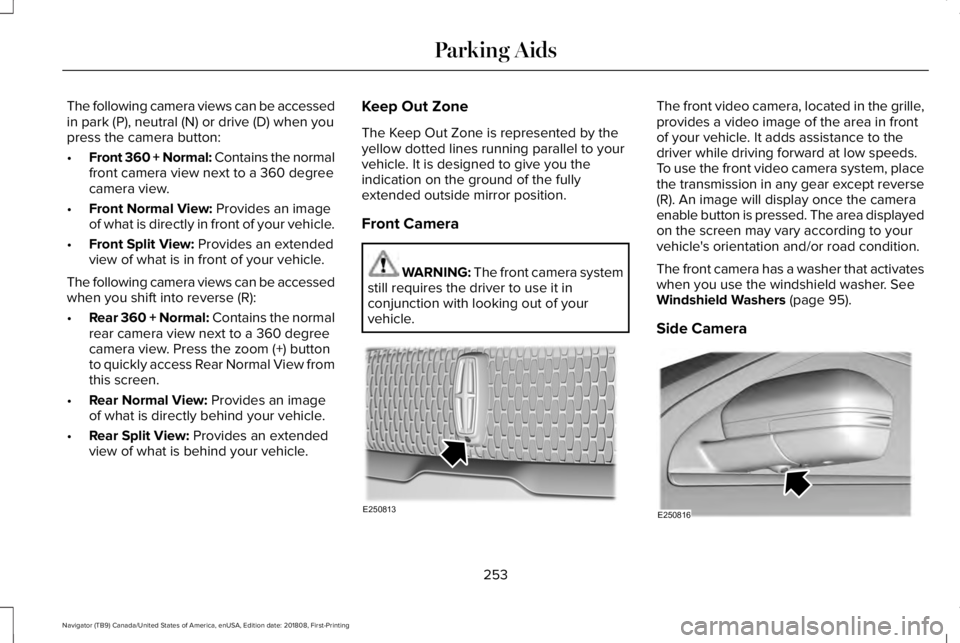
The Keep Out Zone is represented by theyellow dotted lines running parallel to yourvehicle. It is designed to give you theindication on the ground of the fullyextended outside mirror position.
Front Camera
WARNING: The front camera systemstill requires the driver to use it inconjunction with looking out of yourvehicle.
The front video camera, located in the grille,provides a video image of the area in frontof your vehicle. It adds assistance to thedriver while driving forward at low speeds.To use the front video camera system, placethe transmission in any gear except reverse(R). An image will display once the cameraenable button is pressed. The area displayedon the screen may vary according to yourvehicle's orientation and/or road condition.
The front camera has a washer that activateswhen you use the windshield washer. SeeWindshield Washers (page 95).
Side Camera
253
Navigator (TB9) Canada/United States of America, enUSA, Edition date: 201808, First-Printing
Parking AidsE250813 E250816
Page 258 of 645

PRINCIPLE OF OPERATION
Cruise control lets you maintain a set speedwithout keeping your foot on the acceleratorpedal. You can use cruise control when yourvehicle speed is greater than 20 mph(30 km/h).
USING CRUISE CONTROL (IF EQUIPPED)
WARNING: Do not use cruise controlon winding roads, in heavy traffic or whenthe road surface is slippery. This couldresult in loss of vehicle control, seriousinjury or death.
WARNING: When you are goingdownhill, your vehicle speed couldincrease above the set speed. The systemdoes not apply the brakes.
To help the system to maintain the set speedwhen going downhill, downshift to a lowergear.
Your vehicle speed could decrease belowthe set speed when driving uphill.
Note:The system cancels if your vehiclespeed drops below 10 mph (16 km/h) underthe set speed when driving uphill.
The cruise controls are on the steeringwheel. A more detailed graphic is in theSteering Wheel information. See CruiseControl (page 90).
Switching Cruise Control On
Press and release the button.
The indicator appears in theinformation display.
Setting the Cruise Speed
Drive to your preferred speed.
Press and release to set thecurrent speed.
Press and release to set thecurrent speed.
Take your foot off the accelerator pedal.
Note:The indicator changes color.
Changing the Set Speed
Press and release to increase theset speed in small increments.
Press and release to decrease theset speed in small increments.
Press and hold either button to accelerateor decelerate, respectively. Release thebutton when you reach your preferred speed.
255
Navigator (TB9) Canada/United States of America, enUSA, Edition date: 201808, First-Printing
Cruise ControlE262918 E265296 E71340
Page 259 of 645

Press the accelerator or brake pedal untilyou reach your preferred speed. Press eitherbutton.
Note: If you accelerate by pressing only theaccelerator pedal, the set speed does notchange. When you release the acceleratorpedal, your vehicle returns to the speed youpreviously set.
Canceling the Set Speed
Press the button, or tap the brakepedal to cancel the set speed.
Note:The system remembers the set speed.
Resuming the Set Speed
Press to resume the set speed.
Switching Cruise Control Off
Press and release the button whenthe system is in standby mode orswitch the ignition off.
Note:You erase the set speed when youswitch the system off.
USING ADAPTIVE CRUISE
CONTROL (IF EQUIPPED)
WARNING: Always pay closeattention to changing road conditions whenusing adaptive cruise control. The systemdoes not replace attentive driving. Failingto pay attention to the road may result ina crash, serious injury or death.
WARNING: Do not use the adaptivecruise control when entering or leaving ahighway, on roads with intersections orroundabouts or non-vehicular traffic orroads that are winding, slippery, unpaved,or steep slopes.
WARNING: Do not use the systemin poor visibility, for example fog, heavyrain, spray or snow.
WARNING: Do not use the systemwhen towing a trailer that has aftermarketelectronic trailer brake controls. Failure tofollow this instruction could result in theloss of control of your vehicle, personalinjury or death.
WARNING: Do not use tire sizesother than those recommended becausethis can affect the normal operation of thesystem. Failure to do so may result in a lossof vehicle control, which could result inserious injury.
WARNING: Adaptive cruise controlmay not detect stationary or slow movingvehicles below 6 mph (10 km/h).
WARNING: Adaptive cruise controldoes not detect pedestrians or objects inthe road.
WARNING: Adaptive cruise controldoes not detect oncoming vehicles in thesame lane.
256
Navigator (TB9) Canada/United States of America, enUSA, Edition date: 201808, First-Printing
Cruise Control E265297