Page 431 of 792
4315-4. Using the radio
5
Lexus Display Audio system
RX450h_RX450hL_U
Page 433 of 792
433
5
Lexus Display Audio system
RX450h_RX450hL_U5-5. Playing an audio CD and MP3/WMA/AAC discs
Pressing the “MEDIA” button displays the
CD top screen from any screen of the
selected source.
■Menu screen
P. 423
■Selecting a track/file
Press the “ PRST” or “TRACK ” button or turn the “TUNE•SCROLL” knob
to select the desired track/file number.
To fast-forward or rewind, press and hold the “ PRST” or “TRACK ” button.
■Selecting the track by the list (CD)
Move the controller to the right an d then select the desired track.
■Selecting a folder (MP3/WMA/AAC disc)
Move the controller to the ri ght and then select “Folders”.
Select the desired folder. Then select a file to begin using the selected
folder.
■Selecting a file by the selected folder (MP3/WMA/AAC disc)
Move the controller to the right and then select “Files”.
Select the desired file.
CD player operation
Insert a disc, press the “MEDIA” butto n or select “DISC” on the “Source”
screen with a disc inserted to begin listening to a CD.
CD top screen
1
2
1
2
Page 435 of 792

4355-5. Playing an audio CD and MP3/WMA/AAC discs
5
Lexus Display Audio system
RX450h_RX450hL_U
●MP3 file compatibility
• Compatible standards MP3 (MPEG1 LAYER3, MPEG2 LSF LAYER3)
• Compatible sampling frequencies MPEG1 LAYER3: 32, 44.1, 48 (kHz)
MPEG2 LSF LAYER3: 16, 22.05, 24 (kHz)
• Compatible bit rates (compatible with VBR) MPEG1 LAYER3: 32-320 (kbps)
MPEG2 LSF LAYER3: 8-160 (kbps)
• Compatible channel modes: stereo, jo int stereo, dual channel and monaural
●WMA file compatibility
• Compatible standards
WMA Ver. 7, 8, 9 (only compatible with Window Media Audio Standard)
• Compatible sampling frequencies
32, 44.1, 48 (kHz)
• Compatible bit rates (only compatible with 2-channel playback) Ver. 7, 8: CBR 48-192 (kbps)
Ver. 9: CBR 48-320 (kbps)
●AAC file compatibility
• Compatible standards
MPEG4/AAC-LC
• Compatible sampling frequencies
11.025/12/16/22.05/24/32/44.1/48 (kHz)
• Compatible bit rates 16-320 (kbps)
• Compatible channel modes: 1 ch and 2 ch
●Compatible media
Media that can be used for MP3, WMA and AAC playback are CD-Rs and CD-RWs.
Playback in some instances may not be possible if the CD-R or CD-RW is not final-
ized. Playback may not be possible or the audio may jump if the disc is scratched or
marked with fingerprints.
●Compatible disc formats
The following disc formats can be used.
• Disc formats: CD-ROM Mode 1 and Mode 2 CD-ROM XA Mode 2, Form 1 and Form 2
• File formats: ISO9660 Level 1, Level 2, (Romeo, Joliet)
UDF (2.01 or lower)
MP3, WMA and AAC files written in any fo rmat other than those listed above may
not play correctly, and their file names an d folder names may not be displayed cor-
rectly.
Items related to standards an d limitations are as follows.
• Maximum directory hierarchy: 8 levels (including the root)
• Maximum length of folder na mes/file names: 32 characters
• Maximum number of folders: 192 (including the root)
• Maximum number of files per disc: 255
Page 437 of 792
4375-5. Playing an audio CD and MP3/WMA/AAC discs
5
Lexus Display Audio system
RX450h_RX450hL_U
Page 439 of 792
4395-5. Playing an audio CD and MP3/WMA/AAC discs
5
Lexus Display Audio system
RX450h_RX450hL_U
NOTICE
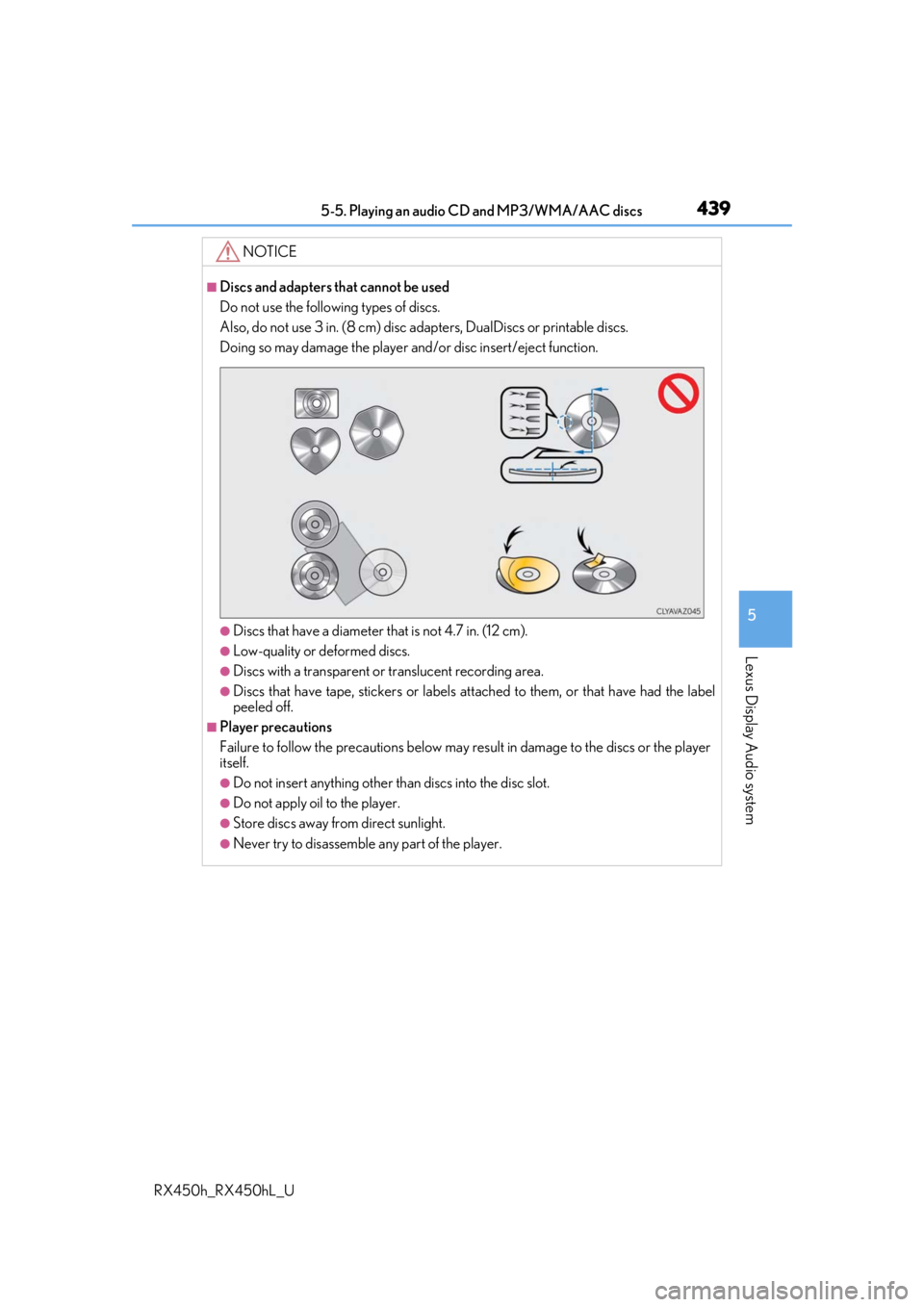
■Discs and adapters that cannot be used
Do not use the following types of discs.
Also, do not use 3 in. (8 cm) disc adapters, DualDiscs or printable discs.
Doing so may damage the player and/or disc insert/eject function.
●Discs that have a diameter that is not 4.7 in. (12 cm).
●Low-quality or deformed discs.
●Discs with a transparent or translucent recording area.
●Discs that have tape, stickers or labels attached to them, or that have had the label
peeled off.
■Player precautions
Failure to follow the precautions below may re sult in damage to the discs or the player
itself.
●Do not insert anything other than discs into the disc slot.
●Do not apply oil to the player.
●Store discs away from direct sunlight.
●Never try to disassemble any part of the player.
Page 440 of 792
440
RX450h_RX450hL_U5-6. Using an external device
P. 409
Pressing the “MEDIA” button displays the iPod top screen from any screen of the
selected source.
■Menu screen
P. 423
■Selecting a song
Press the “ PRST” or “TRACK ” button or turn the “TUNE•SCROLL” knob
to select the desired song number.
To fast-forward or rewind, press and hold the “ PRST” or “TRACK ” button.
■Selecting a play mode
Move the controller to the ri ght and then select “Browse”.
Select the desired play mode, and then select a song to begin using the
selected play mode.
■Displaying the now playing list
Move the controller to the right an d then select “Now Playing List”.
Listening to an iPod
Connecting an iPod enables you to enjoy music from the vehicle speakers.
Press the “MEDIA” button or select “i Pod” on the audio source selection
screen.
Connecting an iPod
iPod top screen
1
2
Page 441 of 792
4415-6. Using an external device
5
Lexus Display Audio system
RX450h_RX450hL_U
■iPod cover art
●Depending on the iPod and songs in the iPod, iPod cover art may be displayed.
●This function can be changed to on/off. (P. 422)
●It may take time to display iPod cover art, and the iPod may not be operated while the
cover art display is in process.
■iPod functions
●When an iPod is connected and the audio sour ce is changed to iPod mode, the iPod will
resume play from the same poin t in which it was last used.
●Depending on the iPod that is connected to the system, certain functions may not be
available. If a function is unavailable due to a malfunction (as opposed to a system spec-
ification), disconnecting th e device and reconnecting it may resolve the problem.
●Depending on the iPod, while connected to the system, the iPod cannot be operated
with its own controls. It is necessary to us e the controls of the vehicle’s audio system
instead.
●When the battery level of an iP od is very low, the iPod may not operate. If so, charge the
iPod before use.
●Compatible models ( P. 443)
■iPod problems
To resolve most problems encountered when using your iPod, disconnect your iPod from
the vehicle iPod connection and reset it. For instructions on how to reset your iPod, refer
to your iPod Owner’s Manual.
Page 442 of 792
4425-6. Using an external device
RX450h_RX450hL_U
■Error messages
If the following error messages appear on th e screen, refer to the table and take the
appropriate measures. If the pr oblem is not rectified, take the vehicle to your Lexus
dealer.
MessageCause/Correction procedures
“Connection error.
Please consult your
Owner’s Manual for
instructions on how to
connect the iPod.”
This indicates a problem in the iPod or its connection.
“There are no songs
available for playback.
Please add compatible
files to your iPod.”
This indicates that there is no music data in the iPod.
“No items available.”This indicates that songs are not found in a selected play-
list.
“Please check the iPod
firmware version.”This indicates that the softwa re version is not compatible.
Please check the co mpatible models. (P. 443)
“Unable to authorize the
iPod.”This indicates that the Lexu s Display Audio system failed
to authorize the iPod.
Please check your iPod.
NOTICE
■To prevent damage to th e iPod or its terminals
●Depending on the size and shape of the iPod that is connected to the system, the con-
sole box may not close fully. In this case, do not forcibly close the console box as this
may damage the iPod or the terminal, etc.
●Do not leave the iPod in the vehicle. The temperature inside the vehicle may become
high.
●Do not push down on or apply unnecessary pr essure to the iPod while it is connected.
●Do not insert foreign objects into the port.