Page 364 of 792
3644-5. Using the driving support systems
RX450h_RX450hL_U
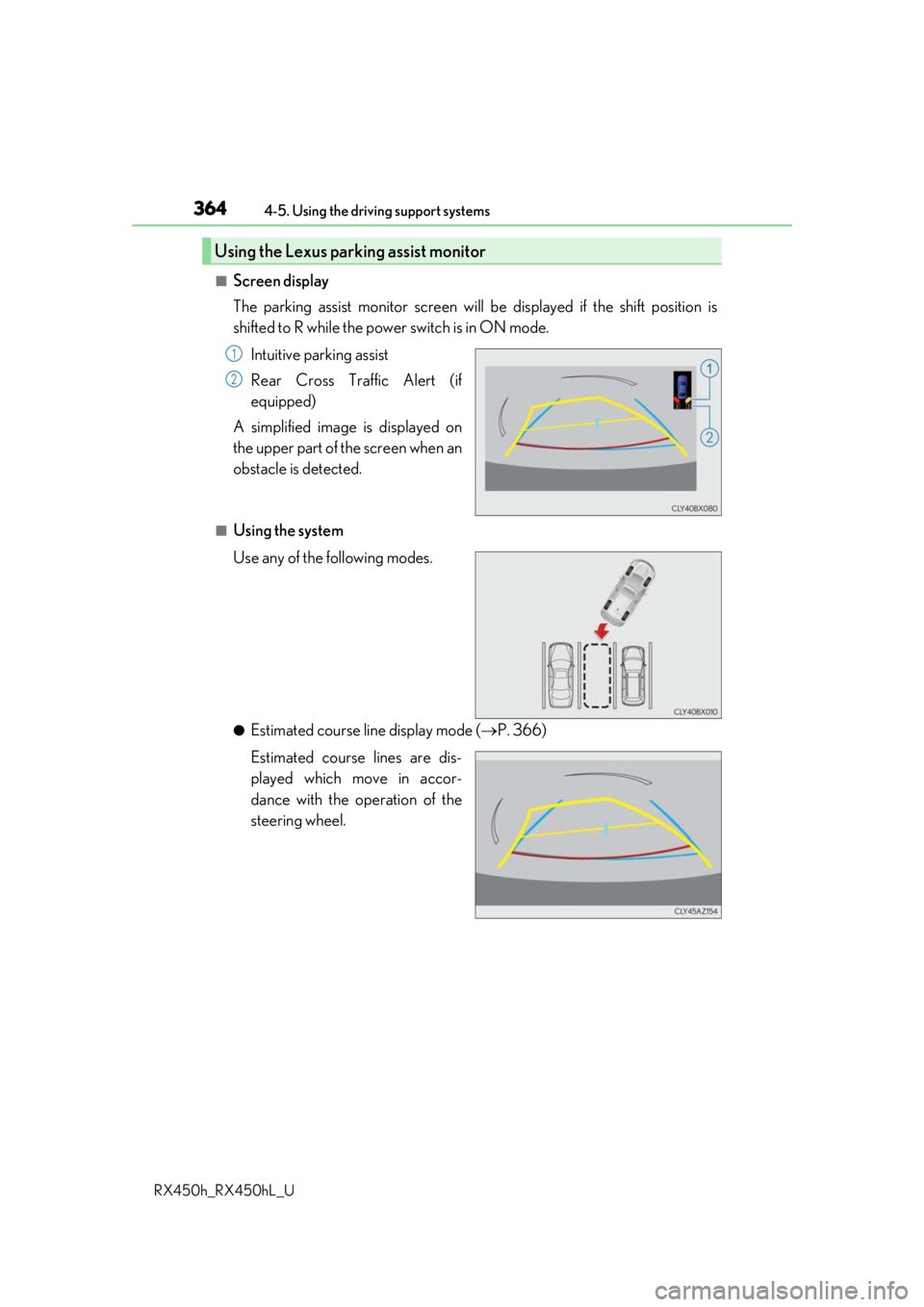
■Screen display
The parking assist monitor screen will be displayed if the shift position is
shifted to R while the power switch is in ON mode.
Intuitive parking assist
Rear Cross Traffic Alert (if
equipped)
A simplified image is displayed on
the upper part of the screen when an
obstacle is detected.
■Using the system
Use any of the following modes.
●Estimated course line display mode ( P. 366)
Estimated course lines are dis-
played which move in accor-
dance with the operation of the
steering wheel.
Using the Lexus parking assist monitor
1
2
Page 367 of 792
3674-5. Using the driving support systems
4
Driving
RX450h_RX450hL_U
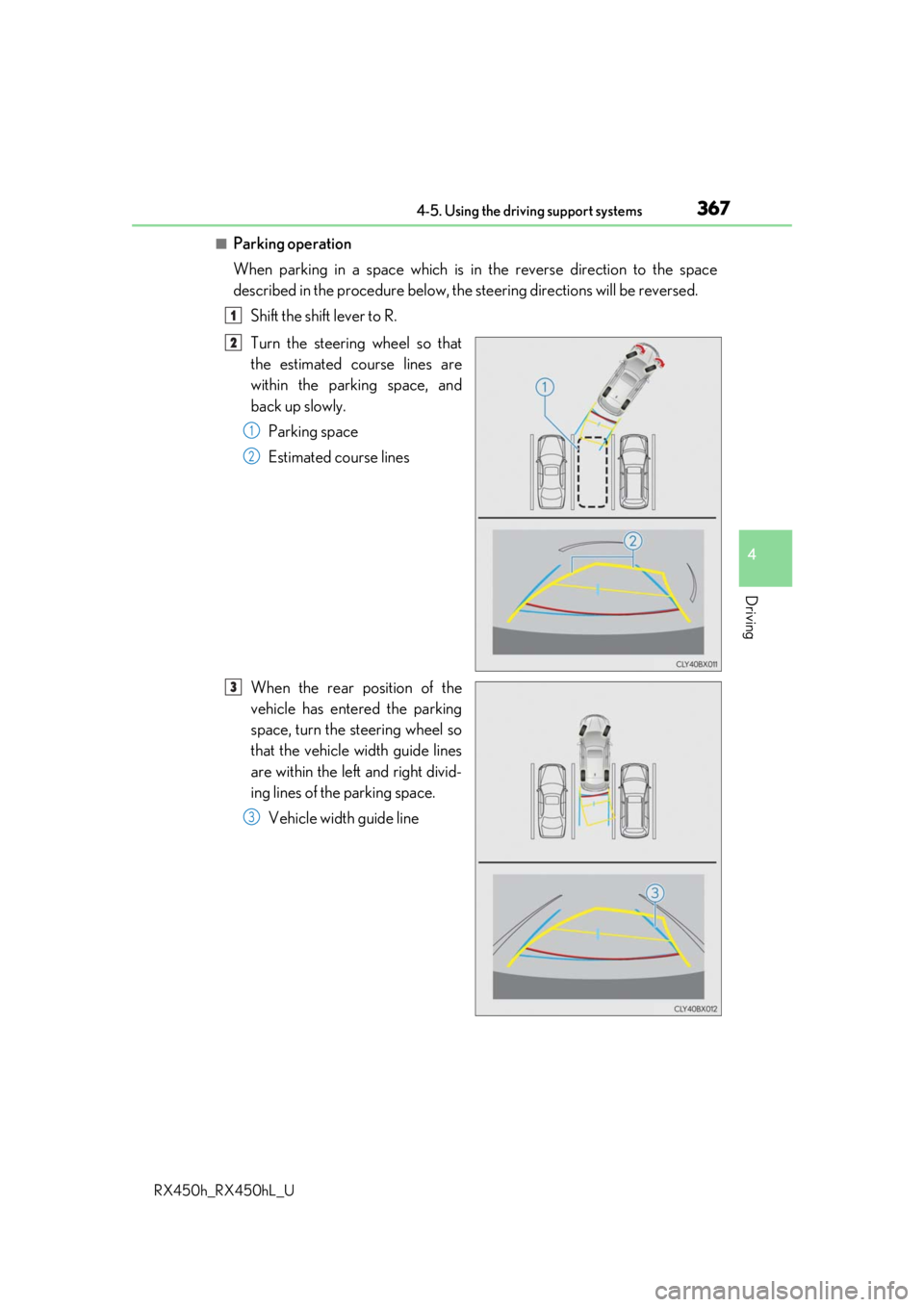
■Parking operation
When parking in a space which is in the reverse direction to the space
described in the procedure below, the steering directions will be reversed.
Shift the shift lever to R.
Turn the steering wheel so that
the estimated course lines are
within the parking space, and
back up slowly. Parking space
Estimated course lines
When the rear position of the
vehicle has entered the parking
space, turn the steering wheel so
that the vehicle width guide lines
are within the left and right divid-
ing lines of the parking space. Vehicle width guide line
1
2
1
2
3
3
Page 368 of 792
3684-5. Using the driving support systems
RX450h_RX450hL_U
Once the vehicle width guide lines and the parking space lines are parallel,
straighten the steering wheel and back up slowly until the vehicle has com-
pletely entered the parking space.
Stop the vehicle in an approp riate place, and finish parking.
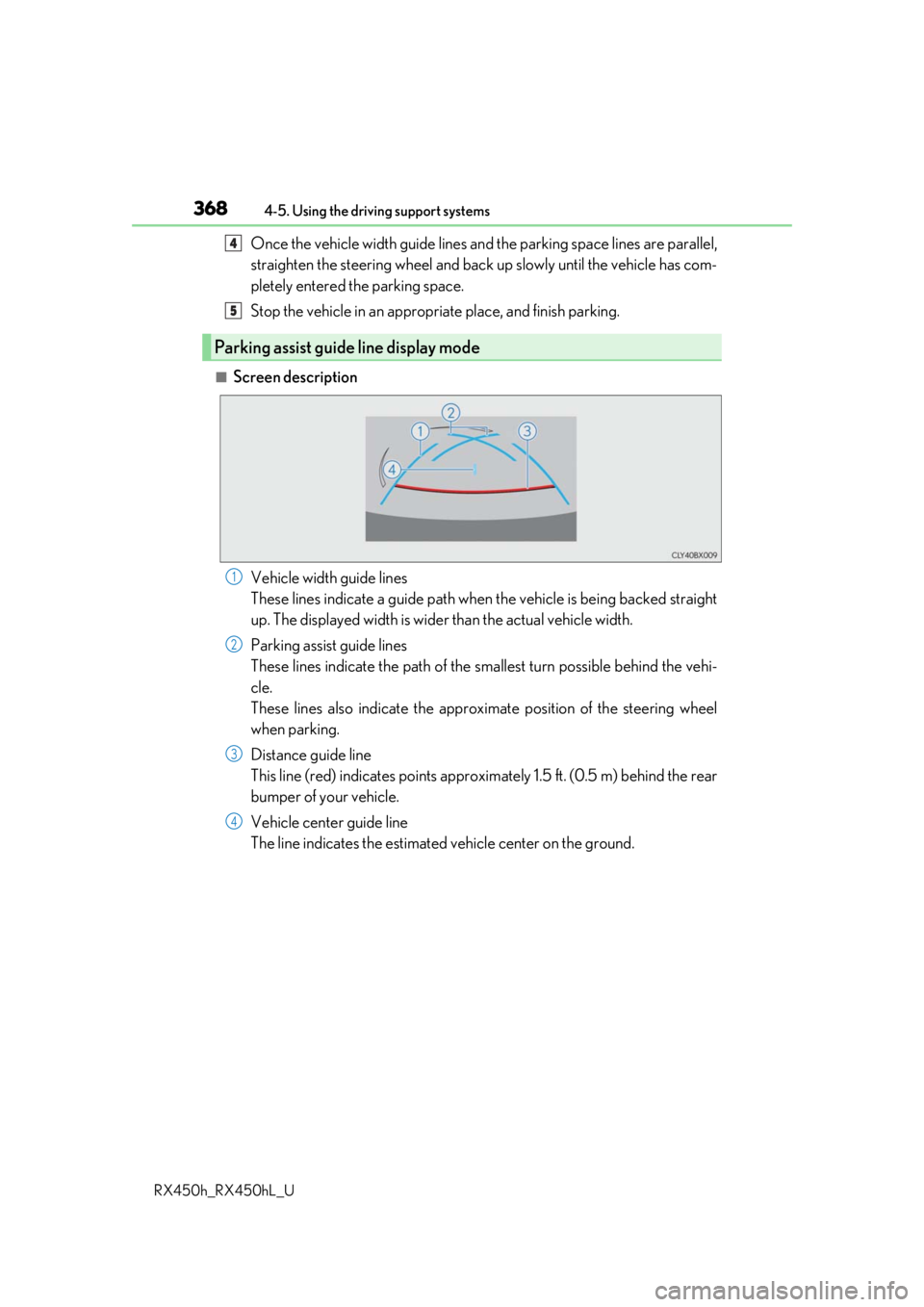
■Screen description
Vehicle width guide lines
These lines indicate a guide path when the vehicle is being backed straight
up. The displayed width is wider than the actual vehicle width.
Parking assist guide lines
These lines indicate the path of the sm allest turn possible behind the vehi-
cle.
These lines also indicate the approx imate position of the steering wheel
when parking.
Distance guide line
This line (red) indicates points approxim ately 1.5 ft. (0.5 m) behind the rear
bumper of your vehicle.
Vehicle center guide line
The line indicates the estimated vehicle center on the ground.
Parking assist guide line display mode
4
5
1
2
3
4
Page 370 of 792

3704-5. Using the driving support systems
RX450h_RX450hL_U
■Area displayed on screen
The parking assist monitor displays
an image of the view from the
bumper of the rear area of the vehi-
cle.
The image of the Lexus parking
assist monitor can be adjusted.
(Vehicles with a Lexus Display
Audio system: P. 417) (Vehicles
with a navigation system: “NAVI-
GATION SYSTEM OWNER’S
MANUAL”)
• The area displayed on the screen may vary according to vehicle orien-
tation conditions.
• Objects which are close to either corner of the bumper or under the
bumper cannot be seen on the
screen.
• The camera uses a special lens. The dist ance of the image that appears on the
screen differs from the actual distance.
• Items which are located higher than the camera may not be displayed on the mon- itor.
• If your vehicle is equipped with a backlit license plate, it may interfere with the dis-
play.
■Lexus parking assist monitor camera
The camera for the parking assist
monitor is located above the license
plate.
●Using the camera
If dirt or foreign matter (such as wate r droplets, snow, mud etc.) is adhering
to the camera, it cannot transmit a clear image. In this case, flush it with a
large quantity of water and wipe the camera lens clean with a soft and wet
cloth.
Lexus parking assist monitor precautions
Corners of bumper
Page 373 of 792
3734-5. Using the driving support systems
4
Driving
RX450h_RX450hL_U
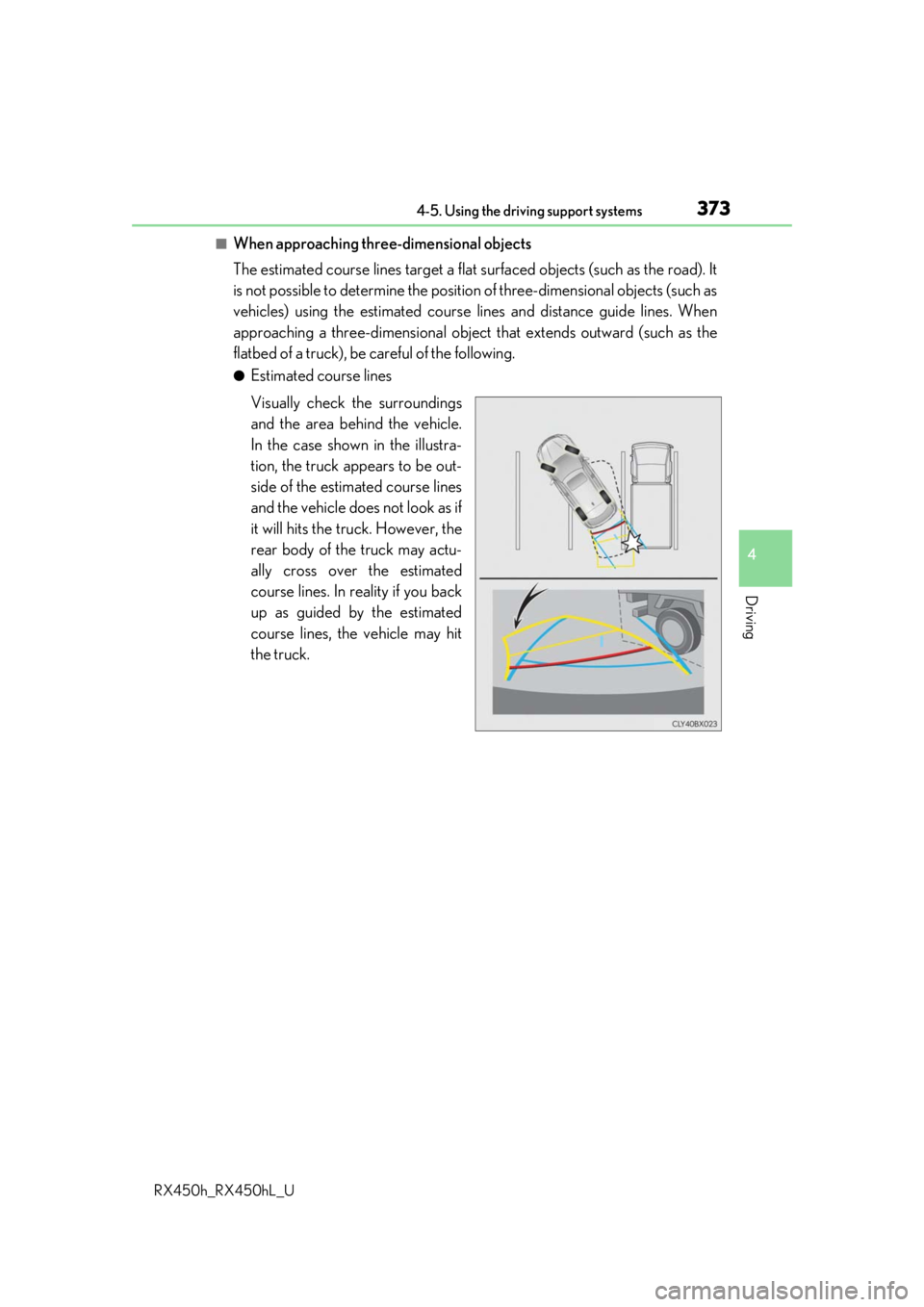
■When approaching three-dimensional objects
The estimated course lines target a flat surfaced objects (such as the road). It
is not possible to determine the position of three-dimensional objects (such as
vehicles) using the estimated course lines and distance guide lines. When
approaching a three-dimensional object that extends outward (such as the
flatbed of a truck), be careful of the following.
●Estimated course lines
Visually check the surroundings
and the area behind the vehicle.
In the case shown in the illustra-
tion, the truck appears to be out-
side of the estimated course lines
and the vehicle does not look as if
it will hits the truck. However, the
rear body of the truck may actu-
ally cross over the estimated
course lines. In reality if you back
up as guided by the estimated
course lines, the vehicle may hit
the truck.
Page 392 of 792
3924-6. Driving tips
RX450h_RX450hL_U
To enable the windshield wi pers to be lifted when heavy snow or icy conditions
are expected, change the rest position of the windshield wipers from the
retracted position below the hood to th e service position using the wiper lever.
(
P. 270)
■Tire chain installation
Observe the following precautions when installing and removing chains:
●Install and remove tire chains in a safe location.
●Install tire chains on the front tires only. Do not install tire chains on the rear tires.
●Install tire chains on front tires as tightly as possible. Retighten chains after driving
1/4 - 1/2 mile (0.5 - 1.0 km).
●Install tire chains following the instru ctions provided with the tire chains.
Windshield wipers
WARNING
■Driving with snow tires
Observe the following precautions to reduce the risk of accidents.
Failure to do so may result in a loss of vehi cle control and cause death or serious injury.
●Use tires of the specified size.
●Maintain the recommended level of air pressure.
●Do not drive in excess of 75 mph (120 km/h ), regardless of the type of snow tires
being used.
●Use snow tires on all, not just some wheels.
■Driving with tire chains
Observe the following precautions to reduce the risk of accidents.
Failure to do so may result in the vehicle being unable to be driven safely, and may
cause death or serious injury.
●Do not drive in excess of the speed limit specified for the tire chains being used, or
30 mph (50 km/h), whichever is lower.
●Avoid driving on bumpy road surfaces or over potholes.
●Avoid sudden acceleration, abrupt steering, sudden braking and shifting operations
that cause sudden engine braking.
●Slow down sufficiently before entering a cu rve to ensure that vehicle control is main-
tained.
●Do not use the LKA (Lane-Keeping Assist) system.
Page 396 of 792
3964-6. Driving tips
RX450h_RX450hL_U
[
WARNING
■Off-road driving precautions
Always observe the following precautions to minimize the risk of death, serious injury
or damage to your vehicle:
●Drive carefully when off the road. Do not ta ke unnecessary risks by driving in danger-
ous places.
●Do not grip the steering wheel spokes when driving off-road. A bad bump could jerk
the wheel and injure your hands. Keep both hands and especially your thumbs on the
outside of the rim.
●Always check your brakes for effectiveness immediately after driving in sand, mud,
water or snow.
●After driving through tall grass, mud, rock , sand, rivers, etc., check that there is no
grass, bush, paper, rags, stone, sand, etc. adhering or trapped on the underbody.
Clear off any such matter from the underbody. If the vehicle is used with these materi-
als trapped or adhering to the underbody, a breakdown or fire could occur.
●When driving off-road or in rugged terrain , do not drive at excessive speeds, jump,
make sharp turns, strike obje cts, etc. This may cause loss of control or vehicle rollover
causing death or serious injury. You are also risking expensive damage to your vehi-
cle’s suspension and chassis.
NOTICE
■To prevent water damage
Take all necessary safety measures to ensure that water damage to the hybrid battery
(traction battery), hybrid system or other components does not occur.
●Water entering the engine compartment may cause severe damage to the hybrid
system. Water entering the interior may cause the hybrid battery (traction battery)
stowed under the rear seats to short circuit.
●Water entering the hybrid transmission and rear electric motor (traction motor) will
cause deterioration in transmission qualit y. The malfunction indicator may come on,
and the vehicle may not be drivable.
●Water can wash the grease from wheel be arings, causing rusting and premature fail-
ure, and may also enter the hybrid transmissi on case, reducing the gear oil’s lubricat-
ing qualities.
■When you drive through water
If driving through water, such as when cro ssing shallow streams, first check the depth of
the water and the bottom of the riverbed for firmness. Drive slowly and avoid deep
water.
■Inspection after off-road driving
●Sand and mud that has accumulated around brake discs may affect braking efficiency
and may damage brake system components.
●Always perform a maintenance inspection afte r each day of off-road driving that has
taken you through rough terrain, sand, mud, or water. For scheduled maintenance
information, refer to the “Warranty and Services Guide/Owner’s Manual Supple-
ment/Scheduled Maintenance”.
Page 417 of 792

4175-2. Setup
5
Lexus Display Audio system
RX450h_RX450hL_U
Go to “Display”: “MENU” button “Display”
Turn off screen.
Adjust screen quality.
Adjust screen quality of the rear
view monitor camera.
Change to day mode.
This setting turns the screen off. To tu rn it on, press any button such as the
“AUDIO” button or “MENU” button.
If a screen off image has been se t, the set image will be displayed.
When the headlights are turned on, the screen dims.
However, the screen can be switched to day mode by selecting “Day Mode”.
The screen will stay in day mode when the headlights are turned on until “Day Mode”
is selected again.
Select “General” or “Camera” on the “D isplay” screen or select “Display” on
audio menu screen. ( P. 423)
Adjust the display as desired by turning the controller clockwise (+) or coun-
terclockwise (-).
To select “Contrast”, “Brightness”, “Color” or “Tone”, move the controller to the left.
(“Color” and “Tone” are available when “Display” on the audio settings screen for
each audio source is selected.)
■Changing the sample image (when “General” is selected)
Move the controller to the right and select the desired sample image.
Display settings
Settings are available for adjusting the contrast and brightness of the screen.
The display can also be turned off.
Screen for display settings
1
2
3
4
Screen off
Day mode
Adjusting the screen quality
1
2