Page 468 of 792

4685-9. Bluetooth® Phone
RX450h_RX450hL_U
Phone number containing a “w” symbol
When the “w” symbol is dialed in an outgoing call, you need to go to the
“Release Tones” screen to dial the following digits. Move the controller to the
left and then select “Release Tones”.
Select “Handset Mode” to change from a hands-free call to a cellular phone call
or vice versa.
Press the on-hook switch on the steering wheel or select .
When a call is interrupted by a third pa rty while talking, an incoming call mes-
sage will be displayed.
To talk with the other party:
Press the off-hook sw itch on the steer-
ing wheel or select .
To refuse the call:
Press the on-hook switch on the steer-
ing wheel or select .
Every time you press the off-hook switch on the steering wheel or select during
call waiting, you will be sw itched to the other party.
■Transferring calls
●It is not possible to transfer from hand s-free to the cellular phone while driving.
●If you transfer from the cellular phone to ha nds-free, the hands-free screen will be dis-
played, and you can operate the system using the screen.
●Transfer method and operation may vary according to the cellular phone used.
●For operation of the cellular phone in use, see the phone’s manual.
■Call waiting operation
Call waiting operation may differ depending on your phone company and cellular
phone.
To transfer a call
To hang up
Call waiting
Page 472 of 792
4725-9. Bluetooth® Phone
RX450h_RX450hL_U
Go to “Phone Settings”: “MENU” button “Setup” “Phone”
Register and connect a Bluetooth
®
device ( P. 451)
Adjust the call volume and message
readout volume ( P. 472)
Change display settings ( P. 473)
Change the contact/call history set-
tings ( P. 474)
Change messaging settings
( P. 477)
Change the ring tone type
Adjust the ring tone volume
Adjust in call tone volume
Change the incoming SMS/MMS
tone type
Adjust the incoming SMS/MMS
tone volume
Change the incoming e-mail tone
type
Adjust the incoming e-mail tone vol-
ume
Adjust the message readout volume
Bluetooth® phone settings
You can adjust the hands-free sy stem to your desired settings.
“Phone Settings” screen
1
2
3
4
5
Sound settings
1
2
3
4
5
6
7
8
Page 473 of 792
4735-9. Bluetooth® Phone
5
Lexus Display Audio system
RX450h_RX450hL_U
Change the incoming call display
Set the new SMS/MMS notification
display on/off
Change the incoming SMS/MMS
display
Set the new e-mail notification dis-
play on/off
Change the incoming e-mail display.
Set the phonebook/history transfer
status notification display on/off
■To return to the default volume settings
Move the controller to the left and then select “Default”.
Display settings
1
2
3
4
5
6
Page 474 of 792

474
RX450h_RX450hL_U5-10. Phonebook
Go to “Contacts/Call History”: “MENU” button
“Setup” “Phone”
“Contacts/Call History”
For PBAP compatible Bluetooth
®
phones: Select to change the con-
tact/history transfer settings
( P. 475)
Update contacts ( P. 475) (PBAP
incompatible Bluetooth
® phones, or
compatible phones with “Automatic
Transfer” off)
Change the sort contacts mode
Add a favorite ( P. 476)
Delete a favorite ( P. 476)
Delete call history (PBAP incompat-
ible Bluetooth
® phones, or compati-
ble phones with “Automatic Transfer”
off)
Add a new contact (PBAP incom-
patible Bluetooth
® phones, or com-
patible phones with “Automatic
Transfer” off)
Input the name, phone number and phone number type to add a new contact.
Edit a contact (PBAP in compatible Bluetooth® phones, or compatible
phones with “Automatic Transfer” off)
Select the desired contact to edit.
Delete contacts ( P. 476) (PBAP incompatible Bluetooth® phones, or com-
patible phones with “Automatic Transfer” off)
Contact settings
Individual phonebooks from up to 5 ph ones can be registered to the system.
The data for 2500 contacts (up to 4 numbers per contact) can be registered
into the system’s phonebook.
“Contacts/Call History” screen
1
2
3
4
5
6
7
8
9
Page 481 of 792
4815-11. Bluetooth®
5
Lexus Display Audio system
RX450h_RX450hL_U
In other situations
Even though all conceivable measures have been taken, the symptom status does not
change.
The cellular phone is not close enough to this system.
Bring the cellular phone closer to this system.
The cellular phone is the most likely cause of the symptom.
Turn the cellular phone off, remove and reinstall the battery pack, and then
restart the cellular phone.
Enable the cellular phone’s Bluetooth
® connection.
Stop the cellular phone’s security software and close all applications.
Before using an application installed on the cellular phone, carefully check its
source and how its operation might affect this system.
Page 490 of 792
4905-12. Other function
RX450h_RX450hL_U
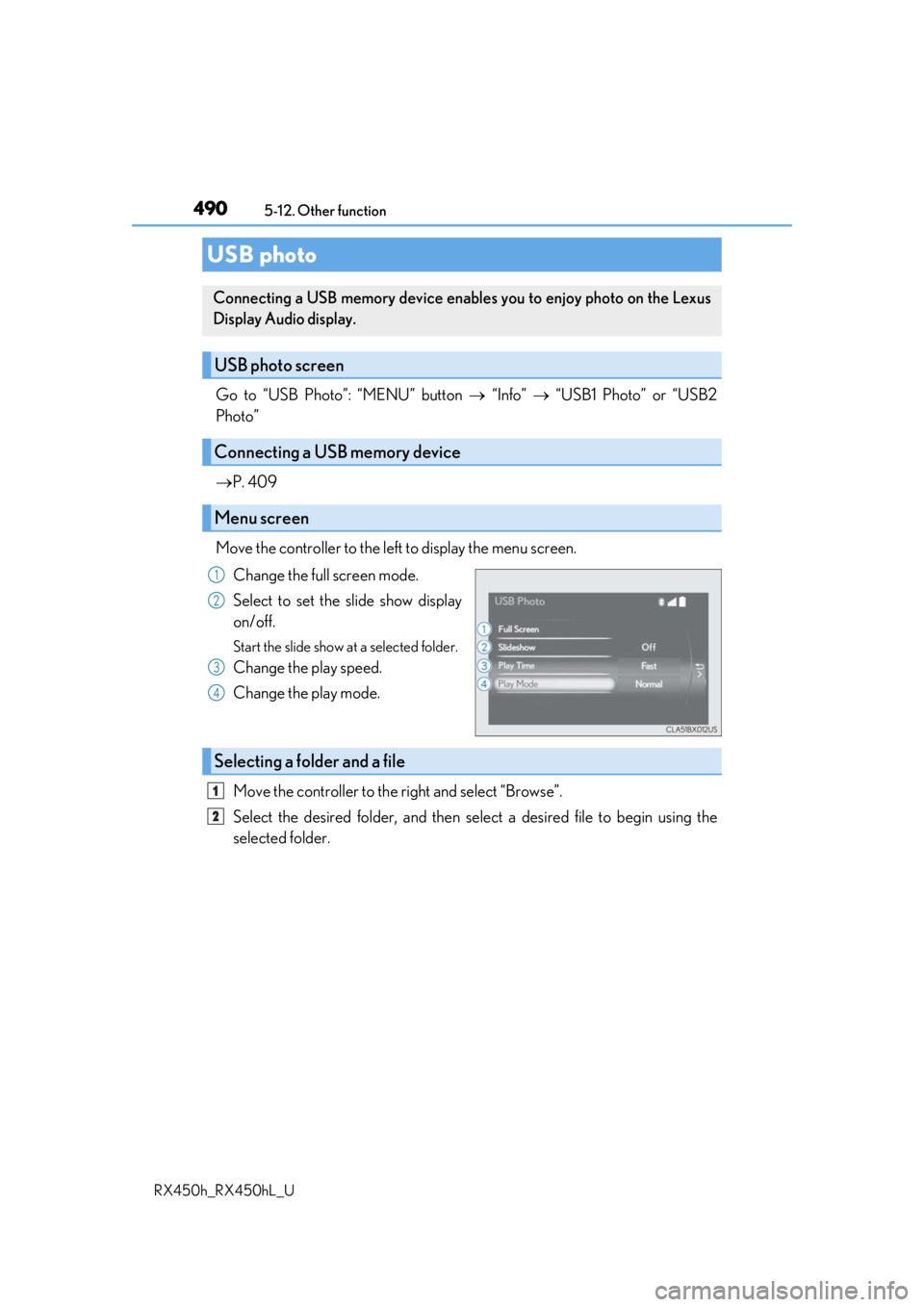
Go to “USB Photo”: “MENU” button “Info” “USB1 Photo” or “USB2
Photo”
P. 409
Move the controller to the left to display the menu screen. Change the full screen mode.
Select to set the slide show display
on/off.
Start the slide show at a selected folder.
Change the play speed.
Change the play mode.
Move the controller to the right and select “Browse”.
Select the desired folder, and then sele ct a desired file to begin using the
selected folder.
USB photo
Connecting a USB memory device enables you to enjoy photo on the Lexus
Display Audio display.
USB photo screen
Connecting a USB memory device
Menu screen
1
2
3
4
Selecting a folder and a file
1
2
Page 494 of 792
4945-12. Other function
RX450h_RX450hL_U
■Microphone
P. 462
■When using the microphone
●It is unnecessary to speak directly into the microphone when giving a command.
●Wait for the confirmation beep before speaking a command.
●Voice commands may not be recognized if:
• Spoken too quickly.
• Spoken at a low or high volume.
• The roof or windows are open.
• Passengers are talking while voice commands are spoken.
• The air conditioning speed is set high.
• The air conditioning vents are turned towards the microphone.
●In the following conditions, the system ma y not recognize the command properly and
using voice commands may not be possible:
• The command is incorrect or unclear. No te that certain words, accents or speech
patterns may be difficult for the system to recognize.
• There is excessive background noise, such as wind noise.
■When searching for a track
●A USB memory or iPod must be connected to enable track searching and playback.
( P. 409)
●When a USB memory or iPod is connected, recognition data is created so tracks can
be searched using voice commands.
●Recognition data is updated un der the following conditions:
• When the USB memory or iPod data has changed.
• When the voice recognition language is changed. ( P. 413)
●While the recognition data is being created or being updated, a track search cannot be
performed using a voice command.
■The Gracenote® media database
Page 497 of 792
4975-12. Other function
5
Lexus Display Audio system
RX450h_RX450hL_U
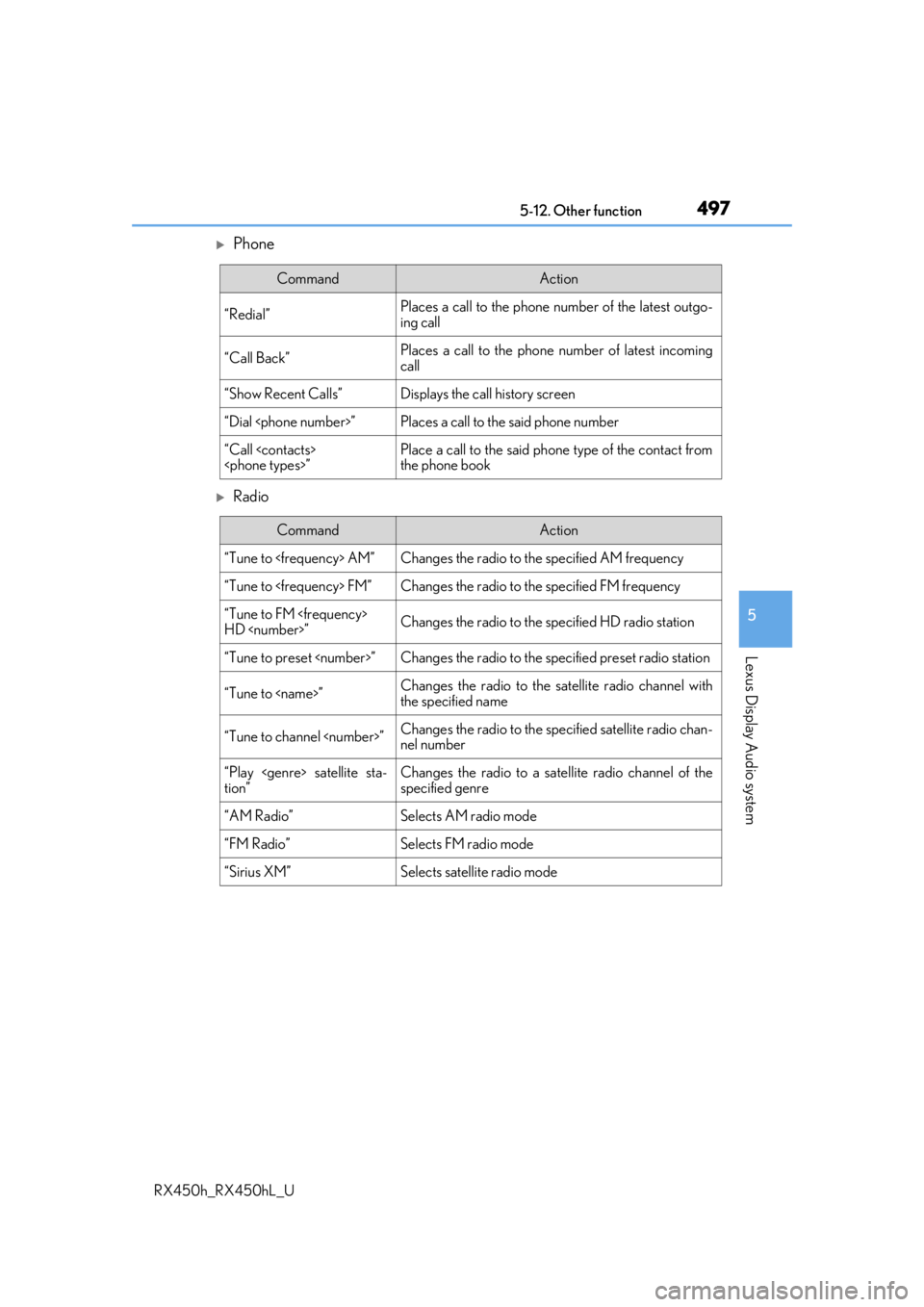
Phone
Radio
CommandAction
“Redial”Places a call to the phone number of the latest outgo-
ing call
“Call Back”Places a call to the phone number of latest incoming
call
“Show Recent Calls”Displays the call history screen
“Dial ”Places a call to the said phone number
“Call
”Place a call to the said phone type of the contact from
the phone book
CommandAction
“Tune to AM”Changes the radio to the specified AM frequency
“Tune to FM”Changes the radio to the specified FM frequency
“Tune to FM
HD ”Changes the radio to the specified HD radio station
“Tune to preset ”Changes the radio to the specified preset radio station
“Tune to ”Changes the radio to the satellite radio channel with
the specified name
“Tune to channel ”Changes the radio to the specified satellite radio chan-
nel number
“Play satellite sta-
tion”Changes the radio to a satellite radio channel of the
specified genre
“AM Radio”Selects AM radio mode
“FM Radio”Selects FM radio mode
“Sirius XM”Selects satellit e radio mode