2019 KIA SOUL warning
[x] Cancel search: warningPage 360 of 564
Driving your vehicle
70
6
(Continued)
- Slippery road with rain, ice,or snow
- Abrupt curved road
- Steep hills
- Windy roads
- Off roads
- Roads under construction
- Rumble strip
- The sensing ability decreas- es if the level of front and rear
vehicle is changed from the
factory.
- When driving near crash bar- riers
- When driving on a sharp curve
- When driving with limited view (possibly due to bad
weather, such as fog, snow,
rain or sandstorm)
(Continued)WARNING
- Smart Cruise ControlLimitations
The smart cruise control is a supplemental system and is
not a substitute for safe driv-
ing practices. It is the respon-
sibility of the driver to always
check the speed and distance
to the vehicle ahead.
Do not use the smart cruise control when it may not be
safe to keep the car at a con-
stant speed. For instance.
- Highway interchange andtollgate
- Road surrounded by multi- ple steel con-structions
(subway con-struction, steel
tunnel, etc)
- Parking lot
- Lanes beside guard rail on a road
(Continued)
(Continued)
Always pay attention to theroad and driving conditions to
prevent unexpected situa-
tions from occurring even
while the SCC is operating.
The smart cruise control sys- tem cannot recognize a
stopped vehicle, pedestrians
or an oncoming vehicle.
Always look ahead cautiously
to prevent unexpected and
sudden situations from occur-
ring.
Use the smart cruise control system only when traveling
on open highways in good
weather conditions.
Page 362 of 564

Driving your vehicle
72
6
SCC will operate to a maximum
setting of 180 km/h (110 mph).
However all local speed limit laws
must be followed.
✽ ✽ NOTICE
When vehicle speed is under 10
km/h (6 mph), the Smart Cruise
Control is canceled.
The driver must adjust the vehicle
speed by depressing the accelerator
or brake pedal according to the road
condition ahead and driving condi-
tion.
To decrease the cruise control
set speed:
Follow either of these procedures:
Move the lever down (to SET-), and hold it. Your vehicle set speed will
decrease by 10 km/h (5 mph).
Release the lever at the speed you
want.
Move the lever down (to SET-), and release it immediately. The cruising
speed will decrease by 1.0 km/h (1
mph) each time you move the lever
down (to SET-) in this manner.
You can set the cruise control to any speed above 30 km/h (20 mph).
To temporarily accelerate with the
cruise control on:
If you want to speed up temporarily
when the cruise control is on,
depress the accelerator pedal.
Increased speed will not interfere
with cruise control operation or
change the set speed.
To return to the set speed, take your
foot off the accelerator.
If you move the lever down (to SET-)
at increased speed, the cruising
speed will be set again.
✽ ✽ NOTICE
Be careful when accelerating tem-
porarily, because the speed is not
regulated automatically at this time
even if there is a vehicle in front of
you.
OPS053018
WARNING
Check the driving condition
before using the toggle switch.
Driving speed sharply increas-
es, when you push up and hold
the toggle switch.
Page 364 of 564
Driving your vehicle
74
6
✽ ✽
NOTICE
If the system is automatically can-
celled, the warning chime will sound
and a message (“Smart Cruise
Control canceled”) will appear for a
few seconds.
You must adjust the vehicle speed by
depressing the accelerator or brake
pedal according to the road condi-
tions ahead and driving condition.
Always check the road conditions.
Do not rely on the warning chime.
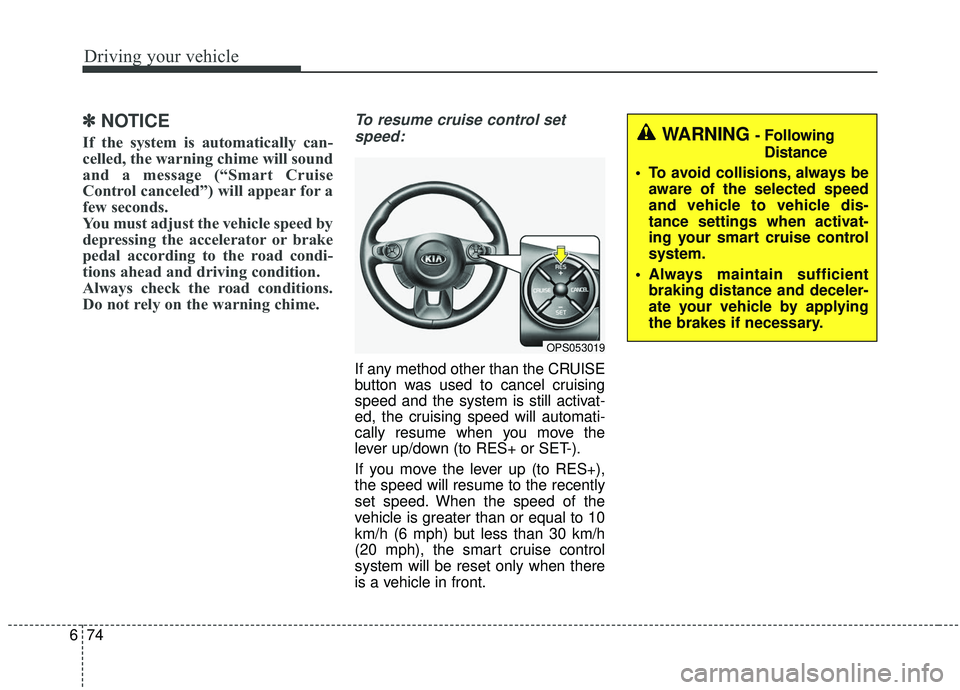
To resume cruise control set
speed:
If any method other than the CRUISE
button was used to cancel cruising
speed and the system is still activat-
ed, the cruising speed will automati-
cally resume when you move the
lever up/down (to RES+ or SET-).
If you move the lever up (to RES+),
the speed will resume to the recently
set speed. When the speed of the
vehicle is greater than or equal to 10
km/h (6 mph) but less than 30 km/h
(20 mph), the smart cruise control
system will be reset only when there
is a vehicle in front.
OPS053019
WARNING - Following Distance
To avoid collisions, always be aware of the selected speed
and vehicle to vehicle dis-
tance settings when activat-
ing your smart cruise control
system.
Always maintain sufficient braking distance and deceler-
ate your vehicle by applying
the brakes if necessary.
Page 367 of 564
677
Driving your vehicle
The vehicle will maintain the setspeed, when the lane ahead is clear.
The vehicle will slow down or speed up within selected speed to
maintain the selected distance,
when there is a vehicle ahead of
you in the lane. (A vehicle will
appear in front of your vehicle in
the LCD display only when there is
an actual vehicle in front of you)
If the vehicle ahead speeds up, your vehicle will travel at a steady
cruising speed after accelerating to
the selected speed.
The warning chime sounds and LCD display blinks if it is hard to
maintain the selected distance to
the vehicle ahead.
If the warning chime sounds, actively adjust the vehicle speed by
depressing the brake pedal
according to the road condition
ahead and driving condition.
Even if the warning chime is not acti- vated, always pay attention to the
driving conditions to prevent danger-
ous situations from occurring. If the vehicle ahead (vehicle speed:
less than 30 km/h (20 mph)) moves to
the next lane, the warning chime will
sound and a message will appear.
If a vehicle enters into your lane mov-
ing less than the designated speed,
you can adjust your vehicle speed by
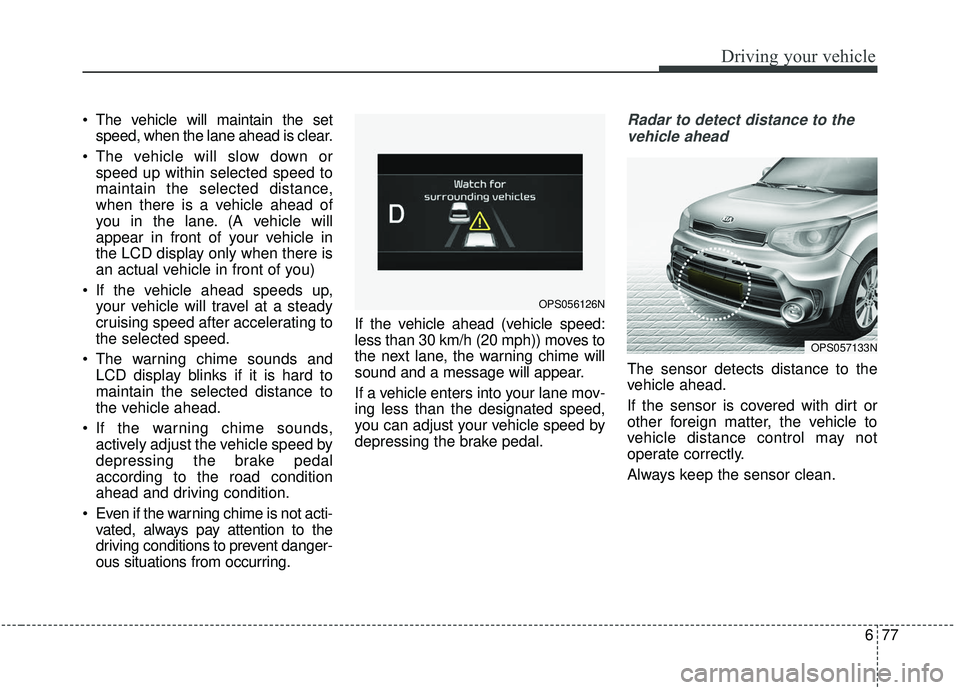
depressing the brake pedal.Radar to detect distance to the
vehicle ahead
The sensor detects distance to the
vehicle ahead.
If the sensor is covered with dirt or
other foreign matter, the vehicle to
vehicle distance control may not
operate correctly.
Always keep the sensor clean.
OPS057133N
OPS056126N
Page 368 of 564
Driving your vehicle
78
6
Radar check message
If the radar or cover is dirty or
obscured with foreign matter such as
snow, this message (“Smart Cruise
Control disabled temporarily”) will
appear and it will disappear after for
a while. In this case, the system may
not function temporarily, but it does
not indicate a malfunction of the
Smart Cruise Control System. Clean
the radar or cover by using a soft
cloth and it will operate normally.
SCC (Smart Cruise Control)
malfunction message
The message (“Check Smart Cruise
Control System”) will appear when
the vehicle to vehicle distance control
system is not functioning normally.
Take your vehicle to an authorized
Kia dealer and have the system
checked. Always keep the sensor and
bumper clean.
Use only a genuine Kia sensor cover for your vehicle.
Do not install accessories around the sensor and do not replace the
bumper by yourself. It may interfere
with the sensor performance.
Impact damage to the sensor or sensor area may cause the sensor
to move slightly off position and
result in the SCC not operating
correctly without any warning or
indicator from the cluster. If this
occurs, have your vehicle checked
by an authorized Kia dealer as
soon as possible. Do not apply license plate frame or
foreign objects such as a bumper
sticker or a bumper guard near the
radar sensor. Doing so may
adversely affect the sensing per-
formance of the radar.
Always keep the radar sensor and lens cover clean and free of dirt
and debris.
Use only a soft cloth to wash the vehicle. Do not spray pressurized
water directly on the sensor or sen-
sor cover.
Be careful not to apply unneces- sary force on the radar sensor or
sensor cover. If the sensor is
forcibly moved out of proper align-
ment, the Smart Cruise Control
System may not operate correctly.
In this case, a warning message
may not be displayed. Have the
vehicle inspected by an authorized
Kia dealer.
If the front bumper becomes dam- aged in the area around the radar
sensor, the Smart Cruise Control
System may not operate properly.
Have the vehicle inspected by an
authorized Kia dealer.
CAUTION - Sensor
Damage
To prevent sensor cover dam-age from occurring, wash thecar with a soft cloth.
Page 369 of 564
679
Driving your vehicle
Use only genuine Kia parts torepair or replace a damaged sen-
sor or sensor cover. Do not apply
paint to the sensor cover.To adjust the sensitivity of
Smart Cruise Control
The sensitivity of vehicle speed when
following the front vehicle to maintain
the set distance can be adjusted. Go
to the User Settings Mode (Driving
Assist) and select SCC (Smart
Cruise Control). You may select one
of the three stages you prefer.
Slow:
Vehicle speed following the front
vehicle to maintain the set distance
is slower than normal speed.
Normal: Vehicle speed following the front
vehicle to maintain the set distance
is normal
Fast: Vehicle speed following the front
vehicle to maintain the set distance
is faster than normal speed.
✽ ✽ NOTICE
The system remembers the last
selected mode.
To convert to cruise control
mode:
The driver may choose to only use
the cruise control mode (speed con-
trol function) by doing as follows:
1.Turn the SCC on (the cruise indi-
cator light will be on but the system
will not be activated).
2.Push the distance to distance switch for more than 2 seconds.
3.Choose between “Smart cruise control (SCC) mode” and “Cruise
control (CC) mode”.
WARNING
When using the cruise control
mode, ensure it is safe to use
the feature by assessing the
distance to other vehicles since
the system will not automatical-
ly slow down to avoid an acci-
dent.
Page 373 of 564
683
Driving your vehicle
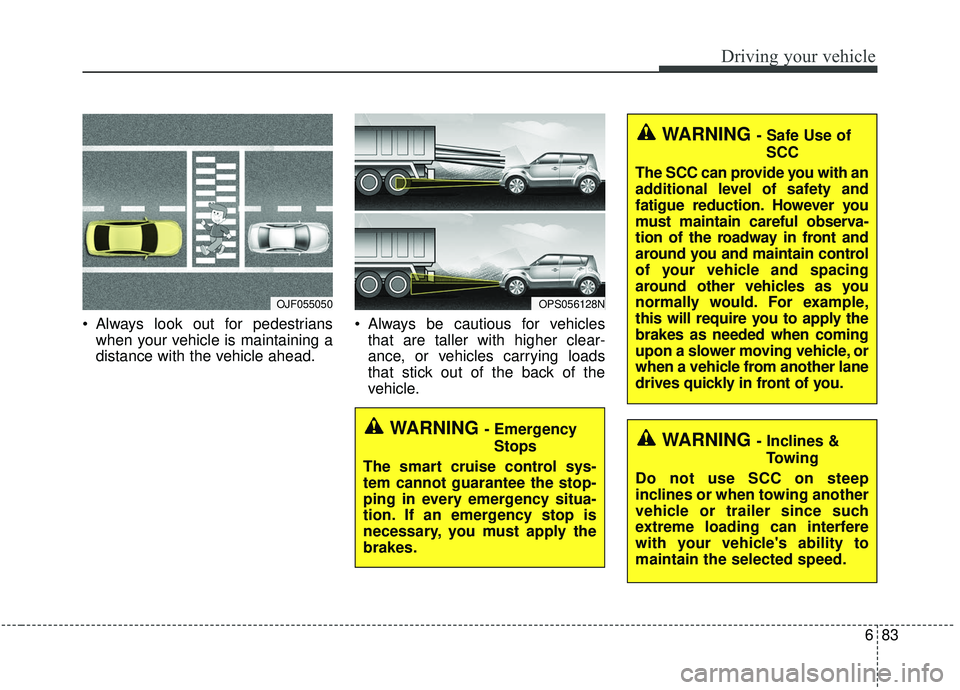
Always look out for pedestrianswhen your vehicle is maintaining a
distance with the vehicle ahead. Always be cautious for vehicles
that are taller with higher clear-
ance, or vehicles carrying loads
that stick out of the back of the
vehicle.
OJF055050OPS056128N
WARNING - Safe Use of
SCC
The SCC can provide you with an
additional level of safety and
fatigue reduction. However you
must maintain careful observa-
tion of the roadway in front and
around you and maintain control
of your vehicle and spacing
around other vehicles as you
normally would. For example,
this will require you to apply the
brakes as needed when coming
upon a slower moving vehicle, or
when a vehicle from another lane
drives quickly in front of you.
WARNING - Inclines & Towing
Do not use SCC on steep
inclines or when towing another
vehicle or trailer since such
extreme loading can interfere
with your vehicle's ability to
maintain the selected speed.WARNING - Emergency Stops
The smart cruise control sys-
tem cannot guarantee the stop-
ping in every emergency situa-
tion. If an emergency stop is
necessary, you must apply the
brakes.
Page 378 of 564
Driving your vehicle
88
6
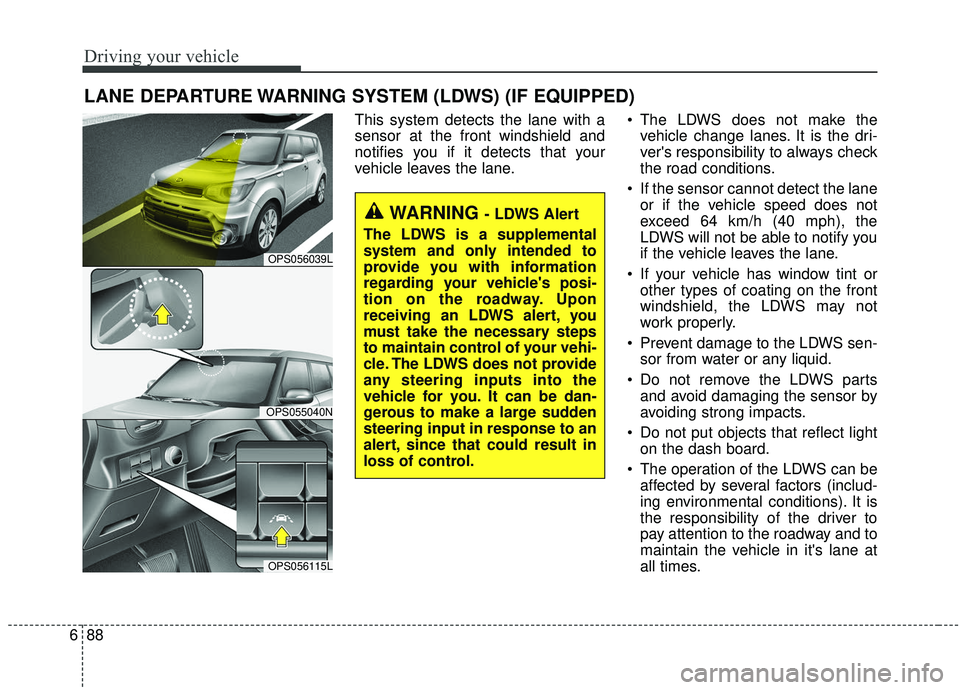
This system detects the lane with a
sensor at the front windshield and
notifies you if it detects that your
vehicle leaves the lane. The LDWS does not make the
vehicle change lanes. It is the dri-
ver's responsibility to always check
the road conditions.
If the sensor cannot detect the lane or if the vehicle speed does not
exceed 64 km/h (40 mph), the
LDWS will not be able to notify you
if the vehicle leaves the lane.
If your vehicle has window tint or other types of coating on the front
windshield, the LDWS may not
work properly.
Prevent damage to the LDWS sen- sor from water or any liquid.
Do not remove the LDWS parts and avoid damaging the sensor by
avoiding strong impacts.
Do not put objects that reflect light on the dash board.
The operation of the LDWS can be affected by several factors (includ-
ing environmental conditions). It is
the responsibility of the driver to
pay attention to the roadway and to
maintain the vehicle in it's lane at
all times.
LANE DEPARTURE WARNING SYSTEM (LDWS) (IF EQUIPPED)
WARNING - LDWS Alert
The LDWS is a supplemental
system and only intended to
provide you with information
regarding your vehicle's posi-
tion on the roadway. Upon
receiving an LDWS alert, you
must take the necessary steps
to maintain control of your vehi-
cle. The LDWS does not provide
any steering inputs into the
vehicle for you. It can be dan-
gerous to make a large sudden
steering input in response to an
alert, since that could result in
loss of control.
OPS056039L
OPS055040N
OPS056115L