2019 KIA FORTE phone
[x] Cancel search: phonePage 182 of 550

497
Features of your vehicle
Types of warning sound
When an object is 120 cm to 61 cm(47 in. to 24 in. ) from the rear
bumper: Buzzer beeps intermit-
tently.
When an object is 60 cm to 31 cm (24 in. to 12 in. ) from the rear
bumper: Buzzer beeps more fre-
quently.
When an object is within 40 cm (16 in.) of the rear bumper:
Buzzer sounds continuously.
Non-operational conditions of
parking distance warning-
reverse
The parking distance warning-
reverse may not operate properly
when:
1. Moisture is frozen to the sensor. (It will operate normally once the
moisture clears.)
2. The sensor is covered with foreign matter, such as snow or water, or
the sensor cover is blocked. (It will
operate normally when the materi-
al is removed or the sensor is no
longer blocked.)
3. Driving on uneven road surfaces (unpaved roads, gravel, bumps,
gradient).
4. Objects generating excessive noise (vehicle horns, loud motor-
cycle engines, or truck air brakes)
are within range of the sensor.
5. Rain or water spray exists.
6. Wireless transmitters or mobile phones are within range of the
sensor.
7. The sensor is covered with snow.
8. Trailer towing The detecting range may decrease
when:
1. The sensor is covered with foreign
matter such as snow or water.
(The sensing range will return to
normal when removed.)
2. Outside air temperature is extremely hot or cold.
The following objects may not be
recognized by the sensor:
1. Sharp or slim objects such as ropes, chains or small poles.
2. Objects which tend to absorb the sensor frequency such as clothes,
sound absorbent material or snow.
3. Undetectable objects smaller than 1 m (40 in.) in height and narrower
than 14 cm (6 in.) in diameter.
BDm CAN (ENG) 4.qxp 7/4/2018 10:07 AM Page 97
Page 233 of 550

Features of your vehicle
148
4
Power outlet (if equipped)
The power outlet is designed to pro-
vide power for mobile telephones or
other devices designed to operate
with vehicle electrical systems. The
devices should draw less than 10
amps with the engine running.
Use the power outlet only when the
engine is running and remove the
accessory plug after use. Using the
accessory plug for prolonged peri-
ods of time with the engine off could
cause the battery to discharge.
Only use 12V electric accessories which are less than 10A in electric
capacity. Adjust the air-conditioner or heater
to the lowest operating level when
using the power outlet.
Close the cover when not in use.
Some electronic devices can cause electronic interference when
plugged into a vehicle’s power out-
let. These devices may cause
excessive audio static and malfunc-
tions in other electronic systems or
devices used in your vehicle.
Push the plug in as far as it will go. If good contact is not made, the
plug may overheat and the fuse
may open.
Plug in battery equipped electronic devices with reverse current protec-
tion. Otherwise, the current from
the battery may flow into the vehi-
cle’s electrical/electronic system
and cause system malfunction.
WARNING - Electric shock
Do not put a finger or a foreign
object (pen, etc.) into a power
outlet and do not touch with a
wet hand. You may receive an
electric shock.
OBD048022
BDm CAN (ENG) 4.qxp 7/4/2018 10:10 AM Page 148
Page 234 of 550

4149
Features of your vehicle
USB charger (if equipped)
The USB car charger allows drivers
to charge their digital devices like
smartphone, and PC tablets.
Connect the device to the USB port
using a manufacturer certified cable
to begin charging.
Power is supplied to the USB car
charger in either the ACC state or
with the ignition on. In order to pre-
vent battery discharge, only connect
digital devices to the USB port with
the ignition on. Use the display
screen of the connected device to
check its charging progress. Your
smartphone or tablet may heat up
while charging.This does not impact life or function
of the device. For safety reasons,
charging will stop if the battery heats
up to temperatures that will negative-
ly affect the device. Not all devices
are supported by the USB charger
and may require additional adapters.
CAUTION
- Use the USB car charger with
the ignition on. Otherwise,vehicle battery dischargedmay occur.
- Use the official USB cable of the digital device to becharged.
- Make sure that any foreign object, drinks, and water donot come into contact with theUSB car charger. Water or for-eign objects can damage theUSB charger.
- Do not connect devices with current consumption exceed-ing 2.1A.
- Do not connect devices that generate excessive electro-magnetic noise. Doing so mayinterrupt the vehicle audio/AVelectronic devices.
(Continued)
OBDM048083
BDm CAN (ENG) 4.qxp 7/4/2018 10:10 AM Page 149
Page 235 of 550

Features of your vehicle
150
4
Wireless smart phone charg-
ing system (if equipped)
The wireless smart phone charging
system is located in front of the cen-
ter console.
Firmly close all doors, and turn the
ignition to ACC or IGN ON. To start
wireless charging, place the smart
phone equipped with wireless charg-
ing function on the wireless charging
pad. For best wireless charging results,
place the smart phone on the center
of the charging pad.
The wireless charging system is
designed for single usage with smart
phones equipped with QI. Please
refer to the smart phone accessory
cover or the smart phone manufac-
turer homepage to check whether
your smart phone supports QI func-
tion.
OBD048404WARNING
If any metallic object such as a
coin is located between the
wireless charging system and
the smart phone, the charging
may be disrupted. Also, the
metallic object may heat up and
potentially damage the charg-
ing system.
(Continued)
- Ensure the devices are cor- rectly connected, failing to doso may cause serious damageto the device. Please note thatdamages due to incorrectusage are not covered by war-ranty service.
BDm CAN (ENG) 4.qxp 7/4/2018 10:10 AM Page 150
Page 236 of 550
4151
Features of your vehicle
Wireless smart phone charging
1. Remove any object on the smartphone charging pad including the
smart key. If there is any foreign
object on the pad other than a
smart phone, the wireless charging
function may not operate properly.
2. Place the smart phone on the cen- ter of the wireless charging pad.
3. The indicator light will change to orange once the wireless charging
begins. After the charging is com-
plete, the orange light will change
to green.
4. You can choose to turn the wireless charging function to either ON or
OFF by selecting the USM on the
instrument cluster. (Please refer to
“Instrument Cluster” for details).
If the wireless charging does not
work, gently move your smart phone
around the pad until the charging indi-
cator light turns yellow. Depending on
the smart phone, the charging indica-
tor light may not turn green even after
the charging is complete. If the wireless charging is not func-
tioning properly, the orange light will
blink and flash for ten seconds then
turn off. In such cases, remove the
smart phone from the pad and
replace it on the pad again, or double
check the charging status.
If you leave the smart phone on the
charging pad when the vehicle igni-
tion is in OFF, the vehicle will alert
you through warning messages and
sound (applicable for vehicles with
voice guidance function) after the
‘Good bye’ function on the instru-
ment cluster ends.WARNING - Distracted
driving
Driving while distracted can
result in a loss of vehicle con-
trol that may lead to an acci-
dent, severe personal injury,
and death. The driver’s primary
responsibility is in the safe and
legal operation of a vehicle, and
use of any handheld devices,
other equipment, or vehicle sys-
tems which take the driver’s
eyes, attention and focus away
from the safe operation of a
vehicle or which are not permis-
sible by law should never be
used during operation of the
vehicle.
BDm CAN (ENG) 4.qxp 7/4/2018 10:10 AM Page 151
Page 237 of 550

Features of your vehicle
152
4
✽ ✽
NOTICE
• When the internal temperature of
the wireless charging system rises
above a set temperature, the wire-
less charging will cease to func-
tion. After the internal tempera-
ture drops below the threshold,
the wireless charging function will
resume.
• If there is any metallic object between the smart phone and the
wireless charging pad, immediate-
ly remove the smart phone.
Remove the metallic object after it
has completely cooled down.
• The wireless charging may not function properly when there is a
heavy accessory cover on the
smart phone.
• The wireless charging will stop when using the wireless smart key
search function; preventing radio
wave disruption.
• The wireless charging will stop when the smart key is moved out
of the vehicle with the ignition in
ON. (Continued)(Continued)
• The wireless charging will stop
when any of the doors are opened
(applicable for vehicles equipped
with smart keys).
• The wireless charging will stop when the vehicle is turned OFF.
• The wireless charging will stop when the smart phone is not in
complete contact with the wireless
charging pad.
• Items equipped with magnetic components such as: credit cards,
telephone cards, bankbooks,
transportation tickets etc, may
become damaged during wireless
charging.
• Place the smart phone on the cen- ter of the charge pad for best
results. The smart phone may not
charge when placed near the rim
of the charging pad. If the smart
phone is not charging, it may heat
up excessively.
• For smart phones without built-in wireless charging system, an
appropriate accessory has to be
equipped in order to use the vehi-
cle's wireless charging system. (Continued)(Continued)
• Smart phones of some manufac-
turers may display messages on
weak current. This is due to the
particular characteristic of the
smart phone and does not imply a
malfunction of the wireless charg-
ing system.
• The indicator light of some manu- facturers’ smart phones may still
be yellow after the smart phone is
fully charged. This is due to the
particular characteristic of the
smart phone and not a malfunc-
tion of the wireless charging sys-
tem.
• When any smart phone without wireless charging capabilities or a
metallic object is placed on the
charging pad, a small noise may
be heard. This sound is due to the
vehicle discerning compatibility of
the object placed on the charging
pad. It does not affect your vehicle
or the smart phone in any way.
BDm CAN (ENG) 4.qxp 7/4/2018 10:10 AM Page 152
Page 243 of 550
Features of your vehicle
158
4
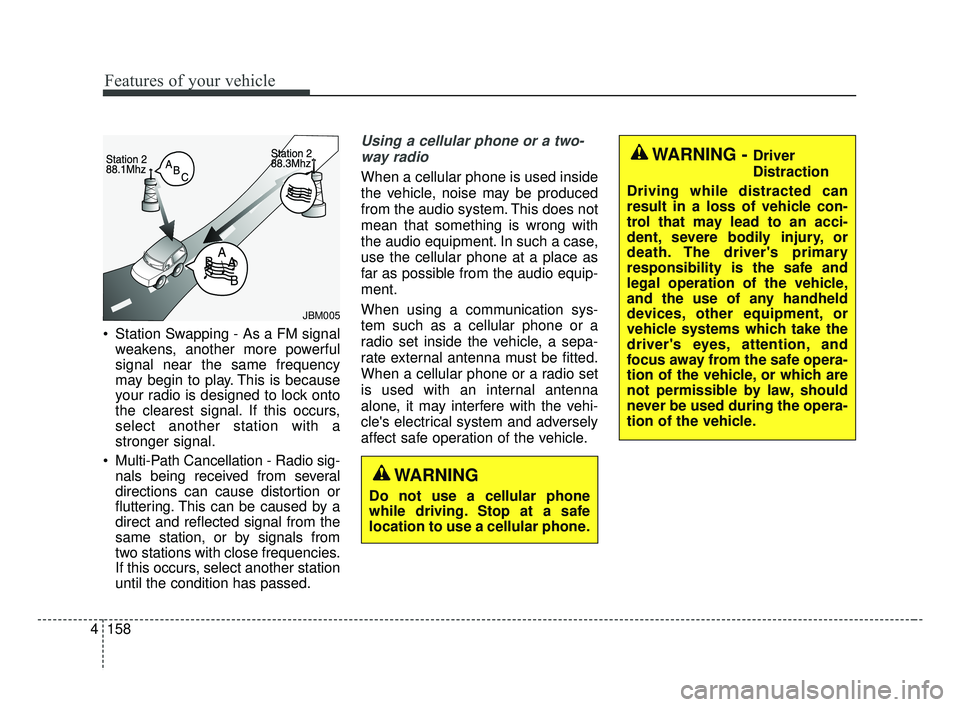
Station Swapping - As a FM signal
weakens, another more powerful
signal near the same frequency
may begin to play. This is because
your radio is designed to lock onto
the clearest signal. If this occurs,
select another station with a
stronger signal.
Multi-Path Cancellation - Radio sig- nals being received from several
directions can cause distortion or
fluttering. This can be caused by a
direct and reflected signal from the
same station, or by signals from
two stations with close frequencies.
If this occurs, select another station
until the condition has passed.
Using a cellular phone or a two-
way radio
When a cellular phone is used inside
the vehicle, noise may be produced
from the audio system. This does not
mean that something is wrong with
the audio equipment. In such a case,
use the cellular phone at a place as
far as possible from the audio equip-
ment.
When using a communication sys-
tem such as a cellular phone or a
radio set inside the vehicle, a sepa-
rate external antenna must be fitted.
When a cellular phone or a radio set
is used with an internal antenna
alone, it may interfere with the vehi-
cle's electrical system and adversely
affect safe operation of the vehicle.
JBM005
WARNING
Do not use a cellular phone
while driving. Stop at a safe
location to use a cellular phone.
WARNING - Driver
Distraction
Driving while distracted can
result in a loss of vehicle con-
trol that may lead to an acci-
dent, severe bodily injury, or
death. The driver's primary
responsibility is the safe and
legal operation of the vehicle,
and the use of any handheld
devices, other equipment, or
vehicle systems which take the
driver's eyes, attention, and
focus away from the safe opera-
tion of the vehicle, or which are
not permissible by law, should
never be used during the opera-
tion of the vehicle.
BDm CAN (ENG) 4.qxp 7/4/2018 10:11 AM Page 158
Page 245 of 550

Features of your vehicle
160
4
iPod®
iPod®is a trademark of Apple Inc.
Bluetooth®Wireless Technology
A compatible Bluetooth®Wireless Technology-enabled
cell phone is required to use
Bluetooth®Wireless
Technology.
The Bluetooth
®word mark and logos are registered
trademarks owned by Bluetooth SIG, Inc. and any use of
such marks by Kia is under license.
Other trademarks and trade names are those of their
respective owners.
A Bluetooth
®enabled cell phone is required to use
Bluetooth®Wireless Technology.
Bluetooth®Wireless Technology phone compatibility can
be checked by visiting http://www.kia.com.
BDm CAN (ENG) 4.qxp 7/4/2018 10:11 AM Page 160