Page 344 of 557
5-70
Driving your vehicle- The BCW turns on and gets ready to be activated when
'Warning Only' is selected. Then,
if a vehicle approaches the dri-
ver's blind spot area a warning
sounds.
- The system is deactivated and the indicator on the BCW/BCA
button is extinguished when 'Off'
is selected.
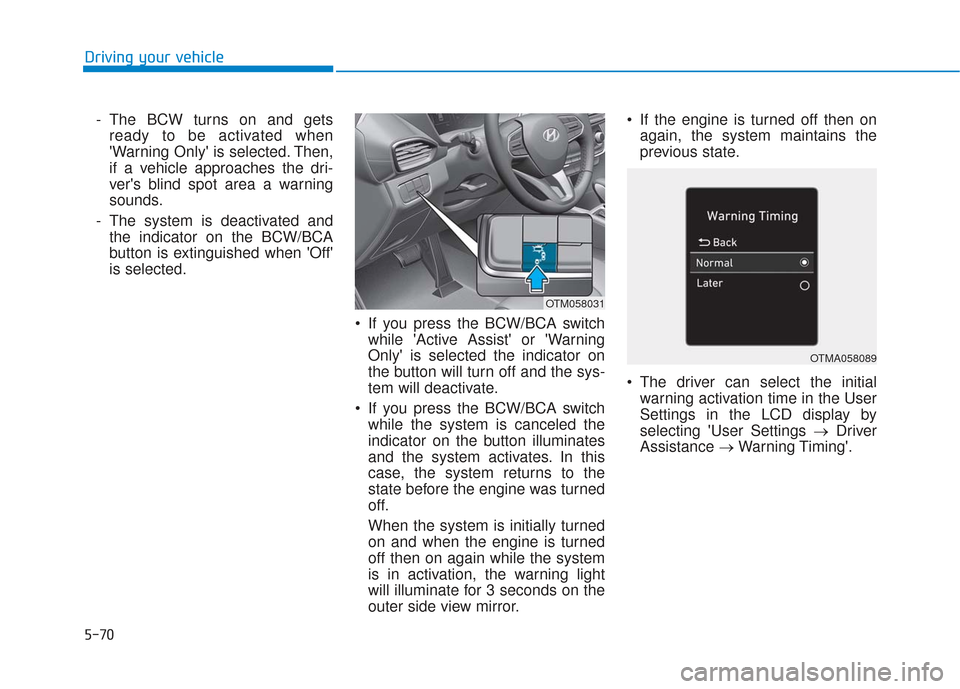
If you press the BCW/BCA switchwhile 'Active Assist' or 'Warning
Only' is selected the indicator on
the button will turn off and the sys-
tem will deactivate.
If you press the BCW/BCA switch while the system is canceled the
indicator on the button illuminates
and the system activates. In this
case, the system returns to the
state before the engine was turned
off.
When the system is initially turned
on and when the engine is turned
off then on again while the system
is in activation, the warning light
will illuminate for 3 seconds on the
outer side view mirror. If the engine is turned off then on
again, the system maintains the
previous state.
The driver can select the initial warning activation time in the User
Settings in the LCD display by
selecting 'User Settings → Driver
Assistance →Warning Timing'.
OTM058031
OTMA058089
Page 357 of 557
5-83
Driving your vehicle
5
System Setting and Activation
System setting
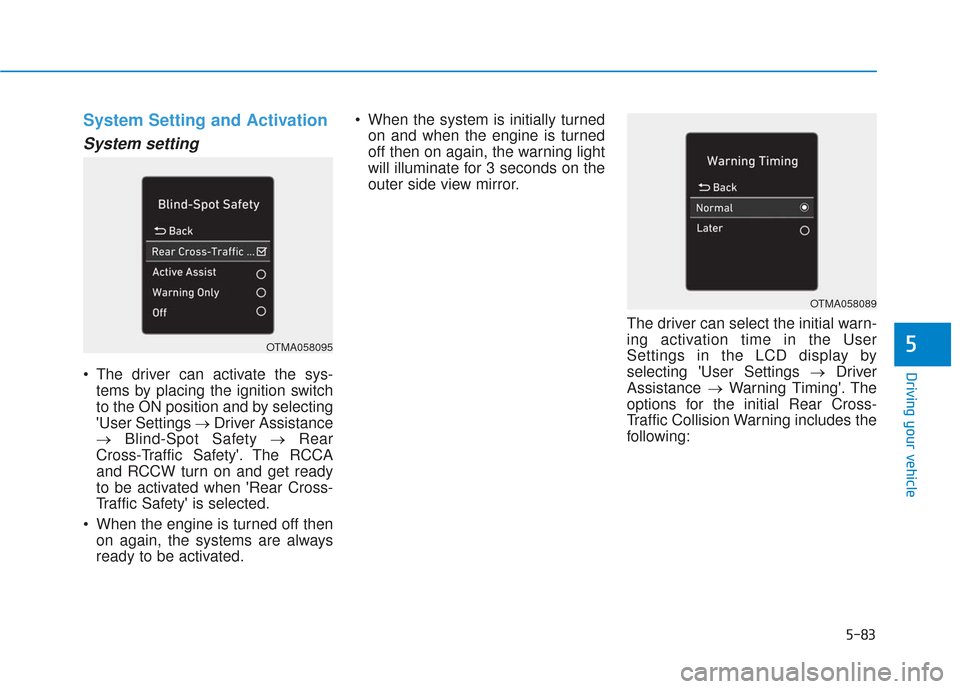
The driver can activate the sys-tems by placing the ignition switch
to the ON position and by selecting
'User Settings → Driver Assistance
→ Blind-Spot Safety → Rear
Cross-Traffic Safety'. The RCCA
and RCCW turn on and get ready
to be activated when 'Rear Cross-
Traffic Safety' is selected.
When the engine is turned off then on again, the systems are always
ready to be activated. When the system is initially turned
on and when the engine is turned
off then on again, the warning light
will illuminate for 3 seconds on the
outer side view mirror.
The driver can select the initial warn-
ing activation time in the User
Settings in the LCD display by
selecting 'User Settings →Driver
Assistance →Warning Timing'. The
options for the initial Rear Cross-
Traffic Collision Warning includes the
following:
OTMA058095
OTMA058089
Page 372 of 557
5-98
Driving your vehicle
Information
• Even though the steering is assistedby the system, the driver can still
steer to control the steering wheel.
• The steering wheel may feel heavier when the steering wheel is assisted
by the system than when it is not.
Check Lane Keeping Assist(LKA) system
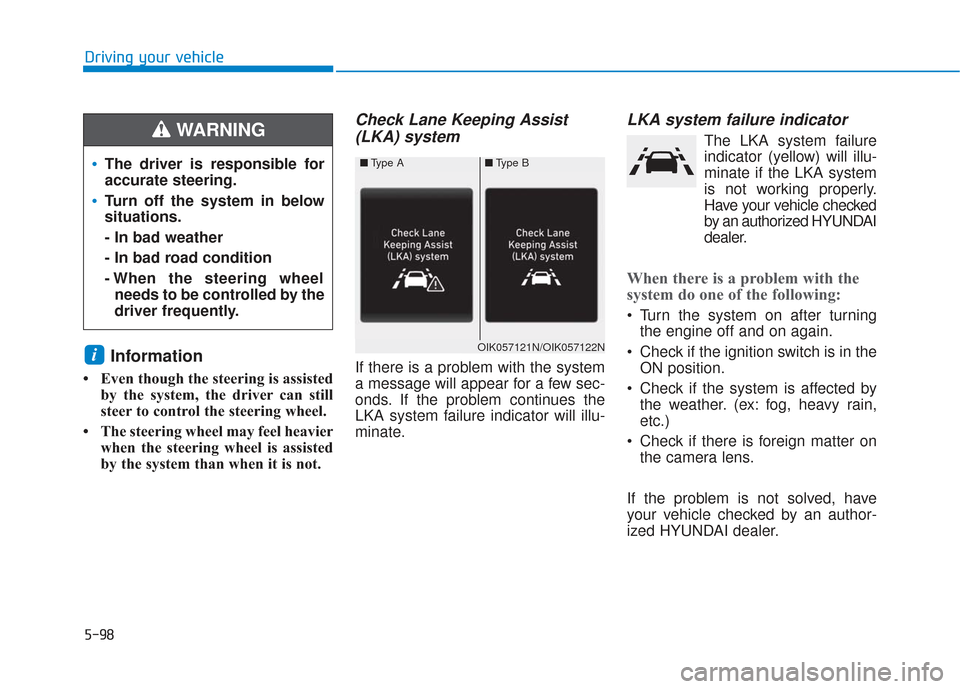
If there is a problem with the system
a message will appear for a few sec-
onds. If the problem continues the
LKA system failure indicator will illu-
minate.
LKA system failure indicator
The LKA system failure
indicator (y ellow) will illu-
minate if the LKA system
is not working properly.
Have your vehicle checked
by an authorized HYUNDAI
dealer.
When there is a problem with the
system do one of the following:
Turn the system on after turning the engine off and on again.
Check if the ignition switch is in the ON position.
Check if the system is affected by the weather. (ex: fog, heavy rain,
etc.)
Check if there is foreign matter on the camera lens.
If the problem is not solved, have
your vehicle checked by an author-
ized HYUNDAI dealer.
i
■ Type A■Type B
OIK057121N/OIK057122N
The driver is responsible for
accurate steering.
Turn off the system in below
situations.
- In bad weather
- In bad road condition
- When the steering wheel
needs to be controlled by the
driver frequently.
WARNING
Page 376 of 557
5-102
Driving your vehicle
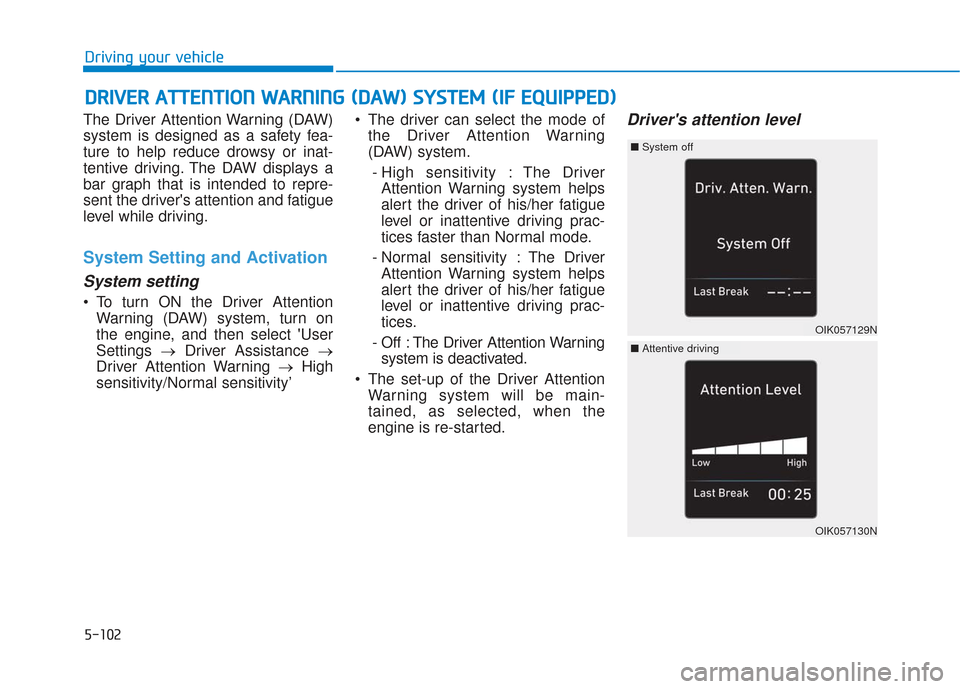
The Driver Attention Warning (DAW)
system is designed as a safety fea-
ture to help reduce drowsy or inat-
tentive driving. The DAW displays a
bar graph that is intended to repre-
sent the driver's attention and fatigue
level while driving.
System Setting and Activation
System setting
To turn ON the Driver Attention Warning (DAW) system, turn on
the engine, and then select 'User
Settings →Driver Assistance →
Driver Attention Warning →High
sensitivity/Normal sensitivity’ The driver can select the mode of
the Driver Attention Warning
(DAW) system.
- High sensitivity : The Driver Attention Warning system helps
alert the driver of his/her fatigue
level or inattentive driving prac-
tices faster than Normal mode.
- Normal sensitivity : The Driver Attention Warning system helps
alert the driver of his/her fatigue
level or inattentive driving prac-
tices.
- Off : The Driver Attention Warning system is deactivated.
The set-up of the Driver Attention Warning system will be main-
tained, as selected, when the
engine is re-started.
Driver's attention level
D DR
RI
IV
V E
ER
R
A
A T
TT
TE
EN
N T
TI
IO
O N
N
W
W A
AR
RN
N I
IN
N G
G
(
( D
D A
A W
W )
)
S
S Y
Y S
ST
T E
EM
M
(
( I
IF
F
E
E Q
Q U
UI
IP
P P
PE
ED
D )
)
OIK057129N
■ System off
OIK057130N
■Attentive driving
Page 377 of 557
5-103
Driving your vehicle
5
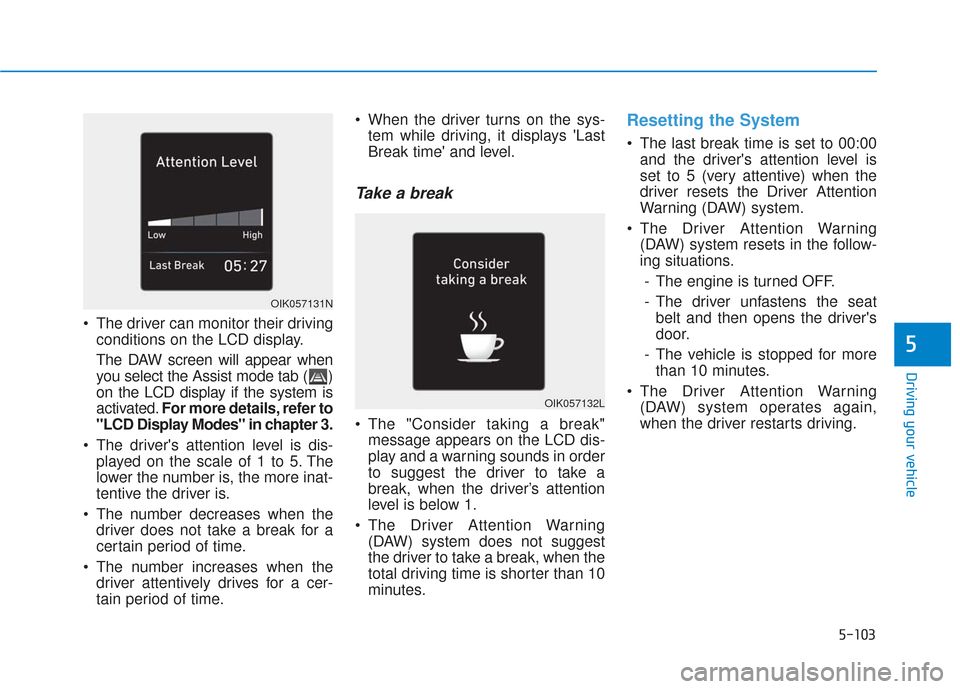
The driver can monitor their drivingconditions on the LCD display.
The DAW screen will appear when
you select the Assist mode tab ( )
on the LCD display if the system is
activated. For more details, refer to
"LCD Display Modes" in chapter 3.
The driver's attention level is dis- played on the scale of 1 to 5. The
lower the number is, the more inat-
tentive the driver is.
The number decreases when the driver does not take a break for a
certain period of time.
The number increases when the driver attentively drives for a cer-
tain period of time. When the driver turns on the sys-
tem while driving, it displays 'Last
Break time' and level.
Take a break
The "Consider taking a break"message appears on the LCD dis-
play and a warning sounds in order
to suggest the driver to take a
break, when the driver’s attention
level is below 1.
The Driver Attention Warning (DAW) system does not suggest
the driver to take a break, when the
total driving time is shorter than 10
minutes.
Resetting the System
The last break time is set to 00:00and the driver's attention level is
set to 5 (very attentive) when the
driver resets the Driver Attention
Warning (DAW) system.
The Driver Attention Warning (DAW) system resets in the follow-
ing situations.
- The engine is turned OFF.
- The driver unfastens the seat belt and then opens the driver's
door.
- The vehicle is stopped for more than 10 minutes.
The Driver Attention Warning (DAW) system operates again,
when the driver restarts driving.
OIK057132L
OIK057131N
Page 383 of 557

5-109
Driving your vehicle
5
To temporarily accelerate withthe Smart Cruise Control on
If you want to speed up temporarily
when the Smart Cruise Control is on,
depress the accelerator pedal.
Increased speed will not interfere
with Smart Cruise Control operation
or change the set speed.
To return to the set speed, take your
foot off the accelerator pedal.
If you push the toggle switch down
(SET-) at increased speed, the cruis-
ing speed will be set again pedal.
Smart Cruise Control set speedwill be temporarily canceledwhen:
Canceled manually
Depressing the brake pedal.
Pushing the CANCEL button locat-
ed on the steering wheel.
The Smart Cruise Control turns off
temporarily when the Set Speed and
Vehicle-to-Vehicle Distance indicator
on the LCD display turns off.
The cruise indicator is illuminated
continuously.
Canceled automatically
The driver's door is opened.
The vehicle is shifted to N (Neutral), R (Reverse) or P (Park).
The EPB (Electronic Parking Brake) is applied.
The vehicle speed is over 105 mph (170 km/h).
The vehicle stops on a steep incline.
The ESC (Electronic Stability Control), TCS (Traction Control
System) or ABS is operating.
The ESC is turned off.
The sensor or the cover is dirty or blocked with foreign matter.
The vehicle is stopped for a certain period of time.
The vehicle stops and goes repeat- edly for a long period of time.
The accelerator pedal is continu- ously depressed for a long period
of time.
The engine performance is abnor- mal.
Engine rpm is in the red zone.
Be careful when accelerating
temporarily, because the speed
is not controlled automatically
at this time even if there is a
vehicle in front of you.
CAUTIONOTM058040
Page 385 of 557
5-111
Driving your vehicle
5
To turn Cruise Control off
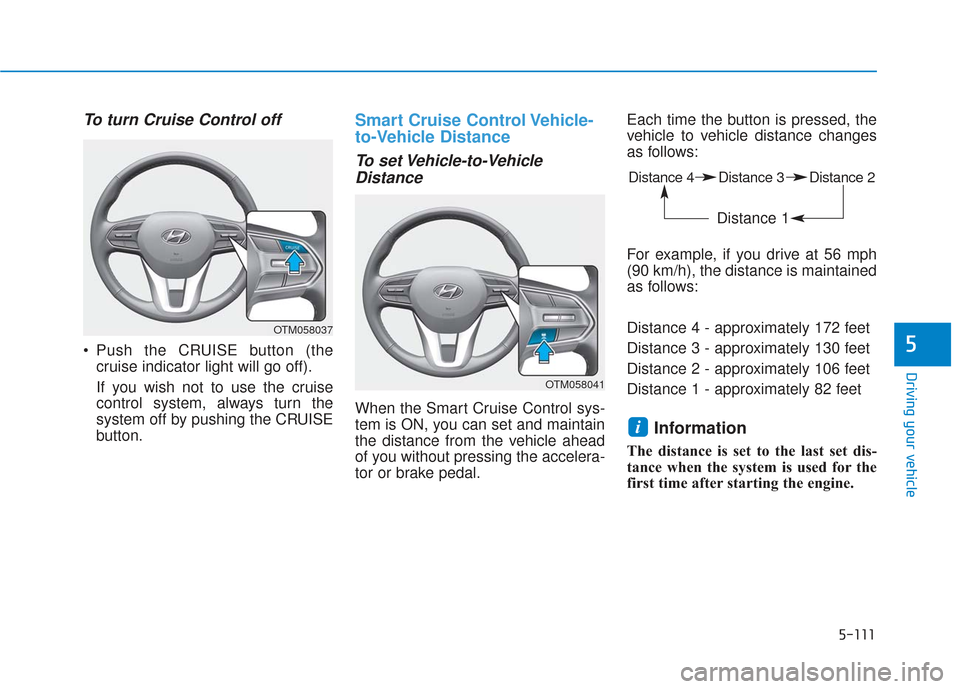
Push the CRUISE button (thecruise indicator light will go off).
If you wish not to use the cruise
control system, always turn the
system off by pushing the CRUISE
button.
Smart Cruise Control Vehicle-
to-Vehicle Distance
To set Vehicle-to-VehicleDistance
When the Smart Cruise Control sys-
tem is ON, you can set and maintain
the distance from the vehicle ahead
of you without pressing the accelera-
tor or brake pedal. Each time the button is pressed, the
vehicle to vehicle distance changes
as follows:
For example, if you drive at 56 mph
(90 km/h), the distance is maintained
as follows:
Distance 4 - approximately 172 feet
Distance 3 - approximately 130 feet
Distance 2 - approximately 106 feet
Distance 1 - approximately 82 feet
Information
The distance is set to the last set dis-
tance when the system is used for the
first time after starting the engine.
i
OTM058037
Distance 4 Distance 3 Distance 2
Distance 1
OTM058041
Page 389 of 557
5-115
Driving your vehicle
5
Sensor to Detect Distance to
the Vehicle Ahead
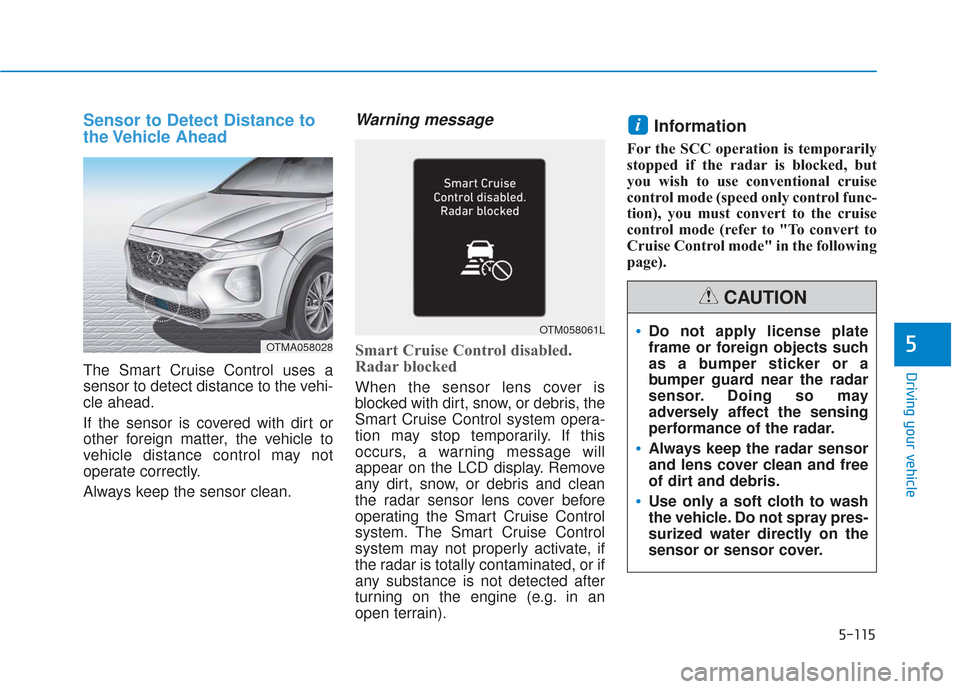
The Smart Cruise Control uses a
sensor to detect distance to the vehi-
cle ahead.
If the sensor is covered with dirt or
other foreign matter, the vehicle to
vehicle distance control may not
operate correctly.
Always keep the sensor clean.
Warning message
Smart Cruise Control disabled.
Radar blocked
When the sensor lens cover is
blocked with dirt, snow, or debris, the
Smart Cruise Control system opera-
tion may stop temporarily. If this
occurs, a warning message will
appear on the LCD display. Remove
any dirt, snow, or debris and clean
the radar sensor lens cover before
operating the Smart Cruise Control
system. The Smart Cruise Control
system may not properly activate, if
the radar is totally contaminated, or if
any substance is not detected after
turning on the engine (e.g. in an
open terrain).
Information
For the SCC operation is temporarily
stopped if the radar is blocked, but
you wish to use conventional cruise
control mode (speed only control func-
tion), you must convert to the cruise
control mode (refer to "To convert to
Cruise Control mode" in the following
page).
i
OTMA058028
OTM058061LDo not apply license plate
frame or foreign objects such
as a bumper sticker or a
bumper guard near the radar
sensor. Doing so may
adversely affect the sensing
performance of the radar.
Always keep the radar sensor
and lens cover clean and free
of dirt and debris.
Use only a soft cloth to wash
the vehicle. Do not spray pres-
surized water directly on the
sensor or sensor cover.
CAUTION