2019 Hyundai Ioniq Electric audio
[x] Cancel search: audioPage 261 of 555
4-38
Multimedia System
Information
• Some Bluetooth®Wireless Technology
devices may not support the Private
function.
• The outgoing voice volume may vary depending on the type of Bluetooth
®
device. If the outgoing voice volume is
too high or low, adjust the Outgoing
Volume.
Favorites
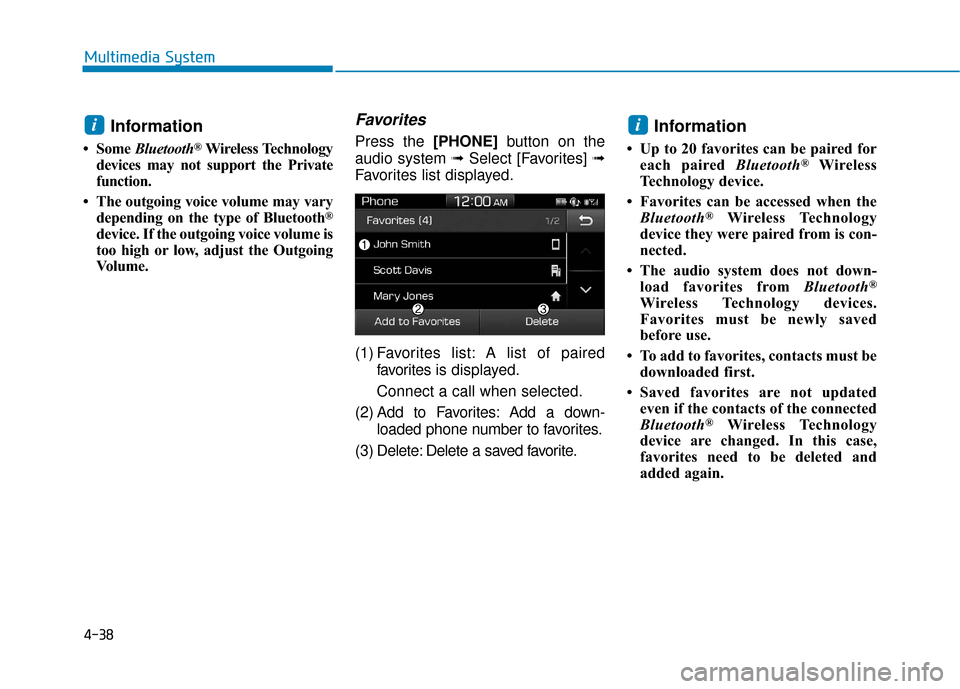
Press the [PHONE]button on the
audio system ➟ Select [Favorites] ➟
Favorites list displayed.
(1) Favorites list: A list of paired favorites is displayed.
Connect a call when selected.
(2) Add to Favorites: Add a down- loaded phone number to favorites.
(3) Delete: Delete a saved favorite.Information
• Up to 20 favorites can be paired for each paired Bluetooth®Wireless
Technology device.
• Favorites can be accessed when the Bluetooth
®Wireless Technology
device they were paired from is con-
nected.
• The audio system does not down- load favorites from Bluetooth
®
Wireless Technology devices.
Favorites must be newly saved
before use.
• To add to favorites, contacts must be downloaded first.
• Saved favorites are not updated even if the contacts of the connected
Bluetooth
®Wireless Technology
device are changed. In this case,
favorites need to be deleted and
added again.
ii
Page 262 of 555
![Hyundai Ioniq Electric 2019 Owners Manual 4-39
Multimedia System
4
Call history
Press the [PHONE]button on the
audio system ➟ Select [Call history]
➟ Call history is displayed.
(1) Call history: Display the down- loaded call history list.](/manual-img/35/14897/w960_14897-261.png "Hyundai Ioniq Electric 2019 Owners Manual 4-39
Multimedia System
4
Call history
Press the [PHONE]button on the
audio system ➟ Select [Call history]
➟ Call history is displayed.
(1) Call history: Display the down- loaded call history list.")
4-39
Multimedia System
4
Call history
Press the [PHONE]button on the
audio system ➟ Select [Call history]
➟ Call history is displayed.
(1) Call history: Display the down- loaded call history list.
Connect a call when selected.
(2) Sort by: Sort by all calls, dialed calls, received calls or missed calls.
(3) Download: Download call history from connected
Bluetooth®Wireless
Technology de vices.
Information
• Up to 50 dialed, received and missed
calls are saved.
• When the latest call history is received, the existing call history is
deleted.
Contacts
Press the [PHONE]button on the
audio system ➟ Select [Contacts] ➟
Select letter (ABC) ➟ Contacts dis-
played.
(1) Contacts: Display downloaded contacts.
Connect a call when selected.
(2) Download: Download contacts from connected
Bluetooth®Wireless
Technology de vices.
Information
• Up to 2,000 contacts can be saved.
• In some cases, additional confirmation
from your Bluetooth
®Wireless
Technology device is necessary when
downloading contacts. If downloading
of contacts unsuccessful, consult your
Bluetooth
®Wireless Technology
device’s settings or the audio screen to
approve the download.
• Contacts without phone numbers are not displayed.
i
i
Page 263 of 555
![Hyundai Ioniq Electric 2019 Owners Manual 4-40
Multimedia System
Dial
Press the [PHONE]button on the
audio ➟Select [Dial].
(1) Phone number entry window: The phone number entered using the
keypad is displayed.
(2) Clear - Press to delete i](/manual-img/35/14897/w960_14897-262.png "Hyundai Ioniq Electric 2019 Owners Manual 4-40
Multimedia System
Dial
Press the [PHONE]button on the
audio ➟Select [Dial].
(1) Phone number entry window: The phone number entered using the
keypad is displayed.
(2) Clear - Press to delete i")
4-40
Multimedia System
Dial
Press the [PHONE]button on the
audio ➟Select [Dial].
(1) Phone number entry window: The phone number entered using the
keypad is displayed.
(2) Clear - Press to delete individual digits.
- Press and hold to delete theentire phone number.
(3) Keypad: Enter phone number.
(4)
Bluetooth®Wireless Technology
Phone name
- The name of the connected
Bluetooth®Wireless Technology
device is displayed.
- Contacts matching the keypad number/letter input are displayed.(5) Call
- Enter and select a phone num-ber to call.
- Select without entering a phone number to see the most recent
dialed call.
Settings
Press the [PHONE]button on the
audio ➟Select [Settings].
- For phone Setup, refer to Setup page ➟Select [Bluetooth].
Siri
Information -
Using Siri
• If you want to use Siri, you have to connect your iOS device to multime-
dia system through Bluetooth
®
Wireless Technology. (Please check
whether your iOS device supports
Siri and turning Siri On)
• If the iOS version is changed, the functions and response may be dif-
ferent according to the iOS device
and the latest version.
• Siri automatically stops in the fol- lowing events.
1)Outgoing and incoming phonecalls.
2)Media (USB, etc.) is connected. (Siri mode is maintained when
iPod
®s are connected)
3)Rear view monitor is activated (option).
4)Vehicle is started or engine is turned off.
5)Screen transition buttons, such as RADIO or MEDIA, are selected.
(Continued)
i
Page 264 of 555
4-41
Multimedia System
4
(Continued)6)When a pop-up message is dis-played on the screen due to acci-
dental execution of Siri.
• The microphone is located above the driver’s seat. To ensure proper Siri,
state your voice while maintaining
proper driving posture.Starting Siri
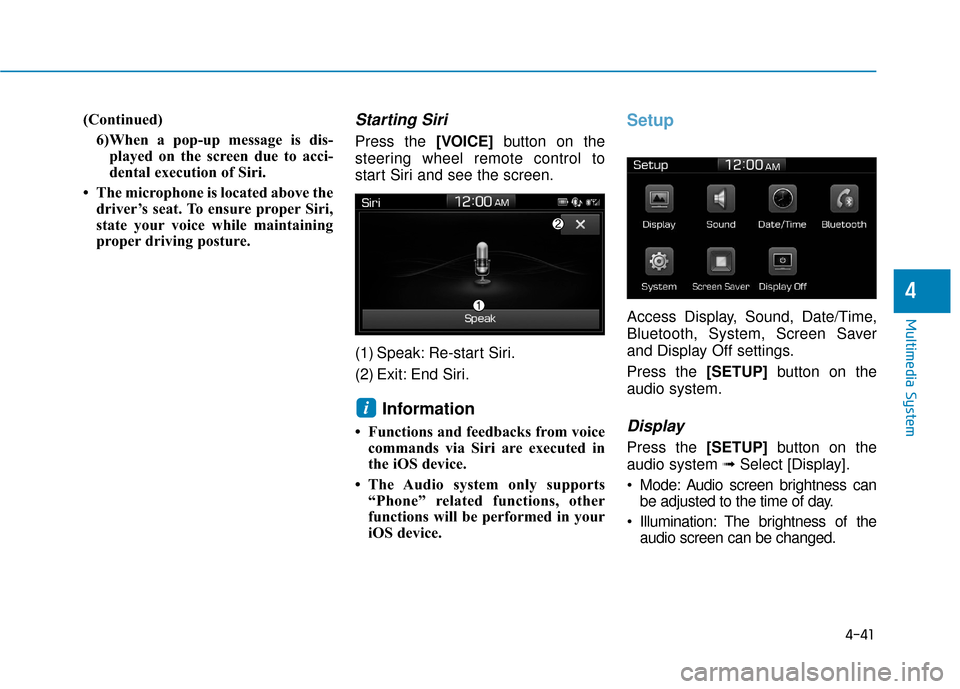
Press the [VOICE] button on the
steering wheel remote control to
start Siri and see the screen.
(1) Speak: Re-start Siri.
(2) Exit: End Siri.
Information
• Functions and feedbacks from voice commands via Siri are executed in
the iOS device.
• The Audio system only supports “Phone” related functions, other
functions will be performed in your
iOS device.
Setup
Access Display, Sound, Date/Time,
Bluetooth, System, Screen Saver
and Display Off settings.
Press the [SETUP]button on the
audio system.
Display
Press the [SETUP]button on the
audio system ➟ Select [Display].
Mode: Audio screen brightness can be adjusted to the time of day.
Illumination: The brightness of the audio screen can be changed.
i
Page 265 of 555
![Hyundai Ioniq Electric 2019 Owners Manual 4-42
Multimedia System
Sound
Press the [SETUP]button on the
audio system ➟ Select [Sound].
Position: Sound balance and pan- ning can be adjusted.
Tone: Sound tone color can be adjusted.
Speed de](/manual-img/35/14897/w960_14897-264.png "Hyundai Ioniq Electric 2019 Owners Manual 4-42
Multimedia System
Sound
Press the [SETUP]button on the
audio system ➟ Select [Sound].
Position: Sound balance and pan- ning can be adjusted.
Tone: Sound tone color can be adjusted.
Speed de")
4-42
Multimedia System
Sound
Press the [SETUP]button on the
audio system ➟ Select [Sound].
Position: Sound balance and pan- ning can be adjusted.
Tone: Sound tone color can be adjusted.
Speed dependent volume: Automatically adjust volume based
on vehicle speed.
Beep: Select whether to play a beep sound when the screen is touched.
Date/Time
Press the [SETUP]button on the
audio system ➟ Select [Date/Time].
Set Time: Set the time displayed on the audio screen.
Time Format: Choose between 12-
hour and 24-hour time formats.
Set Date: Set the date displayed on the audio screen.
Bluetooth
Press the [SETUP]button on the
audio system ➟ Select [Bluetooth].
Connections: Control pairing, dele- tion, connection and disconnection
of
Blluetooth®Wireless Technology
devices.
Auto Connection Priority: Set the
connection priority of
Bluetooth®
Wireless Technology devices when
the vehicle is started.
Download Contacts: Contacts can be downloaded from connected
Bluetooth®Wireless Technology
devices.
Bluetooth Voice Prompts*: Play or mute voice prompts for
Bluetooth®
Wireless Technology de vice pair-
ing, connection and errors.
* if equipped
Information
• When paired devices are deleted, the call history and contacts of the
device saved to the audio system are
deleted.
•ForBluetooth
®Wireless Technology
connections with low connection
priority, some time may be required
for the connection to be established.
• Contacts can be downloaded only from the currently connected
Bluetooth
®Wireless Technology
device.
• If no Bluetooth
®Wireless Technology
device is connected, the Download
Contacts button is disabled.
• If the language setting is Korean, Bluetooth voice prompts are not
supported.
i
Page 266 of 555
![Hyundai Ioniq Electric 2019 Owners Manual 4-43
Multimedia System
4
System
Press the [SETUP]button on the
audio system ➟ Select [System].
• Memory Information: View My Music memory usage.
Language: Change the user lan- guage.
System Info](/manual-img/35/14897/w960_14897-265.png "Hyundai Ioniq Electric 2019 Owners Manual 4-43
Multimedia System
4
System
Press the [SETUP]button on the
audio system ➟ Select [System].
• Memory Information: View My Music memory usage.
Language: Change the user lan- guage.
System Info")
4-43
Multimedia System
4
System
Press the [SETUP]button on the
audio system ➟ Select [System].
• Memory Information: View My Music memory usage.
Language: Change the user lan- guage.
System Information: At the System Information screen, Software version
information, updates are available.
- System Update: At the SystemInformation screen, insert the
USB memory with the latest file
downloaded, and then select the
[Update] to begin updating. The
system with then reboot auto-
matically.Information
• This product needs supplementedsoftware updates and additional
functions, which collectively may
take some time to complete, depend-
ing on the amount of data.
• If the Power is disconnected or the USB is removed during an update,
the data might be damaged. Please
wait until the update is complete
while engine is on.
Screen Saver
Set the information displayed when
the audio system is switched off or
the screen is turned off.
Press the [SETUP] button on the audio
system ➟Select [Screen Saver].
Analog: An analog clock is dis- played.
Digital: A digital clock is displayed.
None: No information is displayed.
Display Off
To prevent glare, the screen can be
turned off with the audio system in
operation.
Press the [SETUP]button on the
audio system ➟ Select [Display Off].
Information
Use ‘Screen Saver’ to set the informa-
tion to be displayed when the screen is
turned off.
i
i
Page 318 of 555
5-51
Driving your vehicle
5
Do not apply license plate frameor foreign objects such as a
bumper sticker or a bumper
guard near the radar sensor.
Doing so may adversely affect
the sensing performance of the
radar.
Always keep the radar sensor and cover clean and free of dirt
and debris.
Use only a soft cloth to wash the vehicle. Do not spray pressur-
ized water directly on the sensor
or sensor cover.
Be careful not to apply unneces- sary force on the radar sensor or
sensor cover. If the sensor is
forcibly moved out of proper
alignment, the FCA system may
not operate correctly. In this
case, a warning message may
not be displayed. Have the vehi-
cle inspected by an authorized
HYUNDAI dealer.
(Continued)(Continued)
If the front bumper becomes
damaged in the area around the
radar sensor, the FCA system
may not operate properly. Have
the vehicle inspected by author-
ized HYUNDAI.
Use only genuine parts to repair or replace a damaged sensor or
sensor cover. Do not apply paint
to the sensor cover. NEVER install any accessories
or stickers on the front wind-
shield, nor tint the front wind-
shield.
NEVER locate any reflective objects (i.e. white paper, mirror)
over the dashboard. Any light
reflection may cause a malfunc-
tion of the system.
Pay extreme caution to keep the camera out of water.
NEVER arbitrarily disassemble the camera assembly, nor apply
any impact on the camera
assembly.
Playing the vehicle audio sys- tem at high volume may offset
the system warning sounds.
Information
Have the system checked by an
authorized HYUNDAI dealer when:
• The windshield glass is replaced.
• The front bumper is replaced.
• The radar sensor or cover gets dam-aged or replaced.
i
NOTICENOTICE
Page 327 of 555
5-60
Driving your vehicle(Continued)
Always have your hands on
the steering wheel while the
LKA system is activated. If
you continue to drive with
your hands off the steering
wheel after the "Keep hands
on steering wheel" warning
message appears, the system
will turn off automatically.
After then, if you drive with
your hands on the steering
wheel, the control will be acti-
vated again.
The steering wheel is not con-
tinuously controlled so if the
vehicle speed is at a higher
speed when leaving a lane the
vehicle may not be able to be
controlled by the system. The
driver must always follow the
speed limit when using the
system.(Continued)
(Continued)
If you attach objects to the
steering wheel, the system
may not assist steering or the
hands off alarm may not work
properly.
(Continued)
The system detects lane
markers and controls the
steering wheel by a camera,
therefore, if the lane markers
are hard to detect, the system
may not work properly.
Please refer to "Limitations of
the system".
Do not remove or damage the
related parts of LKA system.
You may not hear a warning
sound of LKA systembecause
of excessive audio sound.
If any other warning sound
such as seat belt warning
chime is already generated,
the Lane Keeping Assist
(LKA) system warning may
not sound.
Do not place objects on the
dashboard that reflects light
such as mirrors, white paper,
etc. The system may malfunc-
tion if the sunlight is reflected.
(Continued)