2019 Hyundai Ioniq Electric 12 V battery
[x] Cancel search: 12 V batteryPage 204 of 555
3-119
Convenient features of your vehicle
3
Fan speed control
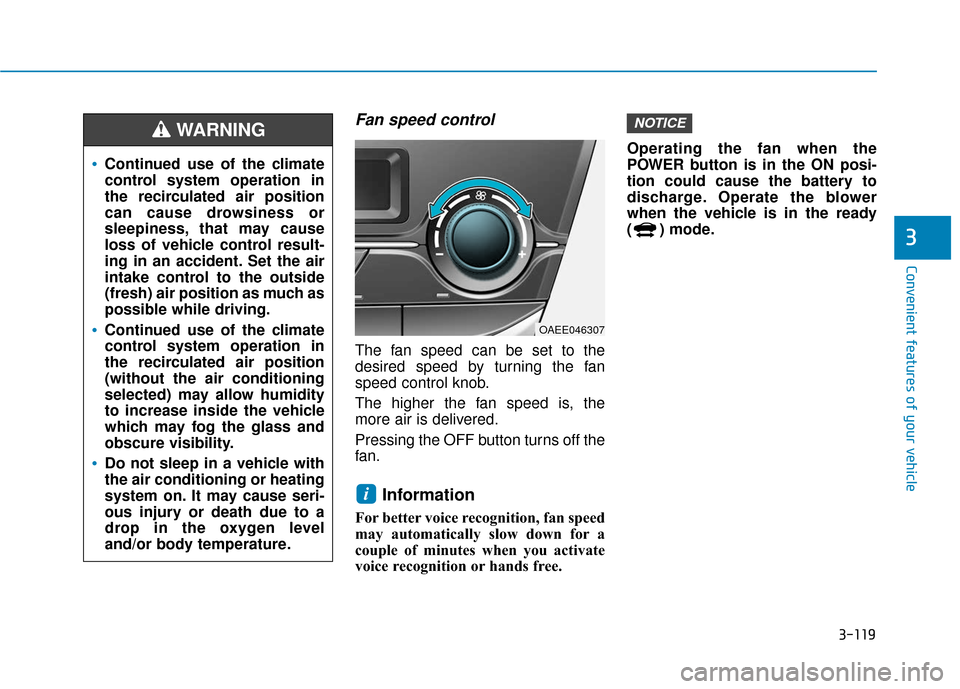
The fan speed can be set to the
desired speed by turning the fan
speed control knob.
The higher the fan speed is, the
more air is delivered.
Pressing the OFF button turns off the
fan.
Information
For better voice recognition, fan speed
may automatically slow down for a
couple of minutes when you activate
voice recognition or hands free.Operating the fan when the
POWER button is in the ON posi-
tion could cause the battery to
discharge. Operate the blower
when the vehicle is in the ready
( ) mode.
NOTICE
i
Continued use of the climate
control system operation in
the recirculated air position
can cause drowsiness or
sleepiness, that may cause
loss of vehicle control result-
ing in an accident. Set the air
intake control to the outside
(fresh) air position as much as
possible while driving.
Continued use of the climate
control system operation in
the recirculated air position
(without the air conditioning
selected) may allow humidity
to increase inside the vehicle
which may fog the glass and
obscure visibility.
Do not sleep in a vehicle with
the air conditioning or heating
system on. It may cause seri-
ous injury or death due to a
drop in the oxygen level
and/or body temperature.
WARNING
OAEE046307
Page 206 of 555
3-121
Convenient features of your vehicle
3
Air conditioner/Heater uses energy
from the battery. If you use the heater
or air conditioner for too long, dis-
tance to empty can be reduced due
to increased power consumption.
Turn off the heater and air conditioner
if not necessary.EV mode (if equipped)
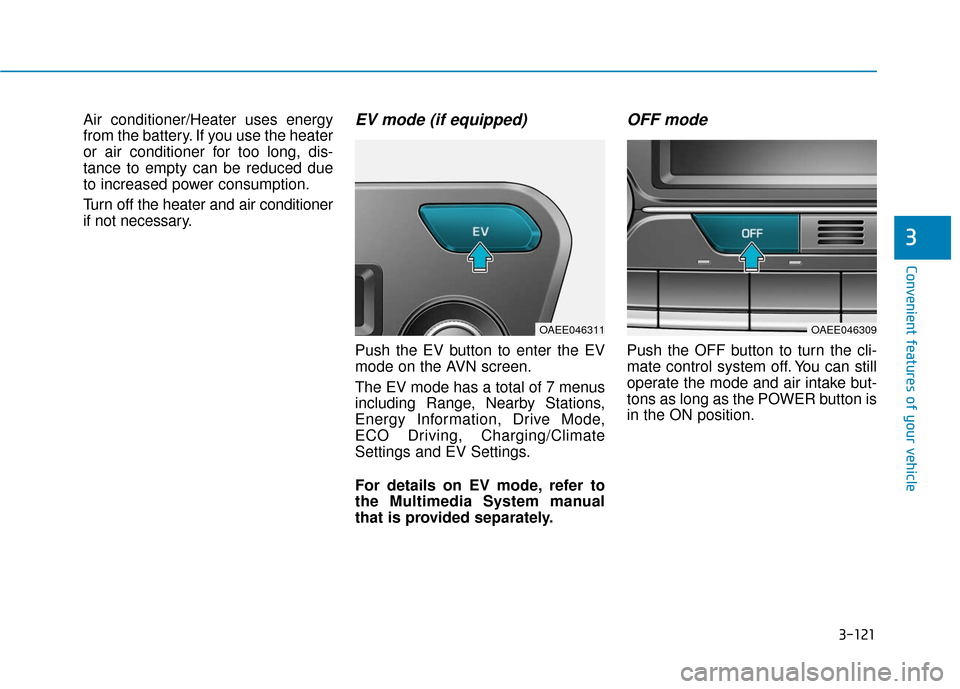
Push the EV button to enter the EV
mode on the AVN screen.
The EV mode has a total of 7 menus
including Range, Nearby Stations,
Energy Information, Drive Mode,
ECO Driving, Charging/Climate
Settings and EV Settings.
For details on EV mode, refer to
the Multimedia System manual
that is provided separately.
OFF mode
Push the OFF button to turn the cli-
mate control system off. You can still
operate the mode and air intake but-
tons as long as the POWER button is
in the ON position.
OAEE046311OAEE046309
Page 211 of 555
3-126
Convenient features of your vehicle
To Defrost Outside Windshield
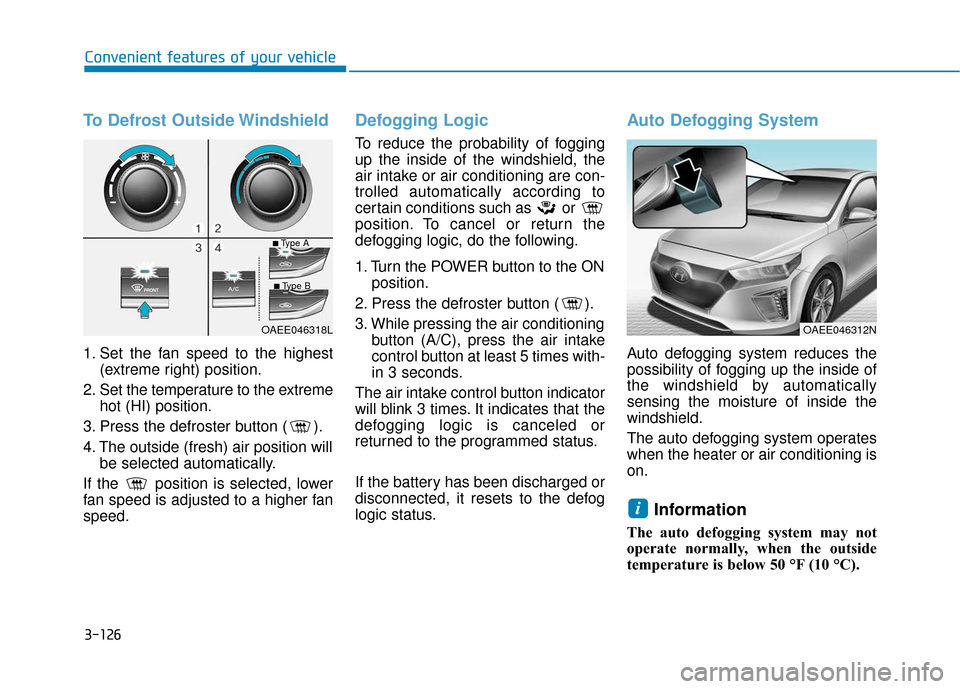
1. Set the fan speed to the highest(extreme right) position.
2. Set the temperature to the extreme hot (HI) position.
3. Press the defroster button ( ).
4. The outside (fresh) air position will be selected automatically.
If the position is selected, lower
fan speed is adjusted to a higher fan
speed.
Defogging Logic
To reduce the probability of fogging
up the inside of the windshield, the
air intake or air conditioning are con-
trolled automatically according to
certain conditions such as or
position. To cancel or return the
defogging logic, do the following.
1. Turn the POWER button to the ON position.
2. Press the defroster button ( ).
3. While pressing the air conditioning button (A/C), press the air intake
control button at least 5 times with-
in 3 seconds.
The air intake control button indicator
will blink 3 times. It indicates that the
defogging logic is canceled or
returned to the programmed status.
If the battery has been discharged or
disconnected, it resets to the defog
logic status.
Auto Defogging System
Auto defogging system reduces the
possibility of fogging up the inside of
the windshield by automatically
sensing the moisture of inside the
windshield.
The auto defogging system operates
when the heater or air conditioning is
on.
Information
The auto defogging system may not
operate normally, when the outside
temperature is below 50 °F (10 °C).
i
OAEE046318LOAEE046312N
■Type A
■Type B
Page 217 of 555
3-132
Convenient features of your vehicle
Power Outlet (if equipped)
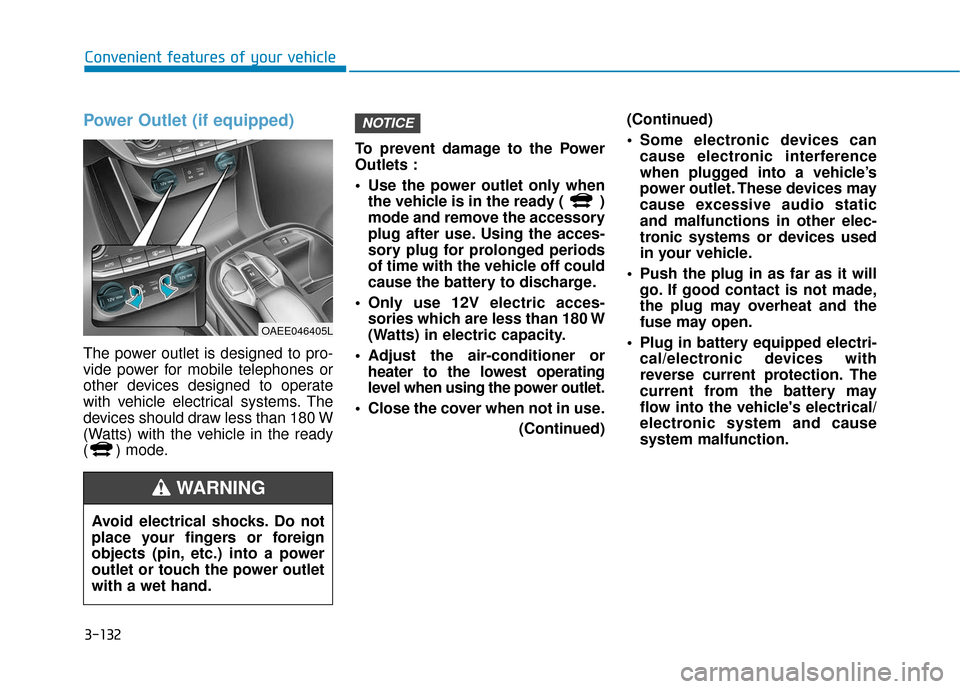
The power outlet is designed to pro-
vide power for mobile telephones or
other devices designed to operate
with vehicle electrical systems. The
devices should draw less than 180 W
(Watts) with the vehicle in the ready
( ) mode.To prevent damage to the Power
Outlets :
Use the power outlet only when
the vehicle is in the ready ( )
mode and remove the accessory
plug after use. Using the acces-
sory plug for prolonged periods
of time with the vehicle off could
cause the battery to discharge.
Only use 12V electric acces- sories which are less than 180 W
(Watts) in electric capacity.
Adjust the air-conditioner or heater to the lowest operating
level when using the power outlet.
Close the cover when not in use. (Continued)(Continued)
Some electronic devices can
cause electronic interference
when plugged into a vehicle’s
power outlet. These devices may
cause excessive audio static
and malfunctions in other elec-
tronic systems or devices used
in your vehicle.
Push the plug in as far as it will go. If good contact is not made,
the plug may overheat and the
fuse may open.
Plug in battery equipped electri- cal/electronic devices with
reverse current protection. The
current from the battery may
flow into the vehicle's electrical/
electronic system and cause
system malfunction.
NOTICE
OAEE046405L
Avoid electrical shocks. Do not
place your fingers or foreign
objects (pin, etc.) into a power
outlet or touch the power outlet
with a wet hand.
WARNING
Page 238 of 555
4-15
Multimedia System
4
Information
• If you want to change the position ofdevice installation, please inquire
with your place of purchase or serv-
ice maintenance center. Technical
expertise is required to install or dis-
assemble the device.
• Turn on the car ignition before using this device. Do not operate the
audio system for long periods of
time with the ignition turned off as
such operations may lead to battery
discharge. Do not subject the device to
severe shock or impact. Direct
pressure onto the front side of
the monitor may cause damage
to the LCD or touch screen.
When cleaning the device, make sure to turn off the device and
use a dry and smooth cloth.
Never use tough materials,
chemical cloths, or solvents
(alcohol, benzene, thinners, etc.)
As such materials may damage
the device panel or cause
color/quality deterioration.
Do not place beverages close to the audio system. Spilling bever-
ages may lead to system mal-
function.
Placing the audio system within an electromagnetic environment
may result in noise interference.
Information
In this case of product malfunction,
please contact your dealer or vehicle
service center.
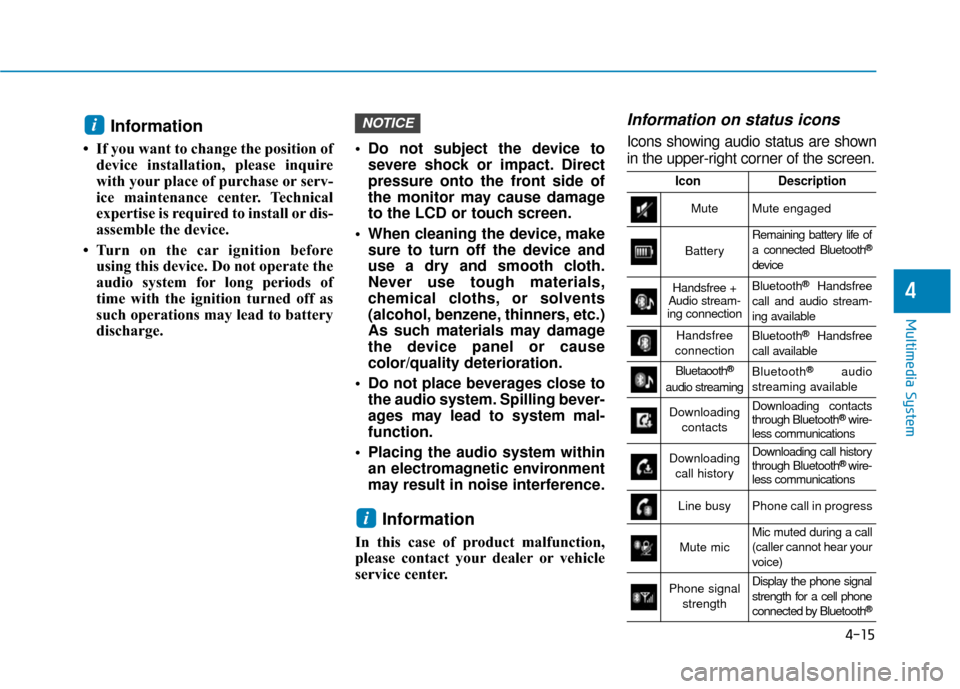
Information on status icons
Icons showing audio status are shown
in the upper-right corner of the screen.
i
NOTICEi
IconDescription
MuteMute engaged
Battery
Remaining battery life of
a connected Bluetooth®
device
Handsfree +
Audio stream-
ing connectionBluetooth®Handsfree
call and audio stream-
ing available
Handsfree
connectionBluetooth®Handsfree
call available
Bluetaooth®
audio streaming
Bluetooth®audio
streaming available
Downloading contactsDownloading contacts
through Bluetooth®wire-
less communications
Downloading
call historyDownloading call history
through Bluetooth® wire-
less communications
Line busyPhone call in progress
Mute micMic muted during a call
(caller cannot hear your
voice)
Phone signal
strengthDisplay the phone signal
strength for a cell phone
connected by Bluetooth
®
Page 247 of 555
![Hyundai Ioniq Electric 2019 Owners Manual 4-24
Multimedia System
(4) Save: Save the selected file(s)
.
- Select the files you want to save, and select [Save]. This saves the
selected files to My Music.
- Saving is canceled if phone calls are](/manual-img/35/14897/w960_14897-246.png "Hyundai Ioniq Electric 2019 Owners Manual 4-24
Multimedia System
(4) Save: Save the selected file(s)
.
- Select the files you want to save, and select [Save]. This saves the
selected files to My Music.
- Saving is canceled if phone calls are")
4-24
Multimedia System
(4) Save: Save the selected file(s)
.
- Select the files you want to save, and select [Save]. This saves the
selected files to My Music.
- Saving is canceled if phone calls are received or made while saving.
- If Siri is activated, phone calls are received or made while sav-
ing, saving will be canceled.
- Up to 6,000 files can be saved.
- The currently playing file on the USB device cannot be changed
while saving.
- My Music cannot be used while saving.
- Up to 700 MB can be saved.
Information: Detailed information on the currently playing song is dis-
played.
Sound Settings: Audio sound set- tings can be changed.Information
-
Using the iPod®Devices
• To use the audio system’s iPod
®con-
trol function, use the dedicated
cable provided with your iPod
®.
• Connecting the iPod
®to the vehicle
during play may result in a loud
noise that lasts about one to two sec-
onds. Connect the iPod
®to the vehi-
cle after stopping or pausing play.
• Connect the iPod
®with the vehicle in
the ACC ON state to begin charging.
• When connecting the iPod
®cable,
be sure to fully push the cable into
the port.
• When EQ effects are enabled simul- taneously on external devices, such
as iPod
®s and the audio system, the
EQ effects may overlap, causing
sound quality deterioration or dis-
tortion. Deactivate the EQ function
for all external devices, if possible.
• Noise may occur when your iPod
®
or the AUX port is connected.
Disconnect and store separately
when not in use. (Continued)(Continued)
• There may be noise if the audio sys-
tem is used with an iPod
®or AUX
external device connected to the
power jack. In these cases, discon-
nect the iPod
®or external device
from the power jack.
• Play may be interrupted, or device malfunctions may occur depending
on the characteristics of your
iPod
®/iPhone®.
• Play may fail if your iPhone
®is con-
nected through both Bluetooth®
Wireless Technology and USB. In
this case, select Dock connector or
Bluetooth
®Wireless Technology on
your iPhone®to change the sound
output settings.
• If your software version does not support the communication proto-
col or your iPod
®is not recognized
due to device failure, anomalies or
defects, iPod
®mode cannot be used.
• iPod
®nano (5th generation) devices
may not be recognized if the battery
is low. Charge sufficiently before use.
(Continued)
i
Page 257 of 555
4-34
Multimedia System
Even if your device supports
Bluetooth®Wireless Technology, a
Bluetooth®Wireless Technology con-
nection cannot be established if
the device’s
Bluetooth®Wireless
Technology function is switched off.
Search and connect with the
Bluetooth®Wireless Technology
function enabled.
Pair or connect
Bluetooth®Wireless
Technology de vices to the audio
system with the vehicle at a stand-
still.
If a
Bluetooth®Wireless Technology
connection is lost due to abnormal
conditions while a
Bluetooth®
Wireless Technology de vice is con-
nected (communication range
exceeded, device power OFF,
communication errors, etc.), the
disconnected
Bluetooth®Wireless
Technology de vice is searched for
and automatically reconnected.
If you want to disable the
Bluetooth®
Wireless Technology device auto-
connect function, turn the
Bluetooth®
Wireless Technology function OFF on
your device. Consult the user manu-
als for individual devices to see
whether
Bluetooth®Wireless
Technology is supported. Handsfree call quality and volume
may vary depending on the type of
Bluetooth®Wireless Technology
device.
Some
Bluetooth®Wireless
Technology de vices are subject to
intermittent
Bluetooth®Wireless
Technology connection failures. In
this case, use the following
method.
1) Turn the
Bluetooth®Wireless
Technology function off on your
Bluetooth®Wireless Technology
device ➟Turn it on and try again.
2) Delete the paired device from both the audio system and
Bluetooth®Wireless Technology
device, then pair again.
3) Power down your
Bluetooth®
Wireless Technology de vice ➟
Turn it on and try again.
4) Completely remove the battery from your
Bluetooth®Wireless
Technology de vice; reinsert it,
reboot, and attempt connection.
5) Restart the vehicle and reat- tempt connection.
Pairing a Bluetooth®Wireless
Technology device
Information on pairing Bluetooth®
Wireless Technology devices
Pairing refers to the process of pair-
ing
Bluetooth®Wireless Technology
cell phones or devices with the sys-
tem prior to connection. This is a nec-
essary procedure for
Bluetooth®
Wireless Technology connection and
usage.
Up to five devices can be paired.
Pairing Bluetooth
®device is not
allowed while vehicle is moving.
Pairing the first Bluetooth®Wireless
Technology device
Press the [PHONE]button on the
audio system or the [CALL] button
on the steering wheel remote control
➟ Search for the vehicle from the
Bluetooth®Wireless Technology
device, and pair ➟ Enter the passkey
on the
Bluetooth®Wireless Technology
device or approve passkey ➟
Bluetooth®Wireless Technologypair-
ing completed.
Page 274 of 555
5-7
Driving your vehicle
5
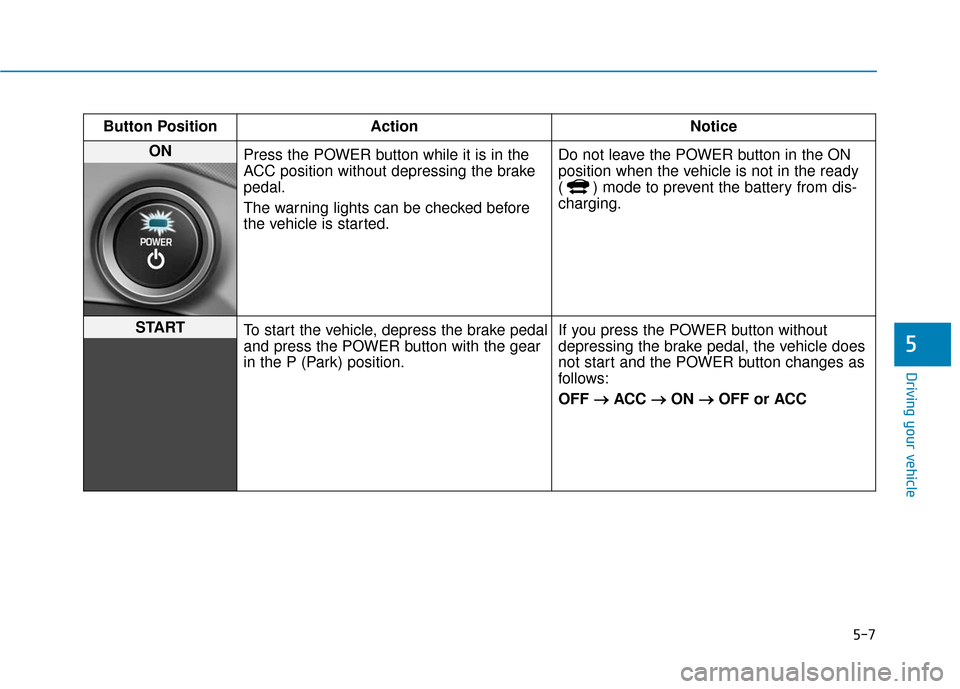
Button PositionAction Notice
ON
Press the POWER button while it is in the
ACC position without depressing the brake
pedal.
The warning lights can be checked before
the vehicle is started. Do not leave the POWER button in the ON
position when the vehicle is not in the ready
( ) mode to prevent the battery from dis-
charging.
START
To start the vehicle, depress the brake pedal
and press the POWER button with the gear
in the P (Park) position. If you press the POWER button without
depressing the brake pedal, the vehicle does
not start and the POWER button changes as
follows:
OFF
→ →
ACC →
→
ON →
→
OFF or ACC