Page 162 of 767
uuOpening and Closing the Tailgate uPrecautions for Openi ng/Closing the Tailgate
160
Controls
The power tailgate can be operated by pressing the power tailgate button on the
remote transmitter, pressing the power tail gate button in the driver side control
panel, pressing the button on the tailgate, or by raising and lowering your foot
under the center of the rear bumper for hands free access (if equipped).
The power tailgate can be opened/c losed when the transmission is in
(P.
1Precautions for Opening/Closing the Tailgate
NOTICE
Do not push or pull on the power tailgate when it is
being automatically opened or closed.
Forcibly opening or closing the power tailgate while
in operation can deform the tailgate frame.
When operating the power tailgate, make sure there
is enough space around your ve hicle. People near the
tailgate may be se riously hurt if the tailgate hits or
closes on their heads. Be especially cautious if
children are around.
The power tailgate may not open or close under the
following conditions:
•You start the engine while the tailgate is
automatically openi ng or closing.
•The vehicle is parked on a steep hill.•The vehicle is swayed in a strong wind.
•The tailgate or the roof is covered with snow or ice.
3WARNING
Closing a power tailgate while anyone is in
the path of the tailgate can cause serious
injury.
Make sure everyone is clear before closing
the power tailgate.
Models with power tailgate
Models with power tailgate
Models with power tailgate
19 ODYSSEY-31THR6120.book 160 ページ 2018年12月6日 木曜日 午後4時35分
Page 176 of 767

uuOpening and Closing the Sliding Doors uOpening/Closing the Power Sliding Doors*
174
Controls
The power sliding door opens when you press
the OPEN side of the / switch, and
closes when you press the CLOSE side of the
/ switch.
While the power sliding door is in operation, if
you press the switch that corresponds to that
power sliding door, the beeper sounds and
the operation stops.
To resume the power sliding door operation,
press the same switch again.
■Power Sliding Door Switches1 Opening/Closing the Power Sliding Doors*
Auto Reverse
Do not touch the pinch sensor located at the front
edge of the power slidi ng door. Do not damage the
sensor. The power slidi ng door may not operate
properly.
If the power sliding door senses resistance when
closing automatically, it wi ll stop closing and reverse
direction. The beeper sounds.
Before the power sliding door operation, make sure
there are no people or obsta cles near the door. The
auto reverse function should be activated in case of
emergency only. If someone is caught in the opening
or closing sliding door, it ca n cause serious injury. Pay
special attention to children.
Closing a power sliding door on someone’s hand or
fingers can cause serious injury. Some parts of the
door edge do not sense resi stance when the door is
near closing.
Pinch
Sensor
*Not available on all models
19 ODYSSEY-31THR6120.book 174 ページ 2018年12月6日 木曜日 午後4時35分
Page 177 of 767
Continued175
uuOpening and Closing the Sliding Doors uOpening/Closing the Power Sliding Doors*
Controls
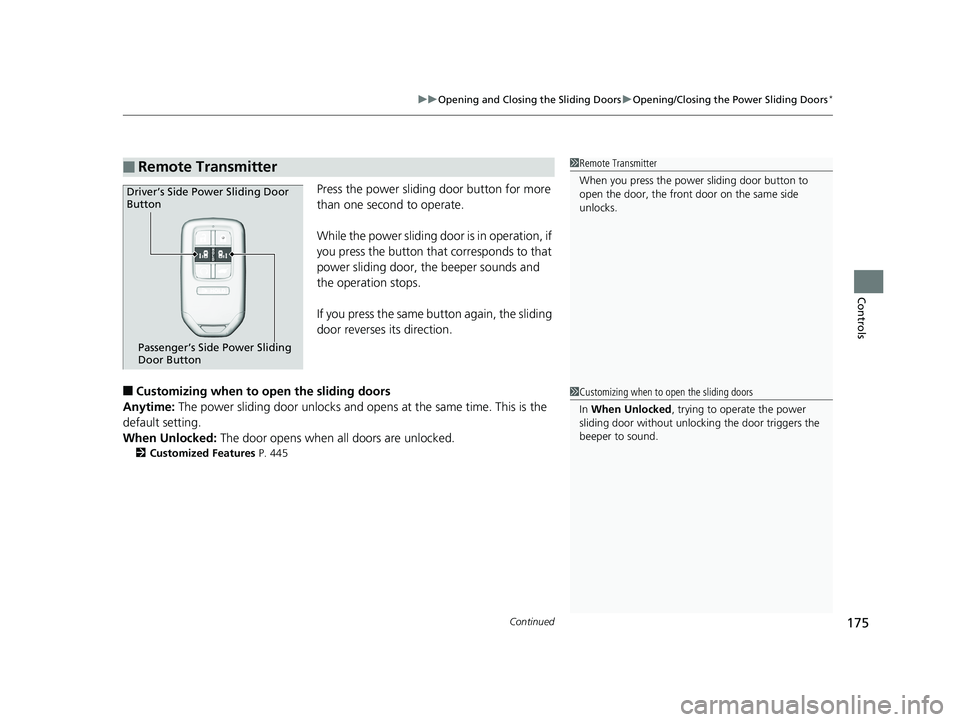
Press the power sliding door button for more
than one second to operate.
While the power sliding door is in operation, if
you press the button that corresponds to that
power sliding door, the beeper sounds and
the operation stops.
If you press the same bu tton again, the sliding
door reverses its direction.
■Customizing when to open the sliding doors
Anytime: The power sliding door unlocks and op ens at the same time. This is the
default setting.
When Unlocked: The door opens when all doors are unlocked.
2Customized Features P. 445
■Remote Transmitter1Remote Transmitter
When you press the power sliding door button to
open the door, the front door on the same side
unlocks.
Driver’s Side Power Sliding Door
Button
Passenger’s Side Power Sliding
Door Button
1Customizing when to open the sliding doors
In When Unlocked , trying to operate the power
sliding door without unlocki ng the door triggers the
beeper to sound.
19 ODYSSEY-31THR6120.book 175 ページ 2018年12月6日 木曜日 午後4時35分
Page 196 of 767
194
uuOperating the Switches Around the Steering Wheel uAuto High-Beam*
Controls
Auto High-Beam*
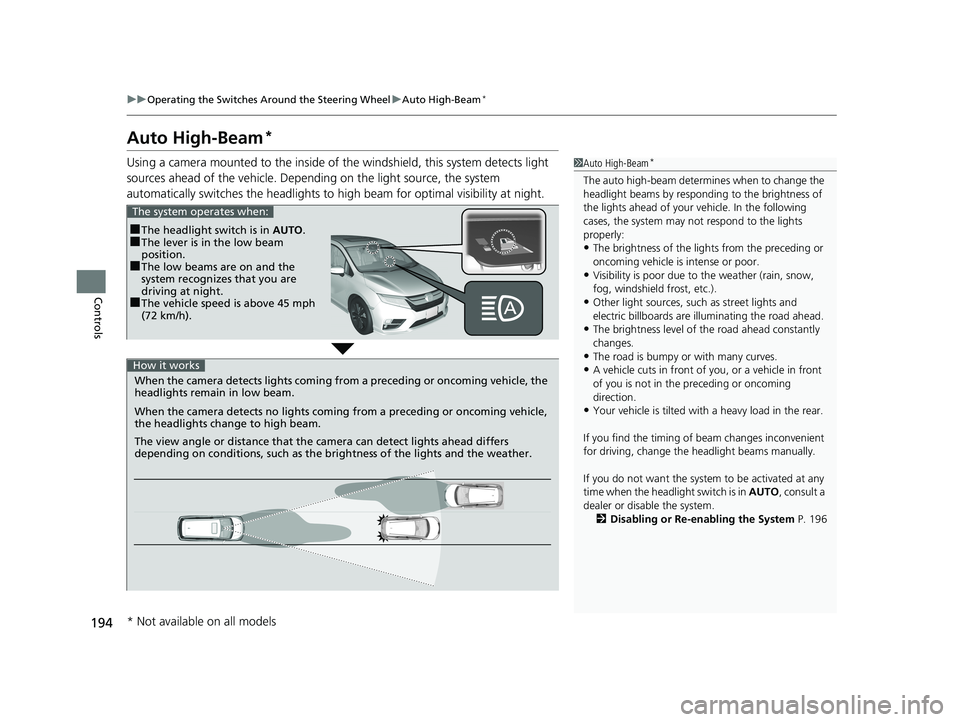
Using a camera mounted to the inside of the windshield, this system detects light
sources ahead of the vehicle. Depend ing on the light source, the system
automatically switches the headlights to hi gh beam for optimal visibility at night.1Auto High-Beam*
The auto high-beam determines when to change the
headlight beams by responding to the brightness of
the lights ahead of your vehicle. In the following
cases, the system may not respond to the lights
properly:
•The brightness of the lights from the preceding or
oncoming vehicle is intense or poor.
•Visibility is poor due to the weather (rain, snow,
fog, windshield frost, etc.).
•Other light sources, such as street lights and
electric billboards are illuminating the road ahead.
•The brightness level of th e road ahead constantly
changes.
•The road is bumpy or with many curves.
•A vehicle cuts in front of you, or a vehicle in front
of you is not in the preceding or oncoming
direction.
•Your vehicle is tilted with a heavy load in the rear.
If you find the timing of beam changes inconvenient
for driving, change the headlight beams manually.
If you do not want the system to be activated at any
time when the headlight switch is in AUTO, consult a
dealer or disable the system. 2 Disabling or Re-enabling the System P. 196
■The headlight switch is in AUTO.■The lever is in the low beam
position.
■The low beams are on and the
system recognizes that you are
driving at night.
■The vehicle speed is above 45 mph
(72 km/h).
The system operates when:
When the camera detects lig hts coming from a preceding or oncoming vehicle, the
headlights remain in low beam.
When the camera detects no lights coming from a preceding or oncoming vehicle,
the headlights change to high beam.
The view angle or distance that the camera can detect lights ahead differs
depending on conditions, such as the brightness of the lights and the weather.
How it works
* Not available on all models
19 ODYSSEY-31THR6120.book 194 ページ 2018年12月6日 木曜日 午後4時35分
Page 280 of 767
uuAudio System Basic Operation uPlaying an iPod
278
Features
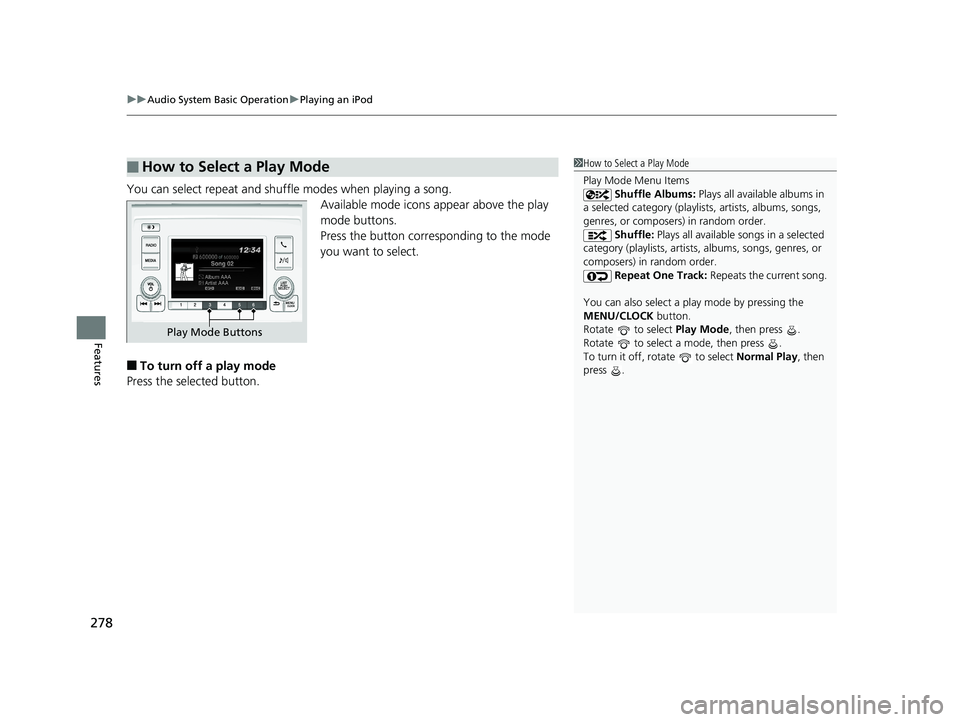
You can select repeat and shuffle modes when playing a song.
Available mode icons appear above the play
mode buttons.
Press the button corresponding to the mode
you want to select.
■To turn off a play mode
Press the selected button.
■How to Select a Play Mode1 How to Select a Play Mode
Play Mode Menu Items
Shuffle Albums: Plays all available albums in
a selected category (playlists, artists, albums, songs,
genres, or composers) in random order. Shuffle: Plays all available songs in a selected
category (playlists, artists, albums, songs, genres, or
composers) in random order. Repeat One Track: Repeats the current song.
You can also select a pl ay mode by pressing the
MENU/CLOCK button.
Rotate to select Play Mode, then press .
Rotate to select a mode, then press .
To turn it off, rotate to select Normal Play, then
press .
Play Mode Buttons
19 ODYSSEY-31THR6120.book 278 ページ 2018年12月6日 木曜日 午後4時35分
Page 283 of 767
281
uuAudio System Basic Operation uPlaying a USB Flash Drive
Features
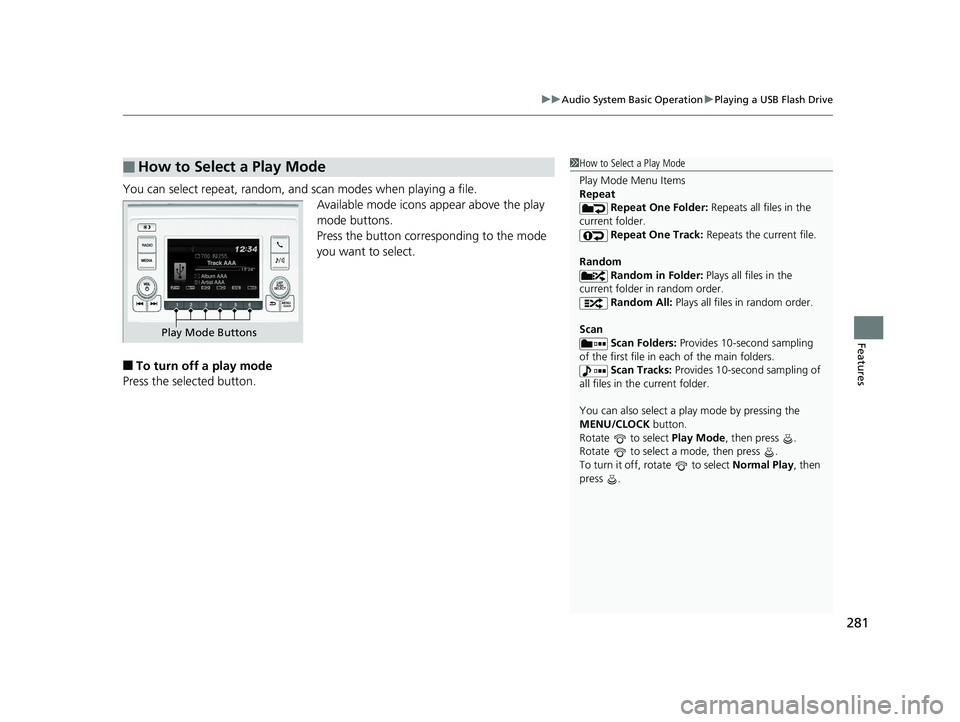
You can select repeat, random, and scan modes when playing a file.
Available mode icons appear above the play
mode buttons.
Press the button corresponding to the mode
you want to select.
■To turn off a play mode
Press the selected button.
■How to Select a Play Mode1 How to Select a Play Mode
Play Mode Menu Items
Repeat
Repeat One Folder: Repeats all files in the
current folder. Repeat One Track: Repeats the current file.
Random Random in Folder: Plays all files in the
current folder in random order. Random All: Plays all files in random order.
Scan Scan Folders: Provides 10-second sampling
of the first file in each of the main folders.
Scan Tracks: Provides 10-second sampling of
all files in the current folder.
You can also select a pl ay mode by pressing the
MENU/CLOCK button.
Rotate to select Play Mode, then press .
Rotate to select a mode, then press .
To turn it off, rotate to select Normal Play, then
press .
Play Mode Buttons
19 ODYSSEY-31THR6120.book 281 ページ 2018年12月6日 木曜日 午後4時35分
Page 288 of 767
286
uuAudio System Basic Operation uAudio/Information Screen
Features
Audio/Information Screen
Displays the audio status and wallpaper. From this display, you can go to various
setup options.
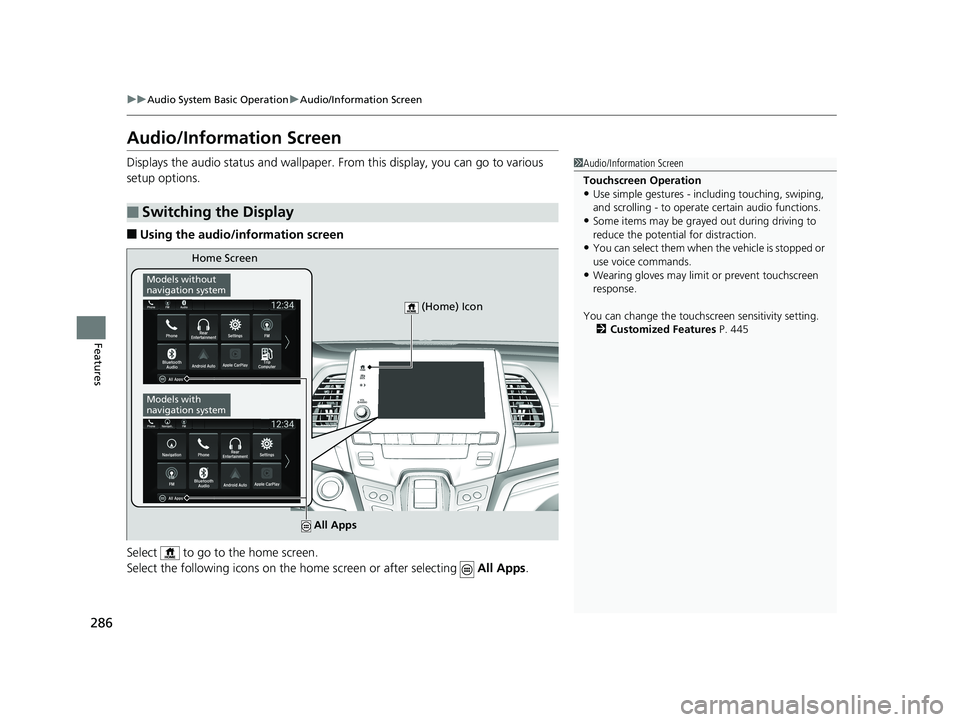
■Using the audio/information screen
Select to go to the home screen.
Select the following icons on the hom e screen or after selecting All Apps.
■Switching the Display
1Audio/Information Screen
Touchscreen Operation
•Use simple gestures - in cluding touching, swiping,
and scrolling - to operate certain audio functions.
•Some items may be grayed out during driving to
reduce the potential for distraction.
•You can select them when the vehicle is stopped or
use voice commands.
•Wearing gloves may limit or prevent touchscreen
response.
You can change the touchs creen sensitivity setting.
2 Customized Features P. 445
Home Screen
Models without
navigation system
Models with
navigation system
(Home) Icon
All Apps
19 ODYSSEY-31THR6120.book 286 ページ 2018年12月6日 木曜日 午後4時35分
Page 300 of 767
uuAudio System Basic Operation uAudio/Information Screen
298
Features
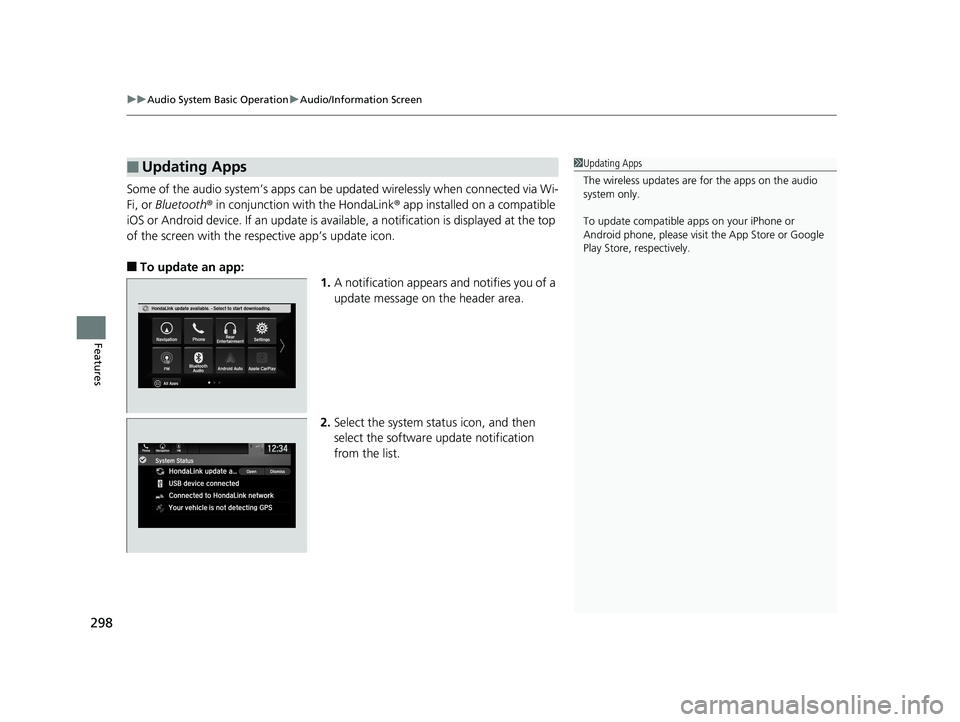
Some of the audio system’s apps can be updated wirelessly when connected via Wi-
Fi, or Bluetooth ® in conjunction with the HondaLink ® app installed on a compatible
iOS or Android device. If an update is available, a notification is displayed at the top
of the screen with the resp ective app’s update icon.
■To update an app:
1.A notification appears and notifies you of a
update message on the header area.
2. Select the system stat us icon, and then
select the software update notification
from the list.
■Updating Apps1 Updating Apps
The wireless updates are for the apps on the audio
system only.
To update compatible a pps on your iPhone or
Android phone, please visit the App Store or Google
Play Store, respectively.
19 ODYSSEY-31THR6120.book 298 ページ 2018年12月6日 木曜日 午後4時35分