Page 236 of 675

234
Features
Audio System
About Your Audio System
The audio system features AM/FM radio and SiriusXM® Radio* service. It can also
play USB flash drives, and iPod, iPhone and Bluetooth® devices.
You can operate the audio system from the buttons and knobs on the panel, the
remote controls on the steering wheel, or the icons on the touchscreen interface
*.
1 About Your Audio System
iPod, iPhone and iTunes are trademarks of Apple Inc.
State or local laws may pr ohibit the operation of
handheld electronic devices while operating a
vehicle.
SiriusXM ® Radio
* is available on a subscription basis
only. For more information on SiriusXM ® Radio*,
contact a dealer.
2 General Information on the Audio System
P. 337
SiriusXM ® Radio
* is available in the United States and
Canada, except Ha waii, Alaska, and Puerto Rico.
SiriusXM ®
* is a registered trademark of SiriusXM
Radio*, Inc.
Remote Controls iPod
USB Flash Drive
*1
*2
*1 : Models with Display Audio
*2 : Models with color audio
* Not available on all models
19 INSIGHT HMIN-31TXM6000.book 234 ページ 2018年4月20日 金曜日 午後4時22分
Page 237 of 675

235
uuAudio System uUSB Port(s)
Features
USB Port(s)
Install the device USB connector or the USB flash drive to the USB port.
The USB port (1.0A) is for playing audio files
on a USB flash drive, connecting a cellular
phone and charging devices.
The USB ports (2.5A) are for charging devices,
playing audio files and connecting compatible
phones with Apple CarPlay or Android Auto.1 USB Port(s)
•Do not leave the iPod or USB flash drive in the
vehicle. Direct sunlight and high temperatures may
damage it.
•We recommend using an ex tension cable with the
USB port.
•Do not connect the iPod or USB flash drive using a
hub.
•Do not use a device such as a card reader or hard
disk drive, as the device or your files may be
damaged.
•We recommend backing up yo ur data before using
the device in your vehicle.
•Displayed messages may vary depending on the
device model and software version.
If the audio system does not recognize the iPod, try
reconnecting it a few times or reboot the device. To
reboot, follow the manufac turer’s instructions
provided with the iPod or visit www.apple.com/ipod.
The USB port can supply up to 1.0A/2.5A of power. It
does not output 1.0A/2.5A unless the device
requests.
For amperage details, read the operating manual of
the device that ne eds to be charged.
Set the power mode to ACCESSORY or ON first.
Under certain condi tions, a device connected to the
port may generate noise in the radio you are listening
to.
USB charge
Models with
color audioModels with
Display Audio
Models with color audio
Models with Display Audio
19 INSIGHT HMIN-31TXM6000.book 235 ページ 2018年4月20日 金曜日 午後4時22分
Page 241 of 675
239
uuAudio System uAudio Remote Controls
Continued
Features
Roll up or down:
FM
AM
SiriusXM ®*
USB1
USB2
Bluetooth ® Audio
Smartphone Connection
(Apple CarPlay/Android Auto)
To cycle through the audio modes, roll up or down
and then press the left selector wheel:
* Not available on all models
19 INSIGHT HMIN-31TXM6000.book 239 ページ 2018年4月20日 金曜日 午後4時22分
Page 242 of 675
240
uuAudio System uAudio Remote Controls
Features
/ (Seek/Skip) Buttons
• When listening to the radio
Press : To select the next preset radio station.
Press : To select the previous preset radio station.
Press and hold : To select the next strong station.
Press and hold : To select the previous strong station.
• When listening to an iPod, USB flash drive, or Bluetooth® Audio, or Smartphone
Connection
Press : To skip to the next song.
Press : To go back to the beginning of the current or previous song.
• When listening to a USB flash drive
Press and hold : To skip to the next folder.
Press and hold : To go back to the previous folder.
19 INSIGHT HMIN-31TXM6000.book 240 ページ 2018年4月20日 金曜日 午後4時22分
Page 255 of 675

253
uuAudio System Basic Operation uPlaying Pandora ®
Continued
Features
Playing Pandora ®
Your audio system allows you to listen to music from the Pandora ® app on a
compatible smartphone.
This function is available when the phone is paired and connected to the vehicle’s
Bluetooth ® HandsFreeLink ® (HFL) system, or with an iPhone, you can connect using
your USB cable to the USB port.
2 Phone Setup P. 395
2 USB Port(s) P. 235
1Playing Pandora ®
Pandora ®, the Pandora logo, and the Pandora trade
dress are trademarks or registered trademarks of
Pandora Media, Inc., used with permission. Pandora
is only available in certai n countries. Visit the Pandora
website for more information.
To find out if your phone is compatible with this
feature, visit automobiles.honda.com /handsfreelink/,
or call 1-888-528-7876.
To use this service in your vehicle, the Pandora ® app
must first be installed on your phone. Visit
www.pandora.com . for more information.
Pandora ® is free, personalized radio that plays music
and comedy you’ll love. Just start with the name of
one of your favorite arti sts, tracks, comedians or
composers and Pandora ® will create a custom station
that plays similar tracks. Pandora ® also features
hundreds of genre stations ranging from Dubstep to
Smooth Jazz to Power Workout.
If you cannot operate Pandora ® through the audio
system, it may be streaming through Bluetooth®
Audio. Make sure Pandora ® mode on your audio
system is selected.
Audio/Information Screen
Selector Knob
Turn to change a station.
Press, and then turn to select an item.
After that, press again to make your
selection.
VOL/
(Volume/Power)
Knob
Press to turn the
audio system on
and off.
Turn to adjust
the volume.
(Back) Button
Press to go back to the previous
display or cancel a setting.
MEDIA Button
Press to select
Pandora ®.
Play/Pause Button
Select to resume or play a track.
(Skip) Button
Press to skip a track.
Like/Dislike Buttons
Select to evaluate a track.
MENU/CLOCK
Button
Press to display
the menu items.
Bookmark
Button
Select to set a
track as a
bookmark.Cover Art
19 INSIGHT HMIN-31TXM6000.book 253 ページ 2018年4月20日 金曜日 午後4時22分
Page 260 of 675

258
uuAudio System Basic Operation uPlaying Bluetooth ® Audio
Features
Playing Bluetooth ® Audio
Your audio system allows you to listen to music from your Bluetooth-compatible
phone.
This function is available when the phone is paired and connected to the vehicle’s
Bluetooth ® HandsFreeLink ® (HFL) system.
2 Phone Setup P. 395
1Playing Bluetooth ® Audio
Not all Bluetooth -enabled phones with streaming
audio capabilities are comp atible with the system.
For a list of compatible phones:
•U.S.: Visit automobiles.honda.com /handsfreelink/,
or call 1-888-528-7876.
•Canada: For more info rmation on smartphone
compatibility, call 1-888-528-7876.
In some states, it may be il legal to perform some data
device functions while driving.
Only one phone can be used with HFL at a time.
When there are more than two paired phones in the
vehicle, the first paired phone the system finds is
automatically connected.
If more than one phone is paired to the HFL system,
there will be a delay before the system begins to play.
In some cases, the name of the artist, album, or track
may not appear correctly.
Some functions may not be available on some
devices.
MEDIA Button
Press to select
Bluetooth Audio
mode (if
connected)
VOL/ (Volume/
Power) Knob
Press to turn the
audio system on
and off.
Turn to adjust
the volume.
MENU/CLOCK
Button
Press to display
the menu items.
Audio/Information Screen
Bluetooth
Indicator
Appears when your phone
is connected to HFL.
/ (Seek/
Skip) Buttons
Press or
to change files.
Play Button (Preset 1)
Press to resume a file. Pause Button (Preset 2)
Press to pause a file.Selector Knob
Turn to change groups.
Press, and then turn to select
an item. After that, press again
to make your selection.
(Back) Button
Press to go back to the previous display.
19 INSIGHT HMIN-31TXM6000.book 258 ページ 2018年4月20日 金曜日 午後4時22分
Page 261 of 675

Continued259
uuAudio System Basic Operation uPlaying Bluetooth ® Audio
Features
1. Make sure that your phone is paired and
connected to HFL.
2. Press the MEDIA button until the
Bluetooth ® Audio mode is selected.
If the phone is not recognized, another HFL-
compatible phone, which is not compatible
for Bluetooth ® Audio, may already be
connected.
■To pause or resume a file
Press the play button (preset 1) or paus e button (preset 2) to select a mode.
■To Play Bluetooth ® Audio Files1 To Play Bluetooth ® Audio Files
To play the audio files, y ou may need to operate your
phone. If so, follow the phone maker's operating
instructions.
The pause function may no t be available on some
phones.
If any audio device is connected to the USB port, you
may need to press the MEDIA button repeatedly to
select the Bluetooth® Audio system.
Switching to another mode pauses the music playing
from your phone.
Play Button (Preset 1) Pause Button (Preset 2)
MEDIA
Button
19 INSIGHT HMIN-31TXM6000.book 259 ページ 2018年4月20日 金曜日 午後4時22分
Page 263 of 675
261
uuAudio System Basic Operation uSiri ® Eyes Free
Features
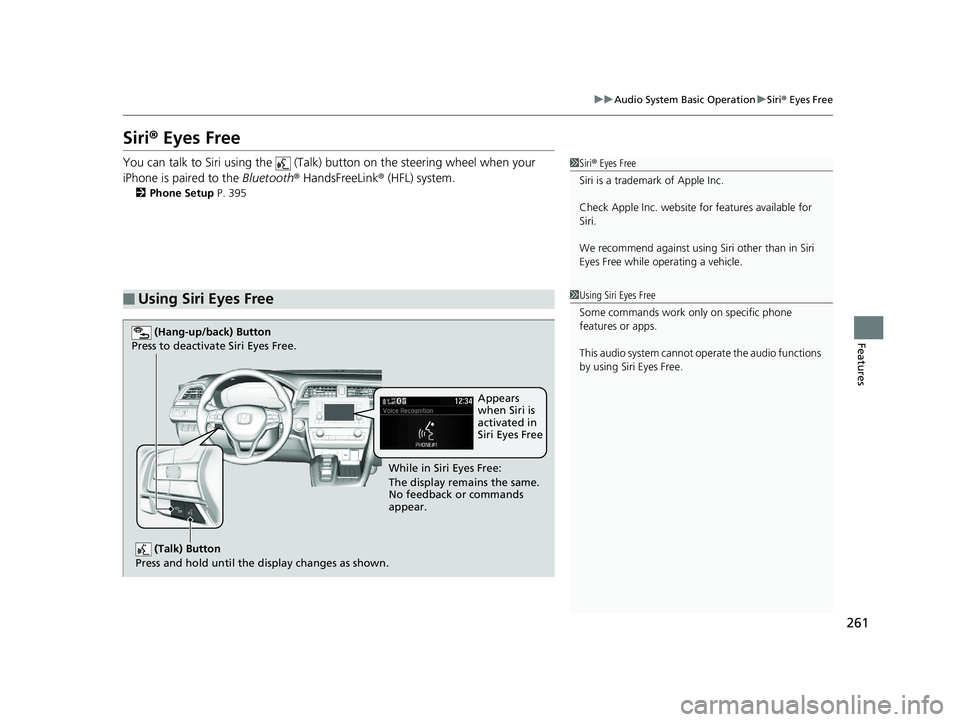
Siri® Eyes Free
You can talk to Siri using the (Talk) button on the steering wheel when your
iPhone is paired to the Bluetooth® HandsFreeLink ® (HFL) system.
2Phone Setup P. 395
■Using Siri Eyes Free
1Siri ® Eyes Free
Siri is a trademark of Apple Inc.
Check Apple Inc. website for features available for
Siri.
We recommend against using Si ri other than in Siri
Eyes Free while operating a vehicle.
1 Using Siri Eyes Free
Some commands work only on specific phone
features or apps.
This audio system cannot ope rate the audio functions
by using Siri Eyes Free.
(Talk) Button
Press and hold until the display changes as shown.
(Hang-up/back) Button
Press to deactivate Siri Eyes Free.
While in Siri Eyes Free:
The display remains the same.
No feedback or commands
appear. Appears
when Siri is
activated in
Siri Eyes Free
19 INSIGHT HMIN-31TXM6000.book 261 ページ 2018年4月20日 金曜日 午後4時22分