Page 276 of 679
uuAudio System Basic Operation uPlaying SiriusXM ® Radio*
274
Features
To store a channel:
1. Tune to the selected channel.
2. Press and hold the preset number fo r the station you want to store.
3. Select OK.
You can also store a channel by the following procedure.
1. Tune to the selected channel.
2. Select the open/close ic on to display a list.
3. Select the Preset tab.
4. Select and hold the preset number for the station you want to store.
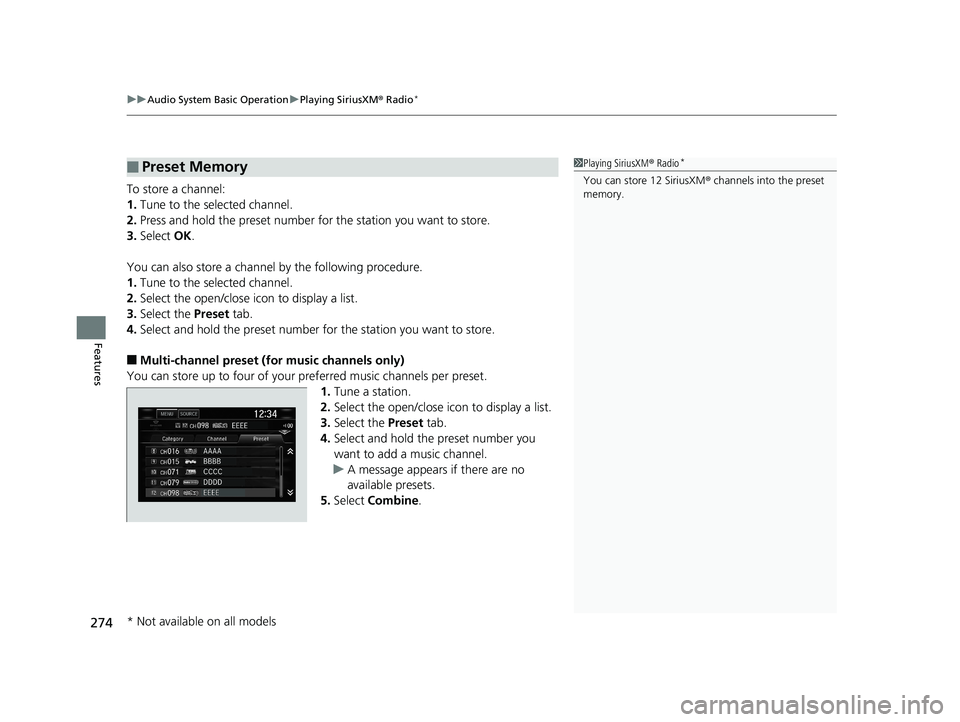
■Multi-channel preset (for music channels only)
You can store up to four of your pr eferred music channels per preset.
1. Tune a station.
2. Select the open/close ic on to display a list.
3. Select the Preset tab.
4. Select and hold the preset number you
want to add a music channel.
u A message appears if there are no
available presets.
5. Select Combine .
■Preset Memory1Playing SiriusXM ® Radio*
You can store 12 SiriusXM ® channels into the preset
memory.
* Not available on all models
19 CIVIC 4D HCM_HMIN_J (KA KL KC)-31TBA6301.book 274 ページ 2018年10月26日 金曜日 午前7時42分
Page 278 of 679
uuAudio System Basic Operation uPlaying SiriusXM ® Radio*
276
Features
The system can record up to the last 60 minutes of your currently tuned channel’s
broadcast, as well as the last 30 minutes of your preset channel’s broadcast, starting
from the moment you turn the vehicle on. If you tuned to a preset channel, the
system records up to 60 minutes of a broadcast instead of up to 30 minutes. You
can rewind and replay the last 30 or 60 minutes of a broadcast.
1. Select MENU .
2. Select Playback .
3. Move the time marker to the position you want to replay.
The following items are available on the pop-up screen: (Skip Down): Skips to the previously stored channel. Select and hold to fast-
rewind the current selection. (Skip Up): Skips to the next channe l. Select and hold to fast-forward the
current selection.
(15sec Back): Select to skip back 15 se conds in the current selection. Select and
hold to fast-rewind the current selection. (15sec Skip): Select to sk ip forward 15 seconds in th e current selection. Select
and hold to fast-forward the current selection. u Select OK to close the pop-up menu. Replay in playback mode continues.
To play or pause on playback mode:
1. Select MENU .
2. Select Play/Pause .
■Replay Function1Replay Function
The system starts storing broadcast in memory when
the power mode is turned ON. You can go back to
the program from that point.
You can no longer repl ay any program once the
power mode is turned off as it erases memory.
You can check how long the program has been
stored in memory from th e audio/information screen.
After 30 or 60 minutes of recording the system will
automatically start deleting the oldest data.
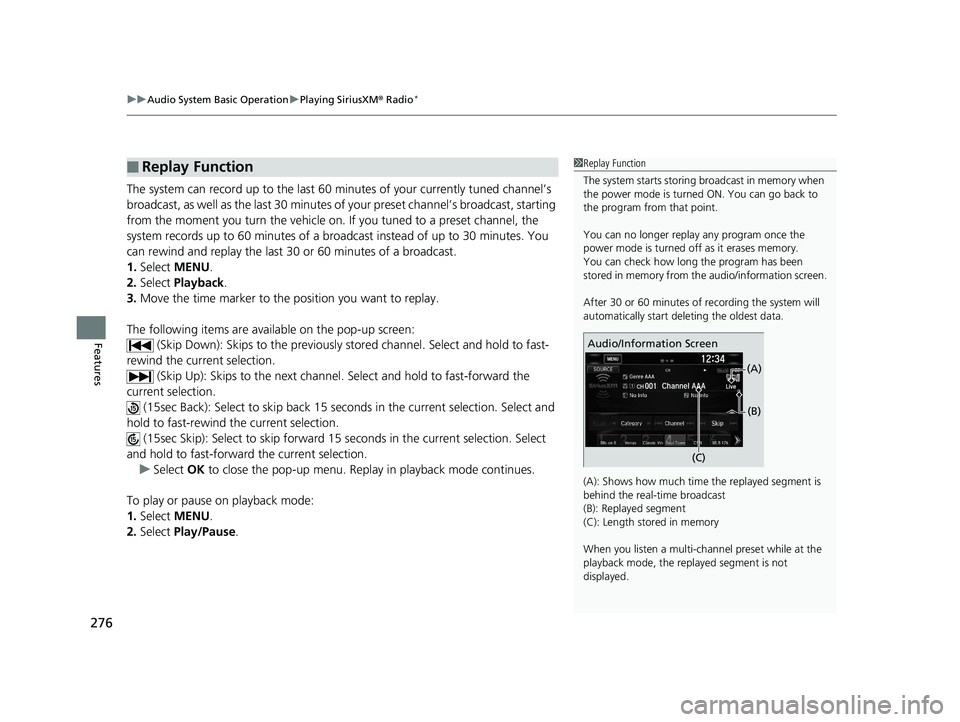
(A): Shows how much time the replayed segment is
behind the real-time broadcast
(B): Replayed segment
(C): Length stored in memory
When you listen a multi-channel preset while at the
playback mode, the repl ayed segment is not
displayed.
Genre AAA
Audio/Information Screen
(C)(B)
(A)
19 CIVIC 4D HCM_HMIN_J (KA KL KC)-31TBA6301.book 276 ページ 2018年10月26日 金曜日 午前7時42分
Page 281 of 679
279
uuAudio System Basic Operation uPlaying SiriusXM ® Radio*
Features
You can receive traffic and weather information.
■To set up a traffic & weather information
1. Press the button.
2. Select Settings .
3. Select Audio .
4. Select Traffic & Weather Setup .
5. Select the region.
u When you do not want to receive the information, select Unregistered.
■Listening a traffic and weather information
1. Select MENU .
2. Select Traffic & Weather .
u Play mode can also use the any items same as playback mode.
2 Replay Function P. 276
To go back to the previous screen, select OK.
Sample each channel on the selected mode for 10 seconds.
1. Select Scan.
2. Select Scan Channels.
u You can select the desired channel by songs using Scan Songs in Preset.
To turn off scan, select Cancel Scan.
■Traffic and Weather Information
■Scan
1Traffic and Weather Information
The traffic and weather information function at
SiriusXM ® mode only.
You can also set up th e traffic and weather
information by the following procedure.
1. Press the button.
2. Select MENU .
3. Select Setting .
4. Select Traffic & Weather Setup .
Traffic & Weather Now are registered trademarks of
SiriusXM ® Radio, Inc.
1 Scan
The “Scan Songs in Preset” function is based on
TuneScan
TM technology of SiriusXM ®.
The “Featured Channels ” function is based on
Featured Favorites
TM technology of SiriusXM ®.
TuneScan
TM and Featured FavoritesTM are registered
trademarks of SiriusXM ® Radio, Inc.
19 CIVIC 4D HCM_HMIN_J (KA KL KC)-31TBA6301.book 279 ページ 2018年10月26日 金曜日 午前7時42分
Page 313 of 679
311
uuAudio Error Messages uAndroid/Apps
Features
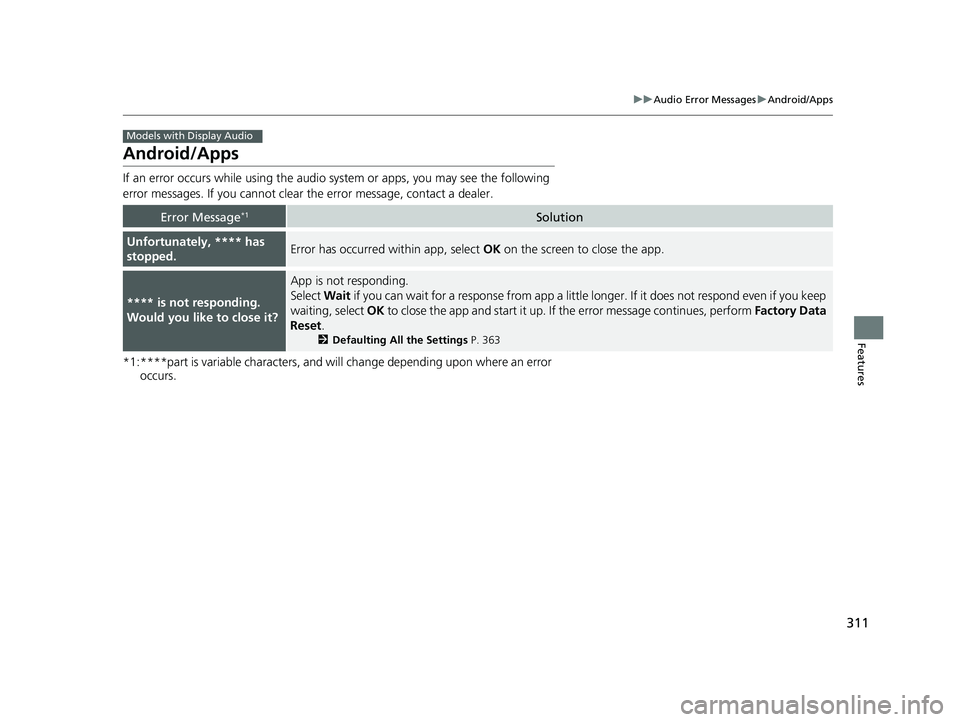
Android/Apps
If an error occurs while using the audio system or apps, you may see the following
error messages. If you cannot clear the error message, contact a dealer.
*1:****part is variable characters, and will change depending upon where an error
occurs.
Error Message*1Solution
Unfortunately, **** has
stopped.Error has occurred within app, select OK on the screen to close the app.
**** is not responding.
Would you like to close it?
App is not responding.
Select Wait if you can wait for a response from app a little longer. If it does not respond even if you keep
waiting, select OK to close the app and start it up. If the error message continues, perform Factory Data
Reset .
2Defaulting All the Settings P. 363
Models with Display Audio
19 CIVIC 4D HCM_HMIN_J (KA KL KC)-31TBA6301.book 311 ページ 2018年10月26日 金曜日 午前7時42分
Page 338 of 679
336
uuCustomized Features u
Features
*1:Default Setting
Setup
GroupCustomizable FeaturesDescriptionSelectable Settings
Phone
Setup
Bluetooth
Setup
Add New DevicePairs a new phone to HFL.
2 Phone Setup P. 374—
Connect a Phone
Pairs a new phone or connects a paired phone
to HFL.
2Phone Setup P. 374
—
Connect an Audio
DeviceConnects a Bluetooth® Audio device to HFL.—
Disconnect All DevicesDisconnects a paired phone from HFL.—
Delete DeviceDeletes a paired phone.—
Pass-KeyInputs and changes a code for a paired phone.—
Speed DialEdits, adds or deletes a speed dial entry.
2Speed Dial P. 384—
Auto TransferSets calls to automatically transfer from your
phone to HFL when you enter the vehicle.On*1/Off
RingtoneSelects the ring tone.Fixed /Mobile Phone*1
Caller ID InfoPrioritizes the caller’s name or phone number
as the caller ID.Name Priority*1/Number
Priority
System ClearCancels/Resets all customized items in the
Phone Setup group as default.—
19 CIVIC 4D HCM_HMIN_J (KA KL KC)-31TBA6301.book 336 ページ 2018年10月26日 金曜日 午前7時42分
Page 340 of 679
338
uuCustomized Features u
Features
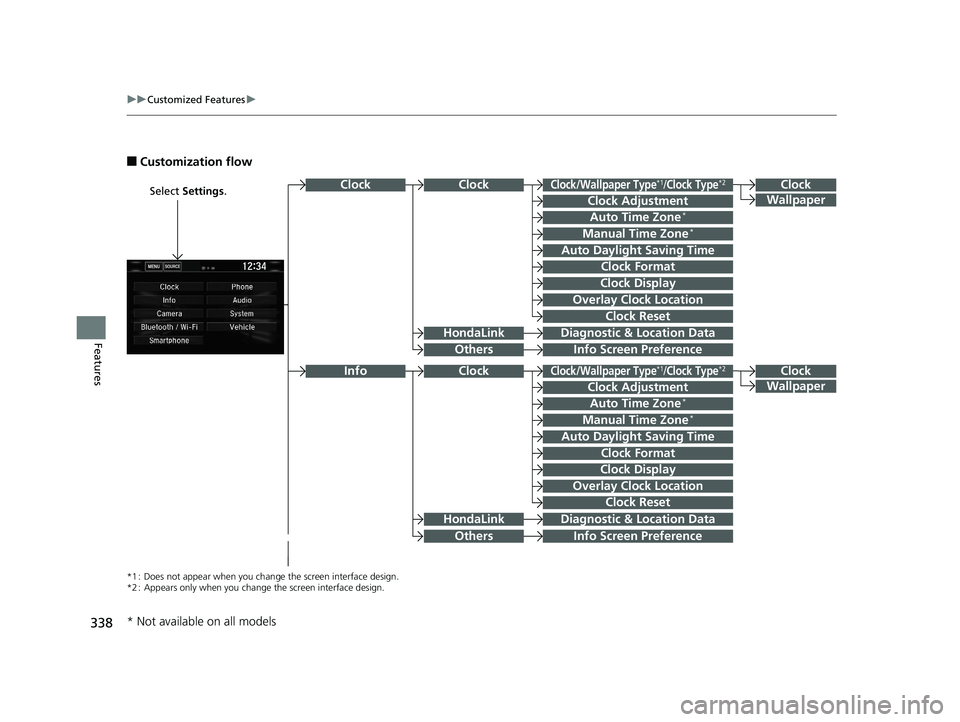
■Customization flow
Select Settings.Clock
Wallpaper
Others
Clock/Wallpaper Type*1/Clock Type*2
Clock Adjustment
Clock Format
ClockClock
Auto Time Zone*
Manual Time Zone*
Auto Daylight Saving Time
Clock Display
Overlay Clock Location
Clock Reset
Info Screen Preference
Clock
Wallpaper
Others
Clock/Wallpaper Type*1/Clock Type*2
Clock Adjustment
Clock Format
Clock
Auto Time Zone*
Manual Time Zone*
Auto Daylight Saving Time
Clock Display
Overlay Clock Location
Clock Reset
Info Screen Preference
Info
HondaLinkDiagnostic & Location Data
HondaLinkDiagnostic & Location Data
*1 : Does not appear when you chan ge the screen interface design.
*2 : Appears only when you change the screen interface design.
* Not available on all models
19 CIVIC 4D HCM_HMIN_J (KA KL KC)-31TBA6301.book 338 ページ 2018年10月26日 金曜日 午前7時42分
Page 342 of 679
340
uuCustomized Features u
Features
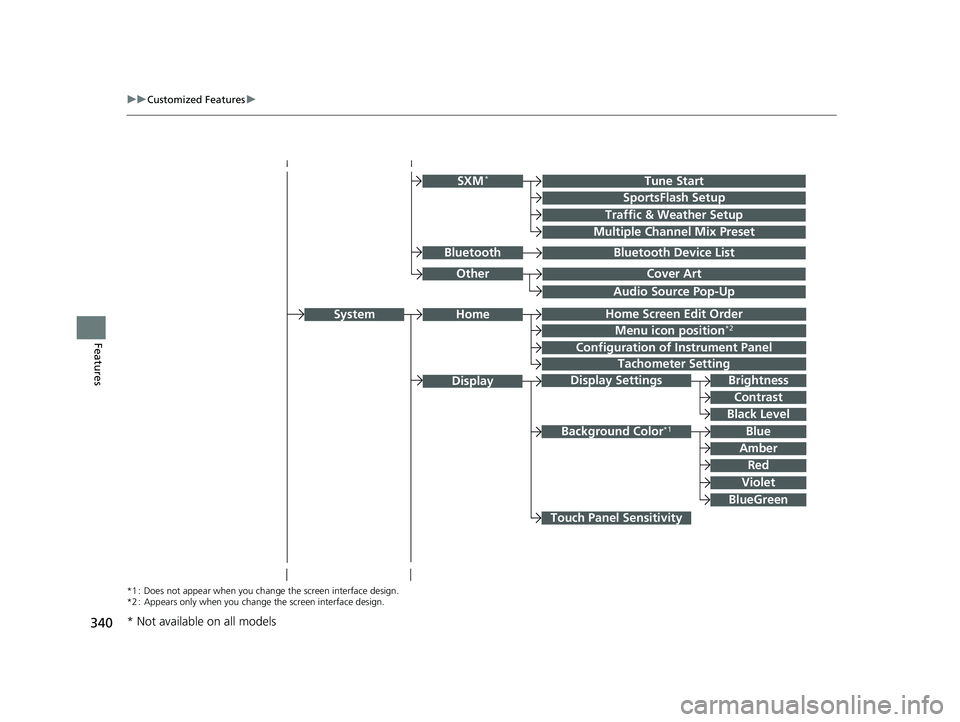
Audio Source Pop-Up
Cover Art
Tune Start
SportsFlash Setup
Traffic & Weather Setup
Other
SXM*
Bluetooth Device ListBluetooth
Multiple Channel Mix Preset
Home Screen Edit Order
Configuration of Instrument Panel
Tachometer Setting
Display Settings
Background Color*1
Display
System
Touch Panel Sensitivity
Brightness
Contrast
Black Level
Blue
Amber
Red
Violet
BlueGreen
Home
Menu icon position*2
*1 : Does not appear when you chan ge the screen interface design.
*2 : Appears only when you change the screen interface design.
* Not available on all models
19 CIVIC 4D HCM_HMIN_J (KA KL KC)-31TBA6301.book 340 ページ 2018年10月26日 金曜日 午前7時42分
Page 344 of 679
342
uuCustomized Features u
Features
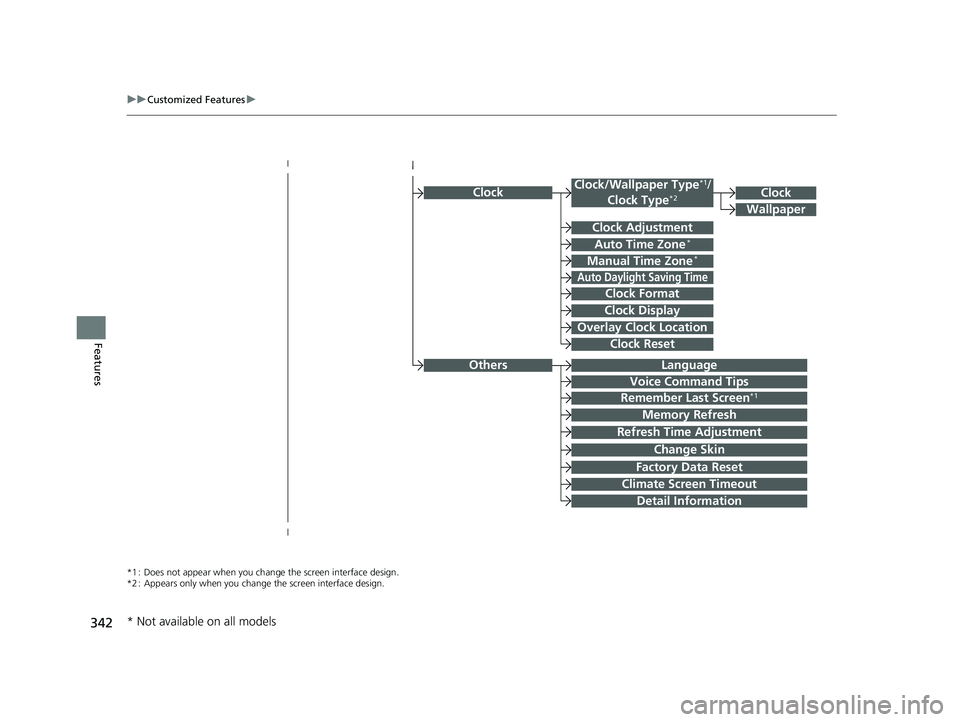
ClockClock/Wallpaper Type*1/
Clock Type*2
Clock Adjustment
Clock Format
Auto Time Zone*
Manual Time Zone*
Auto Daylight Saving Time
Clock Display
Overlay Clock Location
Clock Reset
Clock
Wallpaper
*1 : Does not appear when you chan ge the screen interface design.
*2 : Appears only when you change the screen interface design.
OthersLanguage
Voice Command Tips
Remember Last Screen*1
Memory Refresh
Refresh Time Adjustment
Change Skin
Factory Data Reset
Climate Screen Timeout
Detail Information
* Not available on all models
19 CIVIC 4D HCM_HMIN_J (KA KL KC)-31TBA6301.book 342 ページ 2018年10月26日 金曜日 午前7時42分