2019 FORD RANGER Light control
[x] Cancel search: Light controlPage 93 of 512

GENERAL INFORMATION
WARNING: Driving while
distracted can result in loss of vehicle
control, crash and injury. We strongly
recommend that you use extreme
caution when using any device that may
take your focus off the road. Your
primary responsibility is the safe
operation of your vehicle. We
recommend against the use of any
hand-held device while driving and
encourage the use of voice-operated
systems when possible. Make sure you
are aware of all applicable local laws
that may affect the use of electronic
devices while driving.
Note: Your vehicle may or may not be
equipped with all the messages listed in this
chapter. Your vehicle will not display
messages of systems it is not equipped with.
Various systems on your vehicle can be
controlled using the information display
controls on the steering wheel.
Corresponding information is displayed in
the information display. Information Display Controls
(Type 1 and Type 2) •
Press the up or down arrow buttons to
scroll through the list.
• Press the right arrow button to enter a
sub-menu.
• Press the left arrow button to exit a
menu.
• Press and hold the left arrow button at
any time to return to the main menu
display (escape button).
• Press the
OK button to choose and
confirm settings or messages.
Menu
You can access the menu using the
information display control. This icon gives you the ability to
switch a feature on or off. A
check in the box indicates the
feature is enabled, and unchecked
indicates the feature is disabled.
Note: Some options may appear slightly
different or not at all if the items are
optional.
90
Ranger (TFG) Canada/United States of America, enUSA, Edition date: 201809, Fourth-Printing Information DisplaysE205893 E204495
Page 96 of 512

Driver Assist
Tire Pressure
Trailer Sway
1 Type 2 Settings
Auto Engine Off
Vehicle
Easy Entry/ExitEnter the submenu and
select your setting
Lighting
Enter the submenu and select your setting
Locks
Hold OK to Initialize Neutral Tow
Neutral
Tow
oil Life XXX% - Hold OK to Reset
Oil Life
Reset
Enter the submenu and
select your setting
Remote
Start
Enter the submenu and select your setting
Windows
Enter the submenu and select your setting
Wipers
Hold
OK to Create MyKey
Create
MyKey
MyKey
Enter the submenu and select your setting
911
Assist
Enter the submenu and select your setting
Do Not
Disturb
Enter the submenu and select your setting
Traction
Control
Enter the submenu and select your setting
Max
Speed
Enter the submenu and select your setting
Speed
Minder
Volume Limiter
93
Ranger (TFG) Canada/United States of America, enUSA, Edition date: 201809, Fourth-Printing Information Displays
Page 97 of 512

Settings
Hold OK to Clear All MyKeys
Clear
MyKeys
Enter the submenu and select your setting
Distance
Display
Setup
Enter the submenu and select your setting
Temper-
ature
Enter the submenu and select your setting
Tire Pres-
sure
Enter the submenu and select your setting
Language
Information Display Controls
(Type 3) •
Press the up or down arrow buttons to
scroll through the list.
• Press the right arrow button to enter a
sub-menu.
• Press the left arrow button to exit a
menu. •
Press and hold the left arrow button at
any time to return to the main menu
display (escape button).
• Press the
OK button to choose and
confirm settings or messages.
Main menu
From the main menu bar on the left side
of the information display, you can choose
from the following categories:
• Display Mode
• Trip 1 & 2
• Fuel Economy
• Driver Assist
• Settings
Scroll up or down to highlight one of the
categories, then press the right arrow key
or
OK to enter into that category. Press the
left arrow key as needed to exit back to the
main menu.
Display Mode
Use the up/down arrow buttons to choose
between the following display options.
94
Ranger (TFG) Canada/United States of America, enUSA, Edition date: 201809, Fourth-Printing Information DisplaysE205893
Page 98 of 512

Display Mode
Distance to Empty
Tach and Gauges
Off Road
Digital Speedometer
Tire Pressure
Average Speed
Trip 1 & 2
You can access the menu using the
information display control. Note:
Some options may appear slightly
different or not at all if the items are
optional. Trip 1 & 2
All Values
All Values — shows all trip values (Trip Timer, Odometer and Average Fuel).
• Trip Odometer — Shows your accumulated trip distance.
• Trip Timer — The timer stops when you turn your vehicle off and restarts when you
restart your vehicle.
• Average Fuel — Shows your average fuel economy for a given trip.
Note: You can reset your trip information by pressing and holding the OK button on the left
hand steering wheel controls.
Fuel Economy
Use the left and right arrow buttons to
choose the desired fuel economy display.
95
Ranger (TFG) Canada/United States of America, enUSA, Edition date: 201809, Fourth-Printing Information Displays
Page 100 of 512

Driver Assist
Enter the submenu and select your setting
Lane Keeping
Sys
Enter the submenu and select your setting
Pre-Collision
Tire Monitor
Tire Monitor
Settings
In this mode, you can configure different
driver setting choices. Note:
Some items are optional and may
not appear. Settings
Enter the submenu and select your setting
Alarm
Vehicle
Auto Engine Off Enter the submenu and select your setting
Lighting
Enter the submenu and select your setting
Locks
Enter the submenu and select your setting
Neutral Tow
XXX% - Hold OK to Reset
Oil Life Reset
Enter the submenu and select your setting
Remote Start
Seatbelts
Enter the submenu and select your setting
Windows
Enter the submenu and select your setting
Wipers
Mykey Status
Mykey Status
MyKey
Hold
OK to Create MyKey
Create MyKey
Always On or User Selectable
911 Assist
Enter the submenu and select your setting
Do Not Disturb
Enter the submenu and select your setting
Traction Control
Enter the submenu and select your setting
Max Speed
Enter the submenu and select your setting
Speed Minder
Volume Limiter
97
Ranger (TFG) Canada/United States of America, enUSA, Edition date: 201809, Fourth-Printing Information Displays
Page 121 of 512
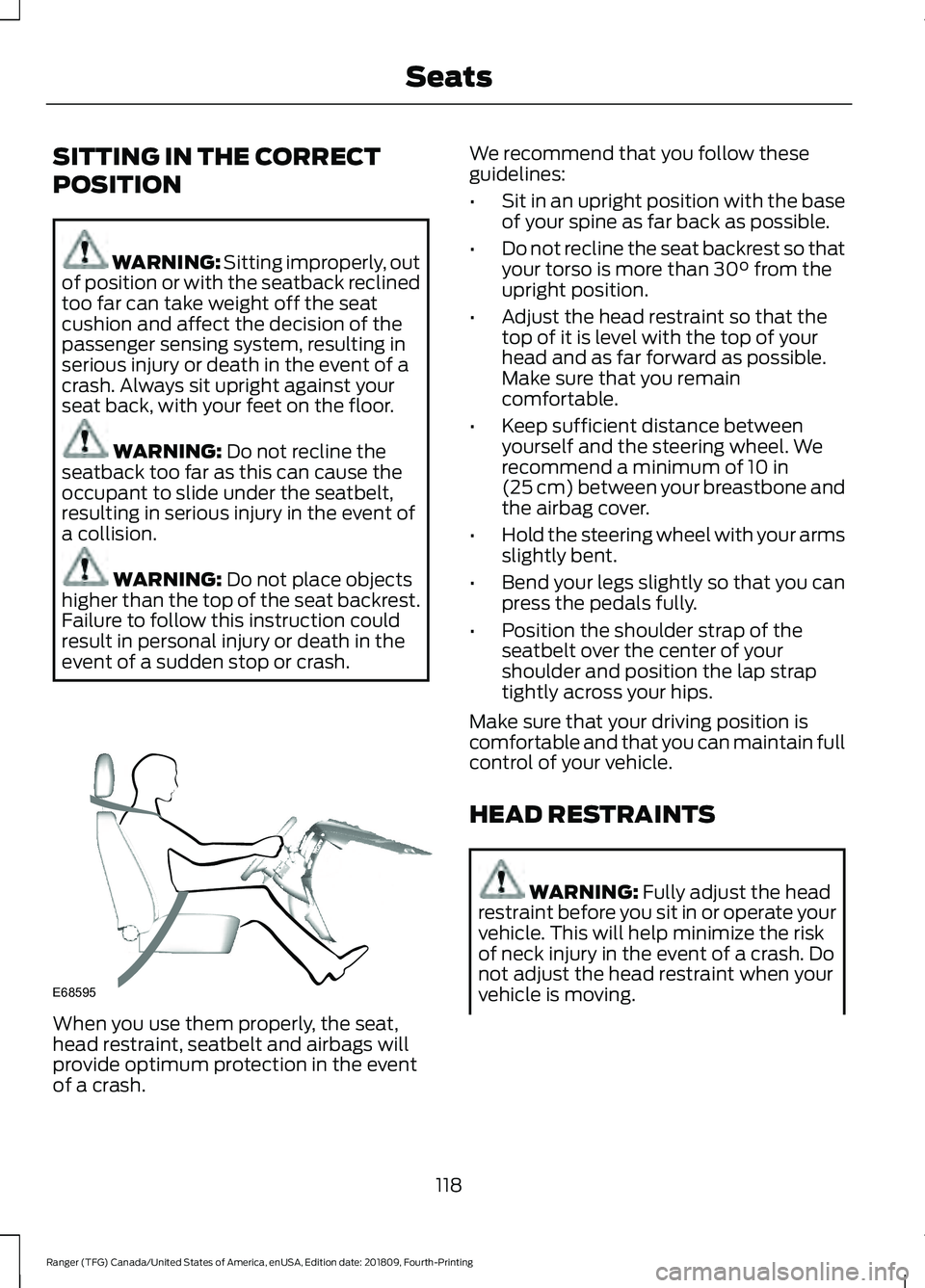
SITTING IN THE CORRECT
POSITION
WARNING: Sitting improperly, out
of position or with the seatback reclined
too far can take weight off the seat
cushion and affect the decision of the
passenger sensing system, resulting in
serious injury or death in the event of a
crash. Always sit upright against your
seat back, with your feet on the floor. WARNING:
Do not recline the
seatback too far as this can cause the
occupant to slide under the seatbelt,
resulting in serious injury in the event of
a collision. WARNING:
Do not place objects
higher than the top of the seat backrest.
Failure to follow this instruction could
result in personal injury or death in the
event of a sudden stop or crash. When you use them properly, the seat,
head restraint, seatbelt and airbags will
provide optimum protection in the event
of a crash. We recommend that you follow these
guidelines:
•
Sit in an upright position with the base
of your spine as far back as possible.
• Do not recline the seat backrest so that
your torso is more than
30° from the
upright position.
• Adjust the head restraint so that the
top of it is level with the top of your
head and as far forward as possible.
Make sure that you remain
comfortable.
• Keep sufficient distance between
yourself and the steering wheel. We
recommend a minimum of
10 in
(25 cm) between your breastbone and
the airbag cover.
• Hold the steering wheel with your arms
slightly bent.
• Bend your legs slightly so that you can
press the pedals fully.
• Position the shoulder strap of the
seatbelt over the center of your
shoulder and position the lap strap
tightly across your hips.
Make sure that your driving position is
comfortable and that you can maintain full
control of your vehicle.
HEAD RESTRAINTS WARNING:
Fully adjust the head
restraint before you sit in or operate your
vehicle. This will help minimize the risk
of neck injury in the event of a crash. Do
not adjust the head restraint when your
vehicle is moving.
118
Ranger (TFG) Canada/United States of America, enUSA, Edition date: 201809, Fourth-Printing SeatsE68595
Page 128 of 512

UNIVERSAL GARAGE DOOR
OPENER (IF EQUIPPED)
HomeLink Wireless Control
System WARNING:
Do not use the system
with any garage door opener that does
not have the safety stop and reverse
feature as required by U.S. Federal
Safety Standards (this includes any
garage door opener manufactured
before April 1, 1982). A garage door
opener which cannot detect an object,
signaling the door to stop and reverse,
does not meet current federal safety
standards. Using a garage door opener
without these features increases the risk
of serious injury or death.
Note: Make sure that the garage door and
security device are free from obstruction
when you are programming. Do not program
the system with the vehicle in the garage.
Note: Make sure you keep the original
remote control transmitter for use in other
vehicles as well as for future system
programming.
Note: We recommend that upon the sale
or lease termination of your vehicle, you
erase the programmed function buttons for
security reasons. See Erasing the Function
Button Codes
later in this section.
Note: You can program a maximum of
three devices. To change or replace any of
the three devices after it has been initially
programmed, you must first erase the
current settings. See Erasing the Function
Button Codes
. The universal garage door opener replaces
the common hand-held garage door
opener with a three-button transmitter
integrated into the driver
’s sun visor.
The system includes two primary features,
a garage door opener and a platform for
remote activation of devices within the
home. You can program garage doors as
well as entry gate operators, security
systems, entry door locks and home or
office lighting.
Additional system information can be
found online at www.homelink.com,
www.youtube.com/user/HomeLinkGentex
or by calling the toll-free help line at
1-800-355-3515.
In-Vehicle Programming
This process is to program your in-vehicle
HomeLink function button with your
hand-held transmitter.
Note: The programming steps below
assume you will be programming HomeLink
that was not previously programmed. If your
HomeLink was previously programmed, you
may need to erase your HomeLink buttons.
See Erasing the Function Button Codes.
Note: Put a new battery in the hand-held
transmitter. This allows for quicker training
and accurate transmission of the
radio-frequency signal.
125
Ranger (TFG) Canada/United States of America, enUSA, Edition date: 201809, Fourth-Printing Garage Door OpenerE188211
Page 133 of 512

When the indicator light on the power point
is:
•
On: The power point is working, the
ignition is ON or the vehicle is in
accessory mode.
• Off: The power point is OFF, the ignition
is OFF or the vehicle is not in accessory
mode.
• Flashing: The power point is in fault
mode.
Due to the different technologies used on
its construction, some devices may exceed
the capacity shown on its label when they
are initially plugged-in.
The power outlet temporarily turns off
power when in fault mode if the device
exceeds the 150 watt limit. Unplug your
device and switch the ignition off. Switch
the ignition back on, but do not plug your
device back in. Let the system cool off and
switch the ignition off to reset the fault
mode. Switch the ignition back on and
make sure the indicator light remains on.
Do not use the power point for certain
electric devices, including:
• Cathode-ray, tube-type televisions.
• Motor loads, such as vacuum cleaners,
electric saws and other electric power
tools or compressor-driven
refrigerators. •
Measuring devices, which process
precise data, such as medical
equipment or measuring equipment.
• Other appliances requiring an
extremely stable power supply such as
microcomputer-controlled electric
blankets or touch-sensor lamps.
130
Ranger (TFG) Canada/United States of America, enUSA, Edition date: 201809, Fourth-Printing Auxiliary Power PointsE247586