2019 FORD FIESTA lights
[x] Cancel search: lightsPage 314 of 443
GENERAL INFORMATION
WARNING: Driving while
distracted can result in loss of vehicle
control, crash and injury. We strongly
recommend that you use extreme
caution when using any device that may
take your focus off the road. Your
primary responsibility is the safe
operation of your vehicle. We
recommend against the use of any
hand-held device while driving and
encourage the use of voice-operated
systems when possible. Make sure you
are aware of all applicable local laws
that may affect the use of electronic
devices while driving.
Getting to Know Your System
The SYNC 3 system allows you to interact
with a variety of features using the
touchscreen and voice commands. By
integrating with your Bluetooth-enabled
phone, the touchscreen provides easy
interaction with audio, multimedia, climate
control, navigation, and your phone's SYNC
AppLink. Using the Touchscreen
To operate the touchscreen, you can
simply touch the item or option that you
want to select. The button highlights when
you select it.
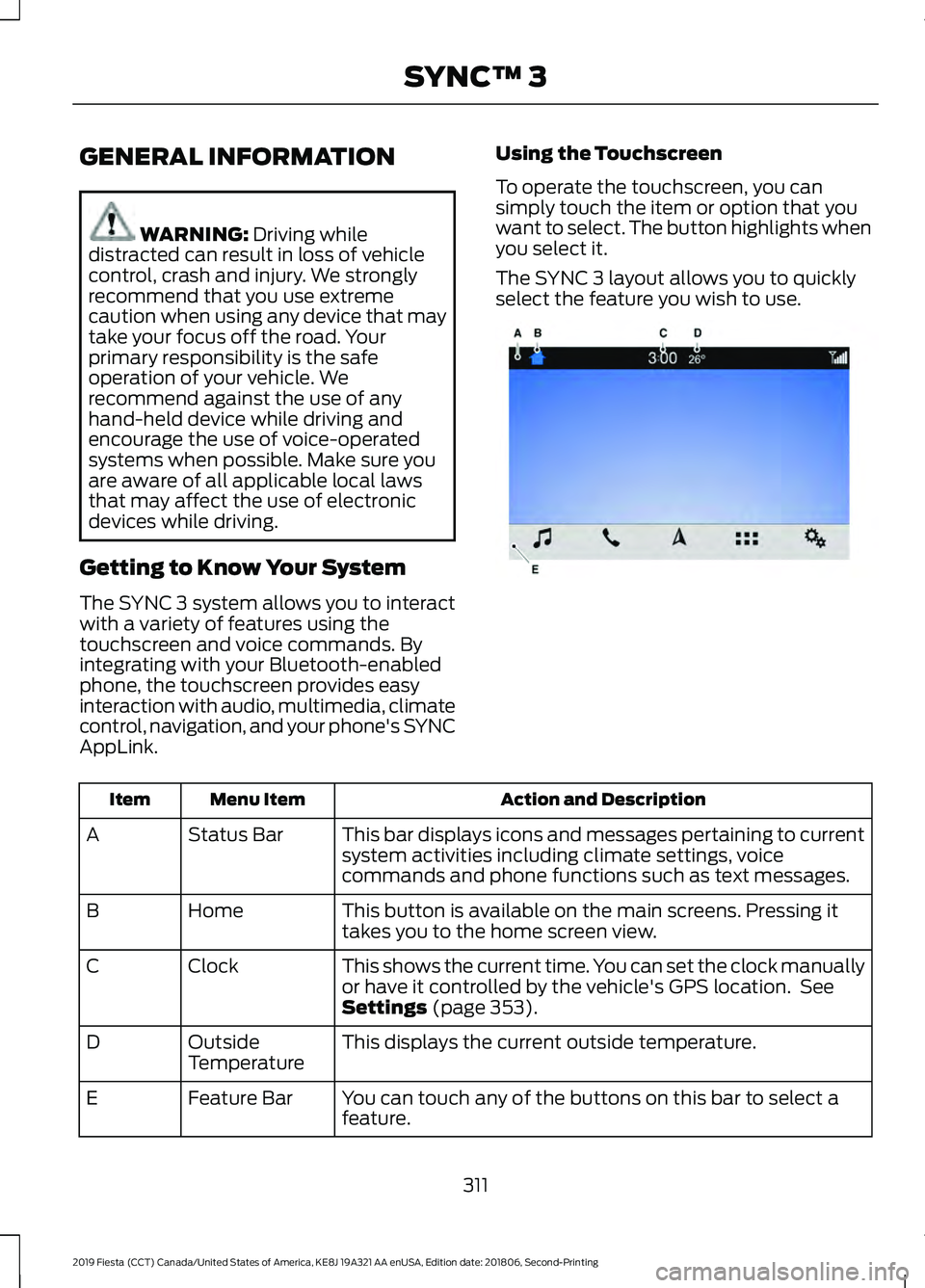
The SYNC 3 layout allows you to quickly
select the feature you wish to use.
Action and Description
Menu Item
Item
This bar displays icons and messages pertaining to current
system activities including climate settings, voice
commands and phone functions such as text messages.
Status Bar
A
This button is available on the main screens. Pressing it
takes you to the home screen view.
Home
B
This shows the current time. You can set the clock manually
or have it controlled by the vehicle's GPS location. See
Settings
(page 353).
Clock
C
This displays the current outside temperature.
Outside
Temperature
D
You can touch any of the buttons on this bar to select a
feature.
Feature Bar
E
311
2019 Fiesta (CCT) Canada/United States of America, KE8J 19A321 AA enUSA, Edition date: 201806, Second-Printing SYNC™ 3E270673
Page 347 of 443
If you have subscribed to SiriusXM Traffic
and Travel Link (where available), traffic
flow will be indicated on the map by green
(clear), yellow (slowing), and red
(stopped) road highlights. Traffic flow is
indicated where the information is
available and varies across the US.
You can choose to display traffic icons on
the map representing twelve different
types of incidents. See Settings (page
353).
You can set a destination by hovering
above a location and selecting: Button
Start
Destination Mode
To set a destination, press: Description
Menu Item
Destination
Enter a navigation destination in any of the following formats: Street Address
Search
(number, street, city, state)
For example "12 Mainstreet Dearborn MI"
Partial Address
(number, street) if searching in current state
(number, street and zip code (or postal code in Canada)) if searching
out of state
You can enter unique addresses that contain door number prefixes
with or without the prefix. For example, you could enter "6N340
Fairway Lane" or "340 Fairway Lane".
City
(name or zip code)
Point of Interest
(name or category)
Intersection
(street 1 / street 2)
(street 1 and street 2)
(street 1 & street 2)
(street 1 @ street 2)
(street 1 at street 2)
344
2019 Fiesta (CCT) Canada/United States of America, KE8J 19A321 AA enUSA, Edition date: 201806, Second-Printing SYNC™ 3
Page 368 of 443
Note:
Data you share, e.g. the Vehicle
Identification Number (VIN), SIM Card ID,
and data plan usage, between us and the
vehicle network carrier is used to provide
the Vehicle Hotspot service in accordance
with your vehicle network carrier agreement,
coverage and availability, and may be used
to enable a seamless transition from an old
to new embedded modem and to confirm
any successfully delivered updates.
Note: For your convenience data usage may
be available for monitoring under Settings
but may not reflect actual or current usage.
The vehicle network carrier is responsible
for providing information about your
account. Please contact the vehicle network
carrier for more information.
Note: We may need to update operating
system software on your vehicle, including
security updates and bug fixes, to keep
connected services current, like Vehicle
Hotspot, without prior notice to you.
Note: If you do not have an active vehicle
hotspot data plan, open your web browser
and go to a website using the HTTP protocol
to be automatically redirected to the vehicle
network carrier landing page where you can
purchase data. Websites using HTTPS will
not automatically redirect. Ambient Lighting (If Equipped)
Tap a color once to active ambient lighting.
This sets the color to the highest intensity.
You can drag the colors up and down to
increase or decrease the intensity.
To switch ambient lighting off, press the
active color once or drag the active color
all the way down to zero intensity.
Vehicle
Note: Your vehicle may not have all of
these features.
You can select the following features to
update their settings.
Door Keypad Code (If equipped)
Select this button to add or erase a
personal door keypad code. To add or
erase a personal code, you first need to
enter the five-digit factory set code. You
can find this code on the owner's wallet
card in the glove box or from your
authorized dealer.
Camera Settings
To make adjustments using the touchscreen, select: Action and Description
Message
Camera Settings
Then select from the following: When the reverse sensing system detects an object, it displays red,
yellow and green highlights at the top of the image.
Enhanced Park
Aids
You can enable or disable this option using the slider.
Rear Camera
Delay
You can find more information on the rear-view camera system in the parking aids chapter
of your owner manual.
365
2019 Fiesta (CCT) Canada/United States of America, KE8J 19A321 AA enUSA, Edition date: 201806, Second-Printing SYNC™ 3
Page 388 of 443
Ford Motor Company has recommended
maintenance intervals for various parts
and component systems based upon
engineering testing. Ford Motor Company
relies upon this testing to determine the
most appropriate mileage for replacement
of oils and fluids to protect your vehicle at
the lowest overall cost to you and
recommends against maintenance
schedules that deviate from the scheduled
maintenance information.
We strongly recommend the use of only
genuine Ford, Motorcraft or
Ford-authorized re-manufactured
replacement parts engineered for your
vehicle.
Additives and Chemicals
This owner's manual and the Ford
Workshop Manual list the recommended
additives and chemicals for your vehicle.
We do not recommend using chemicals or
additives not approved by us as part of
your vehicle
’s normal maintenance. Please
consult your warranty information. Oils, Fluids and Flushing
In many cases, fluid discoloration is a
normal operating characteristic and, by
itself, does not necessarily indicate a
concern or that the fluid needs to be
changed. However, a qualified expert, such
as the factory-trained technicians at your
dealership, should inspect discolored fluids
that also show signs of overheating or
foreign material contamination
immediately.
Make sure to change your vehicle
’s oils and
fluids at the specified intervals or in
conjunction with a repair. Flushing is a
viable way to change fluid for many vehicle
sub-systems during scheduled
maintenance. It is critical that systems are
flushed only with new fluid that is the same
as that required to fill and operate the
system or using a Ford-approved flushing
chemical.
Owner Checks and Services
Make sure you perform the following basic
maintenance checks and inspections every
month or at six-month intervals. Check every month
Engine oil level.
Function of all interior and exterior lights.
Tires (including spare) for wear and proper pressure. Windshield washer fluid level. Check every six months
Battery connections. Clean if necessary.
Body and door drain holes for obstructions. Clean if necessary. Cooling system fluid level and coolant strength.
Door weatherstrips for wear. Lubricate if necessary.
385
2019 Fiesta (CCT) Canada/United States of America, KE8J 19A321 AA enUSA, Edition date: 201806, Second-Printing Scheduled Maintenance
Page 442 of 443

T
Tailgate
See: Manual Liftgate.......................................... 60
Technical Specifications See: Capacities and Specifications............243
The Better Business Bureau (BBB) Auto Line Program (U.S. Only)........................167
Tire Care...........................................................219
Glossary of Tire Terminology.......................... 221
Important information for 205/40R17 low-profile tires and wheels...................... 219
Information About Uniform Tire Quality Grading.............................................................. 219
Information Contained on the Tire Sidewall............................................................ 222
Temperature A B C............................................ 220
Traction AA A B C.............................................. 220
Treadwear............................................................ 220
Tire Pressure Monitoring System...........234 Changing Tires With a Tire Pressure
Monitoring System....................................... 236
Understanding Your Tire Pressure Monitoring System ...................................... 236
Tires See: Wheels and Tires...................................... 219
Towing a Trailer.............................................155
Towing the Vehicle on Four Wheels...........................................................155
Emergency Towing............................................. 155
Recreational Towing.......................................... 156
Towing..............................................................155
Traction Control
............................................136
Principle of Operation....................................... 136
Transmission Code Designation
.............247
Transmission Specifications - 5-Speed Manual Transmission..............................244
Transmission Specifications - Automatic Transmission..............................................243
Transmission..................................................128
Transporting the Vehicle............................155
Trip Computer
..................................................87
U
Under Hood Overview - 1.6L Duratec-16V Ti-VCT (Sigma).........................................183
USB Port
..........................................................272 Using Cruise Control...................................146
Switching Cruise Control Off......................... 146
Switching Cruise Control On.......................... 146
Using MyKey With Remote Start Systems..........................................................55
Using Snow Chains.....................................234
Using Stability Control...............................138
Using Summer Tires
...................................234
Using SYNC™ With Your Media Player............................................................294
Accessing Your USB Song Library...............298
Bluetooth Devices and System Settings............................................................ 300
Connecting Your Digital Media Player to the USB Port.......................................................... 294
Media Menu Features....................................... 297
Media Voice Commands................................ 295
USB 2..................................................................... 300
Voice Commands for Audio Sources..........301
Using SYNC™ With Your Phone.............277 Accessing Features through the Phone
Menu.................................................................. 282
Accessing Your Phone Settings................... 285
Bluetooth Devices............................................. 286
Making Calls......................................................... 281
Pairing a Phone for the First Time...............278
Pairing Subsequent Phones.......................... 279
Phone Options during an Active Call..........281
Phone Voice Commands................................ 279
Receiving Calls..................................................... 281
System Settings................................................. 287
Text Messaging................................................... 283
Using Traction Control
................................136
Switching the System Off............................... 136
System Indicator Lights and Messages.......................................................... 136
Using a Switch..................................................... 136
Using the Information Display Controls............................................................. 136
Using Voice Recognition............................275 Apps........................................................................\
326
Automatic Blower Motor Speed Reduction......................................................... 327
Climate Control.................................................. 323
Entertainment
..................................................... 322
General................................................................... 321
Initiating a Voice Session................................ 275
Navigation............................................................. 325
439
2019 Fiesta (CCT) Canada/United States of America, KE8J 19A321 AA enUSA, Edition date: 201806, Second-Printing Index