2019 FORD EXPLORER lights
[x] Cancel search: lightsPage 391 of 571

Sending a Text Message
Note:
You can only send a text message to
one recipient at a time.
1. Select the send option when the desired selection highlights in the audio
display.
2. Select the confirmation option when the contact appears.
3. Press the OK button again to confirm when the system asks if you want to
send the message. A pre-defined
signature appears on each text
message. Note:
You can send text messages either
by choosing a contact from the phonebook
and selecting the text option from the audio
display or by replying to a received message
in the inbox.
Accessing Your Phone Settings
These are phone-dependent features. Your
phone settings allow you to access and
adjust features such as your ring tone and
text message notification, modify your
phonebook, and set up automatic
download.
1. Press the PHONE button.
2. Scroll until the phone settings option appears, and then press the OK button.
Scroll to select from the following options: Description and action
Menu Item
If this option is checked, the system uses the cellular phone
as the master when there is more than one cellular phone
paired to the system. This option can be changed for all
cellular phones (not only the active phone) using the
Bluetooth Devices menu.
Set as master
See the cellular phone name, provider name, cellular
phone number, and signal level. When done, press the left
arrow buttons to return to the phone status menu.
Phone status
Select which ringtone sounds during an incoming call (one
of the system's tones or your cellular phone's). If your
phone supports in-band ringing, your phone's ringtone
sounds when you choose the cellular phone ringtone
option.
Set ringtone
1. Press the
OK button to select and scroll to hear each
ringtone.
2. Press the
OK button to select a ringtone.
Have the option of hearing an audible tone to notify you
when a text message arrives. Press the
OK button to
switch the audible tone off or on.
Text msg notify
Modify the contents of your phonebook (such as add,
delete or download). Press the
OK button to select and
scroll between the choices in the phonebook preferences
table below.
Phonebook pref.
388
Explorer (TUB) Canada/United States of America, enUSA, Edition date: 201807, Second-Printing SYNC™
(If Equipped)
Page 456 of 571
3D city models are complete 3D models
of entire city areas including navigable
roads, parks, rivers and rendered buildings.
3D landmarks and city models appear in
3D map mode only. Coverage of these
varies and improves with updated map
releases.
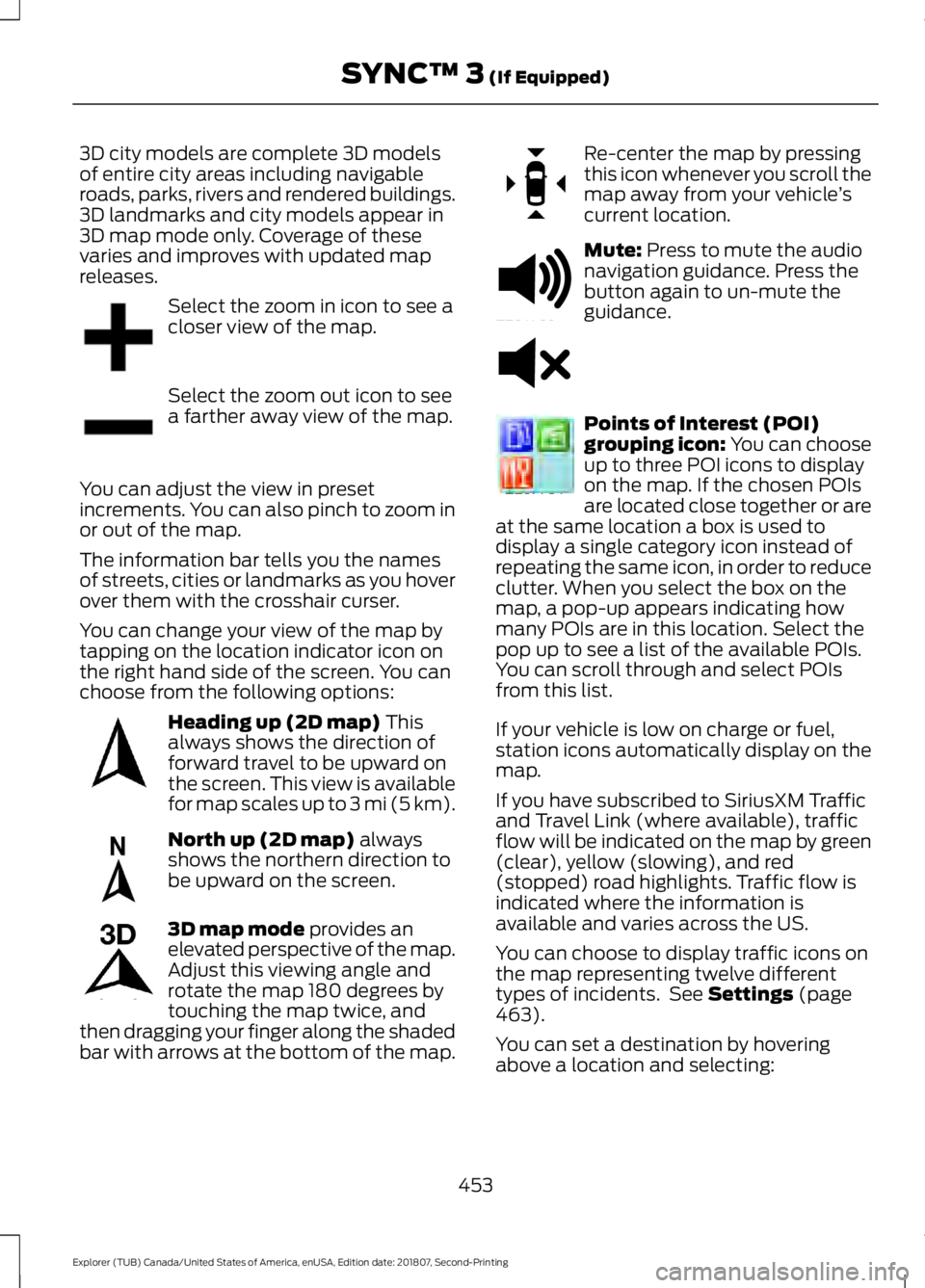
Select the zoom in icon to see a
closer view of the map.
Select the zoom out icon to see
a farther away view of the map.
You can adjust the view in preset
increments. You can also pinch to zoom in
or out of the map.
The information bar tells you the names
of streets, cities or landmarks as you hover
over them with the crosshair curser.
You can change your view of the map by
tapping on the location indicator icon on
the right hand side of the screen. You can
choose from the following options: Heading up (2D map) This
always shows the direction of
forward travel to be upward on
the screen. This view is available
for map scales up to
3 mi (5 km). North up (2D map)
always
shows the northern direction to
be upward on the screen. 3D map mode
provides an
elevated perspective of the map.
Adjust this viewing angle and
rotate the map 180 degrees by
touching the map twice, and
then dragging your finger along the shaded
bar with arrows at the bottom of the map. Re-center the map by pressing
this icon whenever you scroll the
map away from your vehicle
’s
current location. Mute:
Press to mute the audio
navigation guidance. Press the
button again to un-mute the
guidance. Points of Interest (POI)
grouping icon: You can choose
up to three POI icons to display
on the map. If the chosen POIs
are located close together or are
at the same location a box is used to
display a single category icon instead of
repeating the same icon, in order to reduce
clutter. When you select the box on the
map, a pop-up appears indicating how
many POIs are in this location. Select the
pop up to see a list of the available POIs.
You can scroll through and select POIs
from this list.
If your vehicle is low on charge or fuel,
station icons automatically display on the
map.
If you have subscribed to SiriusXM Traffic
and Travel Link (where available), traffic
flow will be indicated on the map by green
(clear), yellow (slowing), and red
(stopped) road highlights. Traffic flow is
indicated where the information is
available and varies across the US.
You can choose to display traffic icons on
the map representing twelve different
types of incidents. See
Settings (page
463).
You can set a destination by hovering
above a location and selecting:
453
Explorer (TUB) Canada/United States of America, enUSA, Edition date: 201807, Second-Printing SYNC™ 3
(If Equipped)E207752 E207753 E207750 E207749 E207748 E207751 E251780 E251779 E207754
Page 478 of 571
Note:
Data you share, e.g. the Vehicle
Identification Number (VIN), SIM Card ID,
and data plan usage, between us and the
vehicle network carrier is used to provide
the Vehicle Hotspot service in accordance
with your vehicle network carrier agreement,
coverage and availability, and may be used
to enable a seamless transition from an old
to new embedded modem and to confirm
any successfully delivered updates.
Note: For your convenience data usage may
be available for monitoring under Settings
but may not reflect actual or current usage.
The vehicle network carrier is responsible
for providing information about your
account. Please contact the vehicle network
carrier for more information.
Note: We may need to update operating
system software on your vehicle, including
security updates and bug fixes, to keep
connected services current, like Vehicle
Hotspot, without prior notice to you.
Note: If you do not have an active vehicle
hotspot data plan, open your web browser
and go to a website using the HTTP protocol
to be automatically redirected to the vehicle
network carrier landing page where you can
purchase data. Websites using HTTPS will
not automatically redirect. Ambient Lighting (If Equipped)
Tap a color once to active ambient lighting.
This sets the color to the highest intensity.
You can drag the colors up and down to
increase or decrease the intensity.
To switch ambient lighting off, press the
active color once or drag the active color
all the way down to zero intensity.
Vehicle
Note: Your vehicle may not have all of
these features.
You can select the following features to
update their settings.
Door Keypad Code (If equipped)
Select this button to add or erase a
personal door keypad code. To add or
erase a personal code, you first need to
enter the five-digit factory set code. You
can find this code on the owner's wallet
card in the glove box or from your
authorized dealer.
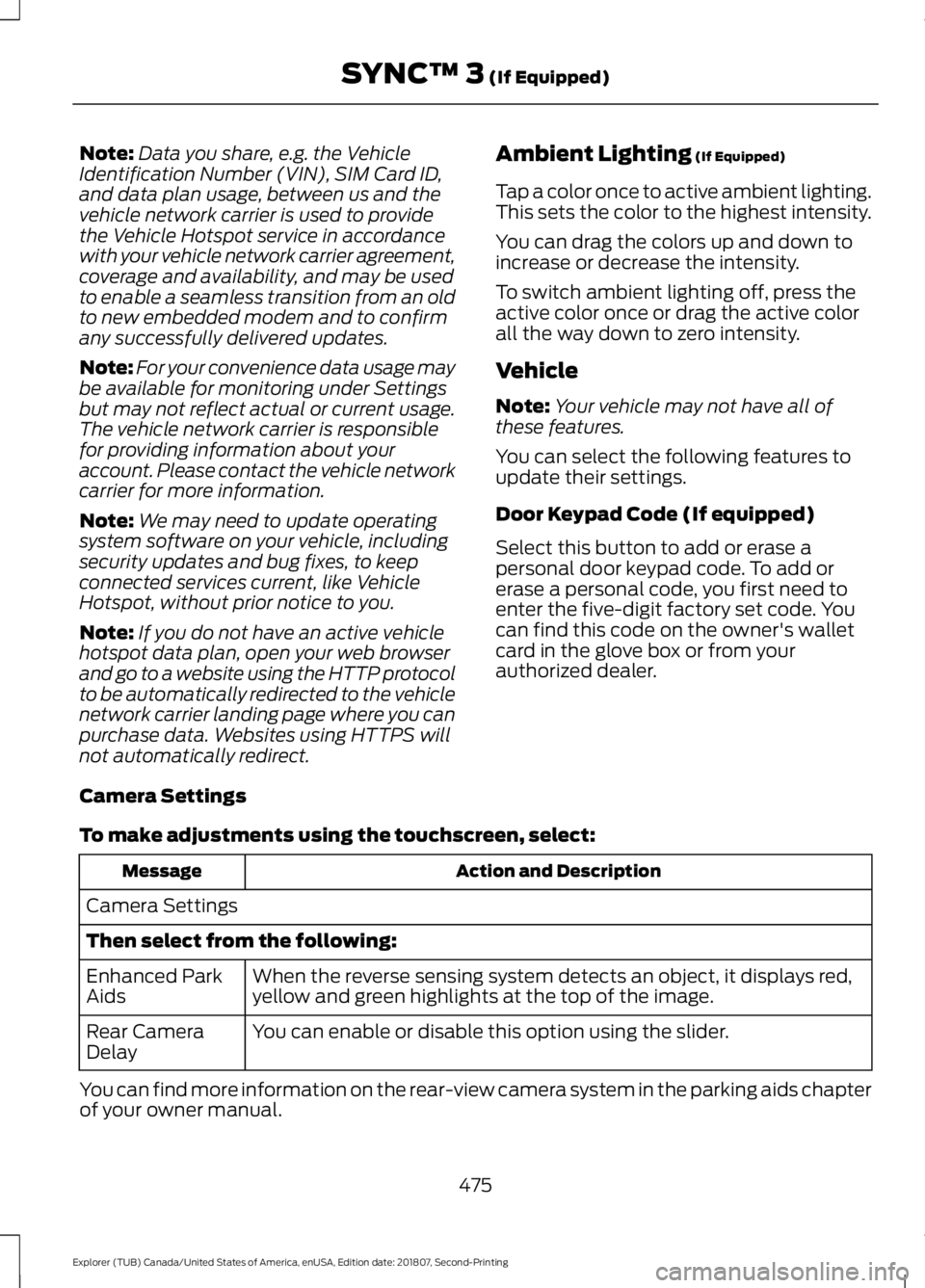
Camera Settings
To make adjustments using the touchscreen, select: Action and Description
Message
Camera Settings
Then select from the following: When the reverse sensing system detects an object, it displays red,
yellow and green highlights at the top of the image.
Enhanced Park
Aids
You can enable or disable this option using the slider.
Rear Camera
Delay
You can find more information on the rear-view camera system in the parking aids chapter
of your owner manual.
475
Explorer (TUB) Canada/United States of America, enUSA, Edition date: 201807, Second-Printing SYNC™ 3
(If Equipped)
Page 500 of 571
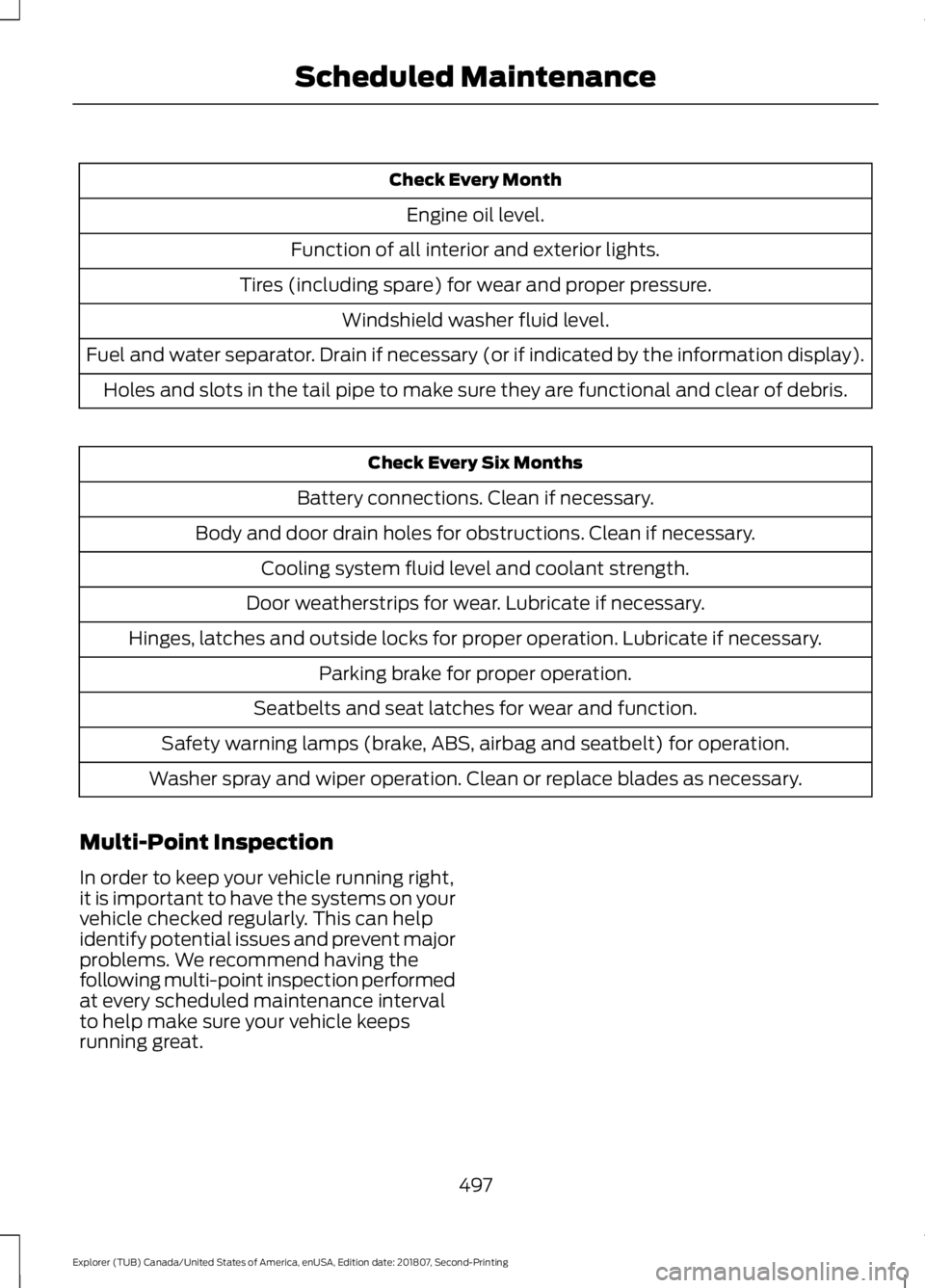
Check Every Month
Engine oil level.
Function of all interior and exterior lights.
Tires (including spare) for wear and proper pressure. Windshield washer fluid level.
Fuel and water separator. Drain if necessary (or if indicated by the information display). Holes and slots in the tail pipe to make sure they are functional and clear of debris. Check Every Six Months
Battery connections. Clean if necessary.
Body and door drain holes for obstructions. Clean if necessary. Cooling system fluid level and coolant strength.
Door weatherstrips for wear. Lubricate if necessary.
Hinges, latches and outside locks for proper operation. Lubricate if necessary. Parking brake for proper operation.
Seatbelts and seat latches for wear and function.
Safety warning lamps (brake, ABS, airbag and seatbelt) for operation.
Washer spray and wiper operation. Clean or replace blades as necessary.
Multi-Point Inspection
In order to keep your vehicle running right,
it is important to have the systems on your
vehicle checked regularly. This can help
identify potential issues and prevent major
problems. We recommend having the
following multi-point inspection performed
at every scheduled maintenance interval
to help make sure your vehicle keeps
running great.
497
Explorer (TUB) Canada/United States of America, enUSA, Edition date: 201807, Second-Printing Scheduled Maintenance
Page 561 of 571

Stripes or Graphics............................................
307
Underbody............................................................ 307
Under Hood.......................................................... 307
Cleaning the Instrument Panel and Instrument Cluster Lens........................309
Cleaning the Interior...................................309 Mirrors.................................................................... 309
Cleaning the Wheels....................................311
Cleaning the Windows and Wiper Blades...........................................................308
Clearing All MyKeys.......................................62
Climate............................................................444 Accessing Rear Climate Controls................446
Accessing the Climate Control Menu........444
Directing the Airflow........................................ 444
Rear Climate Control Lock Indicator..........446
Setting the Blower Motor Speed.................444
Setting the Temperature................................ 444
Switching Auto Mode On and Off...............444
Switching Dual Zone Mode On and Off...................................................................... 445
Switching Maximum Air Conditioning On and Off............................................................. 445
Switching Maximum Defrost On and Off...................................................................... 445
Switching Rear Auto Mode On and Off...................................................................... 446
Switching Recirculated Air On and Off...................................................................... 445
Switching the Air Conditioning On and Off...................................................................... 444
Switching the Climate Controlled Seats On and Off............................................................. 445
Switching the Climate Control On and Off...................................................................... 445
Switching the Heated Exterior Mirrors On and Off............................................................. 445
Switching the Heated Rear Window On and Off...................................................................... 445
Switching the Heated Seats On and Off...................................................................... 445
Switching the Heated Steering Wheel On and Off............................................................. 445
Switching the Rear Climate Controlled Seats On and Off......................................... 446
Switching the Rear Heated Seats On and Off...................................................................... 446Switching the Rear Ventilated Seats On
and Off............................................................. 446
Switching the Ventilated Seats On and Off...................................................................... 446
Climate Control.............................................129
Climate Controlled Seats..........................155 Cooled Seats........................................................ 156
Heated Seats........................................................ 155
Coolant Check See: Engine Coolant Check........................... 289
Crash Sensors and Airbag Indicator.........51
Creating a MyKey............................................61 Programming and Changing Configurable
Settings............................................................... 62
Cross Traffic Alert
........................................232
Blocked Sensors................................................. 234
Switching the System Off and On...............235
System Errors...................................................... 235
System Lights, Messages and Audible Alerts................................................................. 234
System Limitations........................................... 235
Using the Cross Traffic Alert System..........233
Cruise Control
.................................................80
Principle of Operation........................................ 217
Cruise control See: Using Cruise Control................................. 217
Customer Assistance
.................................264
D
Data Recording
..................................................9
Event Data Recording.......................................... 10
Service Data Recording........................................ 9
Daytime Running Lamps
............................86
Type One - Conventional
(Non-Configurable)....................................... 86
Type Two - Configurable................................... 86
Declaration of Conformity
........................542
Radio Frequency Statement......................... 542
Digital Radio
..................................................370
HD Radio Reception and Station
Troubleshooting.............................................. 371
Direction Indicators
.......................................88
Doors and Locks.............................................65
Driver Alert
......................................................225
PRINCIPLE OF OPERATION........................... 225
USING DRIVER ALERT..................................... 226
558
Explorer (TUB) Canada/United States of America, enUSA, Edition date: 201807, Second-Printing Index
Page 570 of 571
Connecting Your Digital Media Player to the
USB Port........................................................... 397
Media Menu Features..................................... 400
Media Voice Commands................................ 398
USB 2..................................................................... 403
Voice Commands for Audio Sources........404
Using SYNC™ With Your Phone...........380 Accessing Features through the Phone
Menu.................................................................. 385
Accessing Your Phone Settings................... 388
Bluetooth Devices............................................. 389
Making Calls........................................................ 384
Pairing a Phone for the First Time................381
Pairing Subsequent Phones.......................... 382
Phone Options during an Active Call.........384
Phone Voice Commands................................ 382
Receiving Calls................................................... 384
System Settings................................................ 390
Text Messaging.................................................. 386
Using Terrain Control..................................199
Using Traction Control...............................196 Switching the System Off............................... 196
System Indicator Lights and Messages.......................................................... 196
Using a Switch..................................................... 196
Using the Information Display Controls............................................................. 196
Using Voice Recognition...........................378 Audio Voice Commands................................. 428
Climate Voice Commands............................. 429
Initiating a Voice Session................................ 378
Mobile App Voice Commands...................... 432
Navigation Voice Commands........................ 431
Phone Voice Commands................................ 429
SiriusXM Traffic and Travel Link Voice Commands..................................................... 432
System Interaction and Feedback..............379
Voice Settings Commands............................ 433
Utilizing the Mediation/Arbitration Program (Canada Only).........................267
V
Vehicle Care..................................................306 General Information......................................... 306
Vehicle Certification Label.......................346
Vehicle Identification Number................345 Vehicle Storage...............................................311
Battery..................................................................... 312
Body........................................................................\
.. 311
Brakes...................................................................... 312
Cooling system.................................................... 312
Engine...................................................................... 312
Fuel system........................................................... 312
General.................................................................... 311
Miscellaneous...................................................... 312
Removing Vehicle From Storage................... 312
Tires........................................................................\
.. 312
Ventilation See: Climate Control......................................... 129
VIN See: Vehicle Identification Number............345
Voice Control
....................................................79
W
Warning Lamps and Indicators................99 Adaptive Cruise Control.................................... 99
Anti-Lock Braking System................................ 99
Automatic High Beam Control..................... 100
Battery.................................................................... 100
Blind Spot Monitor............................................ 100
Brake System....................................................... 100
Cruise Control...................................................... 100
Direction Indicator............................................. 100
Door Ajar............................................................... 100
Engine Coolant Temperature........................ 100
Engine Oil.............................................................. 100
Fasten Safety Belt............................................... 101
Front Airbag........................................................... 101
Front Fog Lamps................................................. 101
Heads Up Display................................................ 101
High Beam............................................................. 101
Hood Ajar................................................................ 101
Lane Keeping Aid................................................. 101
Liftgate Ajar........................................................... 101
Low Fuel Level...................................................... 101
Low Tire Pressure Warning.............................. 101
Low Washer Fluid................................................ 101
Parking Lamps...................................................... 101
Powertrain Fault.................................................. 101
Service Engine Soon.......................................... 102
Stability Control.................................................. 102
Stability Control Off.......................................... 102
Transmission Tow/Haul................................... 102
567
Explorer (TUB) Canada/United States of America, enUSA, Edition date: 201807, Second-Printing Index