2019 FORD EXPLORER reset
[x] Cancel search: resetPage 108 of 571

Trip 1 & 2
Digital Speedo
Distance to E
Trip Odometer
Trip Timer
Fuel Used
Average Fuel
All Values
Total Odometer (located in the lower right of the display) *
* This also displays in other menus.
• Digital Speedo - Shows a digital display
of your vehicle speed.
• Distance to E — Shows the
approximate distance your vehicle can
travel before running out of fuel.
• Trip Odometer — Registers the
distance of individual journeys.
• Trip Timer — The timer stops when you
turn your vehicle off and restarts when
you restart your vehicle. •
Fuel Used — Shows the amount of fuel
used for a given trip.
• Average Fuel — Shows the average fuel
economy for a given trip.
• All Values — Shows the Distance to E,
Trip Odometer, Trip Timer and Average
Fuel.
Note: Press and hold OK on the current
screen to reset the respective trip, distance,
time and fuel information.
Fuel Economy Information
Distance to Empty
Instantaneous Fuel Economy
Average MPG
Fuel History
All Values
105
Explorer (TUB) Canada/United States of America, enUSA, Edition date: 201807, Second-Printing Information Displays
Page 109 of 571
•
Distance to Empty - Shows the
approximate distance your vehicle can
travel before running out of fuel.
• Instantaneous Fuel Economy - Shows
a visual graph of your instantaneous
fuel economy along with your Avg MPG
since the function was last reset.
• Average MPG — Shows the average
fuel economy since last reset.
• Fuel History - Shows a bar chart of your
fuel history.
• All Values — Shows all fuel economy
values (DTE, Inst Fuel Econ, Avg Fuel). Note:
You can reset your average fuel
economy by pressing and holding the OK
button on the left hand steering wheel
controls.
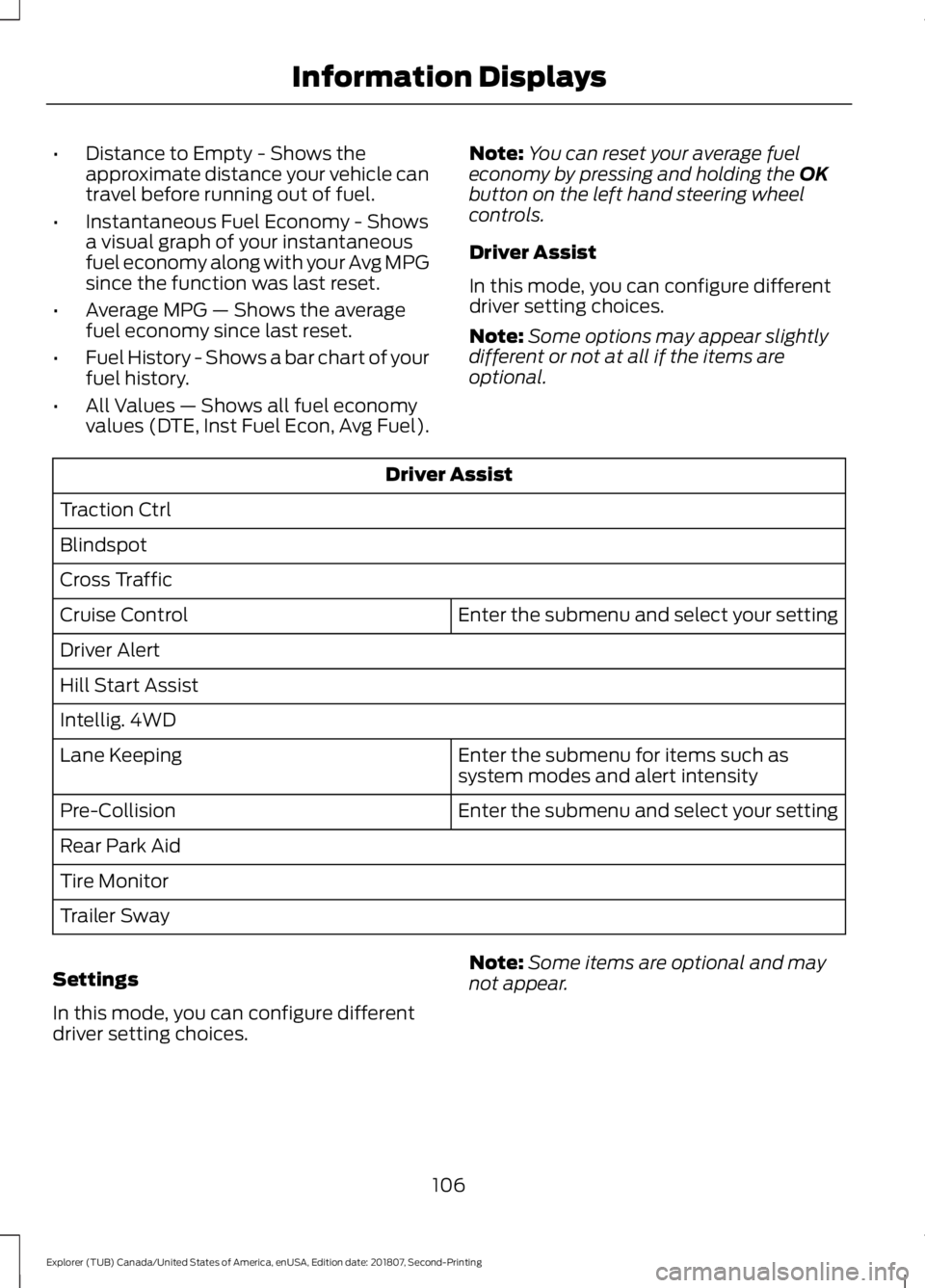
Driver Assist
In this mode, you can configure different
driver setting choices.
Note: Some options may appear slightly
different or not at all if the items are
optional. Driver Assist
Traction Ctrl
Blindspot
Cross Traffic Enter the submenu and select your setting
Cruise Control
Driver Alert
Hill Start Assist
Intellig. 4WD
Enter the submenu for items such as
system modes and alert intensity
Lane Keeping
Enter the submenu and select your setting
Pre-Collision
Rear Park Aid
Tire Monitor
Trailer Sway
Settings
In this mode, you can configure different
driver setting choices. Note:
Some items are optional and may
not appear.
106
Explorer (TUB) Canada/United States of America, enUSA, Edition date: 201807, Second-Printing Information Displays
Page 110 of 571
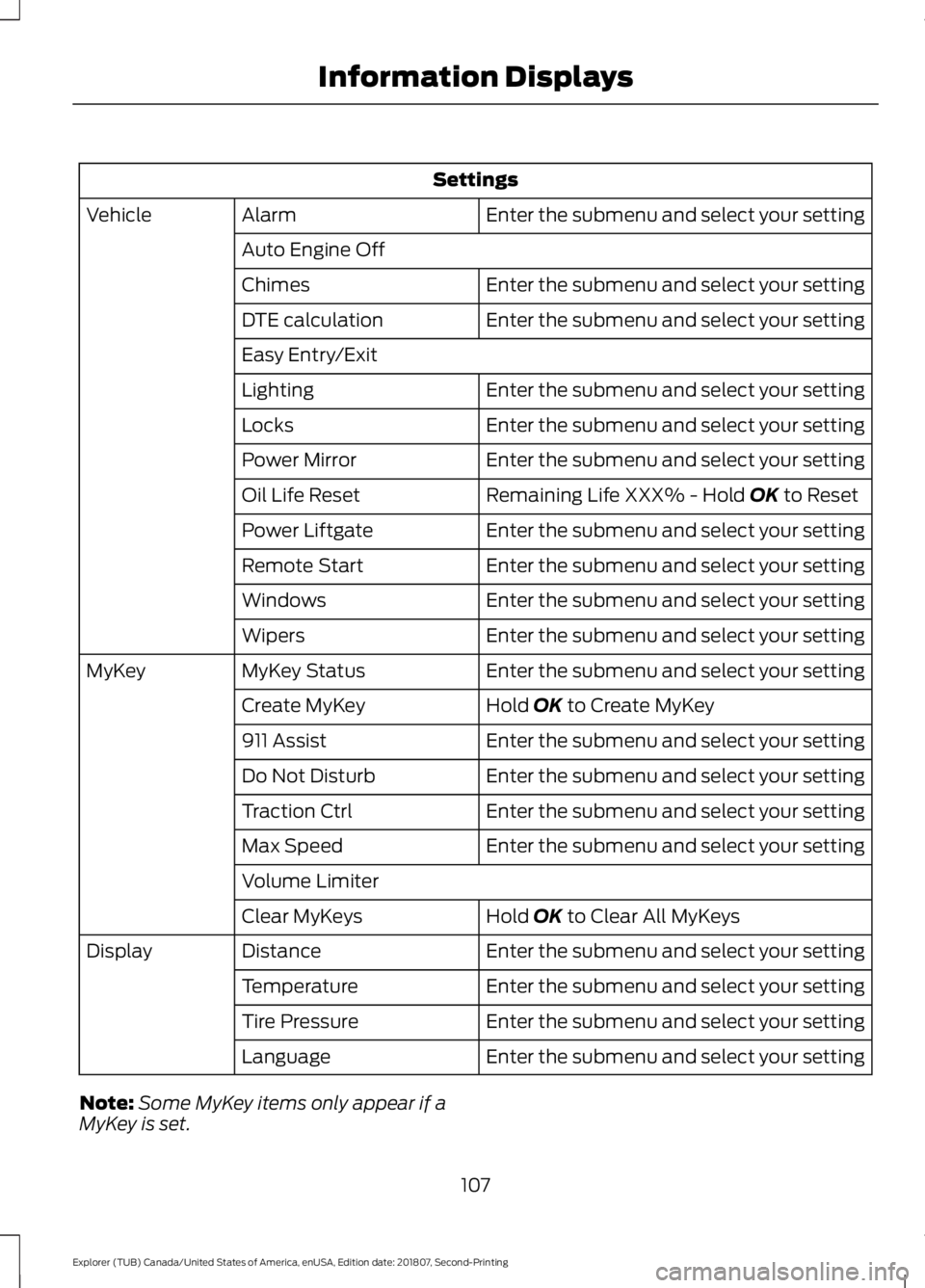
Settings
Enter the submenu and select your setting
Alarm
Vehicle
Auto Engine Off Enter the submenu and select your setting
Chimes
Enter the submenu and select your setting
DTE calculation
Easy Entry/Exit
Enter the submenu and select your setting
Lighting
Enter the submenu and select your setting
Locks
Enter the submenu and select your setting
Power Mirror
Remaining Life XXX% - Hold OK to Reset
Oil Life Reset
Enter the submenu and select your setting
Power Liftgate
Enter the submenu and select your setting
Remote Start
Enter the submenu and select your setting
Windows
Enter the submenu and select your setting
Wipers
Enter the submenu and select your setting
MyKey Status
MyKey
Hold
OK to Create MyKey
Create MyKey
Enter the submenu and select your setting
911 Assist
Enter the submenu and select your setting
Do Not Disturb
Enter the submenu and select your setting
Traction Ctrl
Enter the submenu and select your setting
Max Speed
Volume Limiter
Hold
OK to Clear All MyKeys
Clear MyKeys
Enter the submenu and select your setting
Distance
Display
Enter the submenu and select your setting
Temperature
Enter the submenu and select your setting
Tire Pressure
Enter the submenu and select your setting
Language
Note: Some MyKey items only appear if a
MyKey is set.
107
Explorer (TUB) Canada/United States of America, enUSA, Edition date: 201807, Second-Printing Information Displays
Page 113 of 571

Trip 1 & 2
All Values
• All Values — shows all trip values (Trip
Timer, Trip Odometer and Average
Fuel).
• Trip Odometer — Shows your
accumulated trip distance.
• Average Fuel — Shows your average
fuel economy for a given trip.
• Trip Timer — The timer stops when you
turn your vehicle off and restarts when
you restart your vehicle. Note:
You can reset your trip information
by pressing and holding the OK button on
the left hand steering wheel controls.
Fuel Economy
Use the left or right arrow buttons to
choose the desired fuel economy display. Fuel Economy
Inst Fuel Economy - Hold
OK to Reset
Fuel History
• Inst Fuel Economy - shows a visual
graph of your instantaneous fuel
economy, average fuel economy and
distance to empty.
• Fuel History - shows a bar chart of your
fuel history from the past 30 min,
average fuel economy and distance to
empty. Note:
You can reset your average fuel
economy by pressing and holding the
OK
button on the left hand steering wheel
controls.
Driver Assist
In this mode, you can configure different
driver setting choices.
Note: Some items are optional and may
not appear. Driver Assist
Traction Control
Blindspot
Cross Traffic Alert Enter the submenu and select your setting
Cruise Control
Driver Alert
Hill Start Assist
110
Explorer (TUB) Canada/United States of America, enUSA, Edition date: 201807, Second-Printing Information Displays
Page 114 of 571
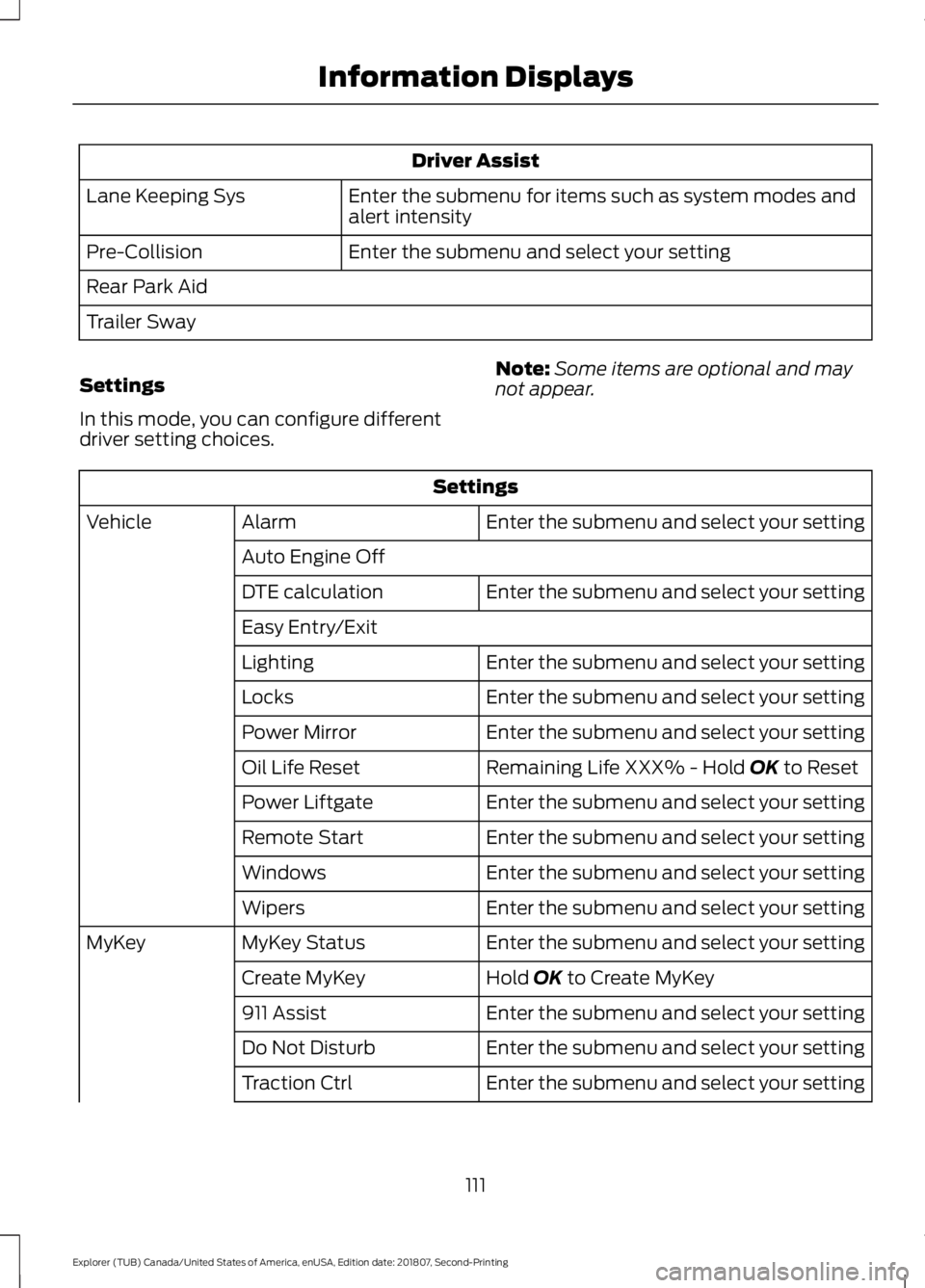
Driver Assist
Enter the submenu for items such as system modes and
alert intensity
Lane Keeping Sys
Enter the submenu and select your setting
Pre-Collision
Rear Park Aid
Trailer Sway
Settings
In this mode, you can configure different
driver setting choices. Note:
Some items are optional and may
not appear. Settings
Enter the submenu and select your setting
Alarm
Vehicle
Auto Engine Off Enter the submenu and select your setting
DTE calculation
Easy Entry/Exit
Enter the submenu and select your setting
Lighting
Enter the submenu and select your setting
Locks
Enter the submenu and select your setting
Power Mirror
Remaining Life XXX% - Hold OK to Reset
Oil Life Reset
Enter the submenu and select your setting
Power Liftgate
Enter the submenu and select your setting
Remote Start
Enter the submenu and select your setting
Windows
Enter the submenu and select your setting
Wipers
Enter the submenu and select your setting
MyKey Status
MyKey
Hold
OK to Create MyKey
Create MyKey
Enter the submenu and select your setting
911 Assist
Enter the submenu and select your setting
Do Not Disturb
Enter the submenu and select your setting
Traction Ctrl
111
Explorer (TUB) Canada/United States of America, enUSA, Edition date: 201807, Second-Printing Information Displays
Page 116 of 571

Trip 1 & 2
You can access the menu using the
information display control.
Note:
Some options may appear slightly
different or not at all if the items are
optional. Trip 1 & 2
All Values
• All Values — shows all trip values (Trip
Timer, Trip Odometer and Average
Fuel).
• Trip Odometer — Shows your
accumulated trip distance.
• Average Fuel — Shows your average
fuel economy for a given trip.
• Trip Timer — The timer stops when you
turn your vehicle off and restarts when
you restart your vehicle. Note:
You can reset your trip information
by pressing and holding the OK button on
the left hand steering wheel controls.
Fuel Economy
Use the left or right arrow buttons to
choose the desired fuel economy display. Fuel Economy
Instant Fuel Economy - Hold
OK to Reset
Fuel History
• Inst Fuel Economy - shows a visual
graph of your instantaneous fuel
economy, average fuel economy and
distance to empty.
• Fuel History - shows a bar chart of your
fuel history from the past 30 min,
average fuel economy and distance to
empty. Note:
You can reset your average fuel
economy by pressing and holding the
OK
button on the left hand steering wheel
controls.
Driver Assist
In this mode, you can configure different
driver setting choices.
Note: Some items are optional and may
not appear. Driver Assist
Traction Control Enter the submenu and select your setting
Intelligent 4WD
Blindspot
Cross Traffic Alert
113
Explorer (TUB) Canada/United States of America, enUSA, Edition date: 201807, Second-Printing Information Displays
Page 117 of 571
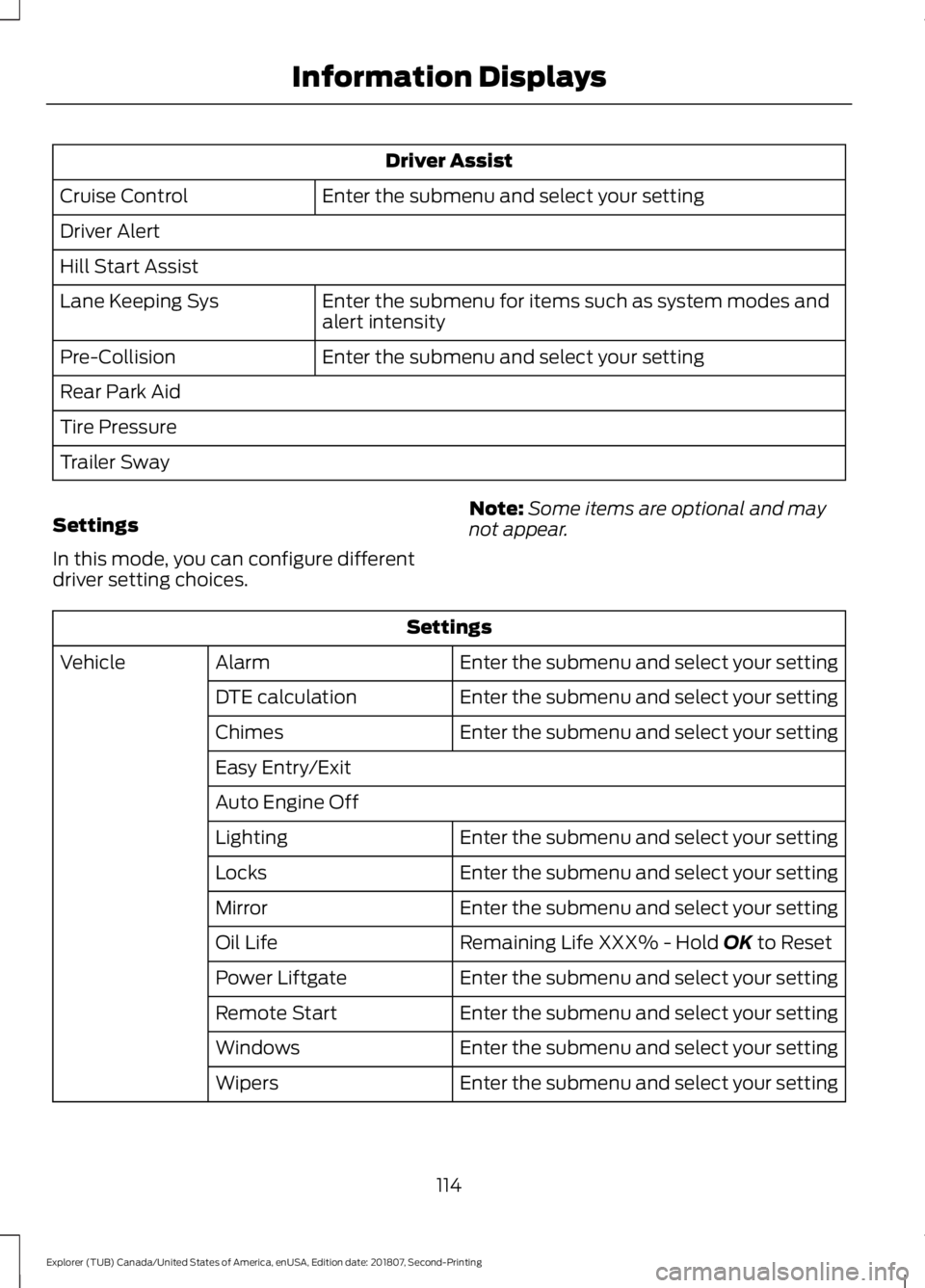
Driver Assist
Enter the submenu and select your setting
Cruise Control
Driver Alert
Hill Start Assist
Enter the submenu for items such as system modes and
alert intensity
Lane Keeping Sys
Enter the submenu and select your setting
Pre-Collision
Rear Park Aid
Tire Pressure
Trailer Sway
Settings
In this mode, you can configure different
driver setting choices. Note:
Some items are optional and may
not appear. Settings
Enter the submenu and select your setting
Alarm
Vehicle
Enter the submenu and select your setting
DTE calculation
Enter the submenu and select your setting
Chimes
Easy Entry/Exit
Auto Engine Off
Enter the submenu and select your setting
Lighting
Enter the submenu and select your setting
Locks
Enter the submenu and select your setting
Mirror
Remaining Life XXX% - Hold OK to Reset
Oil Life
Enter the submenu and select your setting
Power Liftgate
Enter the submenu and select your setting
Remote Start
Enter the submenu and select your setting
Windows
Enter the submenu and select your setting
Wipers
114
Explorer (TUB) Canada/United States of America, enUSA, Edition date: 201807, Second-Printing Information Displays
Page 119 of 571

4WD
Action
Message
The four wheel drive system has automatically disabled itselfdue to the system overheating.
4WD Temporarily
Disabled
The four wheel drive system has automatically disabled itself
due to the system overheating or you are using the spare tire.
4WD Off
The four wheel drive system resumes normal function andclears this message after driving a short distance with the road tire re-installed or after the system cools.
4WD Restored
The four wheel drive system is not operating properly and thepowertrain fault indicator illuminates. See Warning Lamps
and Indicators (page 99). If the warning stays illuminated
or continues to illuminate, contact an authorized dealer as soon as possible.
4WD Malfunction
Service Required
Displayed when the transfer case fluid requires service.
Change 4WD Power
Transfer Unit Lube
Displayed when the transfer case fluid has been changed and reset to new.
4WD Power Transfer
Unit Lube Set to New
Adaptive Cruise Control Action
Message
A radar malfunction is preventing the adaptive cruise from
engaging. See
Using Adaptive Cruise Control (page 218).
Adaptive Cruise
Malfunction
Conditions exist such that the adaptive cruise cannot functionproperly. See
Using Adaptive Cruise Control (page 218).
Adaptive Cruise Not
Available
The radar is blocked because of poor radar visibility due tobad weather or ice/mud/water in front of radar. Driver can
typically clean the sensor to resolve. See
Using Adaptive
Cruise Control (page 218).
Adaptive Cruise Not
Available Sensor
Blocked See Manual
AdvanceTrac ™ Action
Message
The system detects a malfunction due to a blocked sensor.
Service AdvanceTrac
The driver has disabled or enabled the traction control.
AdvanceTrac Off On
116
Explorer (TUB) Canada/United States of America, enUSA, Edition date: 201807, Second-Printing Information Displays