2019 FORD E SERIES AUX
[x] Cancel search: AUXPage 254 of 329
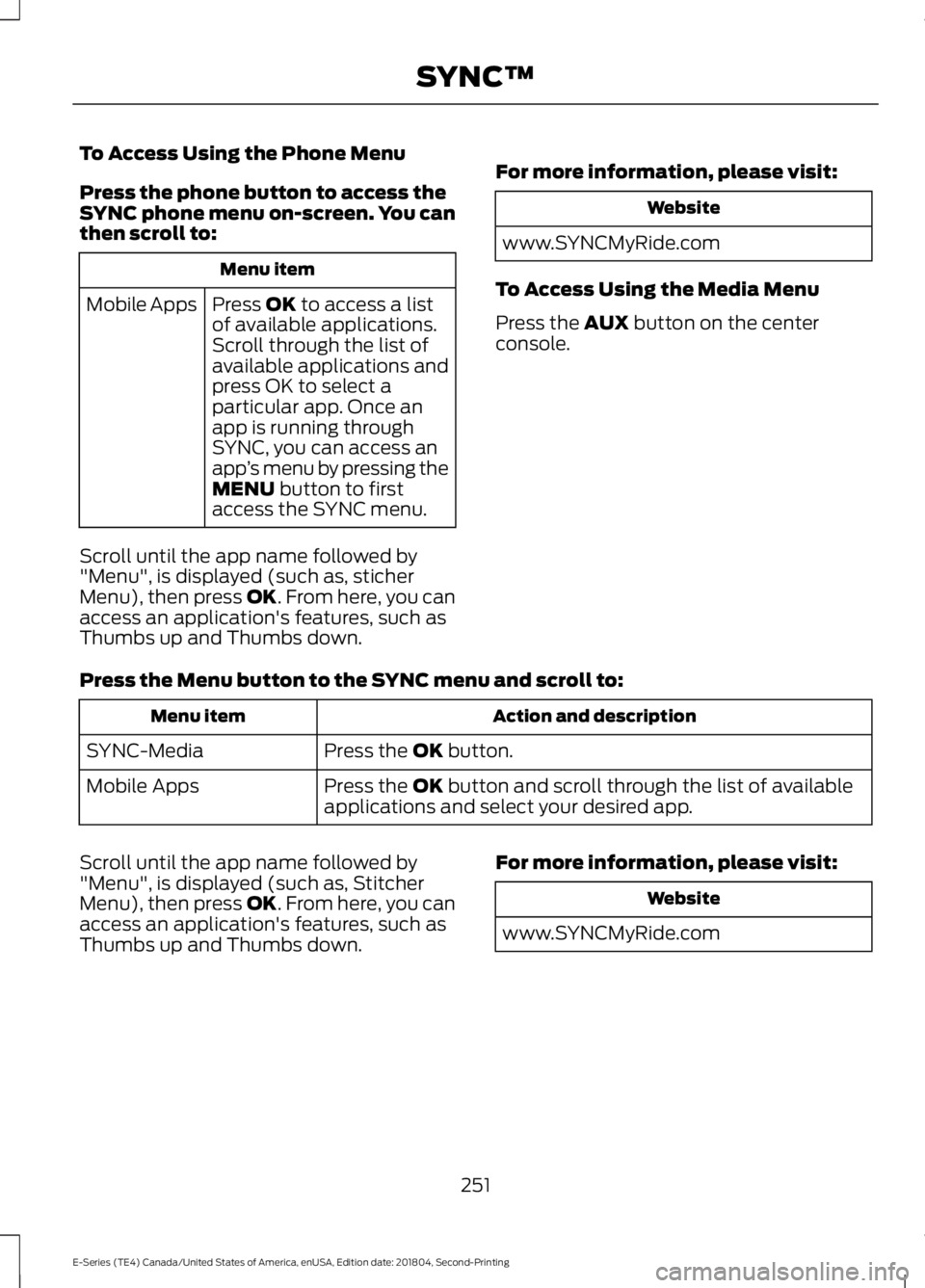
To Access Using the Phone Menu
Press the phone button to access theSYNC phone menu on-screen. You canthen scroll to:
Menu item
Press OK to access a listof available applications.Mobile Apps
Scroll through the list ofavailable applications andpress OK to select aparticular app. Once anapp is running throughSYNC, you can access anapp’s menu by pressing theMENU button to firstaccess the SYNC menu.
Scroll until the app name followed by"Menu", is displayed (such as, sticherMenu), then press OK. From here, you canaccess an application's features, such asThumbs up and Thumbs down.
For more information, please visit:
Website
www.SYNCMyRide.com
To Access Using the Media Menu
Press the AUX button on the centerconsole.
Press the Menu button to the SYNC menu and scroll to:
Action and descriptionMenu item
Press the OK button.SYNC-Media
Press the OK button and scroll through the list of availableapplications and select your desired app.Mobile Apps
Scroll until the app name followed by"Menu", is displayed (such as, StitcherMenu), then press OK. From here, you canaccess an application's features, such asThumbs up and Thumbs down.
For more information, please visit:
Website
www.SYNCMyRide.com
251
E-Series (TE4) Canada/United States of America, enUSA, Edition date: 201804, Second-Printing
SYNC™
Page 256 of 329

To Connect Using the System Menu
Plug the device into the USB port. See
USB Port (page 224).
Press the AUX button, then the Menubutton to enter the Media Menu.
You can then scroll to:
Action and DescriptionMessage
Press the OK button.SELECT SRC
Press the OK button.SYNC USBDepending on how many digital media files are on yourconnected device, the following message may appear in theradio display.
Indexing…
When indexing is complete, the screen returns to the Play menu. You can thenselect one of the following:
PLAY ALL
ARTISTS
ALBUMS
GENRES
PLAYLISTS
TRACKS
EXPLORE USB
SIMILARMUSIC
Exit the current menu.RETURN
What's Playing?
When a track is playing, you can ask thesystem to tell you what is currently playing.
253
E-Series (TE4) Canada/United States of America, enUSA, Edition date: 201804, Second-Printing
SYNC™
Page 258 of 329

Voice command
1,2The system searches for aspecific artist/track/albumfrom the music indexedthrough the USB port.
SearchTrack ___| SearchSong ___
1,2This allows you to makeyour previous commandmore specific. By using thiscommand you can filterthough a previous selec-tion, such as an artist toplay only specific album.
Refinealbum ___
The system compiles aplaylist and then plays similarmusic to what is currentlyplaying from the USB portusing indexed metadatainformation.
SimilarMusic
Autoplay Off
Turn autoplay on to listen tomusic processed duringindexing. Turn autoplay off toallow the indexing process tofinish before the system playsany of your music.
Autoplay[on]
1 ___ is a dynamic listing, meaning that itcould be the name of anything, such as agroup, artist or song. For example youcould say "Play artist The Beatles".2 This voice command is not available untilindexing is complete.3 This voice command is only available infolder mode.
Bluetooth Audio Command Guide
Press the voice button and say:
Voice command
Bluetooth Audio
You can then say any of the following:
[Phone] Connections | [Media] Connec-tions | [Bluetooth] Connections
Pause
Play
[Play] Next Track | [Play] Next Song
[Play] Previous Track | [Play] PreviousSong
Media Menu Features
The media menu allows you to select yourmedia source, how to play your music, forexample by artist, genre, shuffle or repeat,and to add, connect or delete devices.
Press the AUX button, then the Menubutton to enter the Media Menu.
255
E-Series (TE4) Canada/United States of America, enUSA, Edition date: 201804, Second-Printing
SYNC™
Page 260 of 329

Action and DescriptionMessage
Interact with SYNC-capable mobile applications on yoursmartphone.APPLICATIONS
Access available Bluetooth Device menu listings as well asAdvanced menu listings.SYS SETTINGS
Press OK to exit the media menu.EXIT MENU
1The time required to complete this depends on the size of the media the system needsto index. If autoplay is on, you can listen to media processed during indexing. If autoplayis off, you cannot listen to music until the system finishes indexing media. SYNC is capableof indexing thousands of average size media and notifies you if it reaches the maximumindexing file size.2If you have already connected a device to the USB port, you cannot access the line infeature. Some digital media players require both USB and line in ports to stream dataand music separately.3Some digital media players require both USB and line in ports to stream data and musicseparately.4Indexing times can vary from device to device and with regard to the number of songsthe system needs to process.
Accessing Your Play Menu
This menu allows you to select and playyour media by artist, album, genre, playlist,track, similar music or even to explore whatis on your USB device.
Make sure that your device is plugged intothe USB port and is turned on.
Press the AUX button, then the Menubutton to enter the Media Menu.
You can then scroll to select:
Action and DescriptionMessage
Press the OK button.PLAY MENU
If there are no media files to access, the display indicates there is no media. If there aremedia files, you have the following options:
Press the OK button. The first track title appears in thedisplay.PLAY ALL
Play all indexed media (tracks) from your playing device inflat file mode, one at a time in numerical order.
257
E-Series (TE4) Canada/United States of America, enUSA, Edition date: 201804, Second-Printing
SYNC™
Page 262 of 329

Action and DescriptionMessage
Explore all supported digital media on your media deviceconnected to the USB port. You can only view media contentwhich is compatible with SYNC; other files saved are notvisible.
EXPLORE USB
1. Press the OK button.
2. Scroll to explore indexed media on your flash drive.
Play music similar to what is currently playing from the USBport. The system uses the metadata information of each song
to compile a playlist for you.*
SIMILARMUSIC
1. Press the OK button.
2.The system creates a new list of similar songs and beginsplaying. This feature does not include tracks with incom-plete metadata information. Press the OK button.
Exit the current menu.RETURN
*With certain playing devices, if your metadata tags are not populated, the tracks are notavailable in voice recognition, play menu or similar music. However, if you place thesetracks onto your playing device in "Mass Storage Device Mode", they are available in voicerecognition, play menu browsing and similar music. The system places Unknown itemsinto any unpopulated metadata tag.
System Settings
System settings provide access to yourBluetooth Devices and Advanced menufeatures.
Bluetooth Devices
The Bluetooth Devices menu allows youto enable, disable, add, connect and deletea Bluetooth device.
Press the AUX button, then the Menubutton to enter the Media Menu.
You can then scroll to:
Action and DescriptionMessage
Press the OK button.SYS SETTINGS
Press the OK button.BT DEVICES
You can then select one of the following:
Pair more devices to the system.*ADD DEVICE
259
E-Series (TE4) Canada/United States of America, enUSA, Edition date: 201804, Second-Printing
SYNC™
Page 263 of 329

Action and DescriptionMessage
1. Press the OK button. When find SYNC appears in thedisplay, press the OK button again.
2. Follow the directions in your phone's manual to put yourphone into discovery mode. A six-digit PIN appears in thedisplay.
3. When prompted on your phone's six-digit display, enterthe PIN.
Connect a previously paired Bluetooth-enabled phone.Connect BT
1. Press OK to select and view a list of devices.
2. Scroll until the desired device is chosen and press OK toconnect the device.
Turn the Bluetooth feature on and off.**BT ON/OFF
1.Press the OK button and scroll to toggle between on andoff.
2. Make a selection and press the OK button.
Delete a paired media device.DEL DEVICE
1. Press the OK button and scroll to select the device.
2. Press the OK button to confirm.
Delete all previously paired devices.DELETE ALL
1. Press the OK button.
2. Press the OK button to confirm.
Exit the current menu.RETURN
*This is a speed-dependent feature. It is only available when your vehicle is traveling at 3mph (5 km/h) or less.**Setting Bluetooth to off disconnects all Bluetooth devices and turns off all Bluetoothfeatures.
Advanced
The Advanced menu allows you to accessand set prompts, languages, defaults andperform a master reset.
Press the AUX button, then the Menubutton to enter the Media Menu.
260
E-Series (TE4) Canada/United States of America, enUSA, Edition date: 201804, Second-Printing
SYNC™
Page 275 of 329

•An authorized dealer needs to installmobile communications systems.Improper installation may harm theoperation of your vehicle, particularlyif the manufacturer did not design themobile communication systemspecifically for automotive use.
•If you or an authorized Ford dealer addany non-Ford electrical or electronicaccessories or components to yourvehicle, you may adversely affectbattery performance and durability. Inaddition, you may also adversely affectthe performance of other electricalsystems in the vehicle.
AUXILIARY SWITCHES
For maximum vehicle performance, keepthe following information in mind whenadding accessories or equipment to yourvehicle:
•When adding accessories, equipment,passengers and luggage to yourvehicle, do not exceed the total weightcapacity of the vehicle or of the frontor rear axle (GVWR or GAWR asindicated on the Safety ComplianceCertification label). Ask an authorizeddealer for specific weight information.
•The Federal CommunicationsCommission (FCC) and CanadianRadio TelecommunicationsCommission (CRTC) regulate the useof mobile communications systemsequipped with radio transmitters, forexample, two-way radios, telephonesand theft alarms. Any such equipmentinstalled in your vehicle should complywith Federal CommunicationsCommission (FCC) and CanadianRadio TelecommunicationsCommission (CRTC) regulations, andshould be installed by an authorizeddealer.
•An authorized dealer needs to installmobile communications systems.Improper installation may harm theoperation of your vehicle, particularlyif the manufacturer did not design themobile communication systemspecifically for automotive use.
•If you or an authorized Ford dealer addany non-Ford electrical or electronicaccessories or components to yourvehicle, you may adversely affectbattery performance and durability. Inaddition, you may also adversely affectthe performance of other electricalsystems in the vehicle.
The auxiliary switch option packageprovides four switches, mounted in thecenter of the instrument panel. Theseswitches operate only when you switch theignition on, whether the engine is runningor not. Ford recommends, however, thatthe engine remain running to maintainbattery charge when using the auxiliaryswitches for extended periods of time orhigher current draws.
When switched on, the auxiliary switchesprovide 10 amps, 15 amps or 30 amps ofelectrical battery power for a variety ofpersonal or commercial uses.
The switches include the fuse and relay kit.This kit contains the required fuses andrelays that an authorized technician needsto install into the power distribution box,located under the hood. Refer to theinstruction sketch included in the kit.Contact an authorized dealer for service.
272
E-Series (TE4) Canada/United States of America, enUSA, Edition date: 201804, Second-Printing
AccessoriesE163431
Page 276 of 329

Each switch includes a power lead (ablunt-cut and sealed wire) located in theunderhood cowl shield above the engineblock powertrain control module.
The power leads are coded as follows:
FuseAmpRating
WireColorCircuitNumberSwitch
30AYellowCAC05AUX 1
30AGreenwithBrownTrace
CAC06AUX 2
10AVioletwithGreenTrace
CAC07AUX 3
15ABrownCAC08AUX 4
Learn more about auxiliary switches byvisitinghttps://www.fleet.ford.com/truckbbas/.
273
E-Series (TE4) Canada/United States of America, enUSA, Edition date: 201804, Second-Printing
Accessories