Page 407 of 500

NOTE:
•FCA US LLC or your dealer may contact you directly
regarding software updates.
• To help further improve vehicle security and minimize
the potential risk of a security breach, vehicle owners
should:
• Routinely check www.driveuconnect.com (U.S. Resi-
dents) or www.driveuconnect.ca (Canadian Residents)
to learn about available Uconnect software updates.
• Only connect and use trusted media devices (e.g.
personal mobile phones, USBs, CDs).
Privacy of any wireless and wired communications cannot
be assured. Third parties may unlawfully intercept infor-
mation and private communications without your consent.
For further information, refer to “Data Collection & Pri-
vacy” in your Uconnect Owner ’s Manual Supplement or
“Onboard Diagnostic System (OBD II) Cybersecurity” in
“Getting To Know Your Instrument Panel”.UCONNECT SETTINGS
The Uconnect system uses a combination of buttons on the
touchscreen and buttons on the faceplate located on the
center of the instrument panel that allows you to access
and change the customer programmable features.
Uconnect 4C/4C NAV Buttons On Touchscreen And Buttons On Faceplate
1 — Uconnect Buttons On The Touchscreen
2 — Uconnect Buttons On The Faceplate
10
MULTIMEDIA 405
Page 409 of 500
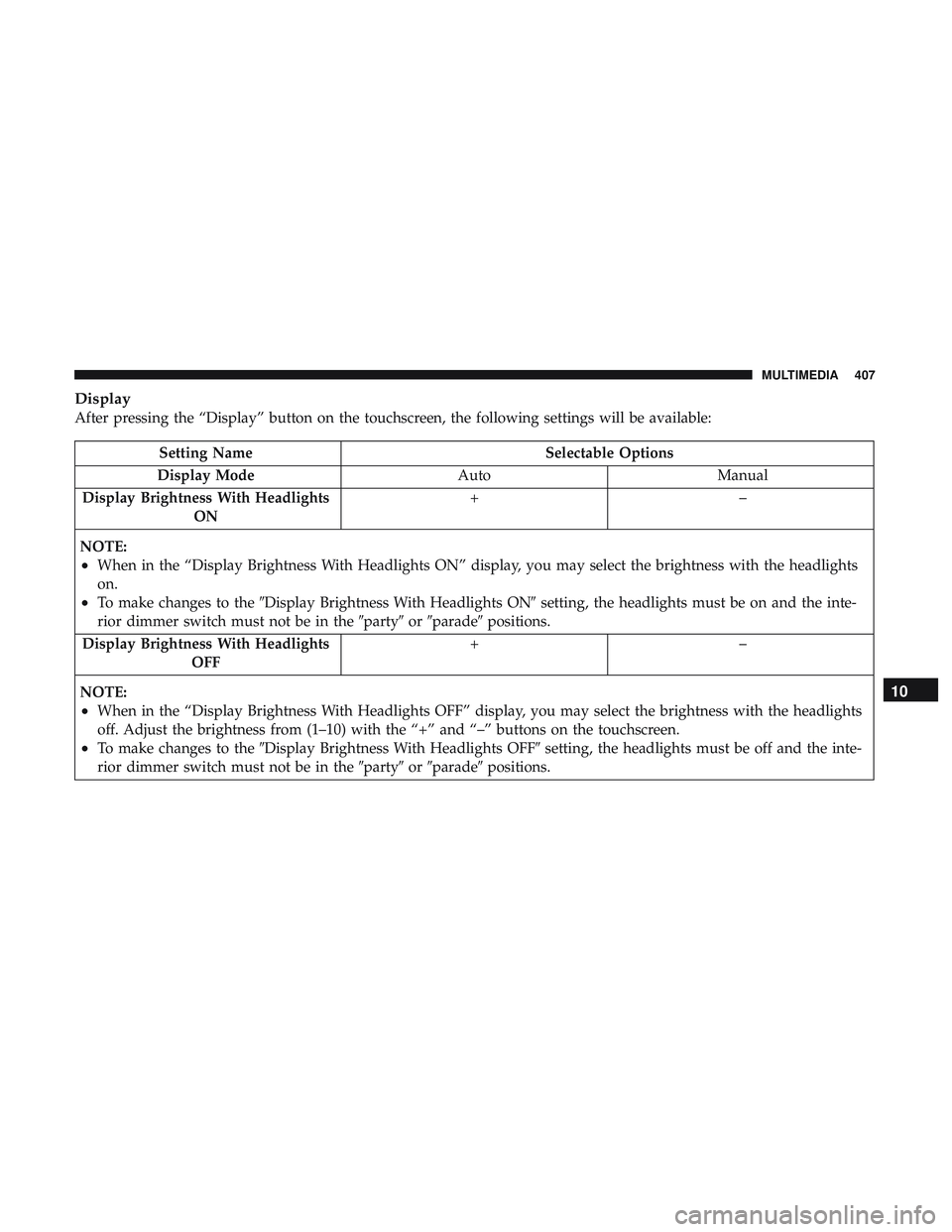
Display
After pressing the “Display” button on the touchscreen, the following settings will be available:
Setting NameSelectable Options
Display Mode AutoManual
Display Brightness With Headlights ON +–
NOTE:
•When in the “Display Brightness With Headlights ON” display, you may select the brightness with the headlights
on.
•To make changes to the �Display Brightness With Headlights ON� setting, the headlights must be on and the inte-
rior dimmer switch must not be in the �party�or�parade� positions.
Display Brightness With Headlights OFF +–
NOTE:
•When in the “Display Brightness With Headlights OFF” display, you may select the brightness with the headlights
off. Adjust the brightness from (1–10) with the “+” and “–” buttons on the touchscreen.
•To make changes to the �Display Brightness With Headlights OFF� setting, the headlights must be off and the inte-
rior dimmer switch must not be in the �party�or�parade� positions.
10
MULTIMEDIA 407
Page 415 of 500
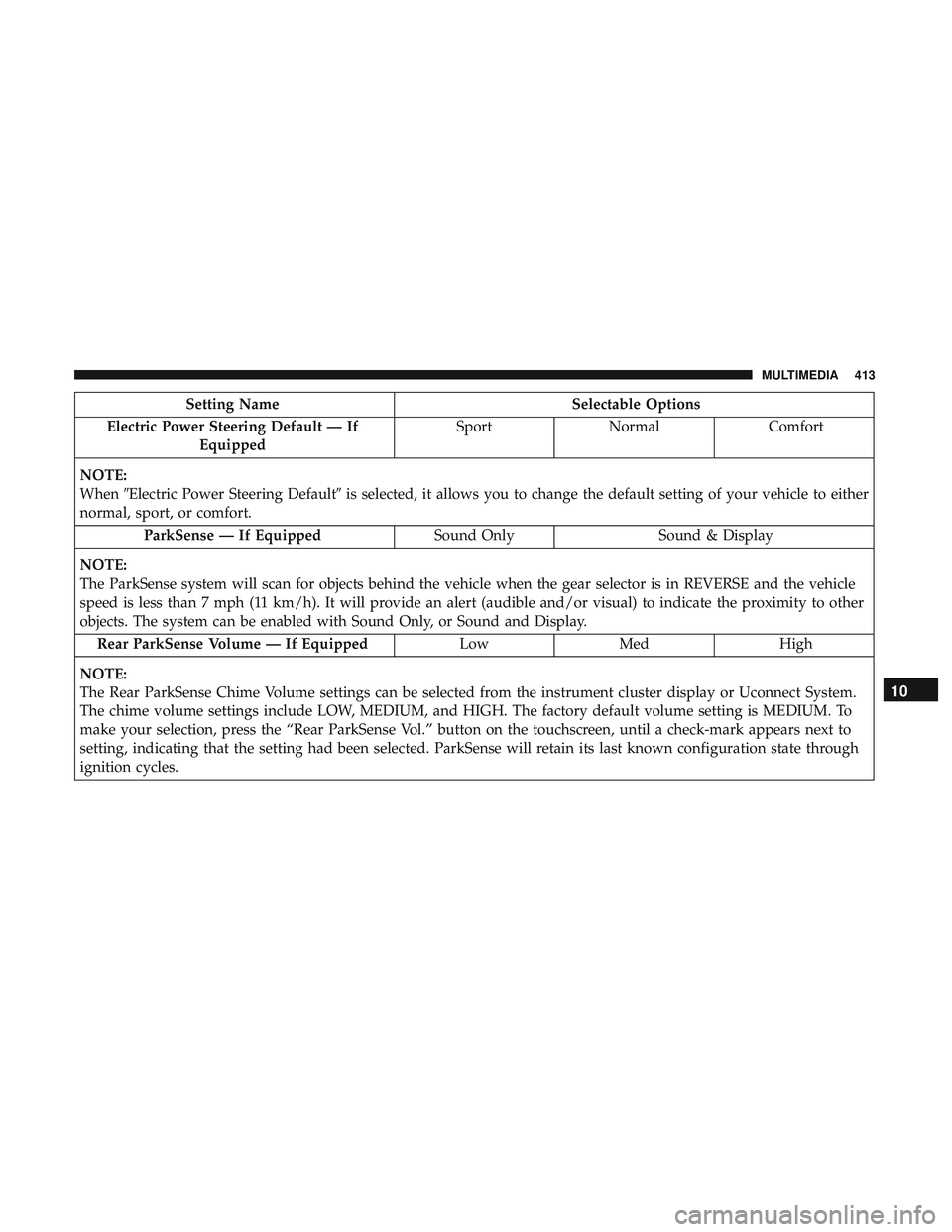
Setting NameSelectable Options
Electric Power Steering Default — If Equipped Sport
Normal Comfort
NOTE:
When �Electric Power Steering Default� is selected, it allows you to change the default setting of your vehicle to either
normal, sport, or comfort.
ParkSense — If Equipped Sound OnlySound & Display
NOTE:
The ParkSense system will scan for objects behind the vehicle when the gear selector is in REVERSE and the vehicle
speed is less than 7 mph (11 km/h). It will provide an alert (audible and/or visual) to indicate the proximity to other
objects. The system can be enabled with Sound Only, or Sound and Display. Rear ParkSense Volume — If Equipped LowMed High
NOTE:
The Rear ParkSense Chime Volume settings can be selected from the instrument cluster display or Uconnect System.
The chime volume settings include LOW, MEDIUM, and HIGH. The factory default volume setting is MEDIUM. To
make your selection, press the “Rear ParkSense Vol.” button on the touchscreen, until a check-mark appears next to
setting, indicating that the setting had been selected. ParkSense will retain its last known configuration state through
ignition cycles.
10
MULTIMEDIA 413
Page 421 of 500
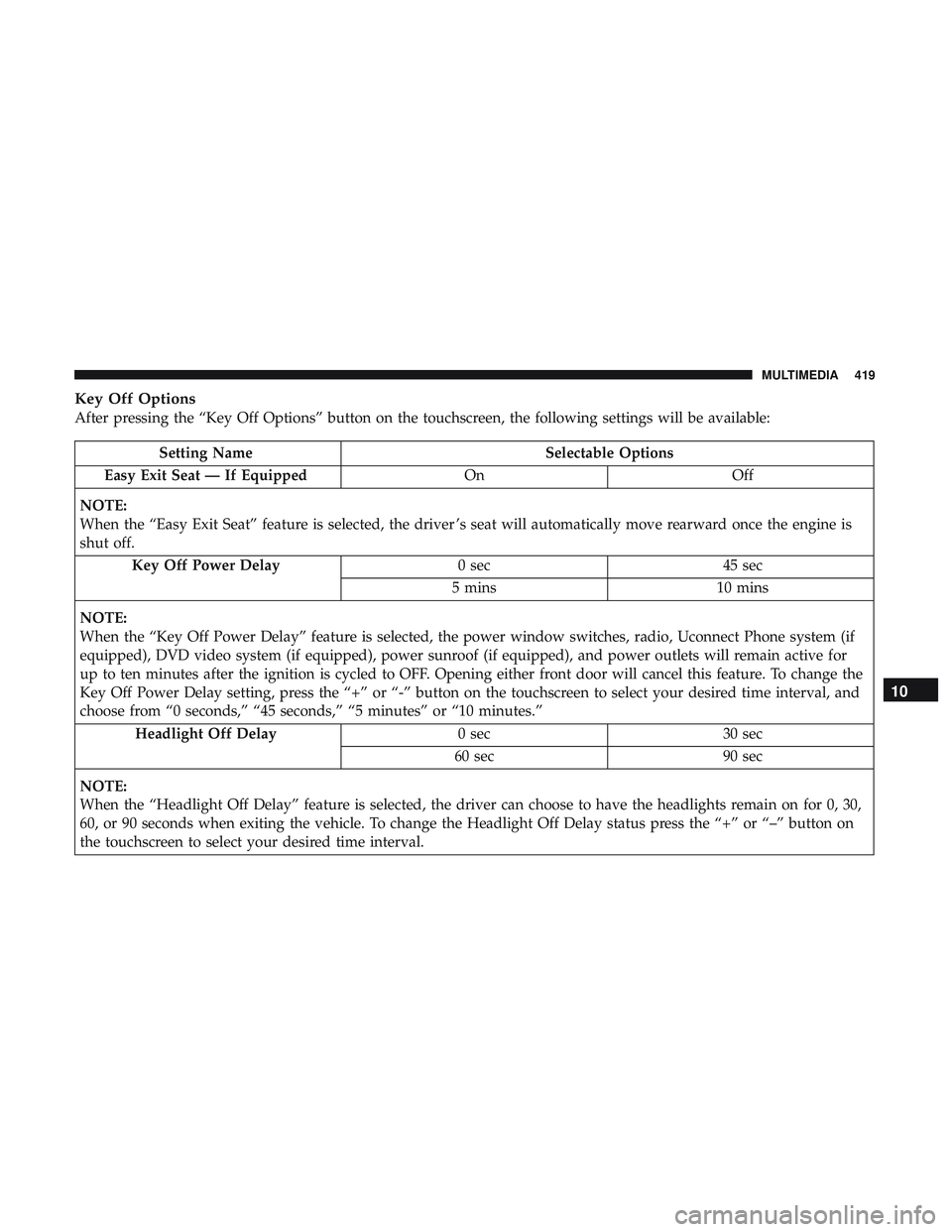
Key Off Options
After pressing the “Key Off Options” button on the touchscreen, the following settings will be available:
Setting NameSelectable Options
Easy Exit Seat — If Equipped OnOff
NOTE:
When the “Easy Exit Seat” feature is selected, the driver ’s seat will automatically move rearward once the engine is
shut off. Key Off Power Delay 0 sec45 sec
5 mins 10 mins
NOTE:
When the “Key Off Power Delay” feature is selected, the power window switches, radio, Uconnect Phone system (if
equipped), DVD video system (if equipped), power sunroof (if equipped), and power outlets will remain active for
up to ten minutes after the ignition is cycled to OFF. Opening either front door will cancel this feature. To change the
Key Off Power Delay setting, press the “+” or “-” button on the touchscreen to select your desired time interval, and
choose from “0 seconds,” “45 seconds,” “5 minutes” or “10 minutes.” Headlight Off Delay 0 sec30 sec
60 sec 90 sec
NOTE:
When the “Headlight Off Delay” feature is selected, the driver can choose to have the headlights remain on for 0, 30,
60, or 90 seconds when exiting the vehicle. To change the Headlight Off Delay status press the “+” or “–” button on
the touchscreen to select your desired time interval.
10
MULTIMEDIA 419
Page 422 of 500
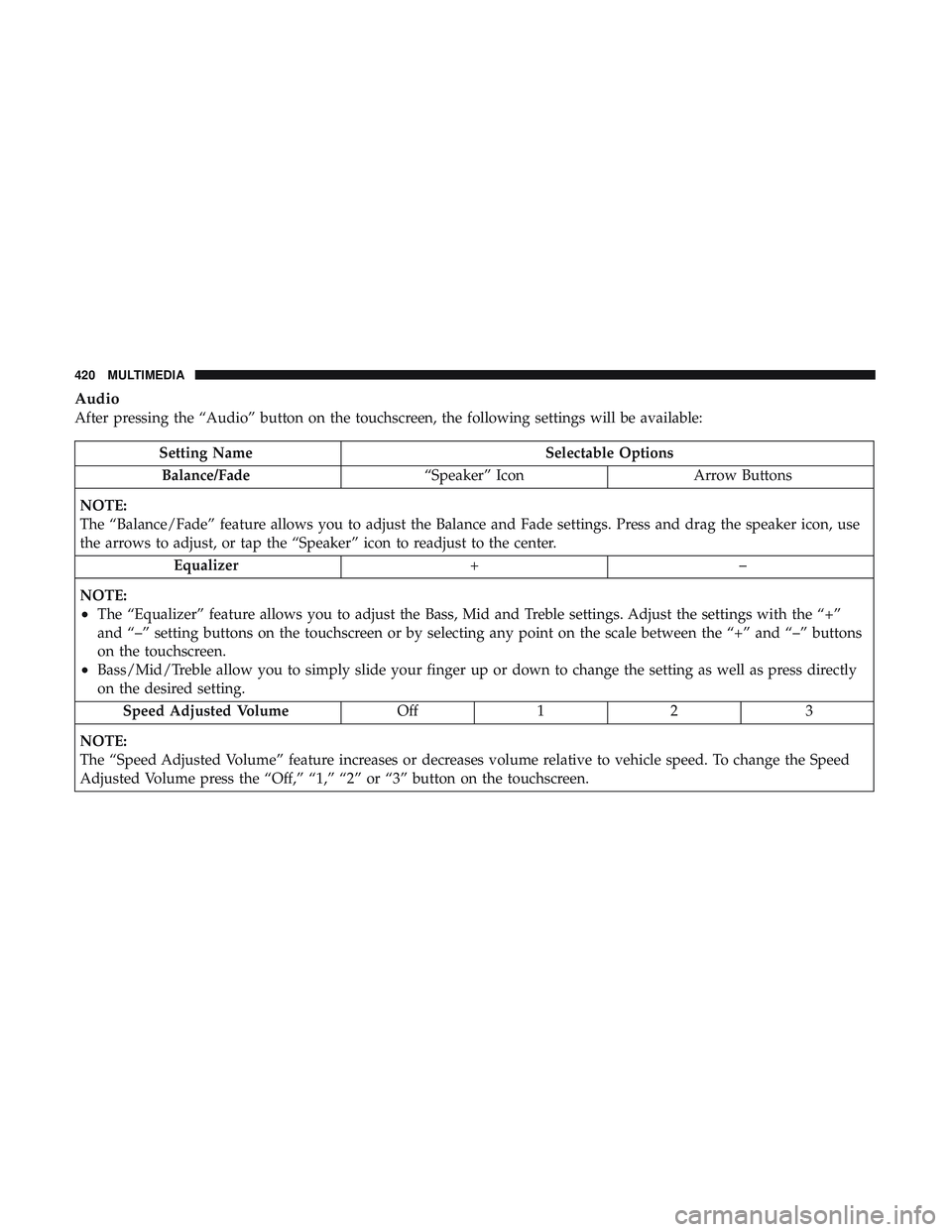
Audio
After pressing the “Audio” button on the touchscreen, the following settings will be available:
Setting NameSelectable Options
Balance/Fade “Speaker” Icon Arrow Buttons
NOTE:
The “Balance/Fade” feature allows you to adjust the Balance and Fade settings. Press and drag the speaker icon, use
the arrows to adjust, or tap the “Speaker” icon to readjust to the center. Equalizer +–
NOTE:
•The “Equalizer” feature allows you to adjust the Bass, Mid and Treble settings. Adjust the settings with the “+”
and “–” setting buttons on the touchscreen or by selecting any point on the scale between the “+” and “–” buttons
on the touchscreen.
•Bass/Mid/Treble allow you to simply slide your finger up or down to change the setting as well as press directly
on the desired setting. Speed Adjusted Volume Off 1 2 3
NOTE:
The “Speed Adjusted Volume” feature increases or decreases volume relative to vehicle speed. To change the Speed
Adjusted Volume press the “Off,” “1,” “2” or “3” button on the touchscreen.
420 MULTIMEDIA
Page 428 of 500
The Performance Pages include the following:
•Home
• Timers
• Gauges
• G-Force
• Engine
• Dyno
If a USB drive is installed in the media hub, press the
Camera icon on the top right of the touchscreen when
using Performance Pages. A screen shot of the page will be
taken and saved onto the USB.
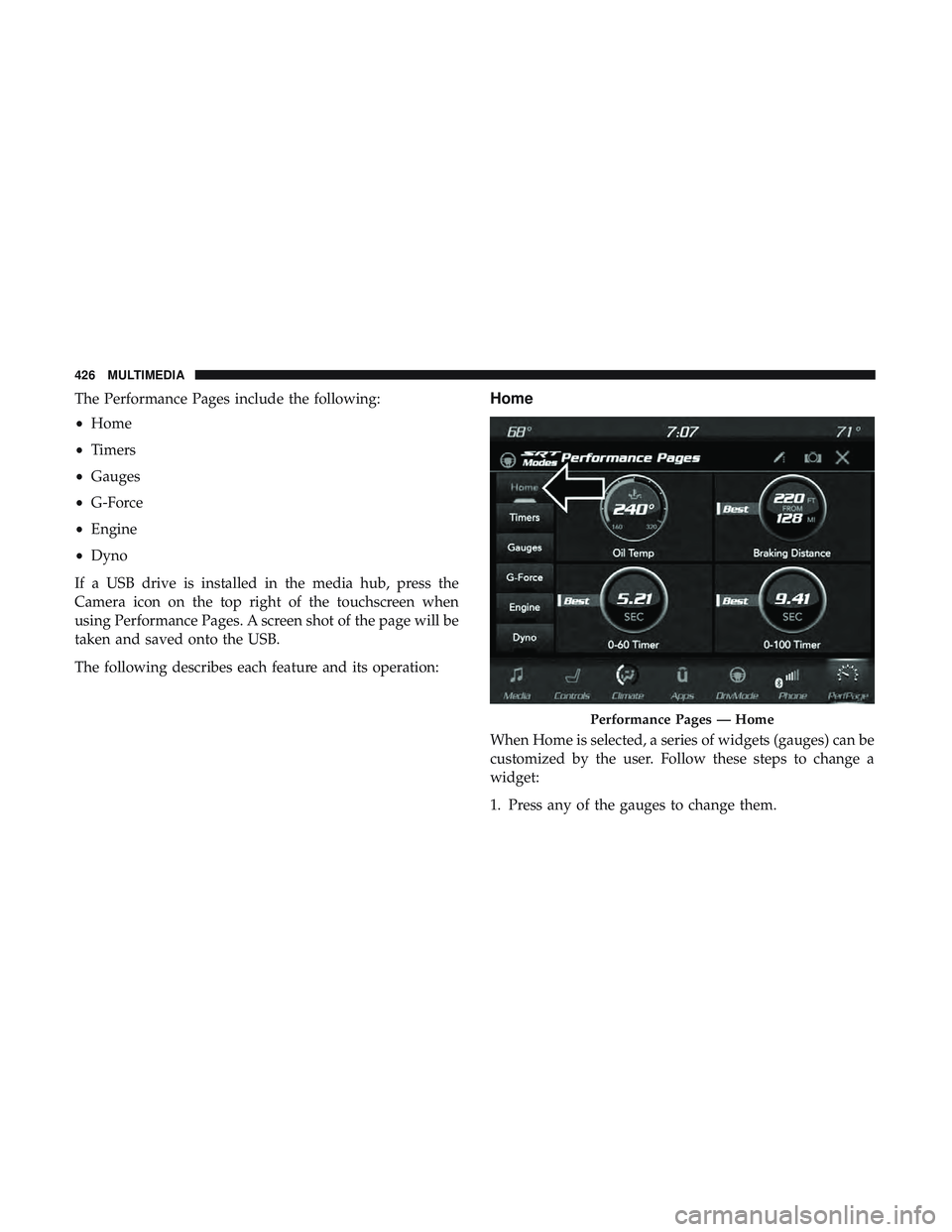
The following describes each feature and its operation:Home
When Home is selected, a series of widgets (gauges) can be
customized by the user. Follow these steps to change a
widget:
1. Press any of the gauges to change them.
Performance Pages — Home
426 MULTIMEDIA
Page 437 of 500
The following options can be selected:
•Pressing the STOP button will freeze the graph. Selecting
Play will clear the graph and restart the process over
• Press the “+” or “–” buttons to change the history of the
graph. The selectable options are 30, 60, 90, 120 seconds.
The graph will expand or constrict depending on the
setting selected.
• Select the “Gear” display setting to turn the graph gear
markers on and off.
NOTE: The Gear on/off feature will only display if your
vehicle is equipped with an Automatic Transmission.SRT DRIVE MODES
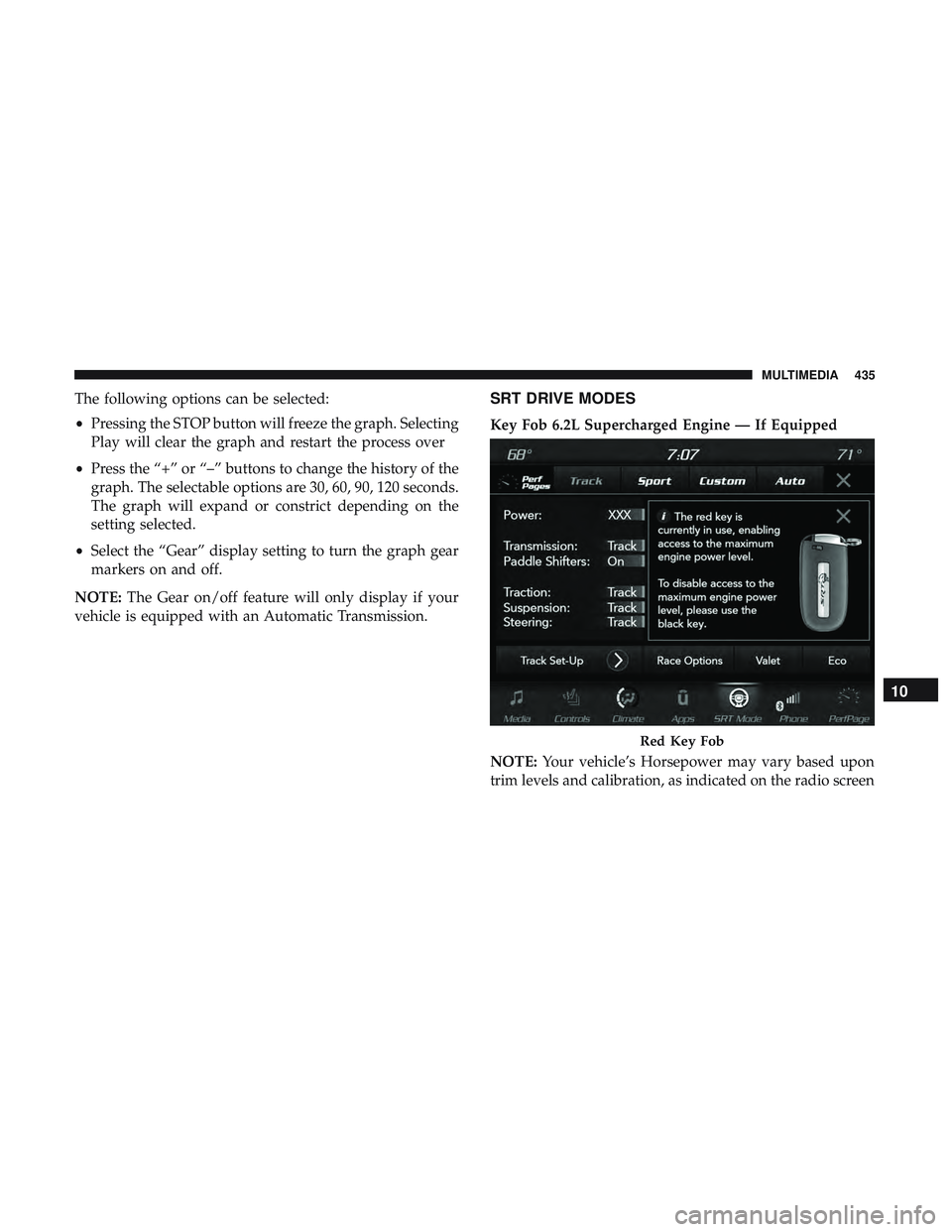
Key Fob 6.2L Supercharged Engine — If Equipped
NOTE: Your vehicle’s Horsepower may vary based upon
trim levels and calibration, as indicated on the radio screen
Red Key Fob
10
MULTIMEDIA 435
Page 442 of 500
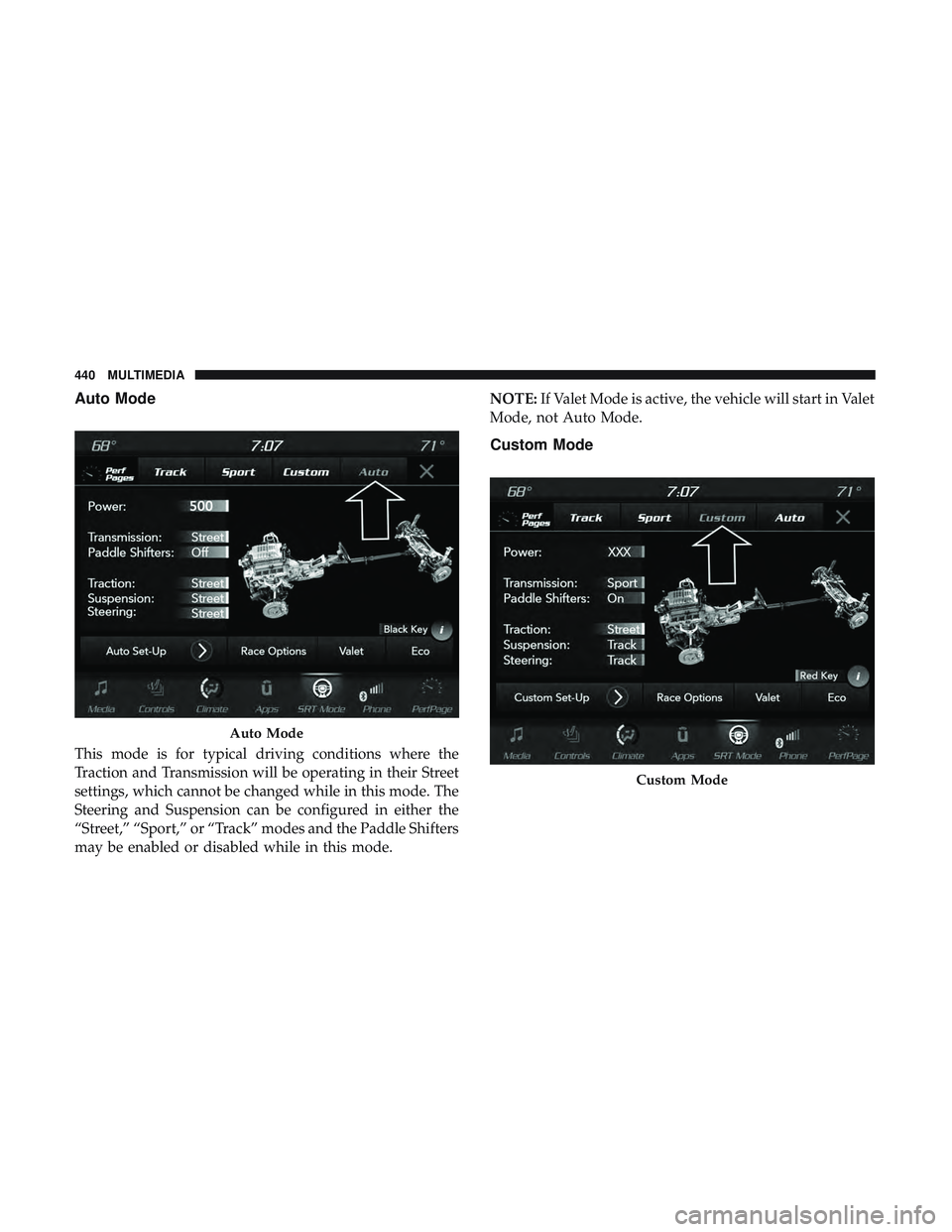
Auto Mode
This mode is for typical driving conditions where the
Traction and Transmission will be operating in their Street
settings, which cannot be changed while in this mode. The
Steering and Suspension can be configured in either the
“Street,” “Sport,” or “Track” modes and the Paddle Shifters
may be enabled or disabled while in this mode.NOTE:
If Valet Mode is active, the vehicle will start in Valet
Mode, not Auto Mode.
Custom Mode
Auto Mode
Custom Mode
440 MULTIMEDIA