2019 DODGE CHALLENGER SRT steering wheel
[x] Cancel search: steering wheelPage 241 of 500
8. When conditions 4 through 7 have been met, the instru-ment cluster display will read “Launch Ready Release
Brake”.
9. Keep the vehicle pointed straight.
Launch mode will be active until the vehicle reaches
62 mph (100 km/h), at which point the ESC system will
return to its current ESC mode.
Launch mode will abort before launch completion, display
“Launch Aborted” in the cluster under any the following
conditions:
• The accelerator pedal is released during launch.
• The ESC system detects that the vehicle is no longer
moving in a straight line.
• The “ESC OFF” button is pushed to change the system
to another mode.
NOTE: After launch mode has been aborted, ESC will
return to its current ESC mode.
Manual Transmission — If Equipped
Vehicles with a manual transmission have an adjustable
launch RPM controlled through the Uconnect system. Launch Mode is only available when the following proce-
dure is followed:
1. Push the LAUNCH button on the center stack switch
bank.
NOTE: Pushing the SRT button on the center stack or
pressing the “Apps” button on the touchscreen are two
other options to access launch mode features. Please refer
to “Uconnect Settings” in “Multimedia” for further infor-
mation.
2. Slide the RPM slider bar on the touchscreen. This screen will allow you to adjust your launch RPM’s for opti-
mum launch/traction.
3. Press the “Activate Launch Mode” button on the touch- screen.
4. Make sure the vehicle is not moving.
5. Make sure the steering wheel is pointing straight.
6. Fully depress the clutch pedal and make sure the vehicle is in first gear.
6
STARTING AND OPERATING 239
Page 246 of 500
SPEED CONTROL — IF EQUIPPED
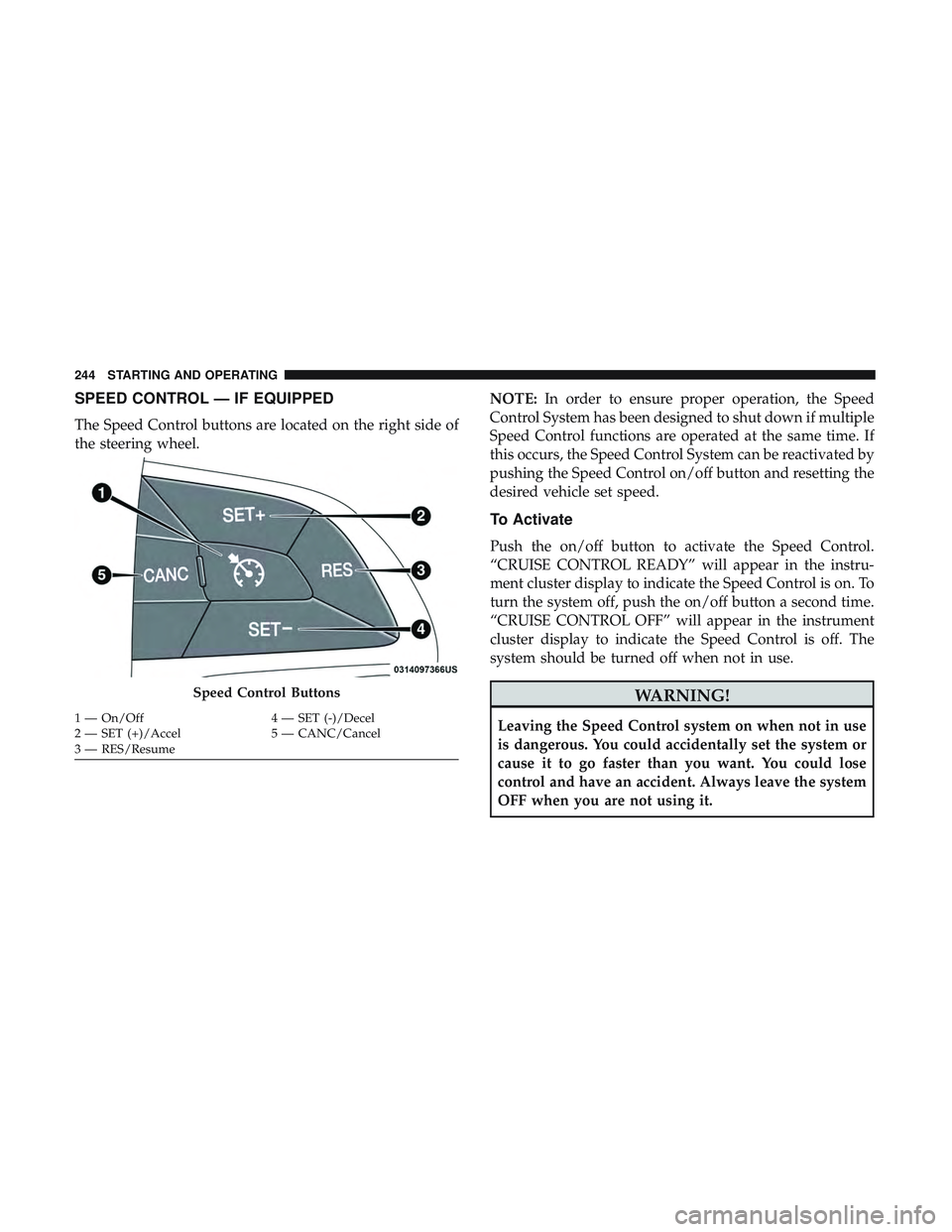
The Speed Control buttons are located on the right side of
the steering wheel.NOTE:
In order to ensure proper operation, the Speed
Control System has been designed to shut down if multiple
Speed Control functions are operated at the same time. If
this occurs, the Speed Control System can be reactivated by
pushing the Speed Control on/off button and resetting the
desired vehicle set speed.
To Activate
Push the on/off button to activate the Speed Control.
“CRUISE CONTROL READY” will appear in the instru-
ment cluster display to indicate the Speed Control is on. To
turn the system off, push the on/off button a second time.
“CRUISE CONTROL OFF” will appear in the instrument
cluster display to indicate the Speed Control is off. The
system should be turned off when not in use.
WARNING!
Leaving the Speed Control system on when not in use
is dangerous. You could accidentally set the system or
cause it to go faster than you want. You could lose
control and have an accident. Always leave the system
OFF when you are not using it.
Speed Control Buttons
1 — On/Off 4 — SET (-)/Decel
2 — SET (+)/Accel 5 — CANC/Cancel
3 — RES/Resume 244 STARTING AND OPERATING
Page 251 of 500
Adaptive Cruise Control (ACC) Operation
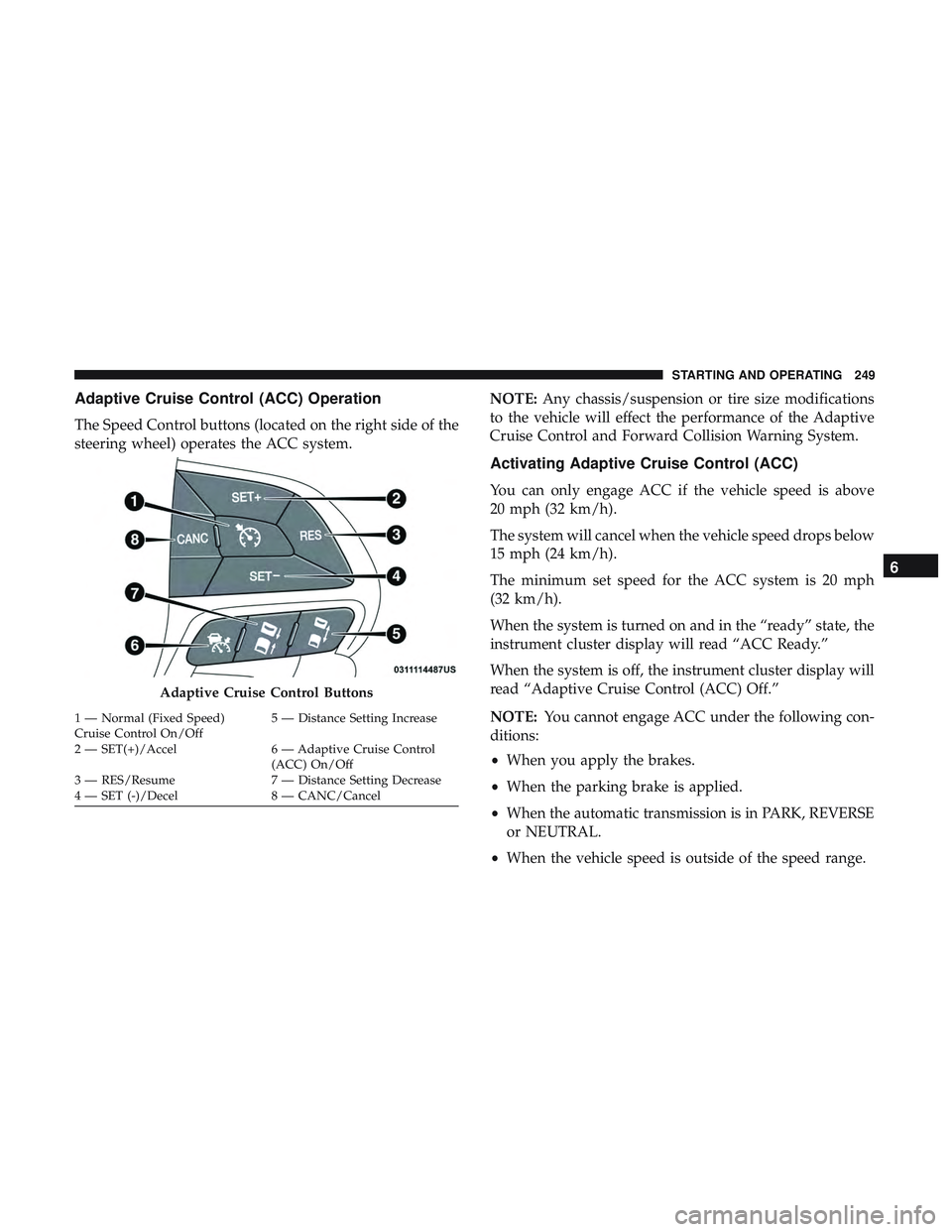
The Speed Control buttons (located on the right side of the
steering wheel) operates the ACC system.NOTE:
Any chassis/suspension or tire size modifications
to the vehicle will effect the performance of the Adaptive
Cruise Control and Forward Collision Warning System.
Activating Adaptive Cruise Control (ACC)
You can only engage ACC if the vehicle speed is above
20 mph (32 km/h).
The system will cancel when the vehicle speed drops below
15 mph (24 km/h).
The minimum set speed for the ACC system is 20 mph
(32 km/h).
When the system is turned on and in the “ready” state, the
instrument cluster display will read “ACC Ready.”
When the system is off, the instrument cluster display will
read “Adaptive Cruise Control (ACC) Off.”
NOTE: You cannot engage ACC under the following con-
ditions:
• When you apply the brakes.
• When the parking brake is applied.
• When the automatic transmission is in PARK, REVERSE
or NEUTRAL.
• When the vehicle speed is outside of the speed range.
Adaptive Cruise Control Buttons
1 — Normal (Fixed Speed)
Cruise Control On/Off 5 — Distance Setting Increase
2 — SET(+)/Accel 6 — Adaptive Cruise Control (ACC) On/Off
3 — RES/Resume 7 — Distance Setting Decrease
4 — SET (-)/Decel 8 — CANC/Cancel
6
STARTING AND OPERATING 249
Page 259 of 500
Adaptive Cruise Control (ACC) Menu
The instrument cluster display will show the current ACC
system settings. The instrument cluster display is located
in the center of the instrument cluster. The information it
displays depends on ACC system status.
Push the Adaptive Cruise Control (ACC) on/off button
(located on the steering wheel) until one of the following
appears in the instrument cluster display:
Adaptive Cruise Control Off
When ACC is deactivated, the display will read “Adaptive
Cruise Control Off.”
Adaptive Cruise Control Ready
When ACC is activated, but the vehicle speed setting has
not been selected, the display will read “Adaptive Cruise
Control Ready.”
Adaptive Cruise Control Set
When the SET (+) or the SET (-) button (located on the
steering wheel) is pushed, the display will read “ACC
SET.”
When ACC is set, the set speed will show in the instrument
cluster display.The ACC screen may display once again if any ACC
activity occurs, which may include any of the following:
•
System Cancel
• Driver Override
• System Off
• ACC Proximity Warning
• ACC Unavailable Warning
• The instrument cluster display will return to the last
display selected after five seconds of no ACC display
activity
Display Warnings And Maintenance
“Wipe Front Radar Sensor In Front Of Vehicle”
Warning
The “ACC/FCW Unavailable Wipe Front Radar Sensor”
warning will display and also a chime will indicate when
conditions temporarily limit system performance.
This most often occurs at times of poor visibility, such as in
snow or heavy rain. The ACC system may also become
temporarily blinded due to obstructions, such as mud, dirt
or ice. In these cases, the instrument cluster display will
display “ACC/FCW Unavailable Wipe Front Radar Sen-
sor” and the system will deactivate.
6
STARTING AND OPERATING 257
Page 275 of 500
When the vehicle is shifted out of REVERSE (with Camera
Delay turned off), the rear camera mode is exited and the
last touchscreen appears again.
When enabled, active guide lines are overlaid on the image
to illustrate the width of the vehicle and its projected
backup path based on the steering wheel position. The
active guide lines will show separate zones that will help
indicate the distance to the rear of the vehicle.If the vehicle speed remains below 8 mph (13 km/h), the
rear view camera image will continue to be displayed until
the transmission is shifted into PARK, the vehicle’s ignition
is cycled to the OFF position, or the image defeat [X] button
is pressed.
Different colored zones indicate the distance to the rear of
the vehicle.
The following table shows the approximate distances for
each zone:
Zone
Distance To The Rear Of The Vehicle
Red 0 - 1 ft (0 - 30 cm)
Yellow 1 ft - 6.5 ft (30 cm - 2 m)
Green 6.5 ft or greater (2 m or greater)
WARNING!
Drivers must be careful when backing up even when
using the ParkView Rear Back Up Camera. Always
check carefully behind your vehicle, and be sure to
(Continued)
WARNING!(Continued)
check for pedestrians, animals, other vehicles, obstruc-
tions, or blind spots before backing up. You are re-
sponsible for the safety of your surroundings and must
continue to pay attention while backing up. Failure to
do so can result in serious injury or death.
6
STARTING AND OPERATING 273
Page 286 of 500
WARNING!
ALWAYS obey traffic laws and pay attention to the
road. ALWAYS drive safely with your hands on the
steering wheel. You have full responsibility and as-
sume all risks related to the use of the Uconnect and
SiriusXM Guardian features and applications in this
vehicle. Only use Uconnect features and SiriusXM
Guardian services when it is safe to do so. Failure to do
so may result in an accident involving serious injury or
death.
NOTE:
• Your vehicle may be transmitting data as authorized by
the subscriber.
• The SOS and ASSIST buttons will only function if you
are connected to an operable LTE (voice/data) or 4G
(data) network. Other Uconnect services will only be
operable if your SiriusXM Guardian service is active and
you are connected to an operable LTE (voice/data) or 4G
(data) network.
ASSIST Call
The ASSIST Button is used to automatically connect you to
any one of the following support centers: •
Roadside Assistance – If you get a flat tire, or need a tow,
just push the ASSIST button and you will be connected
to a representative for assistance. Roadside Assistance
will know what vehicle you’re driving and its location.
Additional fees may apply for roadside Assistance.
• SiriusXM Guardian Customer Care – In-vehicle support
for SiriusXM Guardian.
• Vehicle Customer Care – Total support for all other
vehicle issues.
SOS Call
1. Push the SOS Call button on the Rearview Mirror.
NOTE: In case the SOS Call button is pushed in error, there
will be a ten second delay before the SOS Call system
initiates a call to a SOS operator. To cancel the SOS Call
connection, push the SOS call button on the Rearview
Mirror or press the cancellation button on the Device
Screen. Termination of the SOS Call will turn off the green
LED light on the Rearview Mirror.
2. The LED light located between the ASSIST and SOS buttons on the Rearview Mirror will turn green once a
connection to a SOS operator has been made.
284 IN CASE OF EMERGENCY
Page 287 of 500
3. Once a connection between the vehicle and a SOSoperator is made, the SOS Call system may transmit the
following important vehicle information to a SOS op-
erator:
• Indication that the occupant placed a SOS Call.
• The vehicle brand.
• The last known GPS coordinates of the vehicle.
4. You should be able to speak with the SOS operator through the vehicle audio system to determine if addi-
tional help is needed.
WARNING!
ALWAYS obey traffic laws and pay attention to the
road. ALWAYS drive safely with your hands on the
steering wheel. You have full responsibility and as-
sume all risks related to the use of the Uconnect and
SiriusXM Guardian features and applications in this
vehicle. Only use Uconnect features and SiriusXM
Guardian services when it is safe to do so. Failure to do
so may result in an accident involving serious injury or
death. NOTE:
•Your vehicle may be transmitting data as authorized
by the subscriber.
• Once a connection is made between the vehicle’s SOS
Call system and the SOS operator, the SOS operator
may be able to open a voice connection with the
vehicle to determine if additional help is needed. Once
the SOS operator opens a voice connection with the
vehicle’s SOS Call system, the operator should be able
to speak with you or other vehicle occupants and hear
sounds occurring in the vehicle. The vehicle’s SOS Call
system will attempt to remain connected with the SOS
operator until the SOS operator terminates the connec-
tion.
5. The SOS operator may attempt to contact appropriate emergency responders and provide them with impor-
tant vehicle information and GPS coordinates.
7
IN CASE OF EMERGENCY 285
Page 289 of 500
•An In-Vehicle Audio message will state “Vehicle device
requires service. Please contact your dealer.”
WARNING!
•Ignoring the Rearview Mirror light could mean you
will not have SOS Call services. If the Rearview
Mirror light is illuminated, have an authorized
dealer service the SOS Call system immediately.
• The Occupant Restraint Control module turns on the
air bag Warning Light on the instrument panel if a
malfunction in any part of the system is detected. If
the Air Bag Warning Light is illuminated, have an
authorized dealer service the Occupant Restraint
Control system immediately.
Even if the SOS Call system is fully functional, factors
beyond FCA US LLC’s control may prevent or stop the SOS
Call system operation. These include, but are not limited
to, the following factors:
• Delayed accessories mode is active.
• The ignition is in the OFF position.
• The vehicle’s electrical systems are not intact.
• The SOS Call system software and/or hardware are
damaged during a crash. •
The vehicle battery loses power or becomes discon-
nected during a vehicle crash.
• LTE (voice/data) or 4G (data) network and/or Global
Positioning Satellite signals are unavailable or ob-
structed.
• Equipment malfunction at the SOS operator facility.
• Operator error by the SOS operator.
• LTE (voice/data) or 4G (data) network congestion.
• Weather.
• Buildings, structures, geographic terrain, or tunnels.
WARNING!
ALWAYS obey traffic laws and pay attention to the
road. ALWAYS drive safely with your hands on the
steering wheel. You have full responsibility and as-
sume all risks related to the use of the Uconnect and
SiriusXM Guardian features and applications in this
vehicle. Only use Uconnect features and SiriusXM
Guardian services when it is safe to do so. Failure to do
so may result in an accident involving serious injury or
death.
7
IN CASE OF EMERGENCY 287