Page 584 of 718
▫Uconnect Theater Apps ...................655
▫ Using The Rear Video USB Port .............657
▫ Play Video Games ..................... .658
▫ Headphones Operation ...................658
▫ Display Settings ....................... .661
▫ Listening To Audio With The Screen Closed . . . .661
▫ Rear Climate Controls....................662
▫ Accessibility — If Equipped ...............664
▫ Wireless Streaming — If Equipped ...........664
▫ BD And DVD Region Codes ...............667
▫ Product Agreement .....................669
▫ General Information .....................672
▫ FCC/IC Regulatory Notices ...............672
� RADIO OPERATION AND MOBILE PHONES . . .673
▫ Regulatory And Safety Information ..........673�
UCONNECT VOICE RECOGNITION QUICK
TIPS ................................ .675
▫ Introducing Uconnect ....................675
▫ Get Started .......................... .676
▫ Basic Voice Commands ...................677
▫ Radio .............................. .677
▫ Media .............................. .678
▫ Phone .............................. .679
▫ Voice Text Reply ...................... .680
▫ Climate ............................. .682
▫ Navigation (4C NAV) ....................683
▫ SiriusXM Guardian (4C/4C NAV) — If
Equipped ........................... .684
▫ Register
(4C/4C NAV) ...................684
▫ Vehicle Health Report/Alert (4C/4C NAV) .....685
▫ Mobile App (4C/4C NAV) ................685
582 MULTIMEDIA
Page 587 of 718

CYBERSECURITY
Your vehicle may be a connected vehicle and may be
equipped with both wired and wireless networks. These
networks allow your vehicle to send and receive informa-
tion. This information allows systems and features in your
vehicle to function properly.
Your vehicle may be equipped with certain security fea-
tures to reduce the risk of unauthorized and unlawful
access to vehicle systems and wireless communications.
Vehicle software technology continues to evolve over time
and FCA US LLC, working with its suppliers, evaluates
and takes appropriate steps as needed. Similar to a com-
puter or other devices, your vehicle may require software
updates to improve the usability and performance of your
systems or to reduce the potential risk of unauthorized and
unlawful access to your vehicle systems.
The risk of unauthorized and unlawful access to your
vehicle systems may still exist, even if the most recent
version of vehicle software (such as Uconnect software) is
installed.
WARNING!
•It is not possible to know or to predict all of the
possible outcomes if your vehicle’s systems are
breached. It may be possible that vehicle systems,
including safety related systems, could be impaired
or a loss of vehicle control could occur that may
result in an accident involving serious injury or
death.
• ONLY insert media (e.g., USB, SD card, or CD) into
your vehicle if it came from a trusted source. Media
of unknown origin could possibly contain malicious
software, and if installed in your vehicle, it may
increase the possibility for vehicle systems to be
breached.
• As always, if you experience unusual vehicle behav-
ior, take your vehicle to your nearest authorized
dealer immediately.
10
MULTIMEDIA 585
Page 588 of 718

NOTE:
•FCA US LLC or your dealer may contact you directly
regarding software updates.
• To help further improve vehicle security and minimize
the potential risk of a security breach, vehicle owners
should:
• Routinely check www.driveuconnect.com (U.S. Resi-
dents) or www.driveuconnect.ca (Canadian Residents)
to learn about available Uconnect software updates.
• Only connect and use trusted media devices (e.g.
personal mobile phones, USBs, CDs).
Privacy of any wireless and wired communications cannot
be assured. Third parties may unlawfully intercept infor-
mation and private communications without your consent.
For further information, refer to “Data Collection & Pri-
vacy” in your Uconnect Owner ’s Manual Supplement or
“Onboard Diagnostic System (OBD II) Cybersecurity” in
“Getting To Know Your Instrument Panel”.UCONNECT SETTINGS
The Uconnect system uses a combination of buttons on the
touchscreen and/or buttons on the faceplate located on the
center of the instrument panel that allow you to access and
change the customer programmable features. Many fea-
tures can vary by vehicle.
Buttons on the touchscreen are accessible on the Uconnect
touchscreen.
Buttons on the faceplate are located below, and in the
center of the instrument panel. In addition, there is a
Scroll/Enter control knob located on the right side. Turn
the control knob to scroll through menus and change
settings (i.e., 30, 60, 90), push the center of the control knob
one or more times to select or change a setting (i.e., ON,
OFF).
Your Uconnect system may also have Screen Off and Mute
buttons on the faceplate.
Push the Screen Off button on the faceplate to turn off the
Uconnect screen. Push the Screen Off button on the face-
plate a second time to turn the screen on.
586 MULTIMEDIA
Page 639 of 718
Accessibility — If Equipped
After pressing the “Accessibility” button on the touch-
screen, the following settings will be available:
Setting NameSelectable Options
Accessibility OnOff
NOTE:
The “Accessibility” feature announces a function prior to performing the action selected when using DVD/Blu-ray
and USB Video functions, when it is activated. For example, when activated, and the “Play” button is selected, the
system will announce “Play button selected”, and then once pressed again the “Play” button will perform its action.
Reset
After pressing the “Reset” button on the touchscreen, the
following settings will be available:
Setting Name Selectable Options
Restore App Drawer to Default Order OK
Cancel
Restore Settings OKCancel
NOTE:
When the “Restore Settings” feature is selected it will reset all settings to their default settings.10
MULTIMEDIA 637
Page 641 of 718

STEERING WHEEL AUDIO CONTROLS
The remote sound system controls are located on the rear
surface of the steering wheel at the three and nine o’clock
positions. Both controls are rocker-type switches with a
push-button in the center.
The right-hand control is a rocker-type switch with a
push-button in the center and controls the volume and
mode of the sound system. Pushing the top of the rocker
switch will increase the volume, and pushing the bottom of
the rocker switch will decrease the volume.Pushing the center button will make the radio switch
between the various modes available (AM/FM/SXM or
Media etc.)
The left-hand control is a rocker-type switch with a push-
button in the center. The function of the left-hand control is
different depending on which mode you are in.
The following describes the left-hand control operation in
each mode.
Radio Operation
Pushing the top of the switch will “Seek” up for the next
listenable station and pushing the bottom of the switch will
“Seek” down for the next listenable station.
The button located in the center of the left-hand control
will tune to the next preset station that you have pro-
grammed in the radio preset button.
Media Mode
Pushing the top of the switch once goes to the next track on
the selected media (AUX/USB/Bluetooth). Pushing the
bottom of the switch once goes to the beginning of the
current track, or to the beginning of the previous track if it
is within eight seconds after the current track begins to
play.
Steering Wheel Audio Controls (Back View Of Steering
Wheel)
10
MULTIMEDIA 639
Page 642 of 718
AUX/USB/MP3 CONTROL
There are numerous USB ports located throughout the
vehicle. This feature allows an external USB device to be
plugged into the USB port.
For further information, refer to the Uconnect Owner ’s
Manual Supplement.The data USB ports are located on the instrument panel
below the climate controls.
There are multiple USB “charge only” ports in this vehicle.
•
In the center console
• On the back of the front row seats in the Uconnect
Theater Media hubs
• Above the rear cup holders in the third row of seats
Front Center Stack AUX Jack And USB Ports
1 — USB Port
2 — AUX Jack
3 — Uconnect Theater Rear Data USB Port
Center Console USB Charging Port
640 MULTIMEDIA
Page 643 of 718

NOTE:The USB outlet in the bottom of the instrument
panel can be switched from “ignition” only to constant
“battery” powered all the time. See an authorized dealer
for details.
NOTE: The USB “Charge Only” ports will recharge battery
operated USB devices when connected.UCONNECT THEATER — IF EQUIPPED
Uconnect Theater Overview
Your Uconnect Theater is designed to give your family
years of enjoyment.
There are multiple ways to interact with your Uconnect
Theater system;
• Play your favorite CDs, DVDs or Blu-ray Discs
• Plug and play a variety of standard video games or
devices into the HDMI port
• Listen to audio over the wireless headphones
• Plug and play a variety of devices into the Video USB
port
• Plug in standard headphones to listen to audio
• Project your mobile phone, or tablet screen onto the rear
Uconnect Theater touchscreens — If Equipped
Please review this Owner’s Manual to become familiar
with its features and operation.
3rd Row USB Charging Port
10
MULTIMEDIA 641
Page 644 of 718
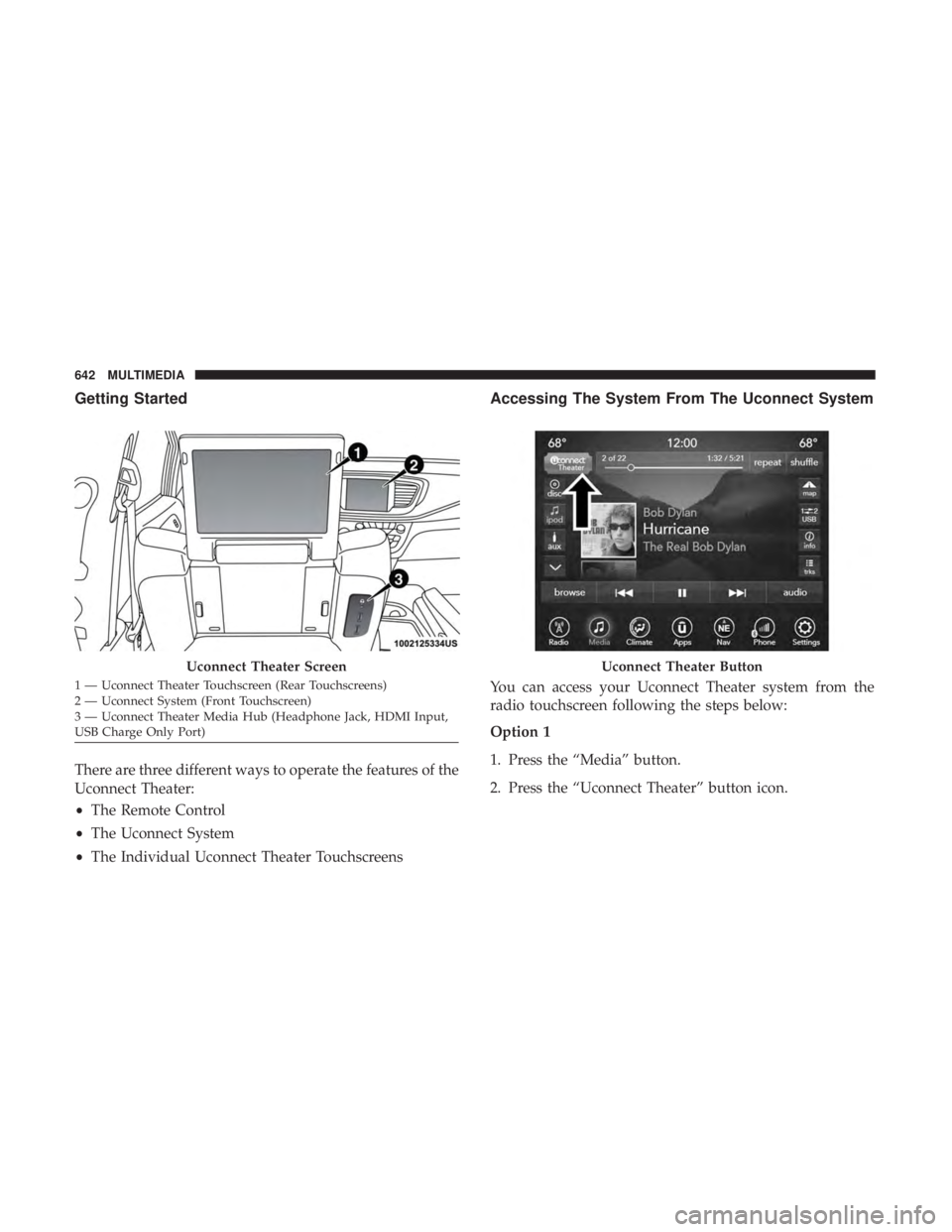
Getting Started
There are three different ways to operate the features of the
Uconnect Theater:
•The Remote Control
• The Uconnect System
• The Individual Uconnect Theater Touchscreens
Accessing The System From The Uconnect System
You can access your Uconnect Theater system from the
radio touchscreen following the steps below:
Option 1
1. Press the “Media” button.
2. Press the “Uconnect Theater” button icon.
Uconnect Theater Screen
1 — Uconnect Theater Touchscreen (Rear Touchscreens)
2 — Uconnect System (Front Touchscreen)
3 — Uconnect Theater Media Hub (Headphone Jack, HDMI Input,
USB Charge Only Port)
Uconnect Theater Button
642 MULTIMEDIA