2019 CHRYSLER PACIFICA HYBRID charging
[x] Cancel search: chargingPage 36 of 620

Hybrid Electric Pages
Within your Uconnect 4C/4C NAV system is the “Hybrid
Electric Pages” App that allows you to see your vehicle’s
power flow, understand your drive history, and set an
EVSE charging schedule for your vehicle’s high voltage
battery. To access this app, press the “Apps” button on the
main menu bar of the radio’s touch screen, and locate the
“Hybrid Electric” App. Pressing the “Hybrid Electric
Pages” App brings you to a set of three pages: Power Flow,
Driving History, and Charging Schedule.
Power Flow
The first screen within the “Hybrid Electric Pages” App is
the Power Flow screen. The Power Flow screen shows the
current power readings for all of the following:
•Engine - Shows the amount of power (in kW) the engine
is generating. Based on vehicle operating conditions, this
power is used to: propel the vehicle, provide passenger
compartment heating & cooling, power vehicle electrical
loads, and charge the High Voltage Battery. Engine
operation is controlled to maximize fuel economy.
• Battery - Shows the amount of power (in kW) the high
voltage battery is currently providing/absorbing. A
negative kW indicates the vehicle’s high voltage battery
is charging.
• Climate - Shows the amount of power (in kW) the
climate control system is using to maintain the current
interior temperature.
Hybrid Electric Pages App Location
34 GETTING TO KNOW YOUR VEHICLE
Page 38 of 620

Charging Schedule
The third screen within the “Hybrid Electric Pages” App is
the Charging Schedule screen. From this screen you can set
when you want you vehicle to charge. To do so, press the
check box next to the setting “Enable Schedule” until a
check mark appears in the box, from there you can push
the ‘Weekdays’ or ‘Weekends’ schedule to adjust the start
and end time of desired charging. You can also choose
“Charge Until Full” instead of choosing an end time,
allowing the vehicle to continue to charge for an amount of
time after the start time until the vehicle is fully charged, as
long as the vehicle is plugged in. The Charging Schedule
can also be set using the Uconnect App on your smart-
phone.
NOTE:If the charging schedule is not enabled, the vehicle
will charge whenever plugged in. It is not necessary to set
up the charging schedule to charge the vehicle.
Driving History Screen
36 GETTING TO KNOW YOUR VEHICLE
Page 39 of 620

NOTE:If the vehicle is plugged in outside of the charging
schedule set in the Uconnect 4C radio, the vehicle’s battery
will not charge. Charging will only begin immediately if
the vehicle is plugged in within the time and day of the
week set in the schedule. Otherwise, charging will auto-
matically begin when the selected charge time/day of the
week occurs or whenever the vehicle is plugged in with no
charge schedule set.
If the vehicle is turned off outside of the charging window,
a radio pop-up message will be displayed, which provides
an option to begin charging the vehicle immediately. The
pop-up message asks the driver if they would like to “Charge Now?” and provides other information, including
the next charging schedule start time and estimated time to
charge the battery to 100%. If within one hour of selecting
“Yes,” the vehicle is connected to a powered EVSE, the
vehicle will immediately begin to charge (temporarily
ignoring any set charge schedule). To fully deactivate the
charge schedule, refer to the “Charging Schedule” feature
within the “Hybrid Electric Pages” App.
The charging schedule can also be overridden if the EVSE
is plugged in, unplugged, and then plugged in a second
time to the vehicle. This “double plugged-in” feature will
override the schedule that is set in the radio, and begin
charging the vehicle immediately. The double plug se-
quence must be completed within ten seconds for it to
override the programed schedule.
If charge to full is selected, and the vehicle is plugged in
after the start time of the schedule, the vehicle will start
charging when it reaches the start time the next day. If you
would like to begin charging immediately, and continue
charging until the vehicle is fully charged, you can select
the “Charge Now” option.
Charging Schedule Screen
3
GETTING TO KNOW YOUR VEHICLE 37
Page 61 of 620

NOTE:
•Passive Entry may be programmed ON/OFF. Refer to
“Uconnect Settings” in “Multimedia” for further infor-
mation.
• If wearing gloves on your hands, or if it has been
raining/snowing on the Passive Entry door handle, the
unlock sensitivity can be affected, resulting in a slower
response time.
• If the vehicle is unlocked by Passive Entry and no door
is opened within 60 seconds, the vehicle will re-lock and
if equipped will arm the security alarm.
• The sliding side doors can be unlocked from the outside
using the hands free or Passive Entry system.
• The key fob may not be able to be detected by the vehicle
passive entry system if it is located next to a mobile
phone, laptop, wireless charging pad, or other electronic
device; these devices may block the key fob’s wireless
signal and prevent the passive entry handle from
locking/unlocking the vehicle.
• If set by the customer in the Uconnect Settings, unlock-
ing with Passive Entry will initiate illuminated approach (low beams, license plate lamp, position lamps) for the
time 0, 30 (default), 60, or 90 seconds. Passive Entry also
initiates two flashes of the turn lamps.
To Unlock From The Driver’s Side:
With a valid key fob within 5 ft (1.5 m) of the driver ’s door
handle, grab the driver ’s front door handle to unlock the
drivers side doors (driver/sliding door) automatically. The
interior door panel rocker knob will rotate when the door
is unlocked.
Grab The Door Handle To Unlock
3
GETTING TO KNOW YOUR VEHICLE 59
Page 106 of 620

NOTE:
•Before exiting the vehicle, make sure that the interior
lights are turned off. This will prevent the battery from
discharging once the doors are closed.
• If a light is left on, it will automatically be turned off
approximately 10 minutes after the ignition is in the
STOP/OFF position.
Rear Courtesy/Reading Lights — If Equipped
Located above the rear passengers are courtesy/reading
lights. The lights turn on when a front door, a sliding door
or the liftgate is opened. If your vehicle is equipped with
remote keyless entry the lights will also turn on when the
unlock button on the key fob is pushed.
The courtesy lights also function as reading lights. Push the
lens to turn these lights on while inside the vehicle. Push
the lens a second time to turn each light off.
Ambient Light Control — If Equipped
Rotate the ambient dimmer control upward or downward
to increase or decrease the brightness of the ambient light
located in the overhead console, door handle lights, under
I/P lights, door map pocket lights, and cubby bin lights.
Reading Lights
104 GETTING TO KNOW YOUR VEHICLE
Page 134 of 620

4. Remove the support rod from the locking tab and insertit into the seat located on the underside of the hood.
NOTE:
• Before lifting the hood, check that the wiper arms are not
in motion and not in the lifted position.
• While lifting the hood, use both hands.
• Vehicle must be at a stop and the automatic transmission
must be in park. •
If the vehicle was actively charging the HV battery when
the hood was opened, the vehicle will stop charging
until the hood is closed.
Closing
1. Hold up the hood with one hand and with the other hand remove the support rod from its seat and reinsert
it into the locking tab.
2. Lower the hood to approximately 12 inches (30 cm) from the engine compartment and drop it. Make sure that the
hood is completely closed.
NOTE: If the vehicle stopped charging the HV battery
when the hood was opened, the vehicle will resume
charging when the hood closes.
WARNING!
Be sure the hood is fully latched before driving your
vehicle. If the hood is not fully latched, it could open
when the vehicle is in motion and block your vision.
Failure to follow this warning could result in serious
injury or death.
Safety Latch Location
132 GETTING TO KNOW YOUR VEHICLE
Page 167 of 620
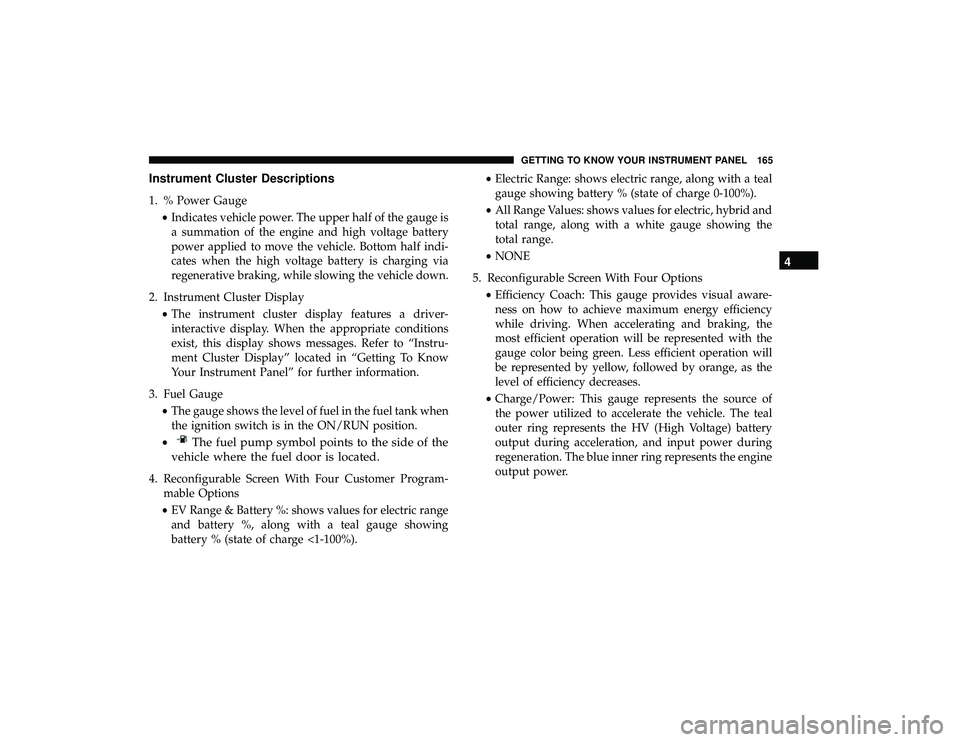
Instrument Cluster Descriptions
1. % Power Gauge•Indicates vehicle power. The upper half of the gauge is
a summation of the engine and high voltage battery
power applied to move the vehicle. Bottom half indi-
cates when the high voltage battery is charging via
regenerative braking, while slowing the vehicle down.
2. Instrument Cluster Display •The instrument cluster display features a driver-
interactive display. When the appropriate conditions
exist, this display shows messages. Refer to “Instru-
ment Cluster Display” located in “Getting To Know
Your Instrument Panel” for further information.
3. Fuel Gauge •The gauge shows the level of fuel in the fuel tank when
the ignition switch is in the ON/RUN position.
•
The fuel pump symbol points to the side of the
vehicle where the fuel door is located.
4. Reconfigurable Screen With Four Customer Program- mable Options
• EV Range & Battery %: shows values for electric range
and battery %, along with a teal gauge showing
battery % (state of charge <1-100%). •
Electric Range: shows electric range, along with a teal
gauge showing battery % (state of charge 0-100%).
• All Range Values: shows values for electric, hybrid and
total range, along with a white gauge showing the
total range.
• NONE
5. Reconfigurable Screen With Four Options •Efficiency Coach: This gauge provides visual aware-
ness on how to achieve maximum energy efficiency
while driving. When accelerating and braking, the
most efficient operation will be represented with the
gauge color being green. Less efficient operation will
be represented by yellow, followed by orange, as the
level of efficiency decreases.
• Charge/Power: This gauge represents the source of
the power utilized to accelerate the vehicle. The teal
outer ring represents the HV (High Voltage) battery
output during acceleration, and input power during
regeneration. The blue inner ring represents the engine
output power.
4
GETTING TO KNOW YOUR INSTRUMENT PANEL 165
Page 178 of 620

Instrument Cluster Display Screen Setup Options:
4 — Right Side
• None
• Battery % & EV Range
• Electric Range
• All (3) Range Values (Default)
5 — Odometer•Show (Default)
• Hide (unless door open)
6 — Defaults•Restore
• Cancel
Battery Saver On/Battery Saver Mode Message —
Electrical Load Reduction Actions — If Equipped
The vehicle is equipped with an Intelligent Battery Sensor
(IBS) to perform additional monitoring of the 12 volt
electrical system and status of the 12 volt vehicle battery.
In cases when the IBS detects charging system failure, or
the 12 volt vehicle battery conditions are deteriorating,
electrical load reduction actions will take place to extend
the driving time and distance of the vehicle. This is done by
reducing power to or turning off non-essential 12 volt
electrical loads. Load reduction will be functional when the
vehicle propulsion system is active.
The vehicle may not be running depending on the HV
battery SOC or temperature. It will display a message if there is a risk of battery depletion to the point where the
vehicle may stall due to lack of electrical supply, or will not
restart after the current drive cycle.
When 12 volt load reduction is activated, the message
“Battery Saver On” or “Battery Saver Mode” will appear in
the Instrument Cluster Display.
These messages indicate the 12 volt vehicle battery has a
low state of charge and continues to lose electrical charge at
a rate that the charging system cannot sustain.
NOTE:
•
The charging system is independent from load reduc-
tion. The charging system performs a diagnostic on the
charging system continuously.
176 GETTING TO KNOW YOUR INSTRUMENT PANEL