2019 CHEVROLET VOLT charging
[x] Cancel search: chargingPage 107 of 373

Chevrolet VOLT Owner Manual (GMNA-Localizing-U.S./Canada/Mexico-
12163007) - 2019 - CRC - 11/5/18
106 Instruments and Controls
the charging performance. See
your dealer for additional
information.
3. A green
}next toVwill show
on the infotainment display.
This indicates that the
smartphone is properly
positioned and charging. If
}
turns yellow, ensure that the
charging pad is clear of any
objects and that the
smartphone is capable of
wireless charging before
repositioning it. If
}does not
illuminate, the smartphone may
need to be repositioned.
Software Acknowledgements
Certain Wireless Charging Module
product from LG Electronics, Inc.
("LGE") contains the open source
software detailed below. Refer to
the indicated open source licenses
(as are included following this
notice) for the terms and conditions
of their use. OSS Notice Information
To obtain the source code that is
contained in this product, please
visit http://opensource.lge.com. In
addition to the source code, all
referred license terms, warranty
disclaimers and copyright notices
are available for download. LG
Electronics will also provide open
source code to you on CD-ROM for
a charge covering the cost of
performing such distribution (such
as the cost of media, shipping, and
handling) upon email request to
[email protected]. This offer is
valid for three (3) years from the
date on which you purchased the
product.
Freescale-WCT library
Copyright (c) 2012-2014 Freescale
Semiconductor, Inc.. All rights
reserved.
1. Redistributions of source code must retain the above copyright
notice, this list of conditions
and the following disclaimer. 2. Redistributions in binary form
must reproduce the above
copyright notice, this list of
conditions and the following
disclaimer in the
documentation and/or other
materials provided with the
distribution.
3. Neither the name of the copyright holder nor the names
of its contributors may be used
to endorse or promote products
derived from this software
without specific prior written
permission.
THIS SOFTWARE IS PROVIDED
BY THE COPYRIGHT HOLDERS
AND CONTRIBUTORS "AS IS"
AND ANY EXPRESS OR IMPLIED
WARRANTIES, INCLUDING, BUT
NOT LIMITED TO, THE IMPLIED
WARRANTIES OF
MERCHANTABILITY AND FITNESS
FOR A PARTICULAR PURPOSE
ARE DISCLAIMED. IN NO EVENT
SHALL THE COPYRIGHT HOLDER
OR CONTRIBUTORS BE LIABLE
FOR ANY DIRECT, INDIRECT,
INCIDENTAL, SPECIAL,
Page 108 of 373

Chevrolet VOLT Owner Manual (GMNA-Localizing-U.S./Canada/Mexico-
12163007) - 2019 - CRC - 11/5/18
Instruments and Controls 107
EXEMPLARY, OR
CONSEQUENTIAL DAMAGES
(INCLUDING, BUT NOT LIMITED
TO, PROCUREMENT OF
SUBSTITUTE GOODS OR
SERVICES; LOSS OF USE, DATA,
OR PROFITS; OR BUSINESS
INTERRUPTION) HOWEVER
CAUSED AND ON ANY THEORY
OF LIABILITY, WHETHER IN
CONTRACT, STRICT LIABILITY,
OR TORT (INCLUDING
NEGLIGENCE OR OTHERWISE)
ARISING IN ANY WAY OUT OF
THE USE OF THIS SOFTWARE,
EVEN IF ADVISED OF THE
POSSIBILITY OF SUCH DAMAGE.Warning Lights,
Gauges, and
Indicators
Warning lights and gauges can
signal that something is wrong
before it becomes serious enough
to cause an expensive repair or
replacement. Paying attention to the
warning lights and gauges could
prevent injury.
Some warning lights come on briefly
when the propulsion system is
started to indicate they are working.
When one of the warning lights
comes on and stays on while
driving, or when one of the gauges
shows there may be a problem,
check the section that explains what
to do. Waiting to do repairs can be
costly and even dangerous.
Instrument Cluster
The instrument cluster displays a
preview of information that includes
electric range, charging, odometer,
and battery status. This happens
upon entry when the driver door is
opened before starting the vehicle.
The CHARGING OVERRIDE/
INTERRUPTION OCCURRED
message may display to indicate
that a charging override or
interruption has occurred due to one
or more of the following events:
.Override of the charge settings
by the owner.
. Unintended interruption of AC
power at the vehicle's
charge port.
. Interruption of charging by the
utility company.
Page 115 of 373
Chevrolet VOLT Owner Manual (GMNA-Localizing-U.S./Canada/Mexico-
12163007) - 2019 - CRC - 11/5/18
114 Instruments and Controls
turned off the front outboard
passenger frontal airbag and knee
airbag.
If, after several seconds, both status
indicator lights remain on, or if there
are no lights at all, there may be a
problem with the lights or the
passenger sensing system. See
your dealer for service.
{Warning
If the airbag readiness light ever
comes on and stays on, it means
that something may be wrong
with the airbag system. To help
avoid injury to yourself or others,
have the vehicle serviced right
away. SeeAirbag Readiness
Light 0113 for more information,
including important safety
information.
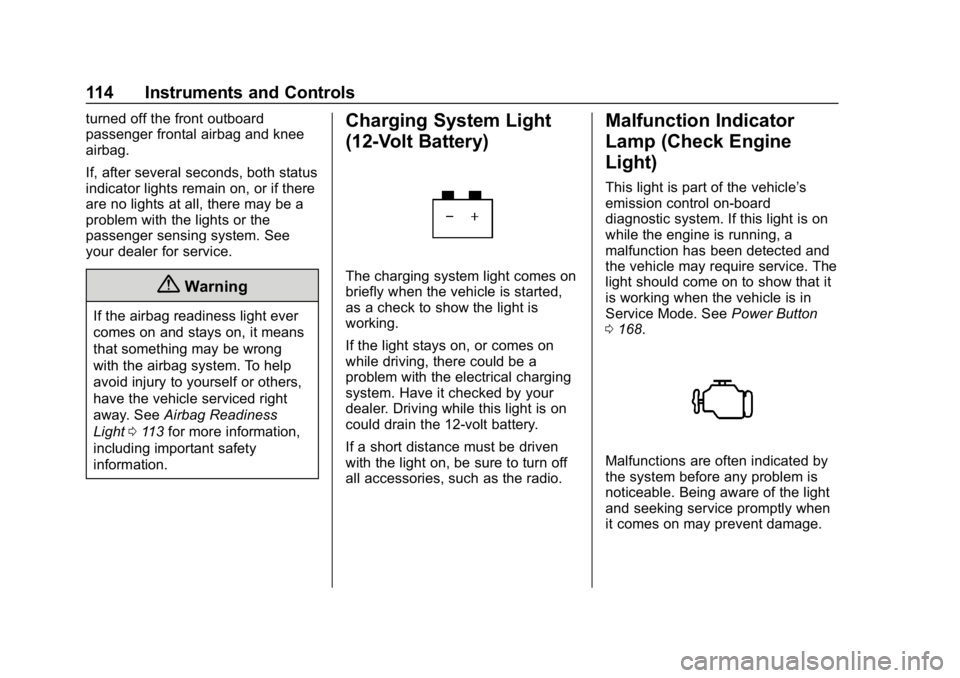
Charging System Light
(12-Volt Battery)
The charging system light comes on
briefly when the vehicle is started,
as a check to show the light is
working.
If the light stays on, or comes on
while driving, there could be a
problem with the electrical charging
system. Have it checked by your
dealer. Driving while this light is on
could drain the 12-volt battery.
If a short distance must be driven
with the light on, be sure to turn off
all accessories, such as the radio.
Malfunction Indicator
Lamp (Check Engine
Light)
This light is part of the vehicle’s
emission control on-board
diagnostic system. If this light is on
while the engine is running, a
malfunction has been detected and
the vehicle may require service. The
light should come on to show that it
is working when the vehicle is in
Service Mode. See Power Button
0 168.
Malfunctions are often indicated by
the system before any problem is
noticeable. Being aware of the light
and seeking service promptly when
it comes on may prevent damage.
Page 124 of 373

Chevrolet VOLT Owner Manual (GMNA-Localizing-U.S./Canada/Mexico-
12163007) - 2019 - CRC - 11/5/18
Instruments and Controls 123
Door Ajar Light
This light comes on when a door is
open or not securely latched.
Information Displays
Power Flows
To view the Power Flow screen,
touch Energy on the infotainment
display and then select Energy on
the top left. Touch Flow on the
upper left of the display.
If the Flow button is not visible, click
on More
kon the left side of the
screen and select Flow.
The Power Flow screen indicates
the current operating condition. The
screen shows energy flow between
the engine, generator, and high
voltage battery. These components
will be highlighted when they are
active.
Programmable Charging
Important Information about
Portable Electric Vehicle Charging
. Charging an electric vehicle can
stress a building’ s electrical
system more than a typical
household appliance.
. Before plugging into any
electrical outlet, have a qualified
electrician inspect and verify the
electrical system (electrical
outlet, wiring, junctions, and
protection devices) for
heavy-duty service at a 12 amp
continuous load.
. Electrical outlets may wear out
with normal usage or may be
damaged over time, making
them unsuitable for electric
vehicle charging.
. Check the electrical outlet/plug
while charging and discontinue
use if the electrical outlet/plug is
hot, then have the electrical
outlet serviced by a qualified
electrician.
Page 125 of 373

Chevrolet VOLT Owner Manual (GMNA-Localizing-U.S./Canada/Mexico-
12163007) - 2019 - CRC - 11/5/18
124 Instruments and Controls
.When outdoors, plug into an
electrical outlet that is
weatherproof while in use.
. Mount the charging cord to
reduce strain on the electrical
outlet/plug.
{Danger
Improper use of portable electric
vehicle charge cords may cause
a fire, electrical shock, or burns,
and may result in damage to
property, serious injury, or death.
. Do not use extension cords,
multi-outlet power strips,
splitters, grounding
adaptors, surge protectors,
or similar devices.
. Do not use an electrical
outlet that is worn or
damaged, or will not hold
the plug firmly in place.
. Do not use an electrical
outlet that is not properly
grounded.
(Continued)
Danger (Continued)
.Do not use an electrical
outlet that is on a circuit with
other electrical loads.
Charge Mode Status
Charge Mode Status Screen with
Quick Access Turned On
To view the current charge mode
status in the infotainment display,
touch Energy in the infotainment
display and then touch Charging at
the top of the display.
Portable Cord Limit and Charge
Overrides displays may not be
displayed if quick access to these
options is not turned on. To turn
quick access for these options on or off, go to the Charging Options
button and press on Portable Cord
Limit or Delayed Charging (then
Charge Overrides) and select Quick
Access.
The charge start and charge
complete time estimates are also
displayed. These estimates are
most accurate when the vehicle is
plugged in and in moderate
temperature conditions.
Charging Options
To view or change charging options,
touch Charging Options on the
Charge Mode Status screen.
Portable Cord Limit
The Portable Cord Limit setting
allows the vehicle’s charge level to
be selected so it matches the
capability of the charging location.
If the vehicle consistently stops
charging after plugging in, or if a
circuit breaker continues to trip,
reducing the Portable Cord Limit
may resolve the issue.
Page 126 of 373

Chevrolet VOLT Owner Manual (GMNA-Localizing-U.S./Canada/Mexico-
12163007) - 2019 - CRC - 11/5/18
Instruments and Controls 125
The Portable Cord Limit should be
configured to match the electrical
current rating for the electrical outlet
that the charge cord is connected
to. The Portable Cord Limit
settings are:
.Reduced: Limits AC current to
8 amps
. Maximum: Limits AC current to
12 amps
. Quick Access: When this is on,
the setting is shown on the
Charge Mode Status screen and
Portable Cord Limit can be
accessed from the Charge Mode
Status screen. Exact current levels may vary from
the values shown in this manual.
Check the vehicle for the current
available levels.
The Portable Cord Limit setting
resets to the Reduced 8 amp setting
each time the vehicle is driven.
Location Based Charging can be
enabled to maintain the Maximum
12 amp setting at a specified Home
location. See
“Location Based
Charging” later in this section.
The Portable Cord Limit setting can
be changed at any time while the
infotainment display is operable.
{Warning
Using a charge level that exceeds
the electrical circuit or electrical
outlet capacity may start a fire or
damage the electrical circuit. Use
the lowest charge level until a
qualified electrician inspects the
electrical circuit capacity. Use the
lowest charge level if the
electrical circuit or electrical outlet
capacity is not known.
Displayed Charge Times
This feature determines how the
charge times are displayed on the
Charge Mode Status screen. The
selections for Home and Away can
be different when location based
charging is turned on.
Location Based Charging
This feature allows charging
settings to be customized when the
vehicle is at home or away from
home. The charge mode and charge
level preference will update based
on vehicle location. See “Portable
Cord Limit” earlier in this section.
The charging customization settings
will be the saved home profile
settings at home and will charge
upon plug in when away from home.
Page 127 of 373

Chevrolet VOLT Owner Manual (GMNA-Localizing-U.S./Canada/Mexico-
12163007) - 2019 - CRC - 11/5/18
126 Instruments and Controls
Dashes display on the screen when
GPS is unavailable.
To use location based charging, a
home location must first be stored.
To store a home location:1. From the Home Page, touch Energy.
2. Touch Charging.
3. Touch Charging Options.
4. Touch Set Home Location.
5. A pop-up will confirm the setting and the compass will be
lit. In addition, Set Home
Location will change to Update
Home Location. To turn location based charging on
or off:
1. Follow Steps 1–4 under “Location Based Charging” to
get to the Location Based
Charging screen.
2. Touch On or Off.
To update the home location: 1. Follow Steps 1–4 under “Location Based Charging” to
get to the Location Based
Charging screen.
2. Select Update Home Location.
3. Select one of the following:
Update : Use when the vehicle is
parked in a new location.
Cancel : Use to cancel this
operation and make no changes.
Remove : Use to remove the stored
home location from the vehicle. This
will turn the feature off because
there will be no home location
stored.
The charge level preference at the
home location is stored for up to
90 days. After 90 days, a notification will display on the screen and the
charge level preference will need to
be reset for the next 90 days.
Delayed Charging
Departure Times
To edit the departure time:
1. From the Delayed Charging screen, touch Departure Times.
Page 128 of 373

Chevrolet VOLT Owner Manual (GMNA-Localizing-U.S./Canada/Mexico-
12163007) - 2019 - CRC - 11/5/18
Instruments and Controls 127
3. Touch the day to change.
4. Touch
yorzto change the
hours and minutes.
5. Touch
yorzto change am
or pm.
6. Touch
Sto store changes and
return to the previous screen.
Charge Overrides
Delayed Charging can be
temporarily overridden to an
immediate charge for one charge
cycle. Also, the next planned
departure time can be temporarily
overridden for one charge cycle. In
addition to the in-vehicle overrides
via the infotainment display, there are other ways to temporarily
override a delayed charge mode.
See
Plug-In Charging 0214.
To temporarily override a delayed
charge mode to Charge Now: 1. Touch Charging Options on the main charging screen.
2. Touch Delayed Charging.
3. Touch Charge Overrides.
4. Touch Charge Now.
The Charge Mode Status screen will
automatically display the revised
charge complete time.
The vehicle starts charging as soon
as it is connected to an electrical
outlet. See Plug-In Charging 0214.
If quick access for Charge
Overrides is on and vehicle is
plugged in, the Charge Overrides
button will be shown on the Charge
Mode Status screen and can also
be used to access the Charge
Overrides. If Charge Overrides is off
and the vehicle is plugged in, then
Charge Now will be shown on the
Charge Mode Status screen. To cancel the temporary override,
select Off on the Charge Overrides
screen.
To temporarily override the next
planned departure time:
1. Touch Charging Options on the main charging screen.
2. Touch Delayed Charging.
3. Touch Charge Overrides.
4. Touch Next Departure Time.
5. Touch
yorzto change the
Next Departure Time.
6. Touch Save to confirm a temporary override of the Next
Departure Time.
The main charging screen will
automatically display the revised
departure time and charge
complete time.
The temporary departure time
override can only be updated for the
day of the Next Planned Departure
Time. The vehicle will not accept a
temporary departure time that is
before the present time of day.