2019 CHEVROLET SILVERADO cam
[x] Cancel search: camPage 258 of 474
Chevrolet Silverado Owner Manual (GMNA-Localizing-U.S./Canada/Mexico-
1500-11698642) - 2019 - CRC - 2/20/19
Driving and Operating 257
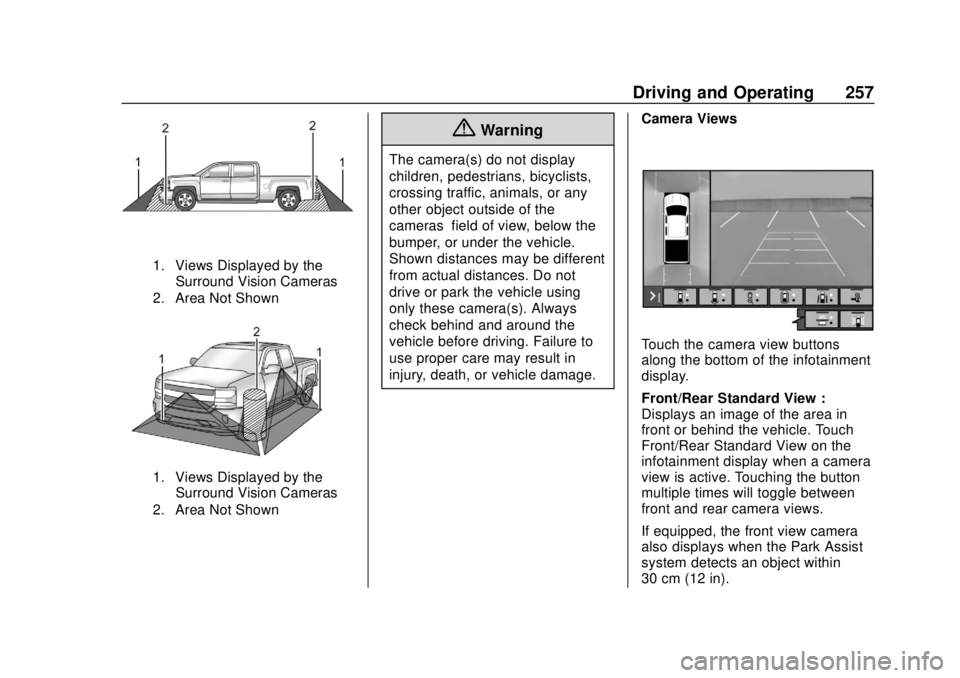
1. Views Displayed by theSurround Vision Cameras
2. Area Not Shown
1. Views Displayed by the Surround Vision Cameras
2. Area Not Shown
{Warning
The camera(s) do not display
children, pedestrians, bicyclists,
crossing traffic, animals, or any
other object outside of the
cameras’ field of view, below the
bumper, or under the vehicle.
Shown distances may be different
from actual distances. Do not
drive or park the vehicle using
only these camera(s). Always
check behind and around the
vehicle before driving. Failure to
use proper care may result in
injury, death, or vehicle damage. Camera Views
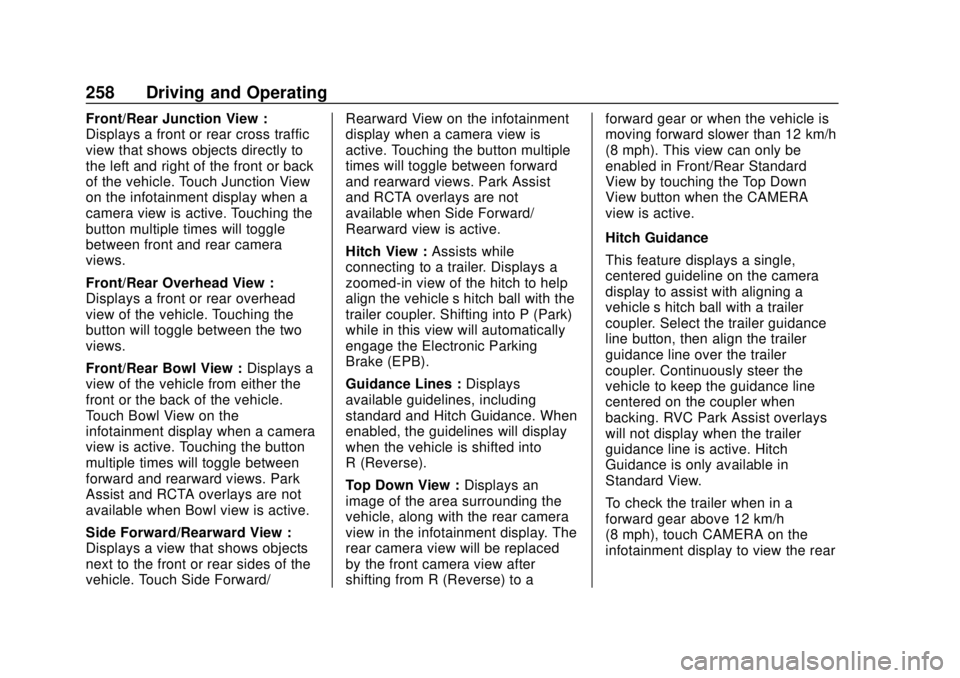
Touch the camera view buttons
along the bottom of the infotainment
display.
Front/Rear Standard View :
Displays an image of the area in
front or behind the vehicle. Touch
Front/Rear Standard View on the
infotainment display when a camera
view is active. Touching the button
multiple times will toggle between
front and rear camera views.
If equipped, the front view camera
also displays when the Park Assist
system detects an object within
30 cm (12 in).
Page 259 of 474
Chevrolet Silverado Owner Manual (GMNA-Localizing-U.S./Canada/Mexico-
1500-11698642) - 2019 - CRC - 2/20/19
258 Driving and Operating
Front/Rear Junction View :
Displays a front or rear cross traffic
view that shows objects directly to
the left and right of the front or back
of the vehicle. Touch Junction View
on the infotainment display when a
camera view is active. Touching the
button multiple times will toggle
between front and rear camera
views.
Front/Rear Overhead View :
Displays a front or rear overhead
view of the vehicle. Touching the
button will toggle between the two
views.
Front/Rear Bowl View :Displays a
view of the vehicle from either the
front or the back of the vehicle.
Touch Bowl View on the
infotainment display when a camera
view is active. Touching the button
multiple times will toggle between
forward and rearward views. Park
Assist and RCTA overlays are not
available when Bowl view is active.
Side Forward/Rearward View :
Displays a view that shows objects
next to the front or rear sides of the
vehicle. Touch Side Forward/ Rearward View on the infotainment
display when a camera view is
active. Touching the button multiple
times will toggle between forward
and rearward views. Park Assist
and RCTA overlays are not
available when Side Forward/
Rearward view is active.
Hitch View :
Assists while
connecting to a trailer. Displays a
zoomed-in view of the hitch to help
align the vehicle’s hitch ball with the
trailer coupler. Shifting into P (Park)
while in this view will automatically
engage the Electronic Parking
Brake (EPB).
Guidance Lines : Displays
available guidelines, including
standard and Hitch Guidance. When
enabled, the guidelines will display
when the vehicle is shifted into
R (Reverse).
Top Down View : Displays an
image of the area surrounding the
vehicle, along with the rear camera
view in the infotainment display. The
rear camera view will be replaced
by the front camera view after
shifting from R (Reverse) to a forward gear or when the vehicle is
moving forward slower than 12 km/h
(8 mph). This view can only be
enabled in Front/Rear Standard
View by touching the Top Down
View button when the CAMERA
view is active.
Hitch Guidance
This feature displays a single,
centered guideline on the camera
display to assist with aligning a
vehicle’s hitch ball with a trailer
coupler. Select the trailer guidance
line button, then align the trailer
guidance line over the trailer
coupler. Continuously steer the
vehicle to keep the guidance line
centered on the coupler when
backing. RVC Park Assist overlays
will not display when the trailer
guidance line is active. Hitch
Guidance is only available in
Standard View.
To check the trailer when in a
forward gear above 12 km/h
(8 mph), touch CAMERA on the
infotainment display to view the rear
Page 260 of 474
Chevrolet Silverado Owner Manual (GMNA-Localizing-U.S./Canada/Mexico-
1500-11698642) - 2019 - CRC - 2/20/19
Driving and Operating 259
camera. Touch X to exit the view or
it will be removed automatically after
eight seconds.
{Warning
Use Hitch Guidance only to help
back the vehicle to a trailer hitch
or, when traveling above 12 km/h
(8 mph), to briefly check the
status of your trailer. Do not use
for any other purpose, such as
making lane change decisions.
Before making a lane change,
always check the mirrors and
glance over your shoulder.
Improper use could result in
serious injury to you or others.
Surround Vision (270 Degrees
with Trailer Camera Views)
If equipped, the Surround Vision
(270 Degrees) has additional
trailering views and no Front Vision
Camera. It can display various
views surrounding the vehicle in the
infotainment display using three
cameras mounted around the vehicle. The side cameras are on
the bottom of the outside mirrors
and the rear camera is in the
tailgate handle. A fourth camera can
be mounted to the rear of a trailer to
allow access to all possible camera
features. See your dealer for an
accessory fourth trailer camera.
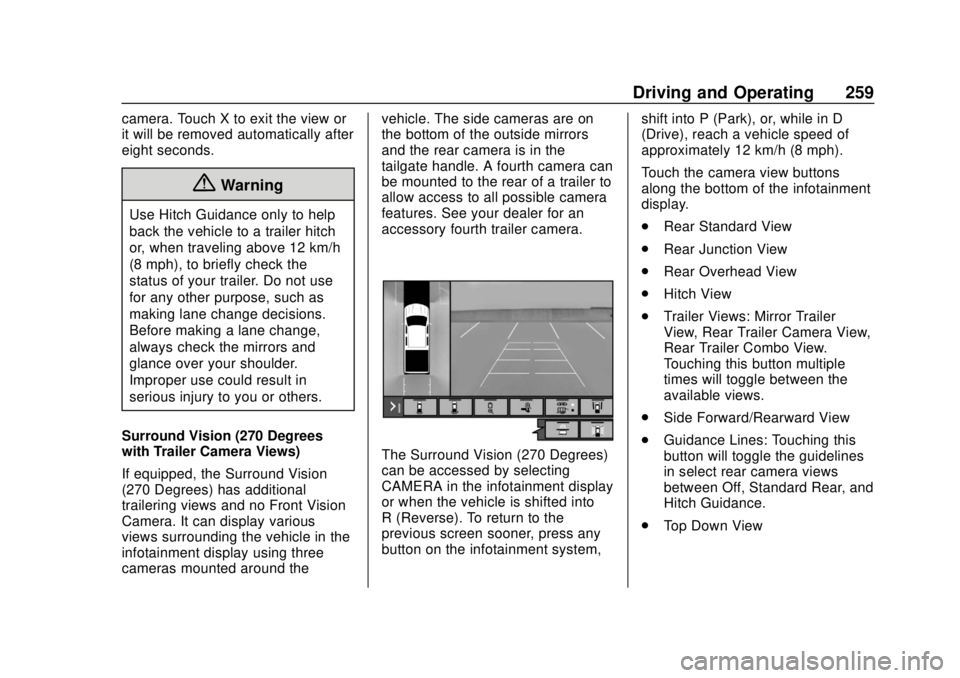
The Surround Vision (270 Degrees)
can be accessed by selecting
CAMERA in the infotainment display
or when the vehicle is shifted into
R (Reverse). To return to the
previous screen sooner, press any
button on the infotainment system,
shift into P (Park), or, while in D
(Drive), reach a vehicle speed of
approximately 12 km/h (8 mph).
Touch the camera view buttons
along the bottom of the infotainment
display.
.
Rear Standard View
. Rear Junction View
. Rear Overhead View
. Hitch View
. Trailer Views: Mirror Trailer
View, Rear Trailer Camera View,
Rear Trailer Combo View.
Touching this button multiple
times will toggle between the
available views.
. Side Forward/Rearward View
. Guidance Lines: Touching this
button will toggle the guidelines
in select rear camera views
between Off, Standard Rear, and
Hitch Guidance.
. Top Down View
Page 262 of 474
Chevrolet Silverado Owner Manual (GMNA-Localizing-U.S./Canada/Mexico-
1500-11698642) - 2019 - CRC - 2/20/19
Driving and Operating 261
Use caution while backing up when
towing a trailer, as the RCTA
detection zones that extend out
from the back of the vehicle do not
move further back when a trailer is
towed.
RCTA is disabled when the trailer
connection status is displayed.
RCTA can be turned off through
“Collision/Detection Systems”under
Vehicle Personalization 0168.
Turning the Features On or Off
PressXon the center stack to
turn on or off the Front and Rear
Park Assist. The indicator light next
to the button comes on when the
features are on and turns off when
the features have been disabled. Front and Rear Park Assist can be
turned Off, On, or On with Towbar
through vehicle personalization. See
“Park Assist”
underVehicle
Personalization 0168. If Park Assist
is turned off through vehicle
personalization, the Park Assist
button will be disabled. To turn Park
Assist on again, select On in the
vehicle personalization menu. The
On with Towbar setting allows for
Park Assist to work properly with a
trailer hitch. Some larger trailer
hitches may not be compatible.
Turn off Park Assist when towing a
trailer.
To turn the RPA symbols on or off,
see “Rear Camera Park Assist
Symbols” underVehicle
Personalization 0168.Assistance Systems for
Driving
If equipped, when driving the
vehicle in a forward gear, Forward
Collision Alert (FCA), Lane
Departure Warning (LDW), Lane
Keep Assist (LKA), Side Blind Zone Alert (SBZA), Lane Change Alert
(LCA), Forward Automatic Braking
(FAB), and/or the Front Pedestrian
Braking (FPB) System can help to
avoid a crash or reduce crash
damage.
Forward Collision Alert
(FCA) System
If equipped, the FCA system may
help to avoid or reduce the harm
caused by front-end crashes. When
approaching a vehicle ahead too
quickly, FCA provides a red flashing
alert on the windshield and rapidly
beeps or pulses the driver seat.
FCA also lights an amber visual
alert if following another vehicle
much too closely.
FCA detects vehicles within a
distance of approximately 60 m
(197 ft) and operates at speeds
above 8 km/h (5 mph).
Page 271 of 474
Chevrolet Silverado Owner Manual (GMNA-Localizing-U.S./Canada/Mexico-
1500-11698642) - 2019 - CRC - 2/20/19
270 Driving and Operating
system is clean, the system may
need service. Take the vehicle to
your dealer.
Radio Frequency Information
SeeRadio Frequency Statement
0 445.
Lane Departure
Warning (LDW)
If equipped, LDW may help avoid
crashes due to unintentional lane
departures. It may provide a
warning if the vehicle is crossing a
detected lane marking without using
a turn signal in the lane departure
direction. Since this system is part
of the Lane Keep Assist (LKA)
system, read the entire LKA section
before using this feature.
Lane Keep Assist (LKA)
If equipped, LKA may help avoid
crashes due to unintentional lane
departures. It may assist by gently
turning the steering wheel if the
vehicle approaches a detected lane
marking without using a turn signal in that direction. It may also provide
a Lane Departure Warning (LDW)
system alert as the lane marking is
crossed. The LKA system will not
assist or provide an LDW alert if it
detects that you are actively
steering. Override LKA by turning
the steering wheel. LKA uses a
camera to detect lane markings
between 60 km/h (37 mph) and
180 km/h (112 mph).
{Warning
The LKA system does not
continuously steer the vehicle.
It may not keep the vehicle in the
lane or give a Lane Departure
Warning (LDW) alert, even if a
lane marking is detected.
The LKA and LDW systems
may not:
. Provide an alert or enough
steering assist to avoid a
lane departure or crash.
(Continued)
Warning (Continued)
.Detect lane markings under
poor weather or visibility
conditions. This can occur if
the windshield or
headlamps are blocked by
dirt, snow, or ice, if they are
not in proper condition, or if
the sun shines directly into
the camera.
. Detect road edges.
. Detect lanes on winding or
hilly roads.
If LKA only detects lane markings
on one side of the road, it will
only assist or provide an LDW
alert when approaching the lane
on the side where it has detected
a lane marking. Even with LKA
and LDW, you must steer the
vehicle. Always keep your
attention on the road and
maintain proper vehicle position
within the lane, or vehicle
damage, injury, or death could (Continued)
Page 272 of 474

Chevrolet Silverado Owner Manual (GMNA-Localizing-U.S./Canada/Mexico-
1500-11698642) - 2019 - CRC - 2/20/19
Driving and Operating 271
Warning (Continued)
occur. Always keep the
windshield, headlamps, and
camera sensors clean and in
good repair. Do not use LKA in
bad weather conditions.
{Warning
Using LKA while towing a trailer
or on slippery roads could cause
loss of control of the vehicle and
a crash. Turn the system off.
How the System Works
The LKA camera sensor is on the
windshield ahead of the rearview
mirror.
To turn LKA on and off, press
A
on the center stack.
When on,
Ais green if LKA is
available to assist and provide LDW
alerts. It may assist by gently
turning the steering wheel and display
Aas amber if the vehicle
approaches a detected lane marking
without using a turn signal in that
direction. It may also provide an
LDW alert by flashing
Aamber
as the lane marking is crossed.
Additionally, there may be three
beeps, or the driver seat may pulse
three times, on the right or left,
depending on the lane departure
direction.
Take Steering
The LKA system does not
continuously steer the vehicle.
If LKA does not detect active driver
steering, an alert, chime, or DIC
message may be provided. Move
the steering wheel to dismiss.
When the System Does Not
Seem to Work Properly
The system performance may be
affected by:
. Close vehicles ahead.
. Sudden lighting changes, such
as when driving through tunnels.
. Banked roads. .
Roads with poor lane markings,
such as two-lane roads.
If the LKA system is not functioning
properly when lane markings are
clearly visible, cleaning the
windshield may help.
A camera blocked message may
display if the camera is blocked.
Cleaning the outside of the
windshield behind the rearview
mirror may correct the issue. Some
driver assistance systems may have
reduced performance or not work at
all. An LKA or LDW unavailable
message may display if the systems
are temporarily unavailable. This
message could be due to a blocked
camera. The LKA system does not
need service. Clean the outside of
the windshield behind the rearview
mirror.
LKA assistance and/or LDW alerts
may occur due to tar marks,
shadows, cracks in the road,
temporary or construction lane
markings, or other road
imperfections. This is normal system
Page 303 of 474

Chevrolet Silverado Owner Manual (GMNA-Localizing-U.S./Canada/Mexico-
1500-11698642) - 2019 - CRC - 2/20/19
302 Driving and Operating
The Maintenance Status view
displays reminders. Touch a
reminder to edit.
Touch + New Maintenance
Reminder to go to the Select New
Reminder view.
The progress bar turns yellow when
the maintenance item reaches 90%
complete.
The progress bar turns red when
the maintenance item reaches
100% complete.
Maintenance Notifications
.Touch Service Complete to reset
the maintenance reminder.
. Touch Remind Me Later to delay
the reminder.
. Touch X next to Upcoming Alerts
(90%) to dismiss the alert. It will
not appear again.
. Touch X next to Maintenance
Due (100%) to delay the alert to
the next ignition cycle.
Always follow all of the maintenance
instructions that came with your
trailer.Guest Trailer Status View
Touch the Guest Trailer Profile for
the status views.
The Trailer Status view displays
mileage information. Touch to edit,
and follow the on-screen prompts.
Mileage and fuel economy will reset
after the trailer disconnects.
Checklist View
This view shows the recommended
steps to take before towing a trailer.
Touch the box next to each item if
that step has been completed.
Touch
pto access a detailed
view of each step. Within each
detailed view, touch Next and
Previous to navigate between steps.
The checklist is unique to the Trailer
Profile based on hitch type; for
example, the steps involve different
details between conventional,
gooseneck, and fifth-wheel hitch
types.
Custom Checklist Items
For each of the Trailer Profile
checklists, there is an option to
create custom items to view in the
checklist. The custom item will
appear at the bottom of the
checklist.
Guest Trailer and No Trailer
Connected
If Guest Trailer Profile is active or if
no trailer is connected, the checklist
will show all of the checklists
associated with Custom Trailer
Profiles in addition to default
checklists.
Trailers View
Touch the Trailers tab to view,
activate, create, edit, or delete
Trailer Profiles.
If a trailer is connected, touch the
Trailer Profile name to activate a
Trailer Profile.
There can be up to five Custom
Trailer Profiles on the vehicle.
Page 309 of 474

Chevrolet Silverado Owner Manual (GMNA-Localizing-U.S./Canada/Mexico-
1500-11698642) - 2019 - CRC - 2/20/19
308 Driving and Operating
Adding a Snow Plow or
Similar Equipment
Caution
Do not exceed 72 km/h (45 mph)
with a snow plow mounted to the
vehicle. The vehicle could
overheat and be damaged.
Before installing a snow plow on the
vehicle, follow these guidelines:
Caution
If the vehicle does not have the
snow plow prep package, RPO
VYU, adding a plow can damage
the vehicle, and the repairs would
not be covered by the vehicle
warranty. Unless the vehicle was
built to carry a snow plow, do not
add one to the vehicle. If the
vehicle has RPO VYU, then the
payload the vehicle can carry will
be reduced when a snow plow is (Continued)
Caution (Continued)
installed. The vehicle can be
damaged if either the front or rear
axle ratings or the Gross Vehicle
Weight Rating (GVWR) are
exceeded.
The plow the vehicle can carry
depends on many things, such as:
. The options the vehicle came
with, and the weight of those
options.
. The weight and number of
passengers to be carried.
. The weight of items added to the
vehicle, like a tool box or
truck cap.
. The total weight of any
additional cargo to be carried.
For example, if the snow plow
weighs 318 kg (700 lb), the total
weight of all occupants and cargo
inside the cab should not exceed
135 kg (300 lb). This means that you
may only be able to carry one
passenger. Even this may be too much if there is other equipment
already adding to the weight of the
vehicle.
To safely carry a snow plow on the
vehicle:
.
Follow all aftermarket snow plow
manufacturer ’s instructions for
the operation and transportation
of the snow plow.
. With a snow plow attached, the
engine coolant temperature
gauge may show a higher
temperature than while driving
without one. The snow plow
could block the airflow to the
radiator. This could be more
noticeable as vehicle speed
increases. At speeds above
72 km (45 mph), this may cause
the engine coolant to overheat.
. To increase the airflow, move the
snow plow blade postion.
. If driving more than 24 km
(15 mi), angle the plow blade
position.