2019 CHEVROLET BOLT EV infotainment
[x] Cancel search: infotainmentPage 253 of 371
Chevrolet BOLT EV Owner Manual (GMNA-Localizing-U.S./Canada/Mexico-
12163003) - 2019 - crc - 5/18/18
252 Driving and Operating
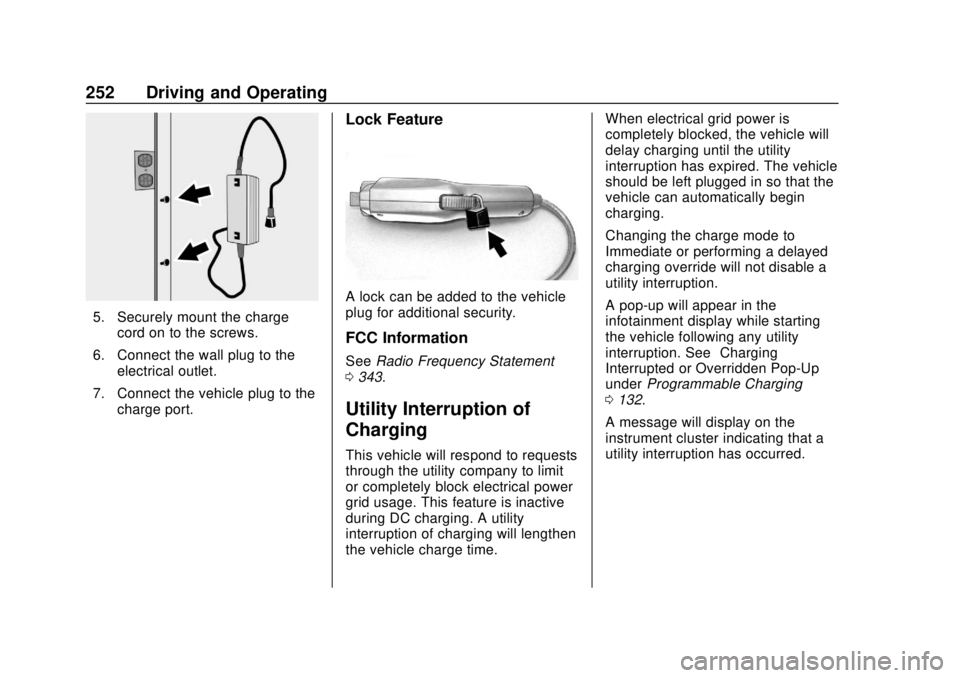
5. Securely mount the chargecord on to the screws.
6. Connect the wall plug to the electrical outlet.
7. Connect the vehicle plug to the charge port.
Lock Feature
A lock can be added to the vehicle
plug for additional security.
FCC Information
See Radio Frequency Statement
0 343.
Utility Interruption of
Charging
This vehicle will respond to requests
through the utility company to limit
or completely block electrical power
grid usage. This feature is inactive
during DC charging. A utility
interruption of charging will lengthen
the vehicle charge time. When electrical grid power is
completely blocked, the vehicle will
delay charging until the utility
interruption has expired. The vehicle
should be left plugged in so that the
vehicle can automatically begin
charging.
Changing the charge mode to
Immediate or performing a delayed
charging override will not disable a
utility interruption.
A pop-up will appear in the
infotainment display while starting
the vehicle following any utility
interruption. See
“Charging
Interrupted or Overridden Pop-Up”
under Programmable Charging
0 132.
A message will display on the
instrument cluster indicating that a
utility interruption has occurred.
Page 343 of 371
Chevrolet BOLT EV Owner Manual (GMNA-Localizing-U.S./Canada/Mexico-
12163003) - 2019 - crc - 5/18/18
342 Customer Information
Choose a reputable repair facility
that uses quality replacement parts.
See“Collision Parts” earlier in this
section.
In a crash, the sensing system may
shut down the high voltage system.
See Battery - North America 0265
for important safety information.
If an airbag has inflated, see What
Will You See after an Airbag
Inflates? 076.
If the vehicle is damaged from a
crash, flood, fire, or other event it
may be necessary to have the
vehicle inspected. SeeBattery -
North America 0265 andHigh
Voltage Safety Information 022 for
important safety information.
Managing the Vehicle Damage
Repair Process
In the event that the vehicle requires
damage repairs, GM recommends
that you take an active role in its
repair. If you have a pre-determined
repair facility of choice, take the
vehicle there, or have it towed there.
Specify to the facility that any
required replacement collision parts be original equipment parts, either
new Genuine GM parts or recycled
original GM parts. Remember,
recycled parts will not be covered by
the GM vehicle warranty.
Insurance pays the bill for the repair,
but you must live with the repair.
Depending on your policy limits,
your insurance company may
initially value the repair using
aftermarket parts. Discuss this with
the repair professional, and insist on
Genuine GM parts. Remember,
if the vehicle is leased, you may be
obligated to have the vehicle
repaired with Genuine GM parts,
even if your insurance coverage
does not pay the full cost.
If another party's insurance
company is paying for the repairs,
you are not obligated to accept a
repair valuation based on that
insurance company's collision policy
repair limits, as you have no
contractual limits with that company.
In such cases, you can have control
of the repair and parts choices as
long as the cost stays within
reasonable limits.
Publication Ordering
Information
Service Manuals
Service manuals have the diagnosis
and repair information on the
engine, transmission, axle,
suspension, brakes, electrical
system, steering system, body, etc.
Customer Literature
Owner
’s manuals are written
specifically for owners and are
intended to provide basic
operational information about the
vehicle. The owner ’s manual
includes the Maintenance Schedule
for all models.
Customer literature publications
available for purchase include
owner ’s manuals, warranty
manuals, infotainment manuals, and
portfolios. Portfolios include an
owner ’s manual, warranty manual,
infotainment manual, if applicable,
and zip lock bag or pouch.
Page 349 of 371

Chevrolet BOLT EV Owner Manual (GMNA-Localizing-U.S./Canada/Mexico-
12163003) - 2019 - crc - 5/18/18
348 OnStar
Press=to:
. Open the OnStar app on the
infotainment display. See the
infotainment manual for
information on how to use the
OnStar app.
Or
. Make a call, end a call,
or answer an incoming call.
. Give OnStar Hands-Free Calling
voice commands.
. Give OnStar Turn-by-Turn
Navigation voice commands.
. Obtain and customize the Wi-Fi
hotspot name or SSID and
password, if equipped. PressQto connect to an
Advisor to:
. Verify account information or
update contact information.
. Get driving directions.
. Receive a Diagnostic check of
the vehicle's key operating
systems.
. Receive Roadside Assistance.
. Manage Wi-Fi Settings,
if equipped.
Press
>to get a priority connection
to an OnStar Advisor available 24/
7 to:
. Get help for an emergency.
. Be a Good Samaritan or
respond to an AMBER Alert.
. Get assistance in severe
weather or other crisis situations
and find evacuation routes.
OnStar Services
Emergency
Emergency Services require an
active safety and security plan. With
Automatic Crash Response, built-in
sensors can automatically alert a
specially trained OnStar Advisor
who is immediately connected in to
the vehicle to help.
Press
>for a priority connection to
an OnStar Advisor who can contact
emergency service providers, direct
them to your exact location, and
relay important information.
With OnStar Crisis Assist, specially
trained Advisors are available
24 hours a day, 7 days a week, to
provide a central point of contact,
assistance, and information during a
crisis.
With Roadside Assistance, Advisors
can locate a nearby service provider
to help with a flat tire, a battery
jump, or an empty gas tank.
Page 351 of 371

Chevrolet BOLT EV Owner Manual (GMNA-Localizing-U.S./Canada/Mexico-
12163003) - 2019 - crc - 5/18/18
350 OnStar
.PressQto speak with an
Advisor.
OnStar or connected services
cannot work unless the vehicle is in
a place where OnStar has an
agreement with a wireless service
provider for service in that area. The
wireless service provider must also
have coverage, network capacity,
reception, and technology
compatible with OnStar or
connected services. Service
involving location information about
the vehicle cannot work unless GPS
signals are available, unobstructed,
and compatible with the OnStar
hardware. OnStar or connected
services may not work if the OnStar
equipment is not properly installed
or it has not been properly
maintained. If equipment or software
is added, connected, or modified,
OnStar or connected services may
not work. Other problems beyond
the control of OnStar —such as
hills, tall buildings, tunnels, weather,
electrical system design and
architecture of the vehicle, damage to the vehicle in a crash, or wireless
phone network congestion or
jamming
—may prevent service.
See Radio Frequency Statement
0 343.
Services for People with
Disabilities
Advisors provide services to help
with physical disabilities and
medical conditions.
Press
Qto help:
. Locate a gas station with an
attendant to pump gas.
. Find a hotel, restaurant, etc.,
that meets accessibility needs.
. Provide directions to the closest
hospital or pharmacy in urgent
situations.
TTY Users
OnStar has the ability to
communicate to deaf,
hard-of-hearing, or speech-impaired
customers while in the vehicle. The
available dealer-installed TTY
system can provide in-vehicle access to all OnStar services,
except Virtual Advisor and OnStar
Turn-by-Turn Navigation.
If equipped, TTY mode can be
turned on or off by touching
Settings, then Apps, and then
Phone. When TTY mode is on,
phone calls can be made or
received with OnStar using the
infotainment display.
OnStar Personal Identification
Number (PIN)
A PIN is needed to access some
OnStar services. The PIN will need
to be changed the first time when
speaking with an Advisor. To
change the OnStar PIN, contact an
OnStar Advisor by pressing
Qor
calling 1-888-4ONSTAR.
Warranty
OnStar equipment may be
warranted as part of the vehicle
warranty.
Page 356 of 371

Chevrolet BOLT EV Owner Manual (GMNA-Localizing-U.S./Canada/Mexico-
12163003) - 2019 - crc - 5/18/18
Connected Services 355
Connected
Services
Connected Services
Navigation . . . . . . . . . . . . . . . . . . . . 355
Connections . . . . . . . . . . . . . . . . . . 356
Diagnostics . . . . . . . . . . . . . . . . . . . 358
Connected Services
Navigation
Navigation requires a specific
OnStar or connected service plan.
Press
Qto receive Turn-by-Turn
directions or have them sent to the
vehicle’s navigation screen,
if equipped.
Turn-by-Turn Navigation
1. PressQto connect to an
Advisor.
2. Request directions to be downloaded to the vehicle.
3. Follow the voice-guided commands.
Using Voice Commands
During a Planned Route
Functionality of the Voice Command
button, if equipped, may vary by
vehicle and region. For some
vehicles, press
=to open the OnStar app on the infotainment
display. For other vehicles press
=
as follows.
Cancel Route
1. Press
=. System responds:
“OnStar ready,” then a tone.
2. Say “Cancel route.” System
responds: “Do you want to
cancel directions?”
3. Say “Yes.”System responds:
“OK, request completed, thank
you, goodbye.”
Route Preview
1. Press
=. System responds:
“OnStar ready,” then a tone.
2. Say “Route preview.” System
responds with the next three
maneuvers.
Repeat
1. Press
=. System responds:
“OnStar ready,” then a tone.
Page 357 of 371
Chevrolet BOLT EV Owner Manual (GMNA-Localizing-U.S./Canada/Mexico-
12163003) - 2019 - crc - 5/18/18
356 Connected Services
2. Say“Repeat.” System
responds with the last direction
given, then responds with
“OnStar ready,” then a tone.
Get My Destination
1. Press
=. System responds:
“OnStar ready,” then a tone.
2. Say “Get my destination.”
System responds with the
address and distance to the
destination, then responds with
“OnStar ready,” then a tone.
Send Destination to Vehicle
Directions can be sent to the
vehicle’s navigation screen,
if equipped.
Press
Q, then ask the Advisor to
download directions to the vehicle’s
navigation system, if equipped. After
the call ends, the navigation screen
will provide prompts to begin driving
directions. Routes that are sent to
the navigation screen can only be
canceled through the navigation
system. See www.onstar.com (U.S.) or
www.onstar.ca (Canada).
Connections
The following services help with
staying connected.
For coverage maps, see
www.onstar.com (U.S.) or
www.onstar.ca (Canada).
Ensuring Security
.
Change the default passwords
for the Wi-Fi hotspot and
myChevrolet mobile app. Make
these passwords different from
each other and use a
combination of letters, numbers,
and symbols to increase the
security.
. Change the default name of the
SSID (Service Set Identifier).
This is your network’s name that
is visible to other wireless
devices. Choose a unique name
and avoid family names or
vehicle descriptions. Wi-Fi Hotspot (If Equipped)
The vehicle may have a built-in
Wi-Fi hotspot that provides access
to the Internet and web content at
4G LTE speed. Up to seven mobile
devices can be connected. A data
plan is required. Use the in-vehicle
controls only when it is safe to
do so.
1. To retrieve Wi-Fi hotspot information, press
=to open
the OnStar app on the
infotainment display, then
select Wi-Fi Hotspot. On some
vehicles, touch Wi-Fi or Wi-Fi
Settings on the screen.
2. The Wi-Fi settings will display the Wi-Fi hotspot name (SSID),
password, and on some
vehicles, the connection type
(no Internet connection, 3G,
4G, 4G LTE), and signal quality
(poor, good, excellent).
3. To change the SSID or password, press
Qor call
1-888-4ONSTAR to connect
with an Advisor. On some
Page 358 of 371
Chevrolet BOLT EV Owner Manual (GMNA-Localizing-U.S./Canada/Mexico-
12163003) - 2019 - crc - 5/18/18
Connected Services 357
vehicles, the SSID and
password can be changed in
the Wi-Fi Hotspot menu.
After initial set-up, your vehicle’s
Wi-Fi hotspot will connect
automatically to your mobile
devices. Manage data usage by
turning Wi-Fi on or off on your
mobile device, using the
myChevrolet mobile app, or by
contacting an OnStar Advisor. On
some vehicles, Wi-Fi can also be
managed from the Wi-Fi
Hotspot menu.
myChevrolet Mobile App (If
Available)
Download the myChevrolet mobile
app to compatible Apple and
Android smartphones. Chevrolet
users can access the following
services from a smartphone:
. Remotely start/stop the vehicle,
if factory-equipped.
. Lock/unlock doors, if equipped
with automatic locks.
. Activate the horn and lamps. .
Check the vehicle’s energy level,
range or tire pressure,
if factory-equipped with the Tire
Pressure Monitor System.
. Send destinations to the vehicle.
. Locate the vehicle on a map
(U.S. market only).
. Turn the vehicle's Wi-Fi hotspot
on/off, manage settings, and
monitor data consumption,
if equipped.
. Locate a dealer and schedule
service.
. Request roadside assistance.
. Set a parking reminder with pin
drop, take a photo, make a note,
and set a timer.
. Connect with Chevrolet on social
media.
Features are subject to change. For
myChevrolet mobile app information
and compatibility, see
my.chevrolet.com.
An active OnStar or connected
service plan may be required.
A compatible device, factory-installed remote start, and
power locks are required. Data rates
apply. See www.onstar.com for
details and system limitations.
Remote Services
Contact an OnStar Advisor to
unlock the doors or sound the horn
and flash the lamps.
Marketplace
OnStar Advisors can provide offers
from restaurants and retailers on
your route, help locate hotels,
or book a room. These services
vary by market.
OnStar Hands-Free Calling
Make and receive calls with the
built-in wireless calling service,
which requires available minutes.
Functionality of the Voice Command
button may vary by vehicle and
region. For some vehicles, press
=
to open the OnStar app on the
infotainment display, then select
Hands-Free calling. For other
vehicles press
=as follows.
Page 366 of 371

Chevrolet BOLT EV Owner Manual (GMNA-Localizing-U.S./Canada/Mexico-
12163003) - 2019 - crc - 5/18/18
Index 365
MirrorsAutomatic Dimming
Rearview . . . . . . . . . . . . . . . . . . . . . . 51
Convex . . . . . . . . . . . . . . . . . . . . . . . . . 50
Folding . . . . . . . . . . . . . . . . . . . . . . . . . 50
Manual Rearview . . . . . . . . . . . . . . . 51
Power . . . . . . . . . . . . . . . . . . . . . . . . . . 50
Mirrors, Interior Rearview . . . . . . . . 51
Mobile Applications KeyPass . . . . . . . . . . . . . . . . . . . . . . . . 45
Modes
Driver Selected . . . . . . . . . . . . . . . 210
Monitor System, Tire Pressure . . . . . . . . . . . . . . . . . . . . . . 286
Multi-band Antenna . . . . . . . . . . . . . 167
N
Navigation Connected Services . . . . . . . . . . 355
New Vehicle Break-In . . . . . . . . . . . 205
O
Odometer . . . . . . . . . . . . . . . . . . . . . . . 122 Trip . . . . . . . . . . . . . . . . . . . . . . . . . . . 122
Off-Road Recovery . . . . . . . . . . . . . . . . . . . . . 198
Older Children, Restraints . . . . . . . 84
Online Owner Center . . . . . . . . . . . 336
OnStar . . . . . . . . . . . . . . . . . . . . . . . . . 346 OnStar Additional
Information . . . . . . . . . . . . . . . . . . . . 349
OnStar Emergency . . . . . . . . . . . . . 348
OnStar Overview . . . . . . . . . . . . . . . 347
OnStar Security . . . . . . . . . . . . . . . . 349
OnStar System . . . . . . . . . . . . . . . . . 177
Operation Infotainment System . . . . . . . . . . 161
Options Charging . . . . . . . . . . . . . . . . . . . . . 142
Outlets
Power . . . . . . . . . . . . . . . . . . . . . . . . .115
Overview . . . . . . . . . . . . . . . . . . . . . . . 160 Underhood Compartment . . . . . 260
Owner Checks and Services . . . . 325
P
Park Shifting Into . . . . . . . . . . . . . . . . . . . 208
Shifting Out of . . . . . . . . . . . . . . . . 208
Park Assist . . . . . . . . . . . . . . . . . . . . . 224
Parking
Extended . . . . . . . . . . . . . . . . . . . . . 209
Parking or Backing Assistance Systems . . . . . . . . . . 224
Passenger Airbag Status
Indicator . . . . . . . . . . . . . . . . . . . . . . 125 Passenger Compartment Air
Filter . . . . . . . . . . . . . . . . . . . . . . . . . . 193
Passenger Sensing System . . . . . 78
Pedestrian Ahead Indicator . . . . . 129
Pedestrian Safety Signal . . . . . . . 111
Perchlorate Materials Requirements, California . . . . . . 257
Personalization Vehicle . . . . . . . . . . . . . . . . . . . . . . . 146
Phone Apple CarPlay and
Android Auto . . . . . . . . . . . . . . . . 179
Bluetooth . . . . . . . . . . . . . . . . . . . . . 177
Hands-Free . . . . . . . . . . . . . . . . . . . 180
Plug-In Charging . . . . . . . . . . . . . . . 237
Port USB . . . . . . . . . . . . . . . . . . . . . . . . . . 168
Power Button . . . . . . . . . . . . . . . . . . . . . . . . 205
Door Locks . . . . . . . . . . . . . . . . . . . . . 43
Flows . . . . . . . . . . . . . . . . . . . . . . . . . 132
Indicator Gauge . . . . . . . . . . . . . . 124
Mirrors . . . . . . . . . . . . . . . . . . . . . . . . . . 50
Outlets . . . . . . . . . . . . . . . . . . . . . . . .115
Protection, Battery . . . . . . . . . . . . 158
Retained Accessory (RAP) . . . 208
Windows . . . . . . . . . . . . . . . . . . . . . . . 53
Pregnancy, Using Seat Belts . . . . 70