2019 BUICK REGAL SPORTBACK fuel
[x] Cancel search: fuelPage 26 of 78
Buick Regal Infotainment System (GMNA-Localizing-U.S./Canada-
12680696) - 2019 - crc - 6/25/18
Navigation 25
.Night (Dark)
3D Landmark (Default is On) :
Touch On or Off. When turned on,
the system will display all 3D
Landmarks on the map depending
on the zoom level.
3D Building (Default is Off) :
Touch On or Off. When turned on,
the system will display all of the
possible 3D building shapes on the
map depending on the zoom level.
Show Terrain in 3D (Default is
Off) : If equipped, touch On or Off.
When turned on, the system will
display terrain information on the
map in 3D view.
Auto-Zoom (Default is On) : Touch
On or Off. When turned on, the
system will automatically adjust the
zoom level when the vehicle is
approaching a turn. After the turn is
completed, the system automatically
brings the zoom back to the
originally set level. If the vehicle is
approaching a turn with the next
turn occurring shortly after, the
Auto-Zoom will remain on until both
turns are completed. Route Preferences
Touch to access the Route
Preferences. The choices are:
.
Preferred Route –Choose from
two different route options:
Fastest or Eco-Friendly.
‐ Fastest would be the route
with the shortest drive time.
‐ Eco-Friendly would be the
most fuel-efficient route.
. Avoid on Current Route –
Choose any of the road features
to avoid while on route:
‐ Highways
‐ Unpaved Roads
‐ Ferries
‐ Carpool Lanes
‐ Toll Roads
‐ Tunnels
‐ Country Borders Range Projection (Electric
Vehicles)
Range Projection allows the
vehicle’s electric driving range to be
checked at that moment.
Touch the Range Projection icon to
display the map screen with a range
indicator.
Navigation Voice Control
Touch to access the voice control
setting display.
.
Navigation Volume –To adjust
the volume level, touch the up
and down arrows. If the voice
guidance prompt is being heard,
volume can also be adjusted
using the knob on the center
stack or the volume switch on
the steering wheel.
. Navigation Voice Prompt Level
during a Call. Options
available are:
‐Full Prompt (Selected by
default)
‐ Tone Only
‐ None
Page 34 of 78
Buick Regal Infotainment System (GMNA-Localizing-U.S./Canada-
12680696) - 2019 - crc - 6/25/18
Navigation 33
Renaming Navigation Favorites1. Touch the Settings icon on the Home Page and touch the
System tab.
2. Touch Favorites to access the Manage Favorites option.
3. Touch a saved Navigation favorite to access the edit icon.
Touch the edit icon to rename
the favorite.
4. Touch Save to store the renamed favorite.
Recents
TouchGto access a list of recent
destinations.
Recenter Position Icon
Touch the Recenter Position arrow
in the middle of the map view to
reset the map to the current
location.
Last Parked Location
The Last Parked Location is the last
location the vehicle engine was
turned off. That location is displayed
in the first row of the Recents list. Touching the last Parked Location
shows the Address Details view to
either save the address or drive to
it. The Last Parked Location can be
deleted by entering the Edit display.
Once the Last Parked Location is
deleted, it no longer appears in the
Recents list, unless the vehicle is
started at that location again.
Show POI Icons
To see the POI categories, touch
Options, then touch Show on Map.
Up to eight categories of icons can
be selected.
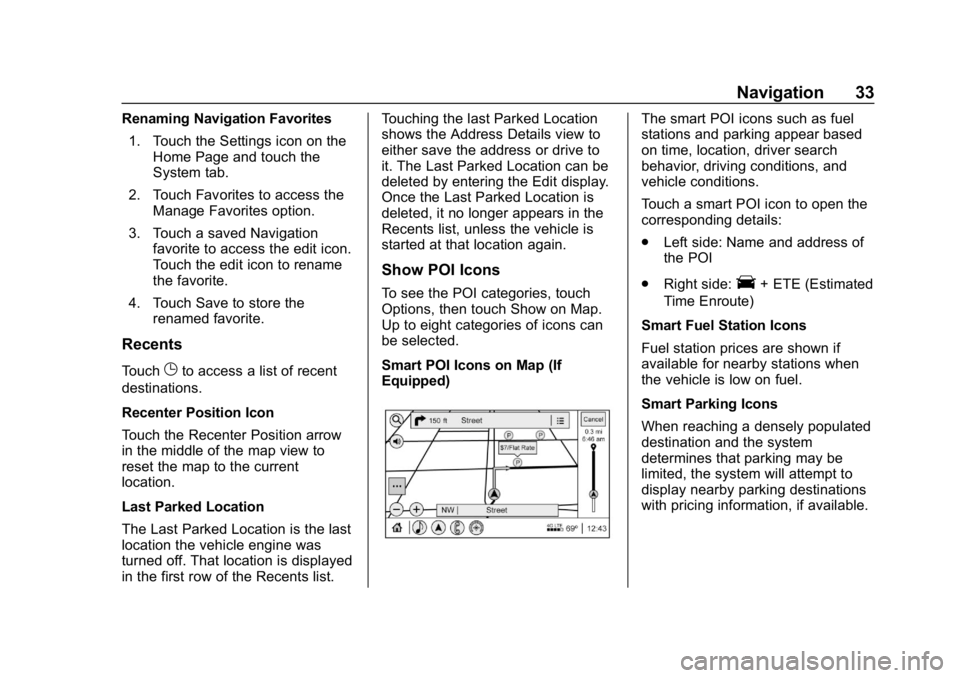
Smart POI Icons on Map (If
Equipped)
The smart POI icons such as fuel
stations and parking appear based
on time, location, driver search
behavior, driving conditions, and
vehicle conditions.
Touch a smart POI icon to open the
corresponding details:
.
Left side: Name and address of
the POI
. Right side:
E+ ETE (Estimated
Time Enroute)
Smart Fuel Station Icons
Fuel station prices are shown if
available for nearby stations when
the vehicle is low on fuel.
Smart Parking Icons
When reaching a densely populated
destination and the system
determines that parking may be
limited, the system will attempt to
display nearby parking destinations
with pricing information, if available.
Page 63 of 78
Buick Regal Infotainment System (GMNA-Localizing-U.S./Canada-
12680696) - 2019 - crc - 6/25/18
62 Settings
Manage Settings
Audio Volume Limit :Allows the
audio volume limit to be turned on
or off. Touch Set Audio Volume Limit
to choose the maximum allowable
audio volume level.
Set Audio Volume Limit : Allows a
maximum radio volume to be set.
Use the arrows to choose the
maximum allowable level for the
audio volume.
Teen Driver Speed Limiter : Limits
the maximum speed of the vehicle.
When the speed limiter is turned on
and the vehicle is started with a
Teen Driver key, the DIC displays a
message that the top speed is
limited.
On certain vehicles, when the
Speed Limiter is turned ON, the
vehicle’s maximum acceleration will
be limited. The DIC will display a
message that the acceleration is
limited. Teen Driver Speed Warning :
Allows the speed warning to be
turned on or off. Touch Set Teen
Driver Speed Warning to set the
warning speed.
Set Teen Driver Speed Warning :
Displays a warning in the DIC when
exceeding a selectable speed.
Choose the desired speed warning
level. The speed warning does not
limit the speed of the vehicle.
When Teen Driver is Active:
.
The radio will mute when the
driver seat belt is not fastened,
and in some vehicles, when the
front passenger seat belt is not
fastened. The audio from any
device paired to the vehicle will
also be muted.
. Certain devices placed on the
front passenger seat could
cause the passenger sensing
system to falsely sense an
unbuckled front passenger and
mute the radio. See “Passenger
Sensing System” in the owner's
manual. .
Some safety systems,
if equipped and supported,
cannot be turned off. They may
include: Park Assist, Side Blind
Zone Alert, Lane Change Alert,
Rear Cross Traffic Alert, Forward
Collision Alert, Automatic
Braking, Pedestrian Braking,
Lane Departure Warning, Lane
Keep Assist, Daytime Running
Lamps/Automatic Light Control,
Traction Control, Stability
Control, and Antilock Brakes.
. The gap setting for the Forward
Collision Alert and Adaptive
Cruise Control, if equipped,
cannot be changed.
. When trying to change a safety
feature that is not configurable in
Teen Driver, the DIC displays a
message indicating that Teen
Driver is active and the action is
not available.
. Super Cruise, if equipped, is not
available.
. Enhanced Low Fuel Warning (if
equipped) –When the vehicle is
low on fuel, the low fuel light on
Page 64 of 78
Buick Regal Infotainment System (GMNA-Localizing-U.S./Canada-
12680696) - 2019 - crc - 6/25/18
Settings 63
the instrument cluster flashes
and the DIC low fuel warning
cannot be dismissed.
Report Card
The vehicle owner must secure the
driver ’s consent to record certain
vehicle data when the vehicle is
driven with a registered Teen Driver
key. There is one Report Card per
vehicle. Data is only recorded when
a registered Teen Driver key is used
to operate the vehicle.
The Report Card data is collected
from the time Teen Driver is
activated or the last time the Report
Card was reset. The following items
may be recorded:
. Distance Driven –the total
distance driven.
. Maximum Speed –the maximum
vehicle speed detected.
. Overspeed Warnings –the
number of times the speed
warning setting was exceeded. .
Wide Open Throttle –the
number of times the accelerator
pedal was pressed nearly all the
way down.
. Forward Collision Alerts –the
number of times the driver was
notified when approaching a
vehicle ahead too quickly and at
potential risk for a crash.
. Forward Automatic Braking (if
equipped) –the number of times
the vehicle detected that a
forward collision was imminent
and applied the brakes.
. Traction Control –the number of
times the Traction Control
System activated to reduce
wheel spin or loss of traction.
. Stability Control –the number of
events which required the use of
electronic stability control.
. ABS Active –Also referred to as
Antilock Brake System Active,
the number of Antilock Brake
System activations. .
Tailgating Alerts –the number of
times the driver was alerted for
following a vehicle ahead too
closely.
Report Card Data
Cumulative Data is saved for all
trips until the Report Card is reset or
until the maximum count is
exceeded. If the maximum count is
exceeded for a Report Card line
item, that item will no longer be
updated in the Report Card until it is
reset. Each item will report a
maximum of 1,000 counts. The
distance driven will report a
maximum of 64,374 km (40,000 mi).
To delete Report Card data, do one
of the following:
. From the Report Card display,
touch Reset.
. Touch Clear All Teen Keys and
PIN from the Teen Driver menu.
This will also unregister any
Teen Driver keys and delete
the PIN.
Forgotten PIN
See your dealer to reset the PIN.