2019 AUDI Q3 instrument cluster
[x] Cancel search: instrument clusterPage 122 of 280
Driver assistance
Applies to: vehicles with lane departure warning
B4M-0064
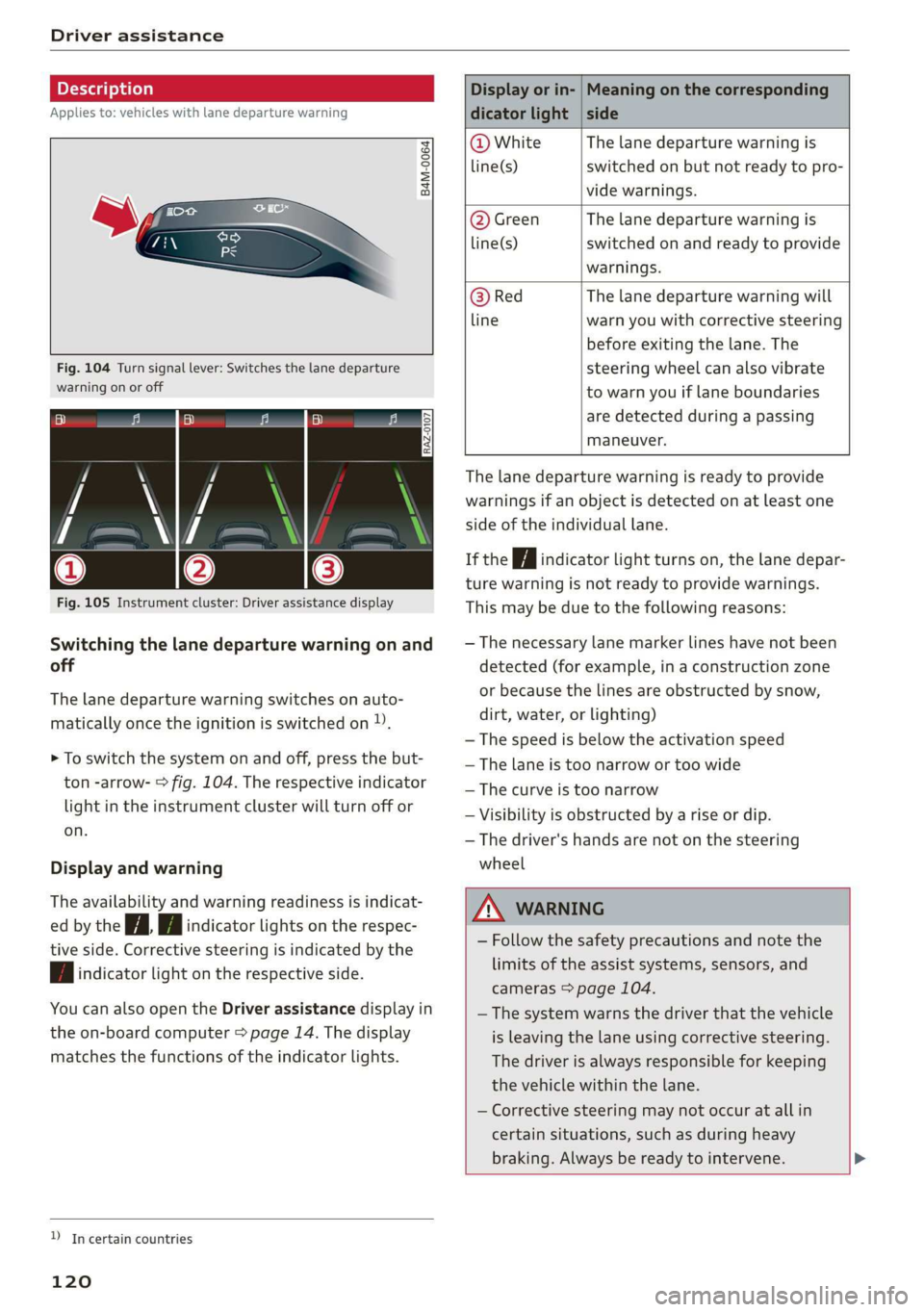
Fig. 104 Turn signal lever: Switches the lane departure
warning on or off
RAZ-0107
Fig. 105 Instrument cluster: Driver assistance display
Switching the lane departure warning on and
off
The lane departure warning switches on auto-
matically once the ignition is switched on )).
> To switch the system on and off, press the but-
ton -arrow- > fig. 104. The respective indicator
light in the instrument cluster will turn off or
on.
Display and warning
The availability and warning readiness is indicat-
ed by the iA Hi indicator lights on the respec-
tive side. Corrective steering is indicated by the
fA indicator light on the respective side.
You can also open the Driver assistance display in
the on-board computer > page 14. The display
matches the functions of the indicator lights.
YD In certain countries
120
Display or in- | Meaning on the corresponding
dicator light | side
@ White The lane departure warning is
line(s) switched on but not ready to pro-
vide warnings.
@ Green The lane departure warning is
line(s) switched on and ready to provide
warnings.
@ Red The lane departure warning will
line warn you with corrective steering
before exiting the lane. The
steering wheel can also vibrate
to warn you if lane boundaries
are detected during a passing
maneuver.
The lane departure warning is ready to provide
warnings if an object is detected on at least one
side of the individual lane.
If the Hi indicator light turns on, the lane depar-
ture warning is not ready to provide warnings.
This may be due to the following reasons:
— The necessary lane marker lines have not been
detected (for example, in a construction zone
or because the lines are obstructed by snow,
dirt, water, or lighting)
— The speed is below the activation speed
— The lane is too narrow or too wide
—The curve is too narrow
— Visibility is obstructed by a rise or dip.
— The driver's hands are not on the steering
wheel
ZA WARNING
— Follow the safety precautions and note the
limits of the assist systems, sensors, and
cameras > page 104.
— The system warns the driver that the vehicle
is leaving the lane using corrective steering.
The
driver is always responsible for keeping
the vehicle within the lane.
— Corrective steering may not occur at all in
certain situations, such as during heavy
braking. Always be ready to intervene. >
Page 125 of 280

83A012721BA
Driver assistance
of sharp braking. You will also be warned by an
indicator in the instrument cluster display. When
this warning occurs, it may only be possible to
avoid a collision by swerving or braking strongly.
Automatic deceleration
If you do not react to the acute warning, Audi pre
sense front can brake the vehicle to a full stop
within the limits of the system. This reduces the
vehicle speed in the event of a collision.
Automatic braking force increase
If Audi pre sense determines that you are not
braking strongly enough when a collision is immi-
nent, it can increase the braking force based on
the situation.
Take-over
If the message oa Please take over! appears, the
vehicle has been braked to a stop by Audi pre
sense and you must resume control of the vehi-
cle.
Z\ WARNING
— Follow the safety precautions and note the
limits of the assist systems, sensors, and
cameras > page 104.
— Audi pre sense front cannot overcome natu-
ral physical laws. It is a system designed to
assist and it cannot prevent a collision in ev-
ery circumstance. The driver must always in-
tervene. The driver is always responsible for
braking at the correct time. Do not let the
increased safety provided tempt you into
taking risks. This could increase your risk of
a collision.
— Among other things, Audi pre sense front
does not react to pedestrians who are sta-
tionary, stopped, oncoming, and crossing at
an angle. It also does not react to cyclists,
groups of people, animals, crossing vehicles,
or oncoming vehicles and objects, such as
posts, guardrails, and railway vehicles.
— Audi pre sense front may be limited or un-
available when driving in curves.
D_ In certain countries
— Loose objects can be thrown around the ve-
hicle interior during sudden driving or brak-
ing maneuvers, which increases the risk of
an accident. Store objects securely while
driving.
—In trailer mode, the braking behavior of the
trailer can be different than usual during au-
tomatic braking.
G) Tips
— If you switch off the ESC, Audi pre sense al-
so switches off automatically > page 99.
— Certain Audi pre sense front functions are
unavailable or have limited availability for
approximately 20 seconds after starting the
vehicle (may be longer depending on the
driving situation).
Adjusting Audi pre sense
Applies to: vehicles with Audi pre sense
You can adjust the Audi pre sense functions to
your preferences. The settings depend on the ve-
hicle equipment.
> Applies to: MMI: Select on the home screen:
VEHICLE > Driver assistance > Audi pre sense.
Possible settings:
The system can be switched off and on.
Prewarning!) - The prewarning can be switched
off or the Audi pre sense warning time can be set
(Early/Medium/Late).
Set the warning time for the early warning to
Early at first. If you feel that the prewarnings ap-
pear too early, then set the warning time to Me-
dium. The Late warning time should only be set
in special circumstances.
@) Tips
— If Audi pre sense is switched off, it switches
on again automatically once the ignition is
switched on again.)
— Switch Audi pre sense off when you are not
using public streets, when loading the
123
>
Page 127 of 280
83A012721BA
Driver assistance
Warning stage
If the display in a mirror blinks brightly when you
activate a turn signal, side assist is warning you
about detected objects classified as critical.
Depending on the vehicle equipment and other
driver assistance systems, the display on the re-
spective mirror may also flash if you have not
turned on the turn signal: If you are approaching
a detected lane marker line and it appears you
will be leaving the lane, the display on the mirror
will warn you about detected vehicles that it has
classified as critical. You can also be warned with
corrective steering > page 119, Lane departure
warning.
Detection range
The radar sensors are designed to detect the left
and right adjacent lanes when the road lanes are
the normal width. In some situations, the display
in the exterior mirror may turn on even though
there is no vehicle located in the area that is criti-
cal for a lane change. For example:
— If the lanes are narrow or if you are driving on
the edge of your lane. If this is the case, the
system may have detected a vehicle in another
lane that is not adjacent to your current lane.
— If you are driving through a curve. Side assist
may react to a vehicle that is in the same lane
or one lane over from the adjacent lane.
—If side assist reacts to other objects (such as
roadside structures like guard rails).
ZA\ WARNING
— Follow the safety precautions and note the
limits of the assist systems, sensors, and
cameras > page 104.
— The display may not appear on time when
vehicles are approaching or being passed
very quickly.
@ Tips
— The system is not available when towing a
trailer. There is no guarantee the system
will switch off when using a retrofitted trail-
er hitch. Do not use these functions when
towing a trailer.
— For an explanation on conformity with the
FCC regulations in the United States and the
Industry Canada regulations, see
=> page 261.
Oe ees
Applies to: vehicles with side assist
You can adjust the side assist to your preferences.
The settings depend on the vehicle equipment.
> Applies to: MMI: Select on the home screen:
VEHICLE > Driver assistance > Side assist.
Possible settings:
The system can be switched on and off. If the sys-
tem is switched on, the displays in the exterior
mirrors will turn on briefly each time the ignition
is switched on.
Brightness - Change the brightness only when
side assist is switched on, so that the selected
setting can be checked in the exterior mirror dis-
plays. Adjust the brightness to a level where the
display will not interfere with your view ahead.
The display brightness is automatically adapted
to the ambient light. If the surrounding area is
very dark or bright, the display may have already
adjusted automatically to the lower or upper lev-
el
@® Tips
If the window glass in the driver's door or
front passenger's door has been tinted, the
display in the exterior mirror may be incor-
rect.
Messages
Applies to: vehicles with side assist
fg or Eg is displayed in the instrument cluster
when there is a malfunction, the side assist func-
tions may be unavailable or may be limited.
A message that indicates the cause and possible
solution may appear with some displays. The
weather conditions may be too poor or a sensor
may be covered. Clean the sensor area in the ve-
hicle rear and try to turn the systems on again
later.
125
Page 154 of 280

Telephone
— Contacts that were downloaded from a mo-
bile device cannot be exported.
— There should be no other files or folders on
the storage medium containing the contacts
to be imported.
— Apple devices and MTP devices (such as
smartphones) are not recognized as USB
storage devices.
Mobile phone network
settings
Applies to: vehicles with telephone
Applies to: MMI: Select on the home screen: SET-
TINGS > Connection settings > Mobile phone
network.
Switching the car phone or data module on
Applies to: vehicles with car phone/data module
See > page 150.
Instrument cluster
Telephone
Applies to: vehicles with multifunction steering wheel and
telephone
In the instrument cluster display, you can control
the MMI functions with the multifunction steer-
Troubleshooting
Applies to: vehicles with telephone
The information that follows lists some trouble-
shooting options. They depend on the equip-
ment.
ing wheel. Operating > page 12 and > page 26,
Additional function buttons.
Requirement: the Telephone tab must be select-
ed in the instrument cluster.
> Press the [=] button.
Possible options:
— Call list: Requirement: the call list must con-
tain a phone number.
— Favorites: Requirement: favorites must be stor-
ed inthe MMI.
— Switch telephones: Requirement: two mobile
devices must be connected to the MMI.
— Back to call: Requirement: there must be a call
in progress.
(i) Tips
—The call list and favorites can only be edited
through the MMI.
— Depending on the selected function, it may
be necessary to use the MMI.
Problem Solution
Pairing the mobile device to the
MMI failed.
Make sure the requirements for connecting a cell phone have been
met > page 140, or
make sure you did not accidentally decline the PIN for establishing
a connection on your cell phone. If necessary, repeat the pairing
process > page 140.
Certain telephone functions are
grayed out or unavailable.
The telephone functions depend on the mobile device service pro-
vider and the mobile device you are using. You can obtain more in-
formation from your mobile device service provider, in your mobile
device user guide, or online at www.audiusa.com/bluetooth.
152
Page 161 of 280

83A012721BA
Navigation
Navigation
Opening navigation
Applies to: vehicles with navigation system
The navigation system directs you to your desti-
nation, around traffic incidents, and on alterna-
tive routes, if desired.
Fig. 123 Center display: standard map: route guidance not
started
Opening navigation
> Applies to: MMI: Press NAVIGATION on the
home screen.
After accessing the navigation for the first time,
the map is displayed.
Opening navigation using the multifunction
steering wheel
> Applies to: Multifunction steering wheel: Select
the Navigation tab in the instrument cluster.
> To display navigation when route guidance has
started, select in the instrument cluster: the
button > Map.
The following functions are available in the MMI:
@ Open the Select destination menu
=> page 160, fig. 124.
@ Open intelligent search directly > page 160.
@ Switch between the map and the menu:
press A repeatedly until the desired function
is displayed.
You can find additional information about the
map update at > page 166, Map operation.
the traffic regulations that are applicable in
the country where you are operating the ve-
hicle. In the event that the driving directions
contradict traffic regulations, always follow
the traffic regulations applicable in the
country where you are operating the vehicle
to reduce the risk of an accident.
ZX WARNING
— The demands of traffic require your full at-
tention. Always read the chapter > page 18,
Traffic safety information.
— The route calculated by the navigation sys-
tem is a driving recommendation. Follow
@) Note
Read the information about Audi connect, and
be sure to note the connectivity costs section
=>© in General information on page 154.
@ Tips
— Snow and obstructions on the GPS antenna
or trees and large buildings can impair sat-
ellite reception and affect the system's abil-
ity to determine the vehicle position. Sever-
al deactivated or malfunctioning satellites
can also interrupt GPS reception and affect
the system's ability to determine the vehicle
position.
— Because street names sometimes change,
the names stored in the MMI may in rare
cases differ from the actual street name.
— Applies to: Multifunction steering wheel:
Depending on the selected function, it may
be necessary to use the center display.
— Applies to: vehicles with Audi connect Info-
tainment: Other services may be available
depending on the country and vehicle equip-
ment.
myAudi navigation
Applies to: vehicles with Audi connect Infotainment
MMI navigation works seamlessly with the myAu-
di app.
Your destinations (favorites, last destinations)
are synchronized through your myAudi account.
All top destinations are available in the vehicle
and
in the myAudi app.
myAudi navigation functions:
— You can send destinations and routes from the
myAudi app to the vehicle > page 163.
159
>
Page 163 of 280

83A012721BA
Navigation
» Applies to: MMI: Select on the home screen:
NAVIGATION > © >G.
> Enter one or more search terms into the input
field.
> The search engine provider shows suggestions
£ to narrow down the search.
> Press on suggestions until the desired destina-
tion appears in the results list. If necessary, use
one finger to swipe upward or downward until
the suggestions © or destinations 9 appear.
> Press on the desired destination 9. The Details
menu will be displayed.
> Press Start.
Route guidance will be activated and the map will
be displayed. > page 165, fig. 126
@) Note
Read the information about Audi connect, and
be sure to note the connectivity costs section
=@ in General information on page 154.
@) Tips
— The MMI input suggestions depend on the
last navigated destinations.
— The navigation system always searches for
the fastest route. You can find information
on alternative routes under > page 167.
uate REL Lee)
Applies to: vehicles with navigation system
As an alternative to the intelligent search, you
can also enter an address in stages.
Opening a menu
> Applies to: MMI: Select on the home screen:
NAVIGATION > (G8) > Enter address.
Enter a destination using an address
> Press on the respective input field and enter an
address.
> Press on Apply. The Details menu will be dis-
played.
> Press Start.
Route guidance will be activated and the map will
be displayed > page 165, fig. 126.
Destination entry for a street intersection
Requirement: you must have entered a street.
> Select: Intersection > enter a street > Start.
Loading previous destinations
Applies to: vehicles with navigation system
Your last destinations and routes can be loaded
directly as a navigation destination.
As soon as you start route guidance, the destina-
tion is automatically saved in the last destina-
tions. Your previous destinations are marked with
the © symbol.
If you have met the requirements for myAudi
navigation, your previous destinations will be
synchronized with your myAudi account
=>page 159.
Accessing previous destinations
> Applies to: MMI: Select on the home screen:
NAVIGATION > (68) > Last destinations > select
the desired destination > Start.
> Applies to: multifunction steering wheel: Select
in the instrument cluster: Navigation tab > [|
button > Last destinations > desired destina-
tion.
Changing and loading a previous destination
> Applies to: MMI: Select on the home screen:
NAVIGATION > (88) > Last destinations > Z >
¥ > change the address > Use address > Start.
Restore last tour
Requirement: a route with at least two stopovers
must have already been canceled.
Your last route is labeled with the ® symbol.
> Applies to: MMI: Select on the home screen:
NAVIGATION > (68) > Last destinations > Re-
store last tour. Route guidance will start imme-
diately.
Deleting previous destinations
> Applies to: MMI: Select on the home screen:
NAVIGATION > (Gs) > Last destinations > Z >
select one or more entries or Select all > Delete
> (Done).
161
>
Page 164 of 280

Navigation
@ Tips
The last route will be automatically deleted
from the list if you start a new route guidance
after canceling the route.
Setting a favorite as the destination
Applies to: vehicles with navigation system
You can access frequent destinations in the fa-
vorites. You can quickly and easily start route
guidance using the home address or business ad-
dress function.
Requirement: a favorite must be stored
=> page 168.
> Applies to: MMI: Select on the home screen:
NAVIGATION > (&8) > Favorites > select a de-
sired destination > Start. Or
> Applies to: multifunction steering wheel: Select
in the instrument cluster: Navigation tab > [=]
button > Favorites > desired destination.
POIs (point of interest)
Applies to: vehicles with navigation system and Audi connect
Infotainment
Search for points of interest such as restaurants.
If the MMI is connected to the Internet, points of
interest will be automatically included in the
search.
> Applies to: MMI: Select on the home screen:
NAVIGATION > (G5) > Points of interest.
The system always searches in the search area
that is currently selected > table on page 162.
> Searching for points of interest: enter the
name of a POI.
> Searching for a point of interest in a specific
category: Select: a category (for example, res-
taurants) > a point of interest.
> Changing the search area: Requirement: route
guidance must be active. Press (a)/2:9/B! repeat-
edly until the desired search area > table on
page 162 is selected.
Sorting points of interest
Requirement: The MMI must be connected to the
Internet > page 154, Audi connect. You must
have a category selected.
162
> Press on the respective symbol for sorting until
the desired sorting order is selected.
Search areas in detail
Symbol Meaning
@ Search nearby
9 Search along the route
Search at destination/Search at
Be stopover
Search nearby: The points of interest will be list-
ed starting from the immediate vicinity around
the vehicle position.
Search along the route: Points of interest along
the route can only be selected during active route
guidance. The points of interest are located di-
rectly along or in the immediate vicinity of the
calculated route. You can select points of interest
from various categories. For example, you can
search for a hotel or parking lot along route.
Search at destination/Search at stopover: points
of interest near a destination or a stopover can
only be selected during active route guidance.
You can select points of interest from various cat-
egories. For example, you can search for a hotel
or parking lot at the destination.
CG) Note
Read the information about Audi connect, and
be sure to note the connectivity costs section
=>@ in General information on page 154.
(i) Tips
Distances to points of interest are displayed
as a straight-line distance from your current
location. The actual distance from your cur-
rent location to the point of interest is updat-
ed automatically. The list of points of interest
that were found is not resorted when this
happens.
Page 166 of 280

Navigation
Weather at destination: Requirement: The
MMI must be connected to the Internet
= page 154, Audi connect.
©) Display of distance/driving time to the des-
tination
@) Note
Read the information about Audi connect, and
be sure to note the connectivity costs section
=@ in General information on page 154.
Selecting a destination from the map
Applies to: vehicles with navigation system
A point on the map can be used as the destina-
tion.
Opening the map
Applies to: MMI
> Press NAVIGATION on the home screen.
> If necessary, press A to display the map.
Adjusting the scale
> Select: 9/ > select a scale.
Marking the destination
> Press and hold a point on the map until a mark-
ing appears @i) > page 165, fig. 127. Or: the
address of the selected destination is displayed
> page 165, fig. 127.
Setting the map content (such as POIs) as
the destination
Requirement: map content must be displayed
=> page 173.
> Press on map content on the map (for example,
@) > page 165, fig. 127).
Selecting the destination
> Select: @) > page 165, fig. 127. Or:
> To display destination details, press on 6)
=> page 165, fig. 127 > Start.
Route guidance will be activated and the map will
be displayed > page 165, fig. 126.
164
Stopovers and route plan
Applies to: vehicles with navigation system
You can enter additional destinations during ac-
tive route guidance.
Entering a stopover
Requirement: Route guidance must be active.
> Enter a destination > page 160.
Displaying stopovers or the route plan
All destinations are listed in the route plan.
> Press on (7) > page 165, fig. 126 on the map.
Editing stopovers
> Press on (7) > page 165, fig. 126 on the map.
> Adding a stopover: Select: Add destination >
select a destination > Add.
> Moving a stopover: Press Z. Touch the > sym-
bol and move the entry to the desired position.
Press Done.
> Deleting a stopover: Select: Z > one or more
entries or Select all > Delete > (Done).
Stopping route guidance
Applies to: vehicles with navigation system
Requirement: Route guidance must be active and
the map must be displayed.
> Applies to: MMI: Press € in the center display
@ = page 165, fig. 126. Or:
> Applies to: multifunction steering wheel: Select
in the instrument cluster: Navigation tab >
button > Cancel route guidance.