2019 Acura ILX Data
[x] Cancel search: DataPage 205 of 621

204
uuAudio System Basic Operation uPlaying Bluetooth ® Audio
Features
Playing Bluetooth ® Audio
Your audio system allows you to listen to music from your Bluetooth-compatible
phone.
This function is available when the phone is paired a nd linked to the vehicle's
Bluetooth ® HandsFreeLink ® (HFL) system.
2 Phone Setup P. 346
1Playing Bluetooth ® Audio
Not all Bluetooth-enabled phones with streaming
audio capabilities are compatible with the system.
For a list of compatible phones:
•U.S.: Visit www.handsfreelink.com/Acura, or call 1-
888-528-7876.
•Canada: For more info rmation on smartphone
compatibility, call 1-855-490-7351.
In some states, it may be il legal to perform some data
device functions while driving.
If more than one phone is paired to the HFL system,
there will be a delay before the system begins to play.
In some cases, the name of the artist, album, or track
may not appear correctly.
Some functions may not be available on some
devices.
BACK Button
Press to go back to the
previous display. SETUP Button
Press to display menu
items.SKIP Bar
Press or to
change files.
AUX Button
Press to
Bluetooth®
Audio.
VOL/
(Volume/Power) Knob
Press to turn the audio
system on and off.
Selector Knob
Turn to change files.
Turn to select an item, then press to
set your selection.
Press to display the device’s name.
Bluetooth Indicator
Comes on when your
phone is connected to
HFL.
Preset 1 Button
Press to switch the mode
between pause and
resume.
19 ACURA ILX-31TX66610.book 204 ページ 2020年4月17日 金曜日 午前8時52分
Page 215 of 621
uuAudio System Basic Operation uInformation Screen
214
Features
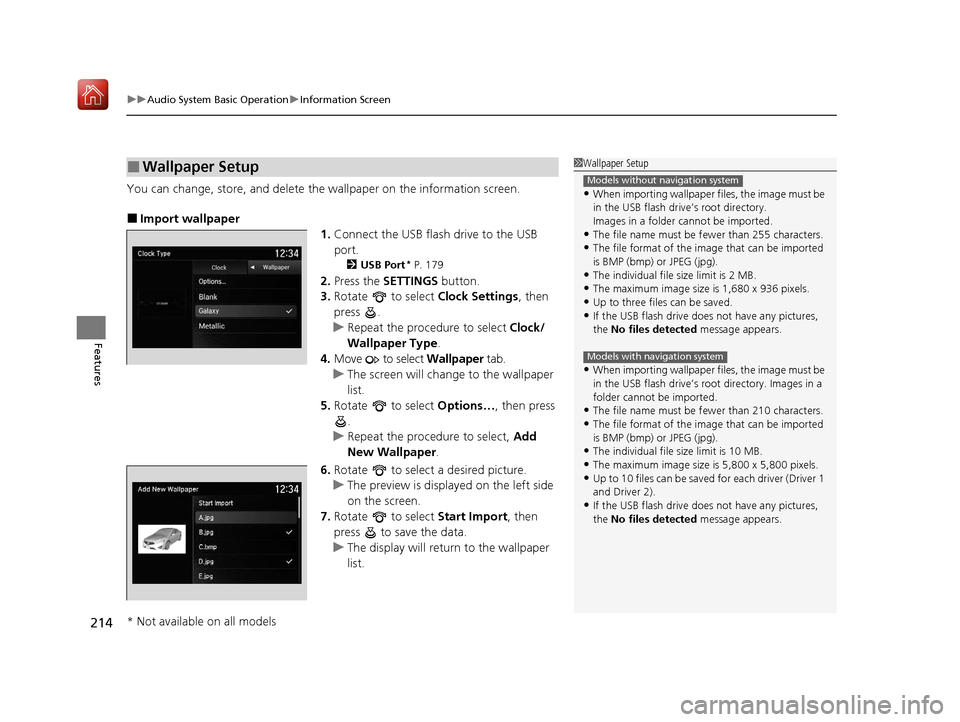
You can change, store, and delete the wallpaper on the information screen.
■Import wallpaper
1.Connect the USB flash drive to the USB
port.
2 USB Port* P. 179
2.Press the SETTINGS button.
3. Rotate to select Clock Settings, then
press .
u Repeat the procedure to select Clock/
Wallpaper Type .
4. Move to select Wallpaper tab.
u The screen will change to the wallpaper
list.
5. Rotate to select Options…, then press
.
u Repeat the procedure to select, Add
New Wallpaper .
6. Rotate to select a desired picture.
u The preview is displayed on the left side
on the screen.
7. Rotate to select Start Import, then
press to save the data.
u The display will return to the wallpaper
list.
■Wallpaper Setup1Wallpaper Setup
•When importing wallpaper files, the image must be
in the USB flash drive’s root directory.
Images in a folder cannot be imported.
•The file name must be fewer than 255 characters.
•The file format of the im age that can be imported
is BMP (bmp) or JPEG (jpg).
•The individual file size limit is 2 MB.
•The maximum image size is 1,680 x 936 pixels.
•Up to three files can be saved.•If the USB flash drive doe s not have any pictures,
the No files detected message appears.
•When importing wallpaper files, the image must be
in the USB flash drive’s root directory. Images in a
folder cannot be imported.
•The file name must be fewer than 210 characters.
•The file format of the im age that can be imported
is BMP (bmp) or JPEG (jpg).
•The individual file size limit is 10 MB.
•The maximum image size is 5,800 x 5,800 pixels.
•Up to 10 files can be saved for each driver (Driver 1
and Driver 2).
•If the USB flash drive doe s not have any pictures,
the No files detected message appears.
Models without navigation system
Models with navigation system
* Not available on all models
19 ACURA ILX-31TX66610.book 214 ページ 2020年4月17日 金曜日 午前8時52分
Page 223 of 621

uuAudio System Basic Operation uPlaying AM/FM Radio
222
Features
To store a station:
1. Tune to the selected station.
2. Select and hold the preset number you want to store that station.
Provides text data information related to your selected RDS-capable FM station.
■To find an RDS station from Station List
1. Select Stations .
2. Select station on the list.
■Manual update
Updates your available station list at any time.
1. Select Stations .
2. Select Refresh on the list.
■Preset Memory
■Radio Data System (RDS)
1Playing AM/FM Radio
You can control the AM/FM radio using voice
commands
*.
2 Voice Control Operation P. 218
The ST indicator appears on the display indicating
stereo FM broadcasts.
Stereo reproduction in AM is not available.
Switching the Audio Mode
Press the MODE button on the steering wheel.
2 Audio Remote Controls P. 181
You can store 6 AM stations and 12 FM stations into
the preset memory.
HD Radio Technology manufactured under license
from iBiquity Digital Cor poration. U.S. and Foreign
Patents. HD Radio
TM and the HD, HD Radio, and
“Arc” logos are proprietary trademarks of iBiquity
Digital Corp.
Models with HD RadioTM feature
* Not available on all models
19 ACURA ILX-31TX66610.book 222 ページ 2020年4月17日 金曜日 午前8時52分
Page 226 of 621

Continued225
uuAudio System Basic Operation uPlaying SiriusXM ® Radio
Features
1. Select the SiriusXM ® mode.
2Audio Remote Controls P. 181
2 On Demand Multi-Use DisplayTM P. 207
2.Select a channel using the , icons or the preset numbers ( 1-12) on the preset
mode screen.
■SiriusXM ® channel manual tune screen
1.Select Tune.
2. Enter the desired channel number using the
numeric keypad.
3. Select OK to tune into the channel.
You can also tune into the channel of your
choice following the procedures below
instead of inputting its channel number.
1. Touch the desired channel number on the
channel bar.
2. Select and hold the channel indicator, then
slide it to the desire d channel number on
the channel bar.
■To Play SiriusXM ® Radio1 Playing SiriusXM ® Radio
You can control the SiriusXM ® radio using voice
commands
*.
2 Voice Control Operation P. 218
In the channel mode, all available channels are
selectable. In the category mode, you can select a
channel within a ca tegory (Jazz, Rock, Classical, etc.).
There may be instances when SiriusXM ® Radio does
not broadcast all the data fi elds (artist name, title).
This does not indicate a problem with your audio
system.
SiriusXM ® Radio stations load in ascending order,
which can take about a minute. Once they have
loaded you will be able to scroll up or down to make
your selections.
Tune Start:
When you change a channel, a song being played on
that channel restarts from the beginning with this
function. This can be turned on or off from the Play
the Song from the Beginning setting.
2 Customized Features P. 310
1SiriusXM ® channel manual tune screen
Channel icons:
Select or to the previous or next channel.
Select and hold to rapidly sk ip 10 channels at a time.
Channel Indicator Channel Bar
Numeric Keypad
* Not available on all models
19 ACURA ILX-31TX66610.book 225 ページ 2020年4月17日 金曜日 午前8時52分
Page 237 of 621

uuAudio System Basic Operation uPlaying a CD
236
Features
1. Select Search .
2. Select a folder.
3. Select a track.
■How to Select a File from the Music Search List
(MP3/WMA/AAC)1 Playing a CD
NOTICE
Do not use CDs with adhesive labels. The label can
cause the CD to jam in the unit.
WMA and AAC files protected by digital rights
management (DRM) cannot be played.
The audio system skips to the next file.
Text data appears on the di splay under the following
circumstances:
•When you select a new folder, file, or track.•When you change the audio mode to CD.
•When you insert a CD.
If you eject the CD but do not remove it from the slot,
the system reloads the CD automatically after several
seconds.
Folder Selection
File Selection
19 ACURA ILX-31TX66610.book 236 ページ 2020年4月17日 金曜日 午前8時52分
Page 240 of 621
Continued239
uuAudio System Basic Operation uPlaying Hard Disk Drive (HDD) Audio
Features
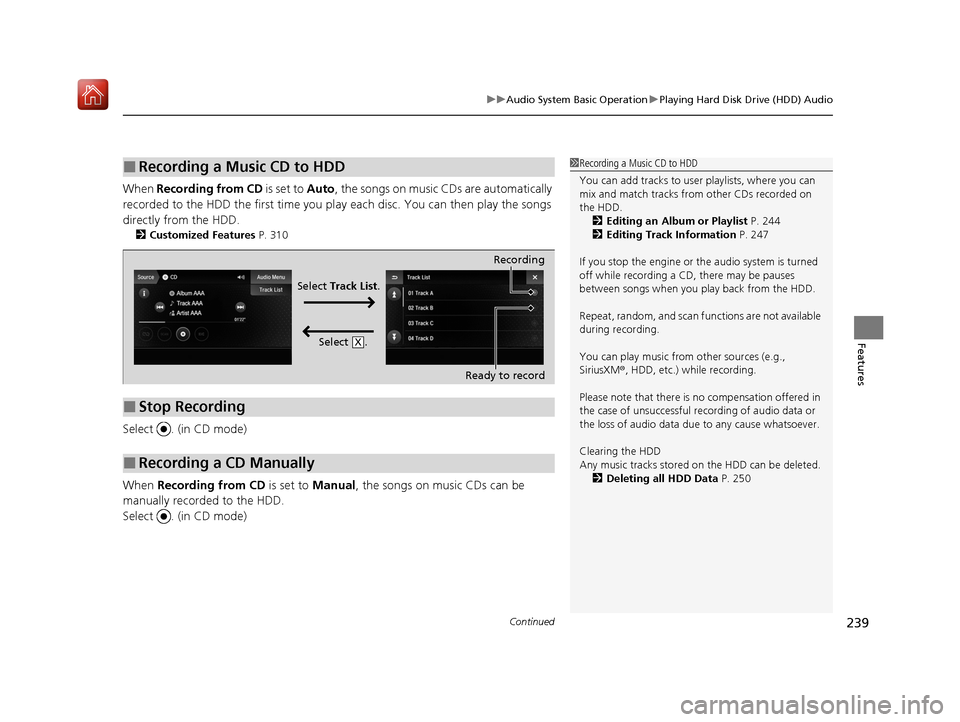
When Recording from CD is set to Auto, the songs on music CDs are automatically
recorded to the HDD the first time you pl ay each disc. You can then play the songs
directly from the HDD.
2 Customized Features P. 310
Select . (in CD mode)
When Recording from CD is set to Manual, the songs on music CDs can be
manually recorded to the HDD.
Select . (in CD mode)
■Recording a Music CD to HDD1 Recording a Music CD to HDD
You can add tracks to user playlists, where you can
mix and match tracks from other CDs recorded on
the HDD.
2 Editing an Album or Playlist P. 244
2 Editing Track Information P. 247
If you stop the engine or th e audio system is turned
off while recording a CD, there may be pauses
between songs when you play back from the HDD.
Repeat, random, and scan f unctions are not available
during recording.
You can play music from other sources (e.g.,
SiriusXM ®, HDD, etc.) while recording.
Please note that there is no compensation offered in
the case of unsuccessful re cording of audio data or
the loss of audio data due to any cause whatsoever.
Clearing the HDD
Any music tracks stored on the HDD can be deleted. 2 Deleting all HDD Data P. 250
■Stop Recording
■Recording a CD Manually
Recording
Ready to record
Select Track List .
Select .
X
19 ACURA ILX-31TX66610.book 239 ページ 2020年4月17日 金曜日 午前8時52分
Page 241 of 621

uuAudio System Basic Operation uPlaying Hard Disk Drive (HDD) Audio
240
Features
1. Select Browse .
2. Select the items on that menu.
u Title information is displayed if found in
the Gracenote ® Album Info (Gracenote ®
Media Database) stored on the HDD.
u The HDD has two types of playlists:
original playlists and user playlists. An
original playlist is automatically created
for each album when a music CD is
recorded.
■How to Select a Track from the Music Search List1 How to Select a Track from the Music Search List
You can control the HDD audio using voice
commands.
2 Voice Control Operation P. 218
2 Song By Voice
TM (SBV) P. 254
Music tracks recorded on HDD cannot be recorded
onto CDs or other devices.
Tracks are recorded at four times the playback speed
using ultra-efficient compression technology;
therefore, sound quality ma y vary slightly from the
original.
If the HDD is ever replaced, all music data is lost and
cannot be recovered.
If there is a problem, you may see an error message
on the On Demand Multi-Use Display
TM.
2 Hard Disk Drive (HDD) Audio P. 277
19 ACURA ILX-31TX66610.book 240 ページ 2020年4月17日 金曜日 午前8時52分
Page 250 of 621

Continued249
uuAudio System Basic Operation uPlaying Hard Disk Drive (HDD) Audio
Features
Update the Gracenote ® Album Info (Gracenote® Media Database) that is included
with the navigation system. 1.Select Audio Menu .
2. Select Audio Settings.
3. Select CD/HDD .
4. Insert the update disc into the disc slot or
connect the USB flash drive that includes
the update.
5. Select Update Gracenote Album
Information .
6. Select Update by CD or Update by USB .
u The system starts updating and the
confirmation message appears on the
screen. Select OK to finish.
■Updating Gracenote® Album Info1Updating Gracenote ® Album Info
To acquire updated files:
•Consult a dealer.
•U.S.: Visit www.acura.com .
•Canada: Visit www.acura.ca .
Once you perform an update, any information you
edited before will be overwritten or erased.
19 ACURA ILX-31TX66610.book 249 ページ 2020年4月17日 金曜日 午前8時52分