2018 VOLVO XC60 T8 remote control
[x] Cancel search: remote controlPage 472 of 674

||
STARTING AND DRIVING
* Option/accessory.
470 www.HomeLink.com, www.youtube.com/ HomeLinkGentex or call 1-800-355-3515.
Programming individual buttons
To program an individual HomeLink
®
button:
1. Press and hold the desired button for about 20 seconds.
2. When the indicator light on HomeLink ®
starts flashing slowly, it is possible to pro-gram as usual. Note: If the button you are reprogramming
does not program with a new device, it will return to the previously saved programming.
Resetting the HomeLink ®
buttons
It is only possible to reset all HomeLink ®
buttons
at once. It is not possible to reset individual but-tons. Individual buttons can only be reprogram-med.
–Press and hold the outer buttons (1 and 3) on HomeLink ®
for about 10 seconds.
> When the indicator light goes from a steady glow to flashing, the buttons have been reset and are ready for reprogram-ming.
Related information
• Using HomeLink (p. 470)
• HomeLink ®
* (p. 468)
• Type approval for HomeLink ®
* (p. 471)
Using HomeLink
Once HomeLink ®
is programmed, it can be
used instead of the separate remote controls.
Press and hold the programming button. The garage door, gate, alarm system, etc. will be acti-vated (this may take several seconds). If the but-ton is held down for more than 20 seconds,reprogramming will begin. The indicator light willglow steadily or flash when the button has beenpressed. The original remote controls may be used concurrently with HomeLink ®
if desired.
NOTE
If the ignition is off, HomeLink ®
works for
30 minutes after the driver's door has been opened.
WARNING
• If you use HomeLink ®
to open a garage
door or gate, be sure no one is near the gate or door while it is in motion.
• Do not use HomeLink ®
with any garage
door opener that lacks safety stop andreverse features as required by US fed-eral safety standards (this includes anygarage door opener model manufacturedbefore April 1, 1982). A garage door thatcannot detect an object - signaling thedoor to stop and reverse - does not meetcurrent U.S. federal safety standards. Formore information, contact HomeLink at:www.homelink.com.
Related information
• HomeLink ®
* (p. 468)
• Programming HomeLink ®
* (p. 469)
• Type approval for HomeLink ®
* (p. 471)
Page 512 of 674

AUDIO, MEDIA AND INTERNET
* Option/accessory.
510
Tips for using Android Auto *
Here are some useful tips for when you use Android Auto.
• Ensure that your apps are updated.
• When starting the car, wait until the center display has started, connect the phone andthen open Android Auto from the app view.
• In the event of problems with Android Auto,disconnect your Android phone from theUSB port and then reconnect via USB. Oth-erwise, try closing the app on the phone andthen restarting the app.
• When a phone is connected to Android Autoit is still possible to playback media viaBluetooth to another media player. TheBluetooth function is on when Android Autois used.
Related information
•
Android Auto
* (p. 508)
Phone
A phone equipped with Bluetooth can be wire- lessly connected to the vehicle's integratedhands-free system.
The audio and media system offers hands-free functionality for remotely controlling a number ofthe phone's features. The phone's integratedcontrols can also be used, even when it is con-nected to the vehicle. When the phone has been paired and connected to the vehicle, it can be used as an Internet con-nection or to make or receive calls, send orreceive text messages or wirelessly play music.
The phone is controlled fromthe center display but the Appmenu (accessed using theright-side steering wheel key-pad) and voice commands canalso be used to control certainfunctions.
Overview
Microphone.
Phone.
Phone handling in the center display.
Keypad for controlling phone functions shown in the center display and voice com-mands.
Instrument panel.
Related information
•Handling phone calls (p. 515)
• Managing the phone book (p. 517)
• Handling text messages (p. 516)
• Connecting a phone to the car via Bluetooth for the first time (p. 511)
Page 572 of 674
LOADING, STORAGE AND PASSENGER COMPARTMENT
* Option/accessory.
570
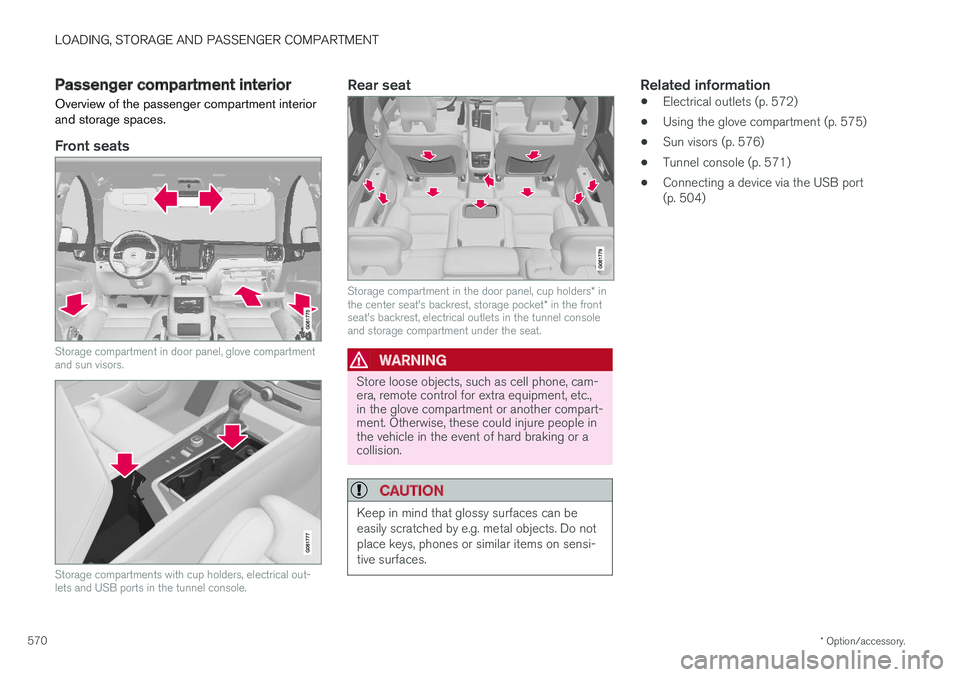
Passenger compartment interior
Overview of the passenger compartment interior and storage spaces.
Front seats
Storage compartment in door panel, glove compartment and sun visors.
Storage compartments with cup holders, electrical out- lets and USB ports in the tunnel console.
Rear seat
Storage compartment in the door panel, cup holders * in
the center seat's backrest, storage pocket * in the front
seat's backrest, electrical outlets in the tunnel console and storage compartment under the seat.
WARNING
Store loose objects, such as cell phone, cam- era, remote control for extra equipment, etc.,in the glove compartment or another compart-ment. Otherwise, these could injure people inthe vehicle in the event of hard braking or acollision.
CAUTION
Keep in mind that glossy surfaces can be easily scratched by e.g. metal objects. Do notplace keys, phones or similar items on sensi-tive surfaces.
Related information
• Electrical outlets (p. 572)
• Using the glove compartment (p. 575)
• Sun visors (p. 576)
• Tunnel console (p. 571)
• Connecting a device via the USB port (p. 504)
Page 573 of 674

LOADING, STORAGE AND PASSENGER COMPARTMENT
* Option/accessory.571
Tunnel console The tunnel console is located between the front seats.
Storage compartment with cover *. The cover
can be opened/closed by pressing the han- dle.
Storage compartment with a 12 V outlet and cup holders for the driver and passenger.
Storage compartment and USB port under the armrest.
Climate control panel for the rear seats * or
storage compartment.
WARNING
Store loose objects, such as cell phone, cam- era, remote control for extra equipment, etc.,in the glove compartment or another compart-ment. Otherwise, these could injure people inthe vehicle in the event of hard braking or acollision.
NOTE
One of the sensors for the alarm * is located
under the cup holder in the center console. Avoid placing coins, keys and other metalobjects in the cup holder as this could triggerthe alarm.
CAUTION
Keep in mind that glossy surfaces can be easily scratched by e.g. metal objects. Do notplace keys, phones or similar items on sensi-tive surfaces.
Related information
• Passenger compartment interior (p. 570)
• Electrical outlets (p. 572)
• Climate system controls (p. 208)
Page 592 of 674

||
MAINTENANCE AND SERVICE
590
Monthly:
•Check cold tire pressure in all tires. Inspect the tires for wear.
• Check that engine coolant and other fluidlevels are between the indicated "min" and"max" markings.
• Clean interior glass surfaces with a glasscleaner and soft paper towels.
• Wipe driver information displays with a softcloth.
• Visually inspect battery terminals for corro-sion. Corrosion may indicate a loose terminalconnector, or a battery near the end of itsuseful service life. Consult your Volvo retailerfor additional information.
As needed:
Wash the car, including the undercarriage, to reduce wear that can be caused by a buildup ofdirt, and corrosion that can be caused by salt res-idues. Clean leaves and twigs from air intake vents at the base of the windshield, and from other placeswhere they may collect.
NOTE
Complete service information for qualified technicians is available online for purchase orsubscription at www.volvotechinfo.com.
Related information
•Vehicle status (p. 592)
• Scheduling service and repairs (p. 593)
• Connecting equipment to the vehicle's data link connector (p. 36)
• Technician certification (p. 37)
• Climate control system service (p. 598)
• Maintenance of the brake system (p. 422)
• Engine compartment overview (p. 599)
Data transfer between vehicle andworkshop over Wi-Fi
Volvo workshops have a designated Wi-Fi net- work for secure data transfer between your vehi-cle and the workshop. Your visit to the workshopwill be easier and more effective when diagnos-tics information and software can be transferredover the workshop's network.
When you arrive at the workshop, your technician can connect your vehicle to the workshop's Wi-Finetwork to perform troubleshooting and down-load software. For this type of communication,the vehicle only connects to the workshop's net-work. The vehicle can only be connected to thedesignated workshop networks, not to any othernetwork, e.g. your home network.
Manual connection to workshop Wi-FiManual connection is usually performed by aservice technician. Because the technician usesthe buttons on your remote key to connect thevehicle, it is important that you bring a key withbuttons when taking the vehicle in to a workshop.Pressing the lock button on the remote key threetimes will connect the vehicle to the workshop'sWi-Fi network. When the car is connected to a Wi-Fi network, the
symbol appears in the center display.
Page 664 of 674

INDEX
662Gear indicator 432 Gear selector positions
automatic transmission 429
Glass laminated/reinforced 162
Glove compartment 575 Gracenote ® 501
Grocery bag holders 579
Gross vehicle weight 649
GSI - Gear shift indicator 432
Guide lines for Park Assist Camera 379
H
Handbrake 422, 423
Hand wash 629 Hard disk space 528
Hazard warning flashers 157
HDC 444
HD radio 484
Head restraint 191
Head-up display 138 activate and deactivate 140
cleaning 624
replacing windshield 598
settings 140
Heated washer nozzles 173 Heating Seats 209, 210
steering wheel 211, 212
windows 215, 217
Height adjustment 440, 443
high beams 152, 153
High engine temperature 458
Hill Descent Control 444, 445 activate with function button 445
Hill Start Assist 427 Hill Start Assist (HSA) 427
Hoisting the vehicle 595 HomeLink ® 468
programming 469
use 470
HomeLink ® remote control
programmable 468
Home safe lighting 157
Honk 192
Hood, opening 597
Horn 192
Hybrid battery 609 Charging 397Hybrid battery gauge 84
Hybrid gauge 83
I
IAQS (Interior Air Quality System) 200
IC (Inflatable Curtain) 60
ID, Volvo 26
Identification number 38
Ignition mode 417, 418
Immobilizer 242Electronic immobilizer 242
Indicator symbols 90
Individual drive mode 435
Infant seats 67
Inflatable curtain 60
Inflatable Curtain 60
Inflating tires 567 Inflation pressure adjusting 548
Checking 547
recommended 549
Inflation pressure monitoring 549 action 553
Status 552
Page 668 of 674

INDEX
666Private locking 256
activation/deactivation 257
PROPOSITION 65 WARNING 459
R
Radar sensor 288, 316 limitations 317
Radar unit 316
Radio 480 changing radio waveband and radio sta-
tion 481
HD radio 484
RBDS 484
search radio station 482
settings 483 SiriusXM ® Satellite radio 488, 489, 490
start 481
voice control 144
Radio favorites 483
Rain sensor 173, 174
Rain sensor's memory function 174
Raise the rear end 578
Rear camera 377, 378, 379, 381, 382, 384, 385
Rear seatclimate 208
folding backrest 188
head restraint 191
heating 210
Rear sensors 372, 373, 374, 375, 376 Rearview/door mirrors dimming 166
heating 217
interior 165
Rearview mirror 165 dimming 166
Rear window heating 217
washers 176
wipers 176
Recalls 45
Recommendations when driving 450
Recommendations when loading 577
Recovery 467
Red Key 238 settings 239
Refrigerant 598 climate system 654
Refueling filling 453
fuel filler door, fuel flap 452Remote immobilizer 242
Remote key 229battery replacement 234
connecting to driver profile 135
detachable key blade 240
loss 238
Range 233
Remote updates 591
Reporting safety defects 44
Resetting door mirrors 166
Resetting settings 131 change of owner 130
Driver profile 135
Resetting trip odometer 87
Road Sign Information 348, 349, 350 limitations 352
operation 349, 350, 351, 352
Road trip 450
Roll Stability Control 263
Roof load, max. weight 649
RSC (Roll Stability Control) 263
Run-off Mitigation 364, 365