2018 VOLVO XC60 On Call
[x] Cancel search: On CallPage 101 of 660

DISPLAYS AND VOICE CONTROL
}}
99
For the purposes of this copyright and license, "Contributing Authors" is defined as the followingset of individuals: Andreas DilgerDave MartindaleGuy Eric SchalnatPaul SchmidtTim WegnerThe PNG Reference Library is supplied "AS IS". The Contributing Authors and Group 42, Inc.disclaim all warranties, expressed or implied,including, without limitation, the warranties ofmerchantability and of fitness for any purpose.The Contributing Authors and Group 42, Inc.assume no liability for direct, indirect, incidental,special, exemplary, or consequential damages,which may result from the use of the PNGReference Library, even if advised of thepossibility of such damage. Permission is hereby granted to use, copy, modify, and distribute this source code, orportions hereof, for any purpose, without fee,subject to the following restrictions:
1. The origin of this source code must not be
misrepresented.
2. Altered versions must be plainly marked as such and must not be misrepresented as being the original source. 3. This Copyright notice may not be removed or
altered from any source or altered sourcedistribution.
The Contributing Authors and Group 42, Inc.specifically permit, without fee, and encouragethe use of this source code as a component tosupporting the PNG file format in commercialproducts. If you use this source code in a product,acknowledgment is not required but would beappreciated. A "png_get_copyright" function is available, for convenient use in "about" boxes and the like: printf("%s",png_get_copyright(NULL));Also, the PNG logo (in PNG format, of course) is supplied in the files "pngbar.png" and"pngbar.jpg (88x31) and "pngnow.png" (98x31). Libpng is OSI Certified Open Source Software. OSI Certified Open Source is a certification markof the Open Source Initiative. Glenn Randers-Pehrson [email protected] April 15, 2002
MIT License
Copyright (c)
Permission is hereby granted, free of charge, to any person obtaining a copy of this software andassociated documentation files (the "Software"),to deal in the Software without restriction,including without limitation the rights to use,copy, modify, merge, publish, distribute, sublicense, and/or sell copies of the Software,and to permit persons to whom the Software isfurnished to do so, subject to the followingconditions: The above copyright notice and this permission notice shall be included in all copies orsubstantial portions of the Software. THE SOFTWARE IS PROVIDED "AS IS", WITHOUT WARRANTY OF ANY KIND,EXPRESS OR IMPLIED, INCLUDING BUT NOTLIMITED TO THE WARRANTIES OFMERCHANTABILITY, FITNESS FOR APARTICULAR PURPOSE ANDNONINFRINGEMENT. IN NO EVENT SHALLTHE AUTHORS OR COPYRIGHT HOLDERS BELIABLE FOR ANY CLAIM, DAMAGES OROTHER LIABILITY, WHETHER IN AN ACTIONOF CONTRACT, TORT OR OTHERWISE,ARISING FROM, OUT OF OR IN CONNECTIONWITH THE SOFTWARE OR THE USE OROTHER DEALINGS IN THE SOFTWARE.
Page 103 of 660

DISPLAYS AND VOICE CONTROL
}}
101
AppFunctions
Trip com- puter Select a trip odometer, changeinstrument panel display set-tings, etc.
Media player Select active source for media player.
Phone Call a contact from the call list.
Navigation Guide to destination, etc.
Related information
• Instrument panel (p. 80)
• Center display overview (p. 107)
• Handling the App menu in the instrument panel (p. 101)
Handling the App menu in theinstrument panel
The App (application) menu in the instrument panel is controlled using the right-side steeringwheel keypad.
App menu and right-side steering wheel keypad.
Open/close
Left/right
Up/down
Confirm
Opening and closing the app menu
–Tap open/close (1). (The App menu cannot be opened while there is an unacknowledged message in theinstrument panel. The message must be con-firmed before the App menu can be opened.)
> The App men opens/closes.
The App menu turns off automatically after a period of inactivity or after certain selections aremade.
Navigating and making selections in the
App menu
1. Navigate among the apps available by press- ing the left/right arrow keys (2).
> Functions for the previous/next app willbe shown in the App menu.
2. Scroll through the functions for the selected app using the up or down arrows (3).
3. Confirm or make a selection for the function by pressing confirm (4).
> The function will be activated and, forsome selections, the App menu will then close.
The next time the App menu is opened, the func-tions for the most recently selected app will bedisplayed automatically.
Page 105 of 660

DISPLAYS AND VOICE CONTROL
}}
103
Service messages
The following table lists a selection of important service messages and what they mean.
MessageMeaning
Stop safelyAStop and switch off the engine. Serious risk ofdamage - contact a work- shopB
.
Turn off engineA Stop and switch off the engine. Serious risk ofdamage - contact a work- shop
B
.
Service urgent Drive to work- shop
A Contact a workshop
B
to
have the vehicle inspected immediately.
Service requiredA Contact a workshop
B
to
have the vehicle inspected as soon as possible.
Regular main- tenance Book time for maintenanceTime for service - contact a workshop B
. Shown
before the next service date.
Regular main- tenance Time for main- tenanceTime for service - contact a workshop B
. Shown on
the next service date.
MessageMeaning
Regular main- tenance Maintenance overdueTime for service - contact a workshop B
. Shown when
the date for service has passed.
Temporarily offA A function has been tem- porarily deactivated andwill be reactivated auto-matically while driving orafter the engine is restar-ted.
A
Part of message, shown along with information on the location of the problem.
B An authorized Volvo workshop is recommended.
Related information
• Handling messages in the instrument panel (p. 103)
• Handling messages saved from the instru-ment panel (p. 105)
• Messages in the center display (p. 138)
Handling messages in theinstrument panel
Messages in the instrument panel are controlled using the right-side steering wheel keypad.
Page 106 of 660
||
DISPLAYS AND VOICE CONTROL
104
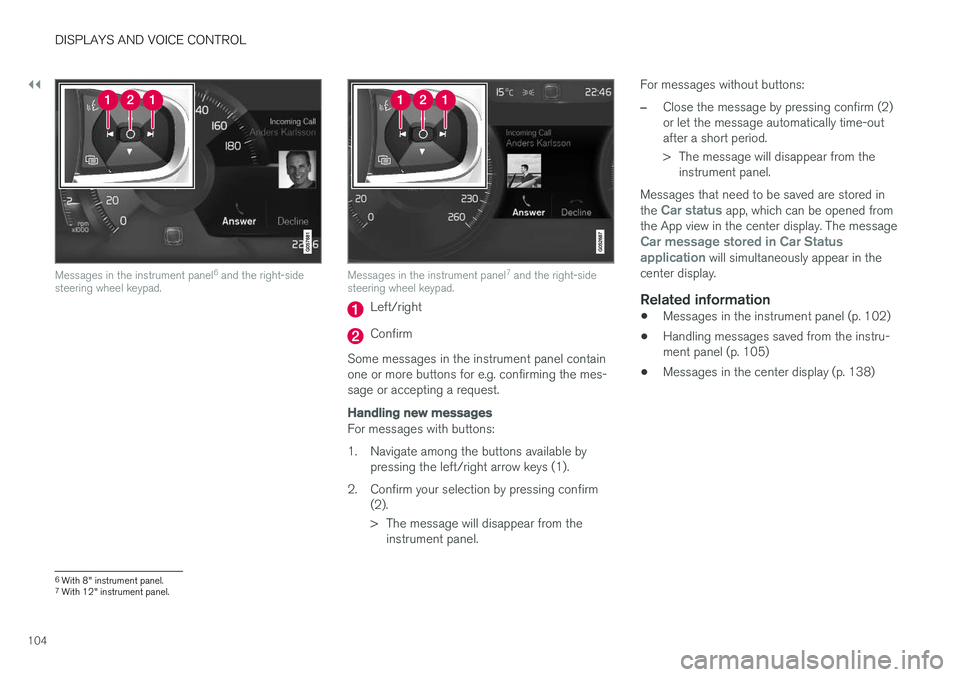
Messages in the instrument panel6
and the right-side
steering wheel keypad.Messages in the instrument panel 7
and the right-side
steering wheel keypad.
Left/right
Confirm
Some messages in the instrument panel contain one or more buttons for e.g. confirming the mes-sage or accepting a request.
Handling new messages
For messages with buttons:
1. Navigate among the buttons available by pressing the left/right arrow keys (1).
2. Confirm your selection by pressing confirm (2).
> The message will disappear from theinstrument panel. For messages without buttons:
–Close the message by pressing confirm (2) or let the message automatically time-outafter a short period.
> The message will disappear from the
instrument panel.
Messages that need to be saved are stored in the
Car status app, which can be opened from
the App view in the center display. The message
Car message stored in Car Status application will simultaneously appear in the
center display.
Related information
• Messages in the instrument panel (p. 102)
• Handling messages saved from the instru- ment panel (p. 105)
• Messages in the center display (p. 138)
6
With 8" instrument panel.
7 With 12" instrument panel.
Page 107 of 660

DISPLAYS AND VOICE CONTROL
}}
105
Handling messages saved from theinstrument panel
Messages saved from the instrument panel and center displays are handled in the center display.
Saved messages can be viewed in the Car Status app.
The messages displayed in the instrument panel that need to be saved are stored in the
Car
status app in the center dis-
play. The message Car
message stored in Car Status application
will simul-
taneously appear in the center display.
Reading saved messages
To read a saved message immediately:
–Tap the button to the right of the messageCar message stored in Car Status application in the center display.
> The saved message will be displayed in the
Car status app.
To read saved messages at a later time: 1. Open the
Car status app from App view in
the center display.
> The app will open in the bottom tile of Home view.
2. Select the
Messages tab in the app.
> A list of saved messages will be displayed.
3. Tap a message to expand/minimize it. > More information about the message willappear in the list and the image to the left of the app will display information aboutthe message in graphic form.
Handling saved messages
In expanded form, some messages have two but- tons available for booking service or reading theOwner's Manual. Booking service for saved messages:
–With the message in expanded form, tapRequest appoint.Call to make Appointment8
for assistance booking serv-
ice. > With
Request appoint.: TheAppointments tab will open in the app
and create a request for a service/repair appointment. With
Call to make Appointment: The
phone app will open and call a service center to make an appointment for serviceor repairs.
Reading the Owner's Manual for saved mes-sages:
–With the message in expanded form, tapOwner's manual to read relevant informa-
tion about the message in the Owner's Man- ual.
> The Owner's Manual will open in the cen- ter display and provide information related to the message.
Saved messages in the app are automaticallydeleted each time the engine is started.
8 Market dependent. Volvo ID and selected workshop also need to be registered
Page 110 of 660

||
DISPLAYS AND VOICE CONTROL
* Option/accessory.
108
Three of the center display's basic views. Swipe to the right/left to access Function or App view 9
.
Function view ‒ vehicle functions that can be
activated or deactivated with one tap. Certain functions, called "trigger functions", open windows with settings options. One example
is the Camera. Settings for the head-up dis-
play * are also started from Function view, but
9
In right-hand drive vehicles, these views are mirror images of the ones shown here.
Page 113 of 660

DISPLAYS AND VOICE CONTROL
}}
* Option/accessory.111
ProcedureGestureResult
Drag
Moves between screen views or scrolls in a list, text or a view. Press and hold to drag apps or points on a map *.
Drag horizontally or vertically over the screen.
Swipe Moves between screen views or scrolls in a list, text or a view. Drag horizontally or vertically over the screen.
Note that touching the upper part of the screen could cause Top view to open.
Stretch Zooms in.
Pinch Zooms out.
Page 115 of 660

DISPLAYS AND VOICE CONTROL
}}
* Option/accessory.113
Activating and deactivating thecenter display
The center display can be dimmed and reactiva- ted using the home button under the screen.
Center display's home button.
When the home button is used, the screen will go dark and the touchscreen no longer reacts totouch. The climate bar will remain visible. All func-tions connected to the screen continue to oper- ate, such as climate, audio, guiding * and apps.
The center display screen can be cleaned when the display is dimmed. The dimming function can also be used to darken the screen so it is not adistraction while driving. 1. Press and hold the button beneath the
screen.
> The screen will go dark (the climate barwill remain visible). All functions con- nected to the screen continue to operate.
2. To reactivate the screen, briefly press the Home button.
> The view that was displayed before thescreen was turned off will be displayed again.
NOTE
The screen cannot be turned off when a prompt to perform an action is being dis-played on the screen.
NOTE
The center display is turned off automatically when the engine is off and the driver's door isopened.
Related information
• Cleaning the center display (p. 609)
• Changing the appearance of the center dis- play (p. 129)
• Center display overview (p. 107)
Navigating in the center display'sviews
There are five different basic views in the center display: Home view, Top view, Climate view, Appview and Function view. The screen is automati-cally activated when the driver's door is opened.
Home viewHome view is the view displayed when the screen is activated. It consists of four tiles: Navigation,Media, Phone and a fourth tile.
An app or vehicle function selected from the App or Function views will start in the respective tile in Home view. For example,
FM radio will start in
the Media tile.
The fourth tile contains the most recently used app or vehicle function that is not related to theother three tiles. The tiles display brief information about the respective apps.
NOTE
When the vehicle is started, information on the current status of apps will be displayed inthe respective tile in Home view.